Getting Started
Download and Launch

webRios is available on the App Store. Tap the badge below to download:

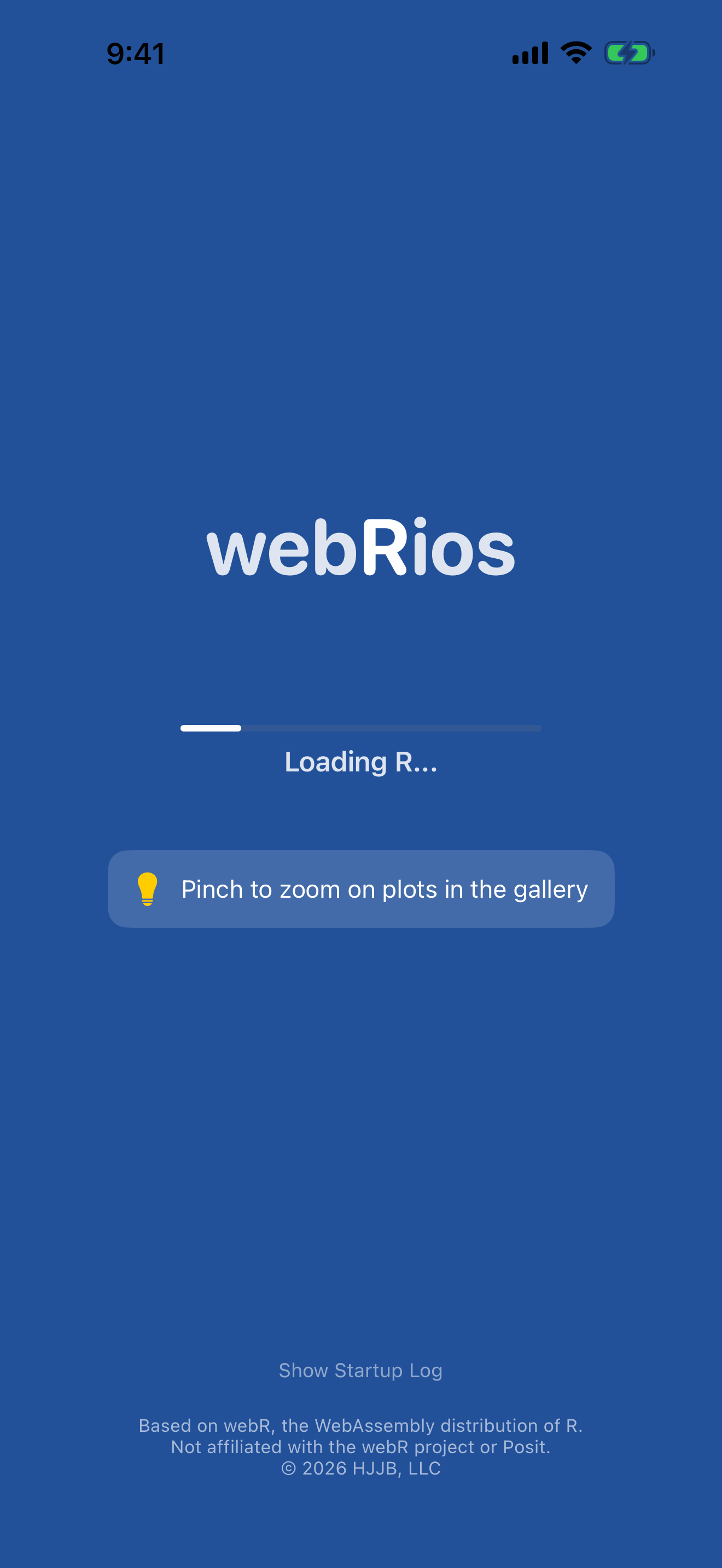
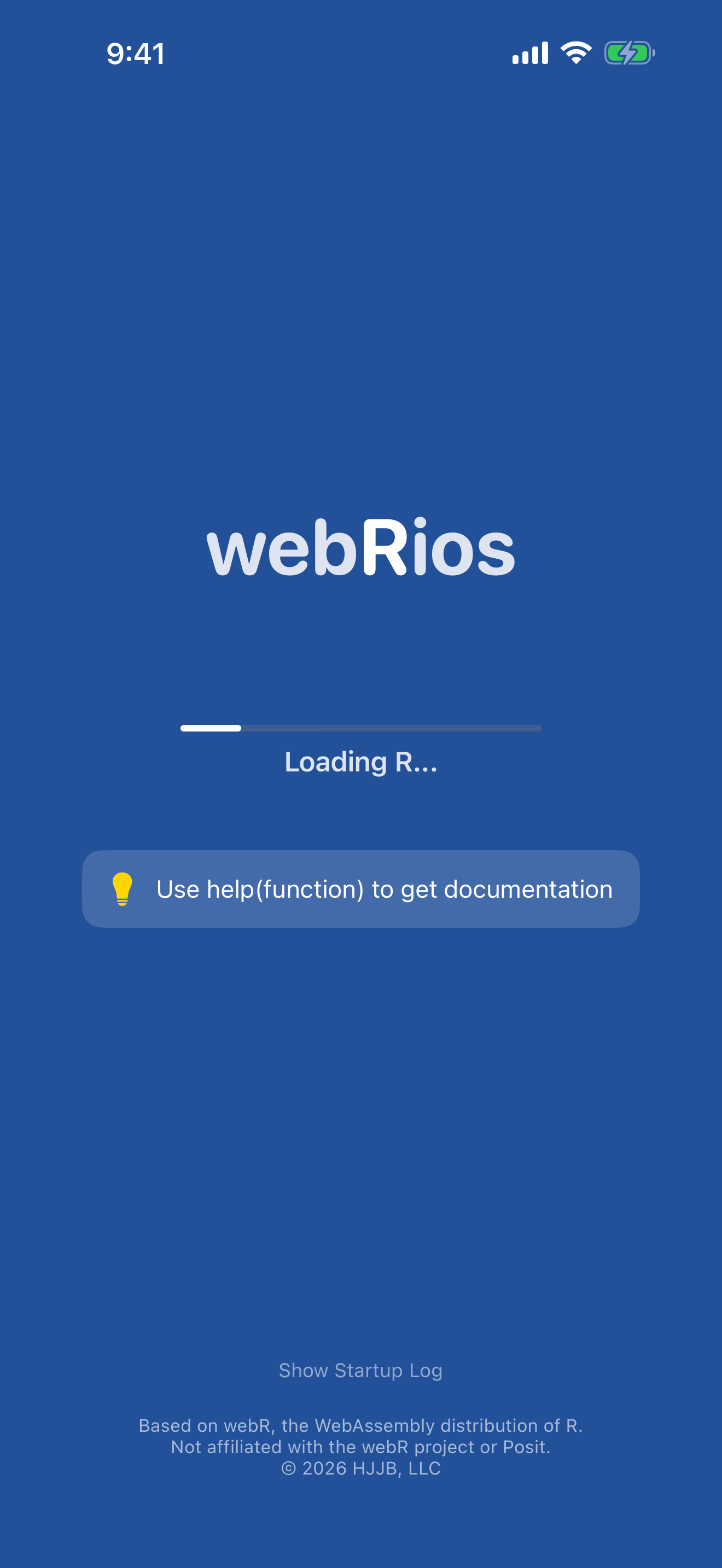
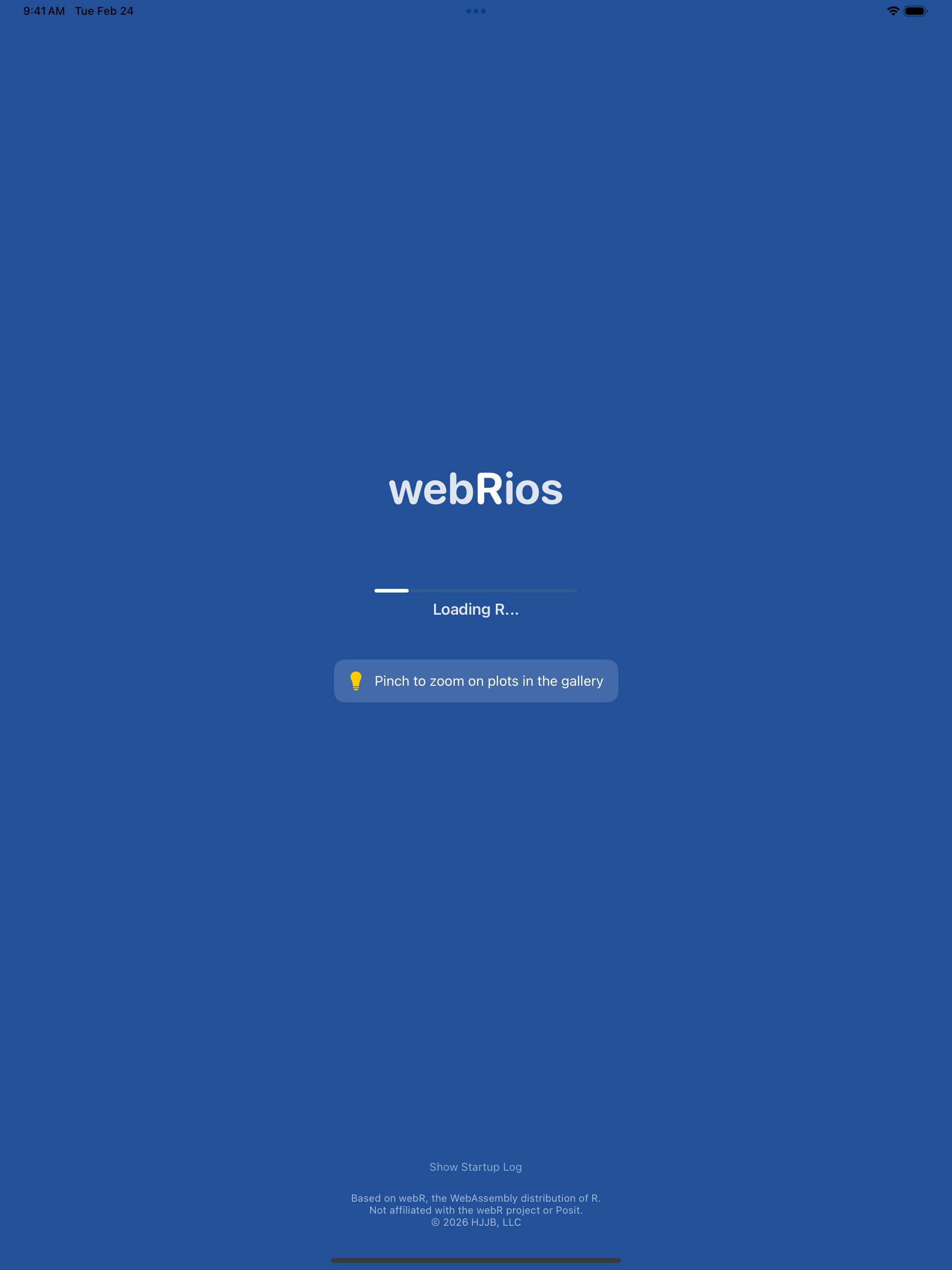
Once installed, tap the webRios icon on your home screen to open the app. On first launch, you’ll see a loading screen with a progress bar while the R runtime initializes. This takes 5–15 seconds.
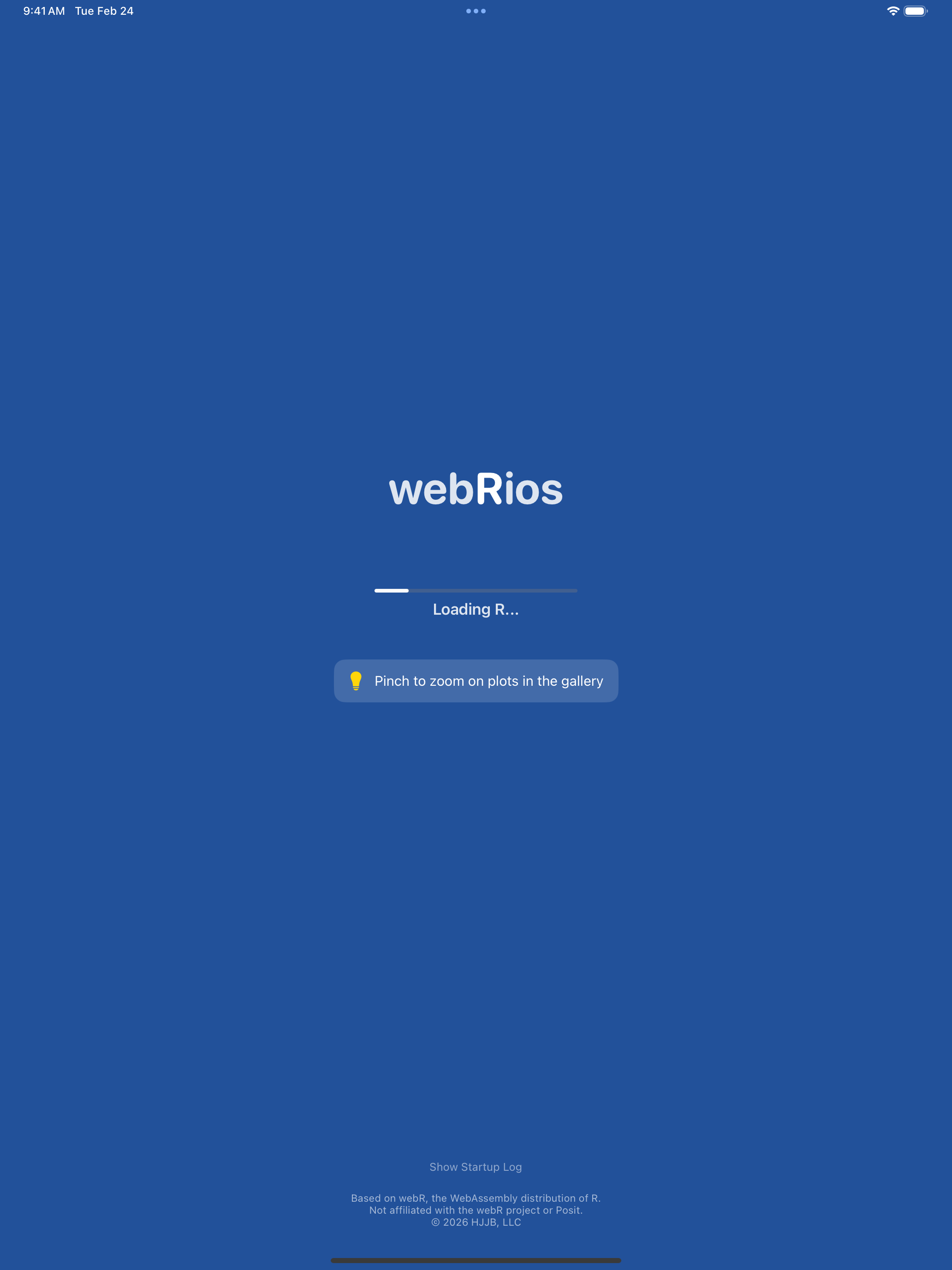
Subsequent launches are faster because your device caches the initialized runtime.
Take the Tour
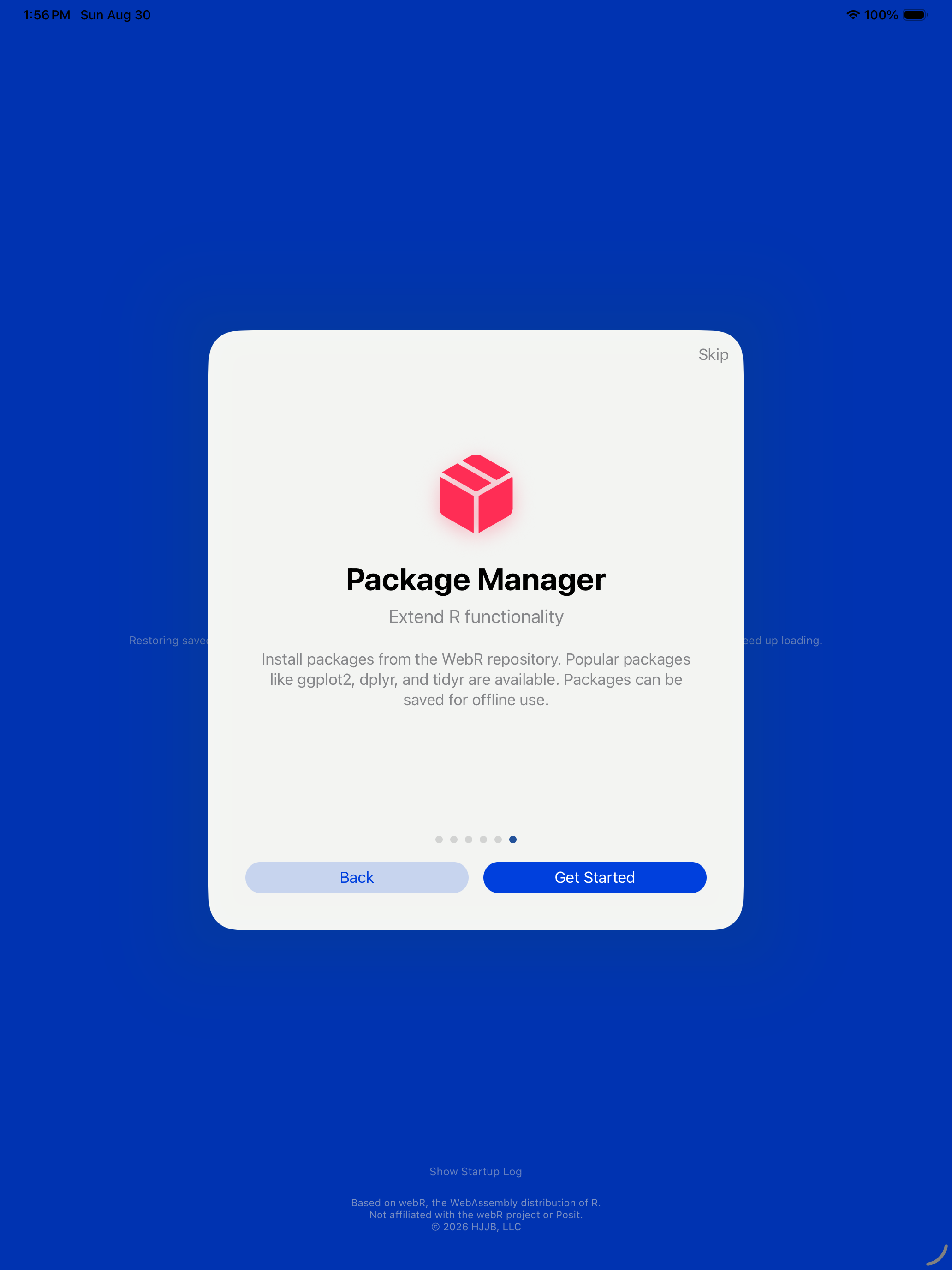
The first time you open webRios it walks you through the app in five steps. Each one names a tab and what you would use it for. You can leave at any point with Skip, and replay the whole thing later from Settings > Help & Resources > Show Tutorial, so there is no cost to skipping it now and coming back.
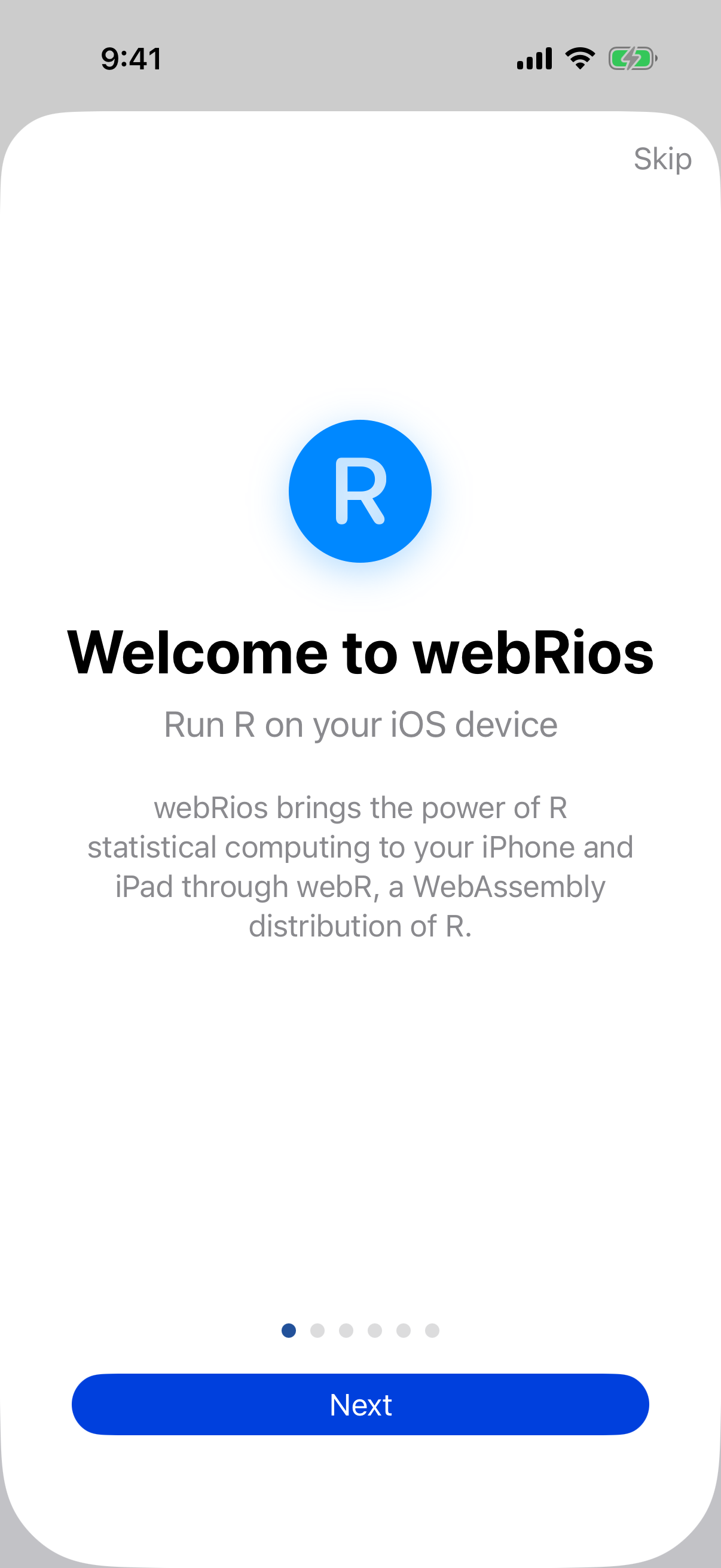
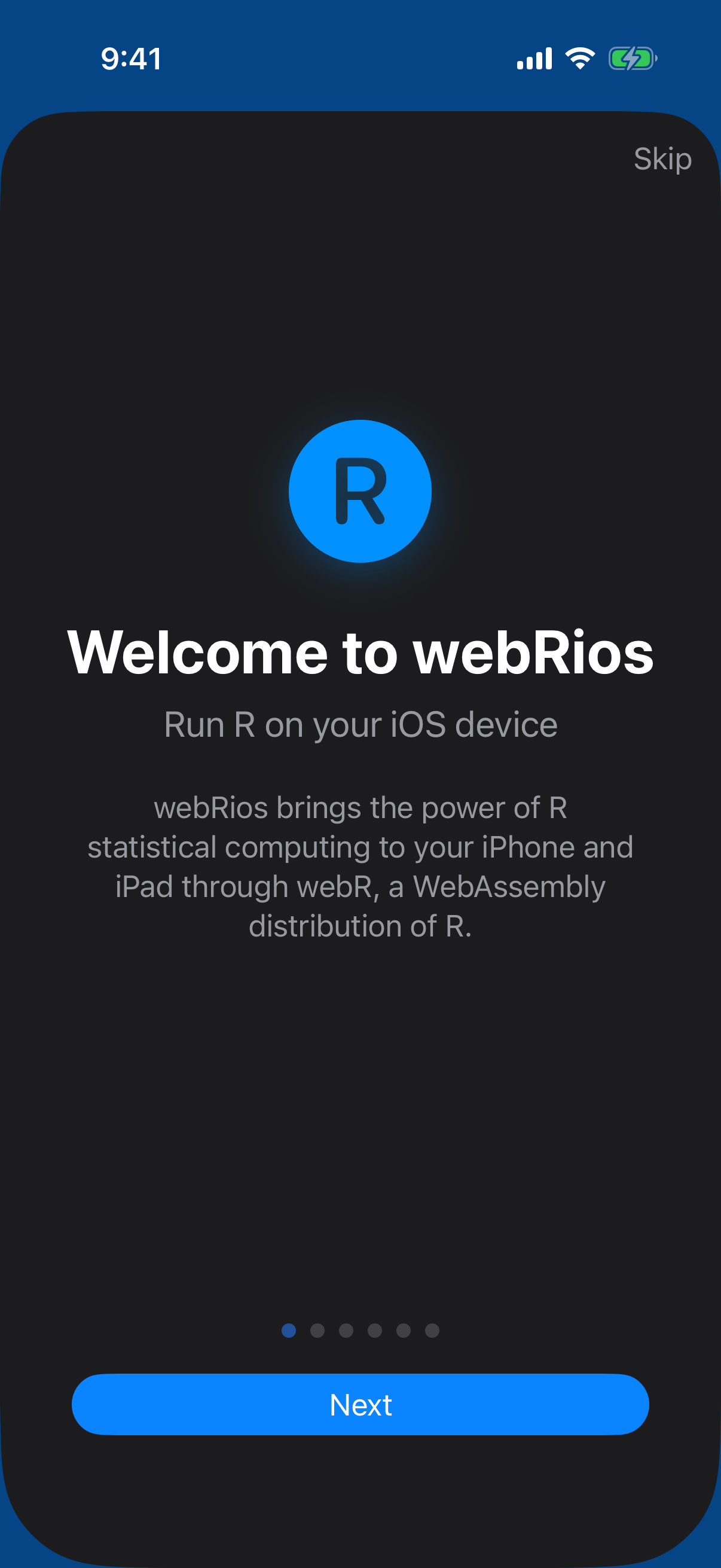
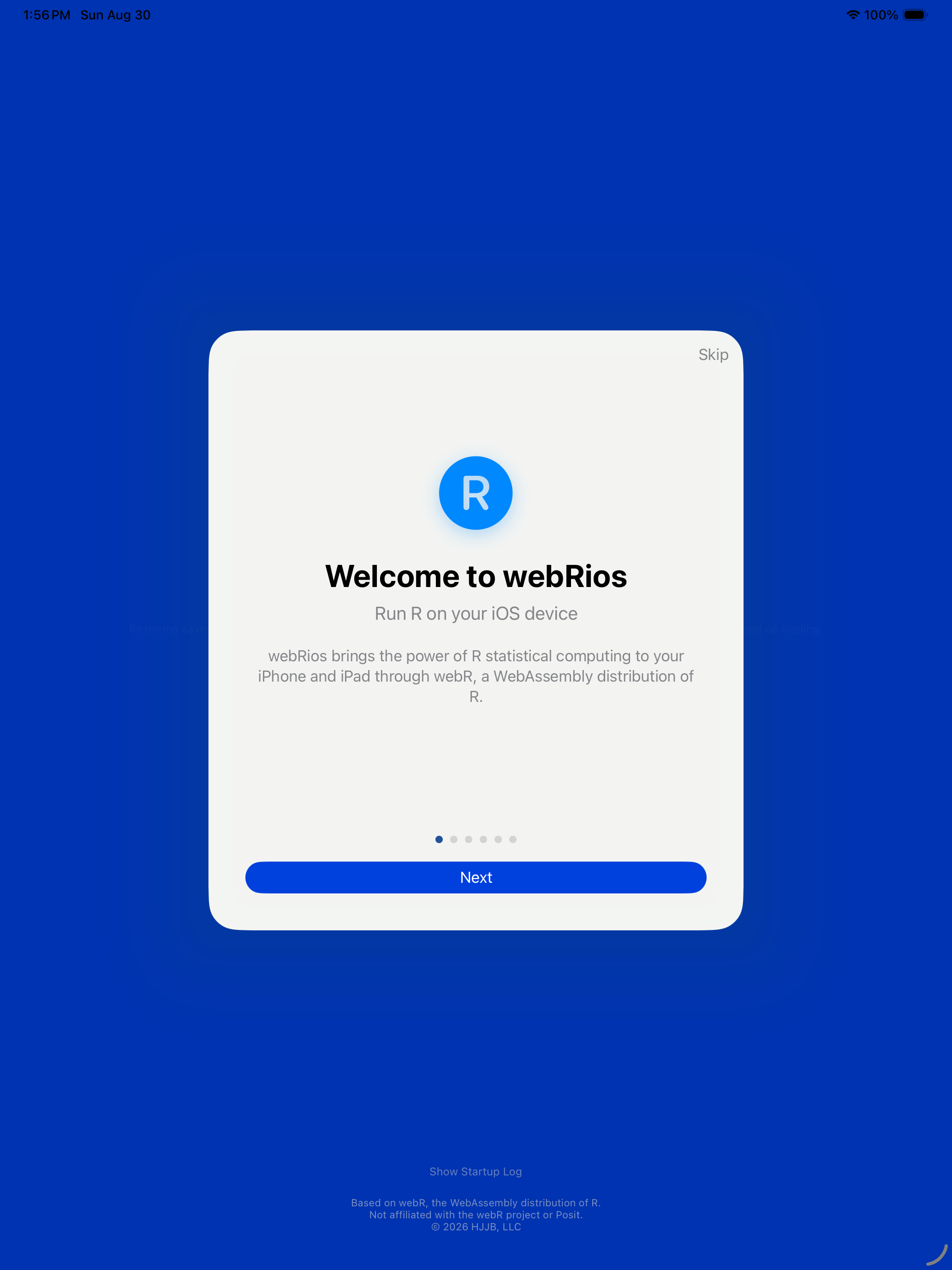
The tour then introduces each of the main tabs in turn.
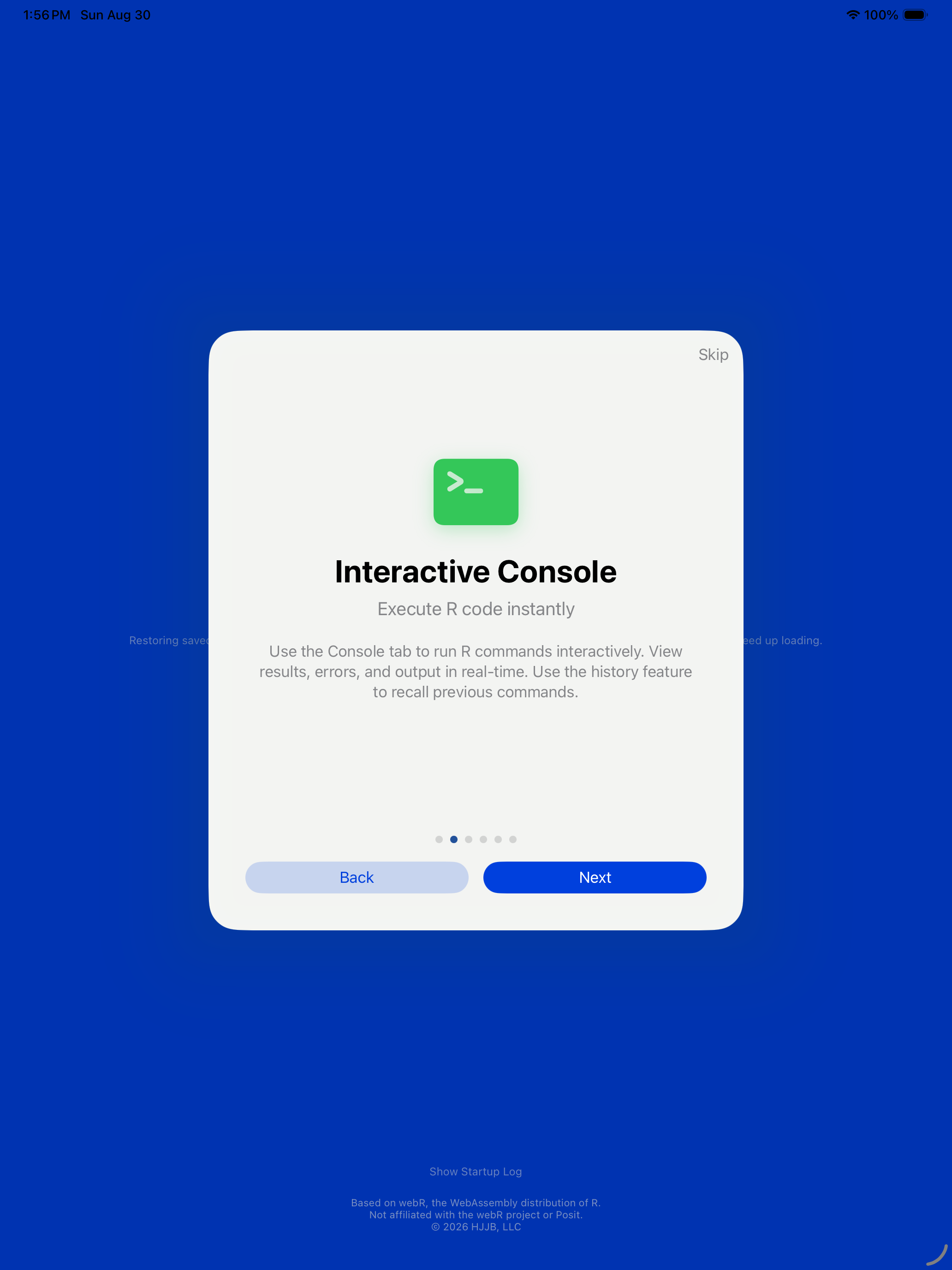
Console
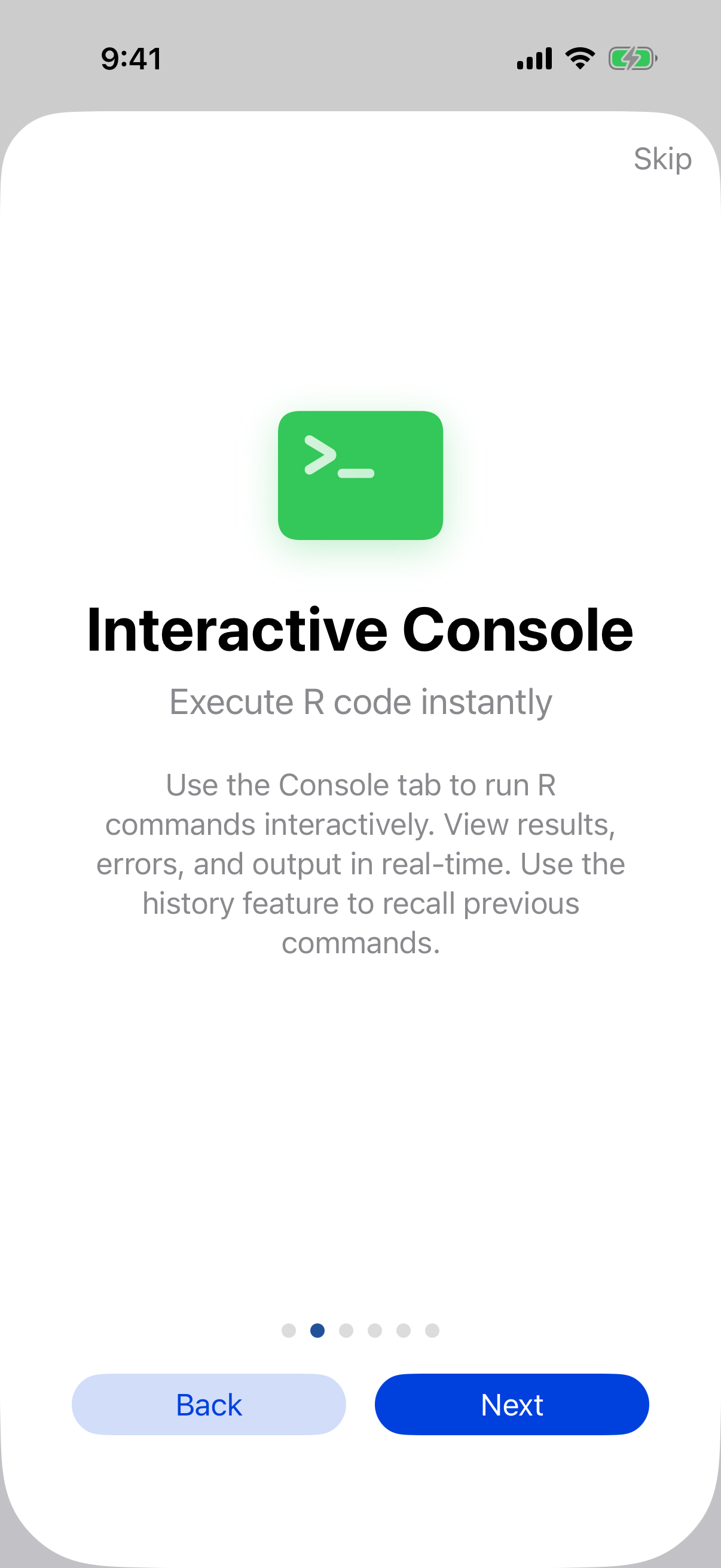
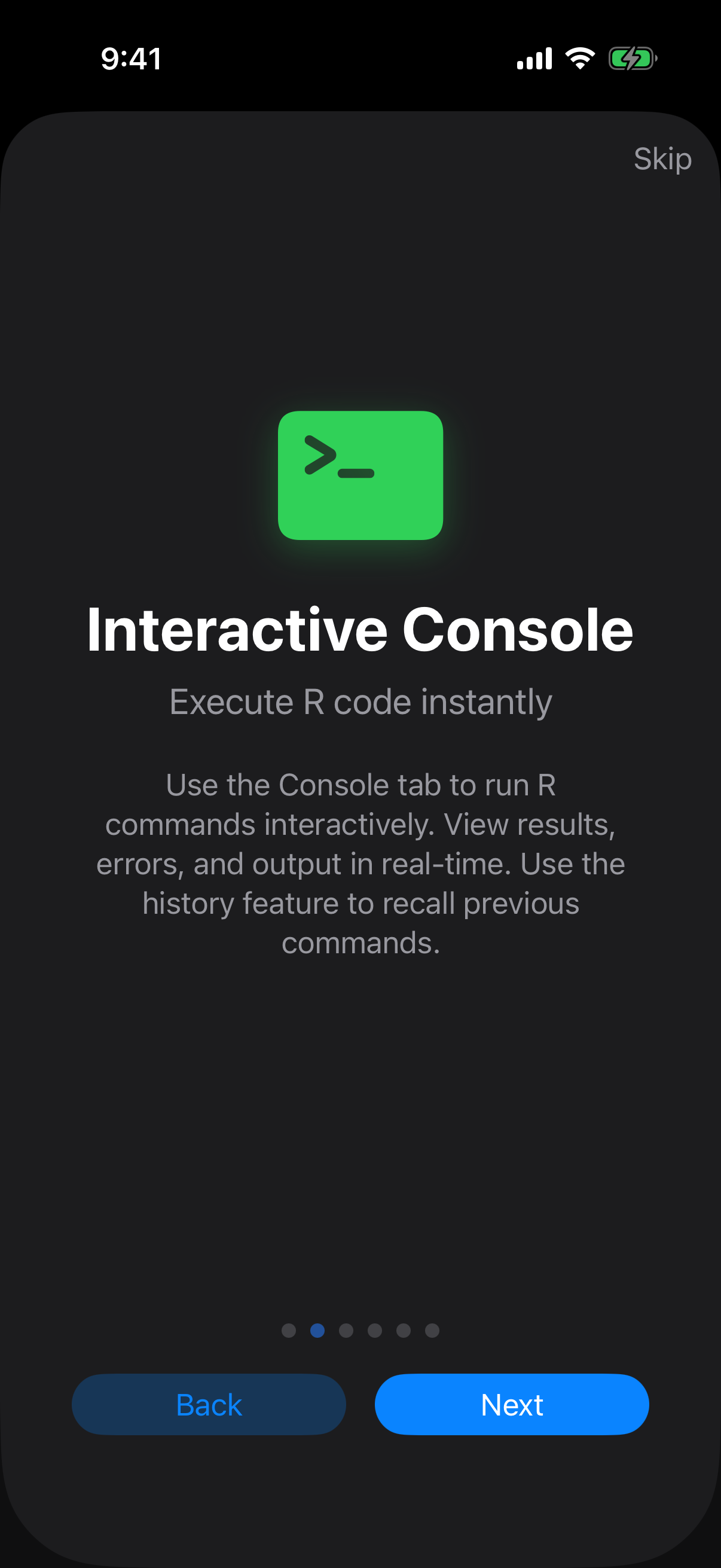
The Console step shows where you type R and see results immediately.
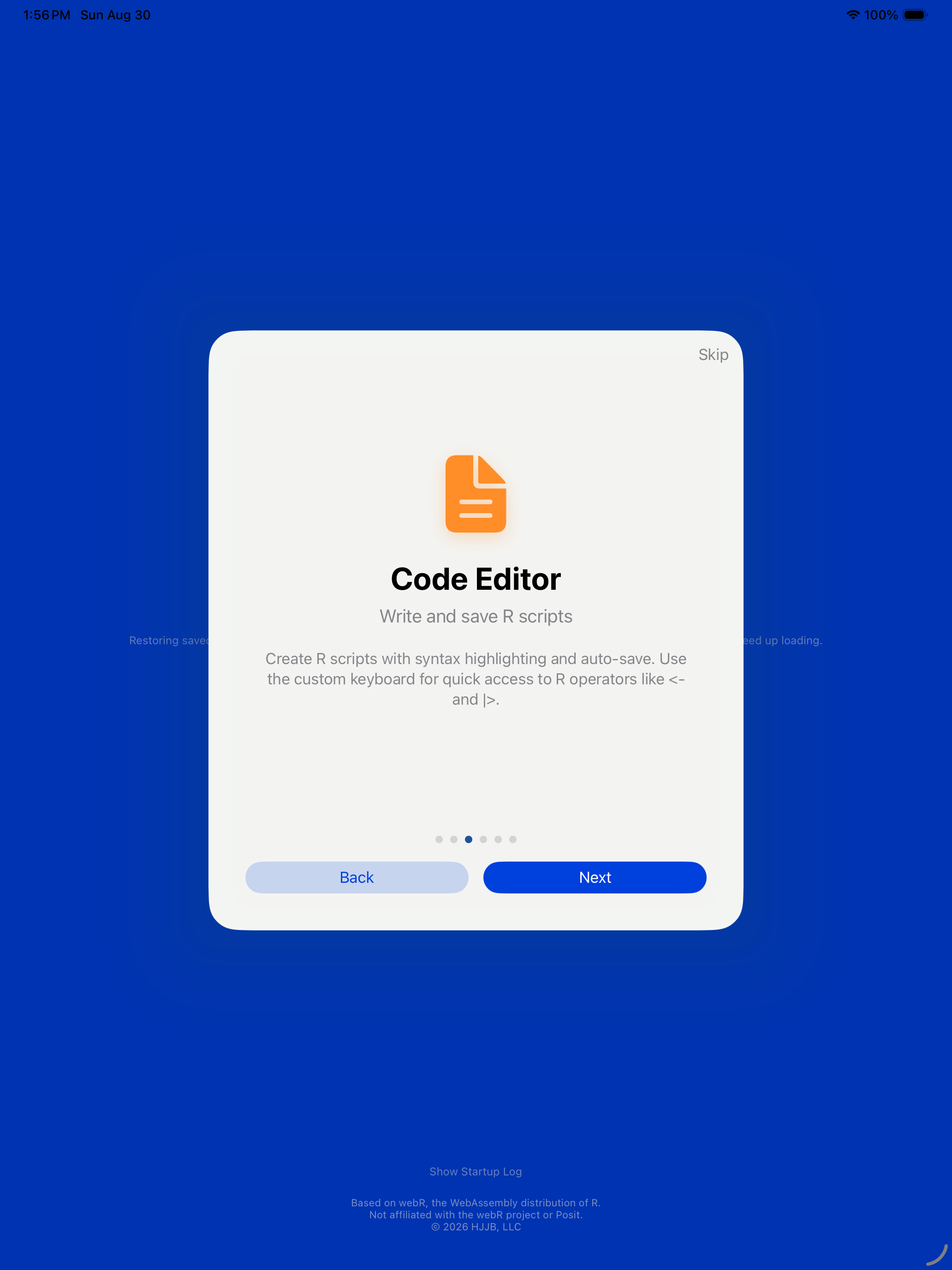
Editor
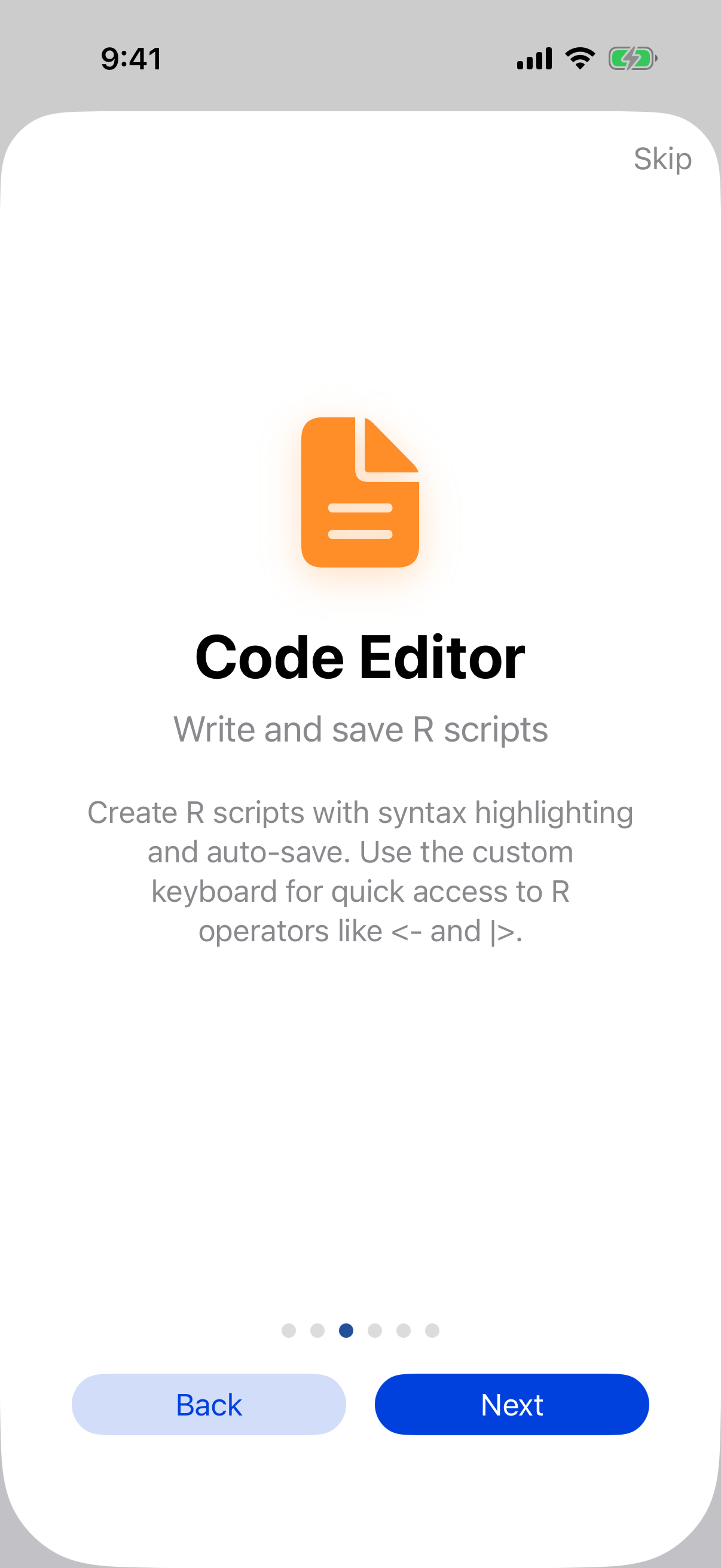
The Editor step introduces the place for scripts you want to keep and re-run.
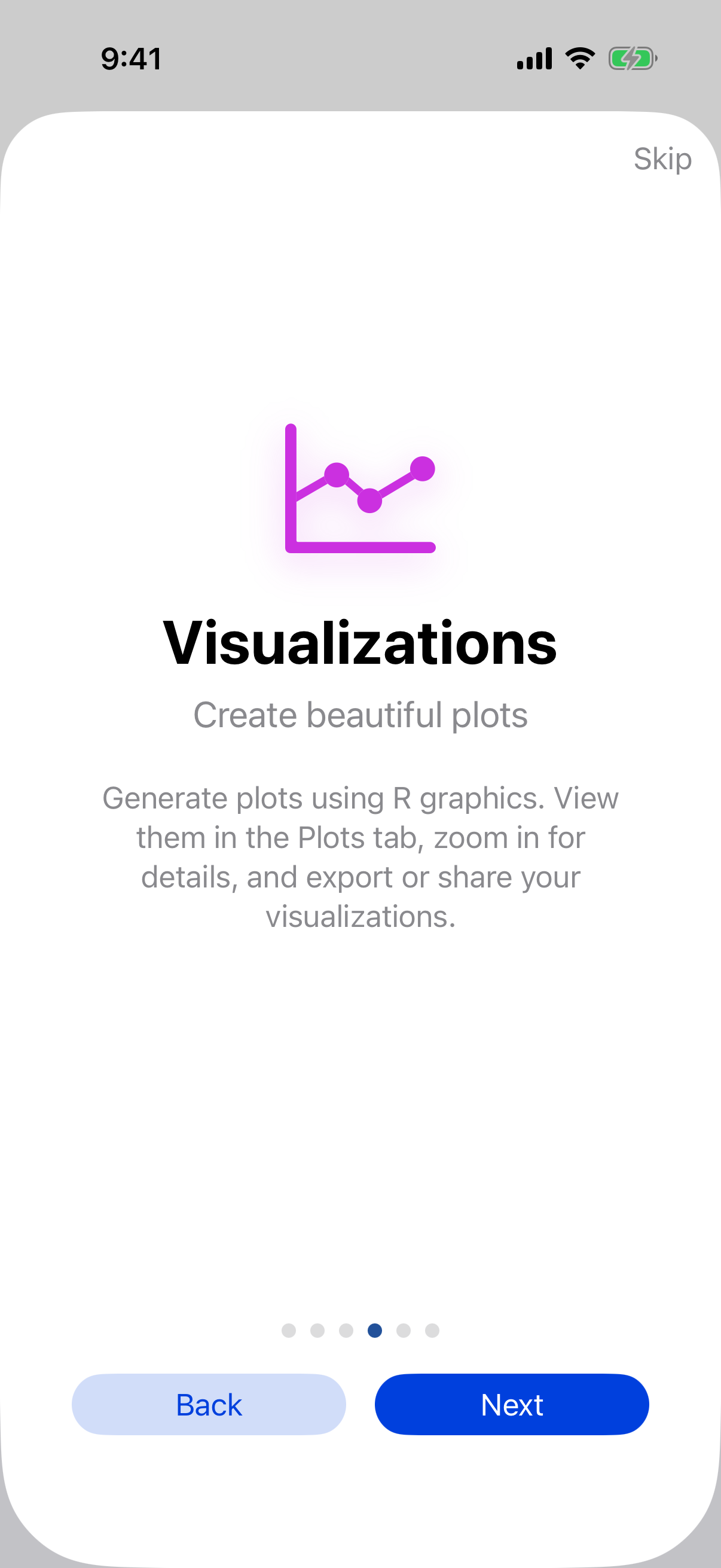
Plots
The Plots step shows the gallery where your charts are collected.
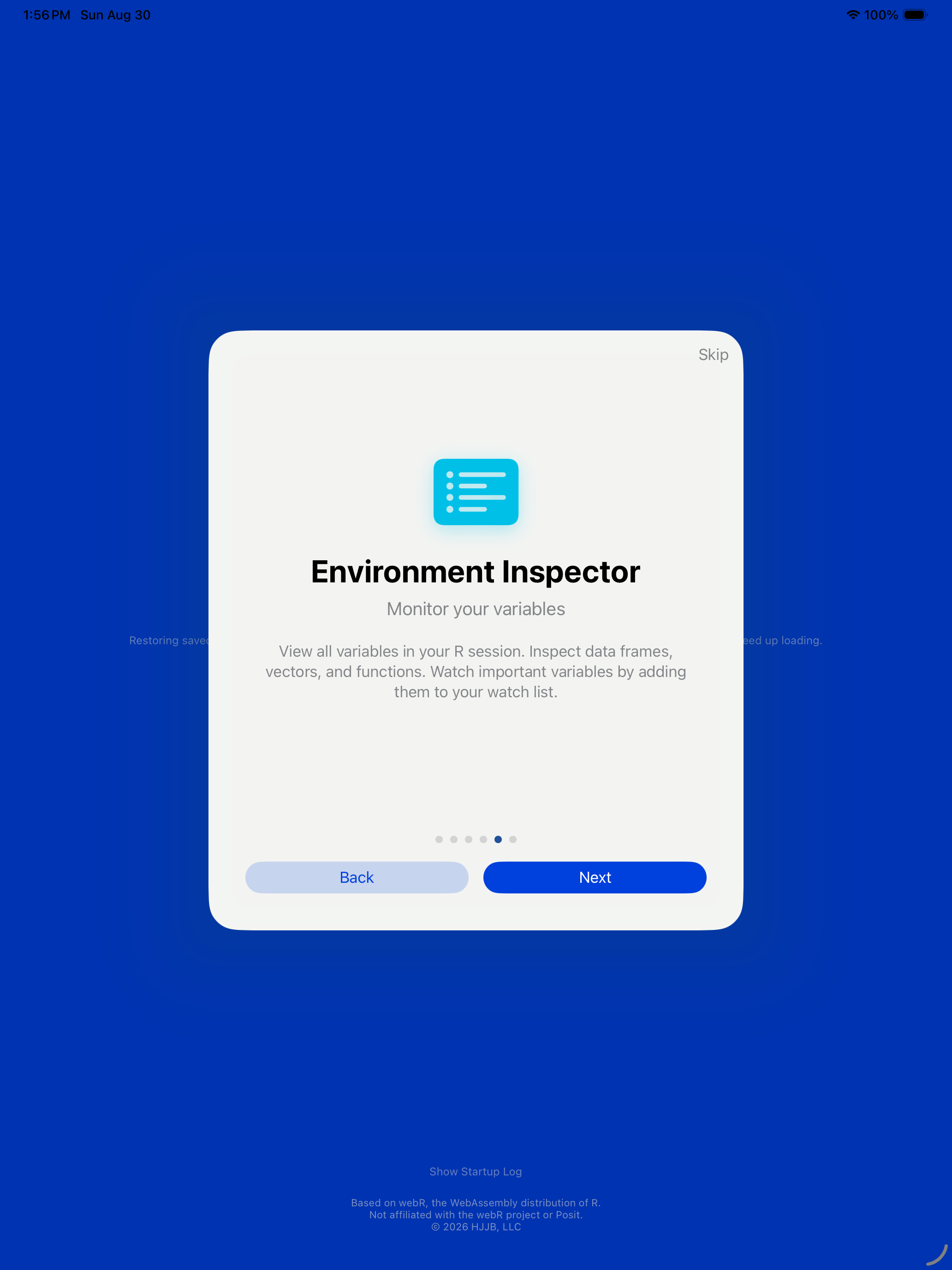
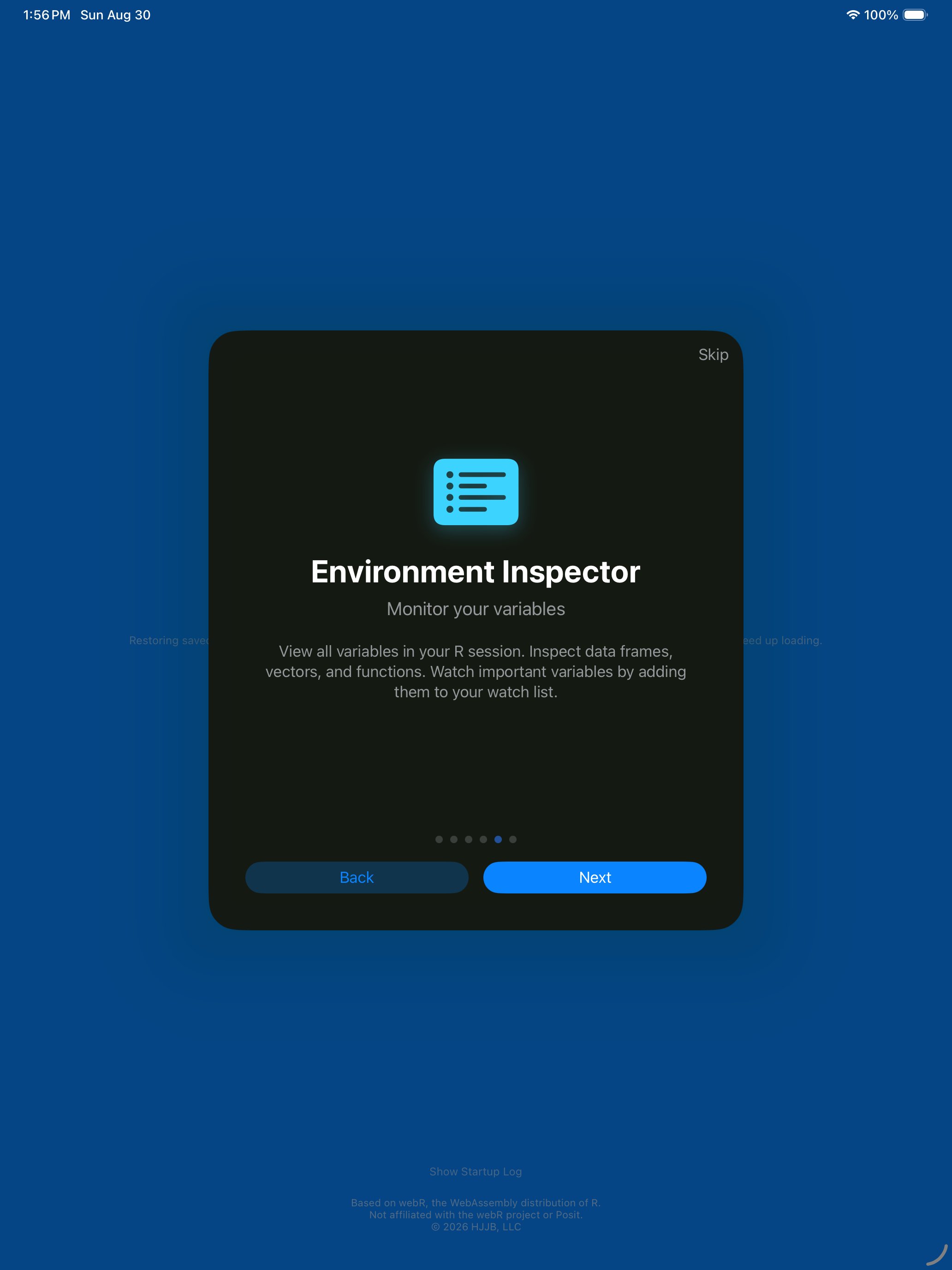
Environment
The Environment step shows the variables in your session and what they contain.
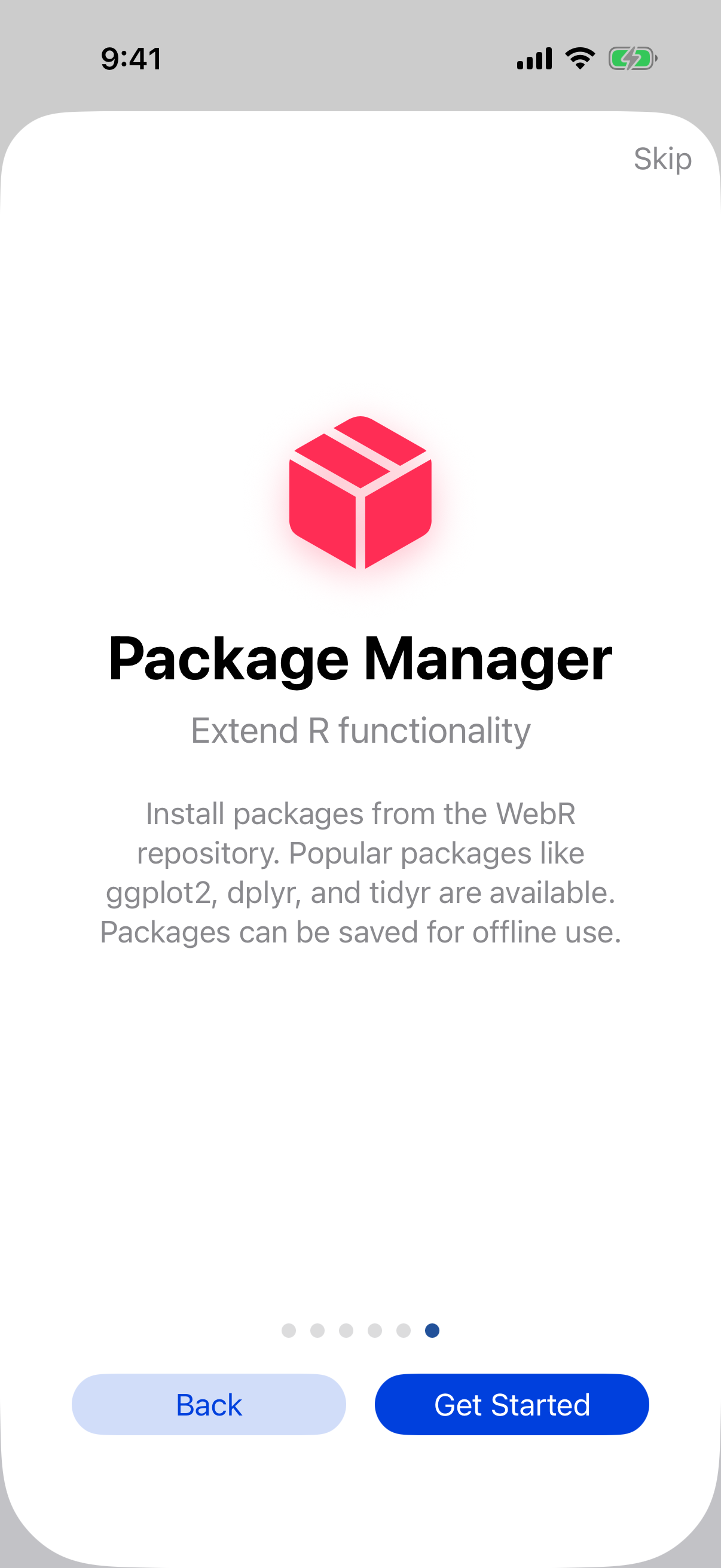
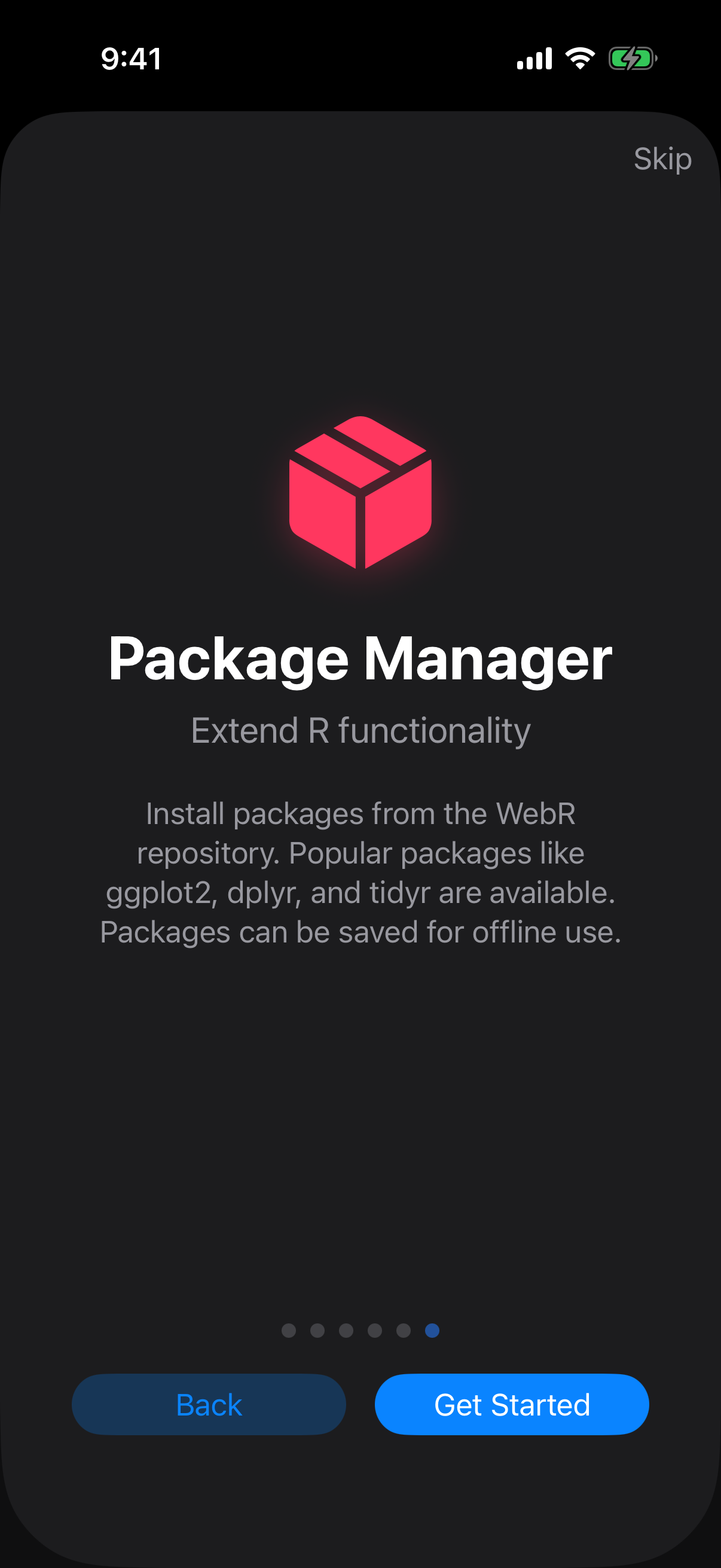
Packages
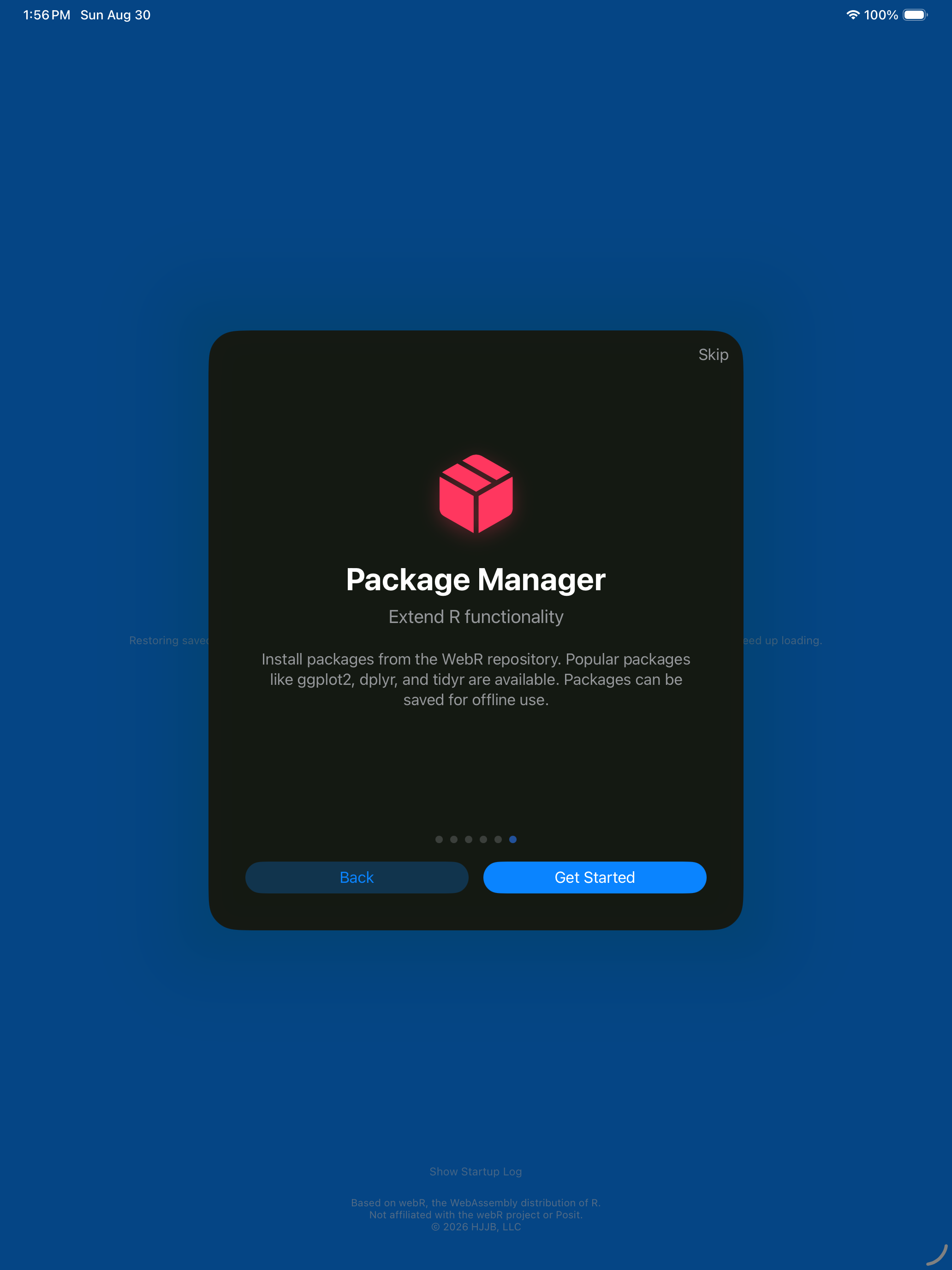
The Packages step shows how to install R packages from the webR repository.
Try Your First R Command
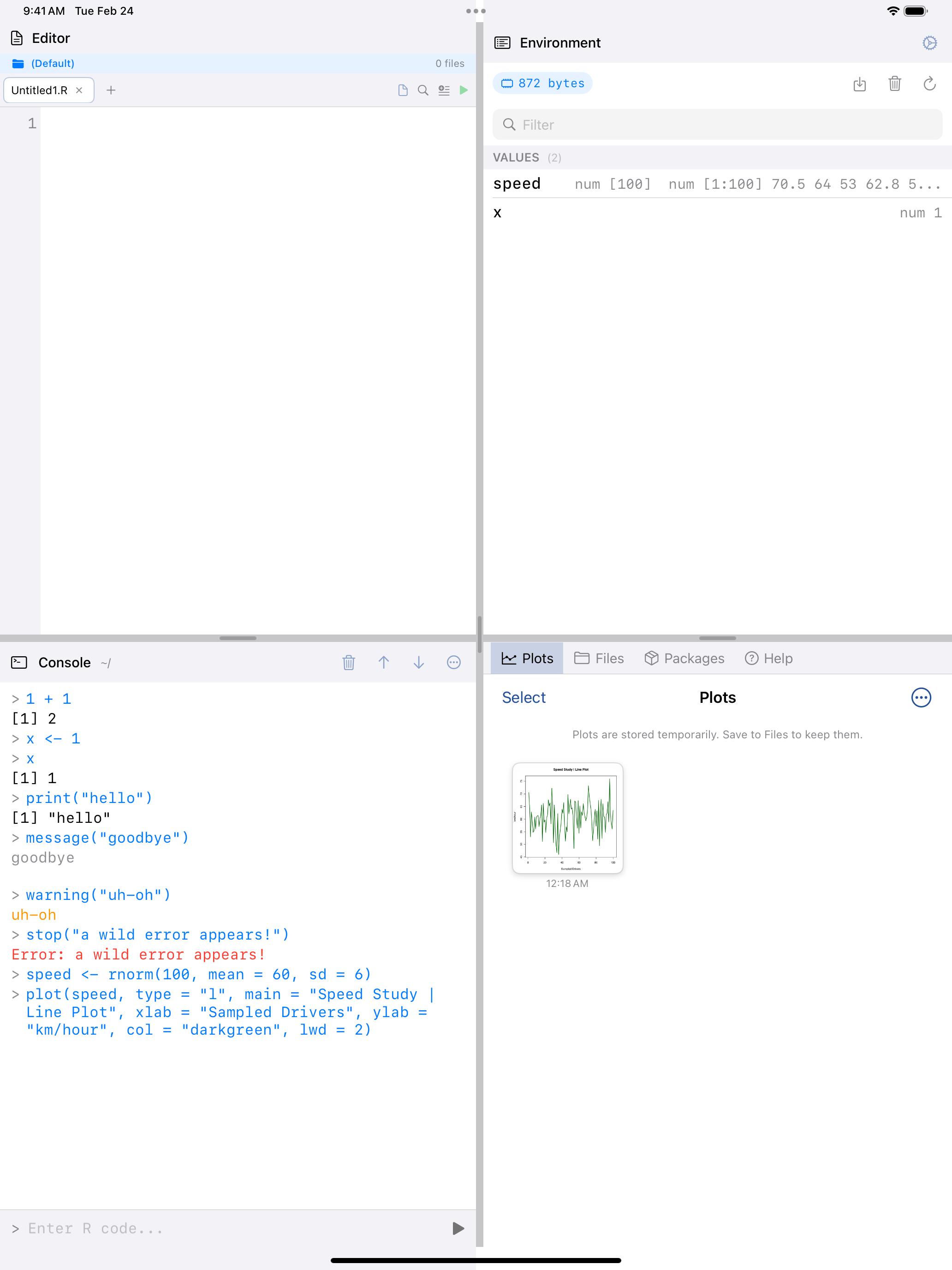
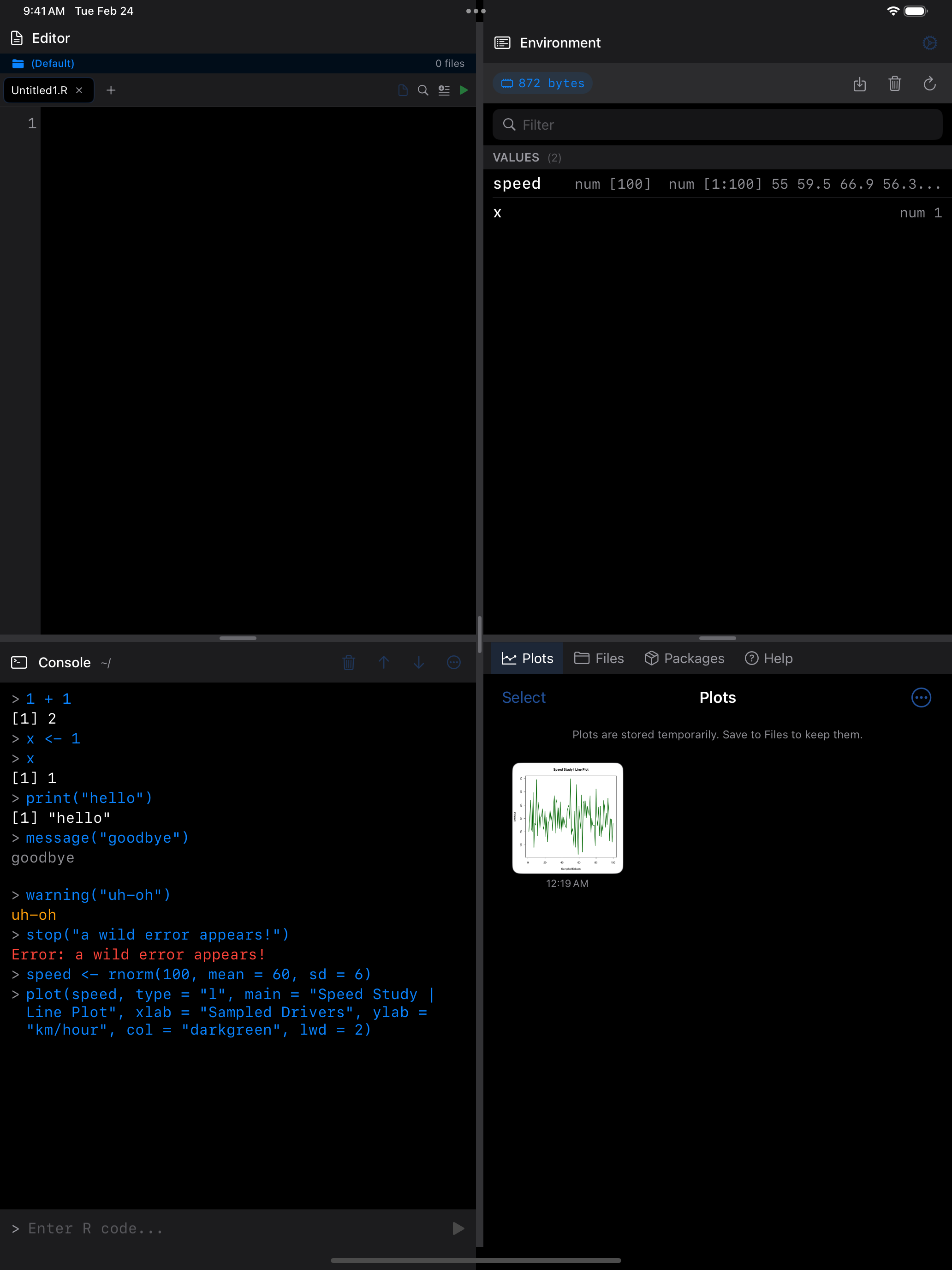
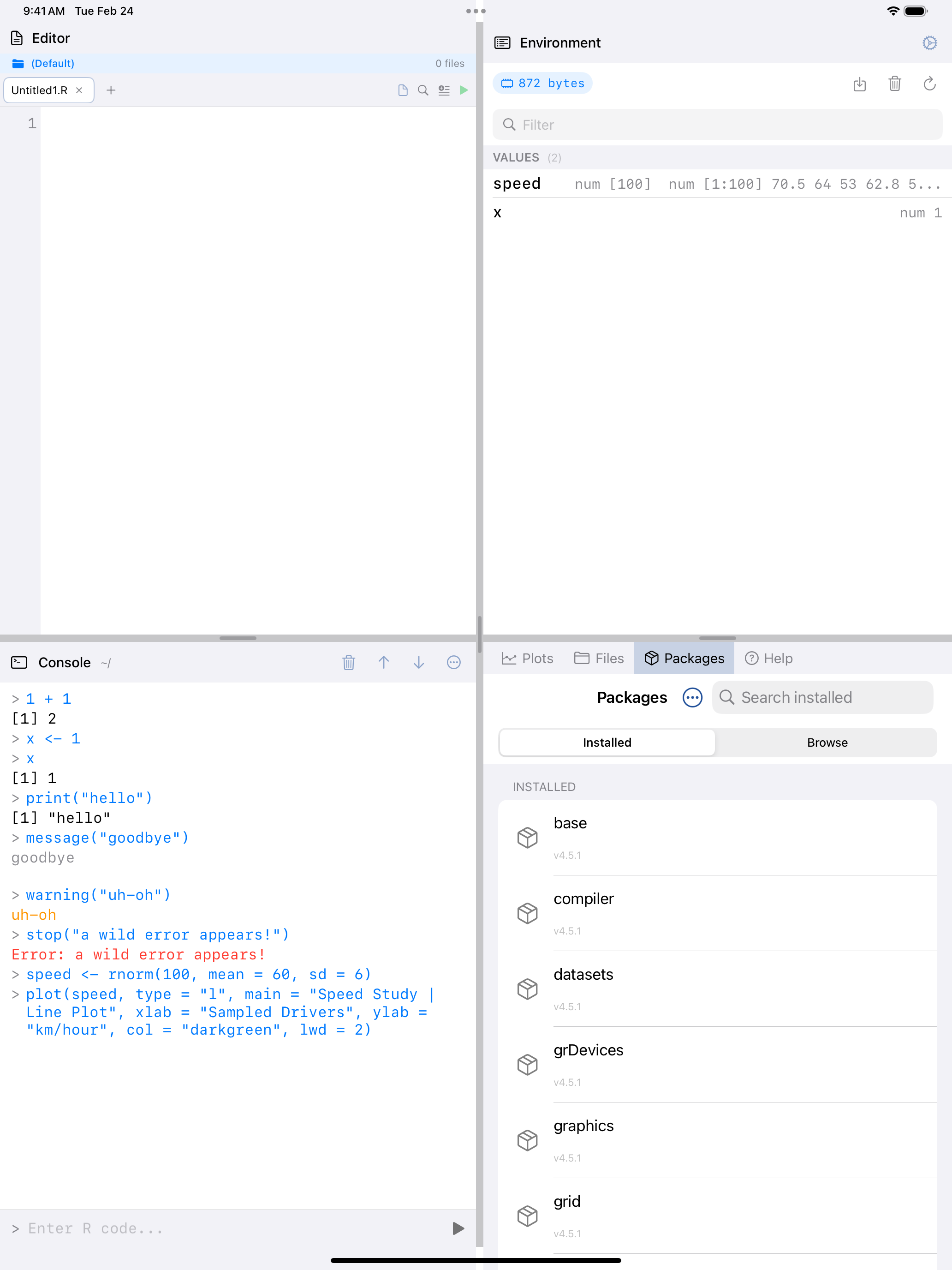
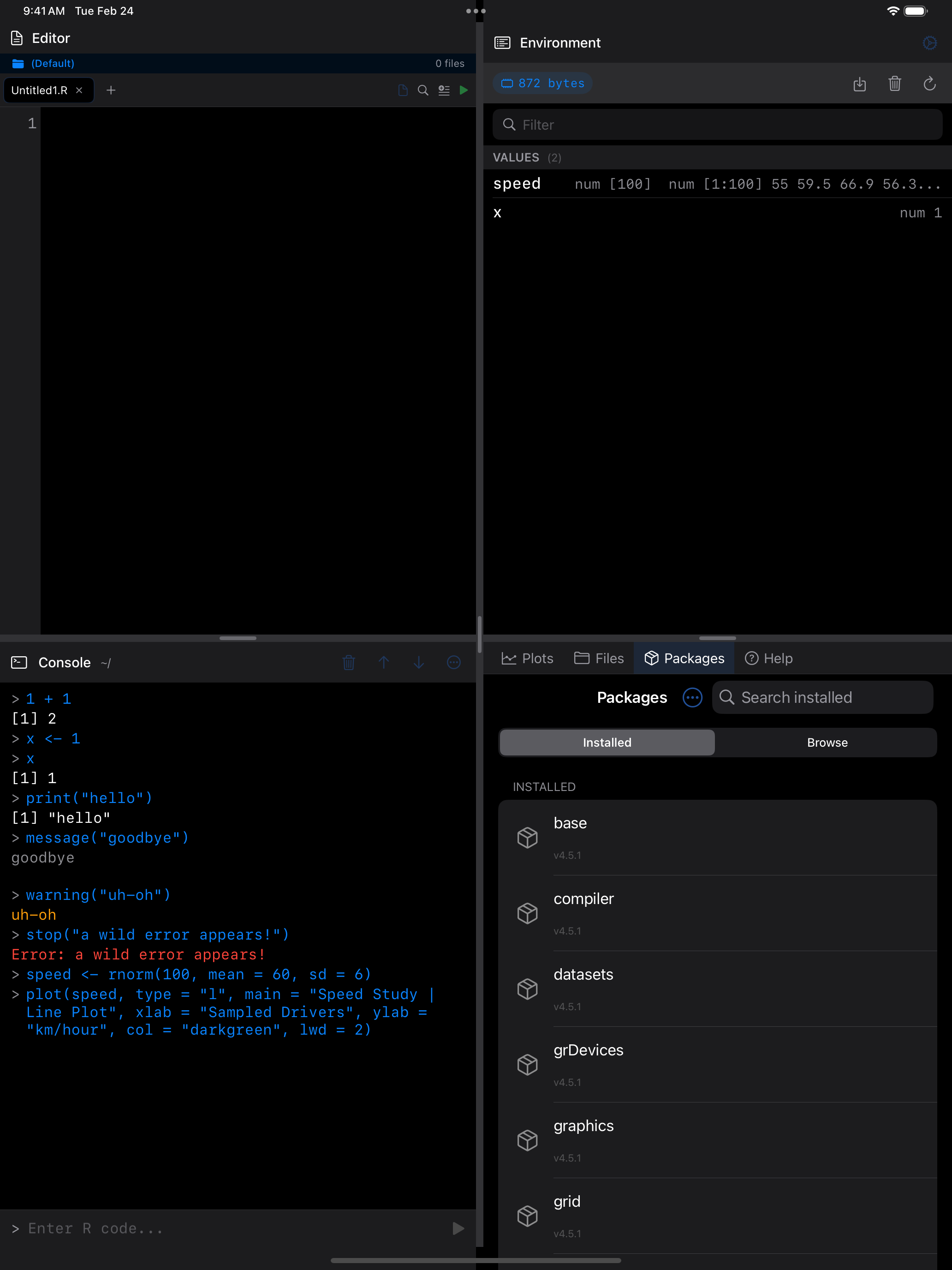
Once loading completes, you land on the Console tab. An empty console shows a welcome card with a few commands you can run with a tap, and a link to an example script in the Editor. Type an expression in the input field at the bottom and tap the button to run it.
1 + 1
x <- 1
x
print("hello")
message("goodbye")
warning("uh-oh")
stop("a wild error appears!")
Different output types are color-coded. Regular output, messages, warnings, and errors each appear in a distinct color.
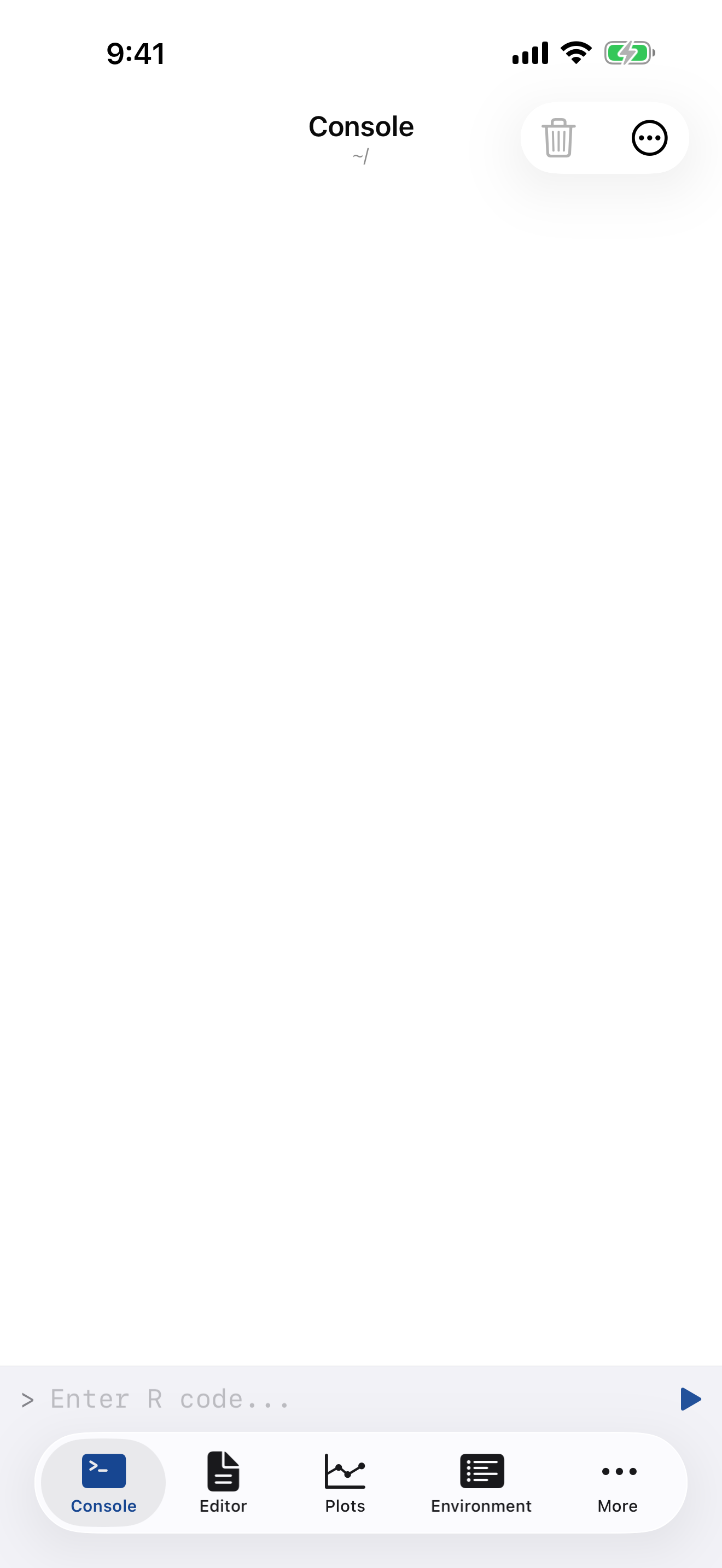
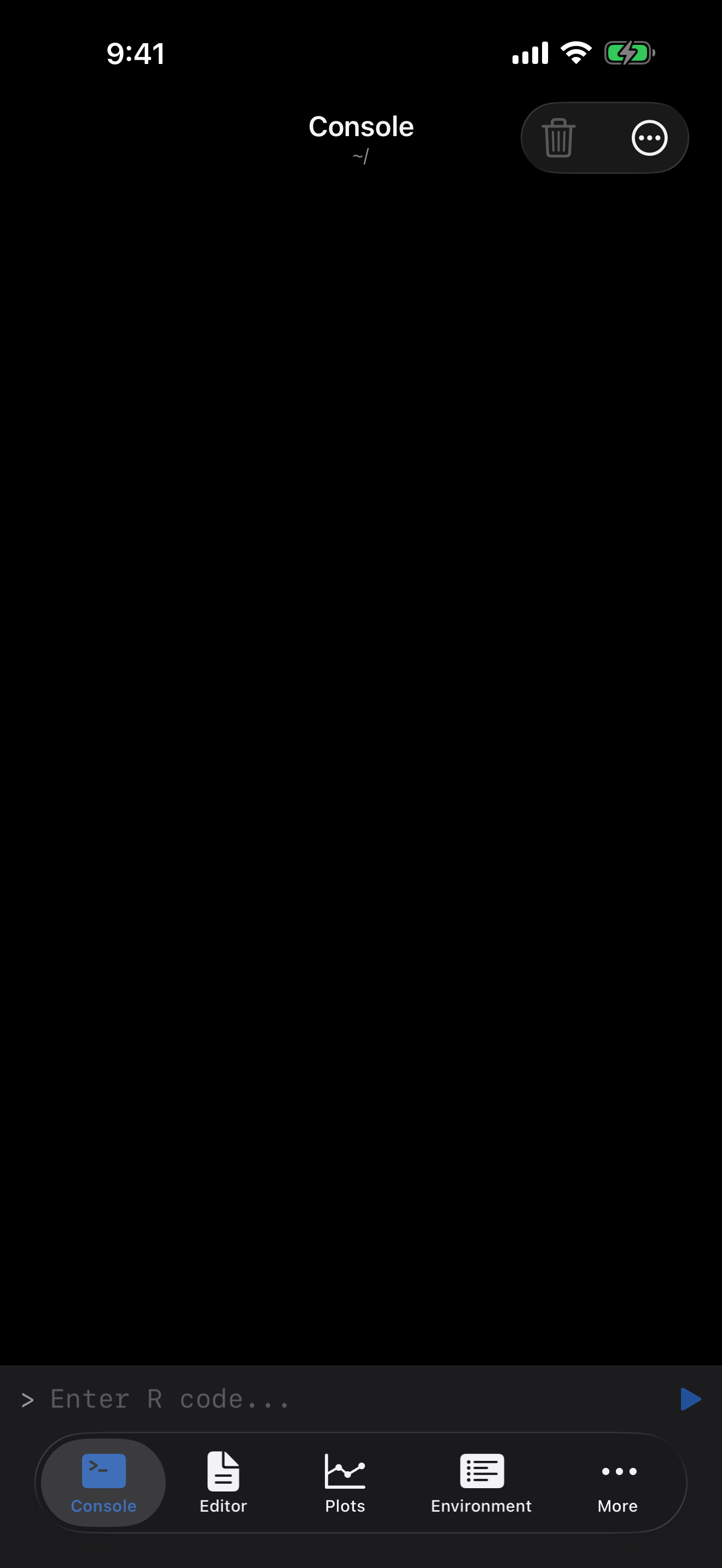
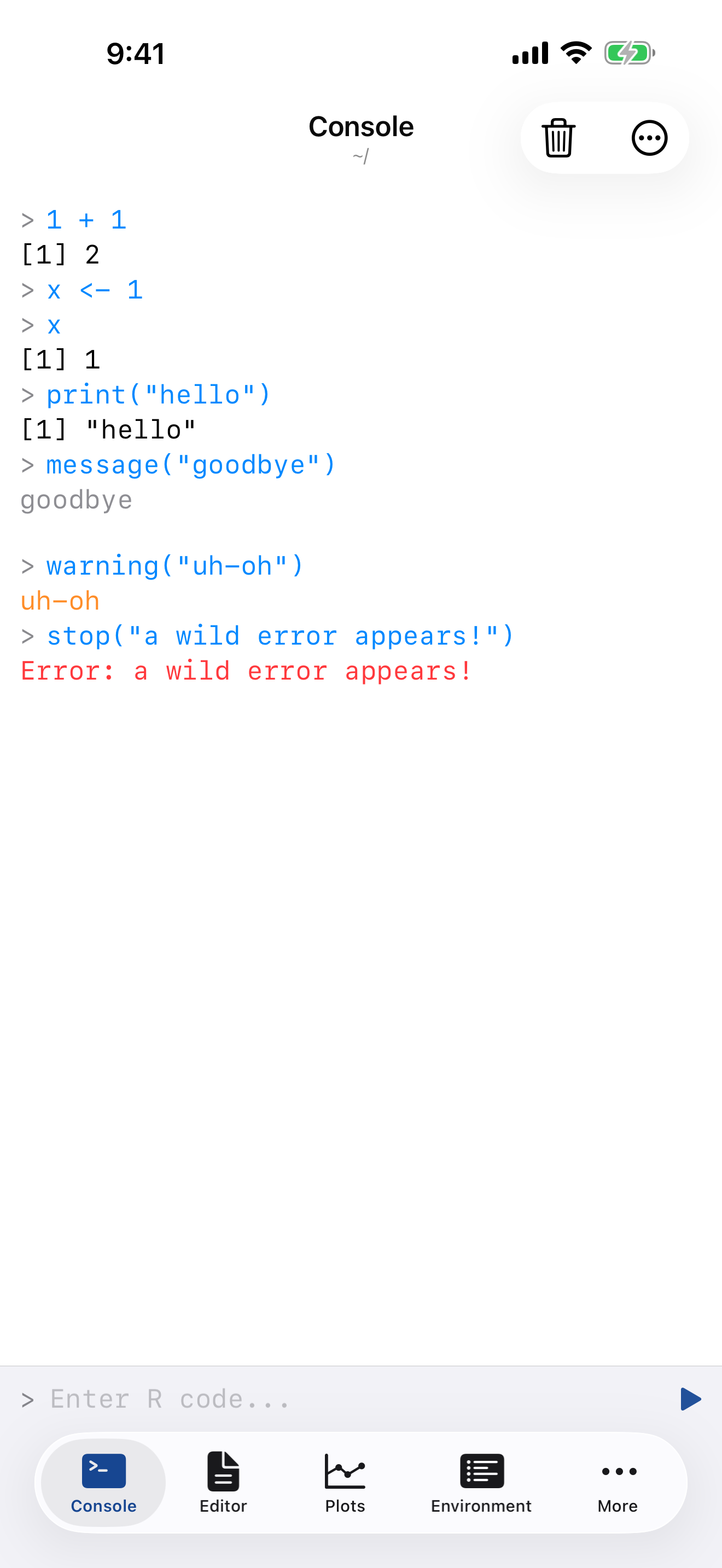
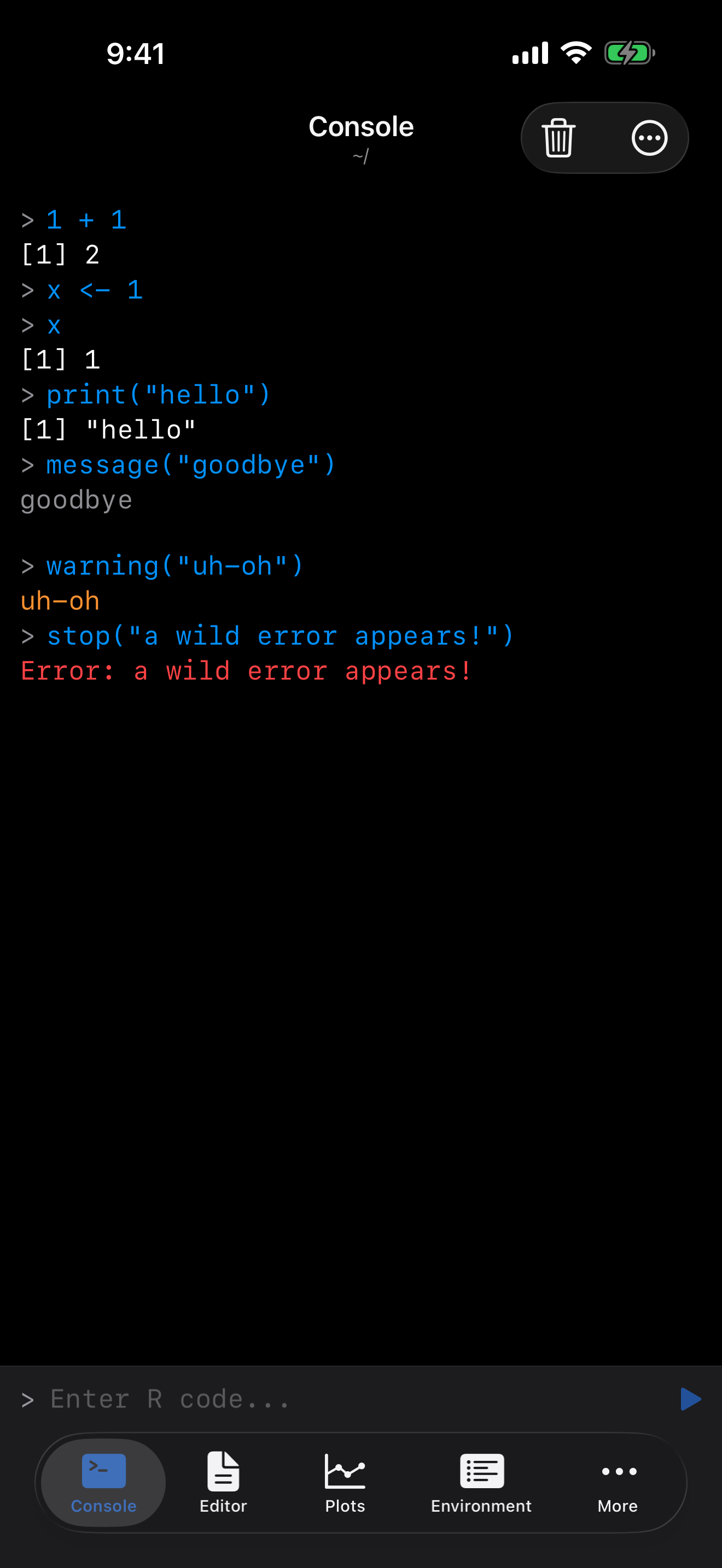
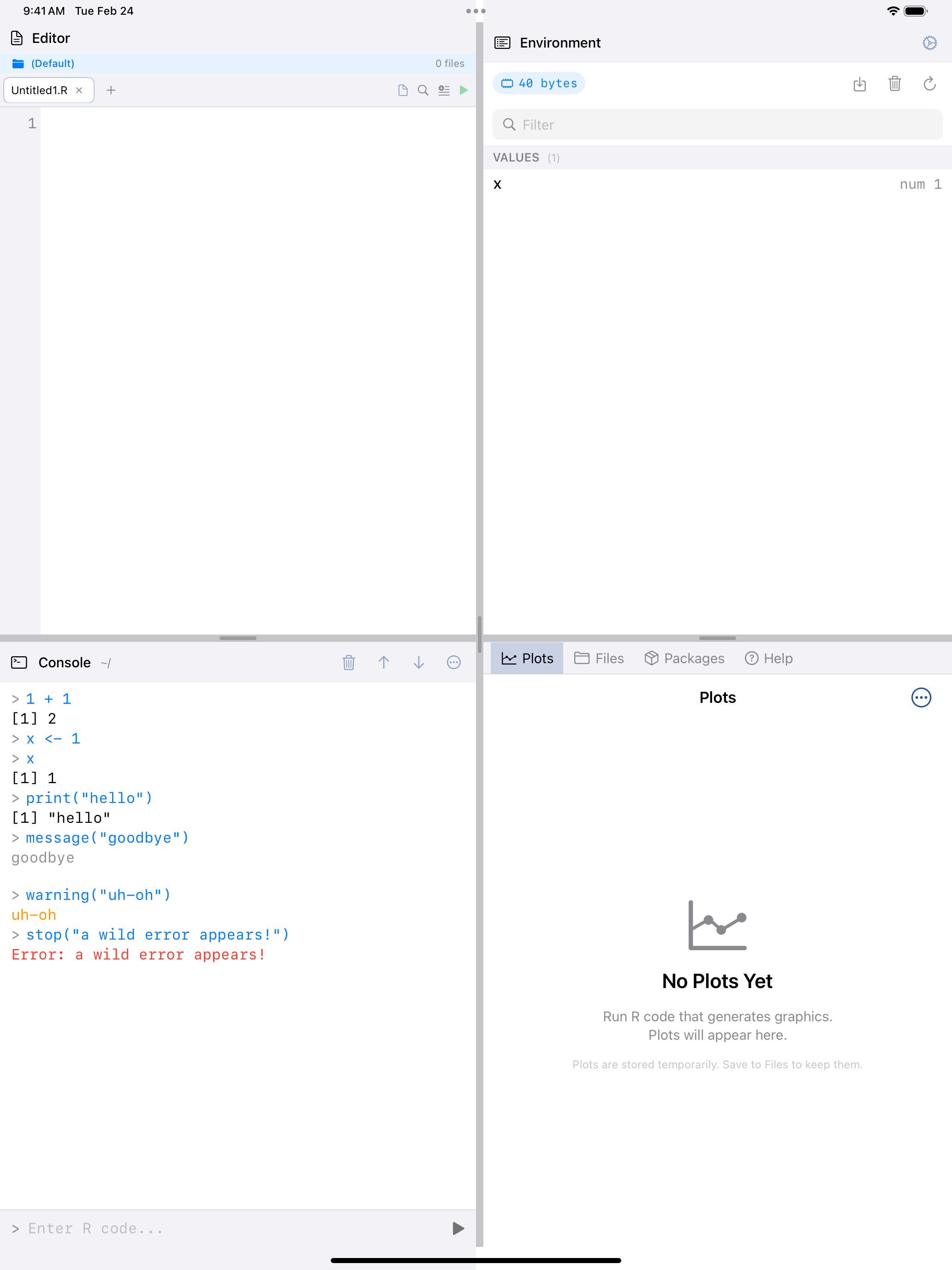
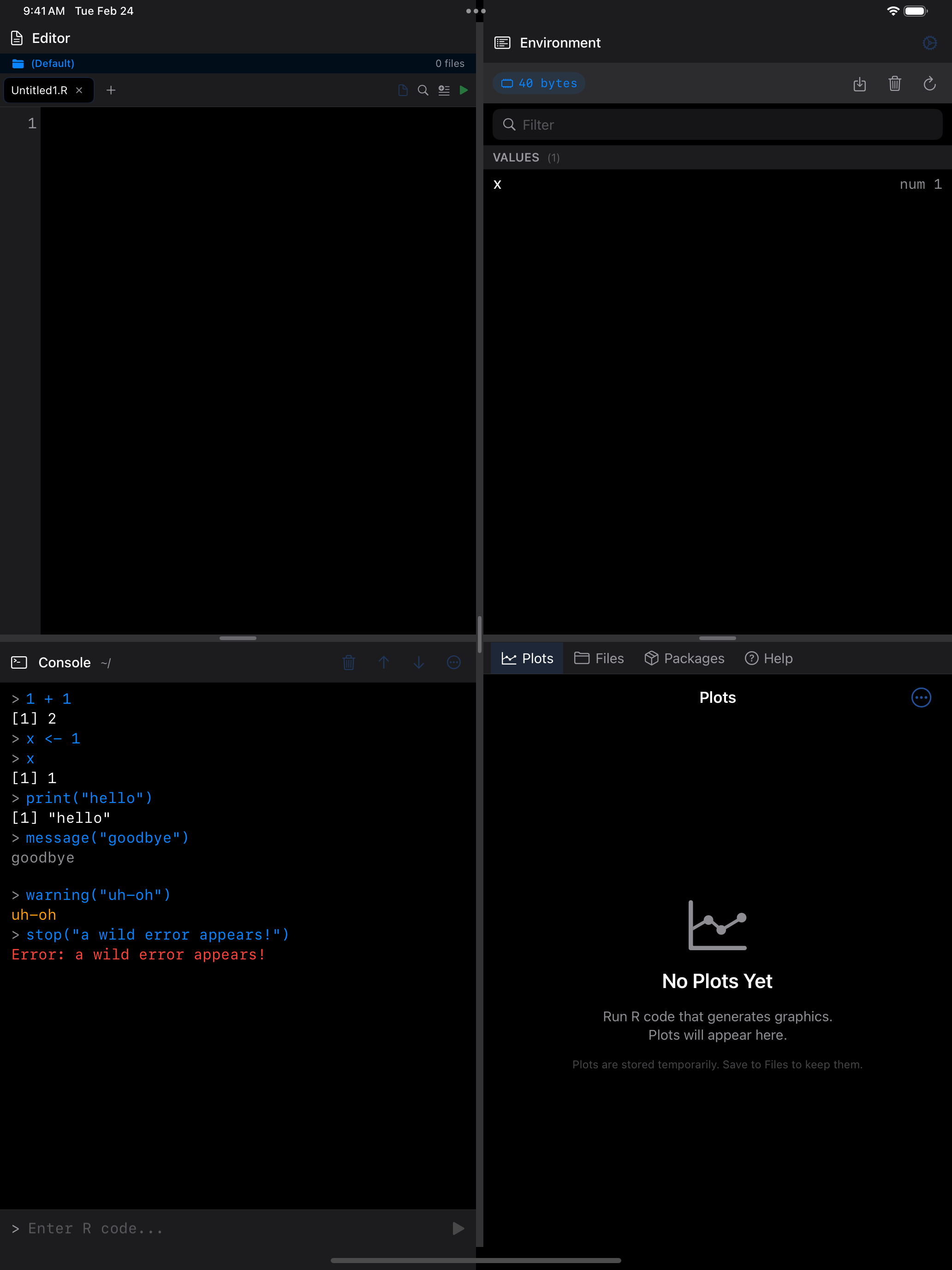
The flow: Start with a blank console, type R commands, and see color-coded output. Regular values, messages, warnings, and errors each get their own color.
Create Your First Plot
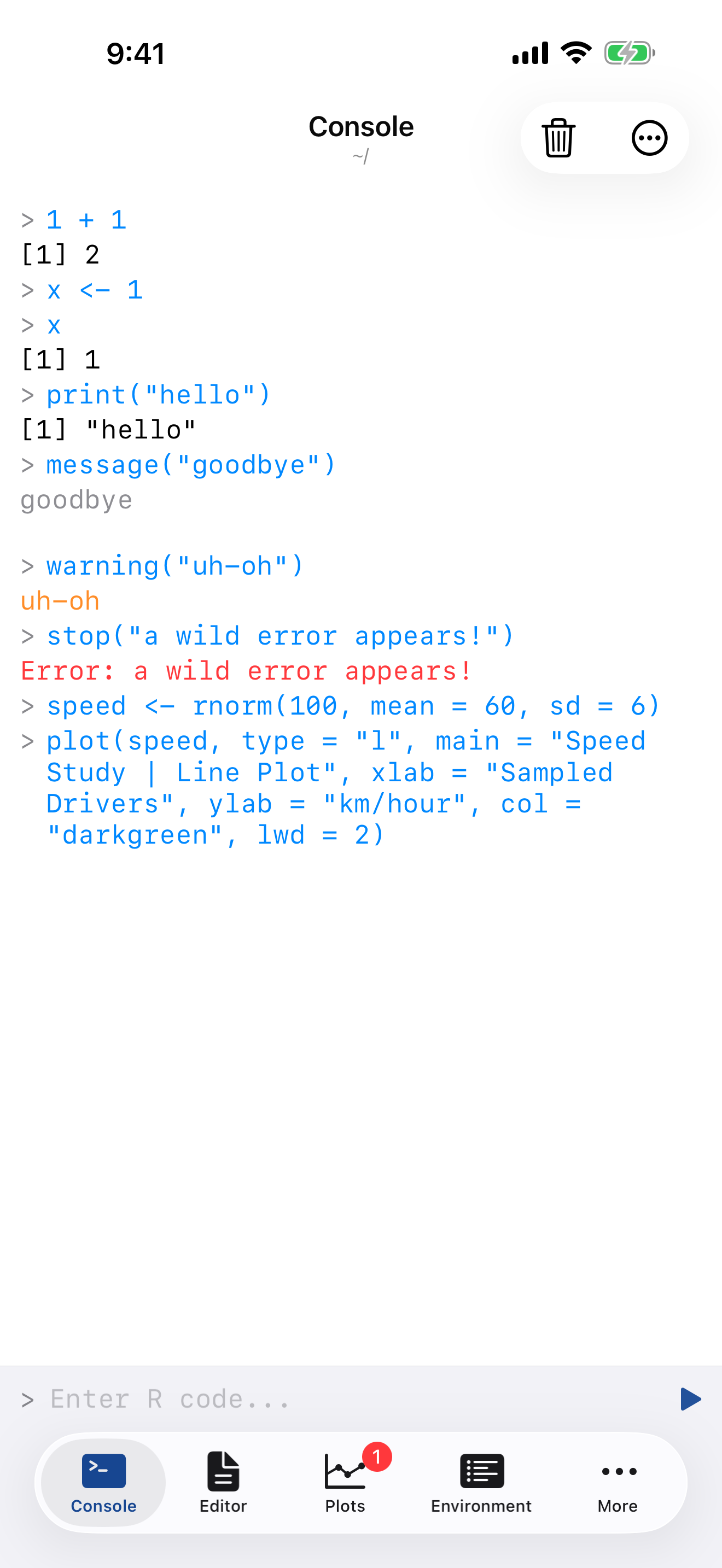
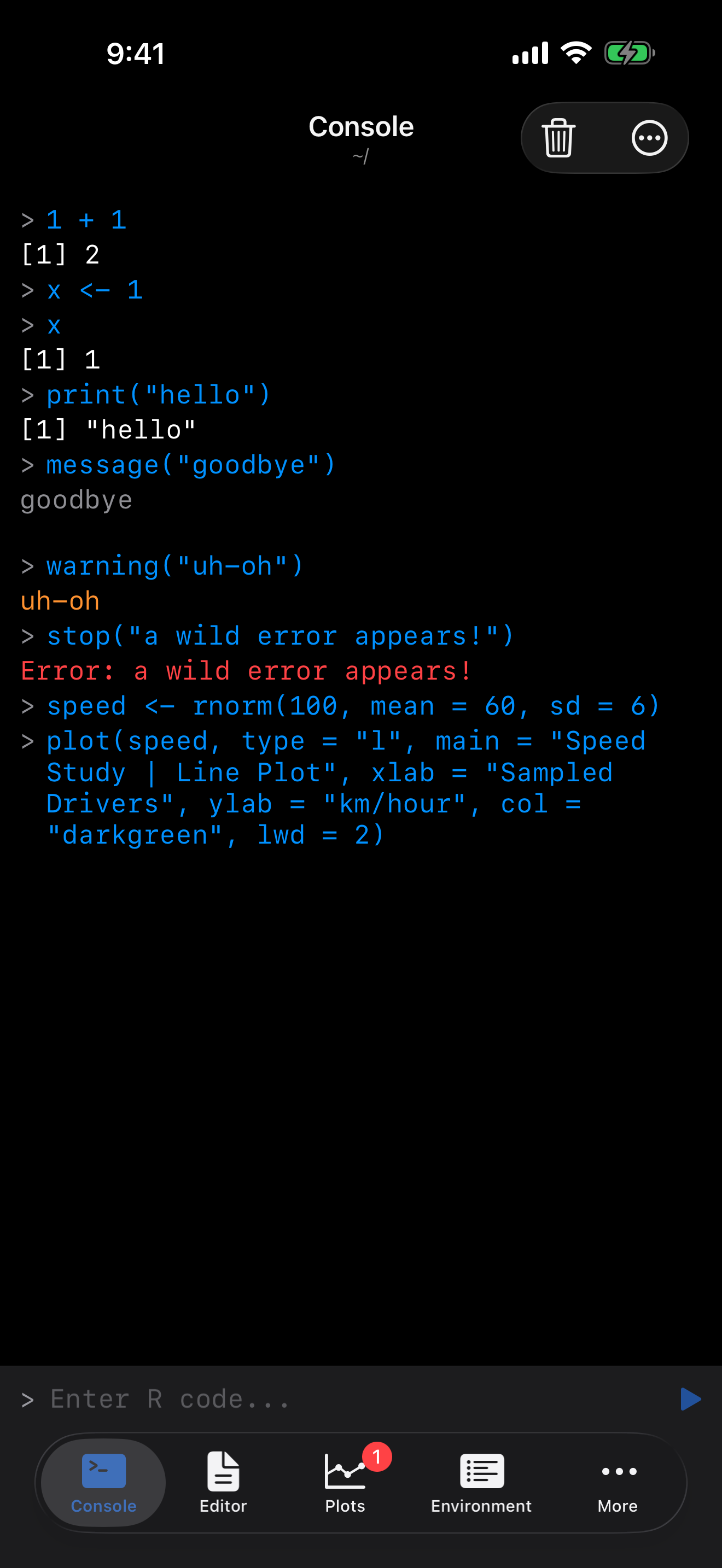
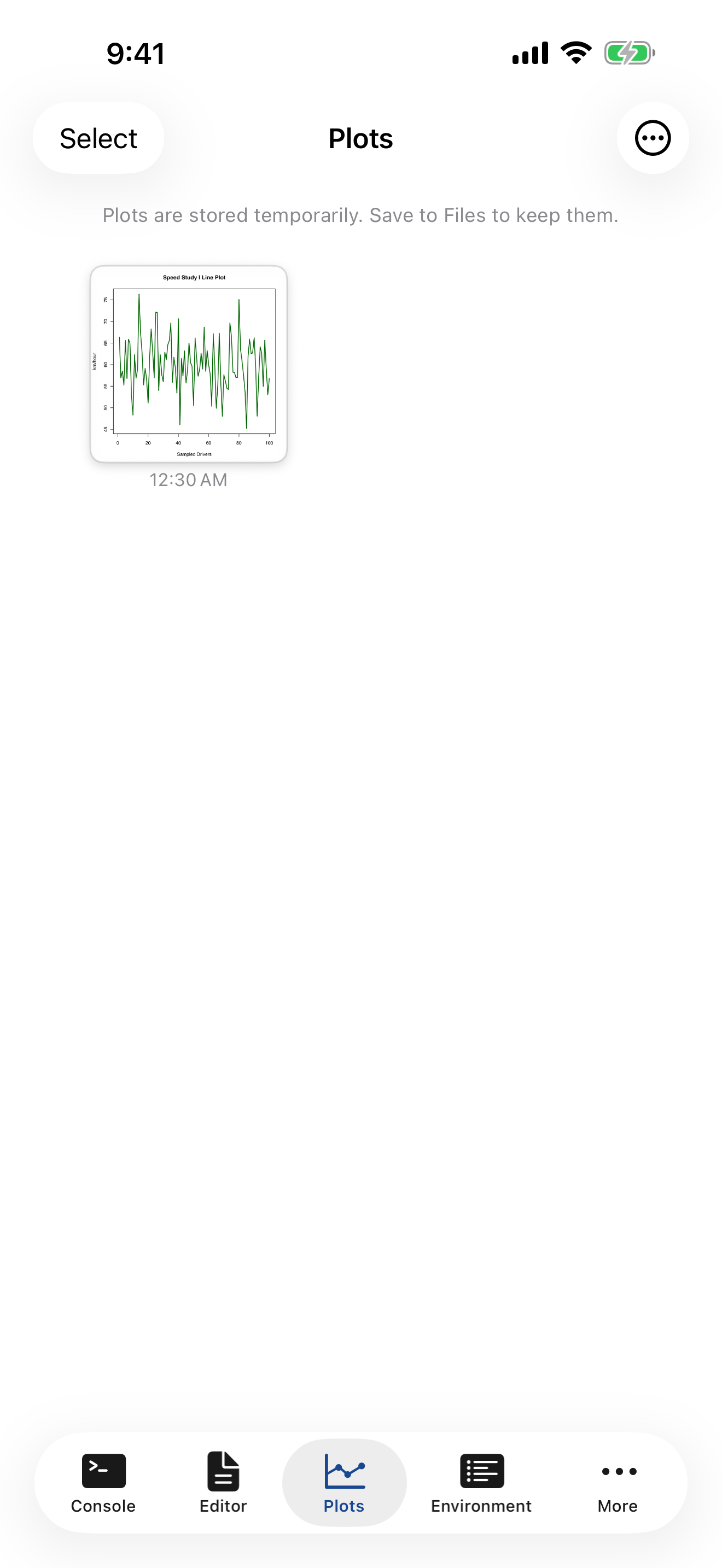
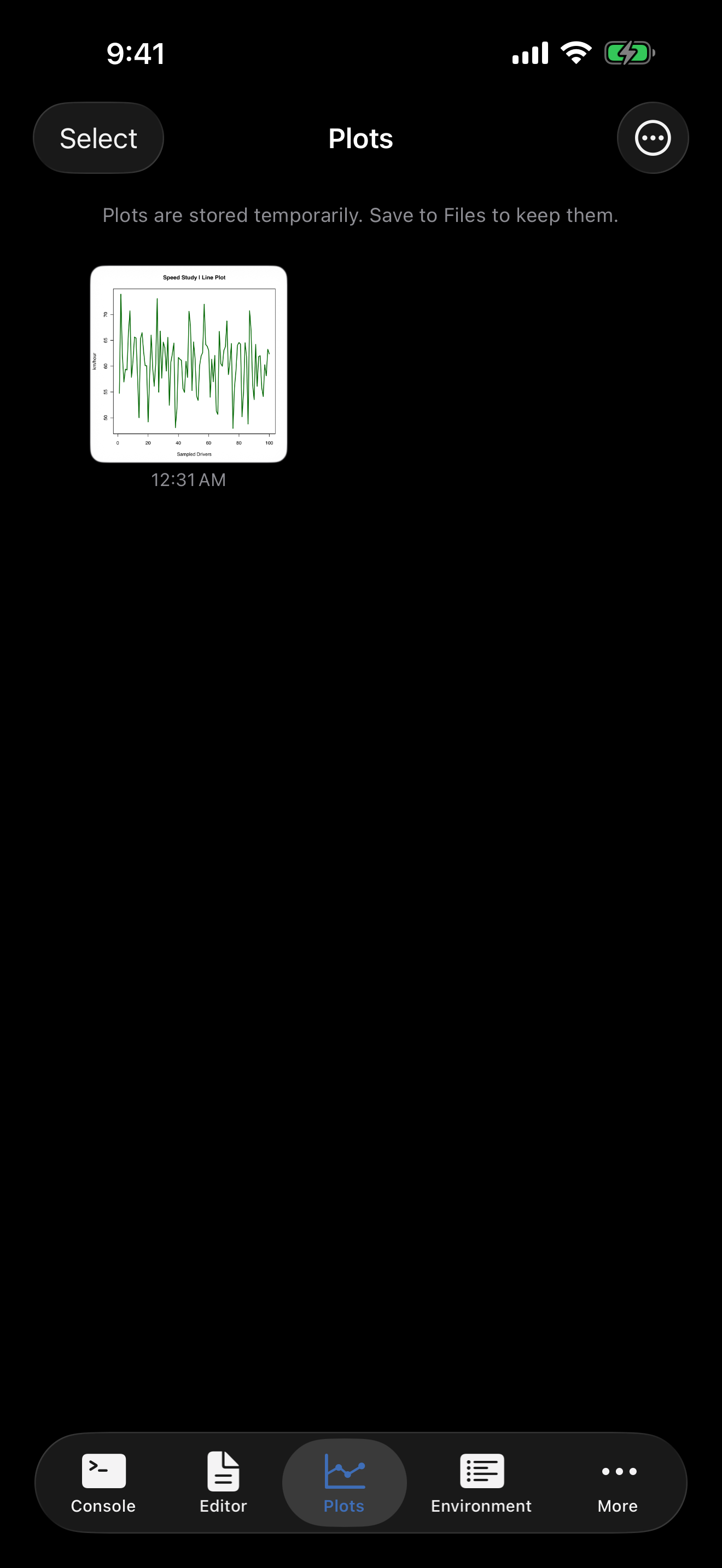
To create a plot, type a plotting command in the Console and tap .
speed <- rnorm(100, mean = 60, sd = 6)
plot(speed, type = "l", main = "Speed Study | Line Plot",
     xlab = "Sampled Drivers", ylab = "km/hour",
     col = "darkgreen", lwd = 2)
Switch to the Plots tab to see your visualization. You can pinch to zoom and tap to share it.
Install a Package
To install additional packages, go to the Packages tab and install from the webR package repository.
- Open the Packages tab (under More on iPhone)
- Tap the menu
- Select Install Package
- Type a package name (e.g.,
dplyr) - Tap Install
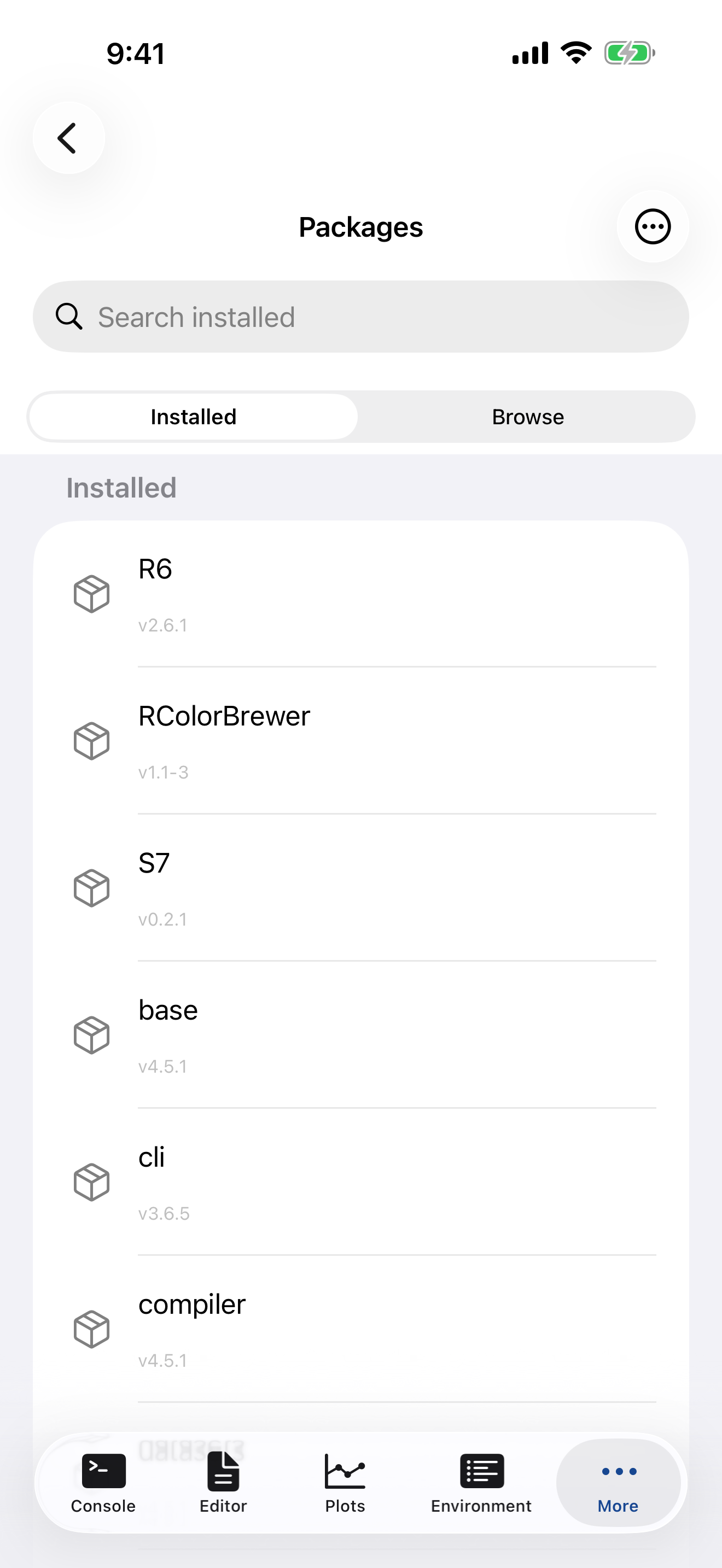
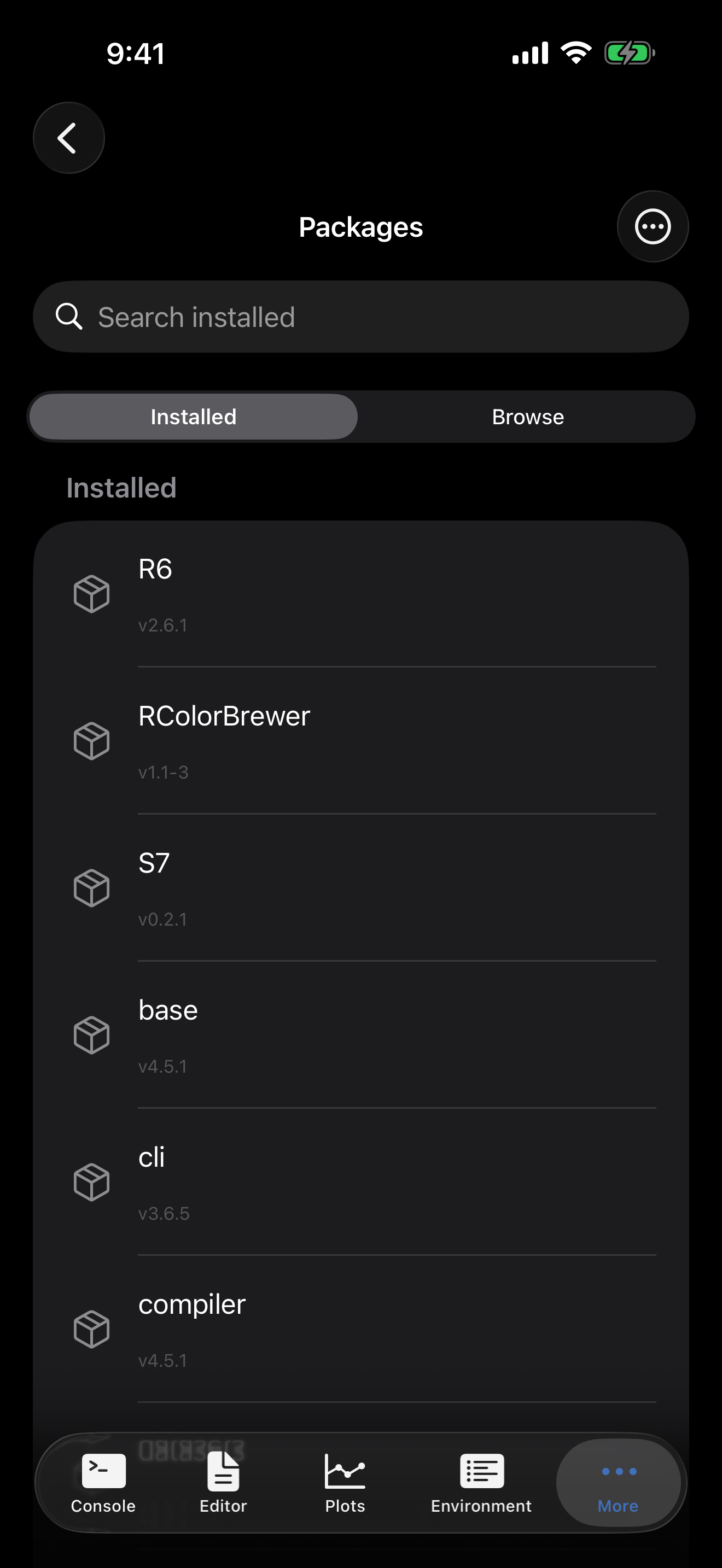
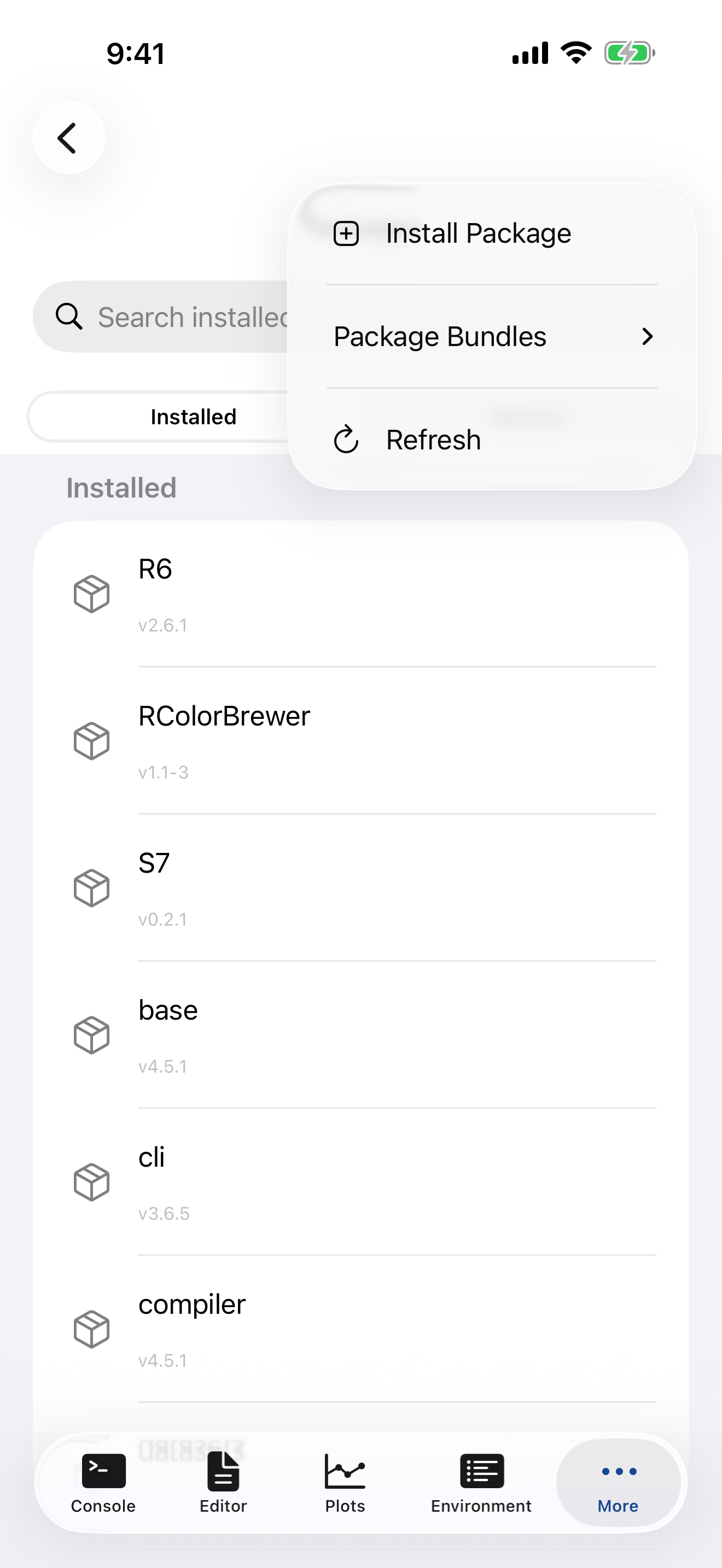
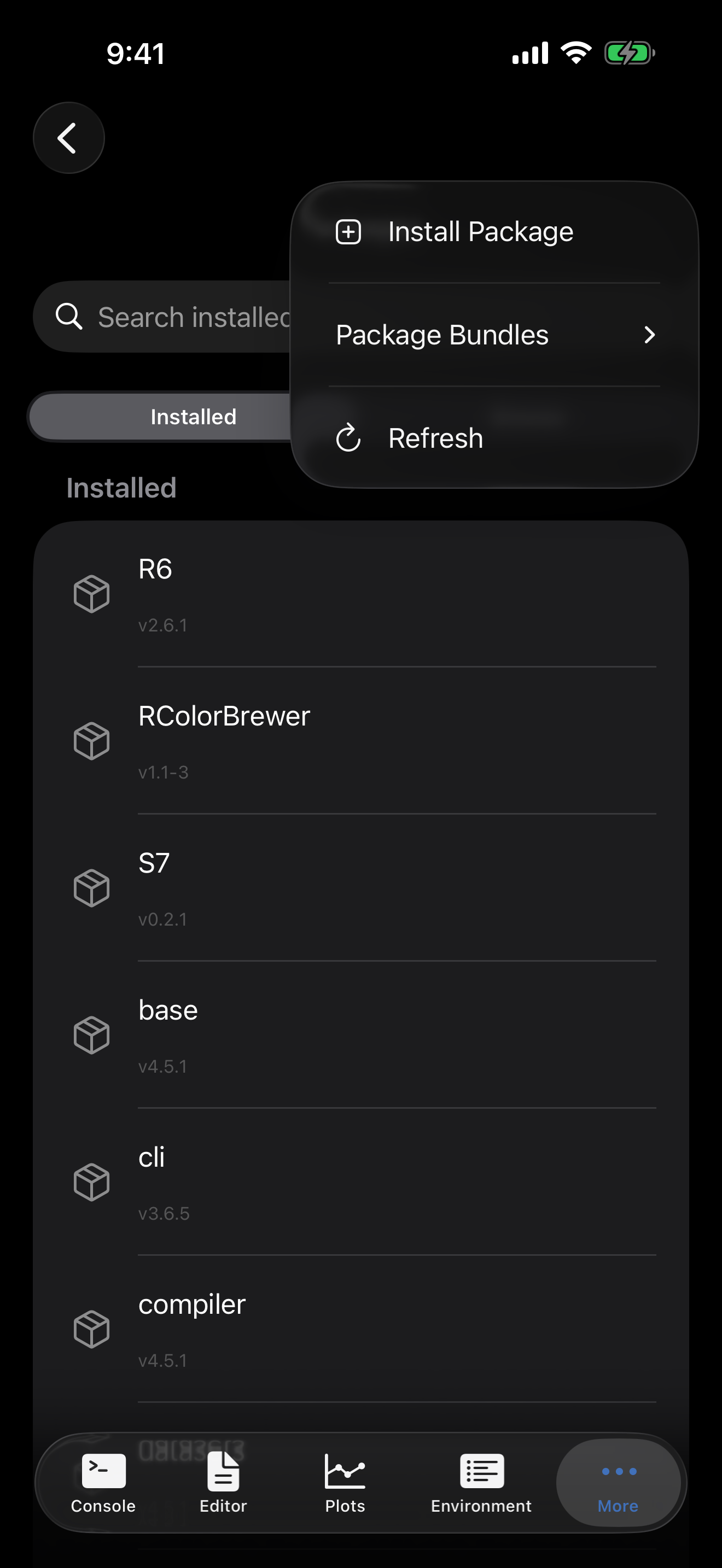
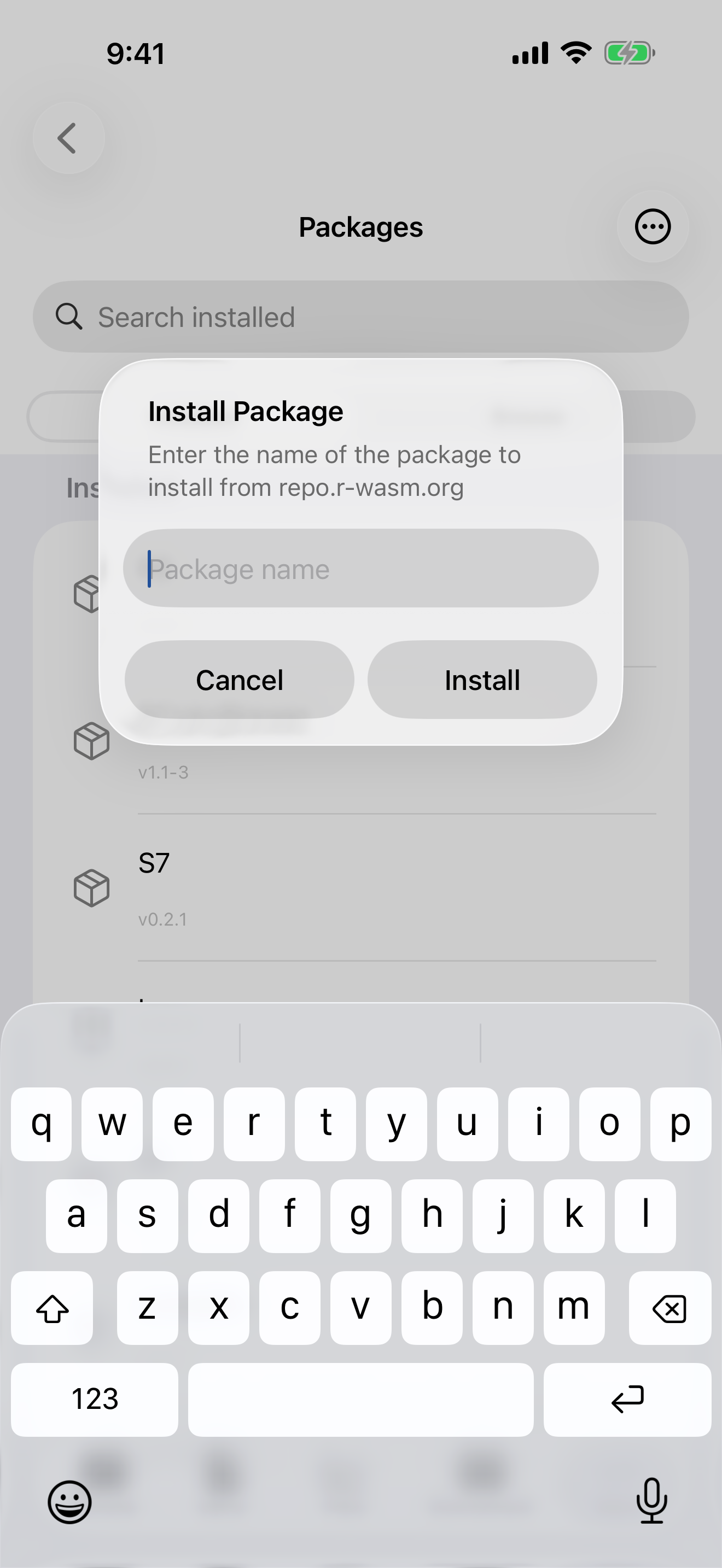
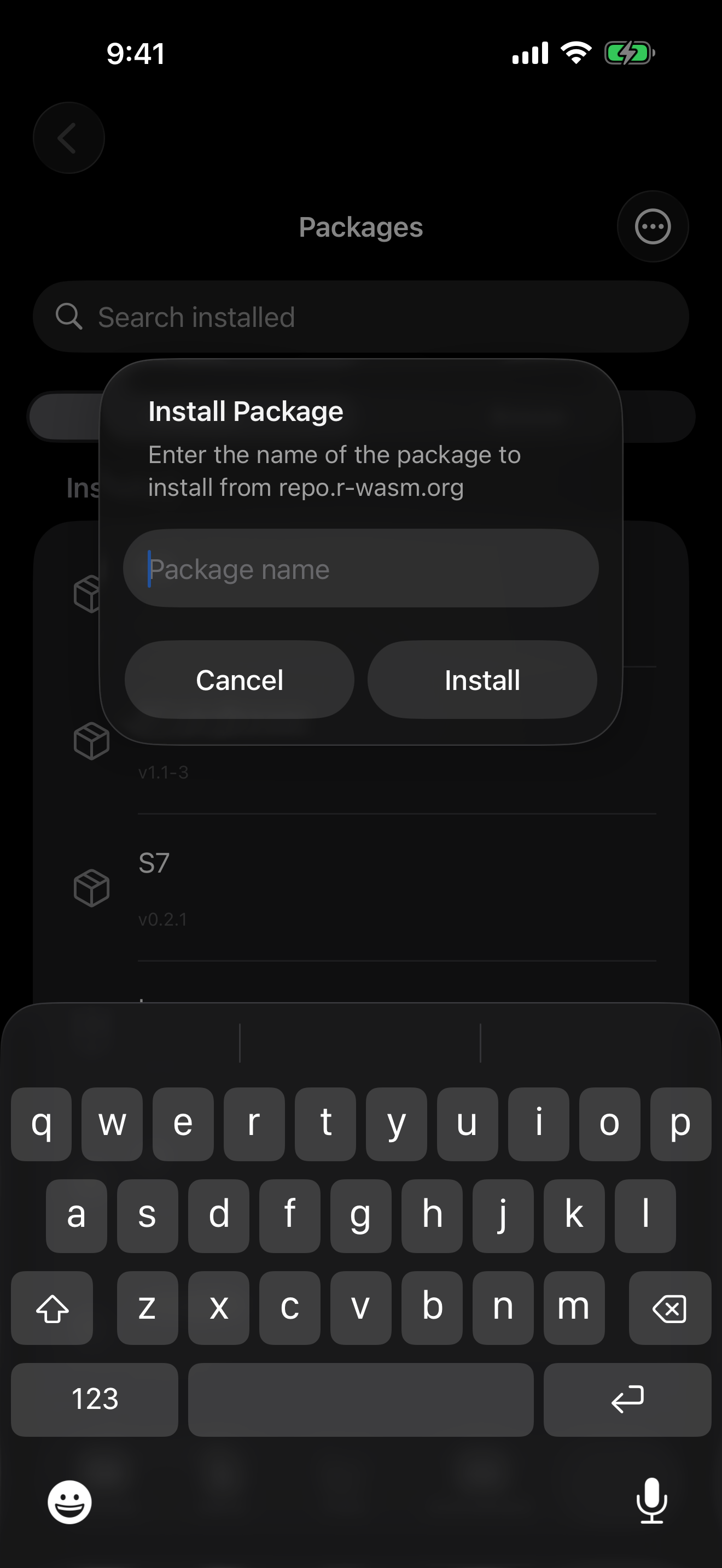
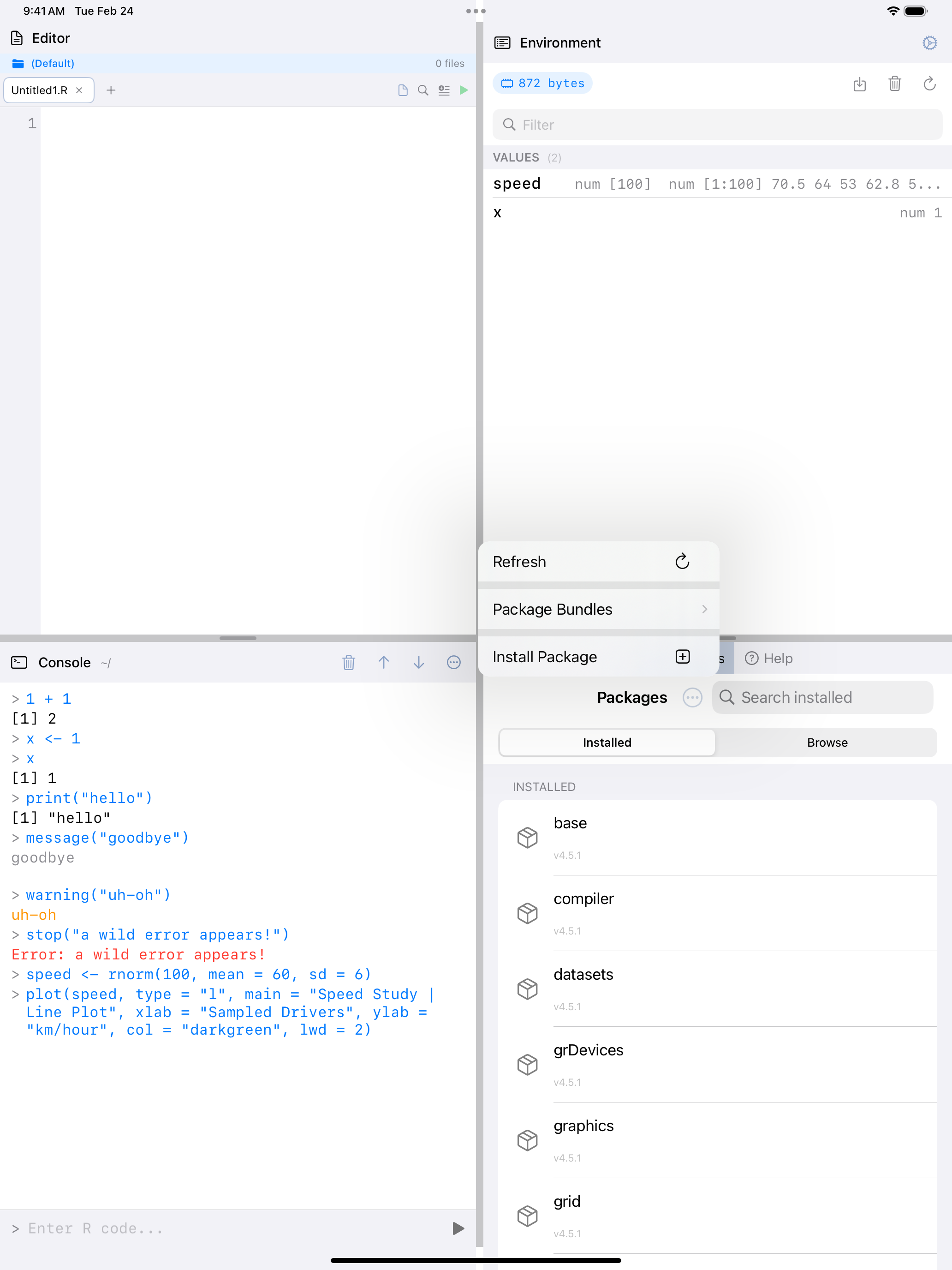
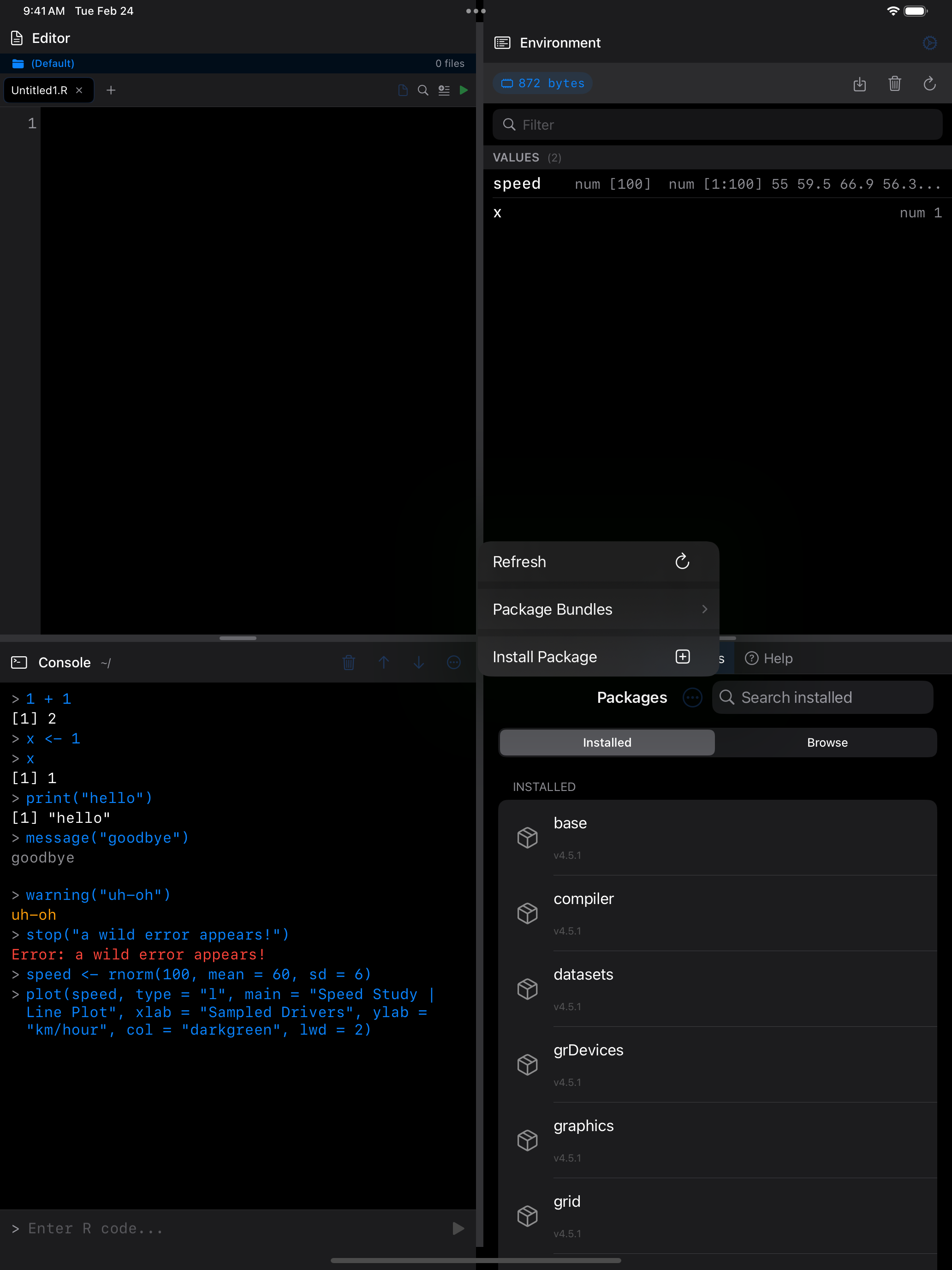
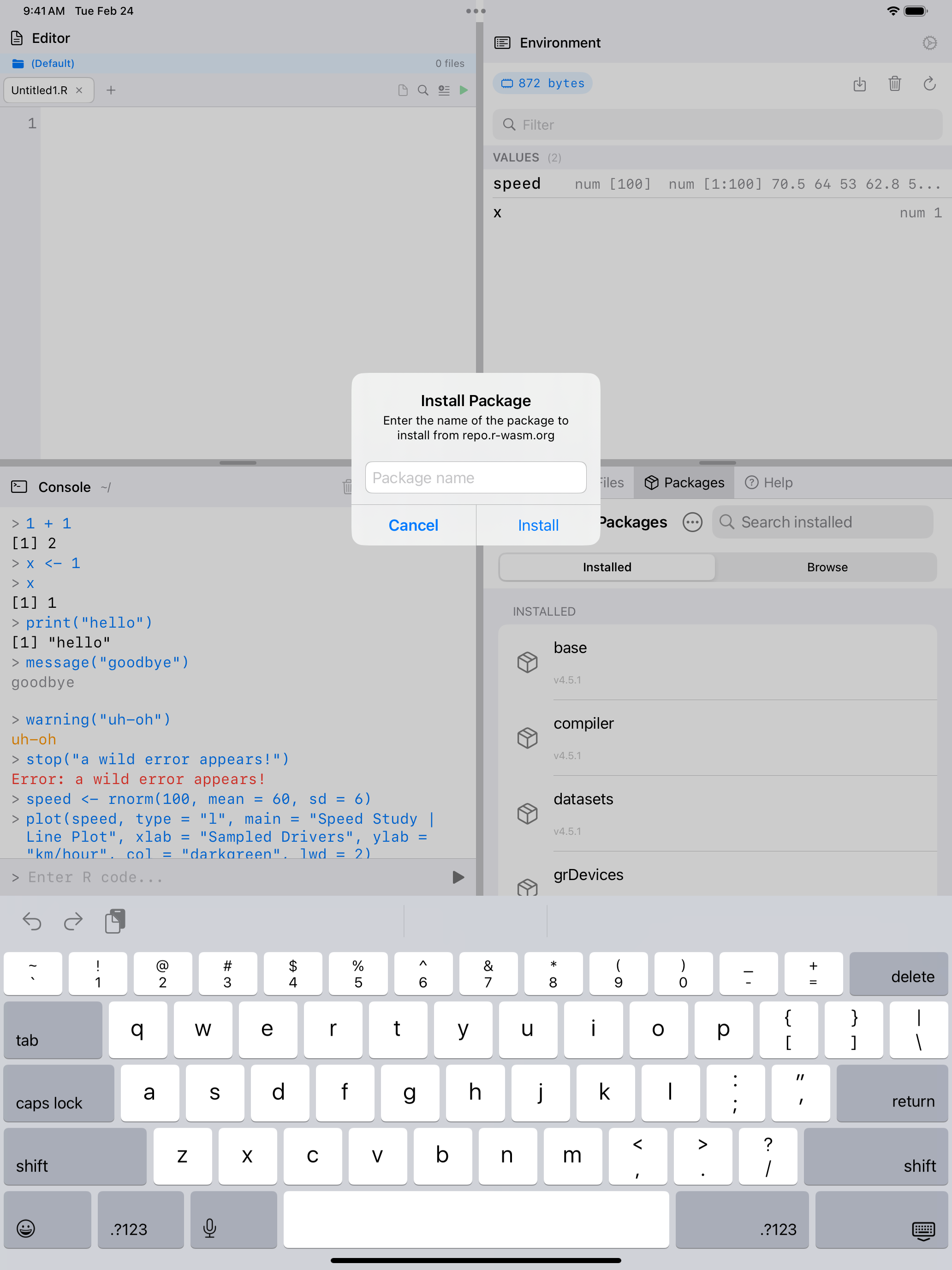
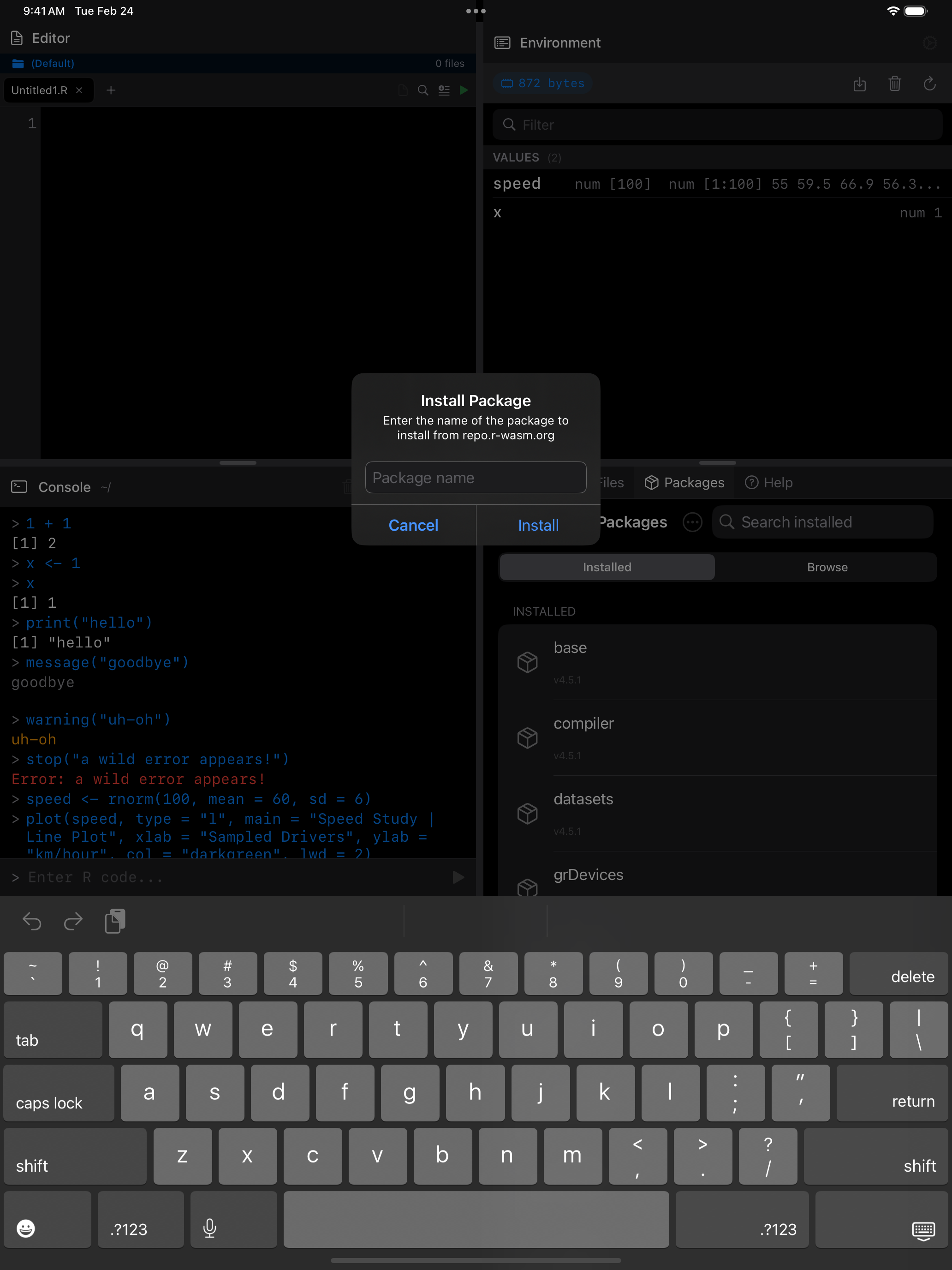
You can also install packages the traditional way by running install.packages("dplyr") in the Console or Editor, just like a normal R session. The package repository is pre-configured to use repo.r-wasm.org.
Not all CRAN packages are available. Only those compiled for WebAssembly are supported. Most popular packages like dplyr, ggplot2, tidyr, and stringr are available. Check the webR package repository for the full list.
Explore the App
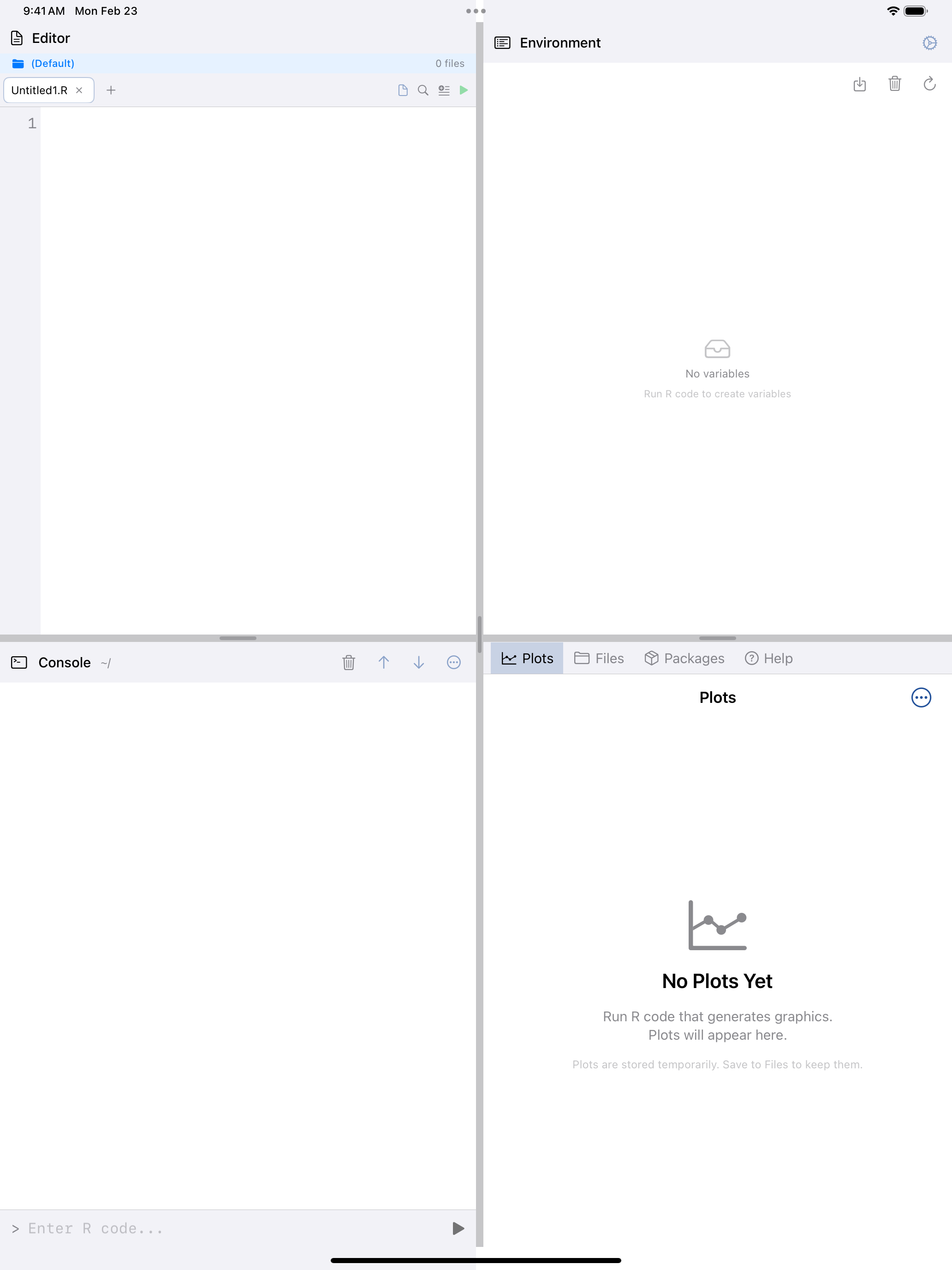
webRios has seven main sections, accessible from the tab bar at the bottom of the screen:
Console
Interactive R command line with color-coded output, command history, and the R keyboard toolbar.
Editor
Write multi-line R scripts with syntax highlighting, multiple tabs, code folding, and code completion.
Plots
View, zoom, and export your R graphics. Pin favorites and share via the system share sheet.
Environment
Inspect your R workspace: see variables, data frames, models, and their values at a glance.
Files
Browse, create, import, and export R scripts and data files with iOS Files app integration.
Packages
Install additional R packages from the webR repository. Thousands of packages available.
Settings
Configure themes, editor preferences, keyboard shortcuts, and manage memory.