Plots
When your R code generates a graphic, the app captures it and saves it to the Plots gallery automatically. Just write plotting code the way you normally would.
How Plot Capture Works
Plot capture works with all of R’s built-in plotting functions and any package that uses the standard graphics system:
# Any of these will create a plot that appears in the gallery
plot(1:10, sin(1:10), type = "l", main = "Sine Wave")
hist(rnorm(100), main = "Normal Distribution")
barplot(table(sample(letters[1:5], 50, replace = TRUE)))
boxplot(mpg ~ cyl, data = mtcars)
No need to call dev.off() or save anything manually. Run your code and switch to the Plots tab. Plots from one run arrive in the order R drew them. Until you open the gallery, a badge on Plots counts every plot and interactive widget made since you last looked.
To see each plot in the Console as well, under the command that drew it, set Settings > Appearance > New Plots to Gallery and Console, or turn on Inline Plots in the Console’s … menu. Every plot still goes to the gallery.
The Plot Gallery
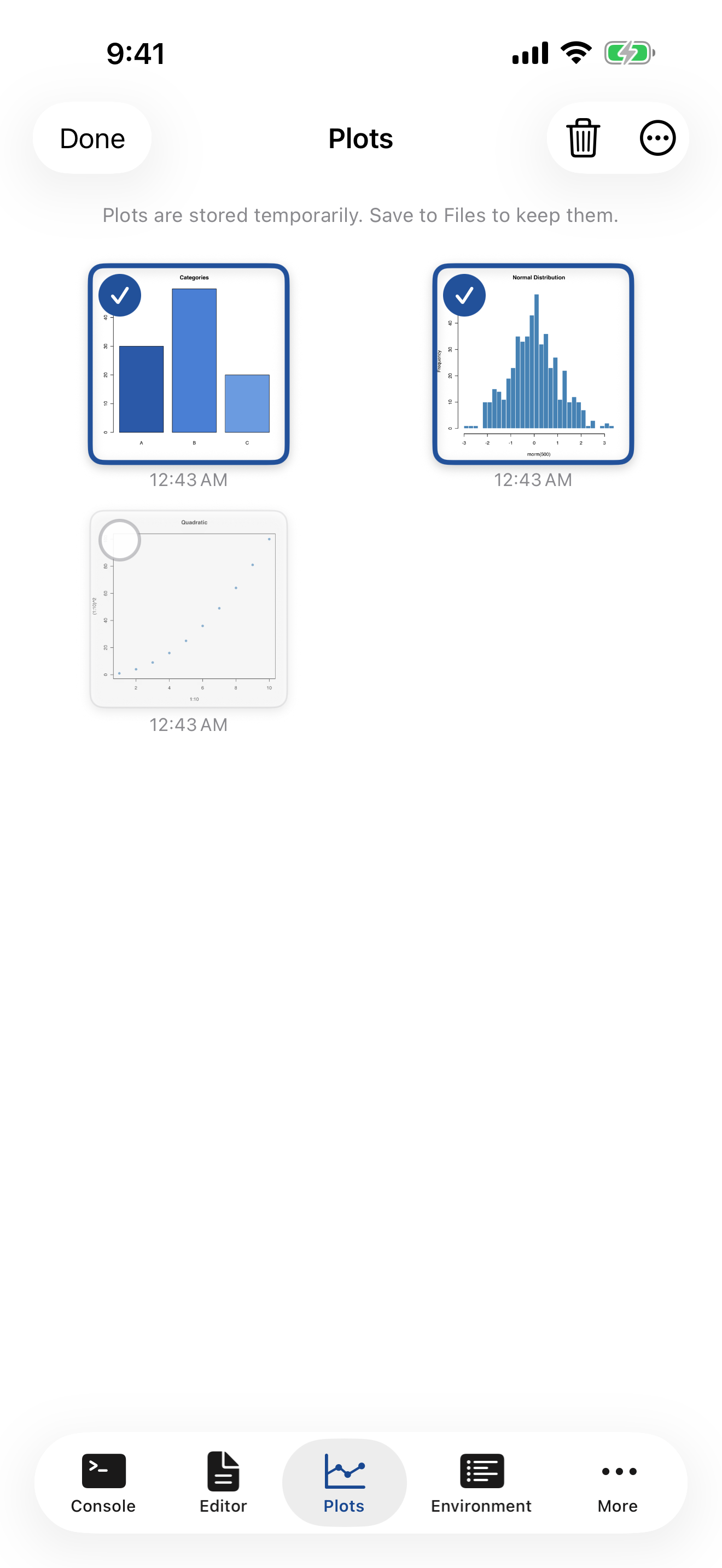
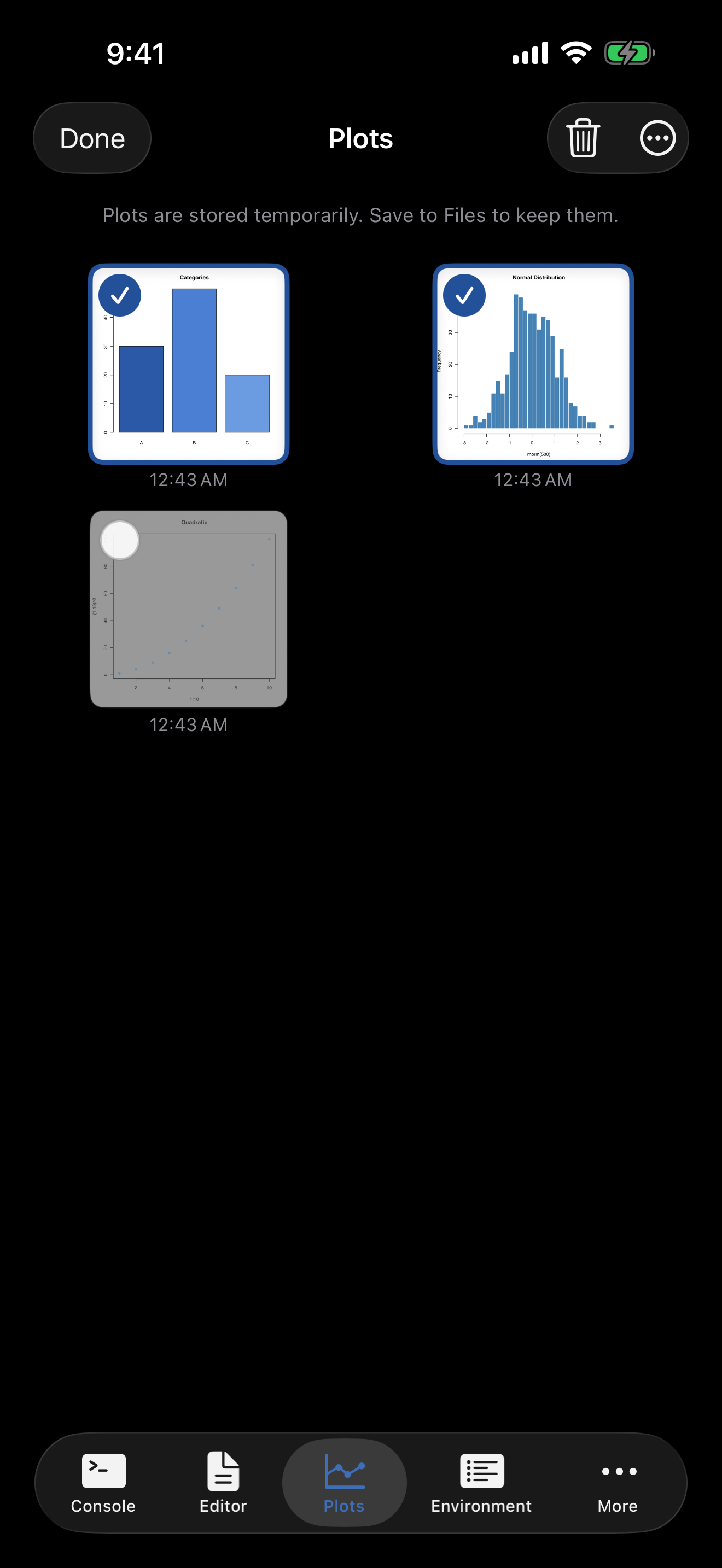
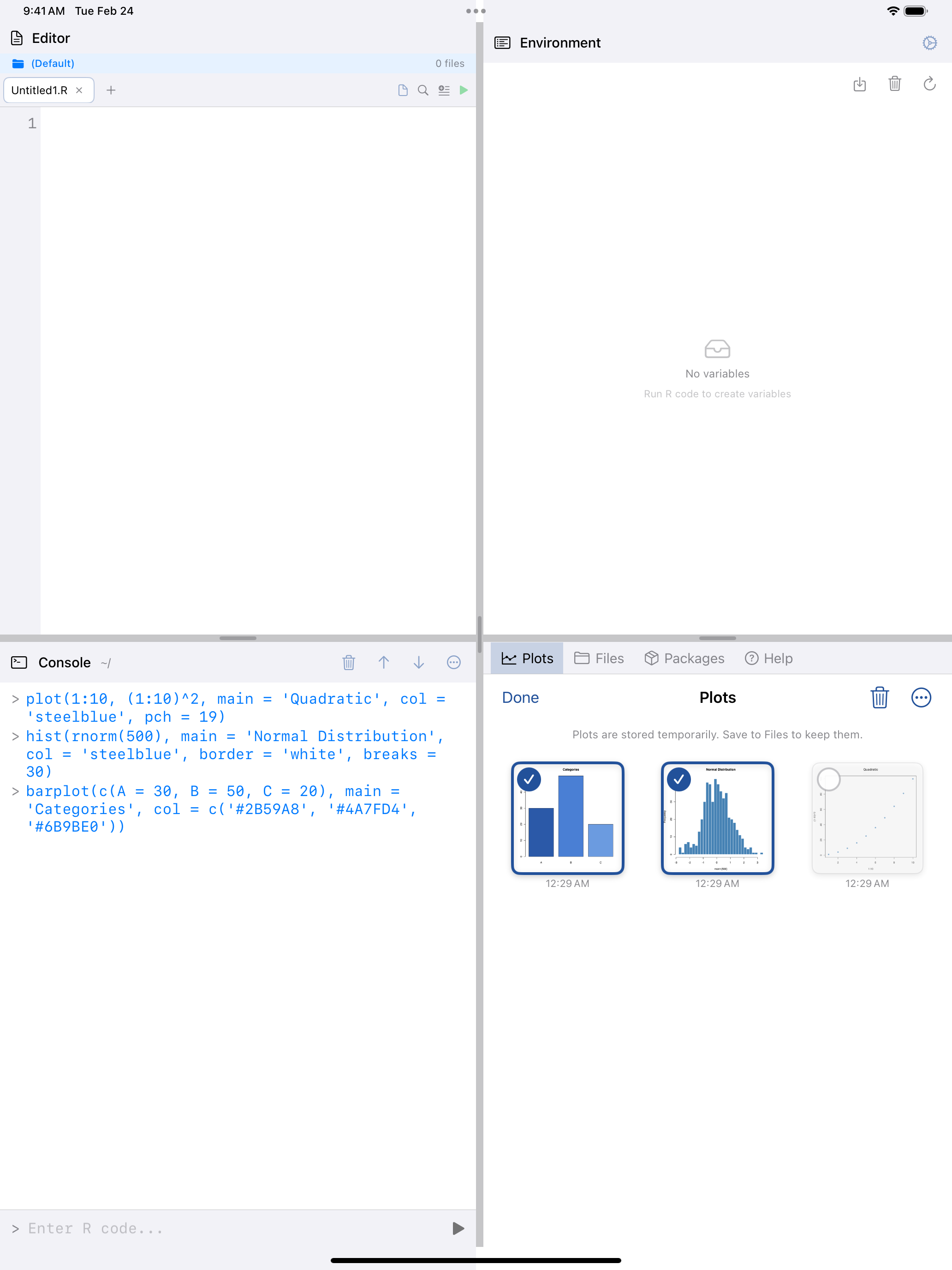
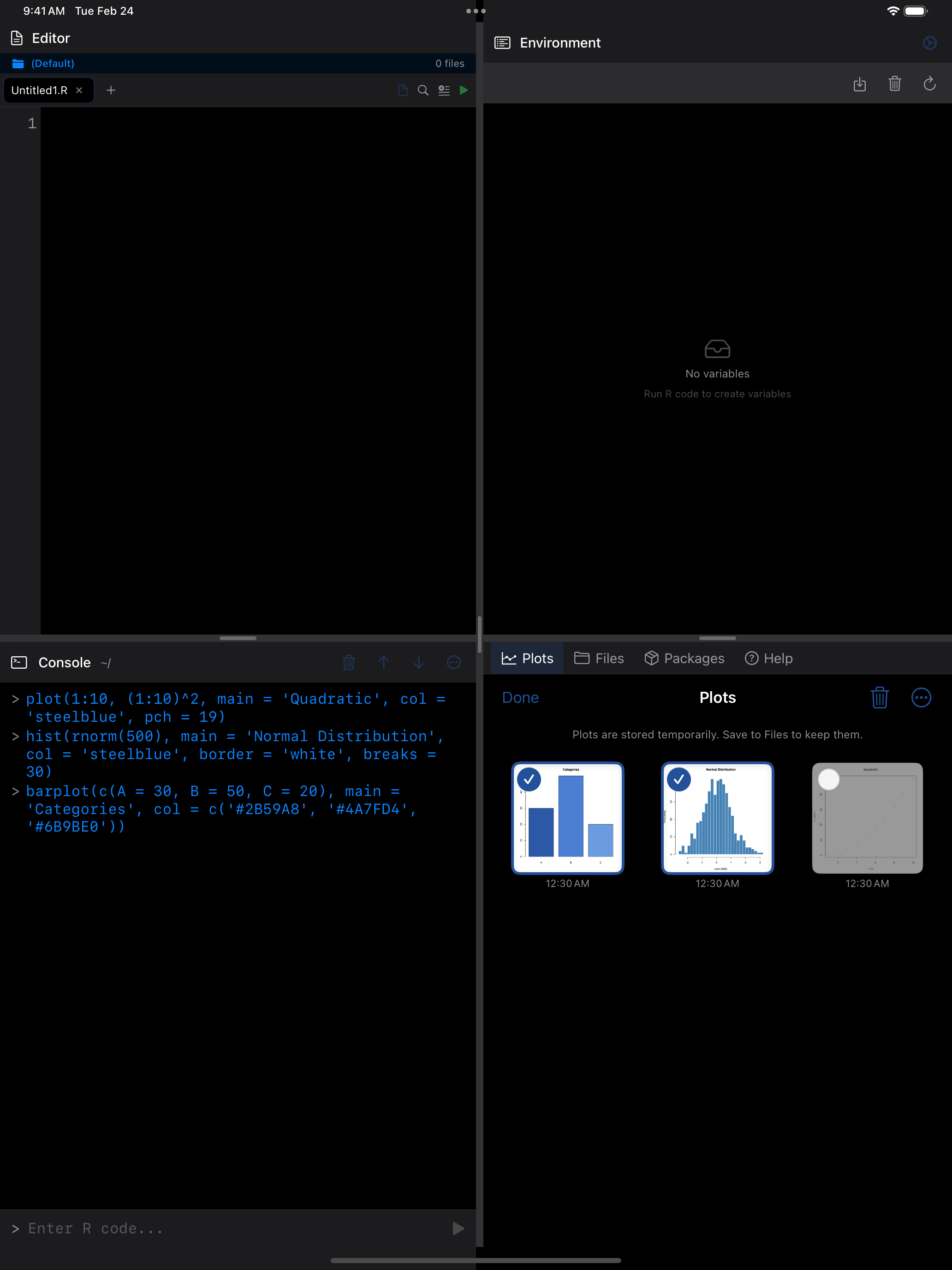
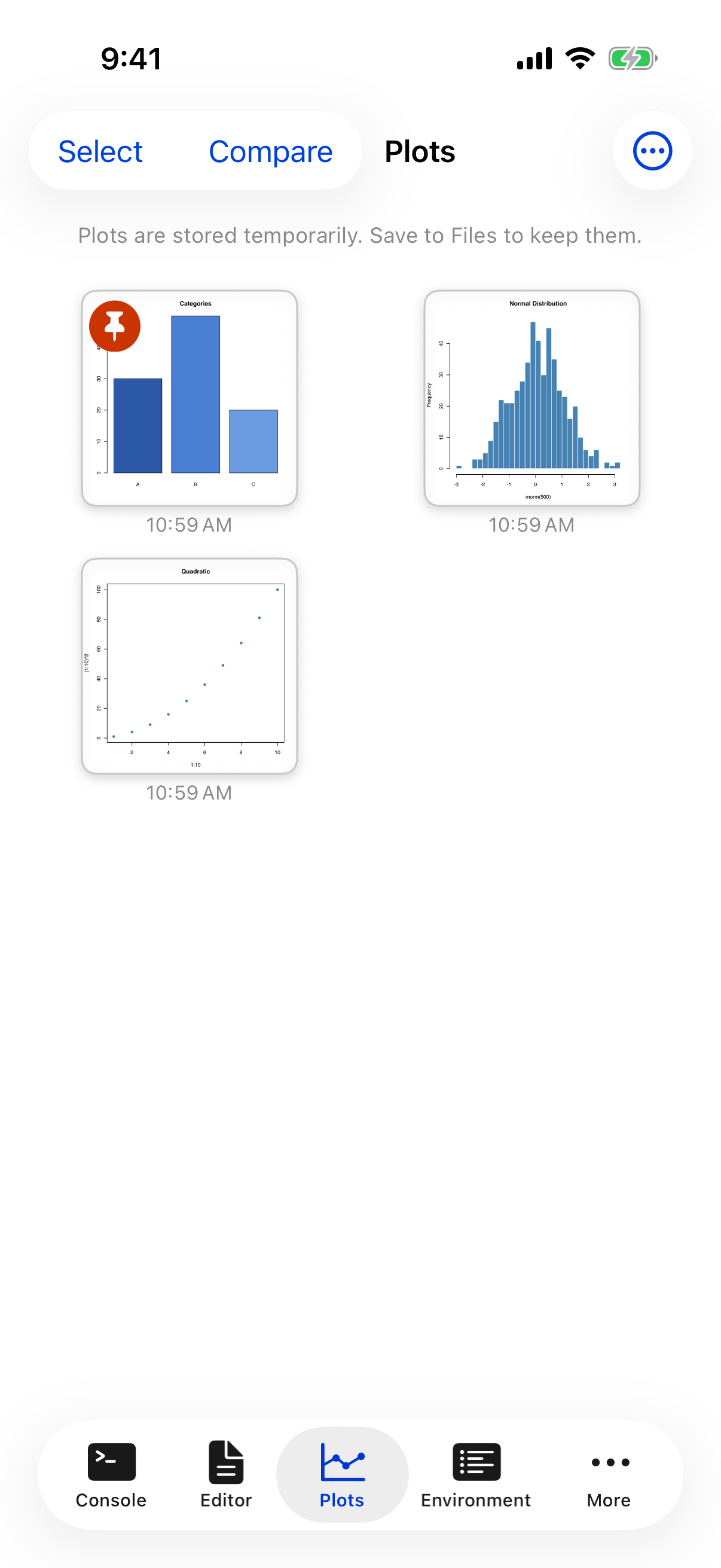
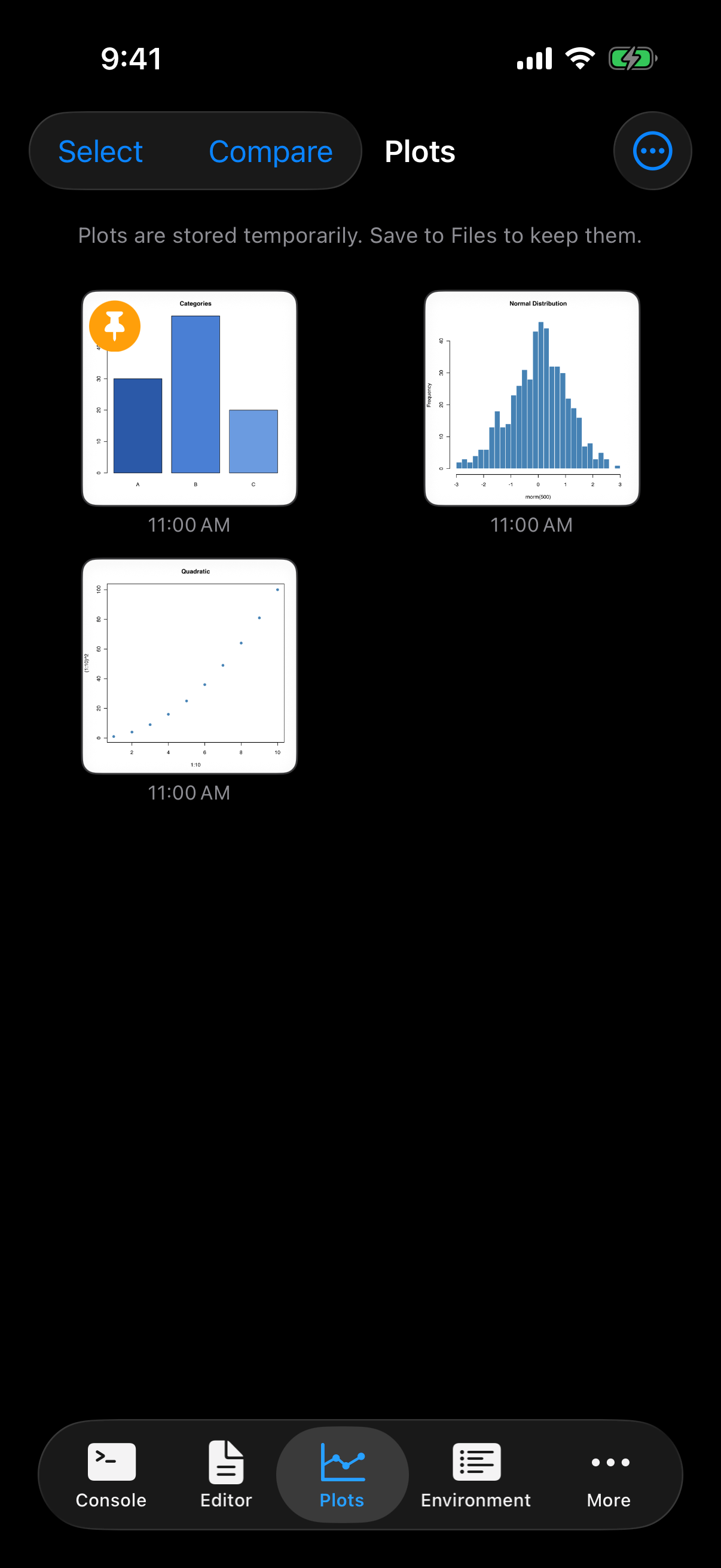
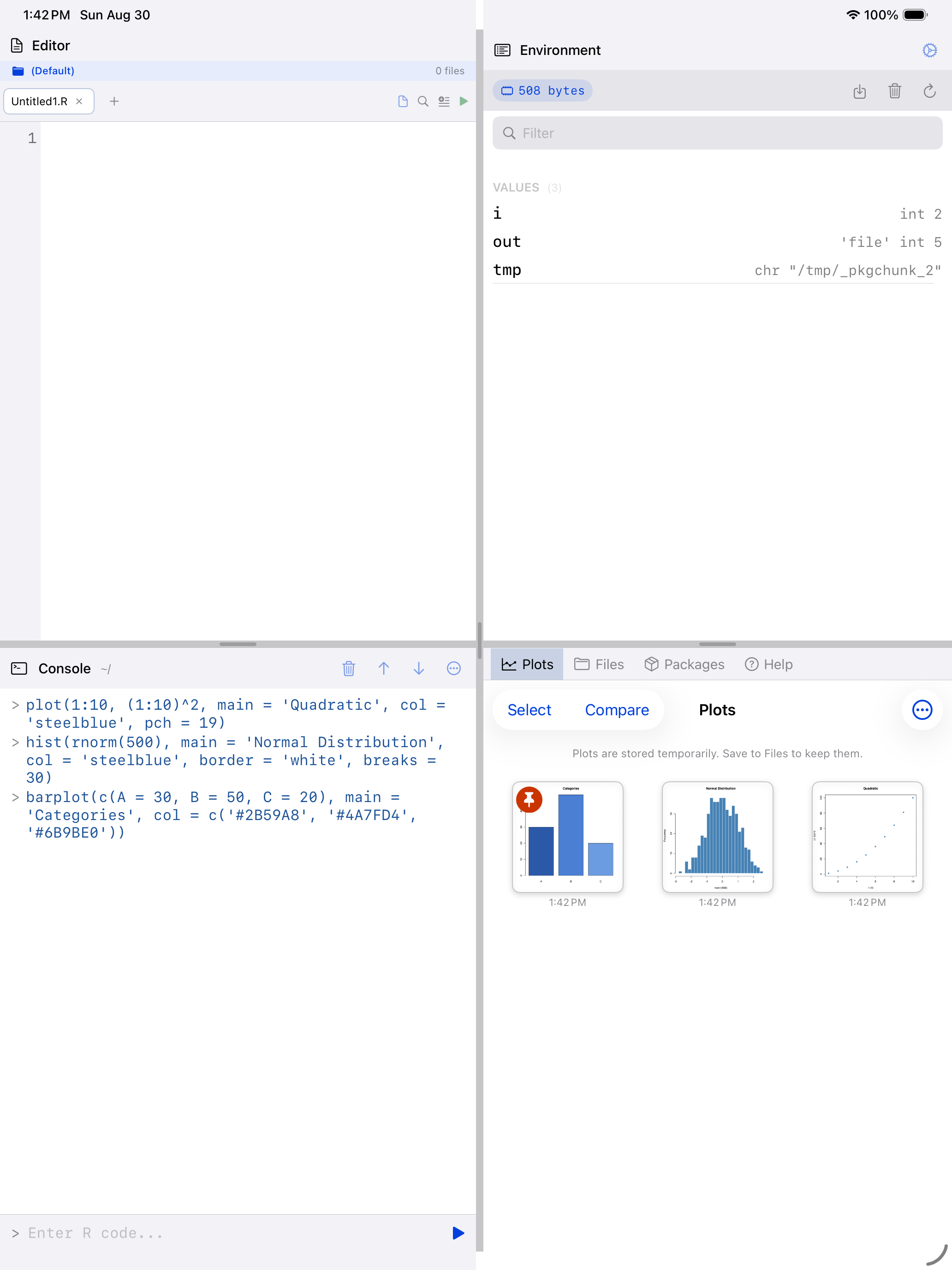
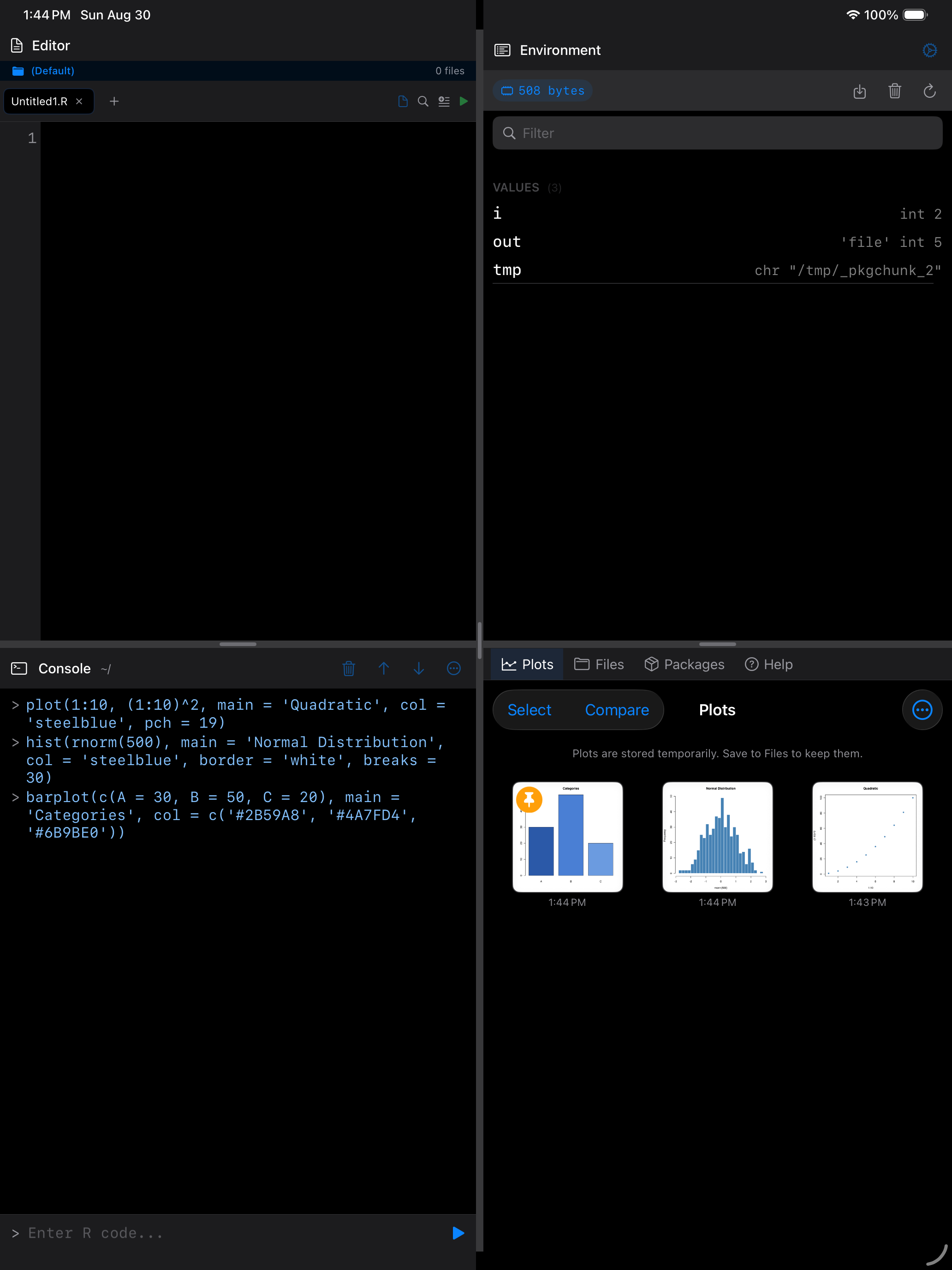
The Plots tab shows all your captured plots as a grid of thumbnails, with the most recent plots at the end. Each thumbnail includes a timestamp so you can tell when it was created.
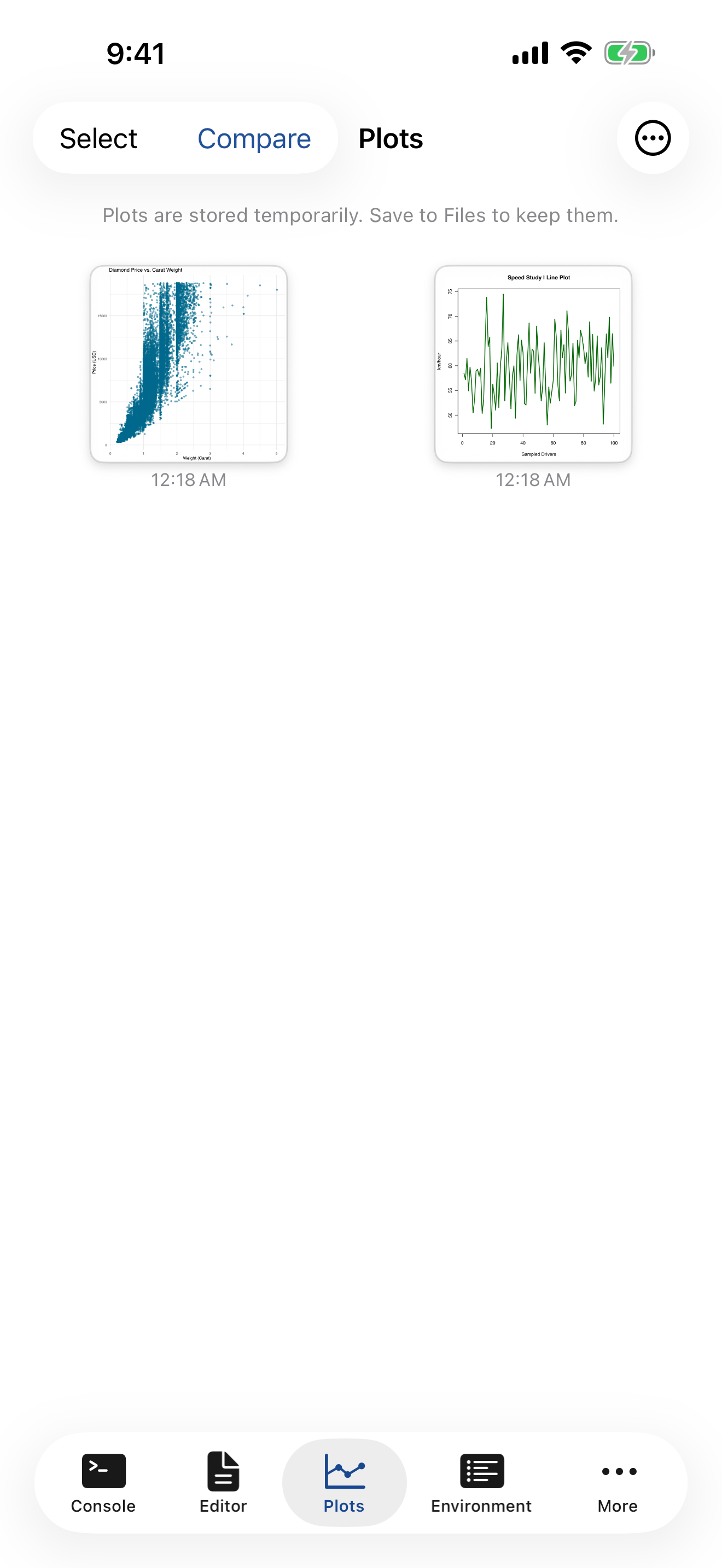

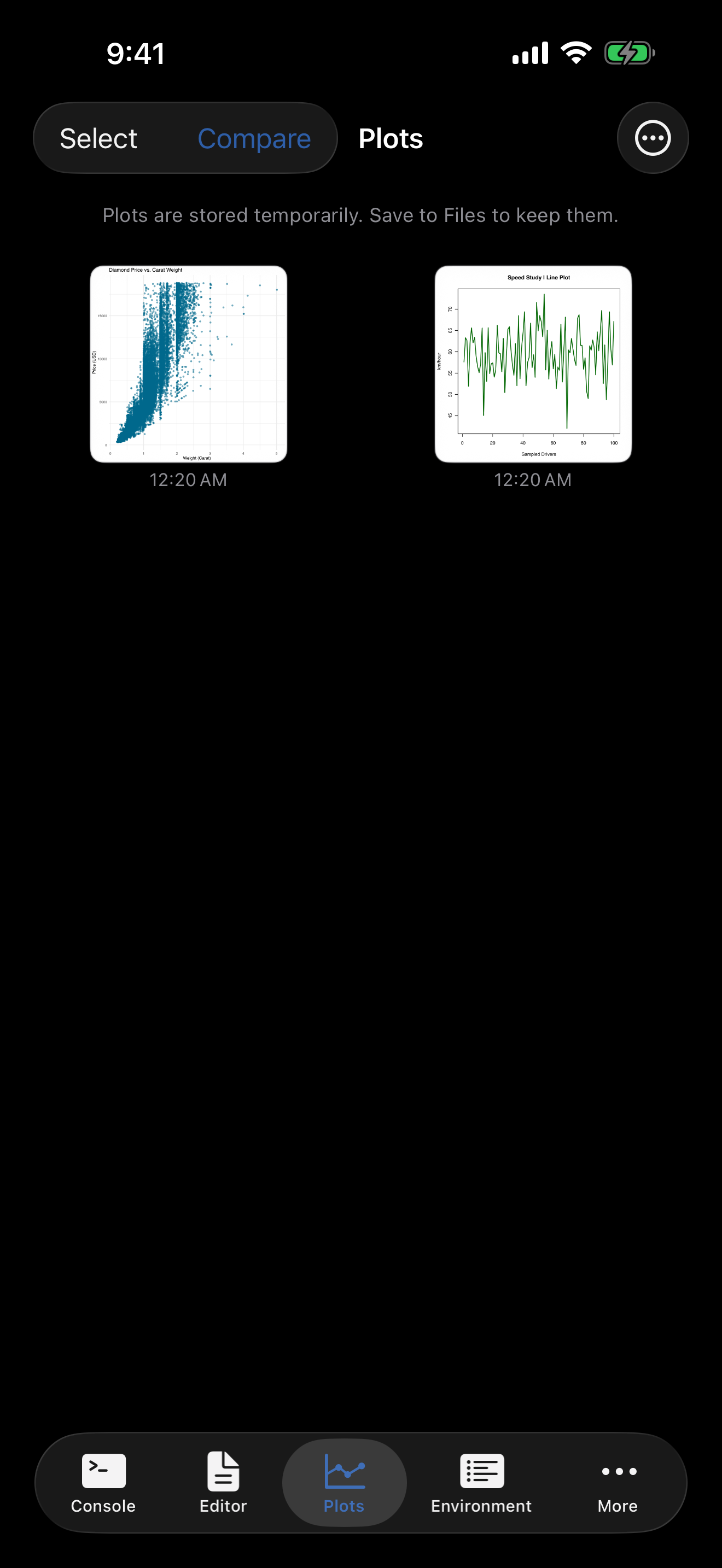
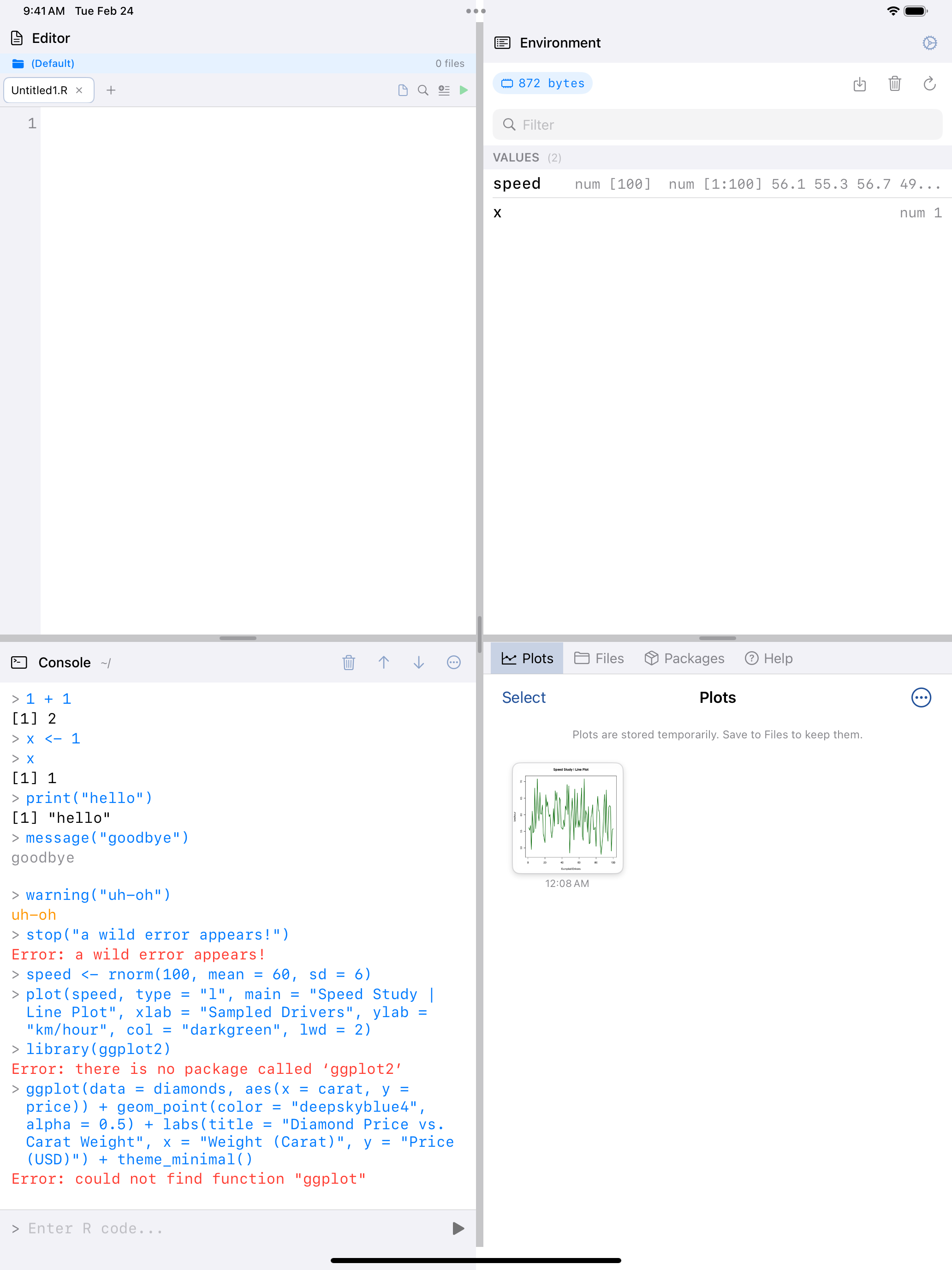

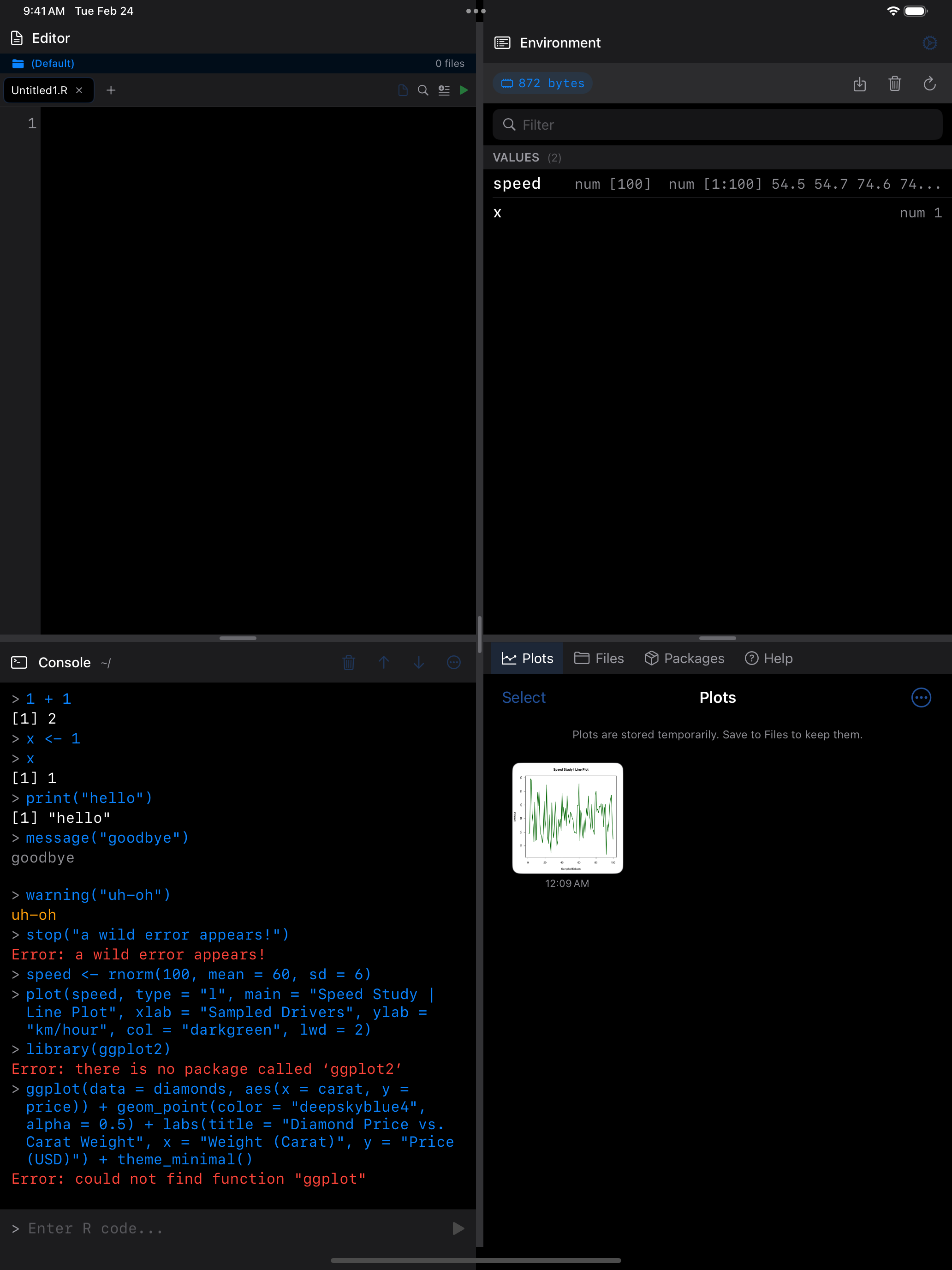
What you are seeing above:
- Thumbnail grid: each plot is shown as a tappable card with the creation time underneath
- Toolbar: provides selection mode, comparison mode, and the overflow menu for managing plots
- NEW badge: freshly created plots get a brief highlight animation so you can spot them
Tap any thumbnail to open the full-size detail view.
Each plot is named after the line of code that drew it. VoiceOver reads that name for the thumbnail, for example “Plot 2 from plot(mtcars\(wt, mtcars\)mpg)” for the second plot a run drew, and the detail view uses it as its title.
If your session has made interactive plots, an Interactive Plots card sits above the grid. See Interactive Widgets.
Viewing Plots in Detail
When you tap a plot thumbnail, it opens in a full-screen detail view where you can examine it closely. The detail view supports several gestures for navigating the image:
- Pinch to zoom: zoom in from 0.5x all the way up to 5x magnification to inspect fine details
- Drag to pan: when zoomed in, drag to move around the image
- Double-tap: toggles between 1x and 2x zoom, which is a quick way to zoom in on a section and then snap back to the full view
With VoiceOver, which keeps pinch and double-tap for itself, use VoiceOver’s zoom actions instead, which step between 1x and 5x, and the Reset zoom action.
The toolbar at the top of the detail view gives you several options:
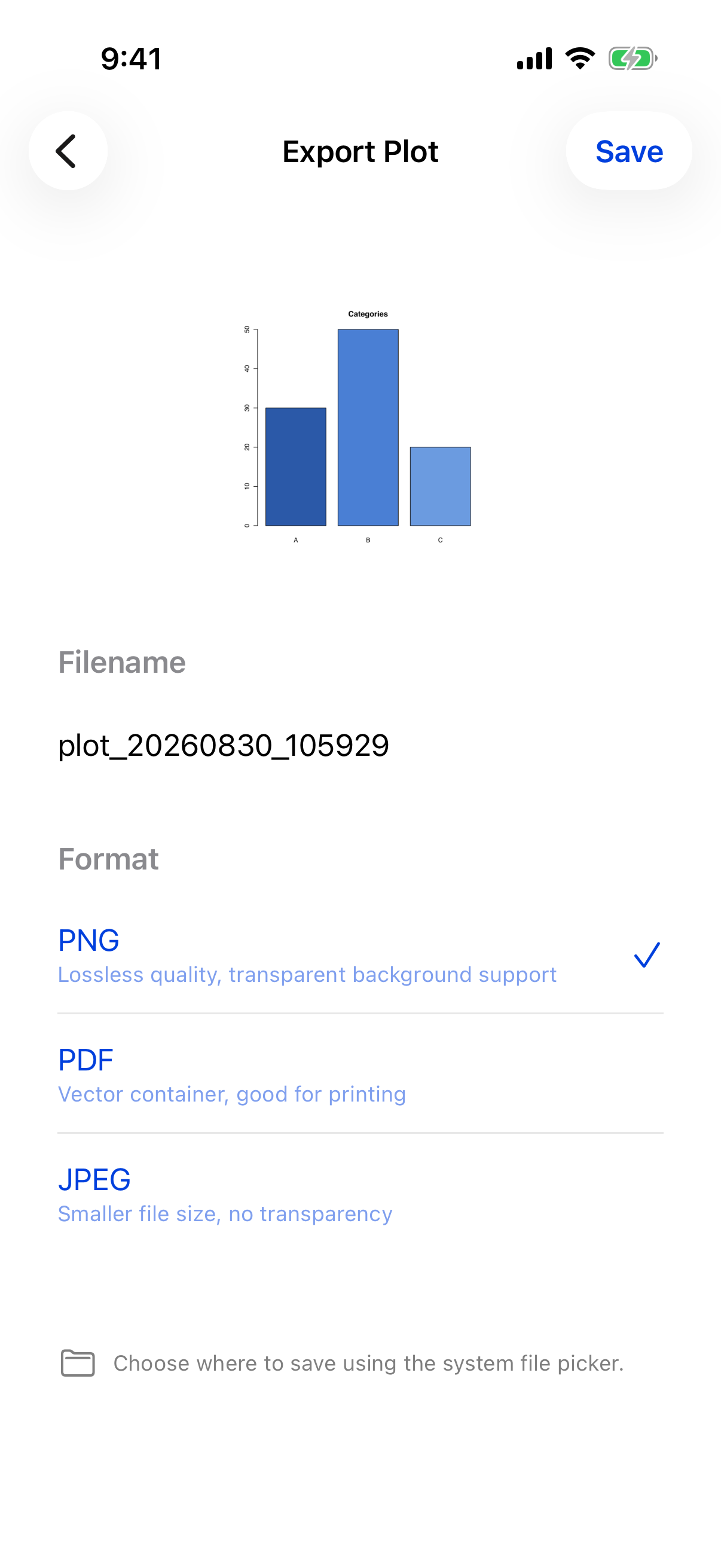
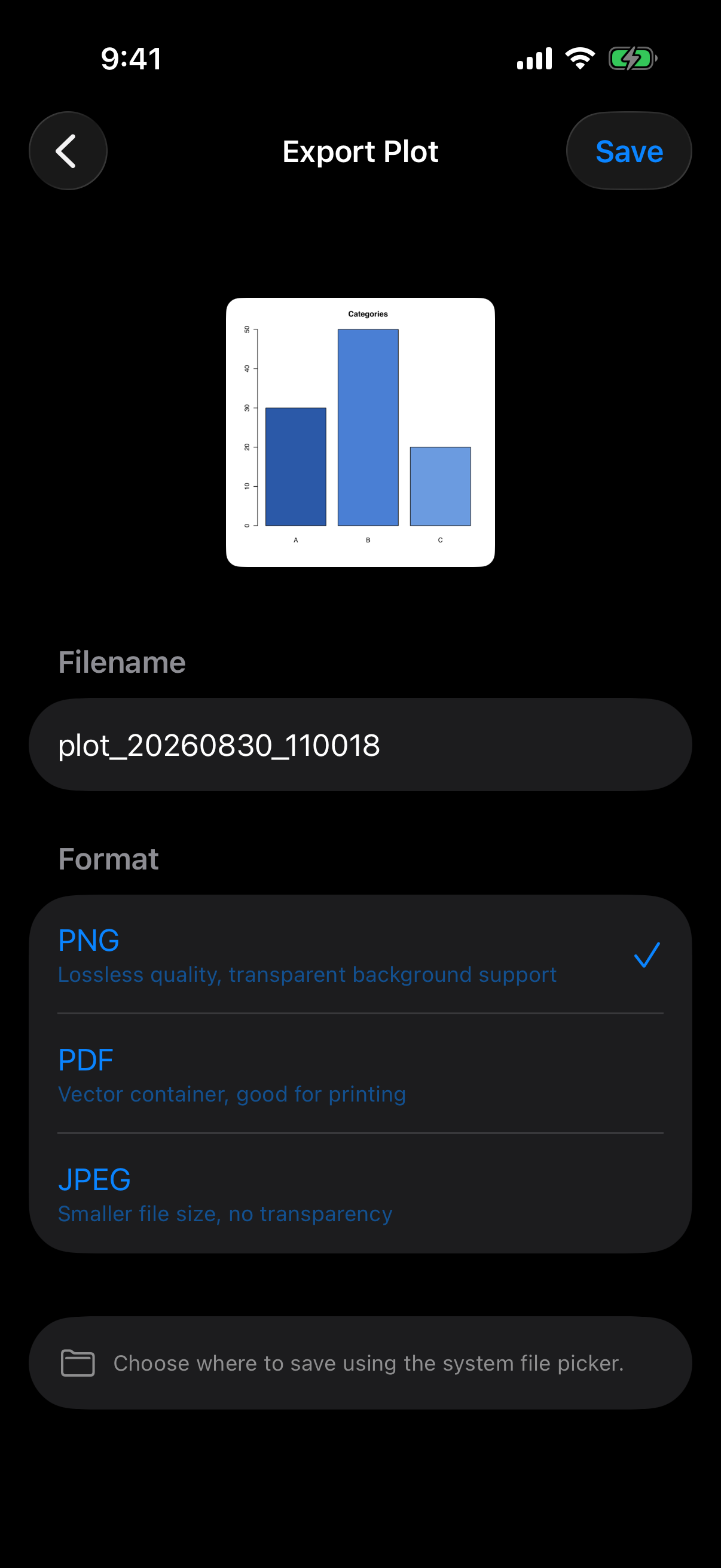
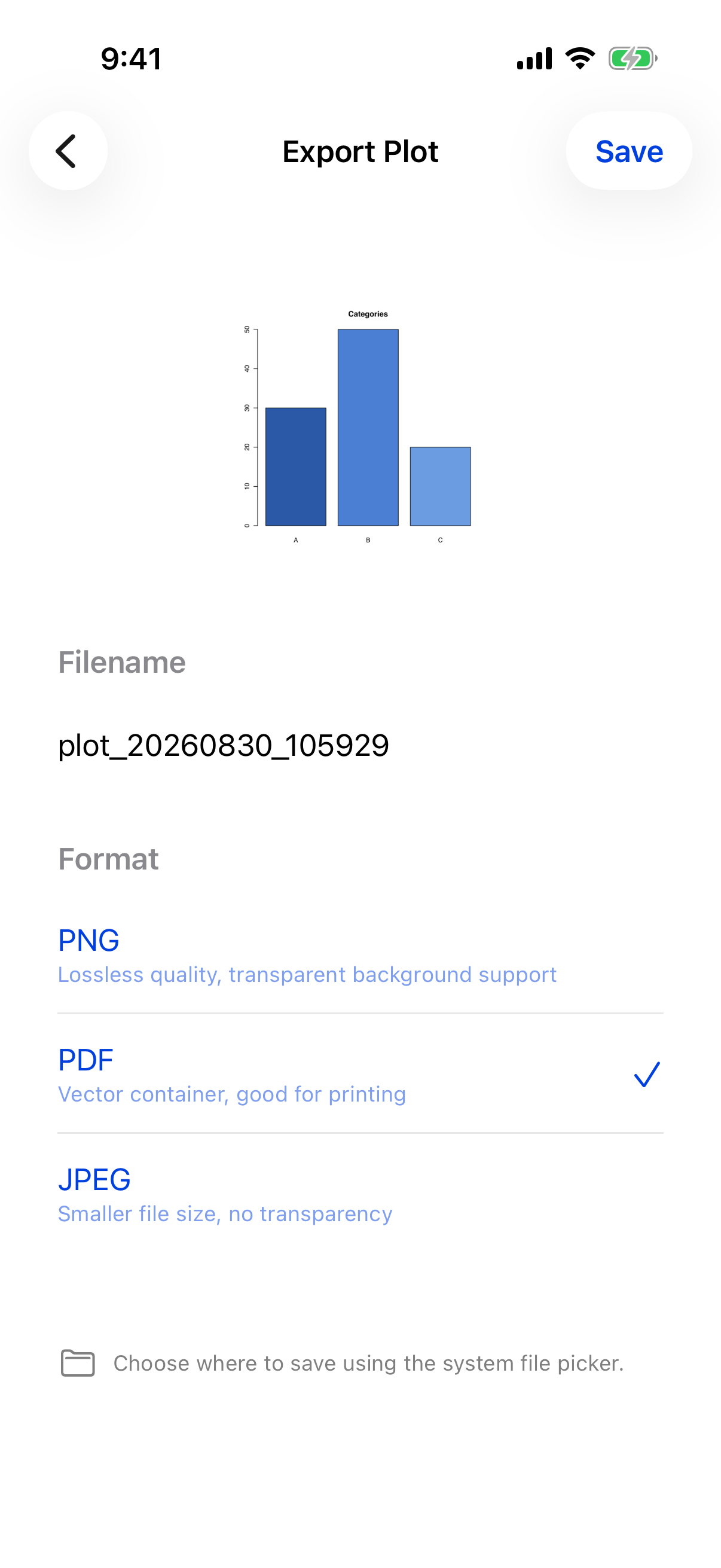
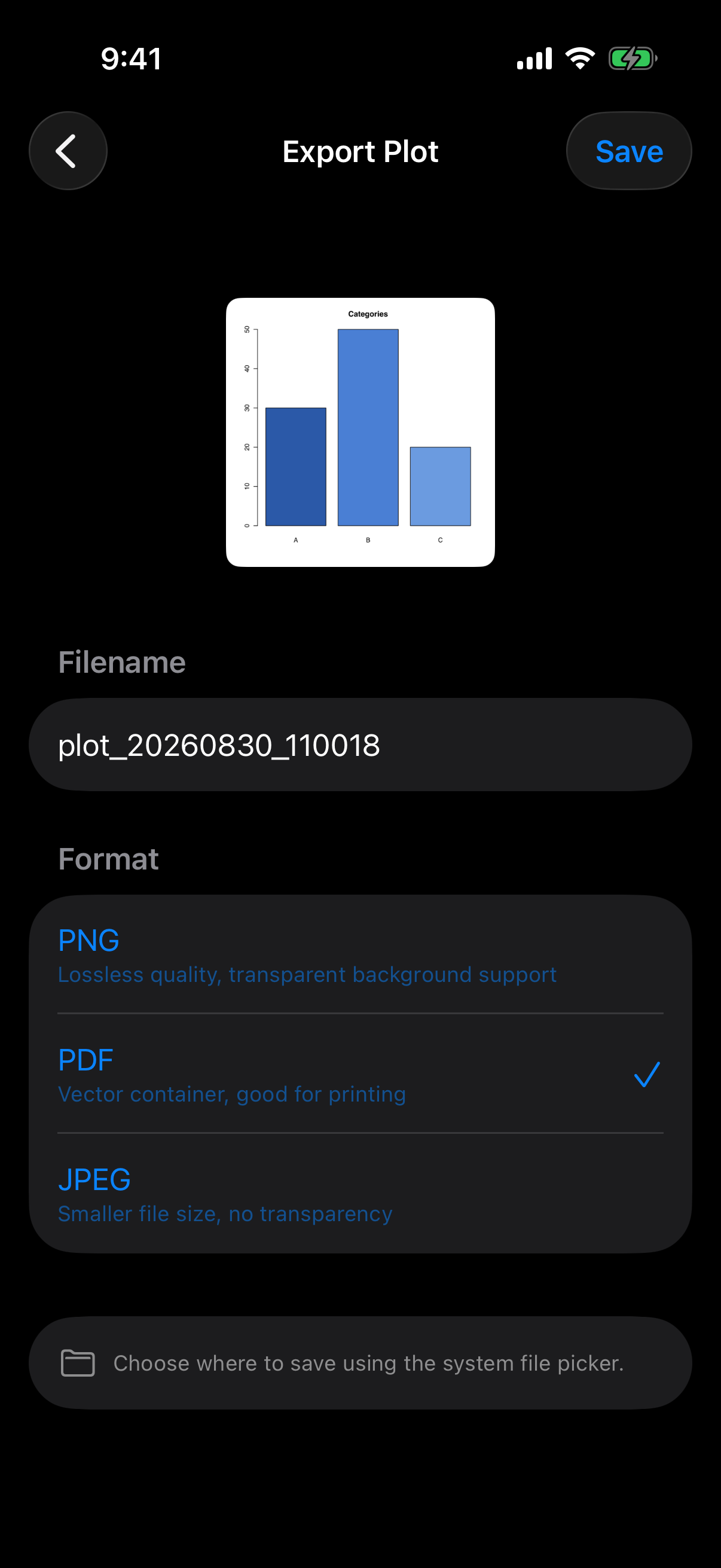
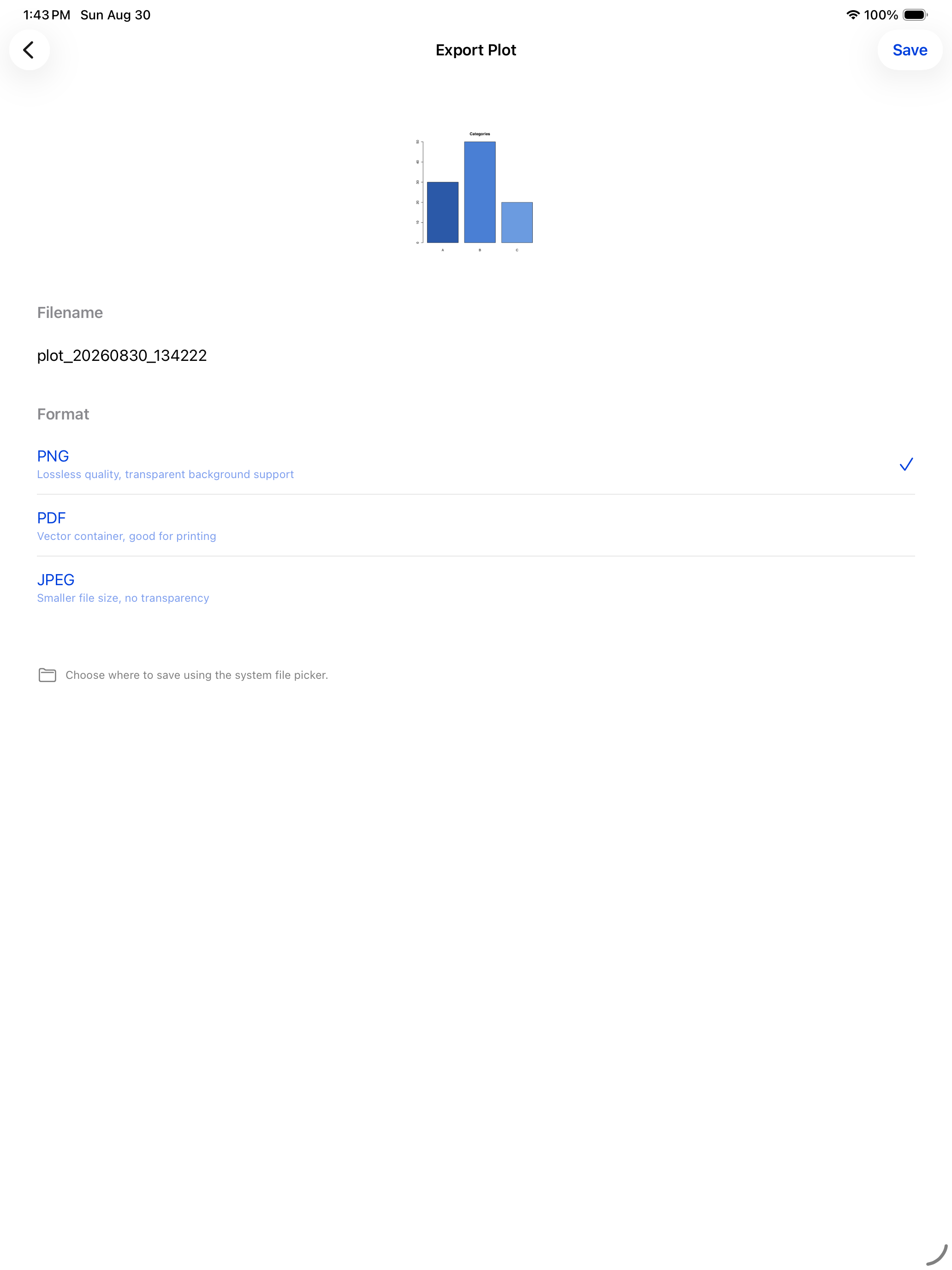
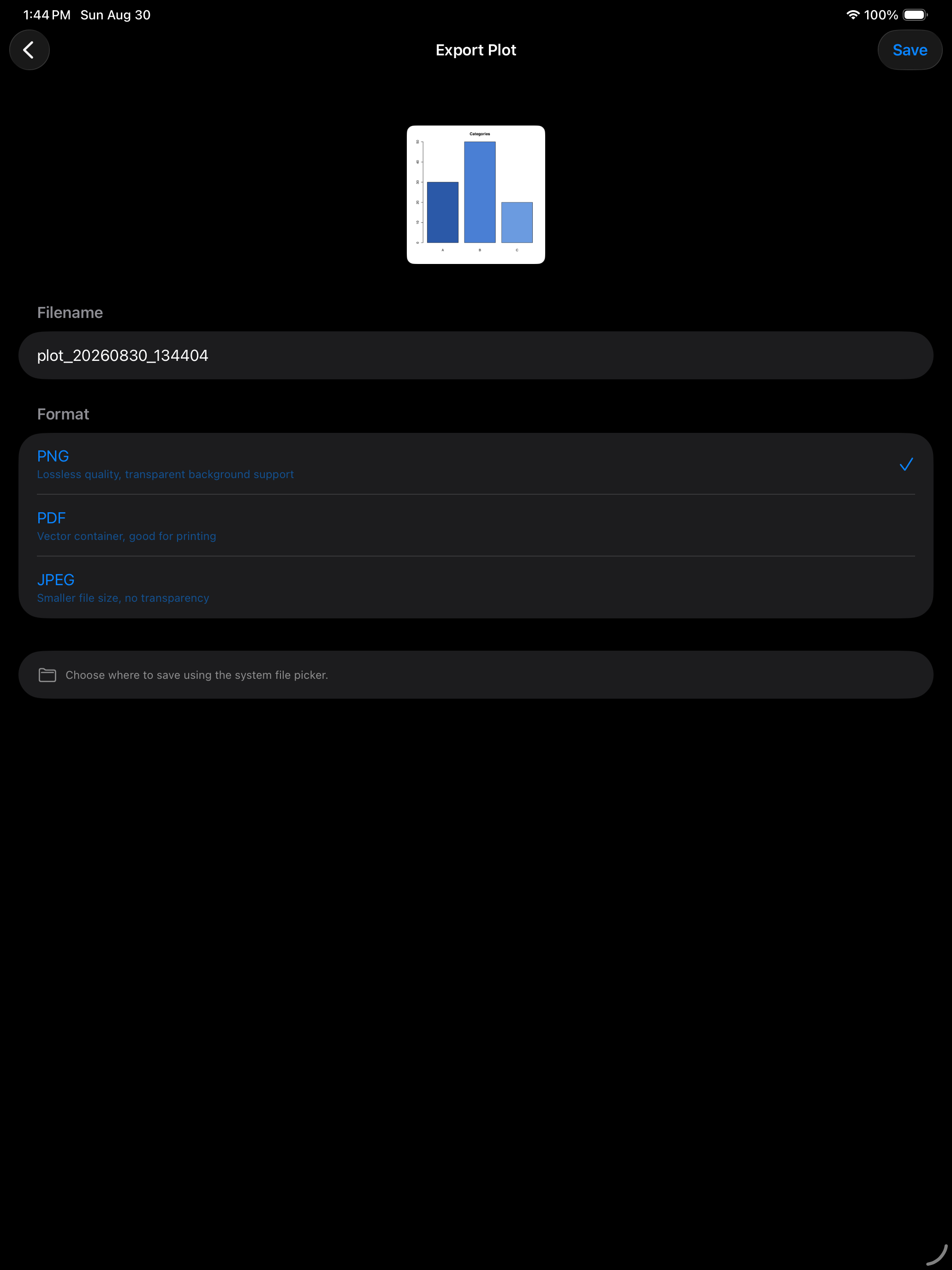
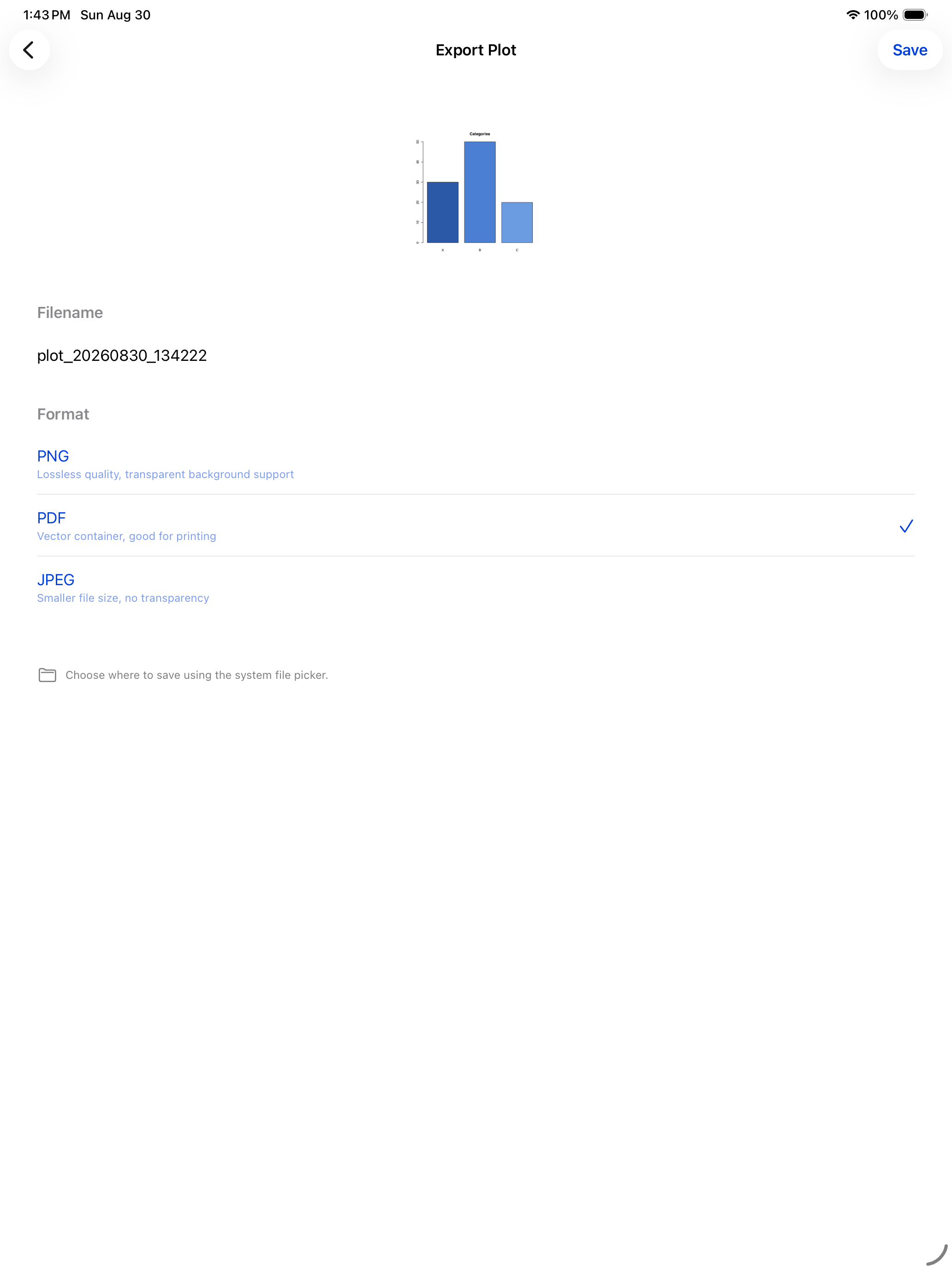
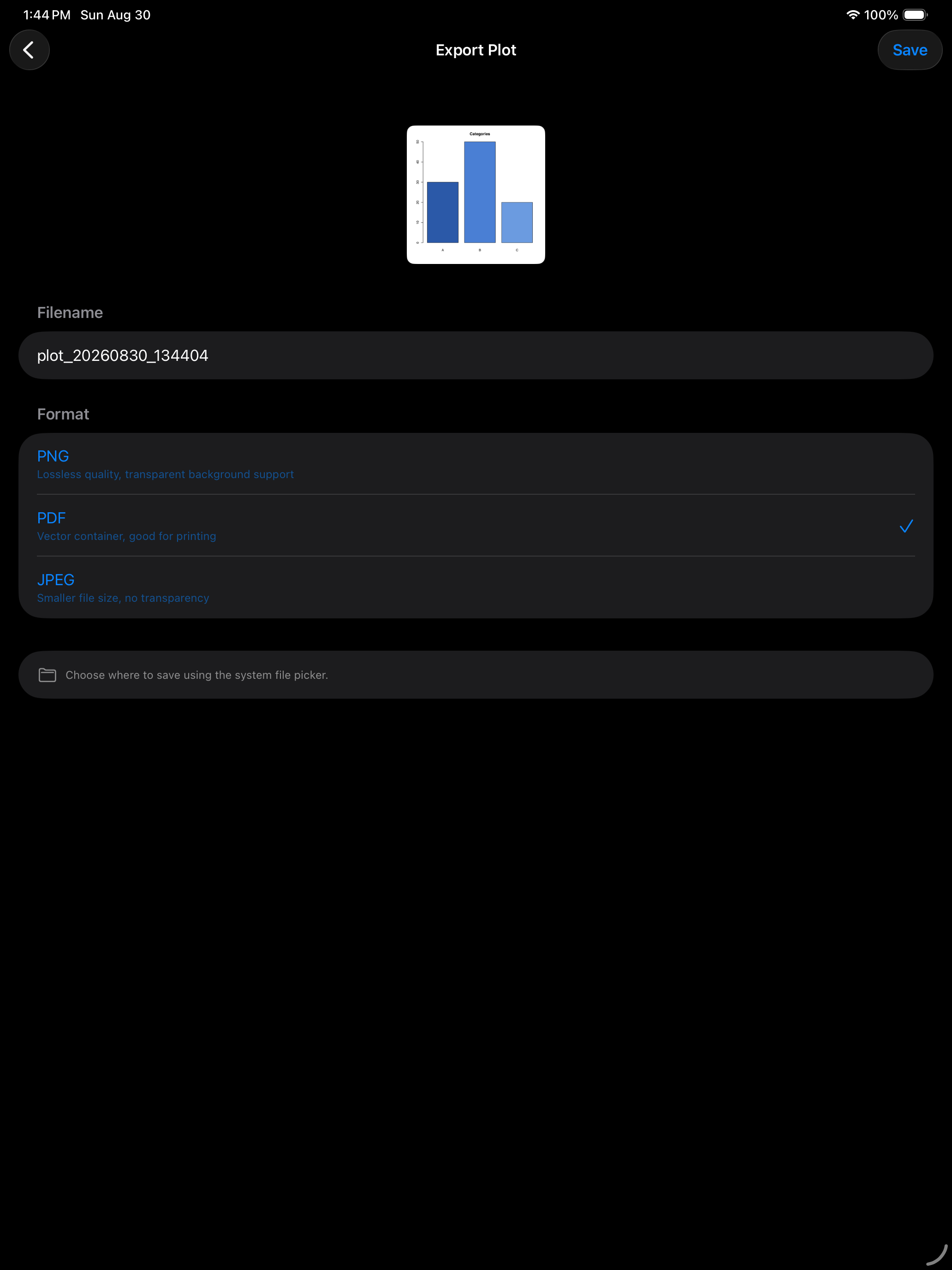
- Export: save the plot to a file in PNG, JPEG, or PDF format with a custom filename
- Share: use the iOS share sheet to send the plot to Photos, AirDrop, Mail, Messages, or any other app that accepts images
- Delete: remove this plot from the gallery (unavailable while the plot is pinned)
- Open in new window (iPad only): opens the plot in a separate window, so you can view it side by side with your code
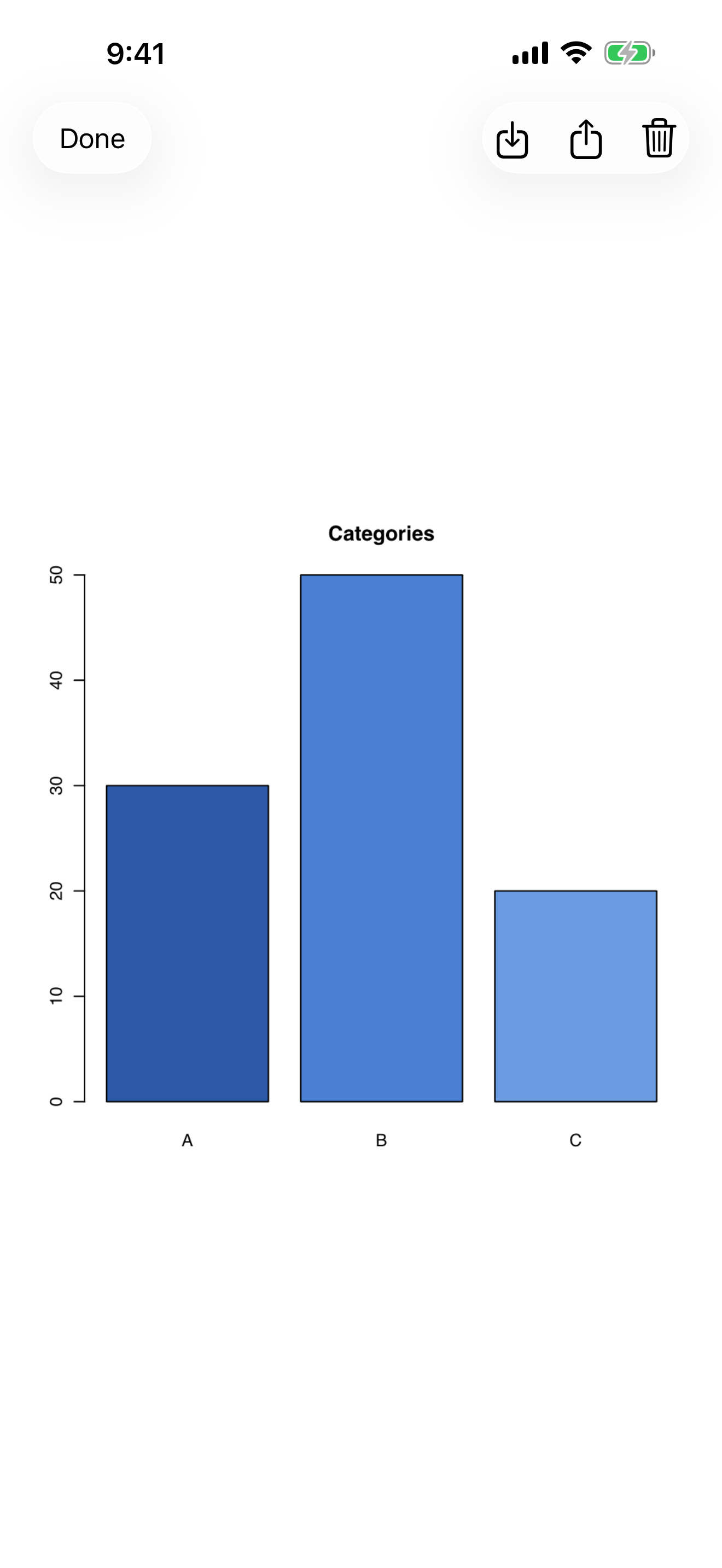
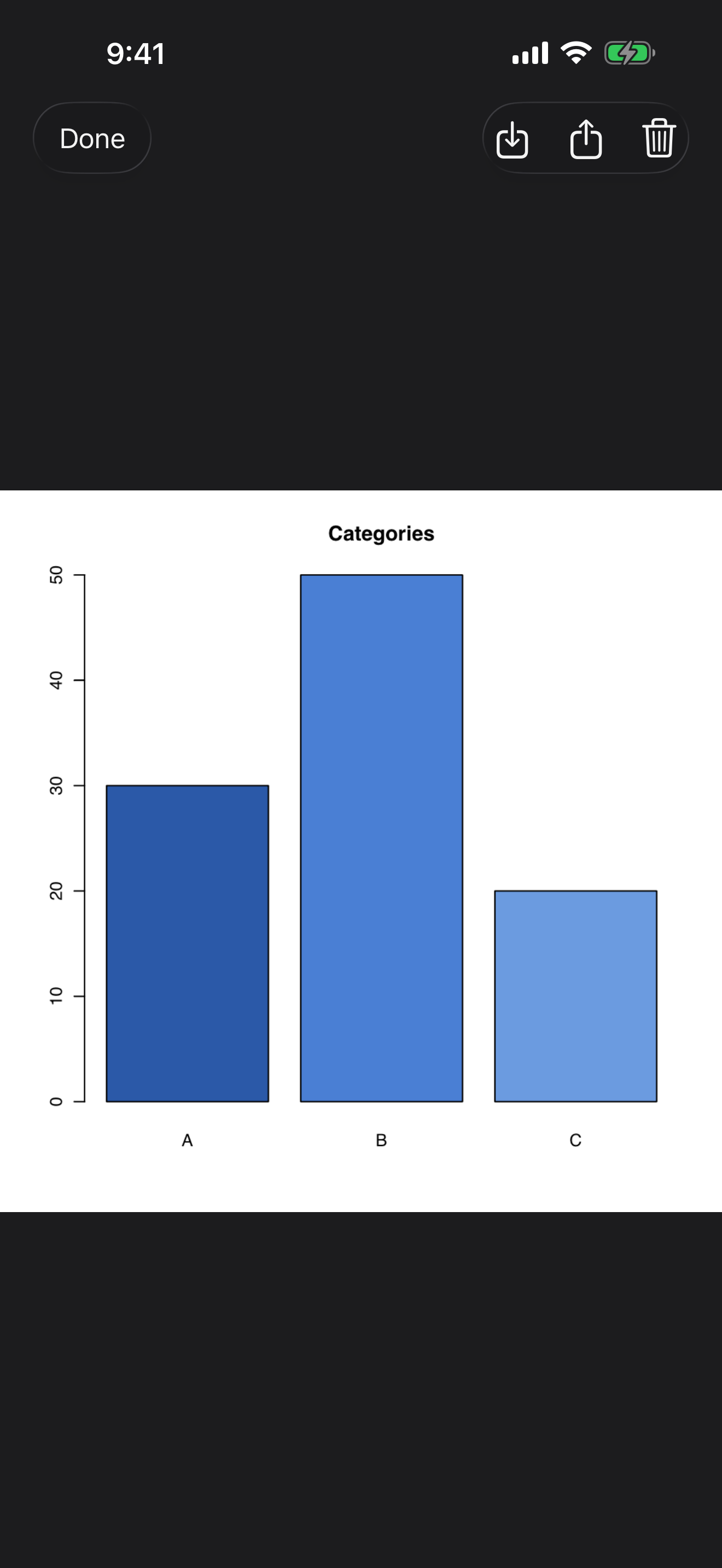
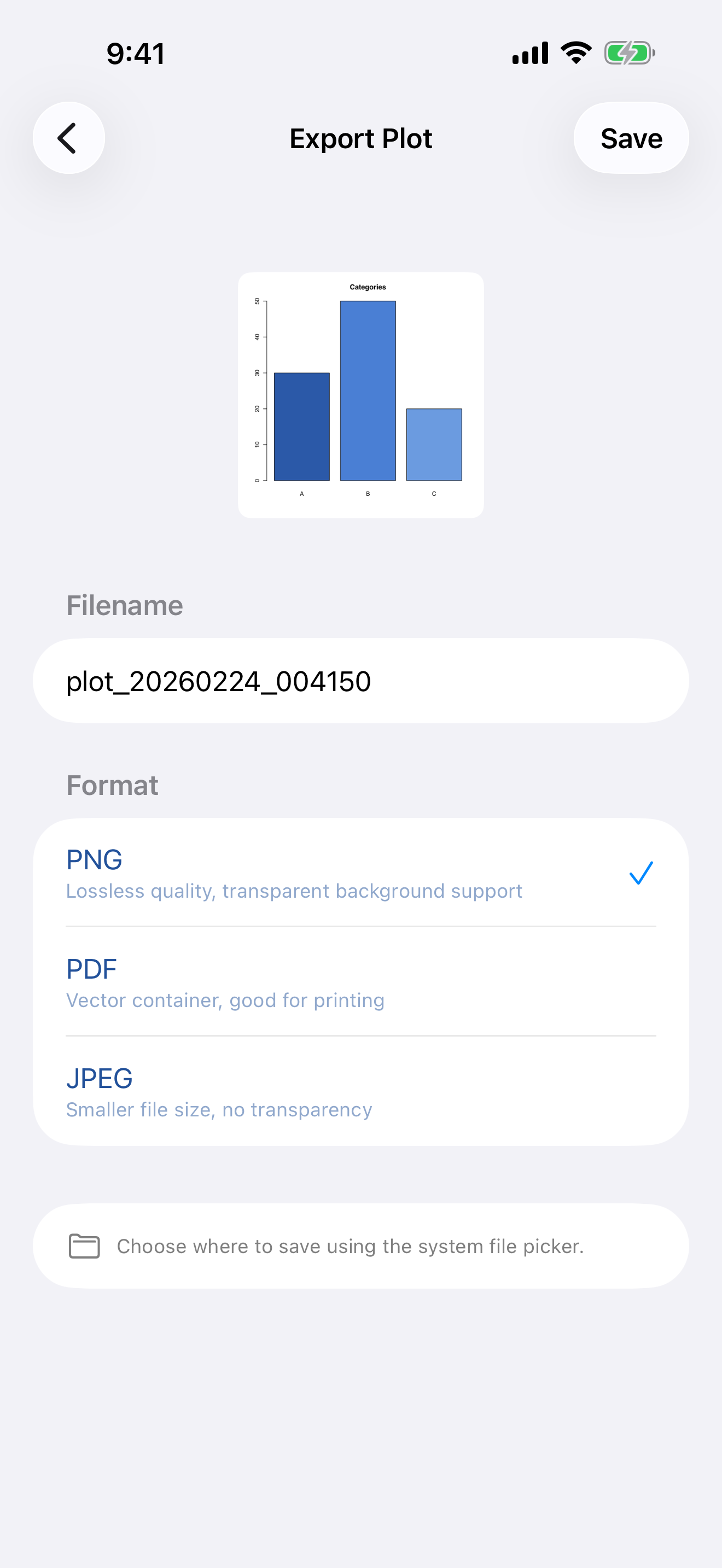
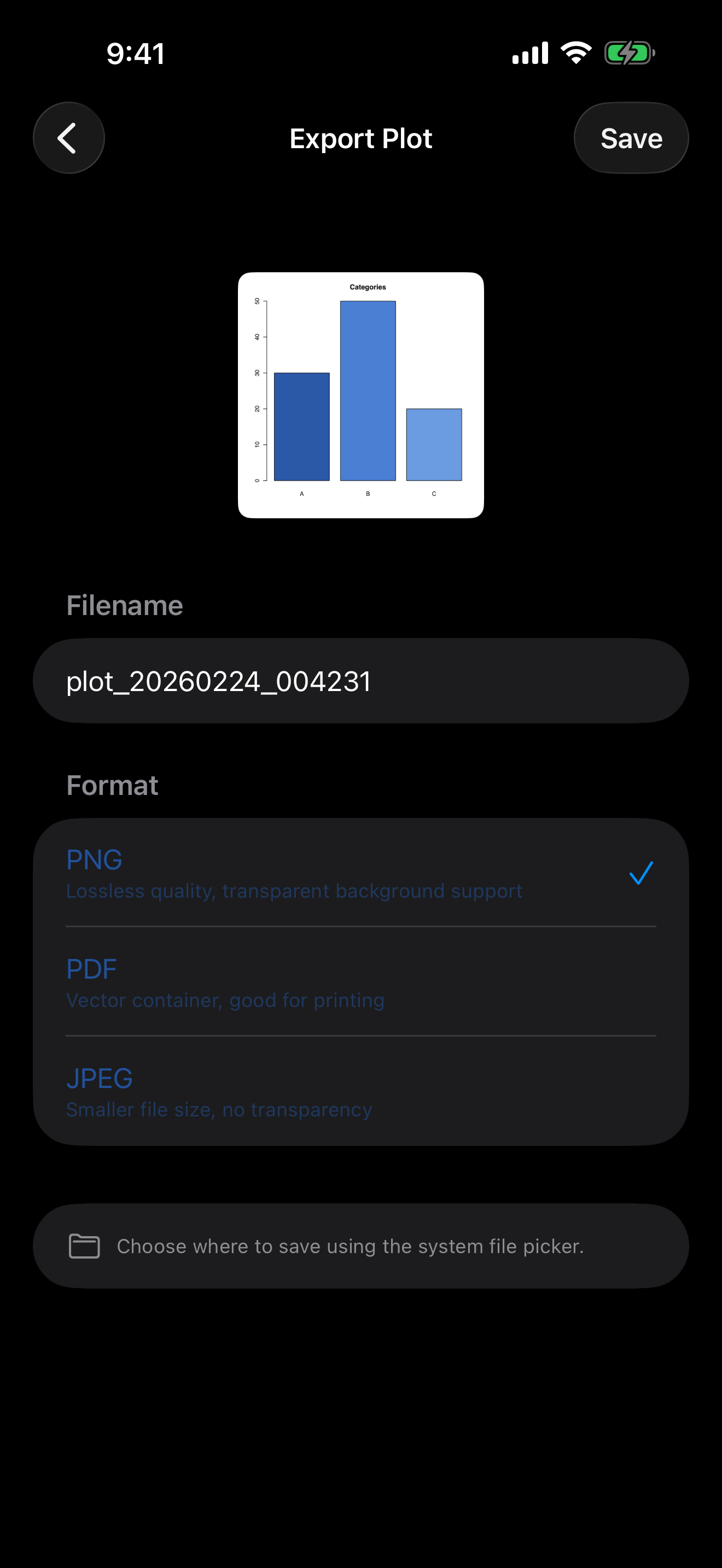
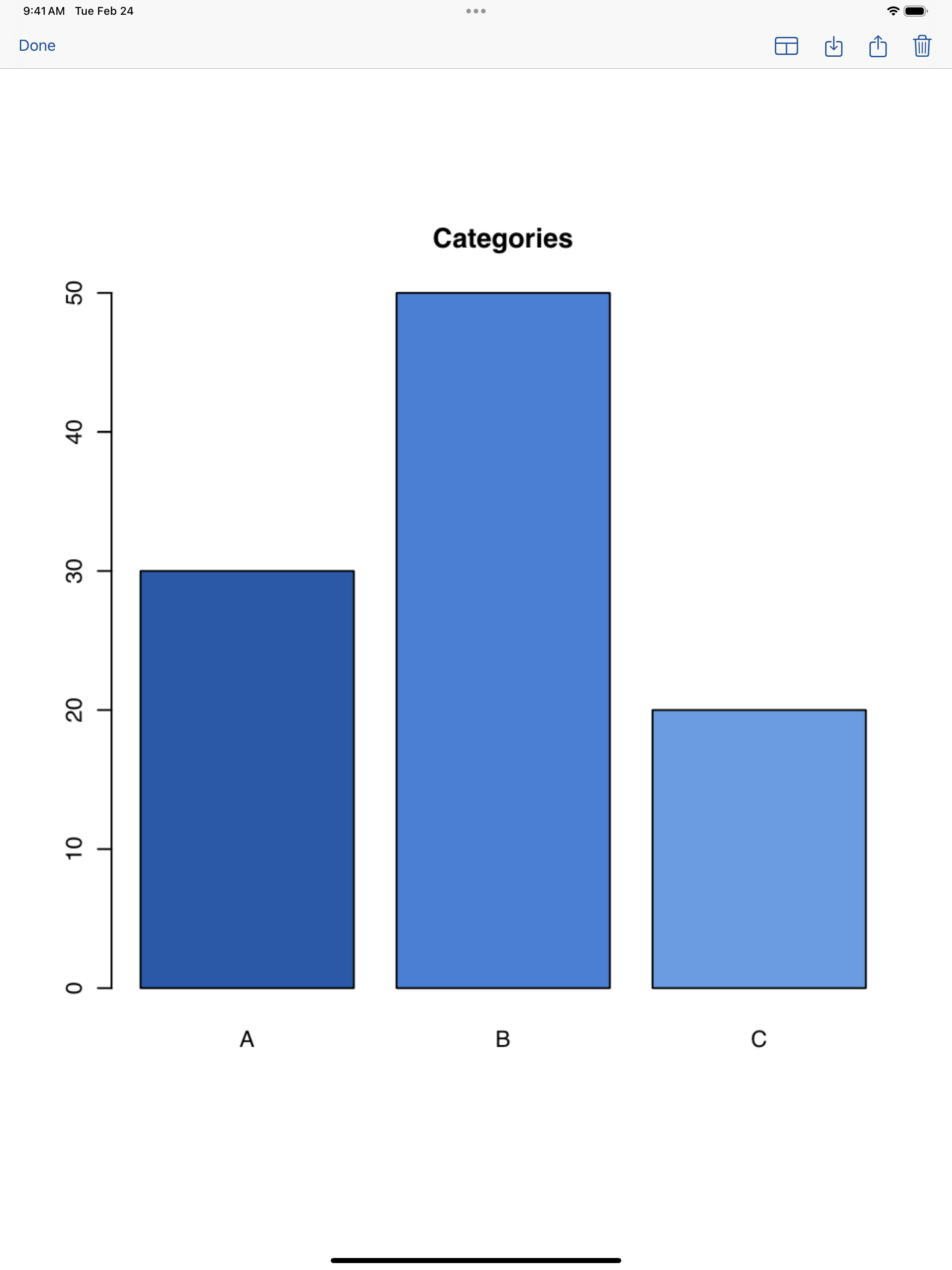
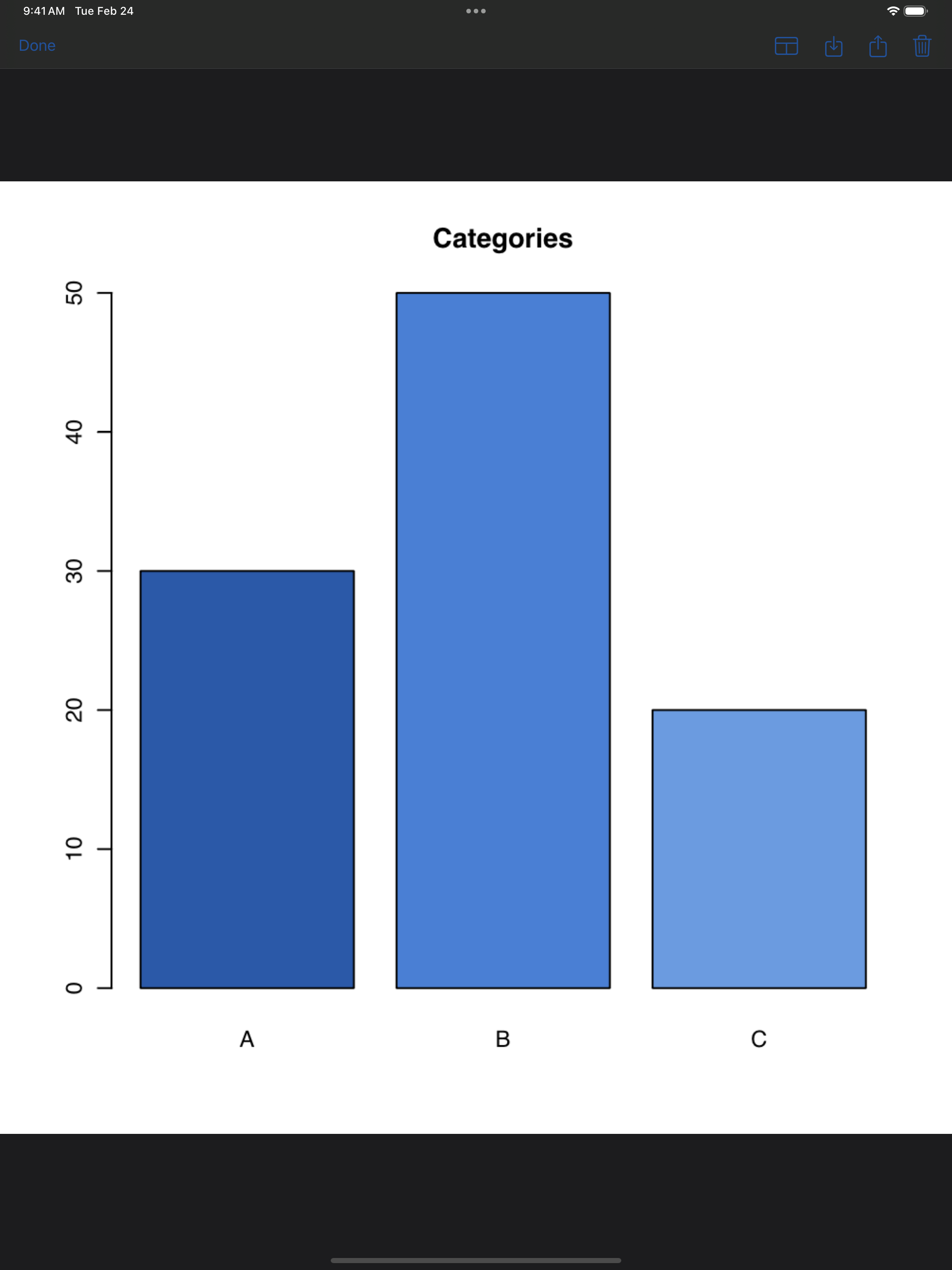
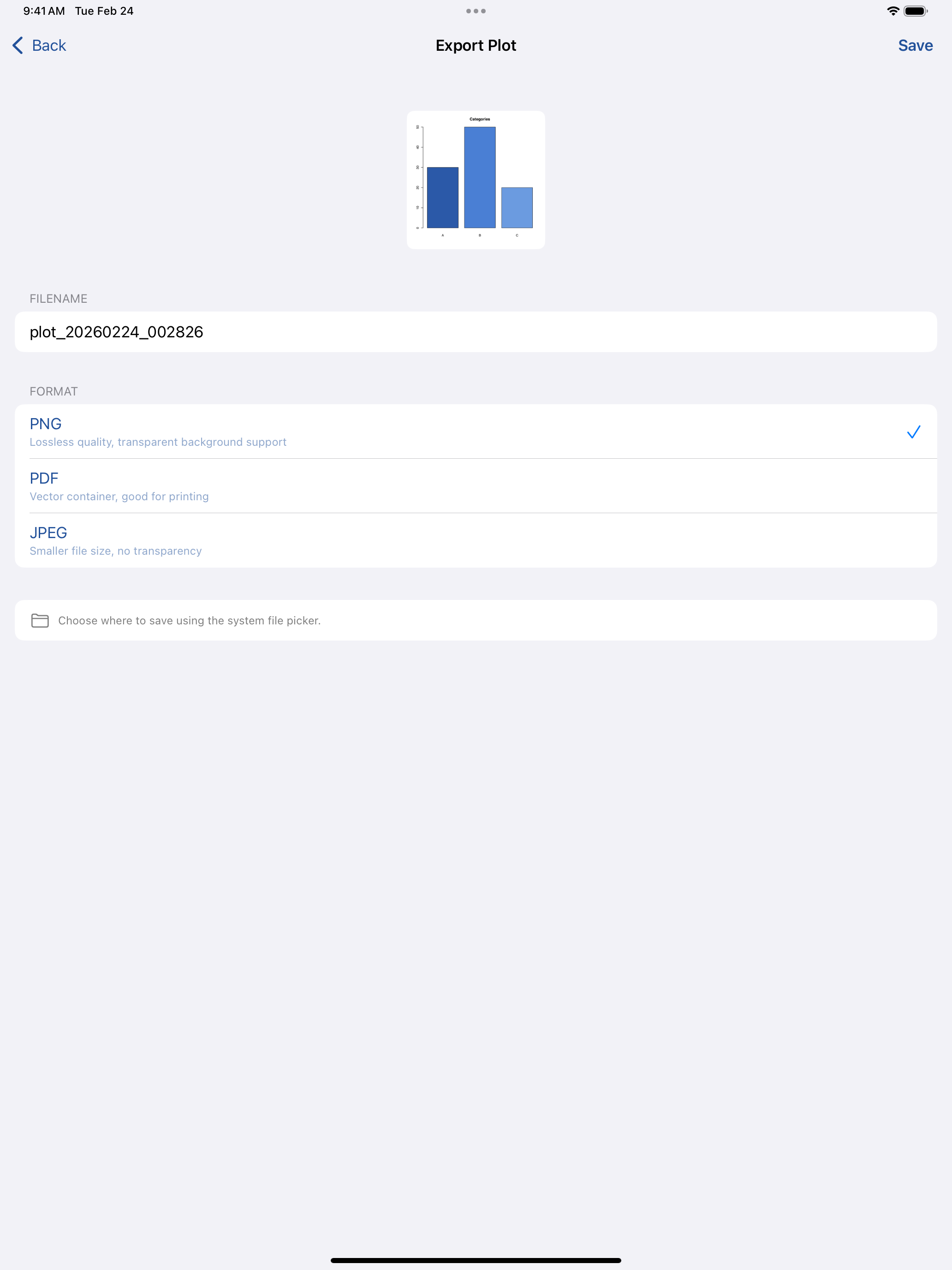
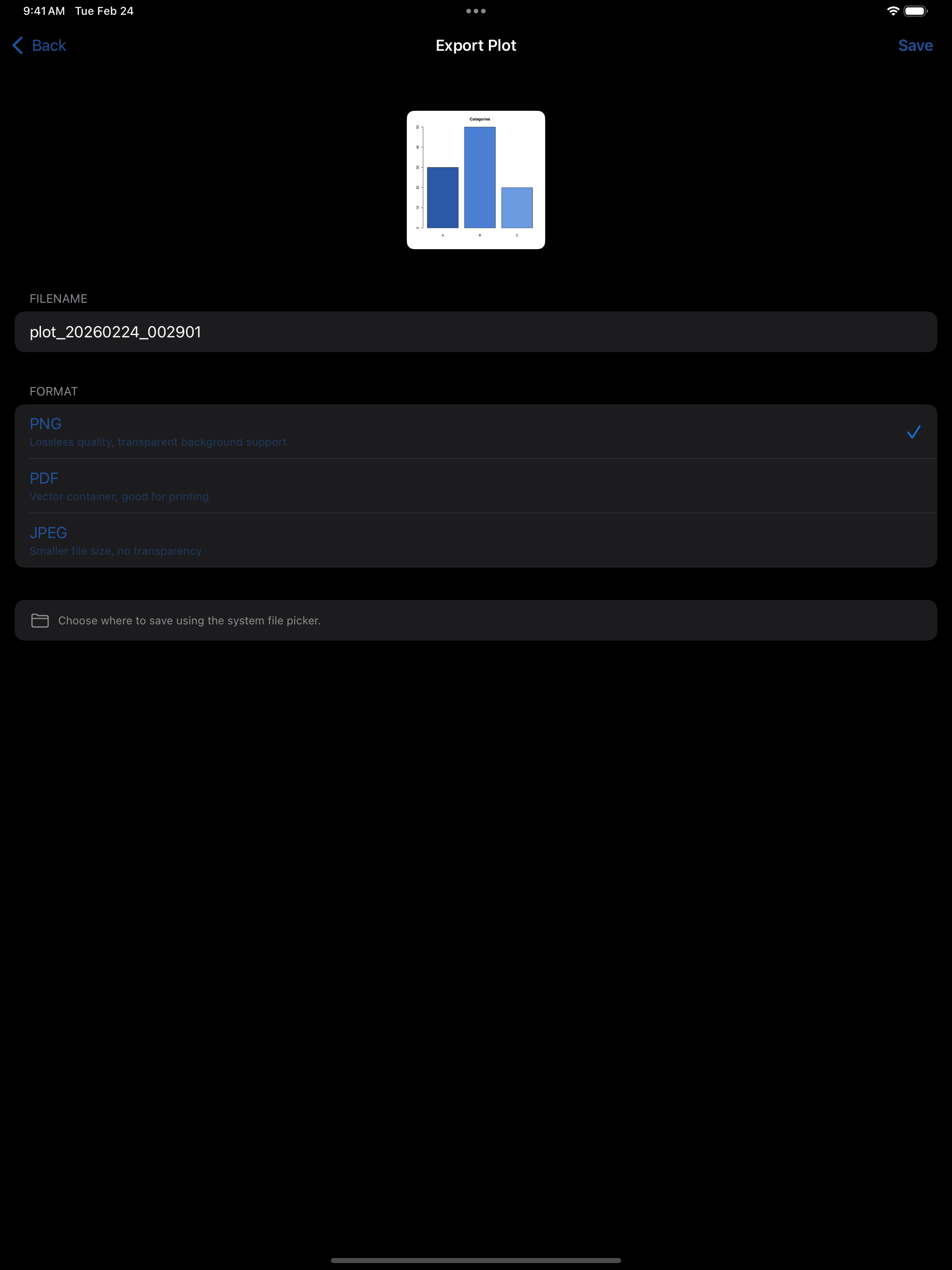
Left: Full-screen plot detail view with pinch-to-zoom support. Right: Export menu with format and filename options.
The full-size view shows the plot as a card on the app’s background, with the Plot Background from Settings > Appearance as the mat around it: White (the default), System, Light Gray, Dark Gray, or Transparent, which leaves no mat. The plot itself always sits on white, so R’s black axes and labels stay readable whichever you pick. Compare, a plot opened from the Console, and a plot window on iPad use the same card.
Interactive Widgets
Packages built on htmlwidgets (plotly, leaflet, DT, and others) produce interactive HTML rather than a static image. webRios renders these and collects them separately: tap the Interactive Plots card at the top of the gallery, or choose Plots > ⋯ > Interactive Plots. Tap Done to close the list.
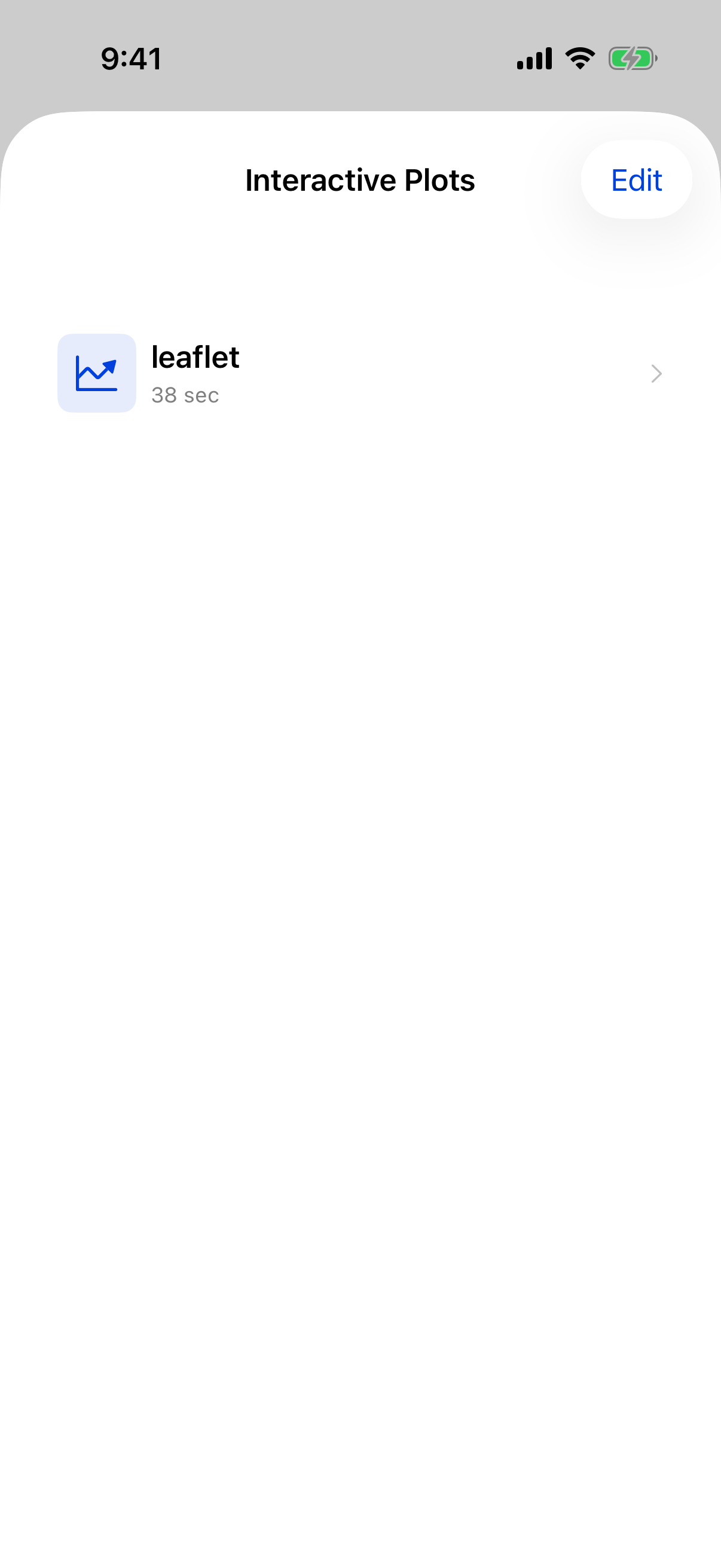
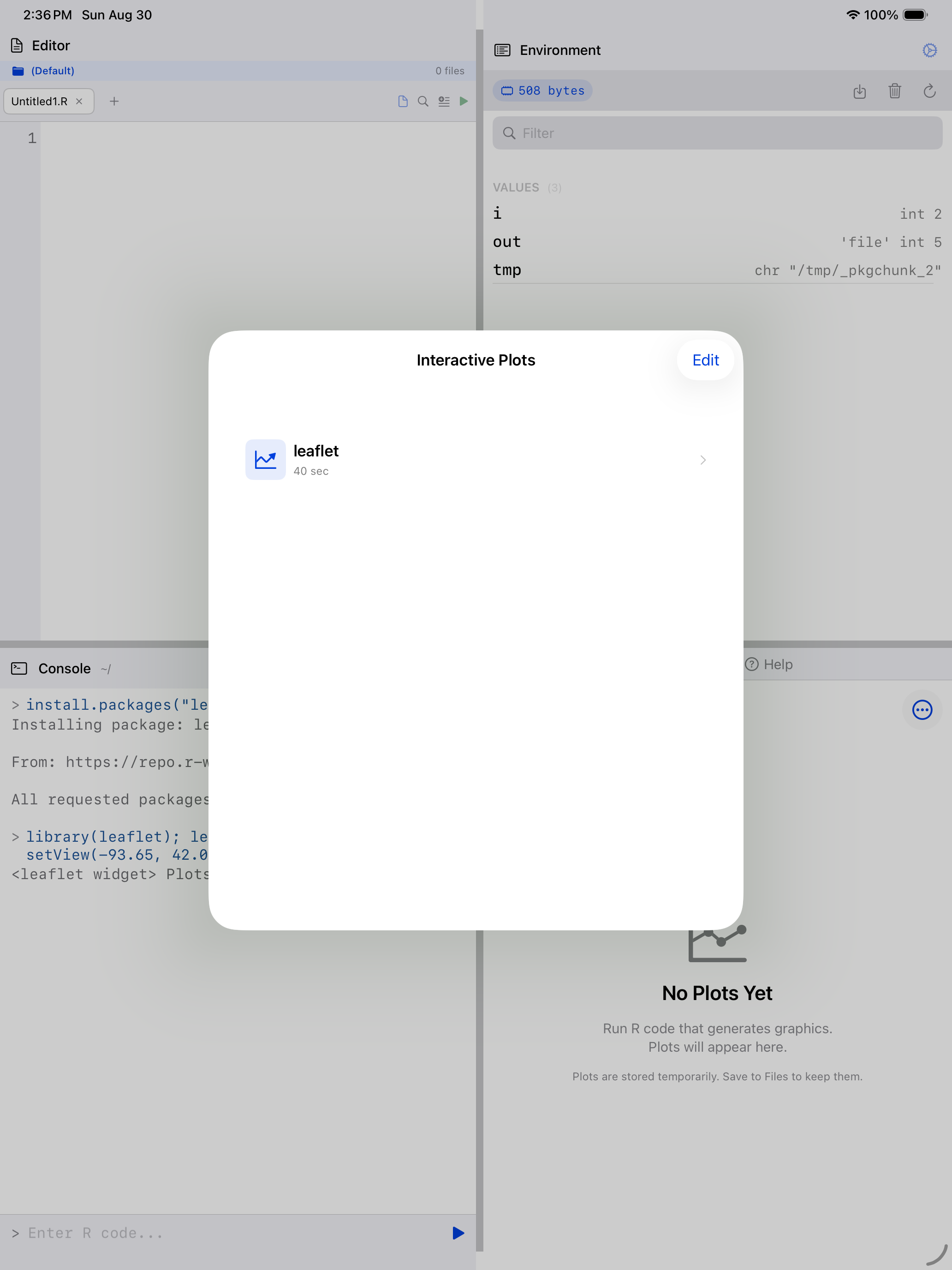
Opening one gives you the real widget, not a picture of it. A leaflet map pans and zooms, a plotly chart shows tooltips on hover.
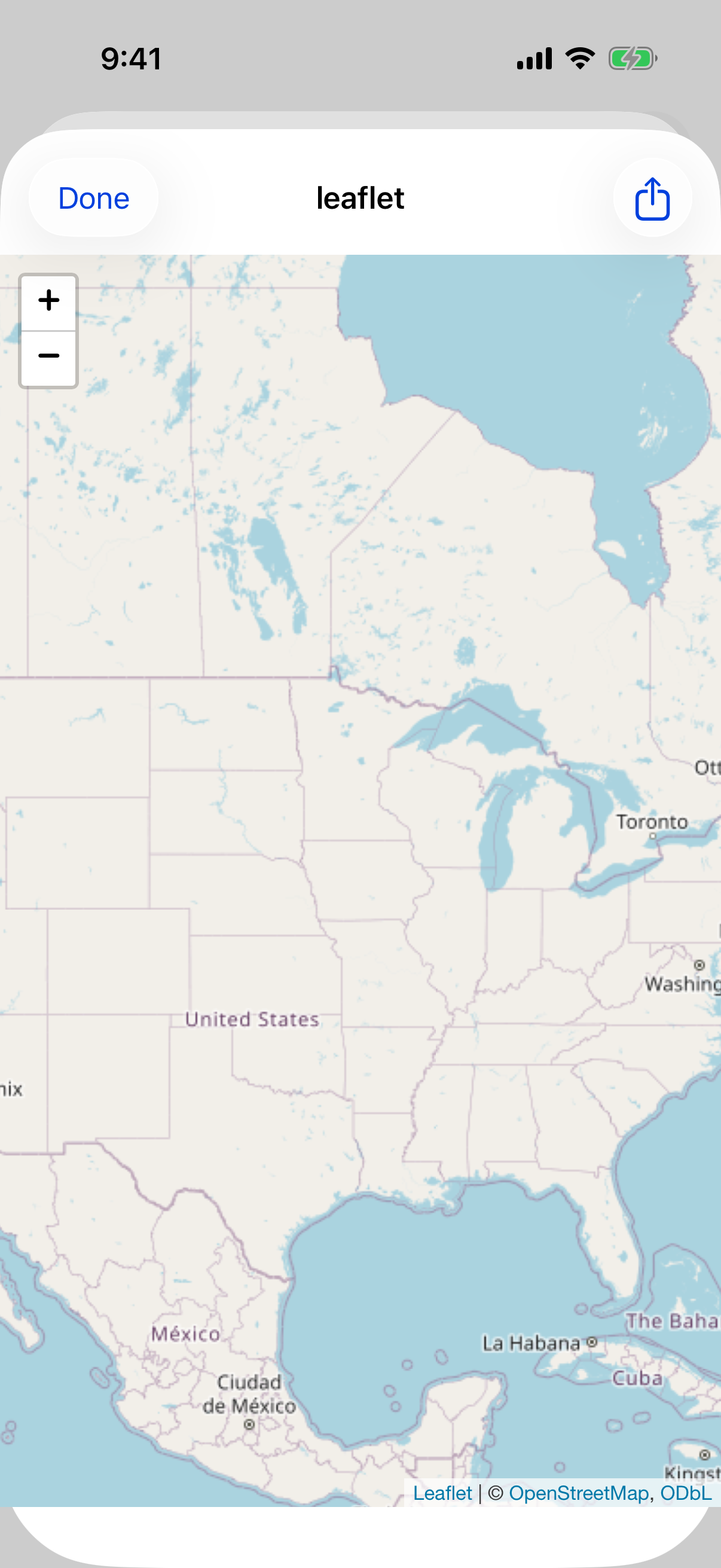
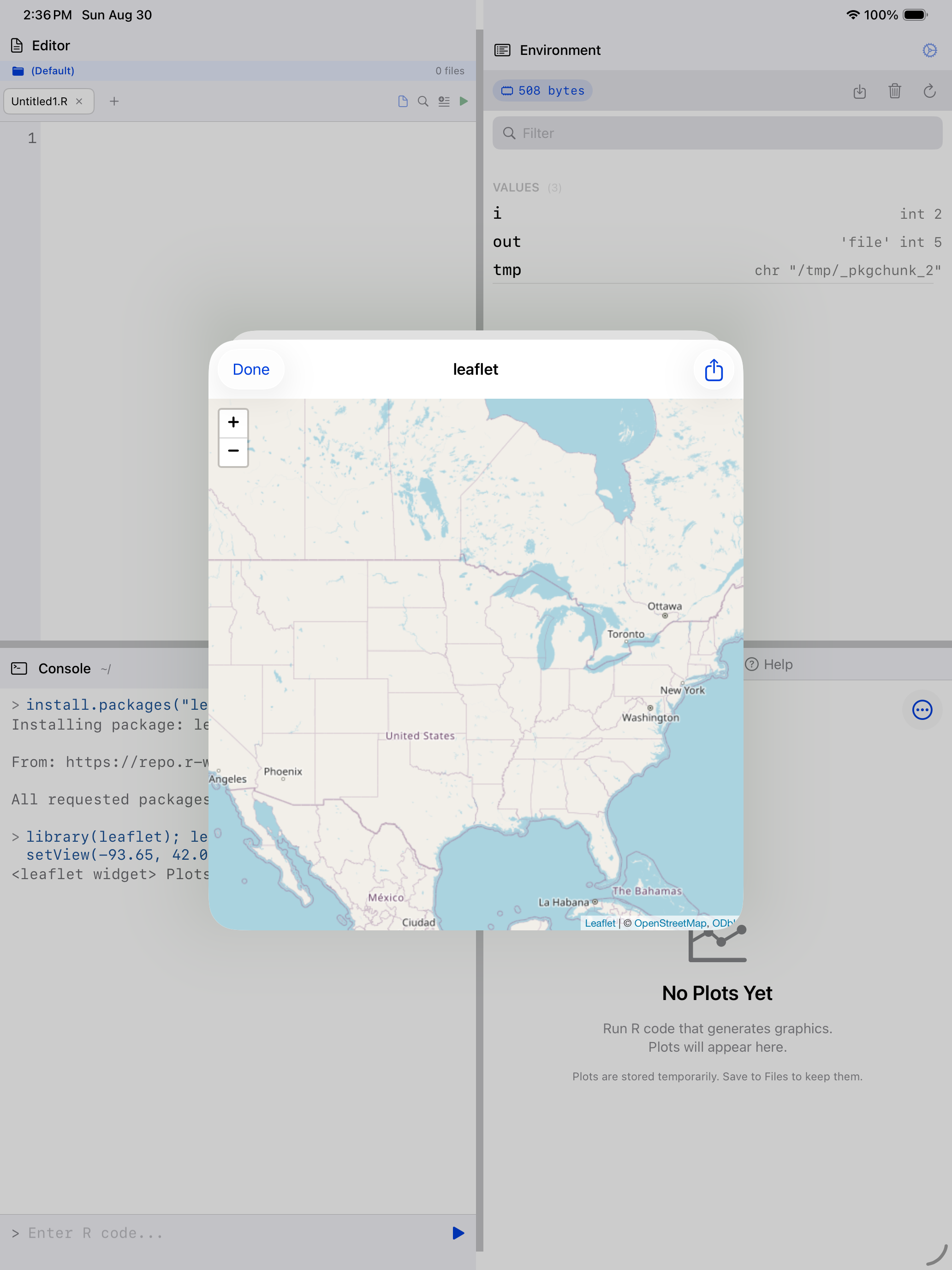
The widget and everything it needs are bundled into one self-contained page, so it works with no network connection. That also makes it large (a bare leaflet map is around 460 KB), which is why these are kept apart from the ordinary plot gallery.
Share a widget from the viewer to save it as an .html file you can open in any browser.
Comparing Plots
Compare two plots to see how a change to a visualization affects the result.
To start a comparison:
- Tap Compare in the toolbar (it appears when you have at least two plots)
- Tap the two plots you want to compare. They get numbered badges showing which is “Plot 1” and “Plot 2”
- Tap View in the toolbar to open the comparison view
The comparison opens in a sheet and stacks the two plots, one above the other, each on its own card labeled Plot 1 or Plot 2. Turn an iPhone to landscape and they sit side by side. Sync zoom keeps both plots at the same zoom level and position. Tap the link icon to zoom each independently.
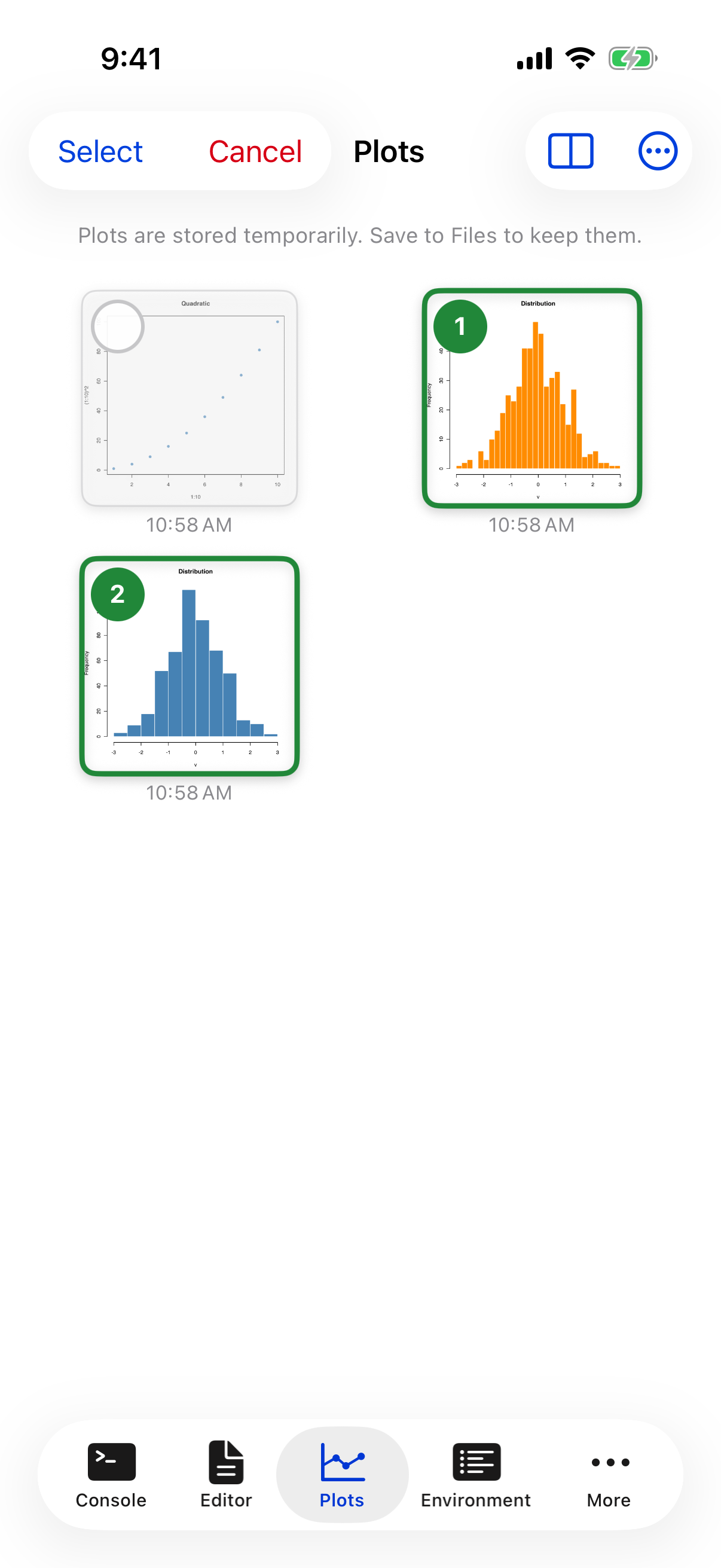
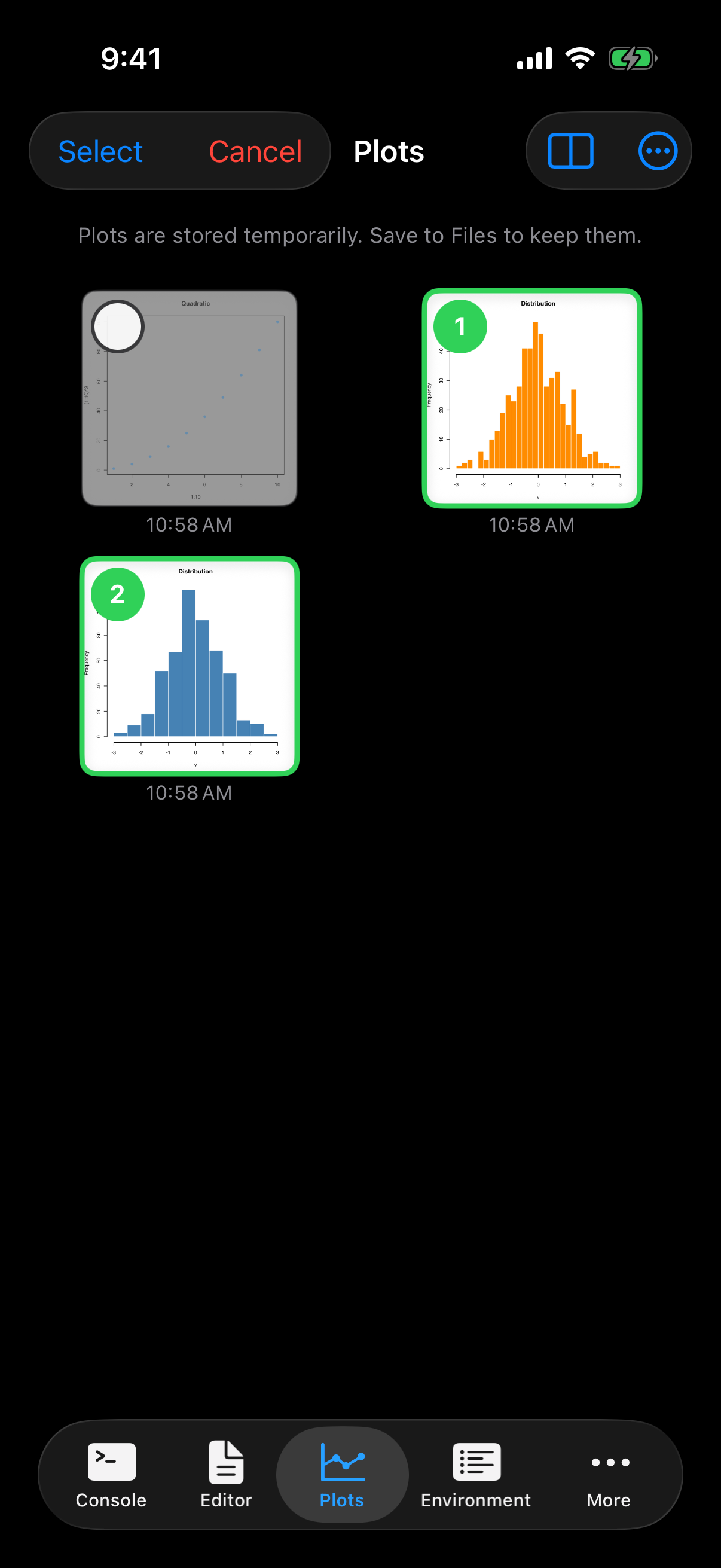
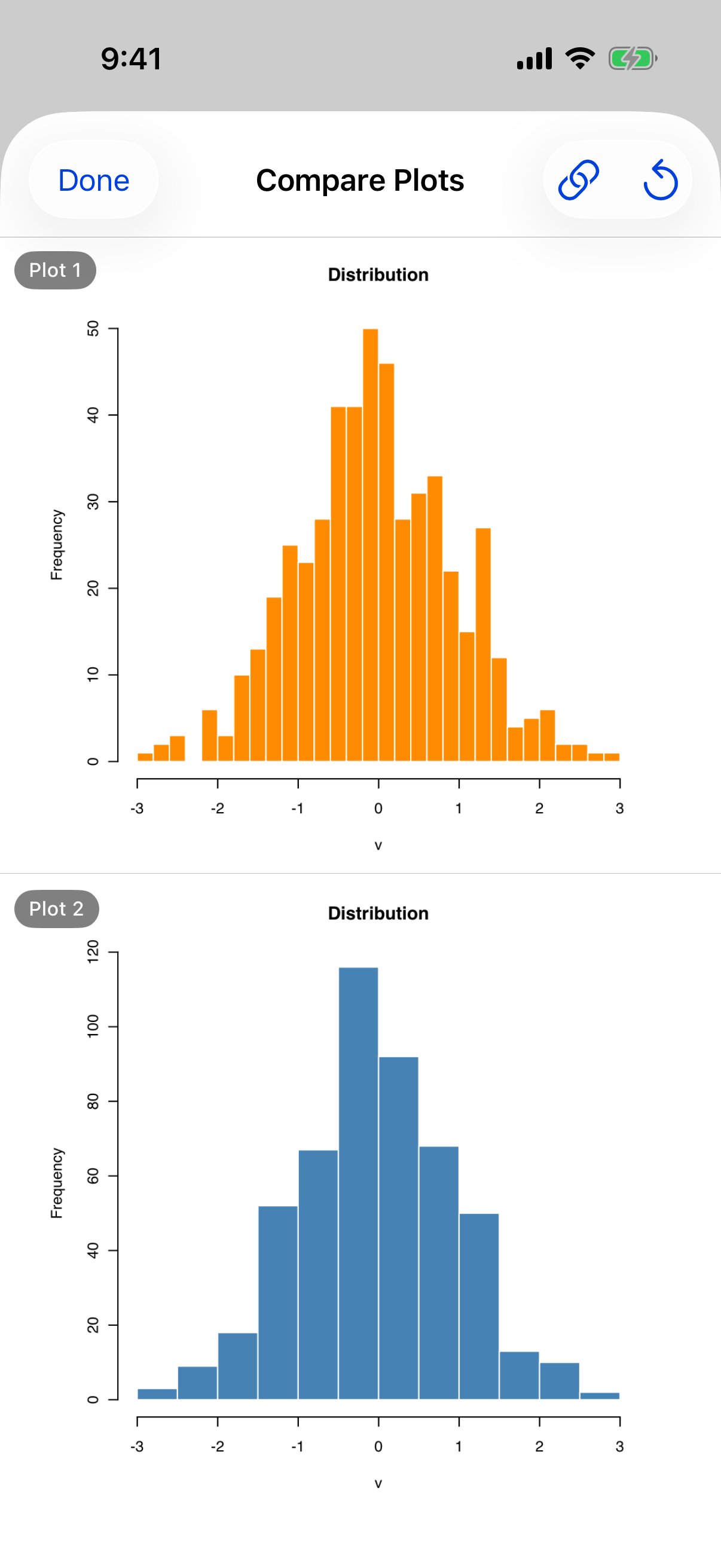
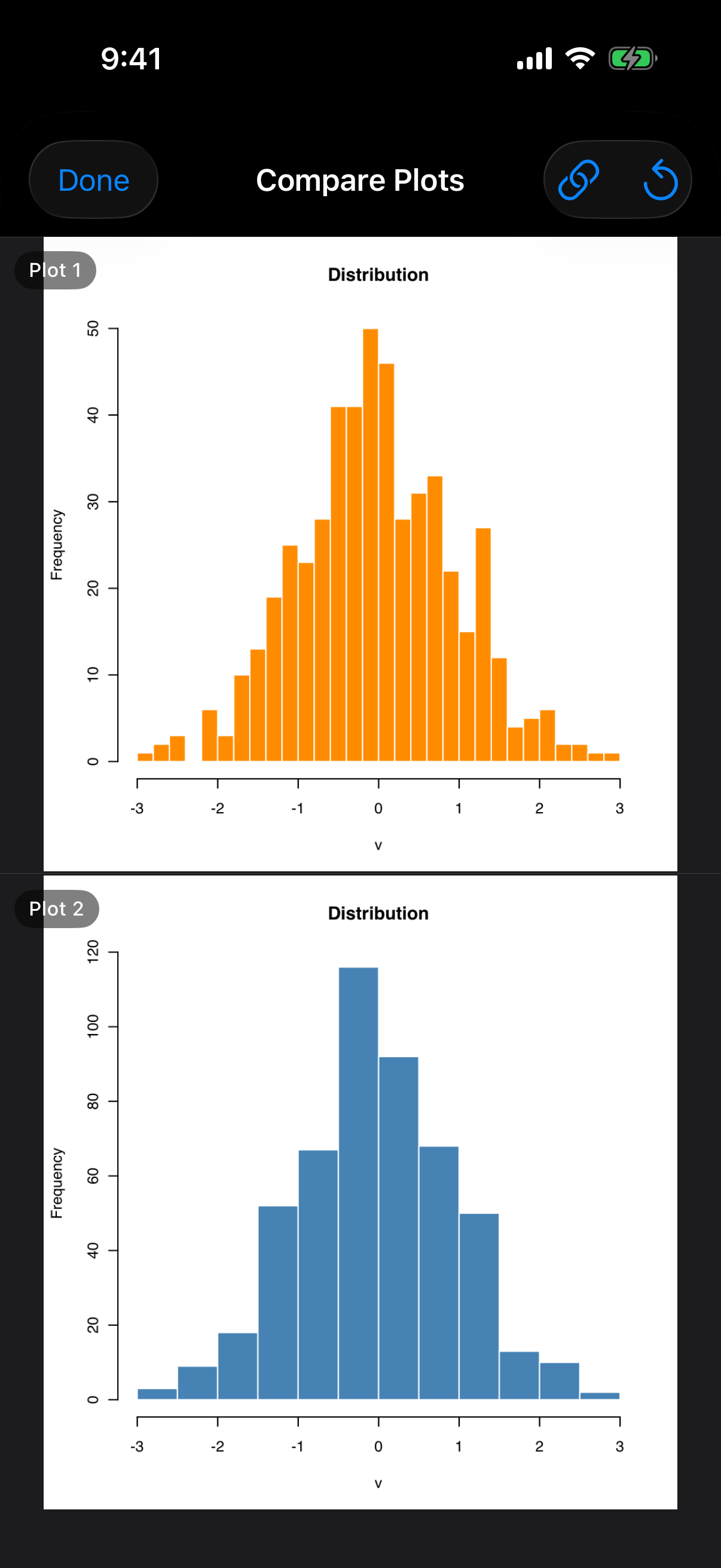
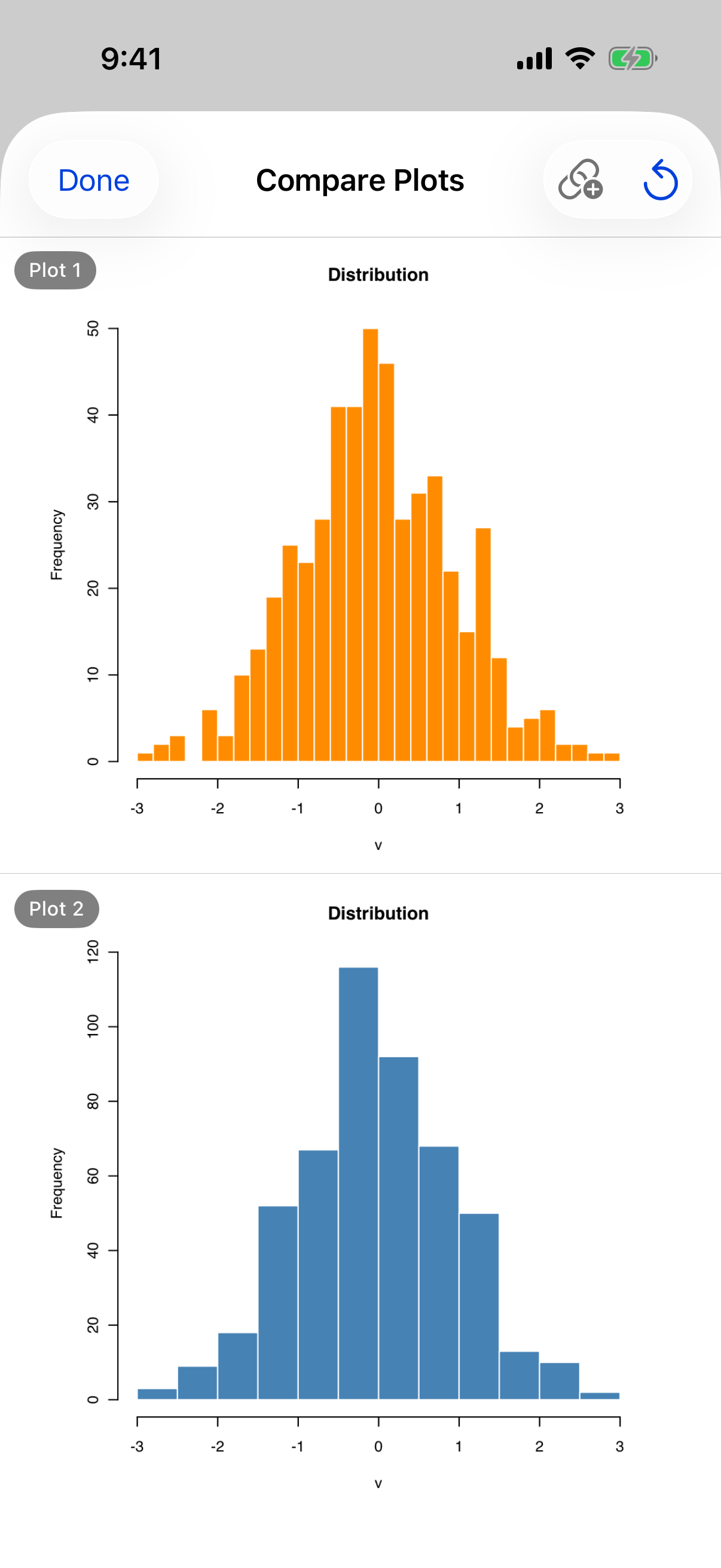
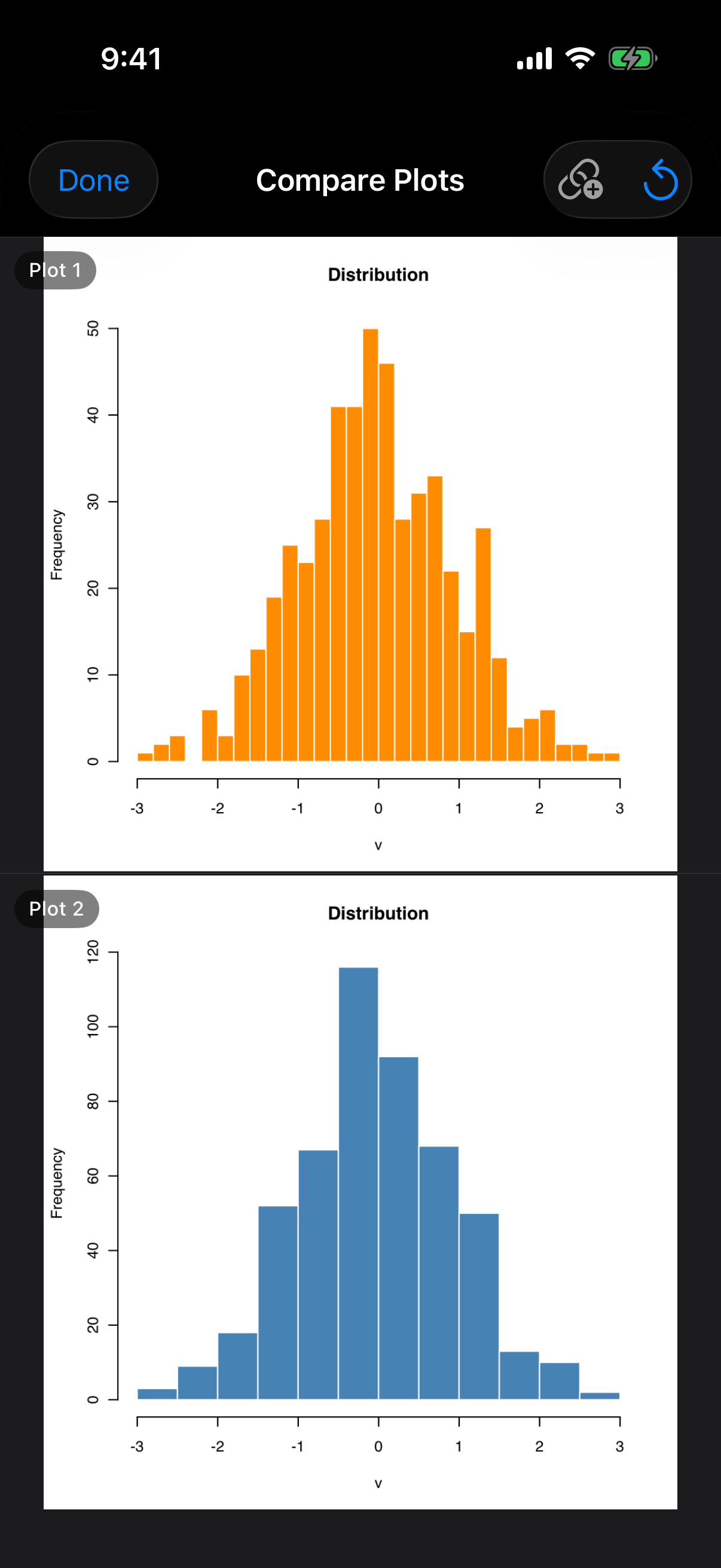
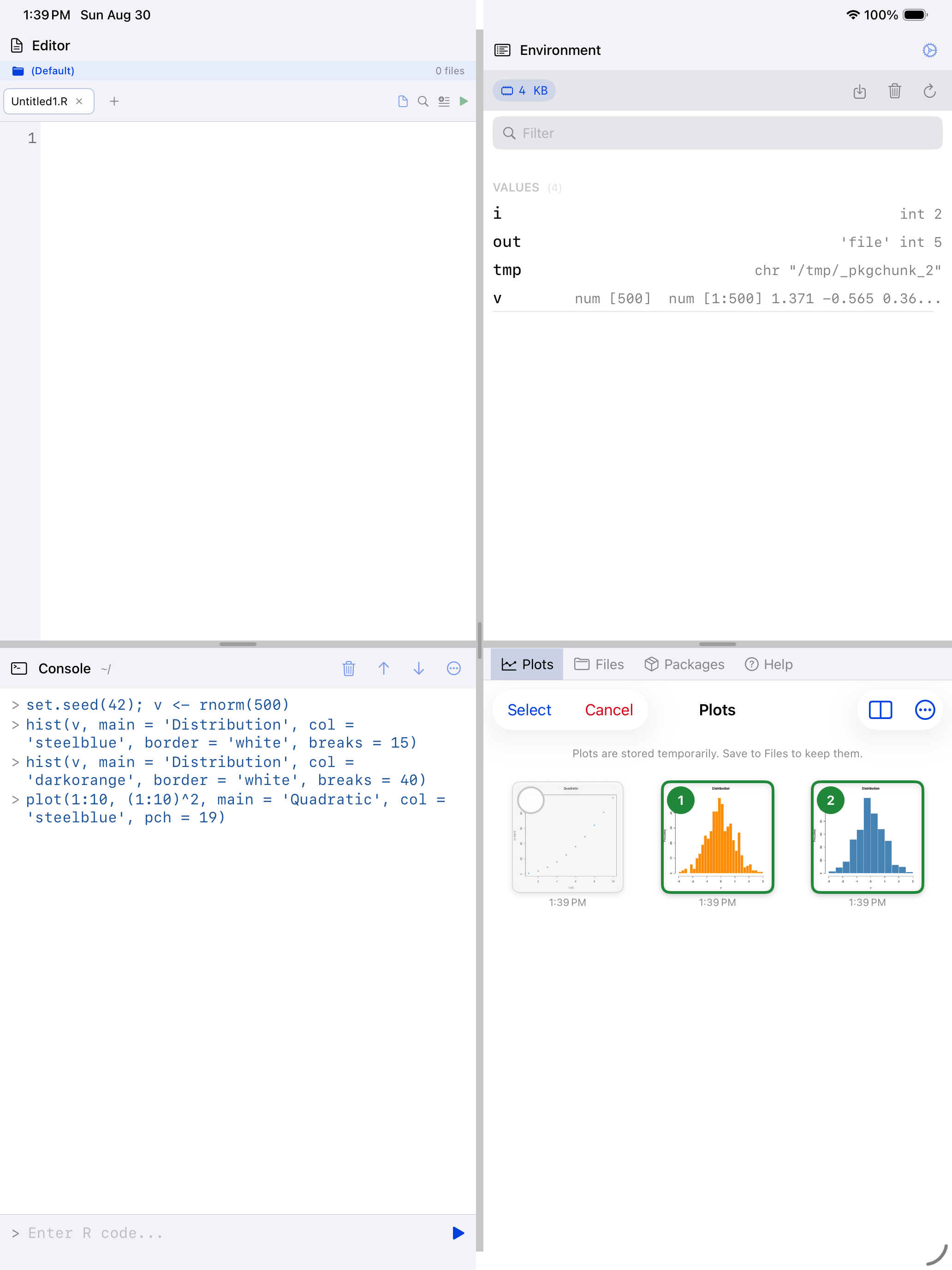
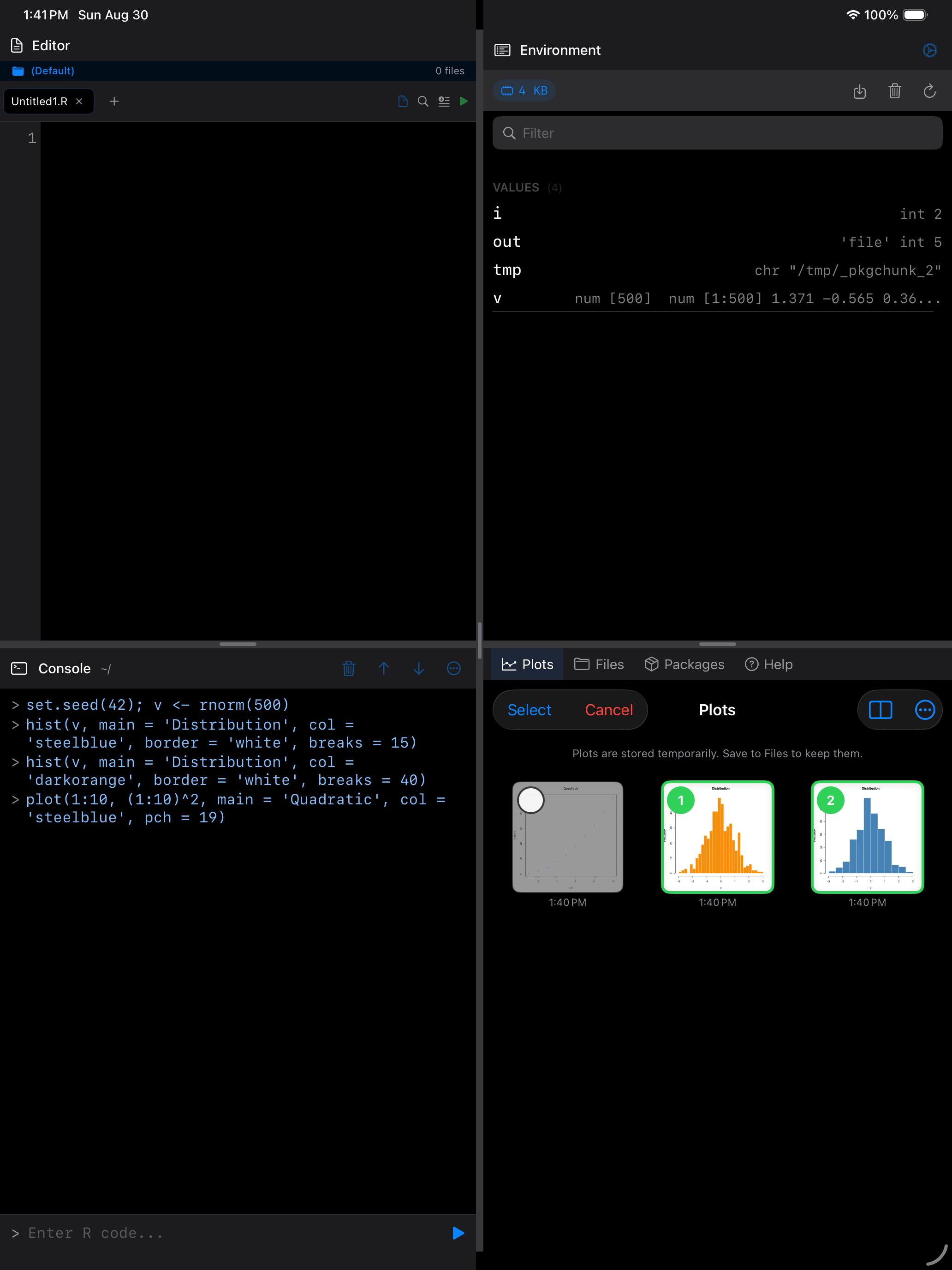
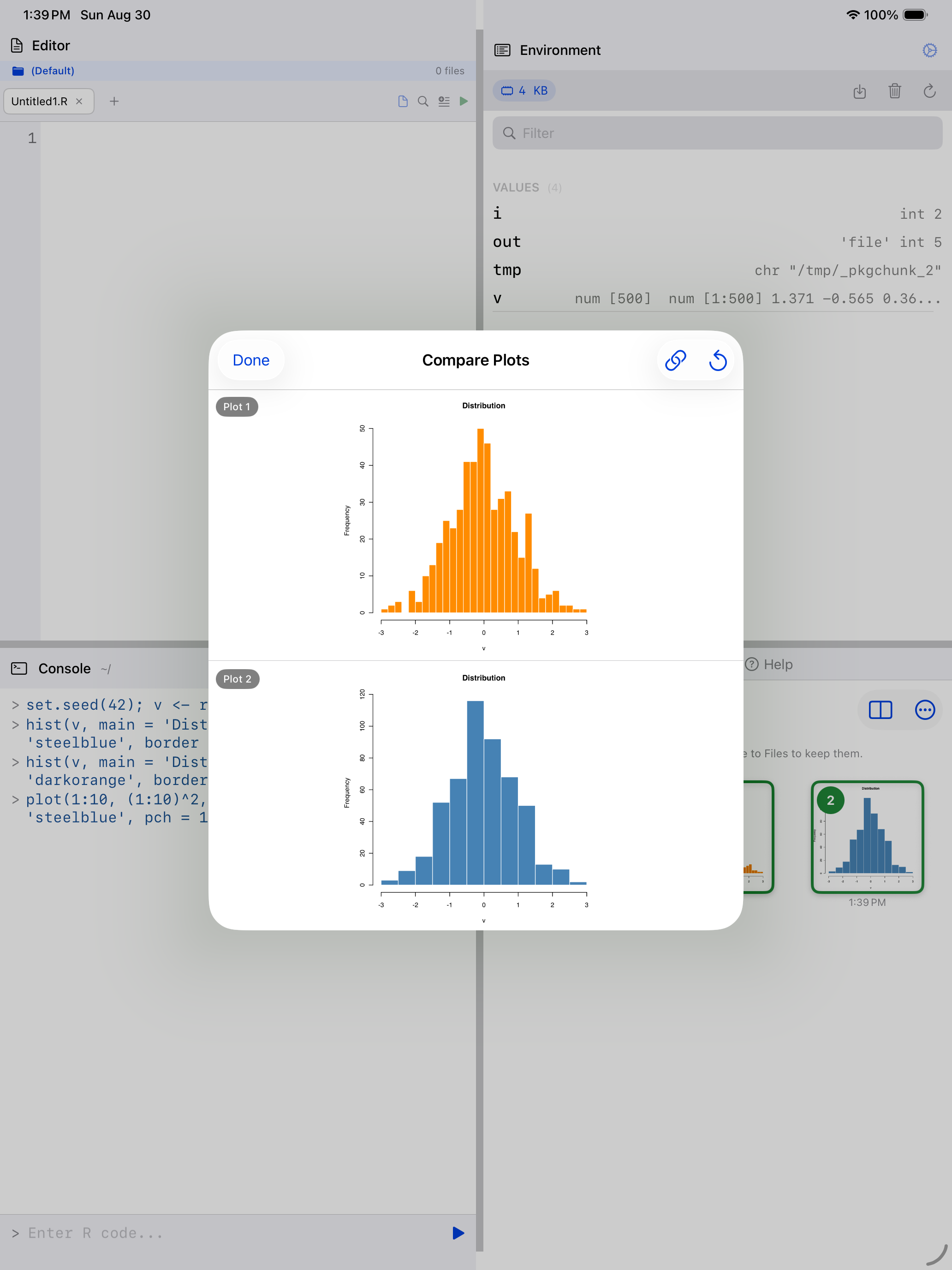
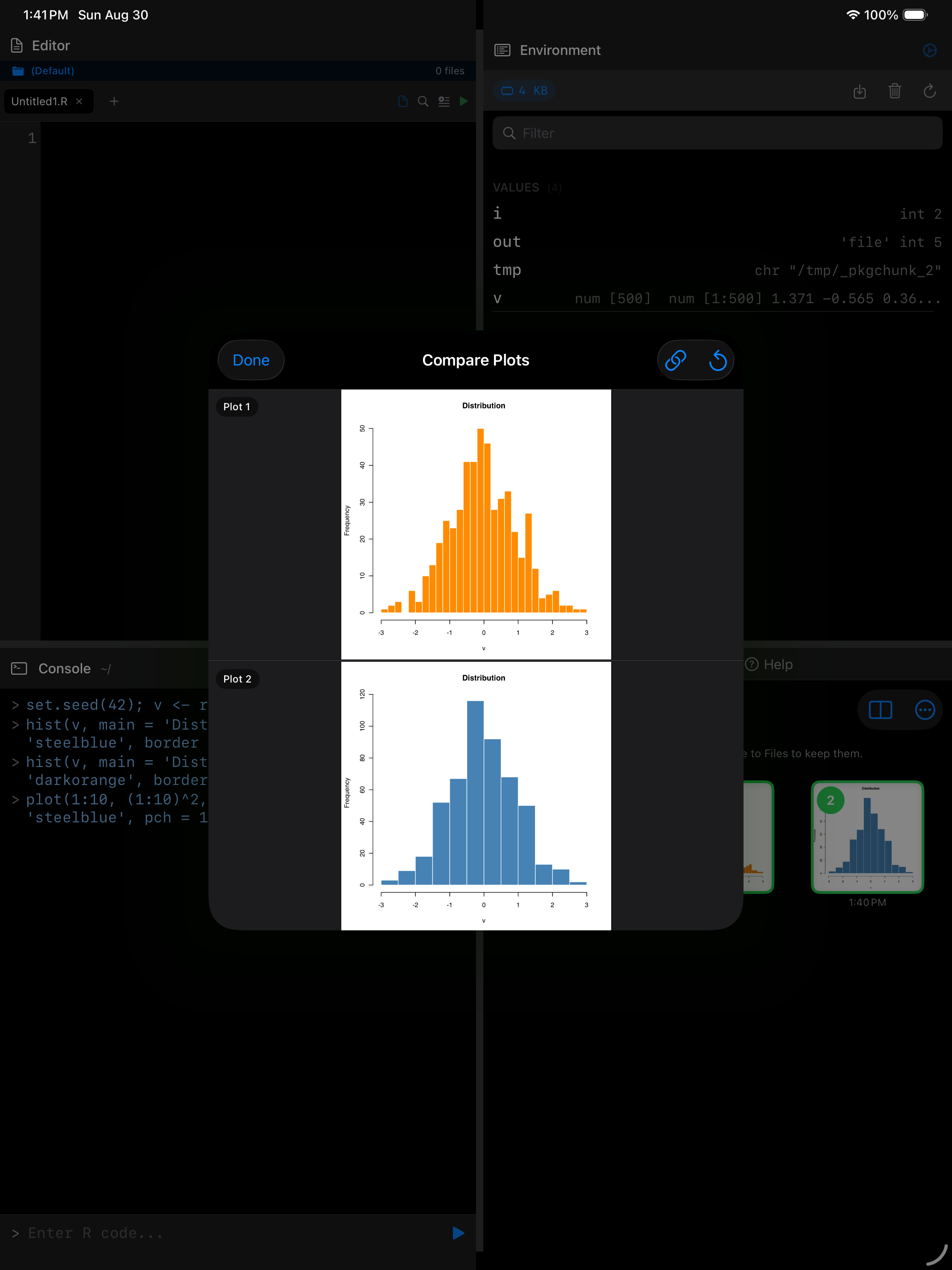
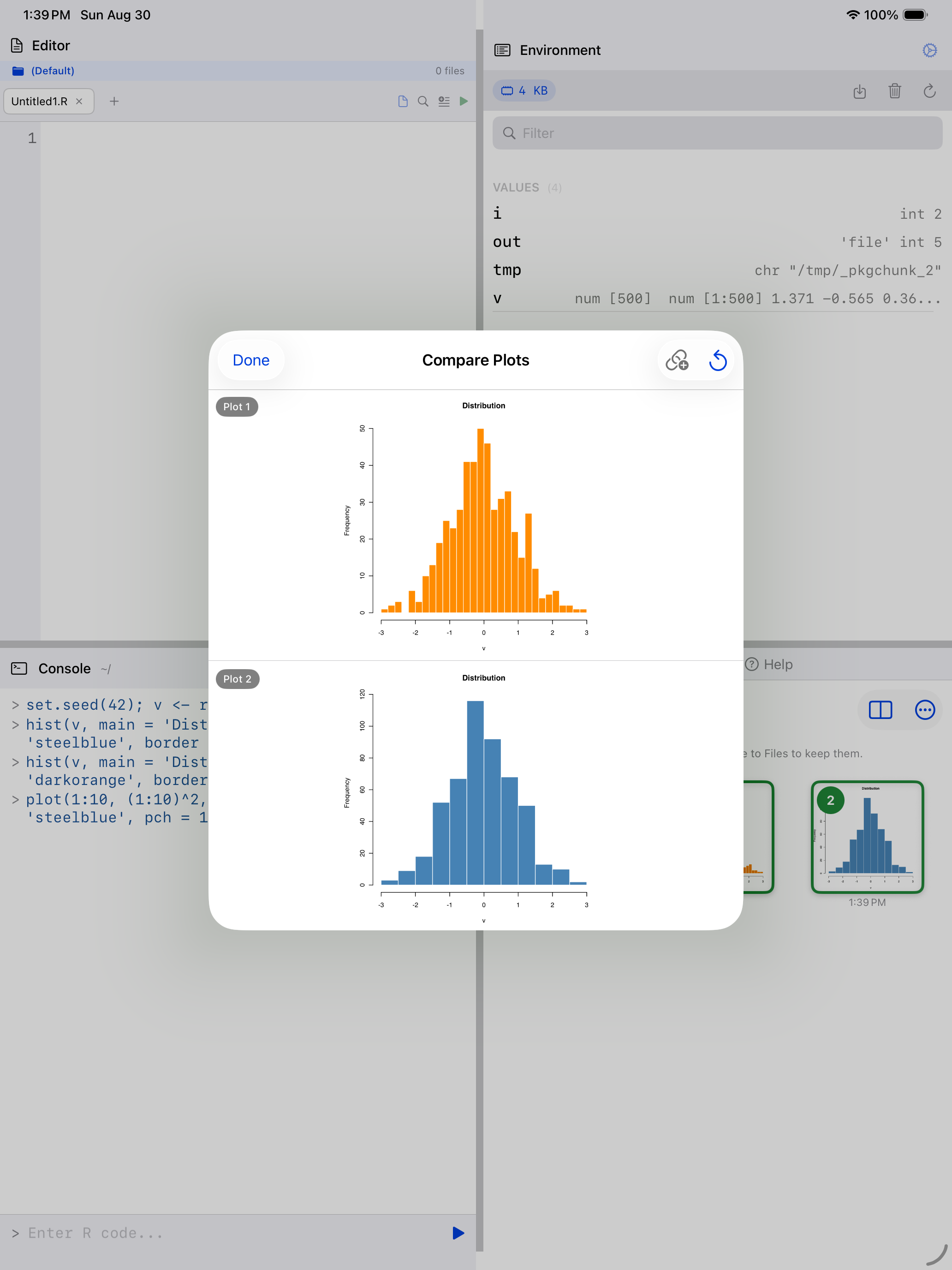
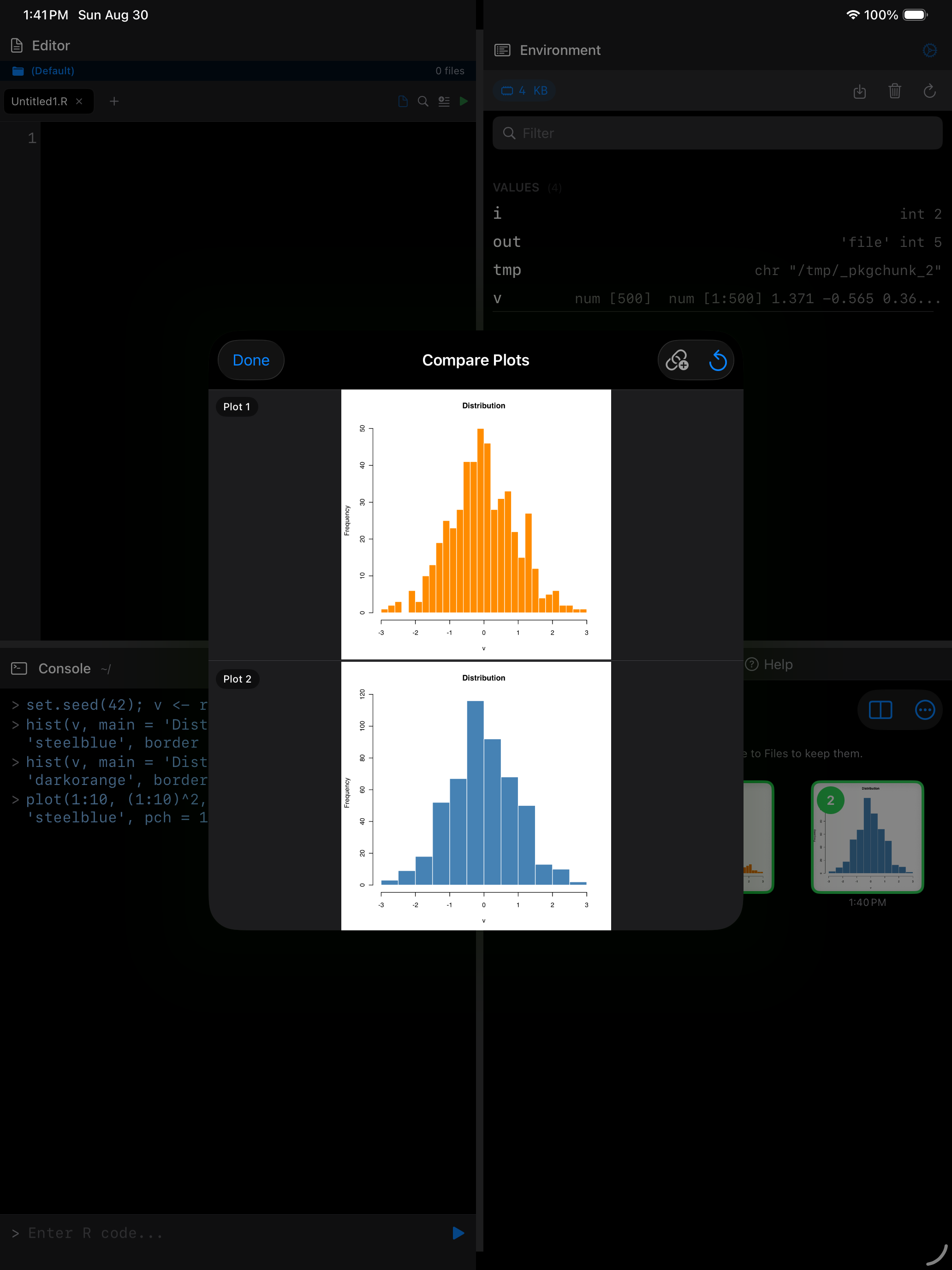
Switch between the iPhone and iPad tabs above to see both devices. The plots are stacked on each; on iPad the sheet sits over your work instead of filling the screen.
Selecting and Deleting Plots
Tap Select in the toolbar to enter selection mode. Tap plots to select them, then Delete to remove them in batch.
You can also delete a single plot via long-press or from the detail view’s trash icon.
To clear the gallery, tap the … menu and choose Clear All Plots. It asks first, says how many plots will go, and keeps your pinned plots. When every plot is pinned, the item is hidden. Select mode’s Delete likewise counts only unpinned plots.
Pinning Plots
Long-press a thumbnail and choose Pin to protect a plot from deletion. Pinned plots show an orange badge, must be unpinned before they can be removed, and are kept when you quit and reopen webRios.
You can pin up to 20 plots; pinning another asks you to unpin one first (“Pin Limit Reached”). Pinned plots don’t take room from new ones: the gallery also keeps your 20 most recent unpinned plots.
Exporting Plots
There are two ways to get plots out of the app:
Quick share. Tap the share button in the detail view to use the iOS share sheet (Photos, AirDrop, clipboard, etc.). Plots are shared at full size as a PNG file. Saving to Photos asks for permission to add images only; webRios never reads your photo library.
File export. Tap the export button (download icon) in the detail view. You can:
- Choose a filename
- Pick a format: PNG (lossless, supports transparency), JPEG (smaller files), or PDF (vector container, good for printing and papers)
- Save to any location via the iOS file picker, including iCloud Drive, external drives, or other cloud storage
Tapping Save opens the iOS file picker, where you choose the destination.
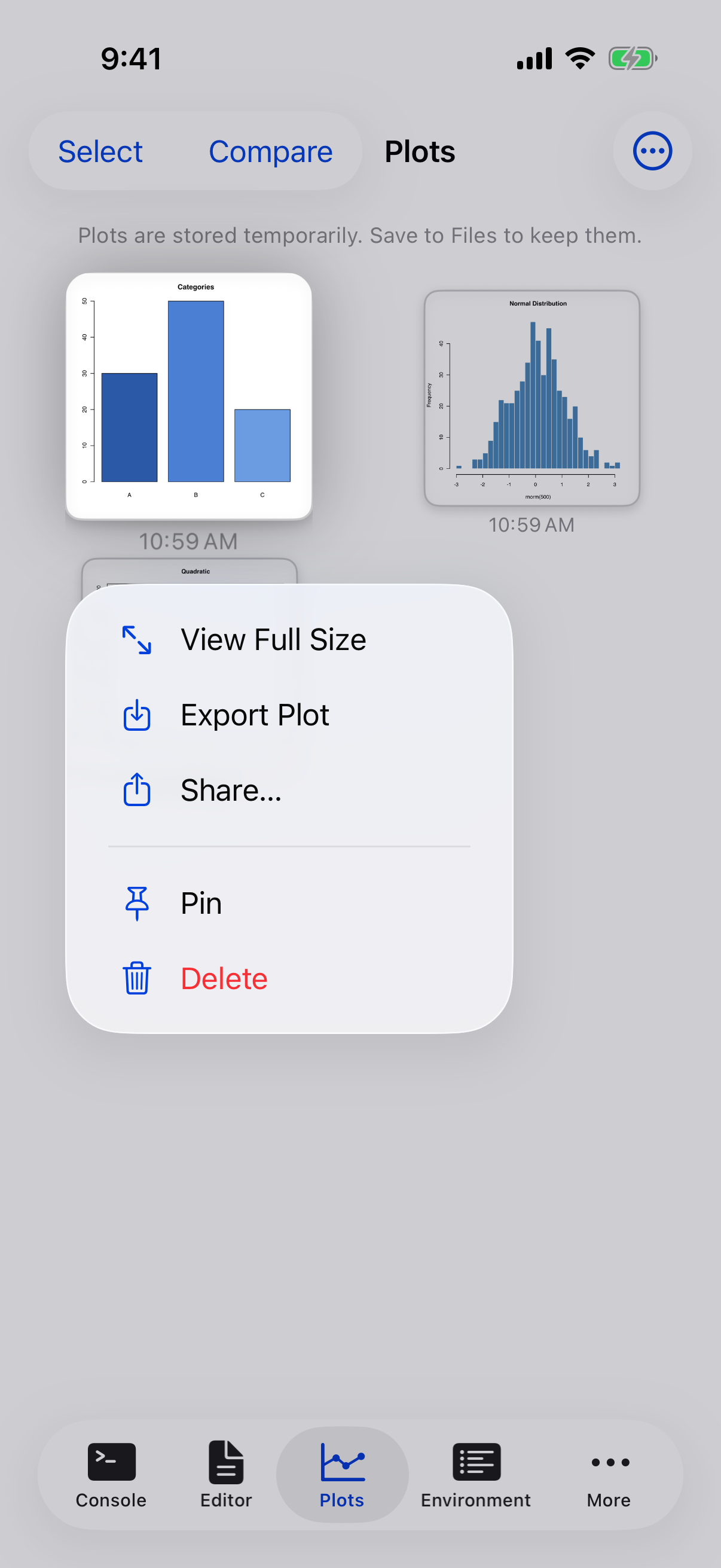
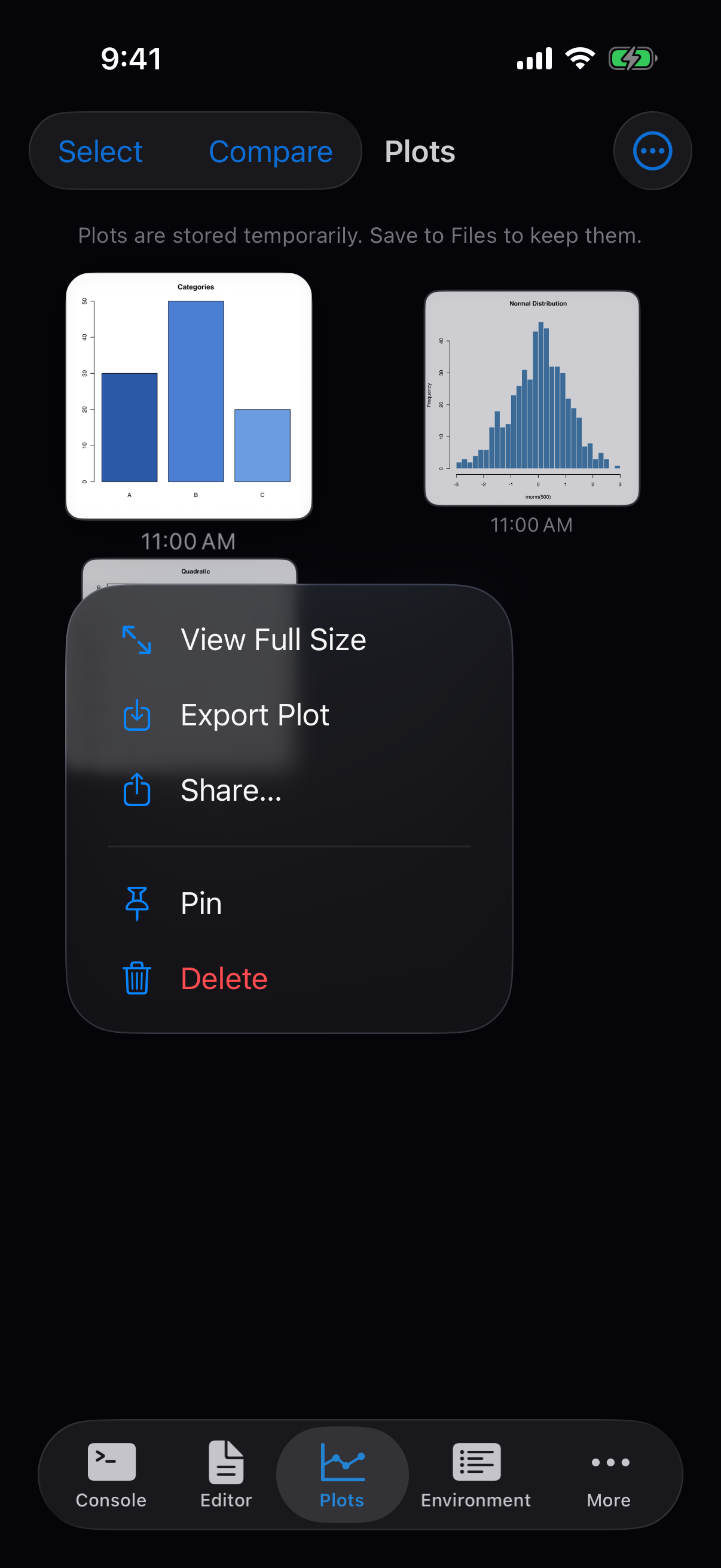
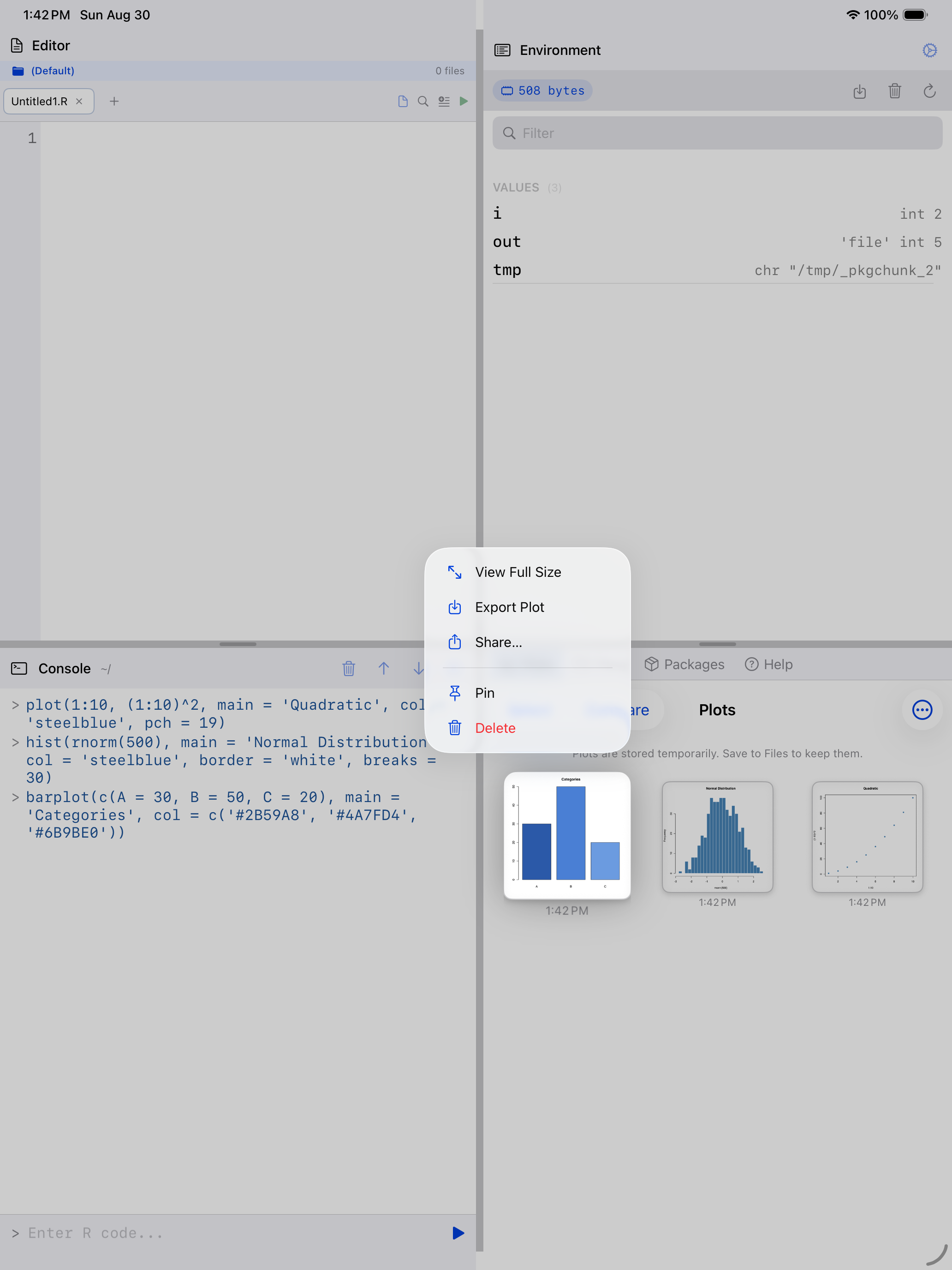
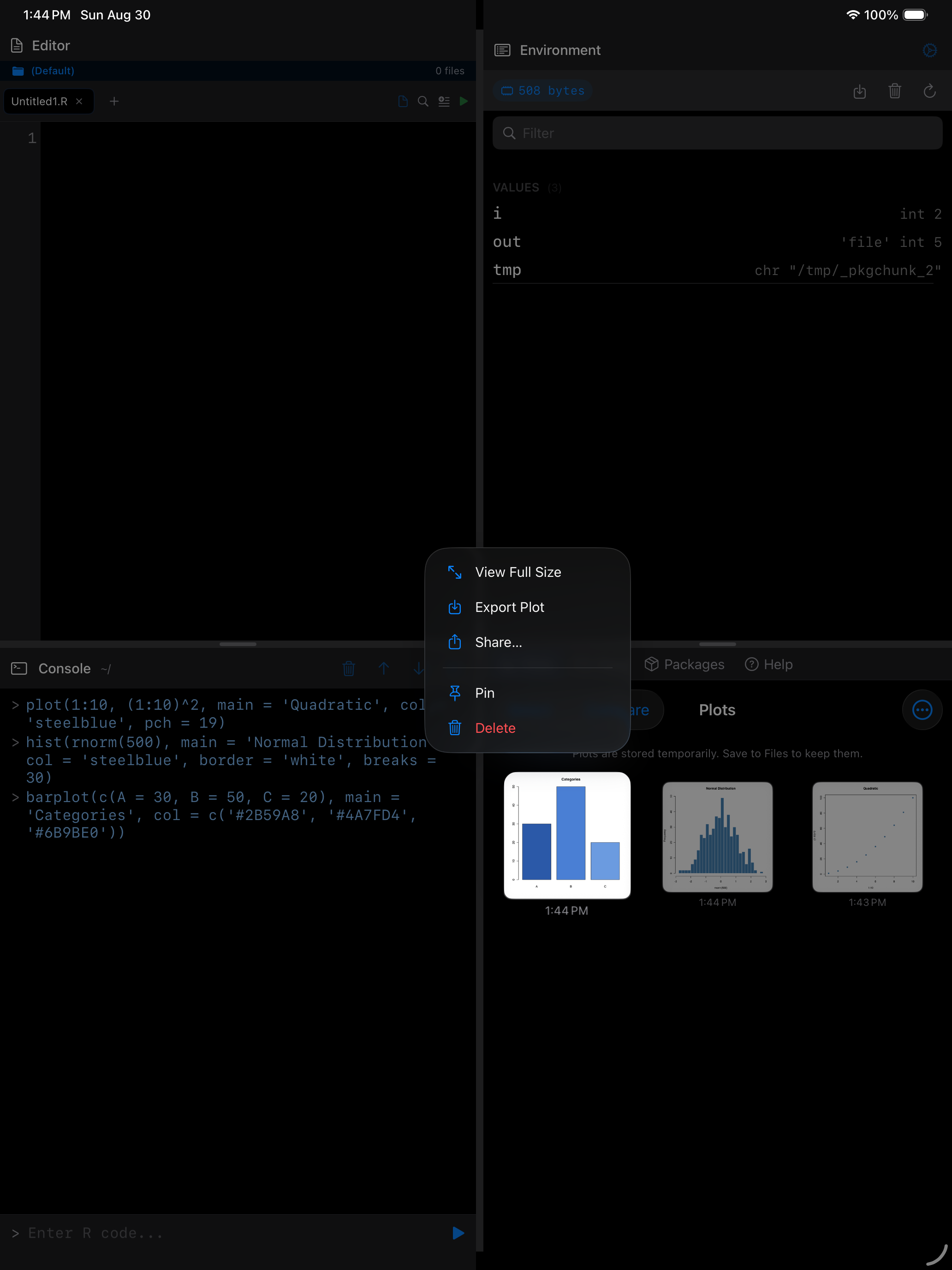
Long-pressing a plot thumbnail in the gallery also gives you a quick Share option without needing to open the detail view first.
A Note on Storage
Pinned plots are kept on your device between launches and are included in your device backup. Other plots last until you quit webRios, and the gallery keeps the 20 most recent of them. Restarting R or a low-memory warning doesn’t remove plots. Export or share any plot you want to keep as a file.