Editor
The Console is great for quick one-off commands, but when you are working on something longer (a data analysis pipeline, a visualization script, a function you want to reuse) you want the Editor. It gives you a proper code editing environment with syntax highlighting, line numbers, multiple tabs, and the ability to save your work as .R files.
Writing R Scripts
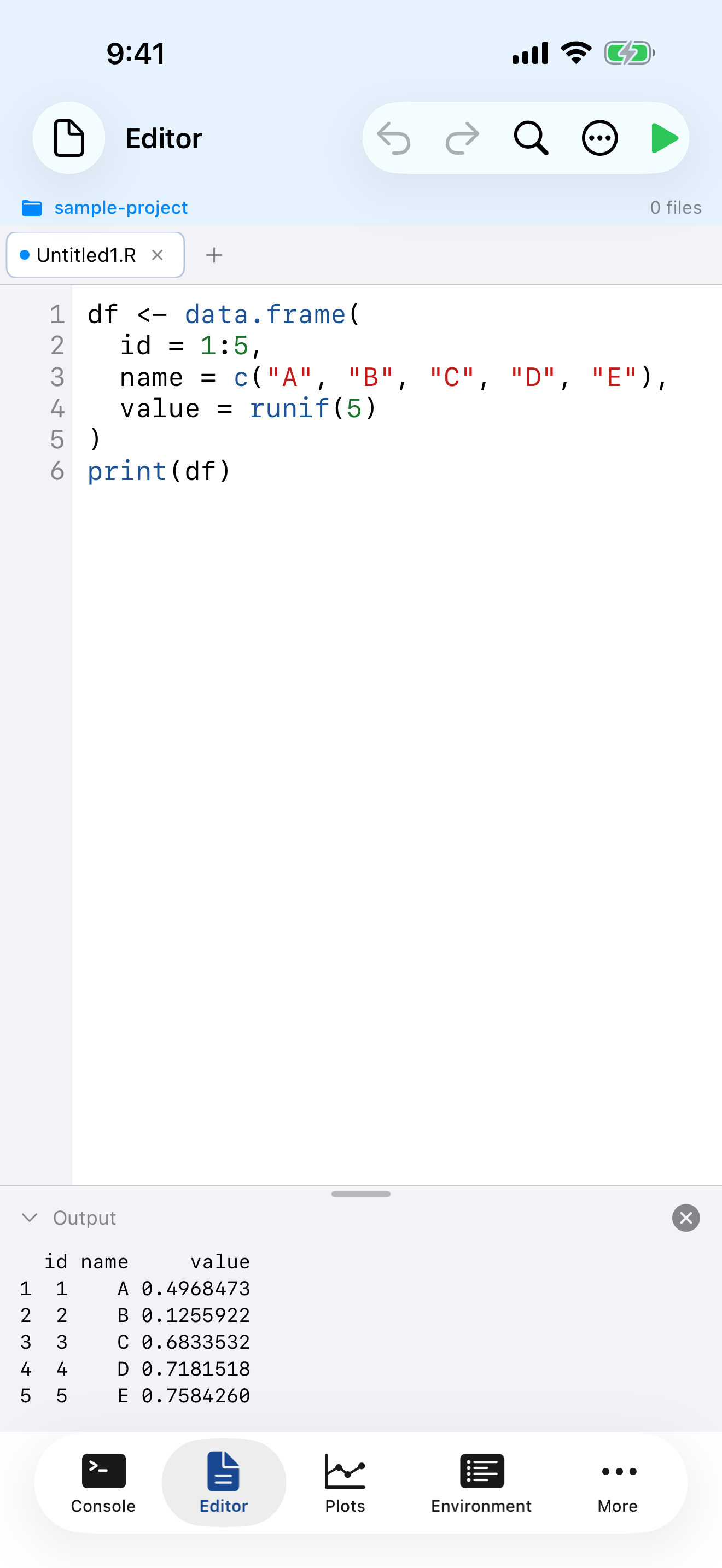
The Editor works like a text editor built specifically for R. You get a full-screen writing area where you can compose multi-line scripts, and when you are ready, run everything at once (or just a selected portion).
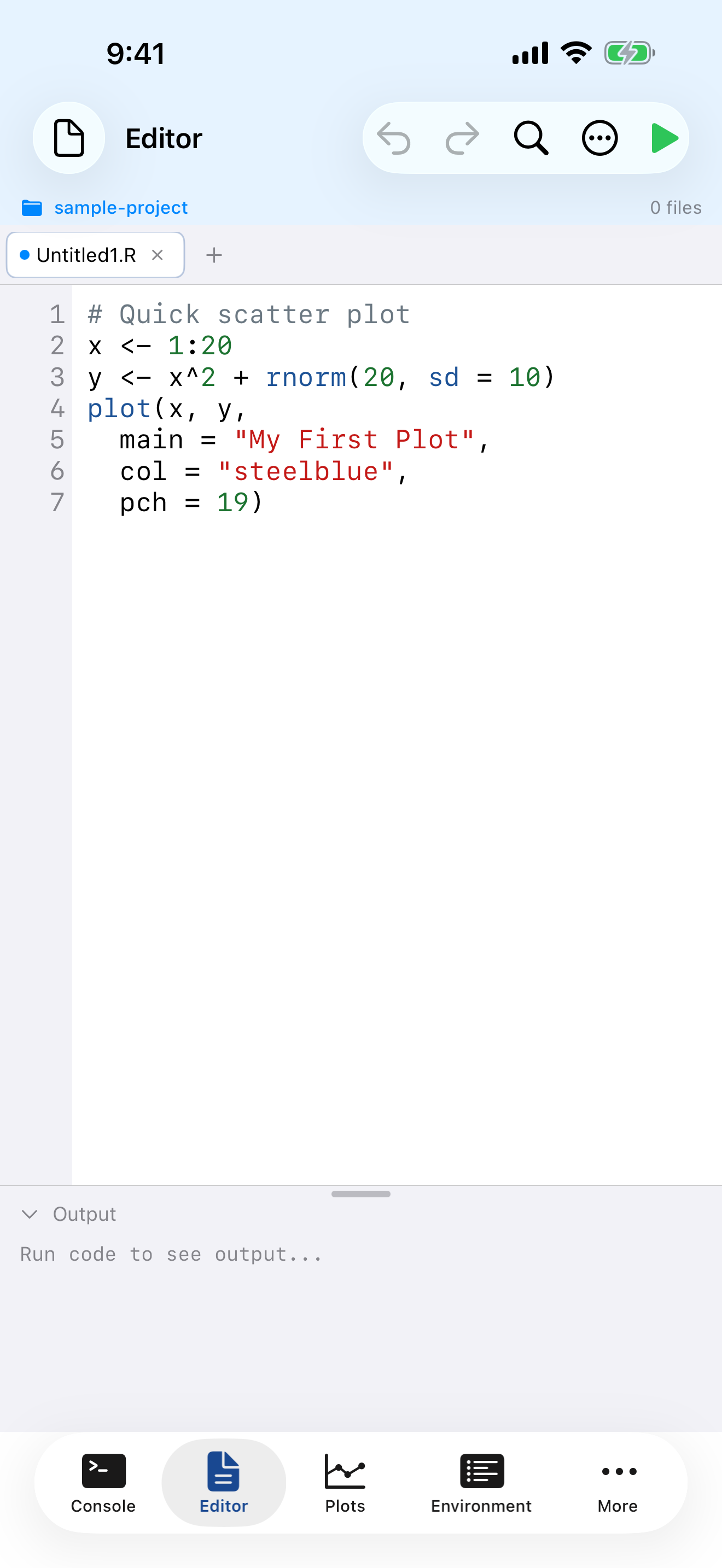
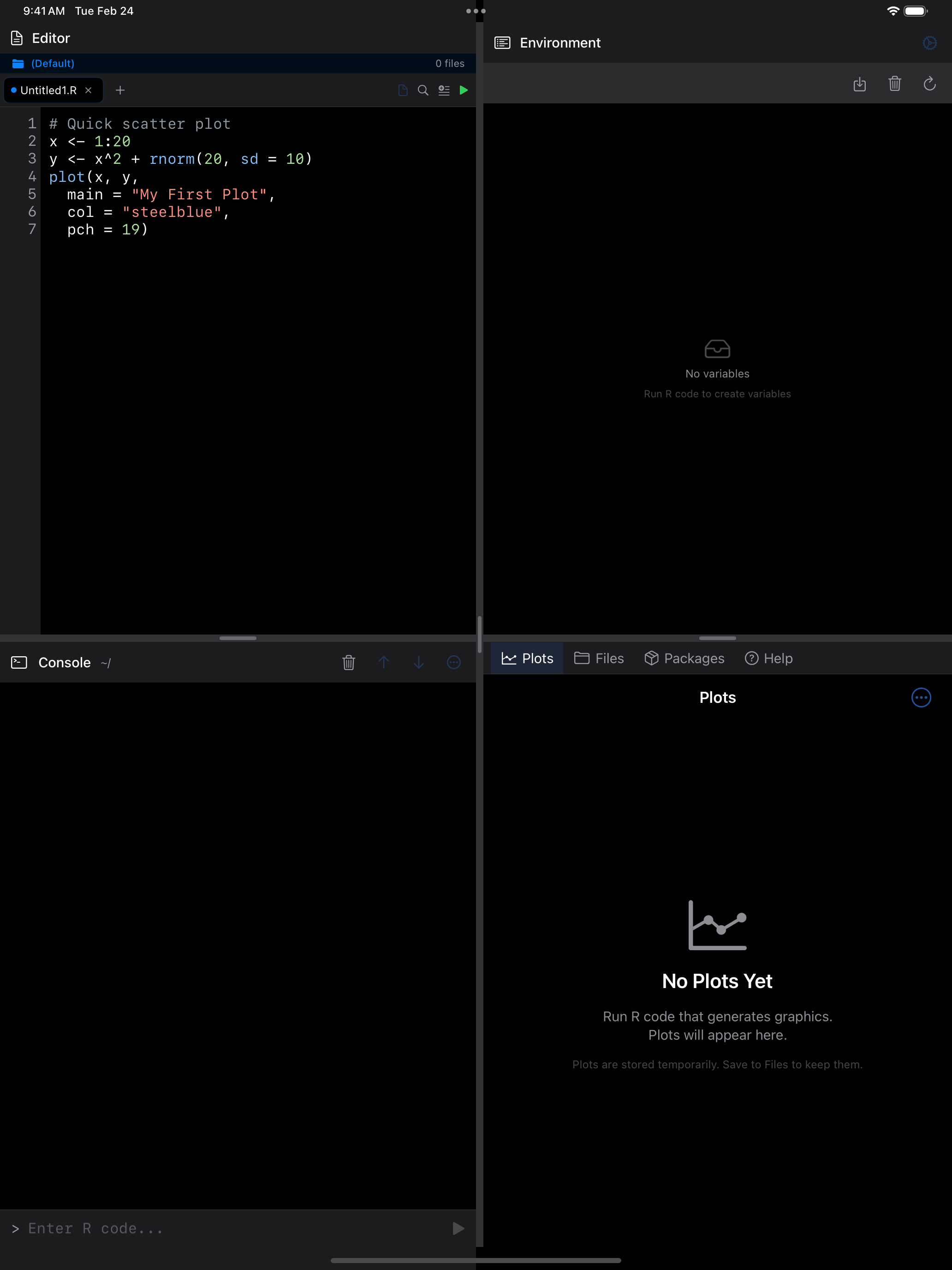
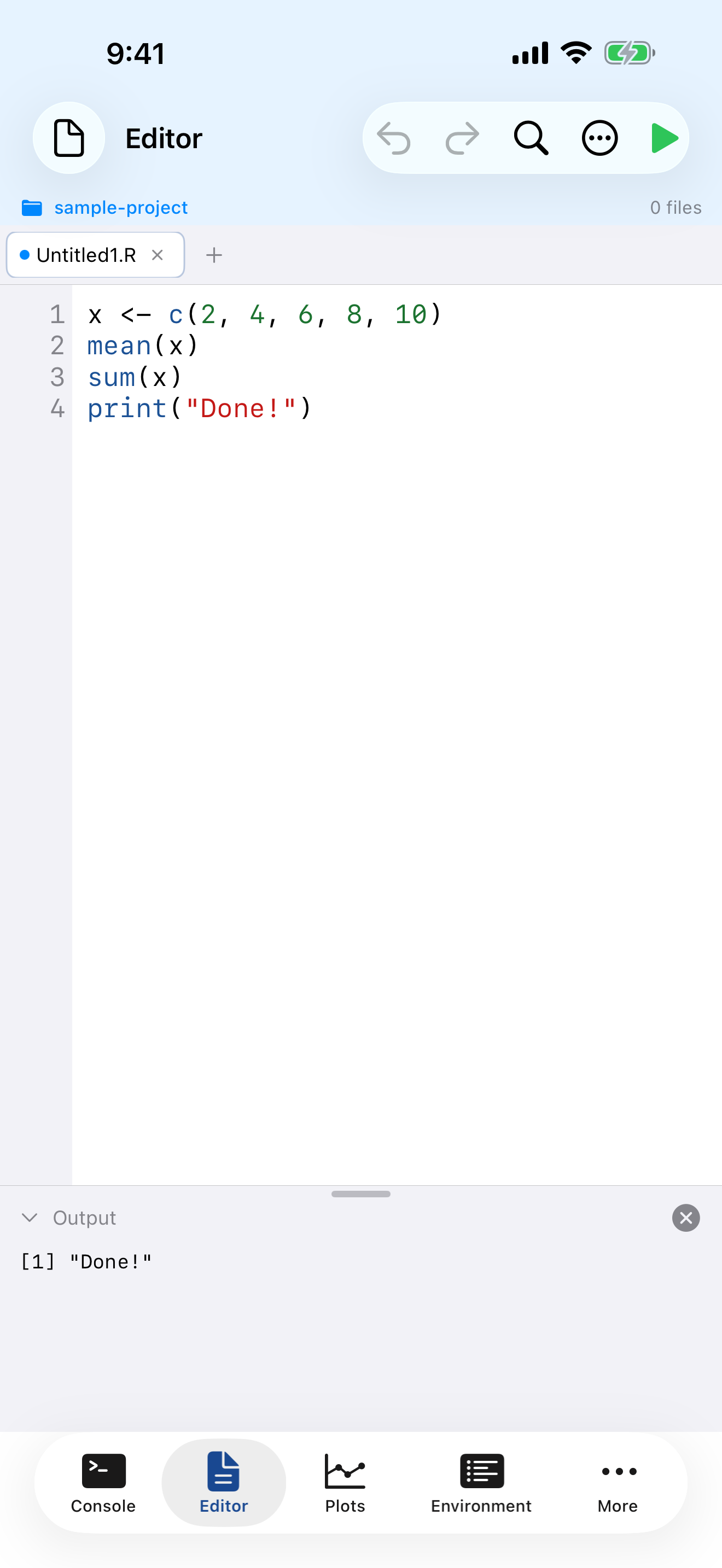
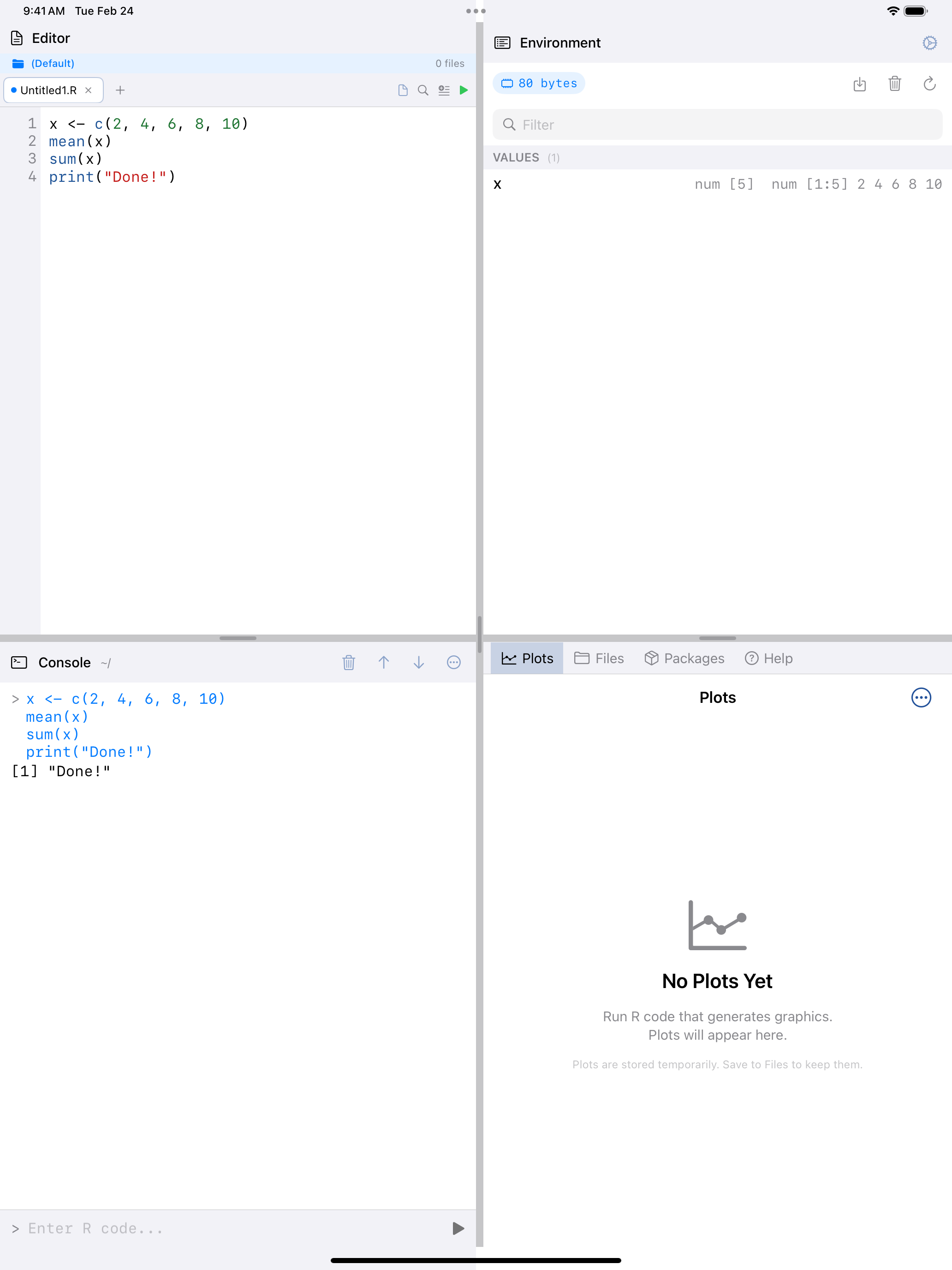
What you are seeing above:
- Tab bar: shows your open files. Tap the + button to create a new tab
- Line numbers: displayed in the left gutter for easy reference and debugging
- Syntax highlighting: R code is color-coded so keywords, strings, functions, and comments are visually distinct
- Output panel: at the bottom, shows results when you run your script
- Toolbar: contains undo/redo, find, editor actions menu, and the run button
Syntax Highlighting
The Editor color-codes your R code as you type. The highlighting covers:
- Keywords like
if,for,function,return, shown in purple - Functions like
print(),mean(),ggplot(), shown in blue - Strings like
"hello world", shown in red/coral - Numbers like
42,3.14, shown in green - Comments starting with
#, shown in gray
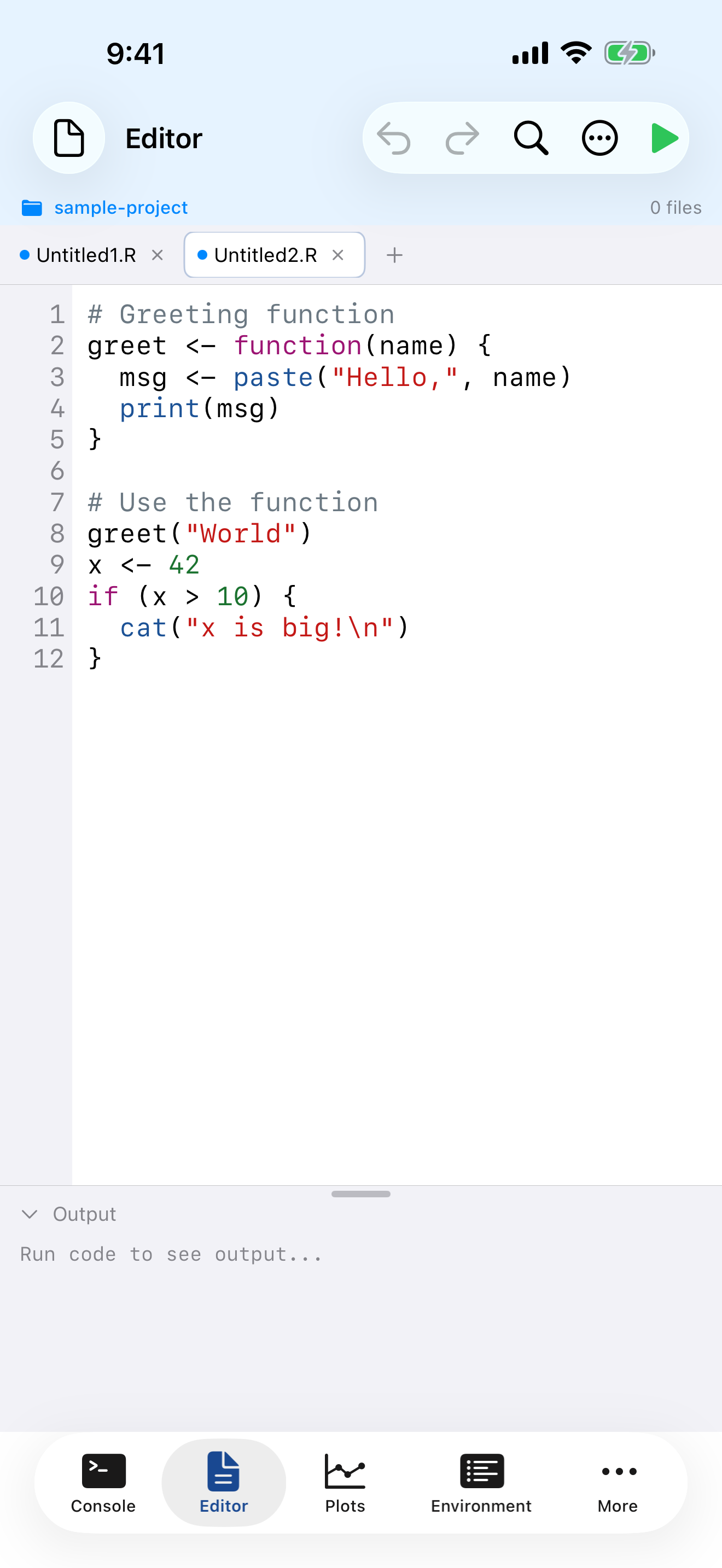
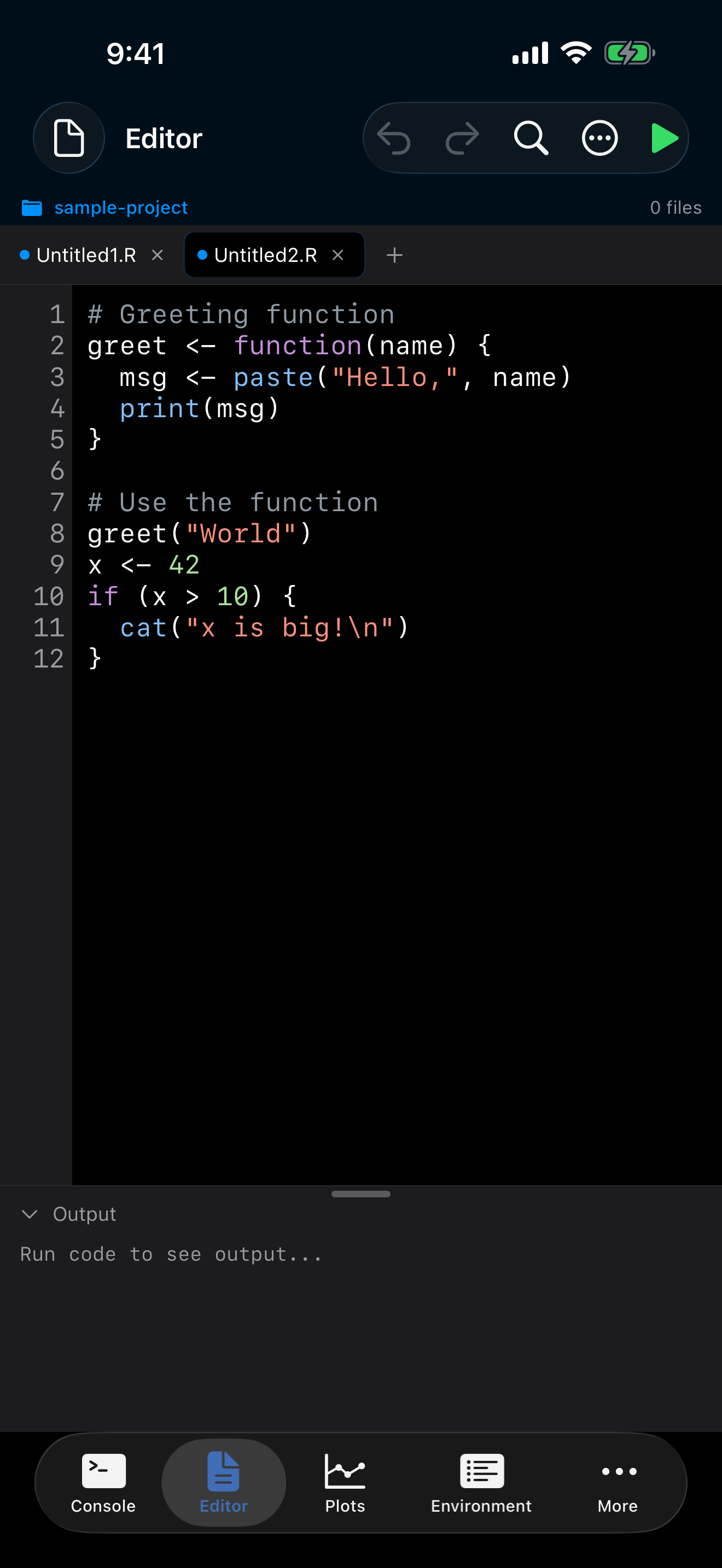
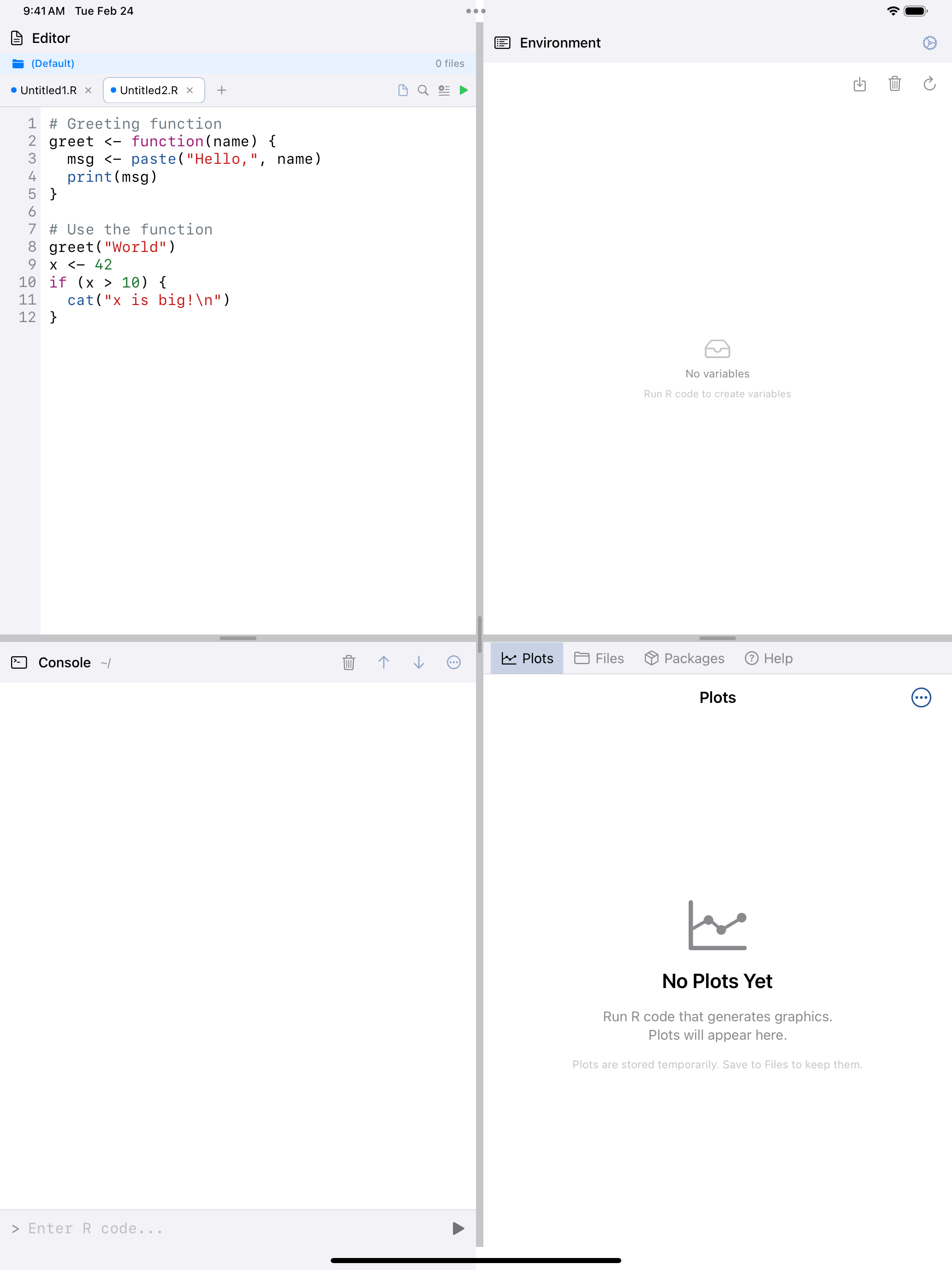
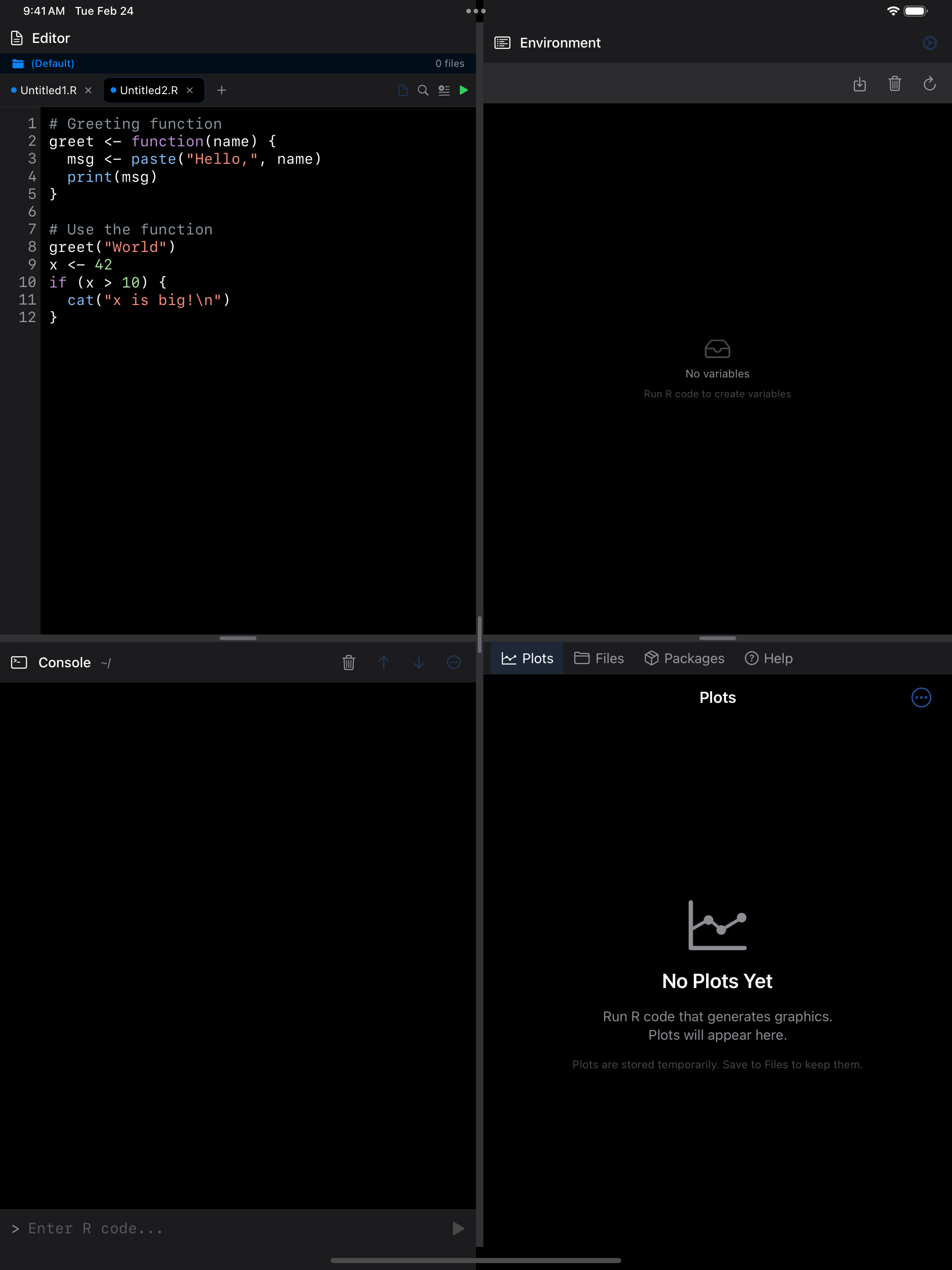
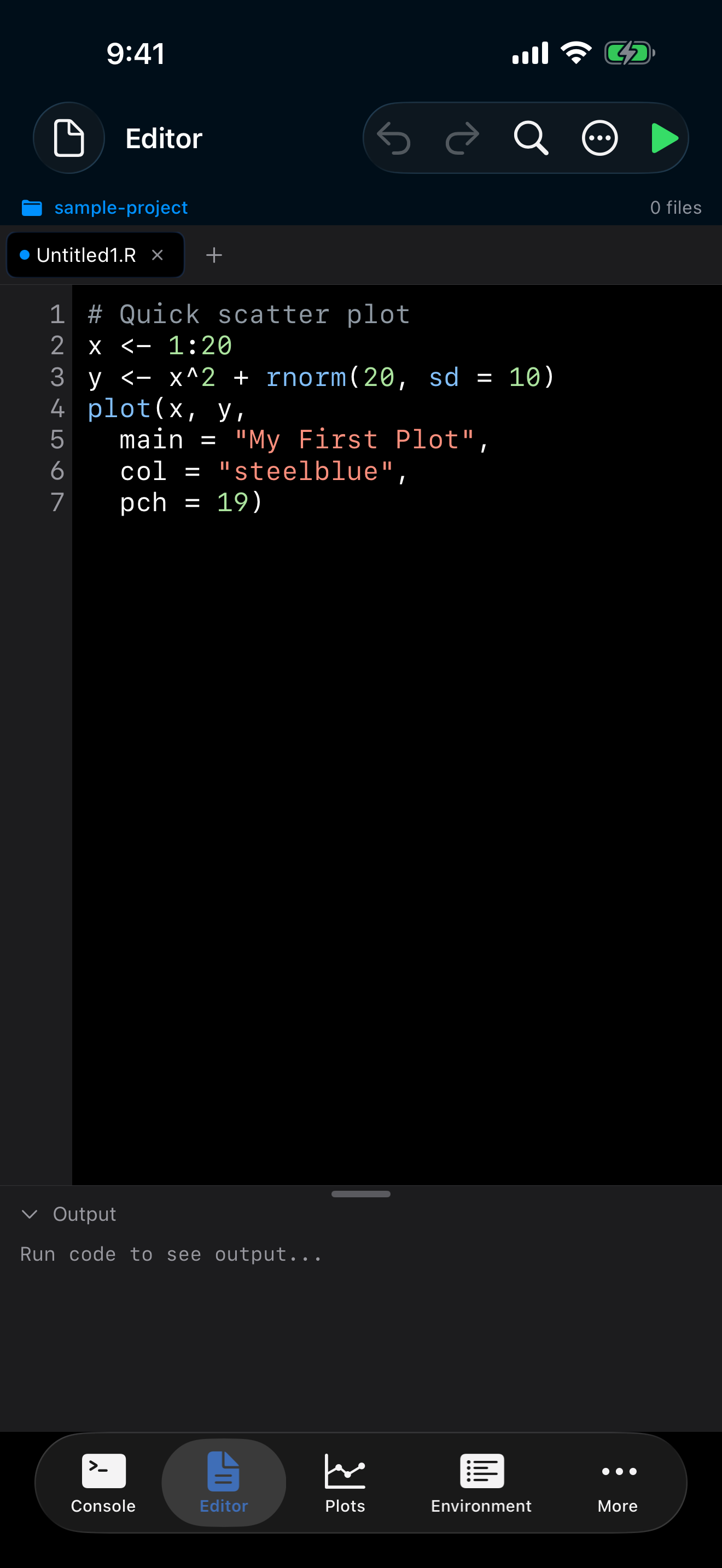
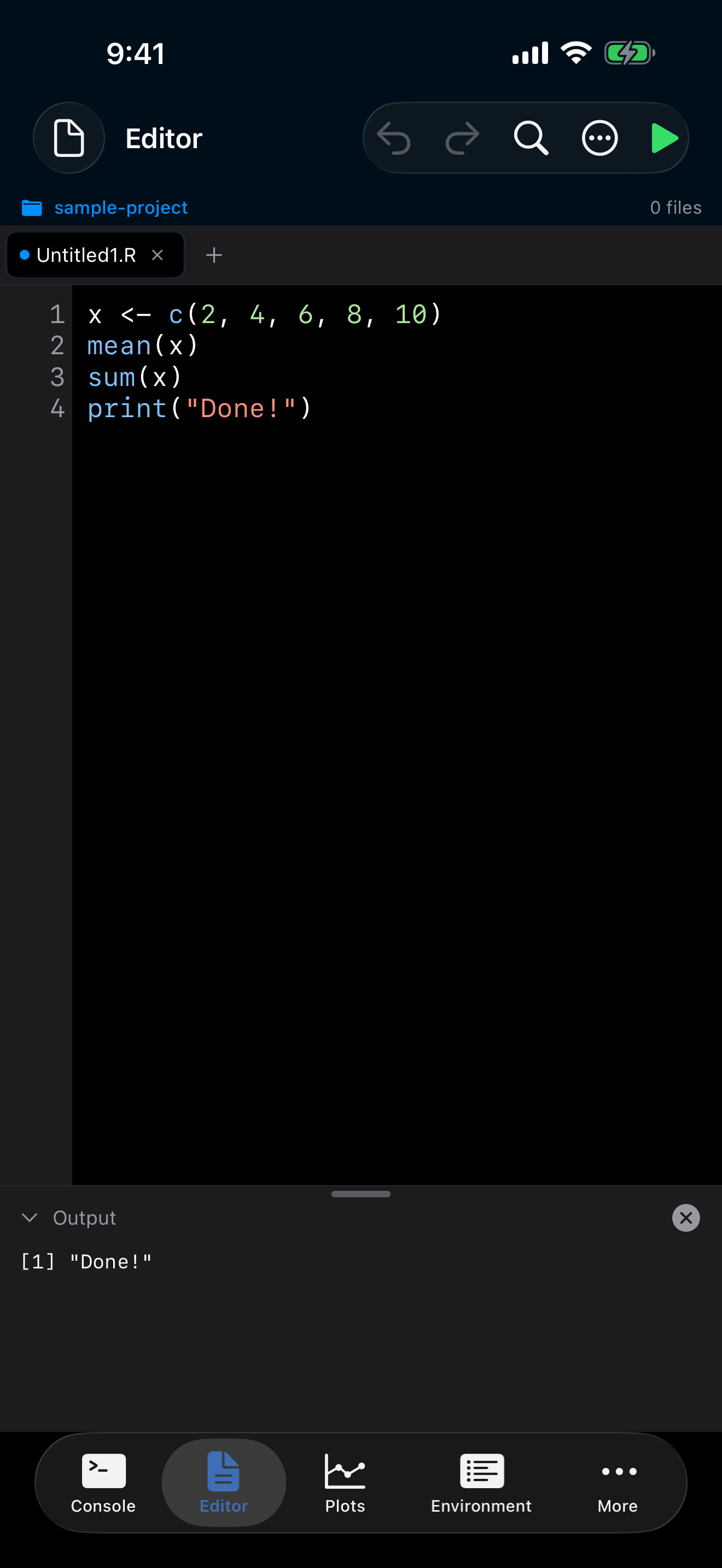
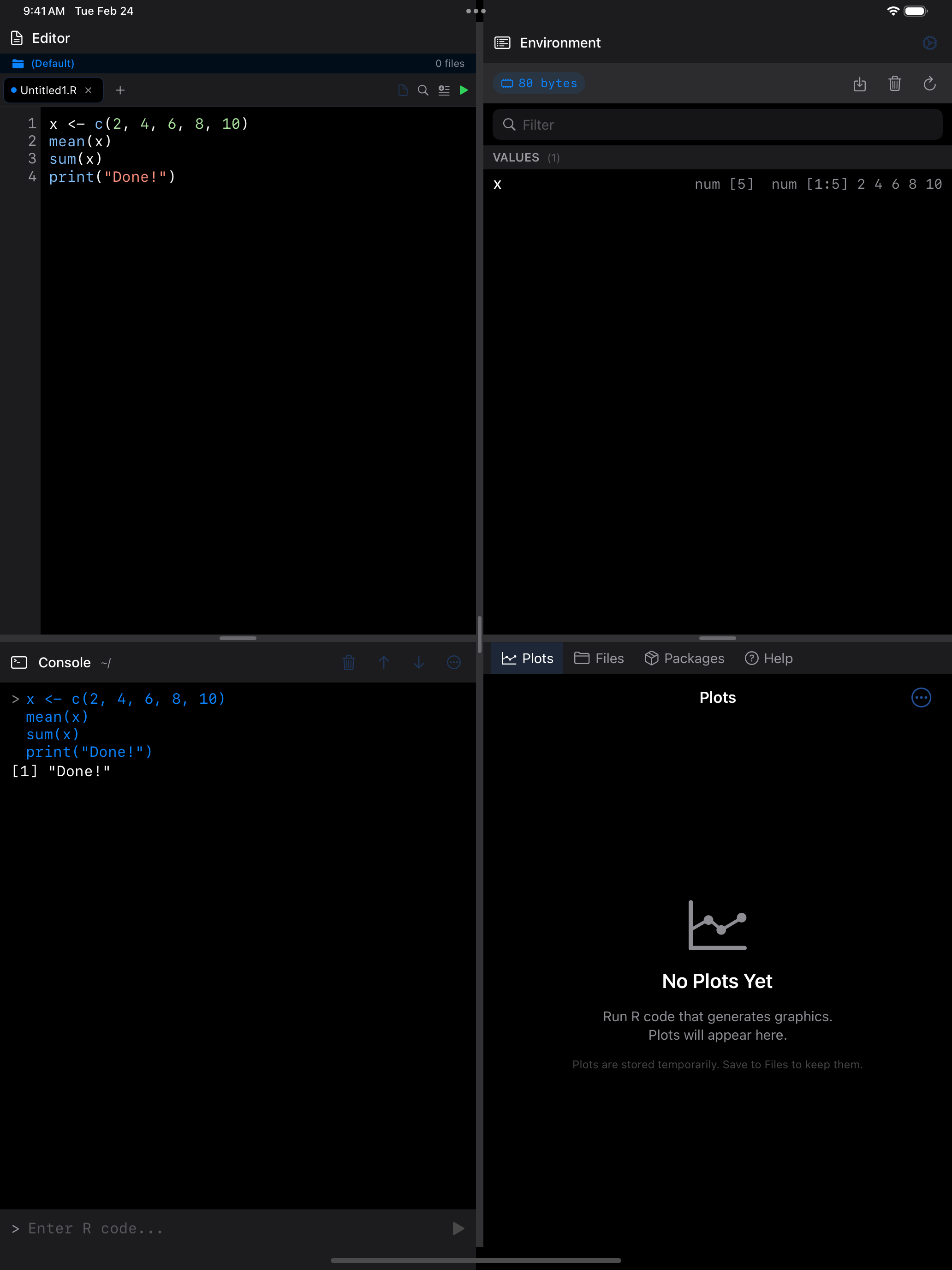
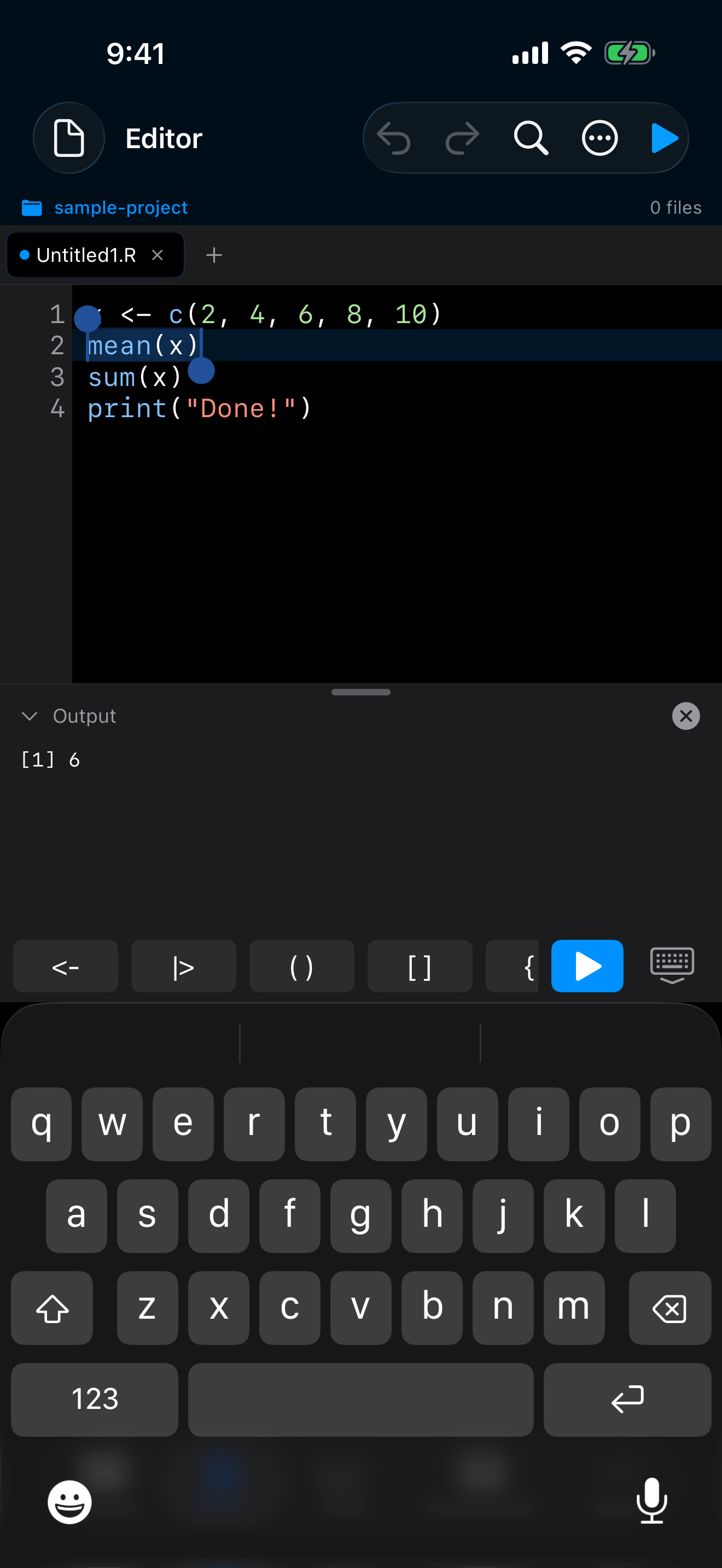
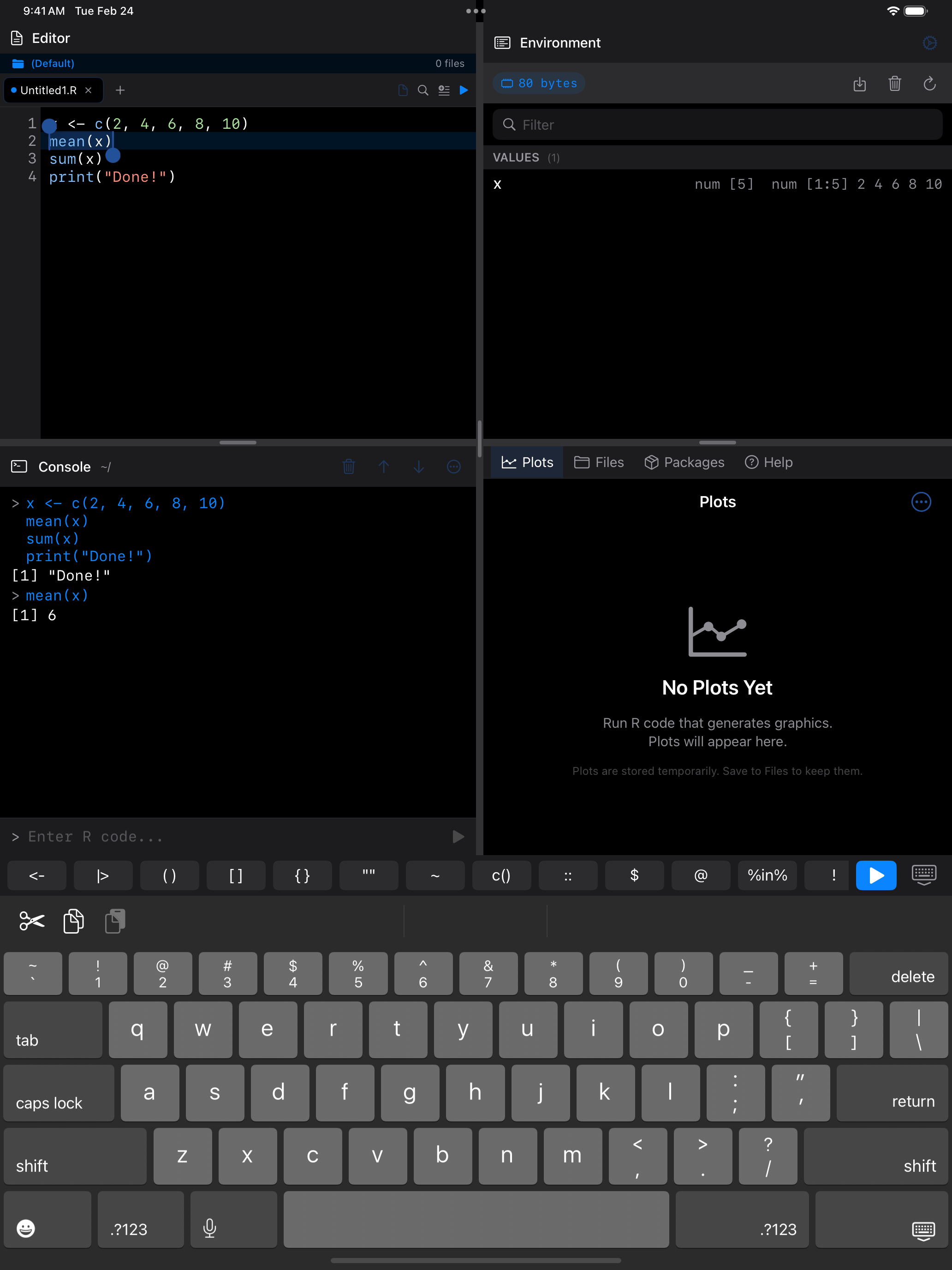
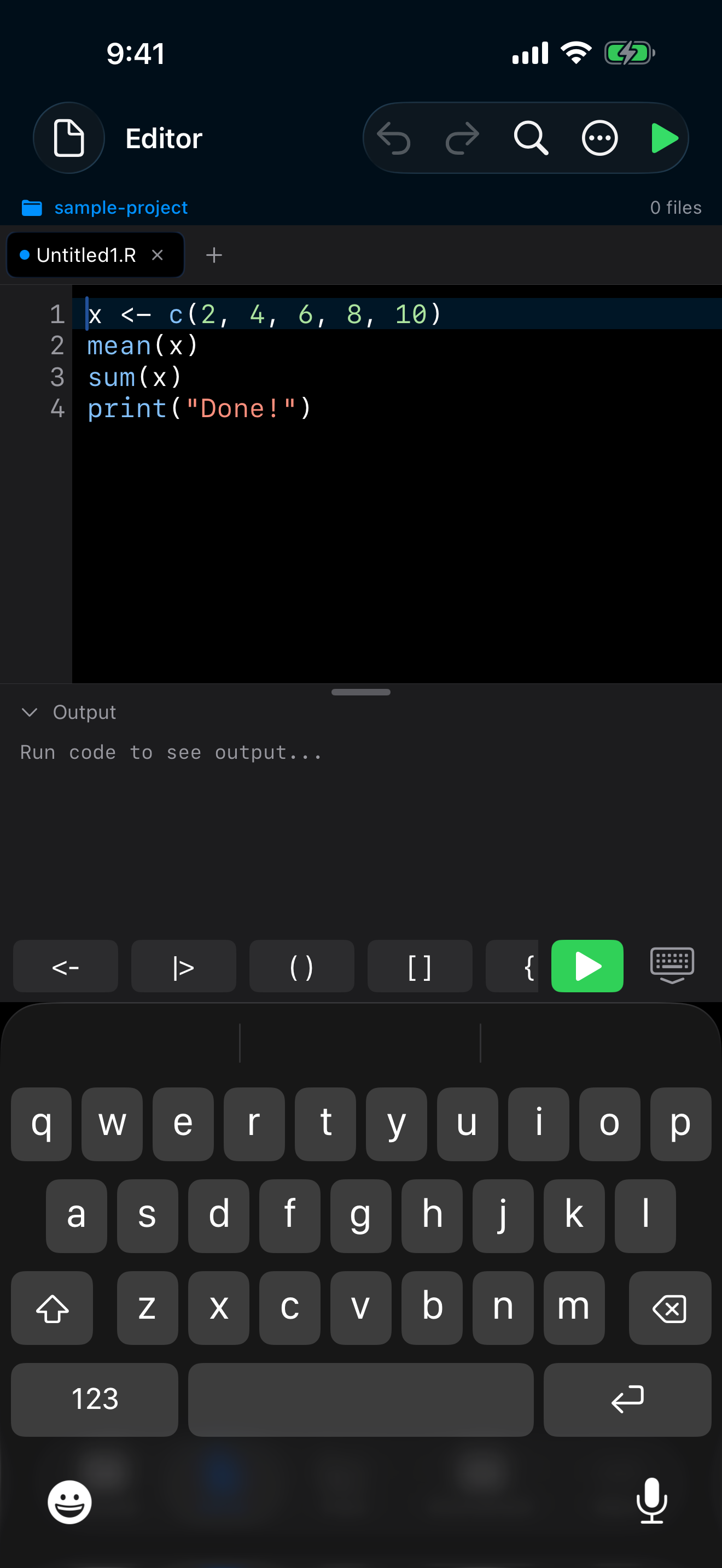
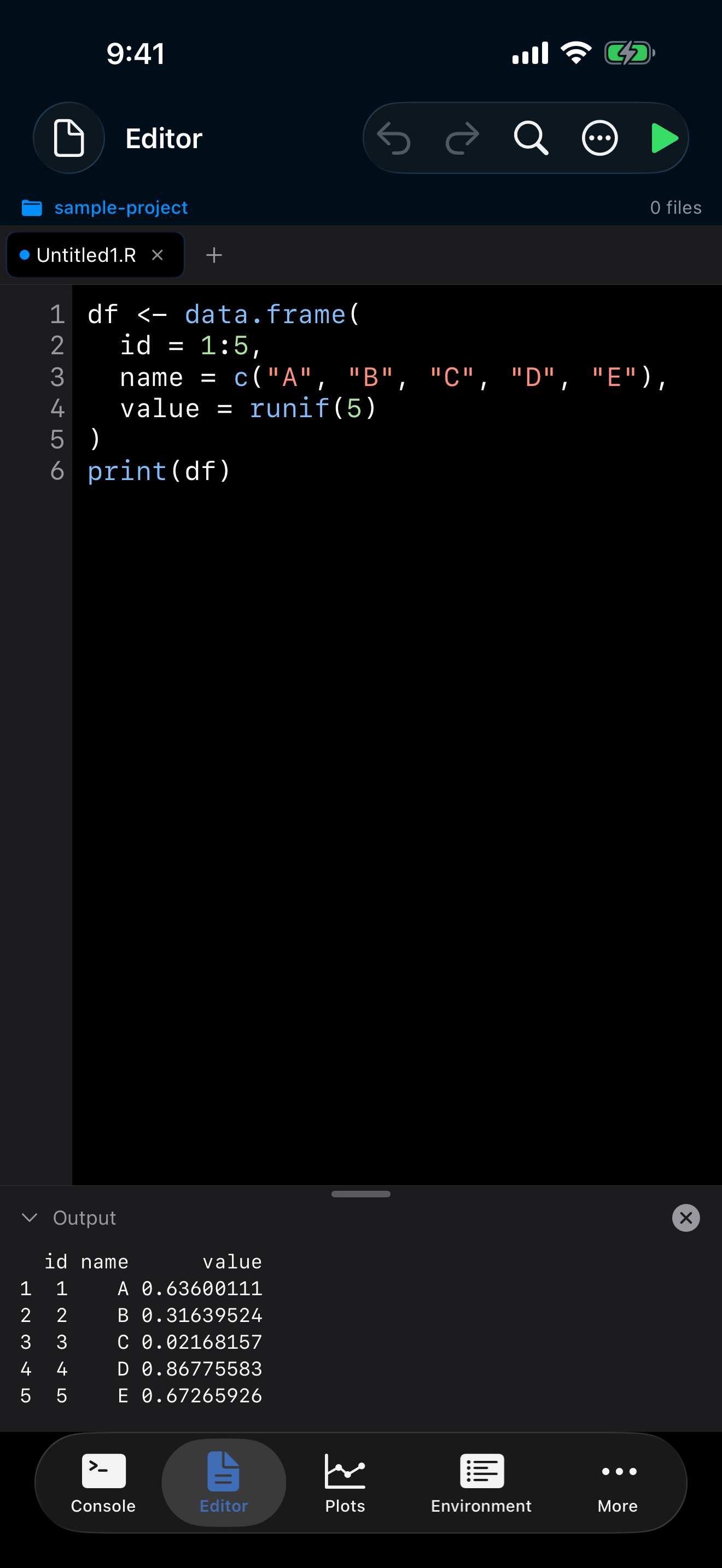
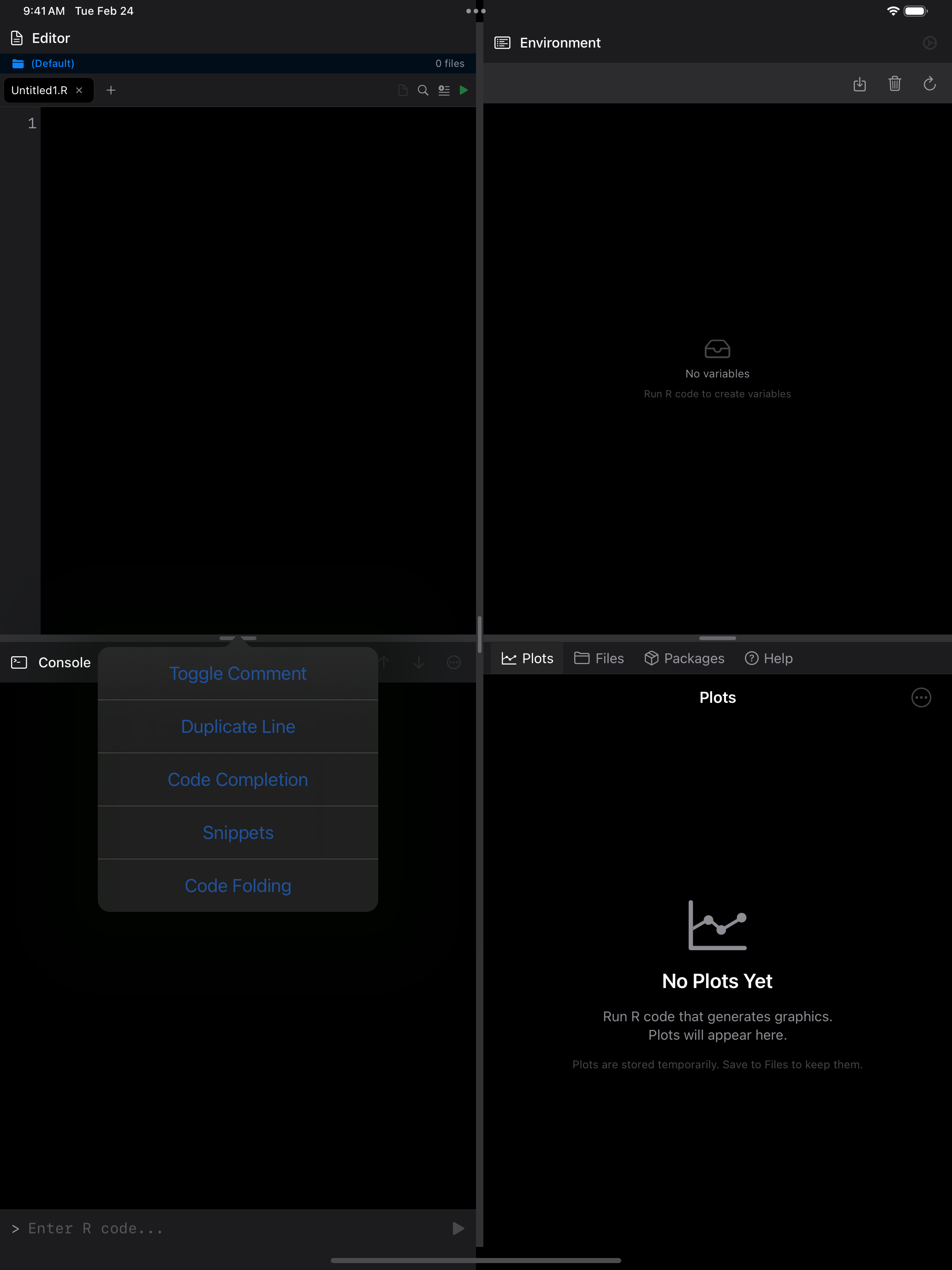
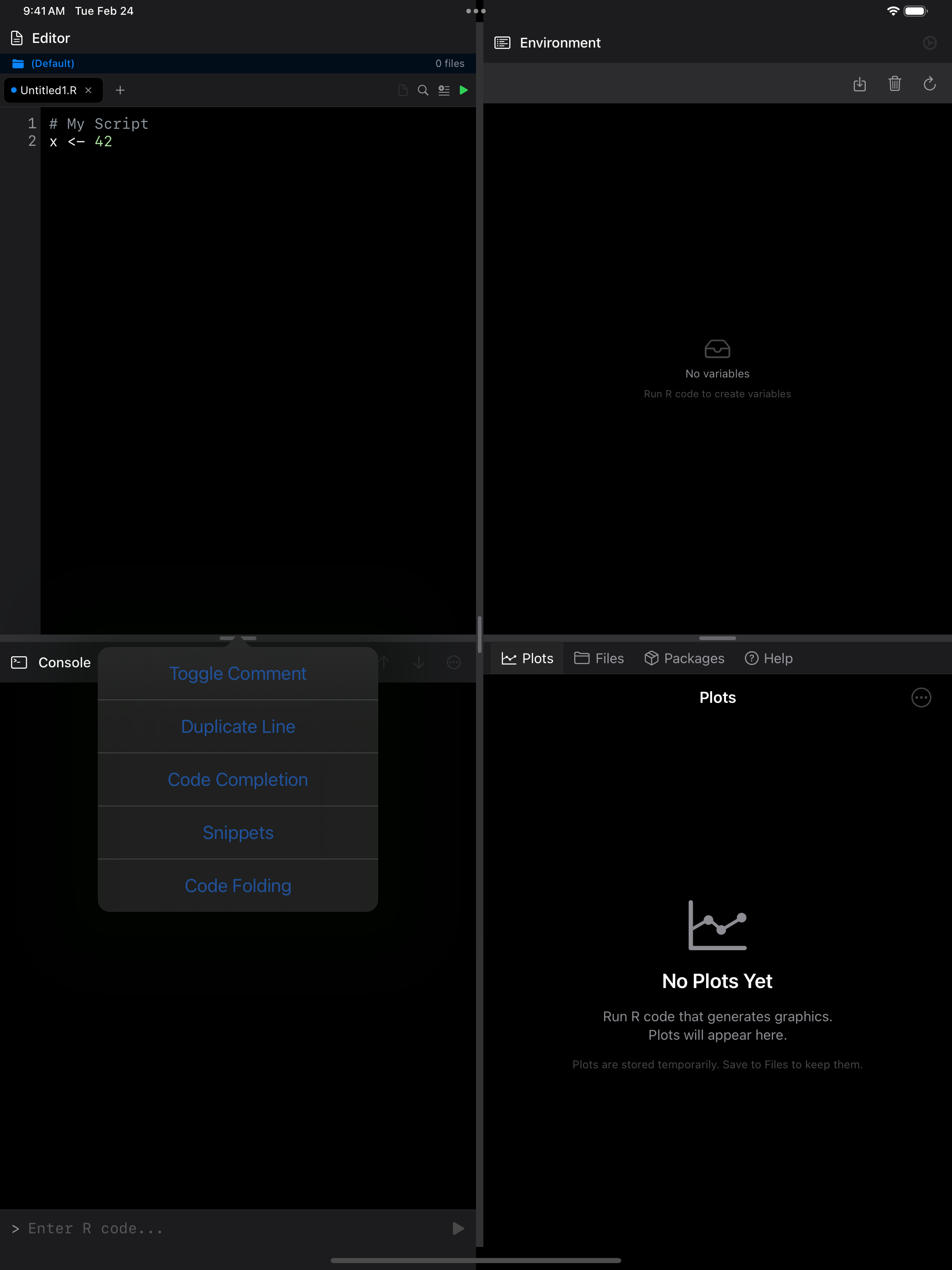
The colors adapt to light and dark mode automatically. You can choose a different theme in Settings. Highlighting keeps up as you type, even in scripts thousands of lines long.
Editor Themes
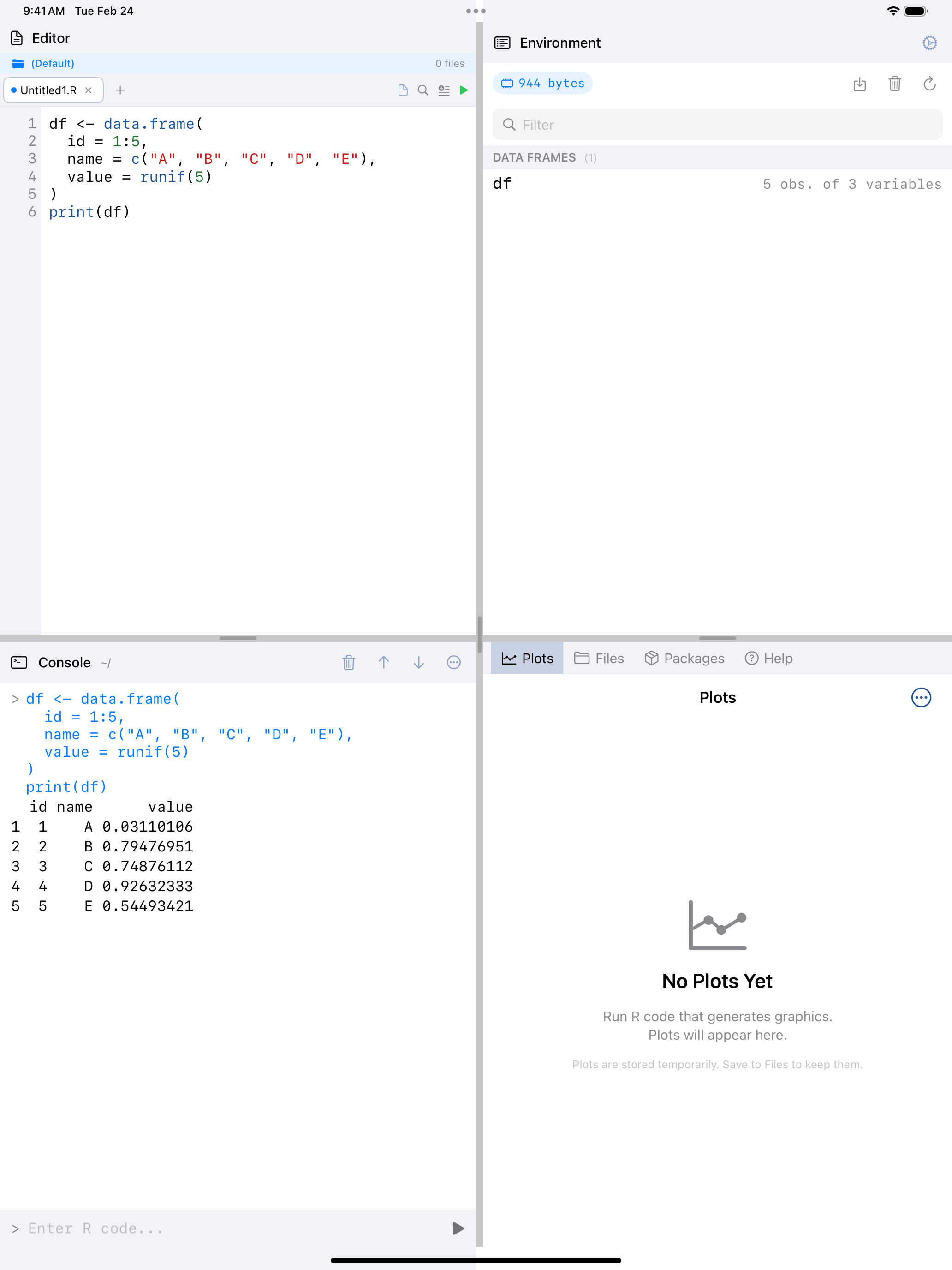
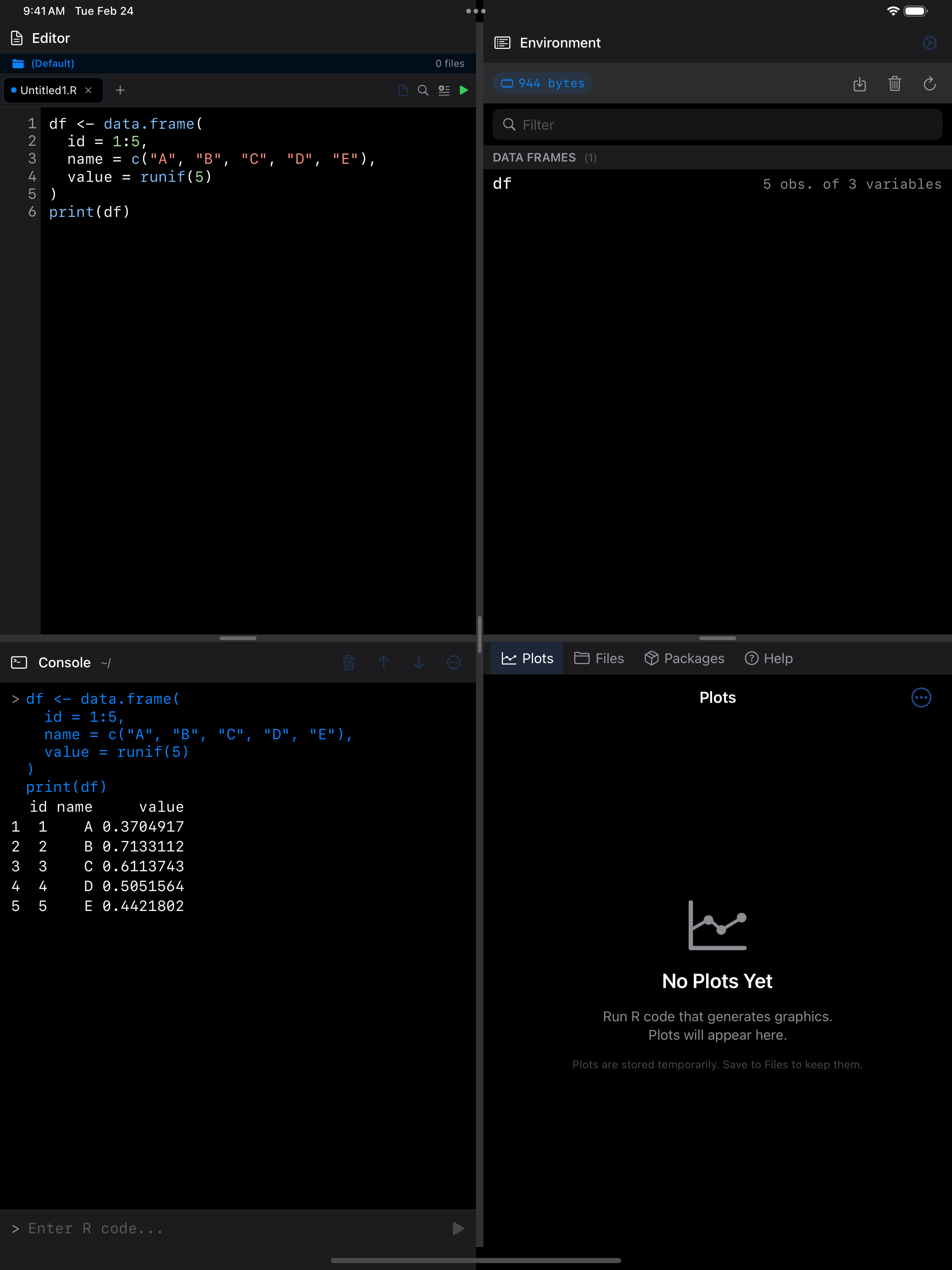
webRios includes nine built-in themes, which color the whole app as well as your code. Here are four of them:
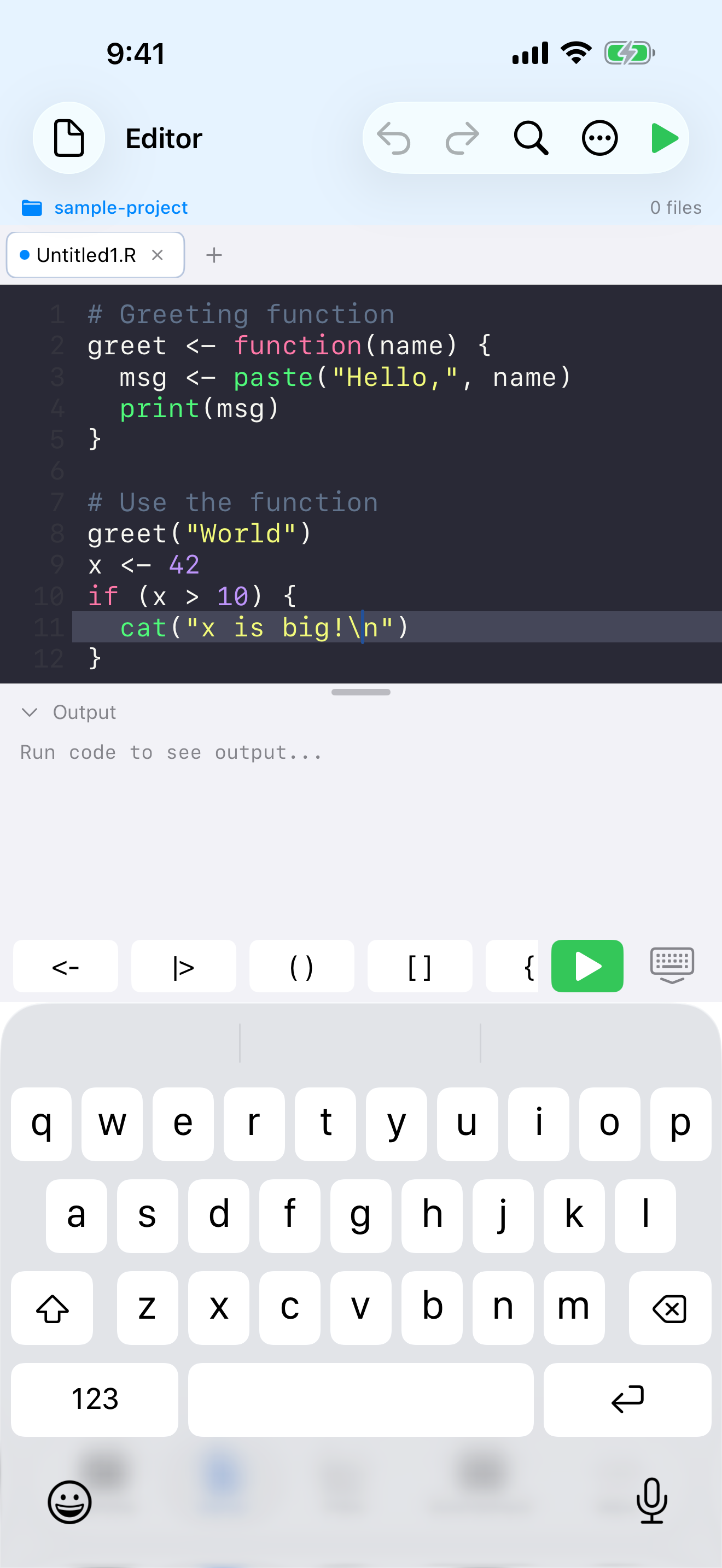
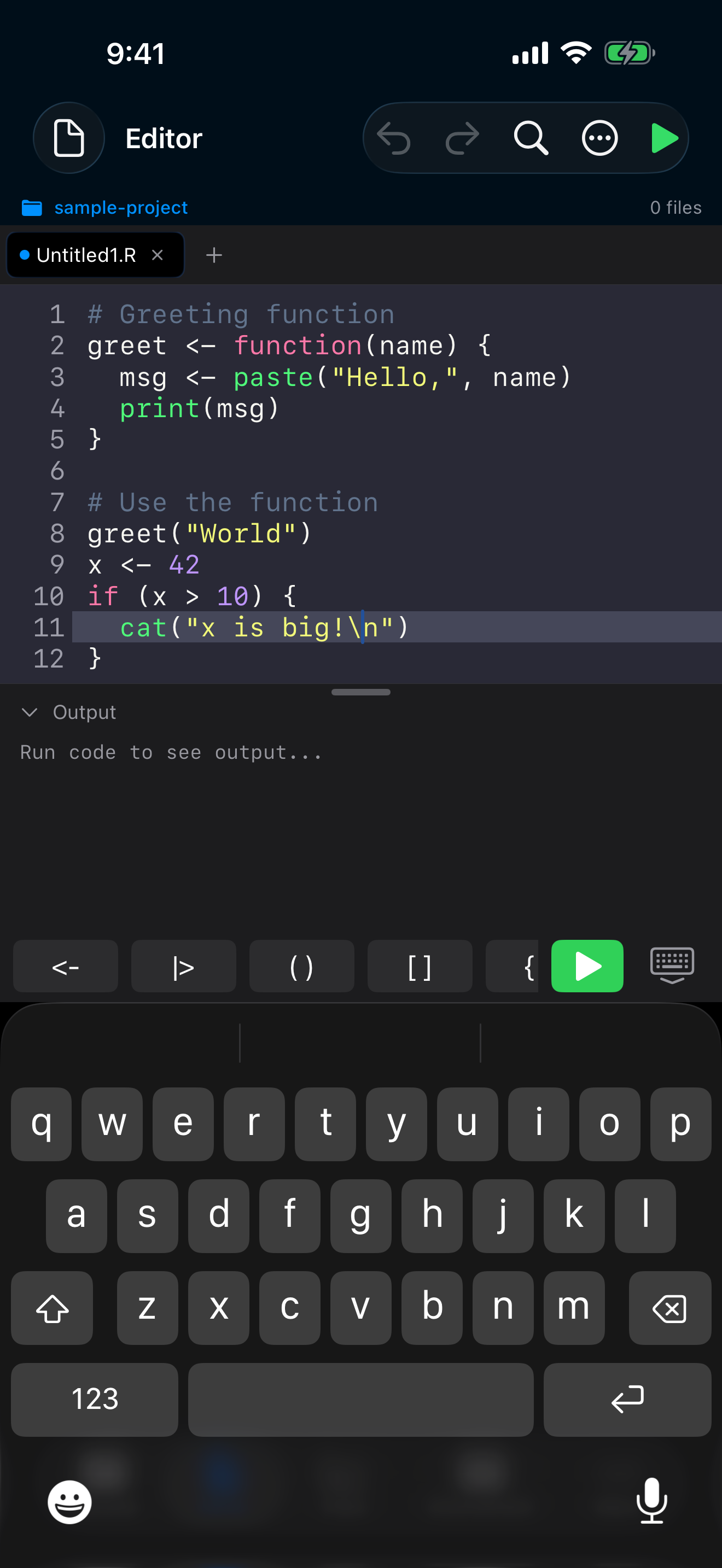
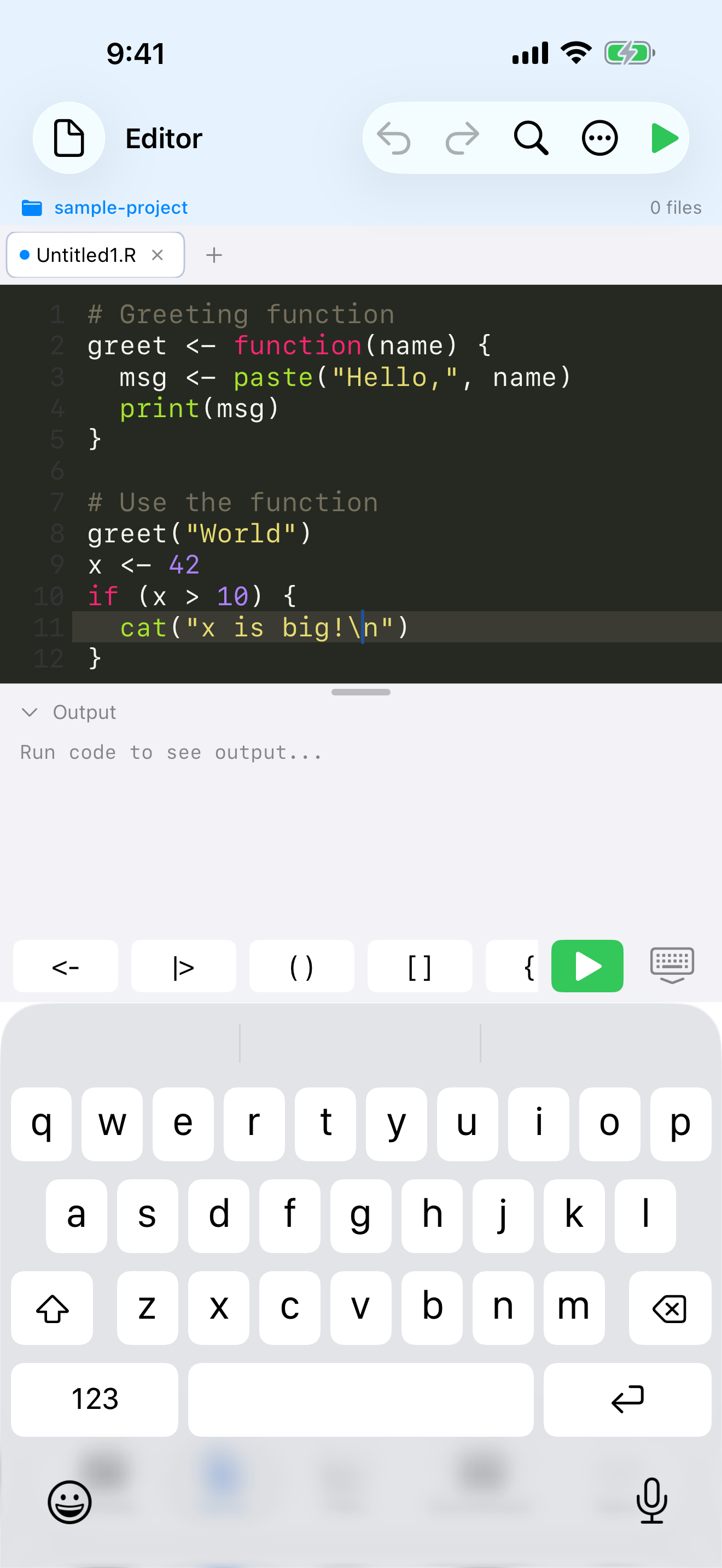
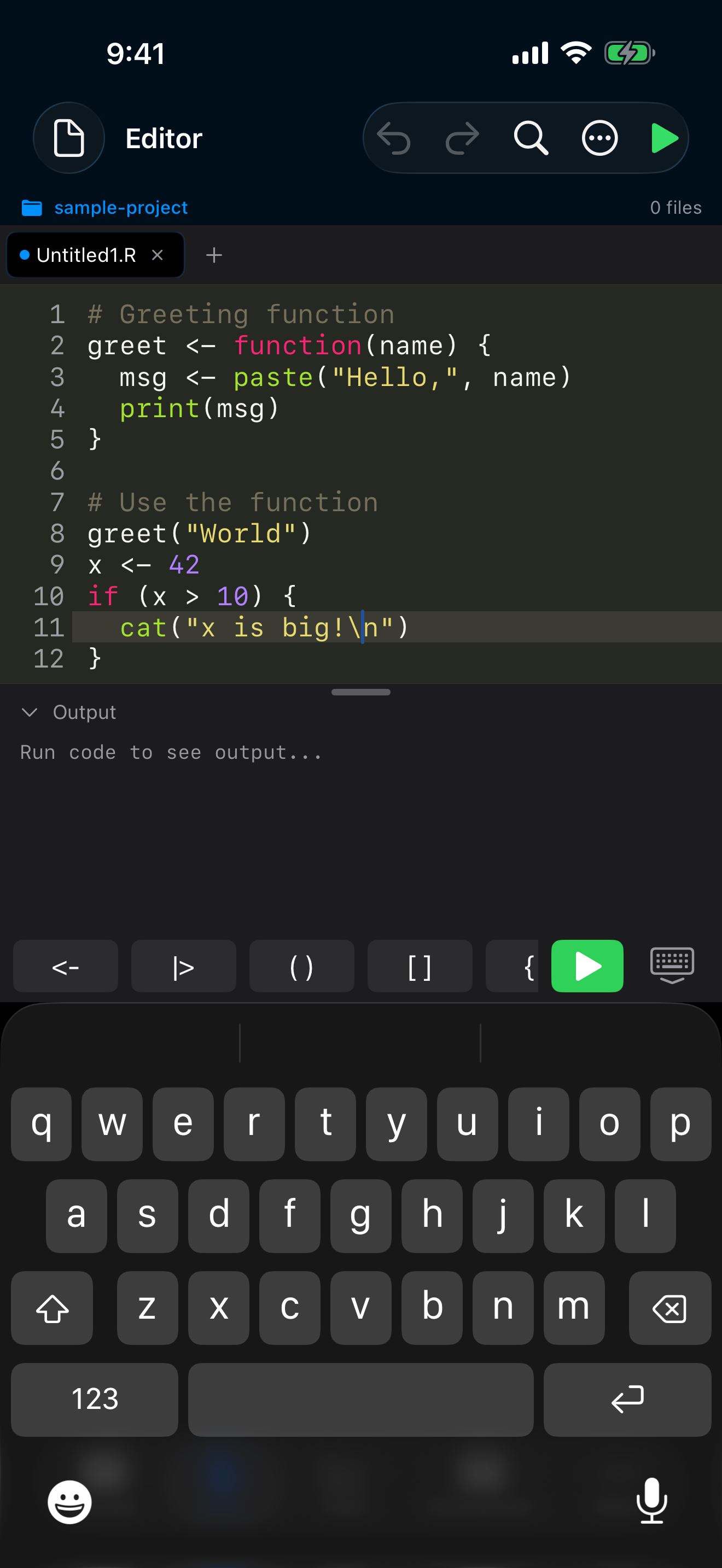
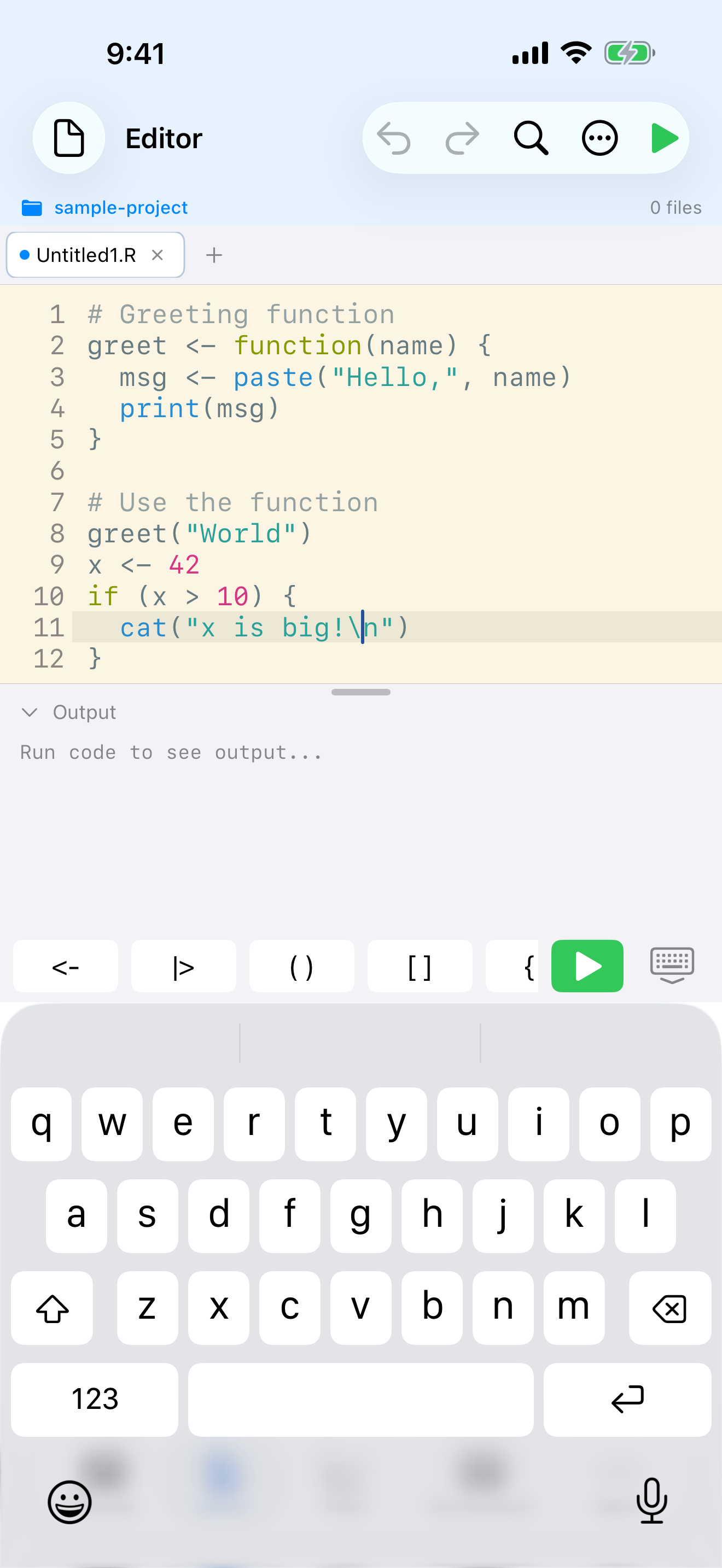
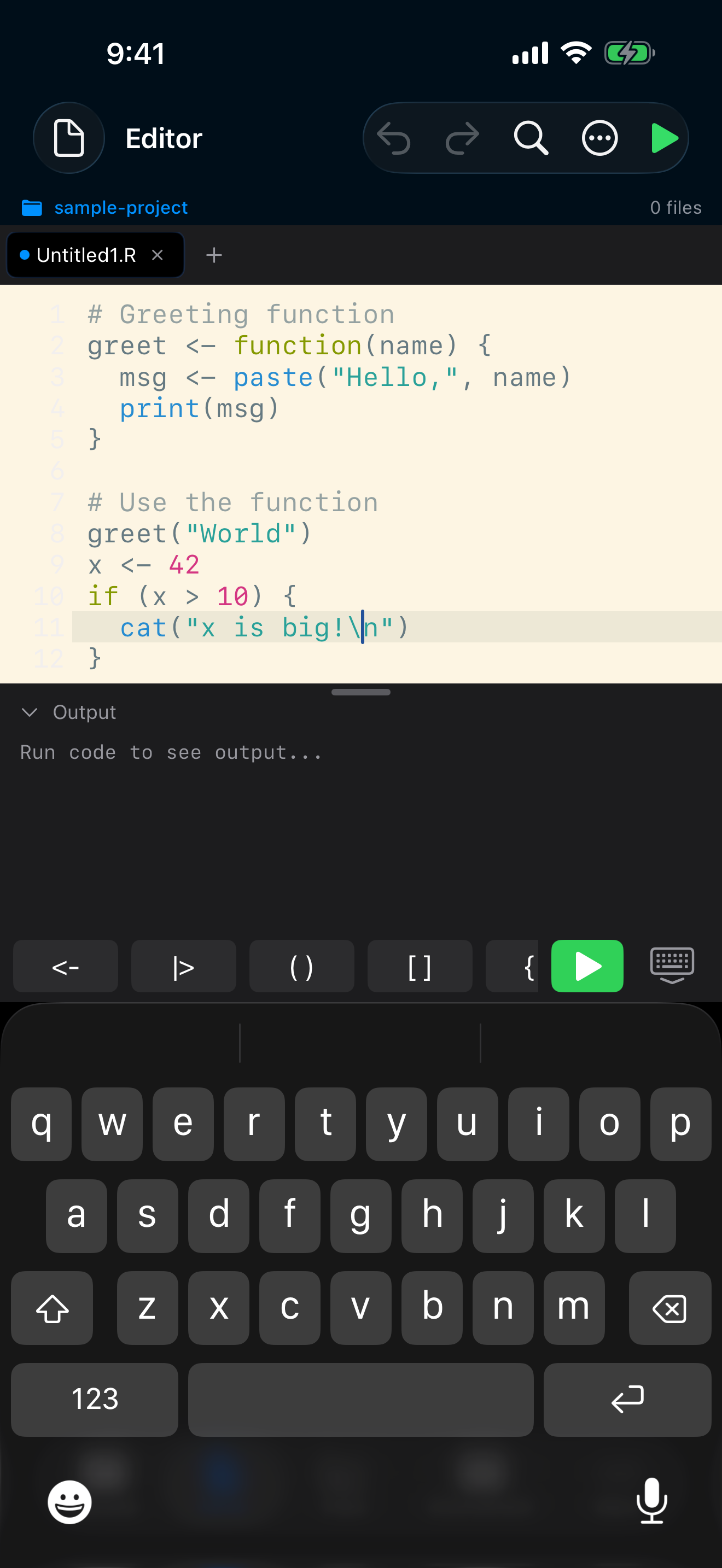
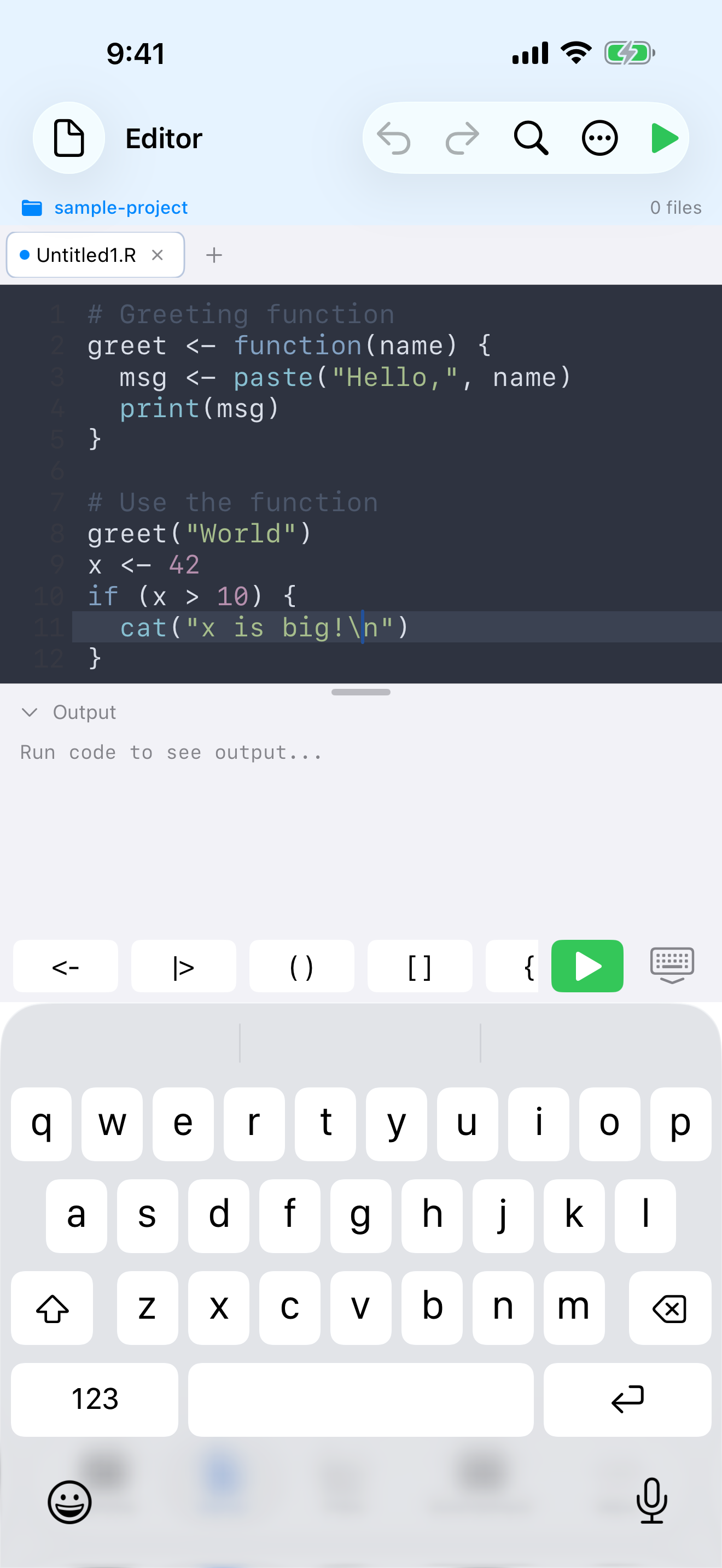
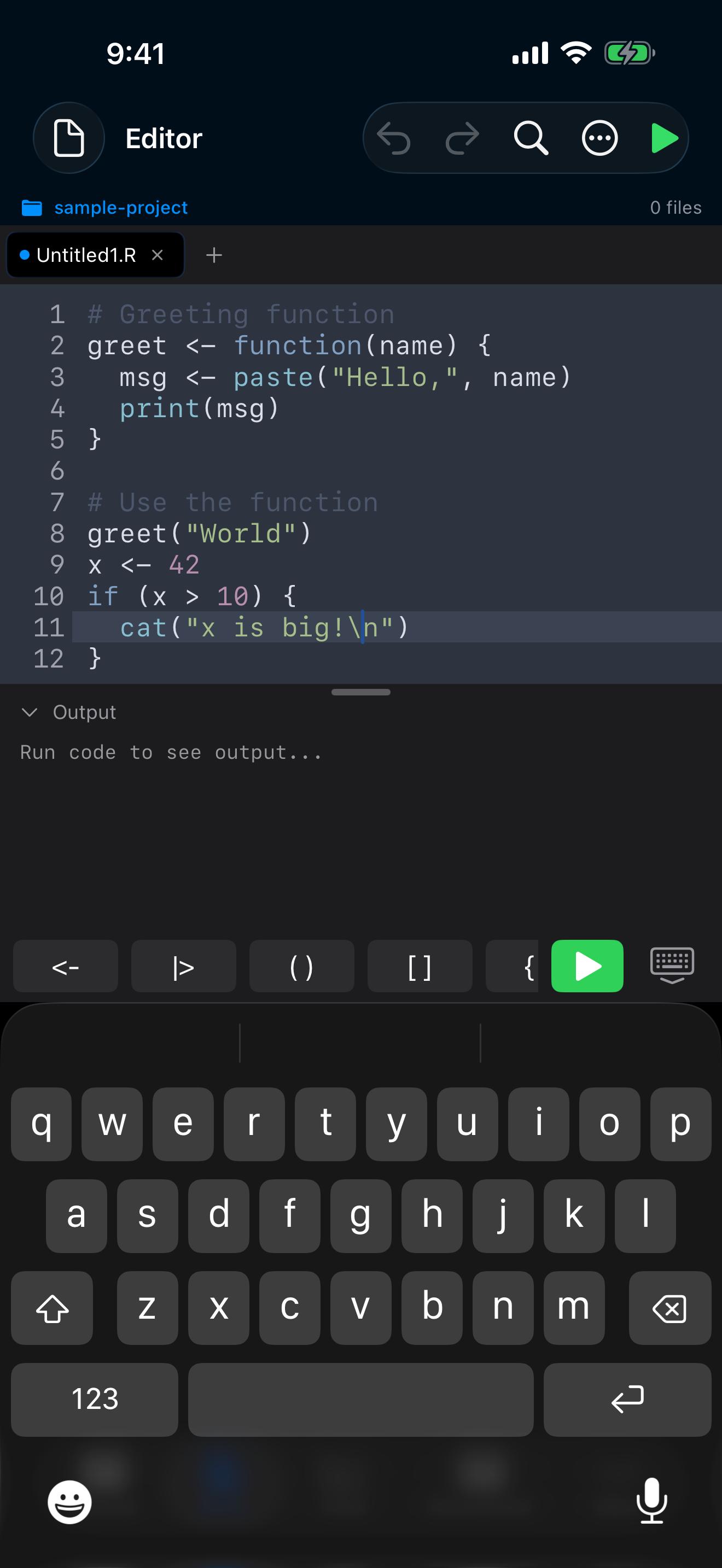
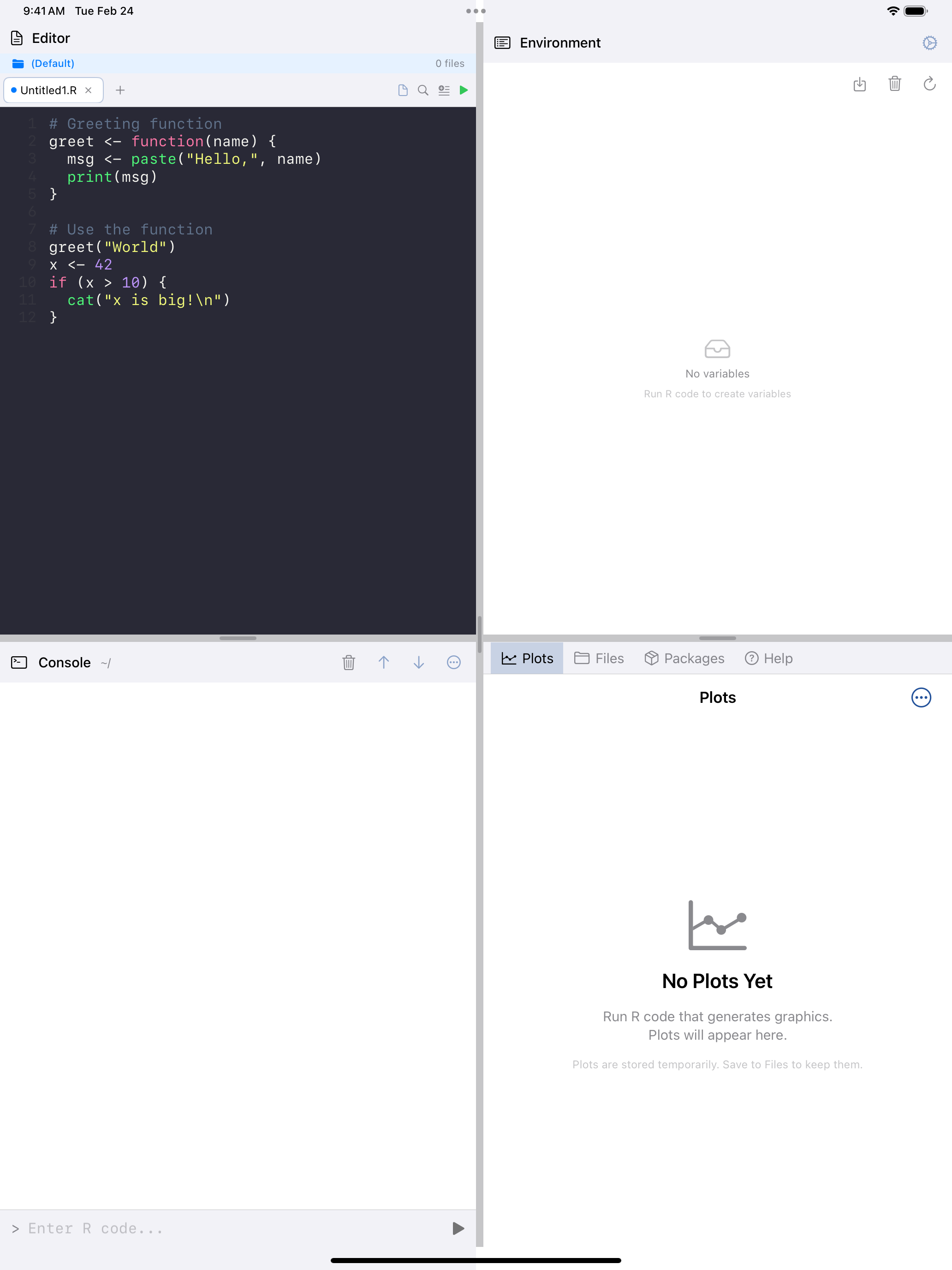
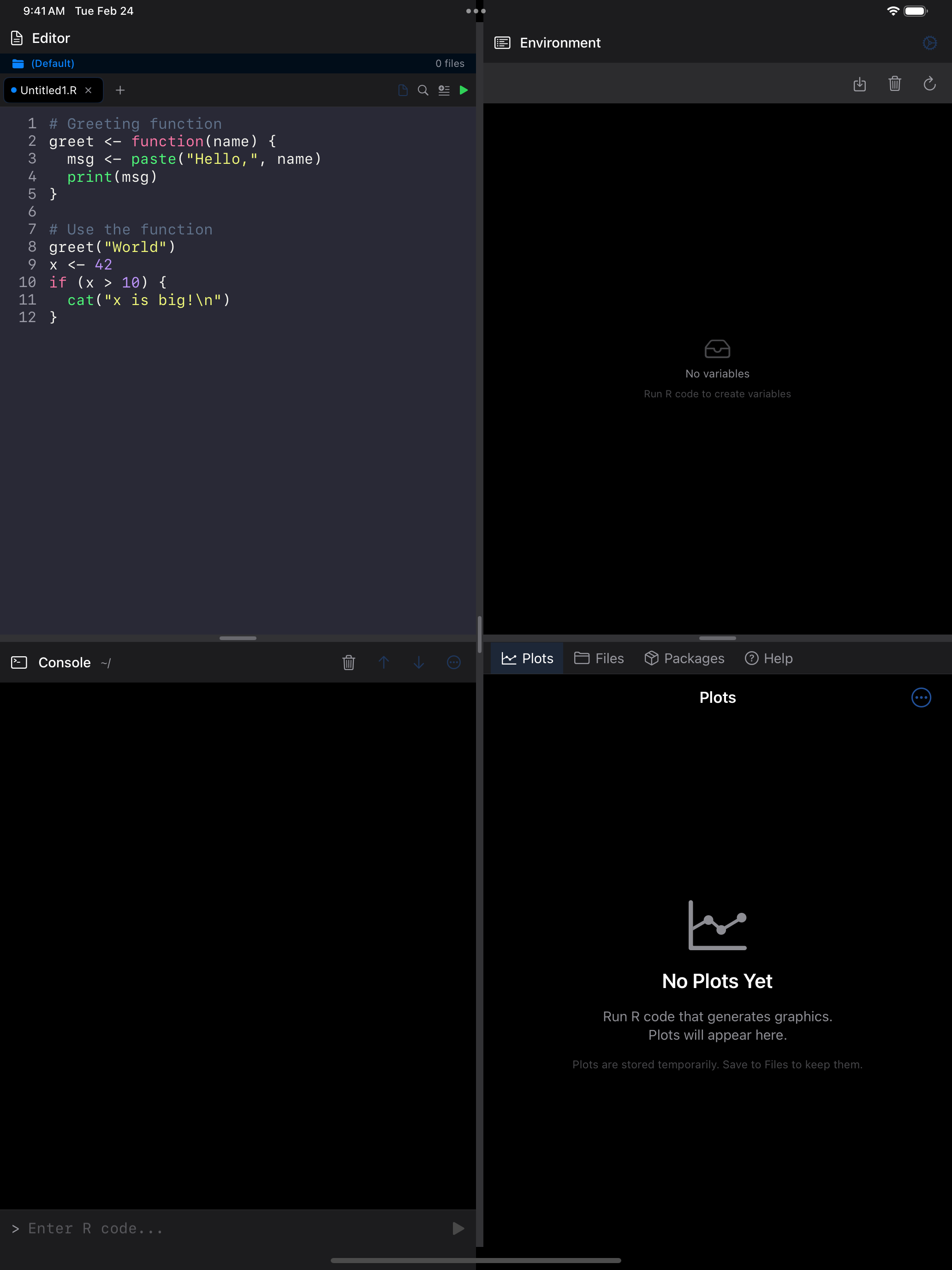
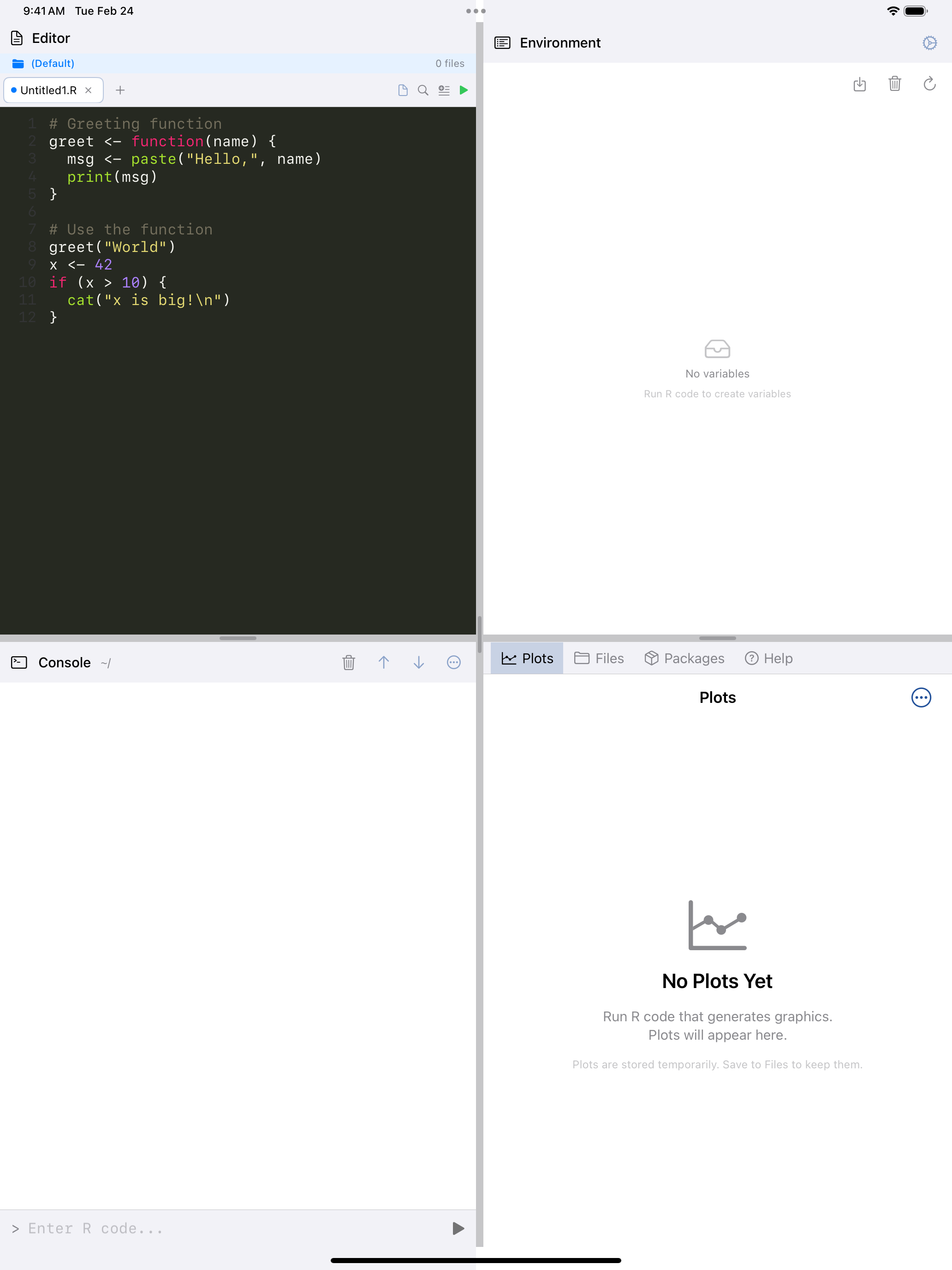
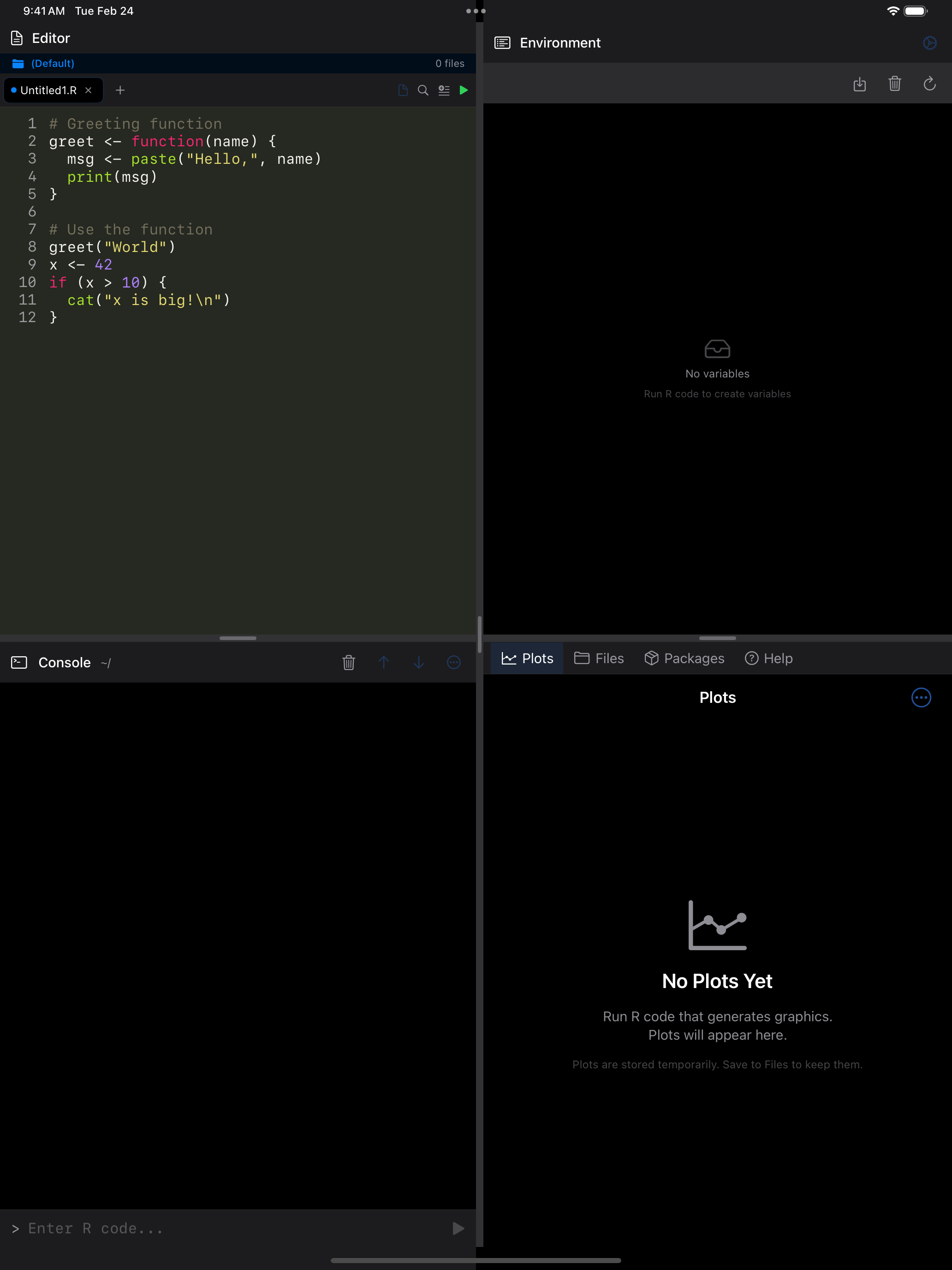
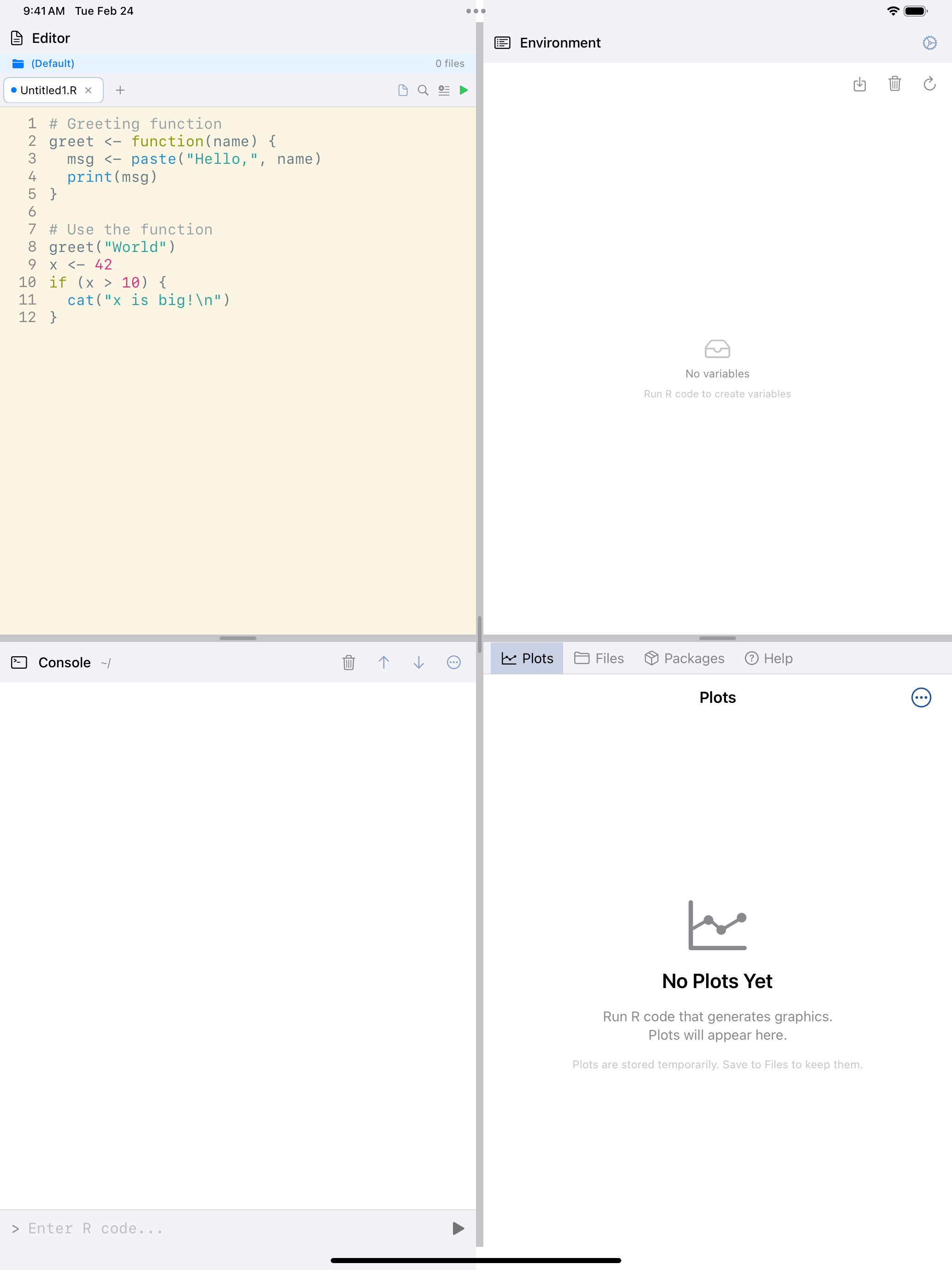
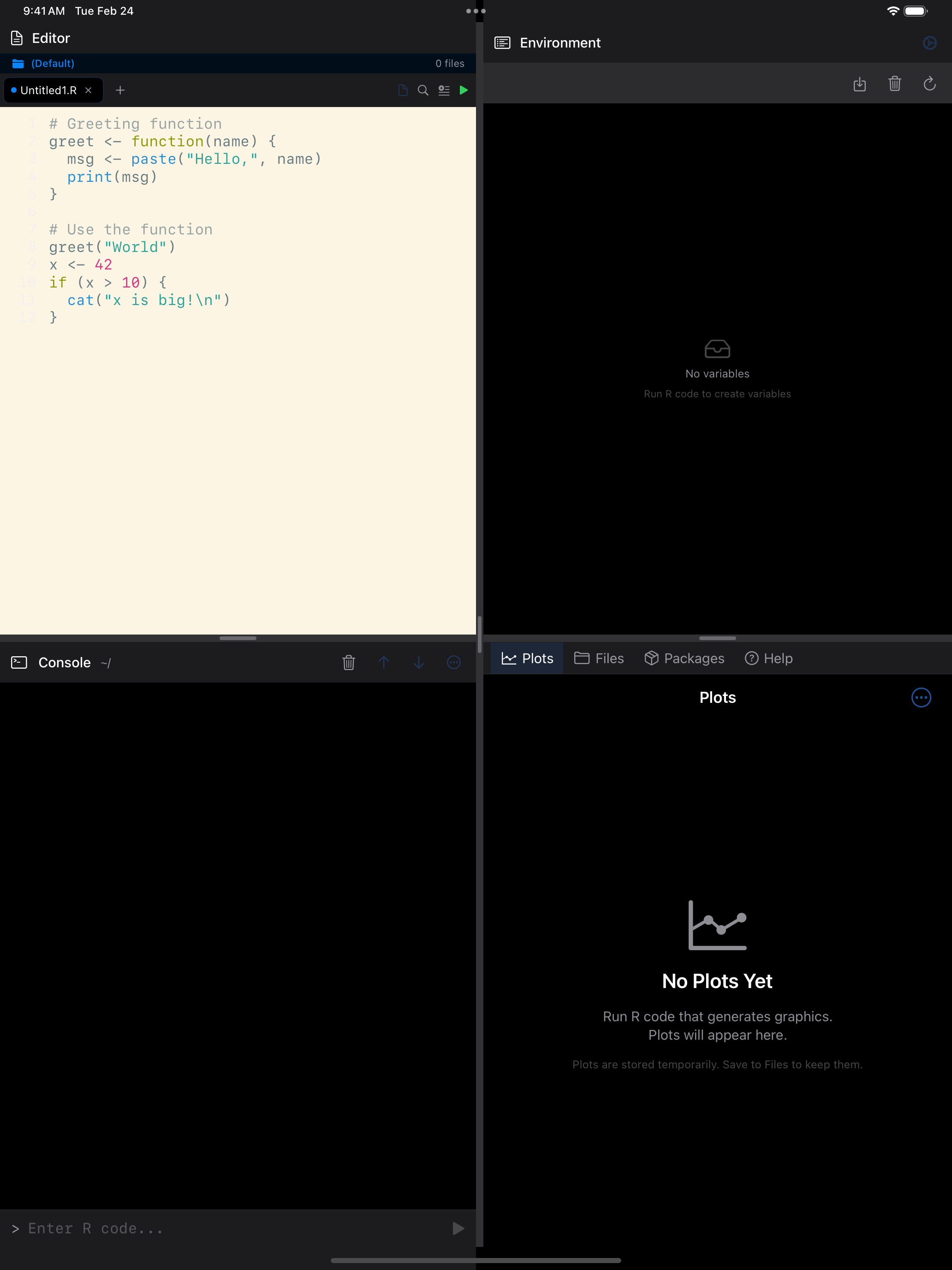
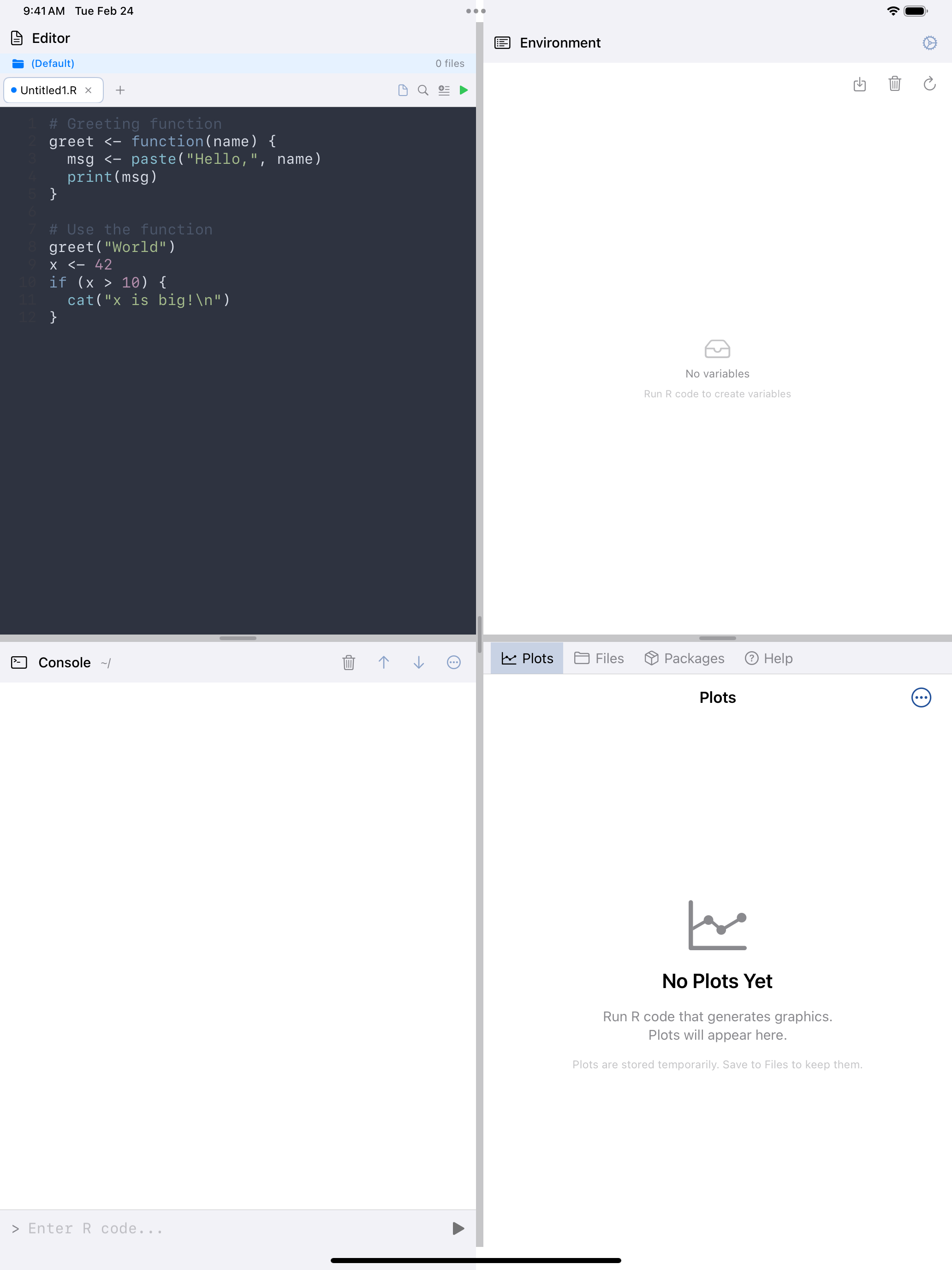
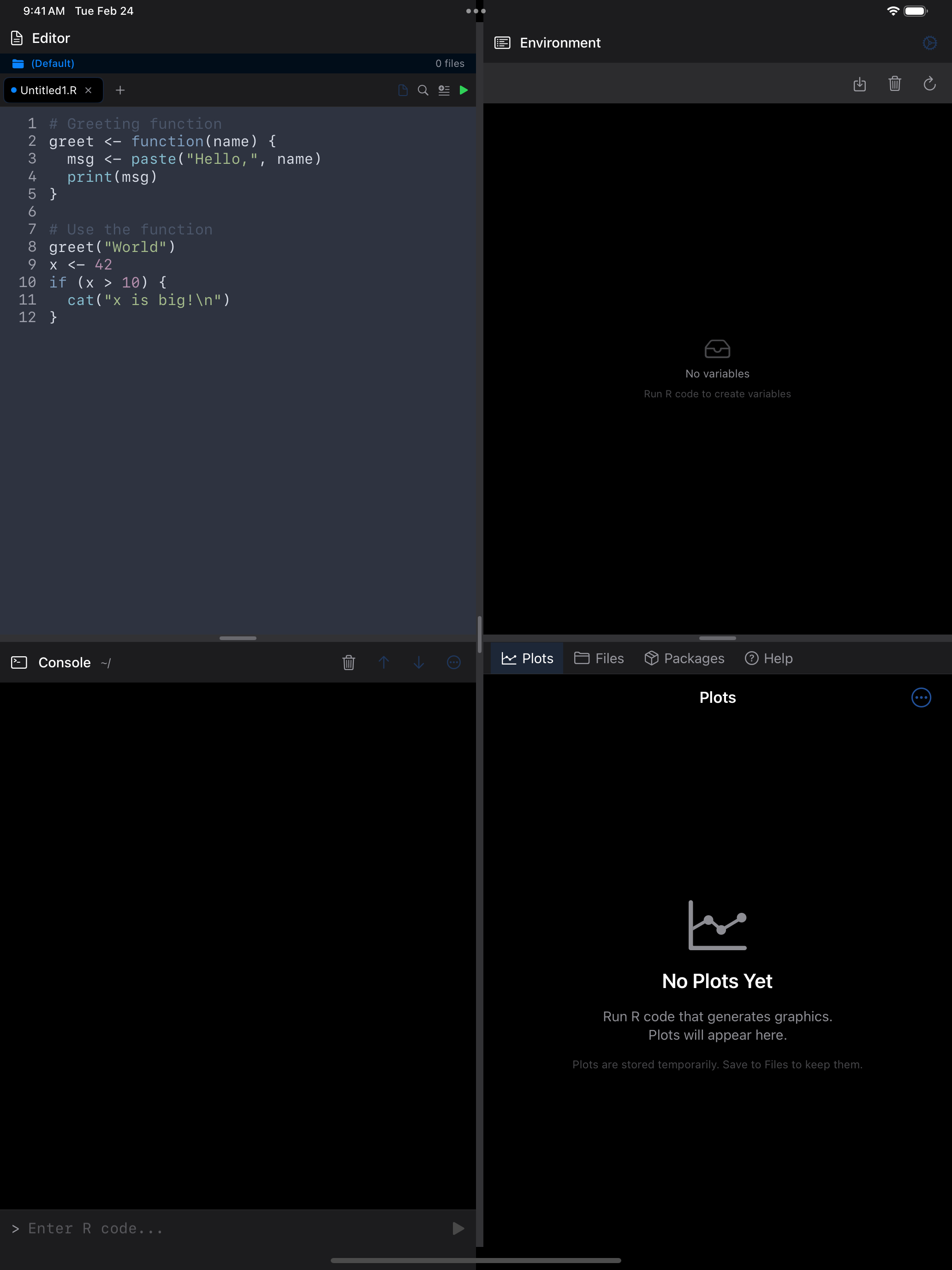
You can pick a theme for light mode and one for dark mode in Settings > Appearance, where you can also create, import and export your own (Settings). The four themes shown above are Dracula (top-left), Monokai (top-right), Solarized Light (bottom-left), and Nord (bottom-right).
Running Your Code
There are two ways to execute code from the Editor, and the run button color tells you which mode you are in:
- Green play button: runs your entire script from top to bottom. This is what you get when no text is selected.
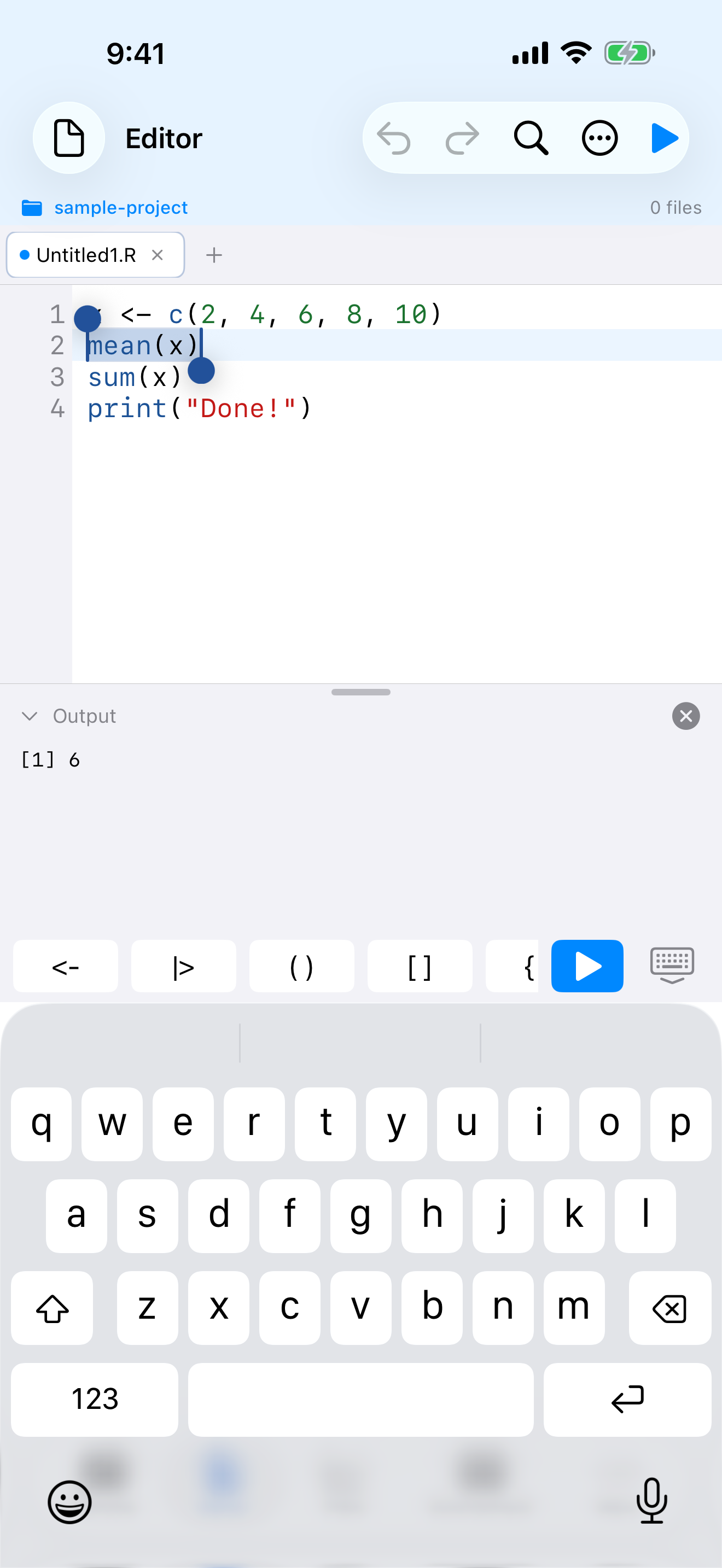
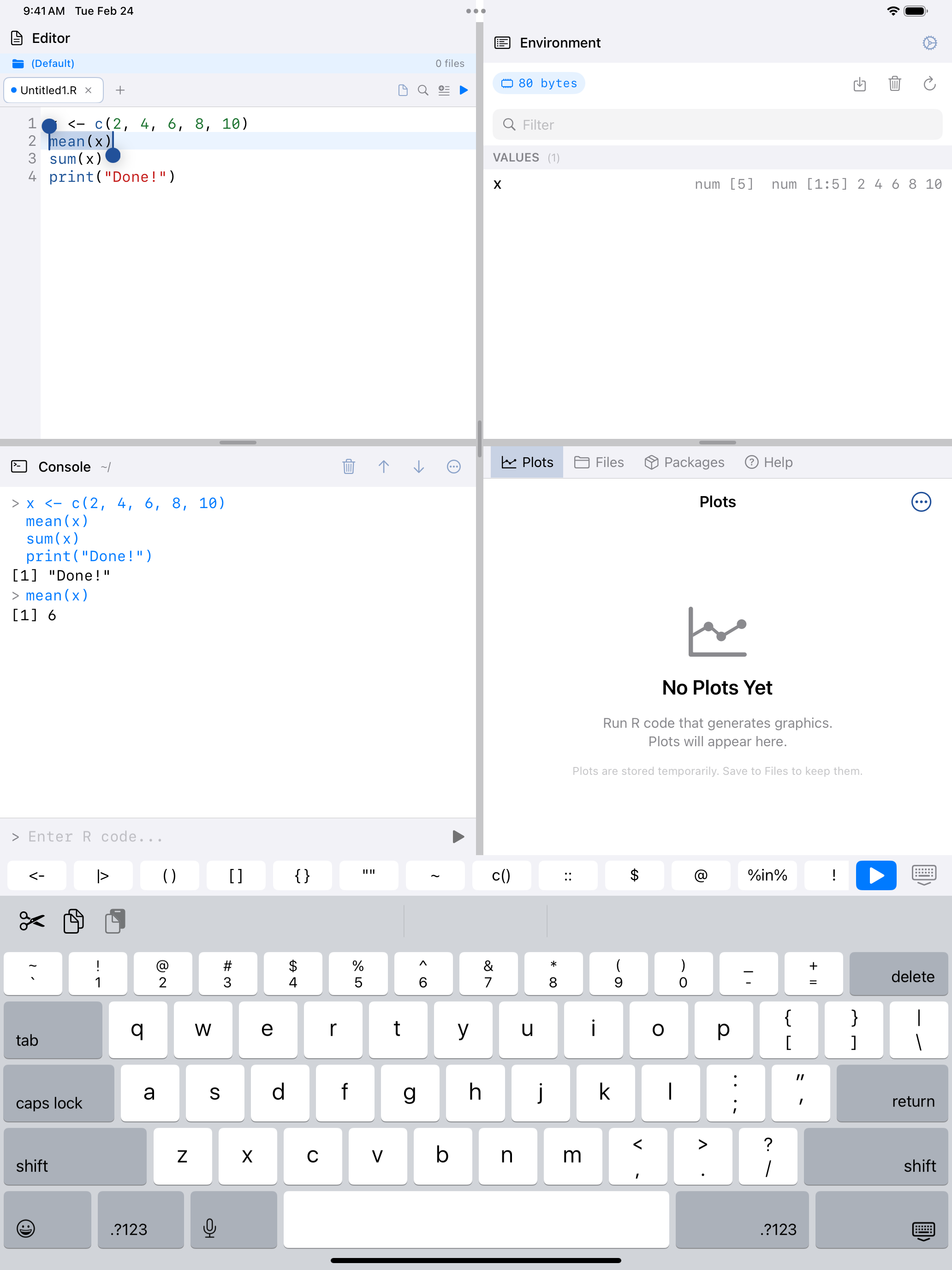
- Blue play button: runs only the selected text. Select a portion of your code (by long-pressing and dragging), and the play button turns blue to indicate it will run just that selection.
 1 2
1 2
 1 2
1 2
 1 2
1 2
 1 2
1 2
- Green play button: no text is selected, so tapping runs the entire script
- Output panel: results appear here after execution. Drag the handle to resize
When you select a portion of your code, the play button turns blue:
 1 2
1 2
 1 2
1 2
 1 2
1 2
 1 2
1 2
- Blue play button: text is selected, so tapping runs only the selection
- Selected text: the highlighted code that will be executed
Output from your script appears in the Output panel at the bottom of the Editor. You can resize this panel by dragging the handle at its top edge, collapse it by tapping the chevron, or double-tap the divider to toggle it open and closed.
Running a selection is useful for debugging. If your script is not producing the result you expect, select just one section at a time to see where things go off track.
How a script runs
A run sends the whole script (or the whole selection) to R as one piece, the way source() would, and R prints every visible result in order, not only the last one. That means:
- A plot and the calls that add to it, such as
abline(),legend()orpar(mfrow = ...), draw on the same plot even when blank lines separate them. - The run stops at the first error, and a syntax error points at the line you wrote.
- In the iPad 4-Pane Workspace, the script is echoed into the Console pane as one block and added to History as one entry. Anything half-typed in the Console’s input field is left alone.
Scripts with Windows (CRLF) line endings run as they are; the file keeps its line endings.
Stopping a run
While R is running anything, the Run button becomes Stop. Tap it, or press Cmd+., to stop R where it is; your variables are kept. If a run goes on for over a minute, or a step can’t be interrupted straight away, a banner above the editor explains what is happening and offers Restart R, the same banner the Console shows.
Example scripts
Tap the document icon and choose Examples to open one of three built-in scripts (Getting Started, Data Analysis, and Plotting) as an unsaved copy you can run and change.
The R Keyboard Toolbar
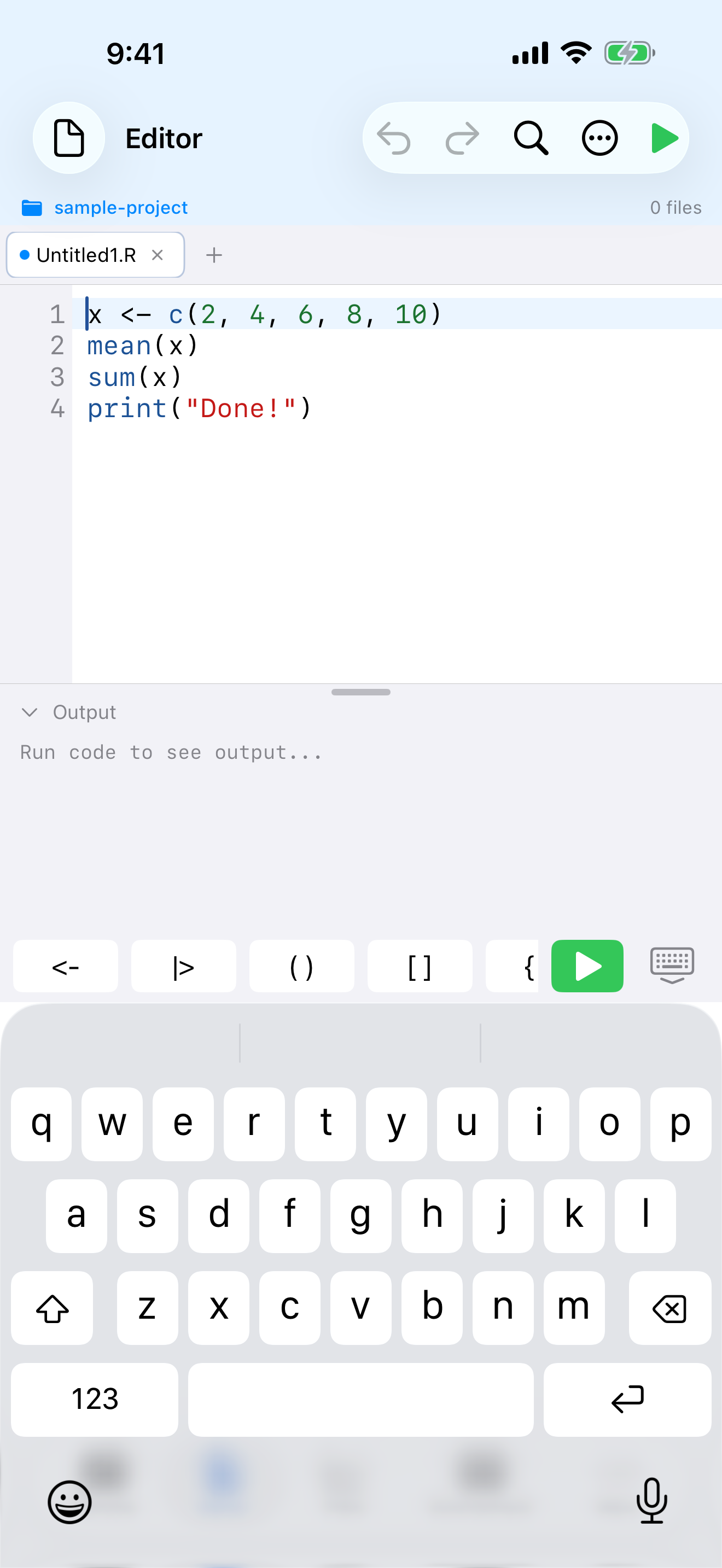
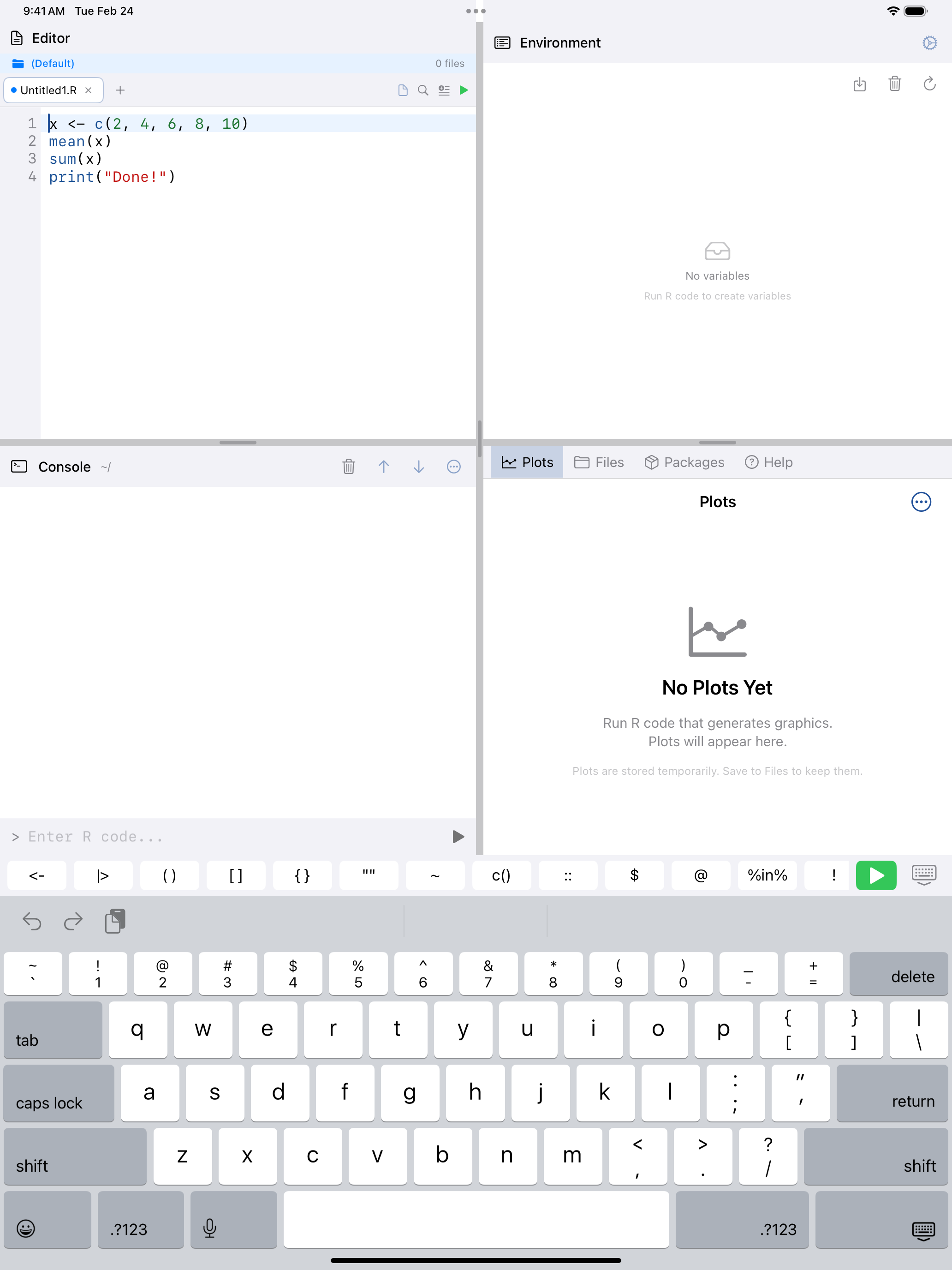
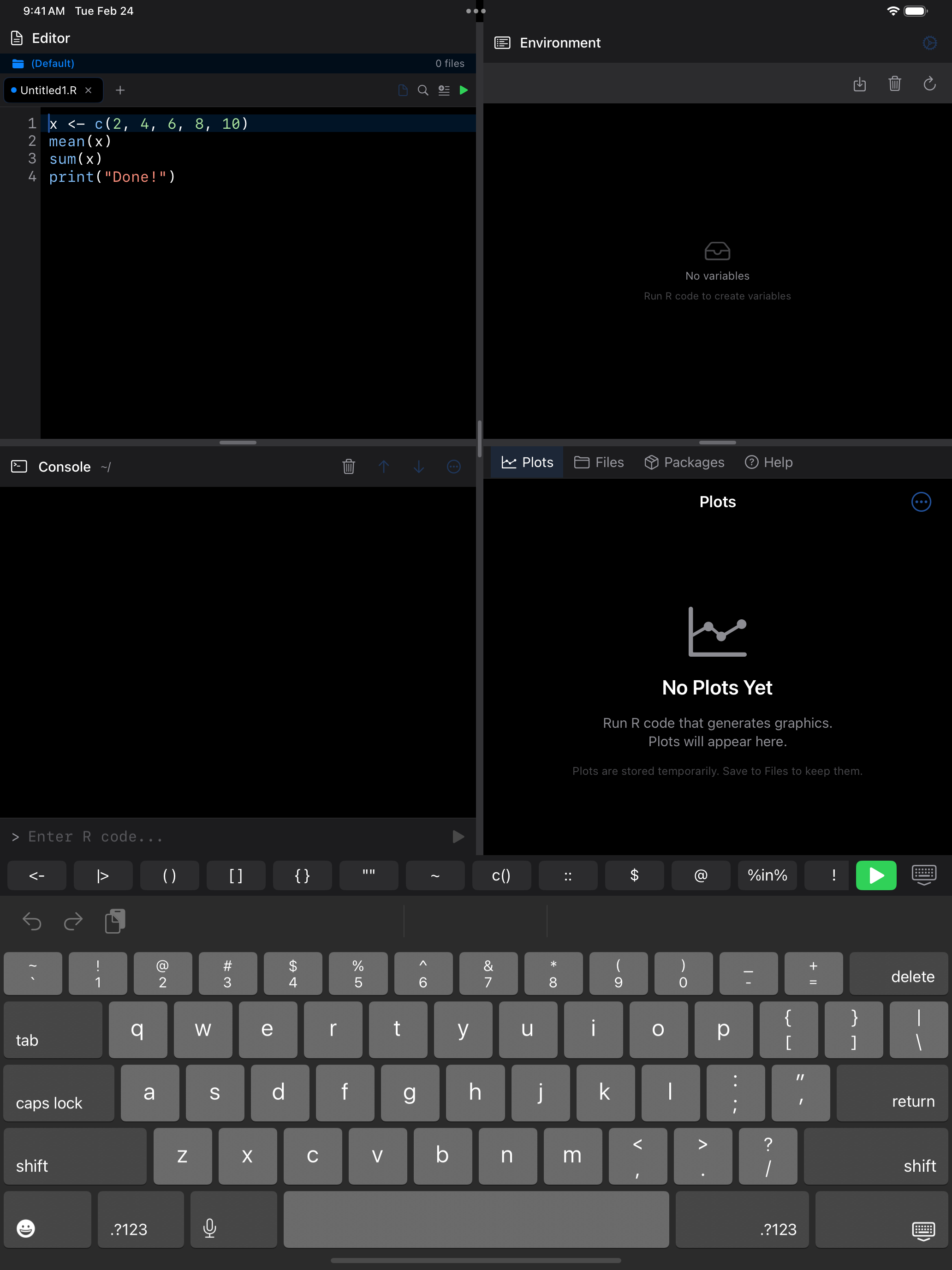
Just like the Console, the Editor shows a scrollable toolbar of R operators above the keyboard when you are typing. The buttons are the same (<-, |>, matched brackets, c(), $, #, and more), so you get fast access to the characters R uses most without switching to the iOS symbol keyboard.
 1 2
1 2
 1 2
1 2
 1 2
1 2
 1 2
1 2
- R operator buttons: scrollable row of
<-,|>,(),[],{},"",~,c(),::,$,@,%in%,!,&,|,# - Dismiss keyboard: hides the keyboard so you can see more of your code
Tabs and File Management
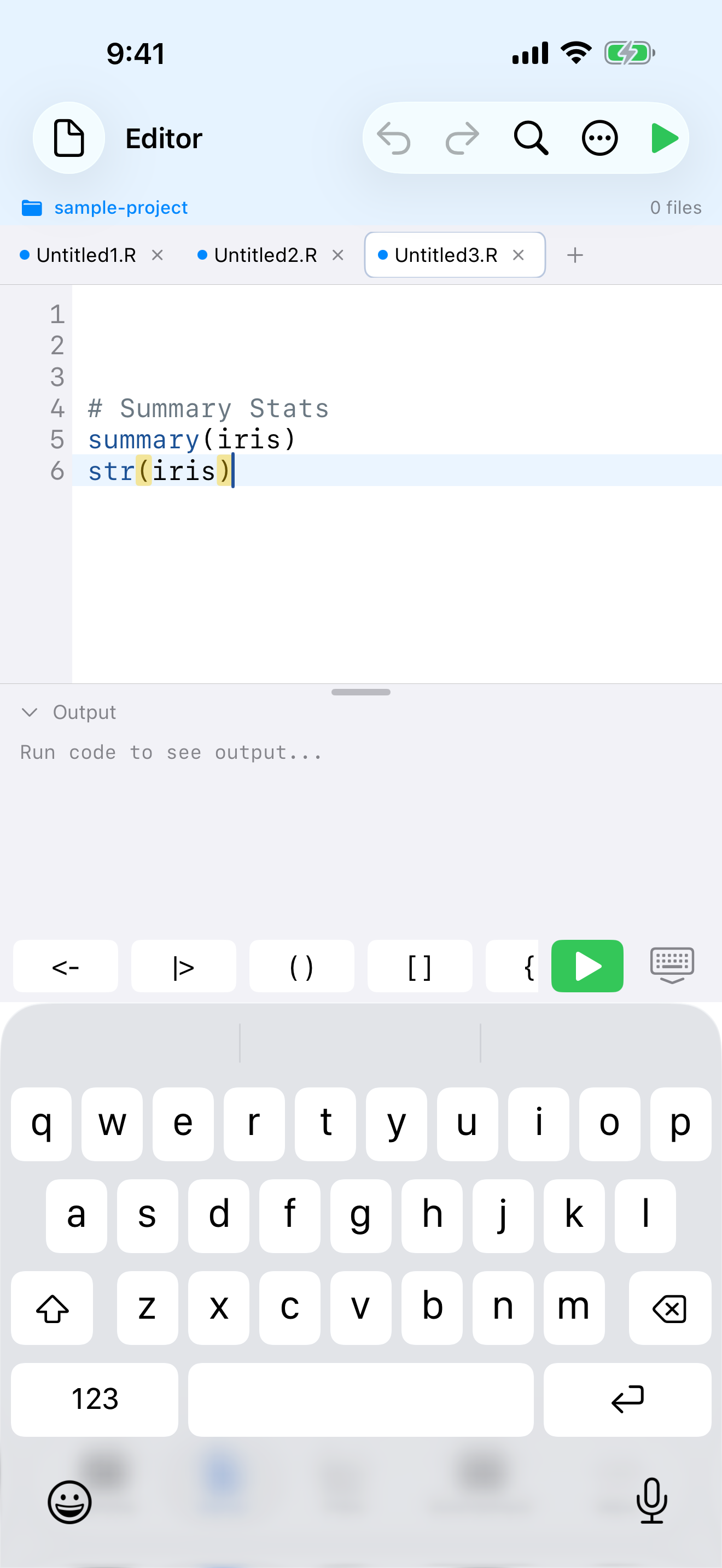
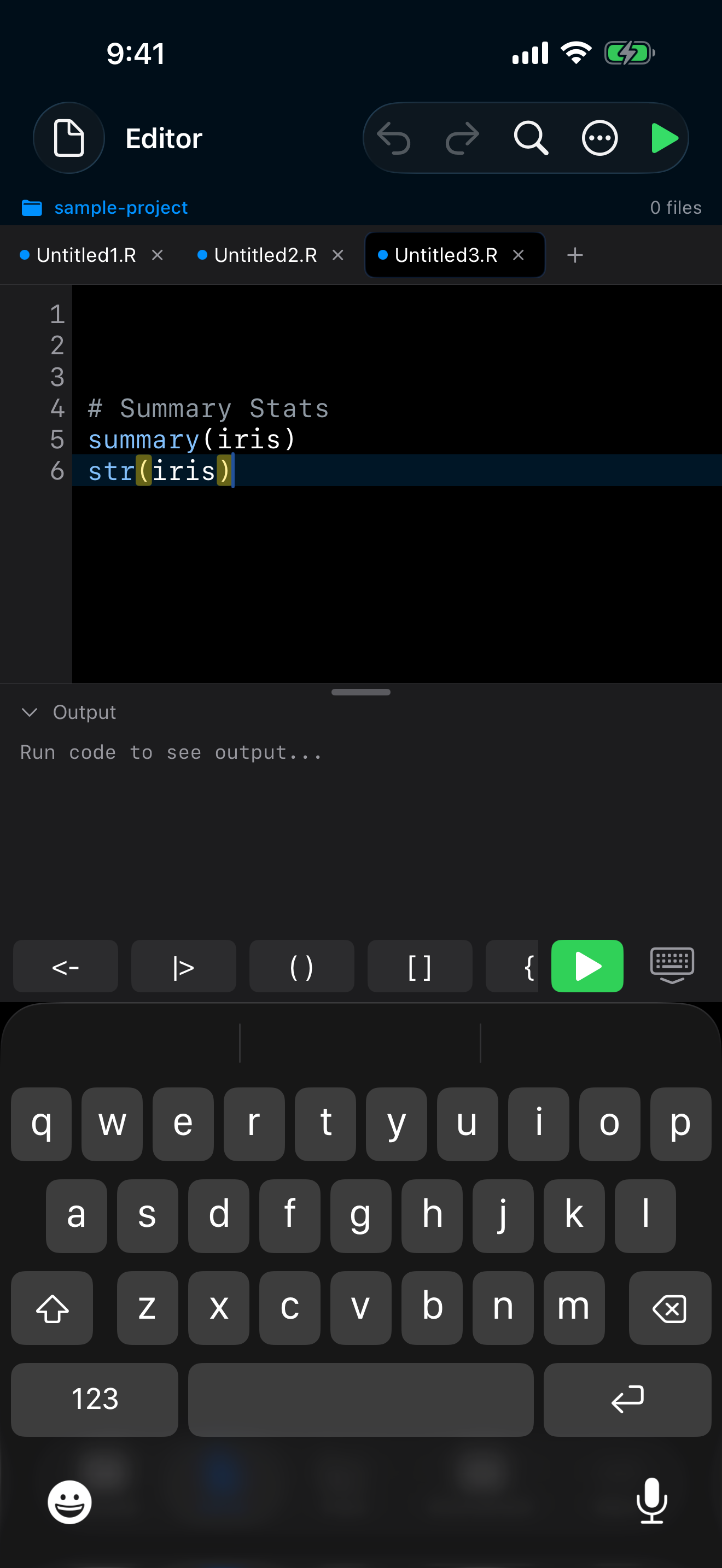
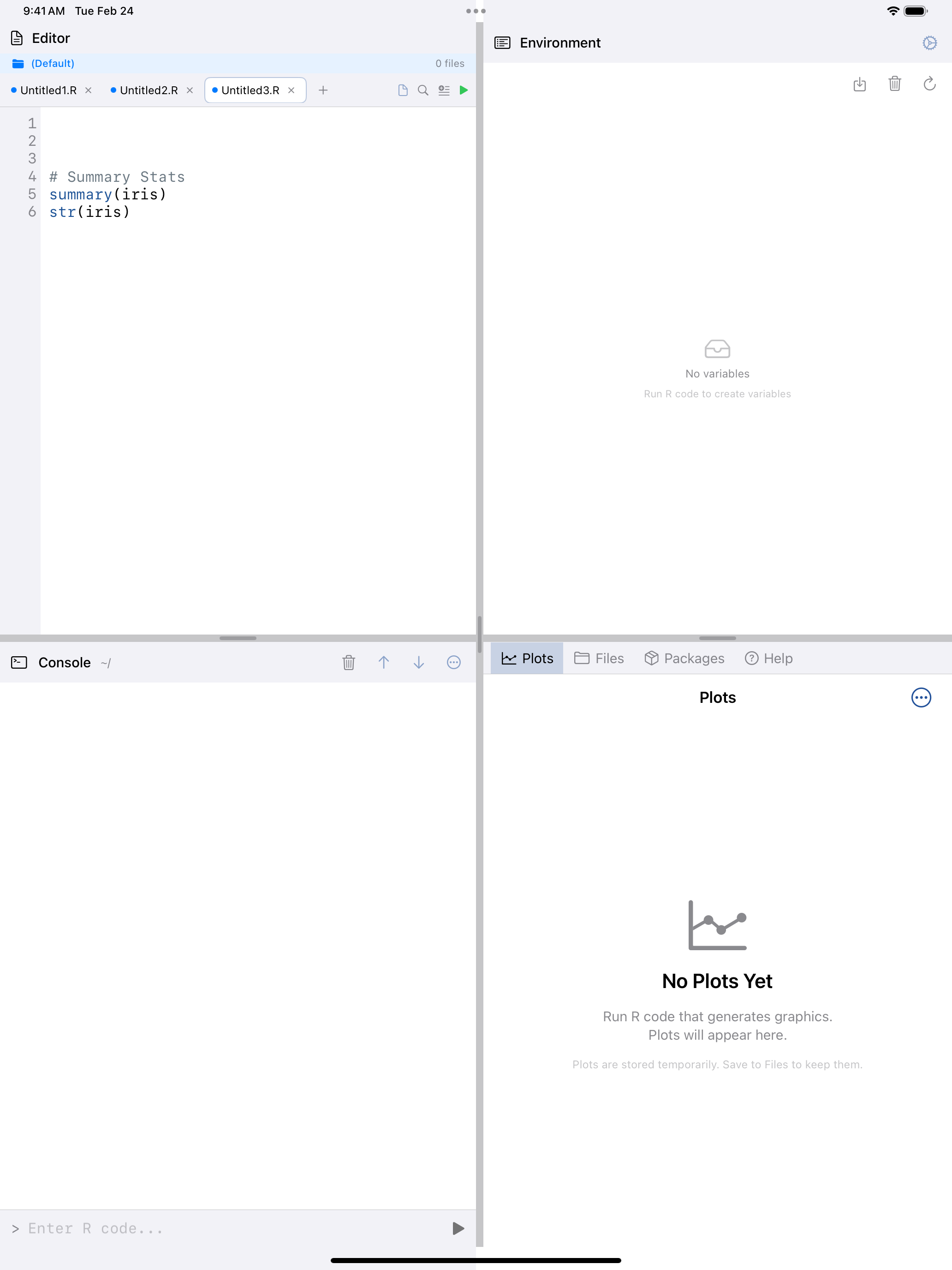
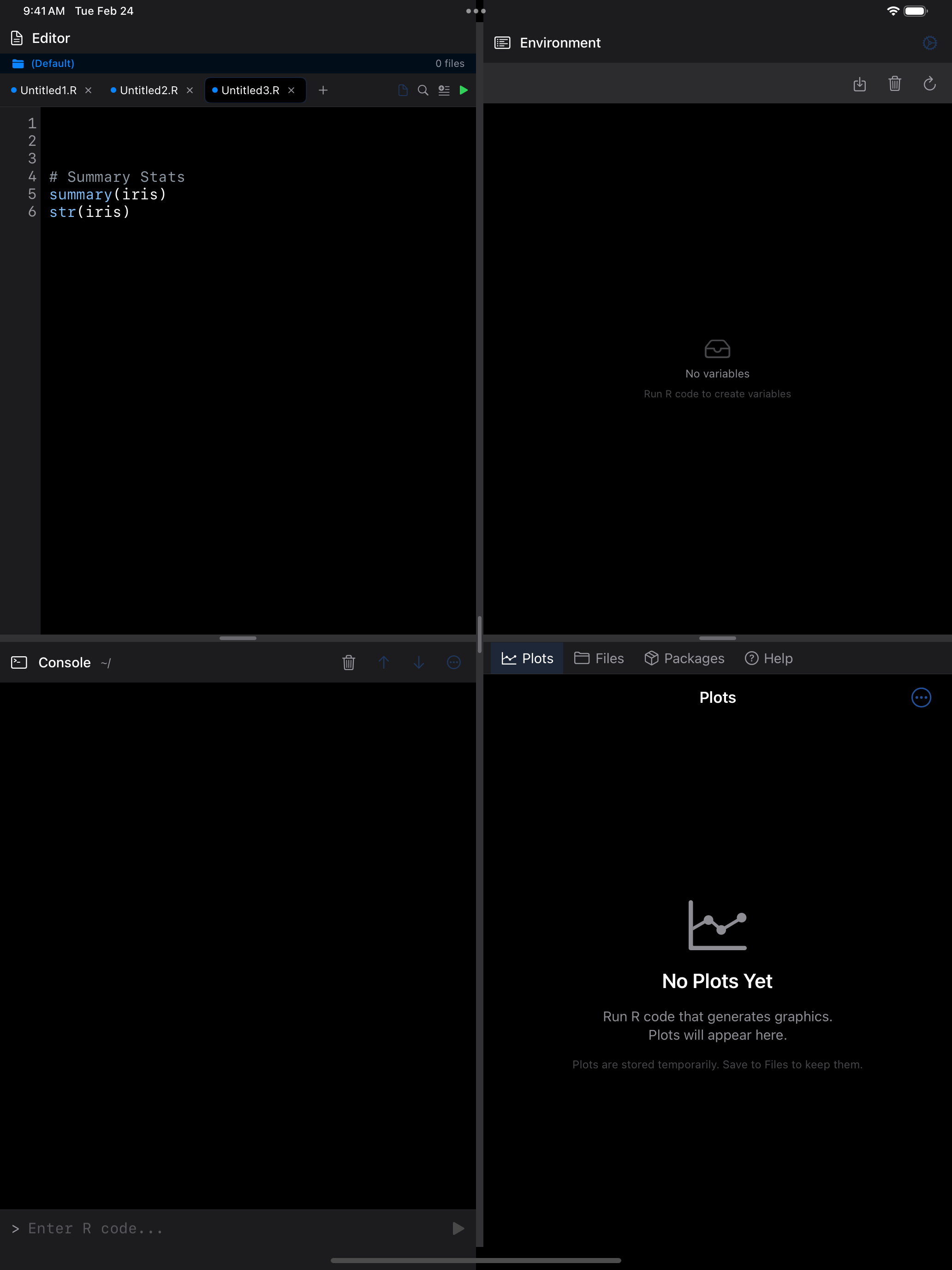
The Editor supports multiple open files through a tab bar at the top of the screen:
 1 2 3 4
 1 2 3 4
 1 2 3 4
 1 2 3 4
- Tab bar: shows all open files. Tap a tab to switch to it
- Blue dot: indicates the tab has unsaved changes
- Close button: tap the x on a tab to close it
- New tab button: tap + to create a fresh editor tab
For file operations, tap the document icon in the top-left toolbar to open the File menu:
- New Tab: creates a fresh, empty editor tab
- Open…: opens the iOS file picker so you can load any
.Ror text file from Files, iCloud Drive, or other storage providers - Open Recent: quickly reopen files you have worked on before
- Save: saves the current tab (you will be prompted for a filename if the file is new)
- Examples: opens one of the built-in example scripts as an unsaved copy
- Export to Gist: shares your code as a GitHub Gist
Files are saved as .R scripts in the app’s project storage. You can also find them in the Files tab.
Saving safely
Your open tabs are saved automatically a moment after each change, and whenever you leave the Editor or the app, so switching screens, restarting R or a relaunch never loses what you typed. The Editor also keeps its tabs, split view, output panel and Undo history when you move to another screen and back.
Before Save writes over a file, the Editor checks that nobody else changed it since you opened it, such as an iPad editor window or another app. If something did, it asks whether to Overwrite it or Keep Both, which saves yours beside it as, for example, analysis 2.R. A tab you haven’t edited simply picks up the newer file.
Files keep the text encoding they were read in. A script saved on Windows (for example in Windows-1252) opens correctly and is saved back the same way. If you type a character that encoding can’t hold, the Editor offers to save the file as UTF-8 instead.
If you rename, move or delete a file in Files or Projects, an open tab follows it, so Save writes to the new name rather than bringing the old one back. A tab whose file was deleted keeps its text and asks where to save it.
Code Snippets
The Snippets library provides starter templates for common R patterns. Open it from the … menu (Editor actions) and browse pre-built code organized by category: data frames, plotting, statistical models, functions, and more.
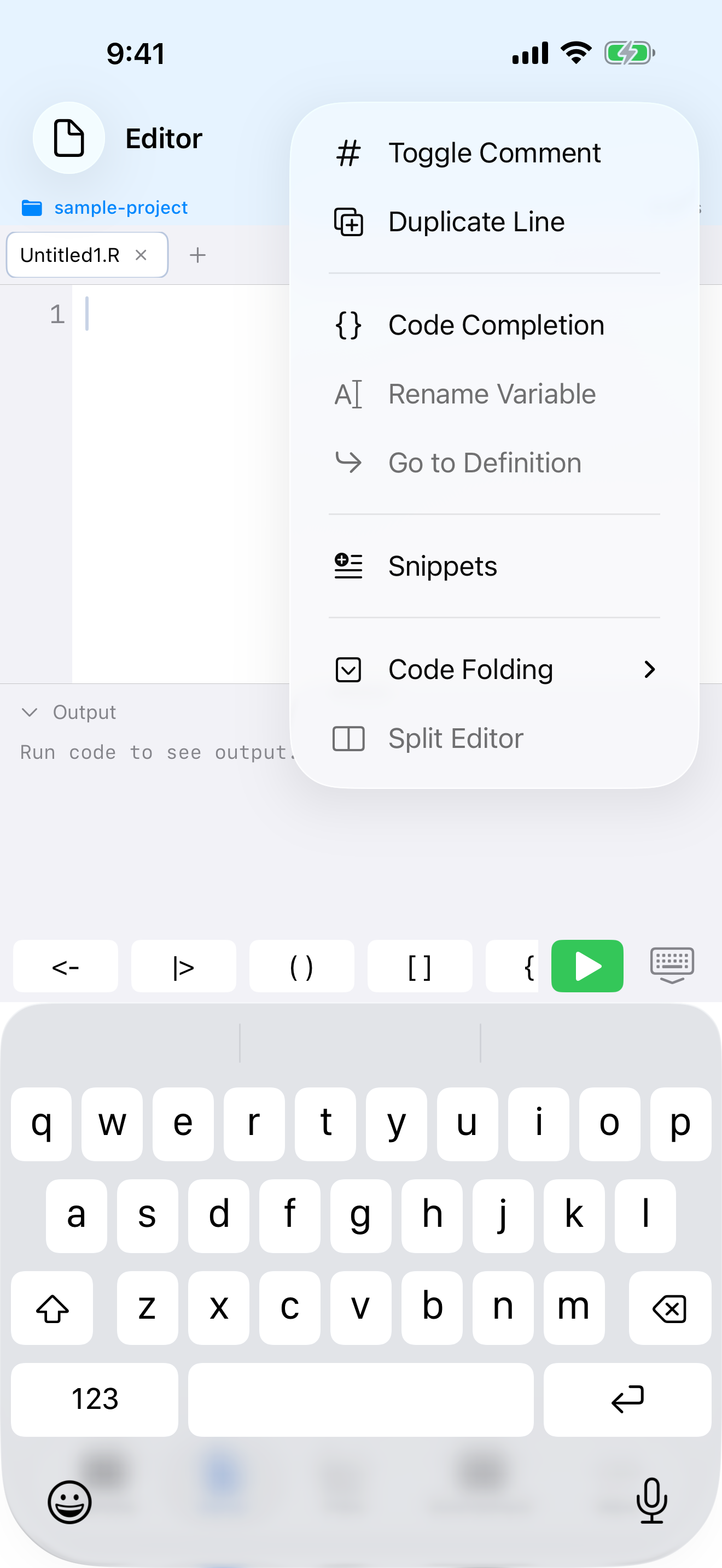
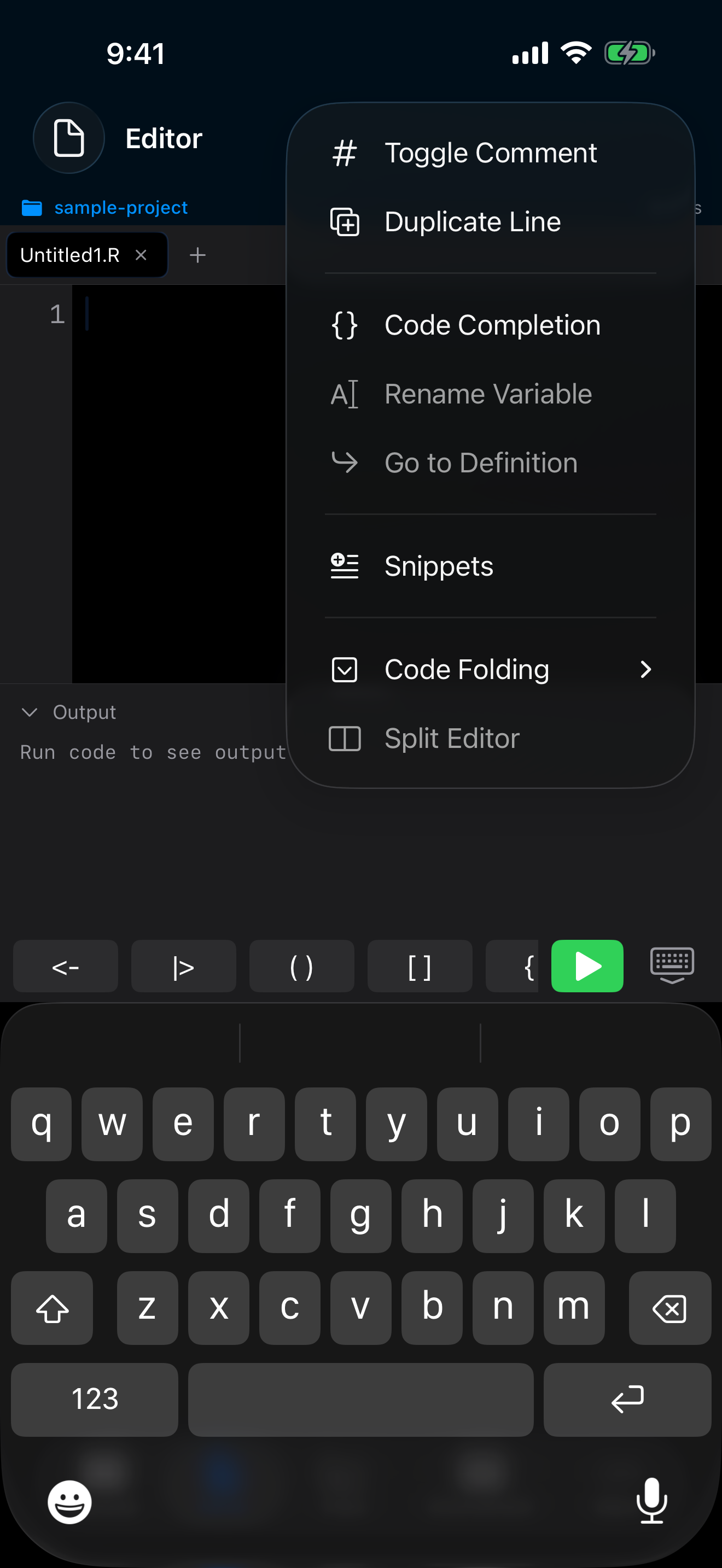
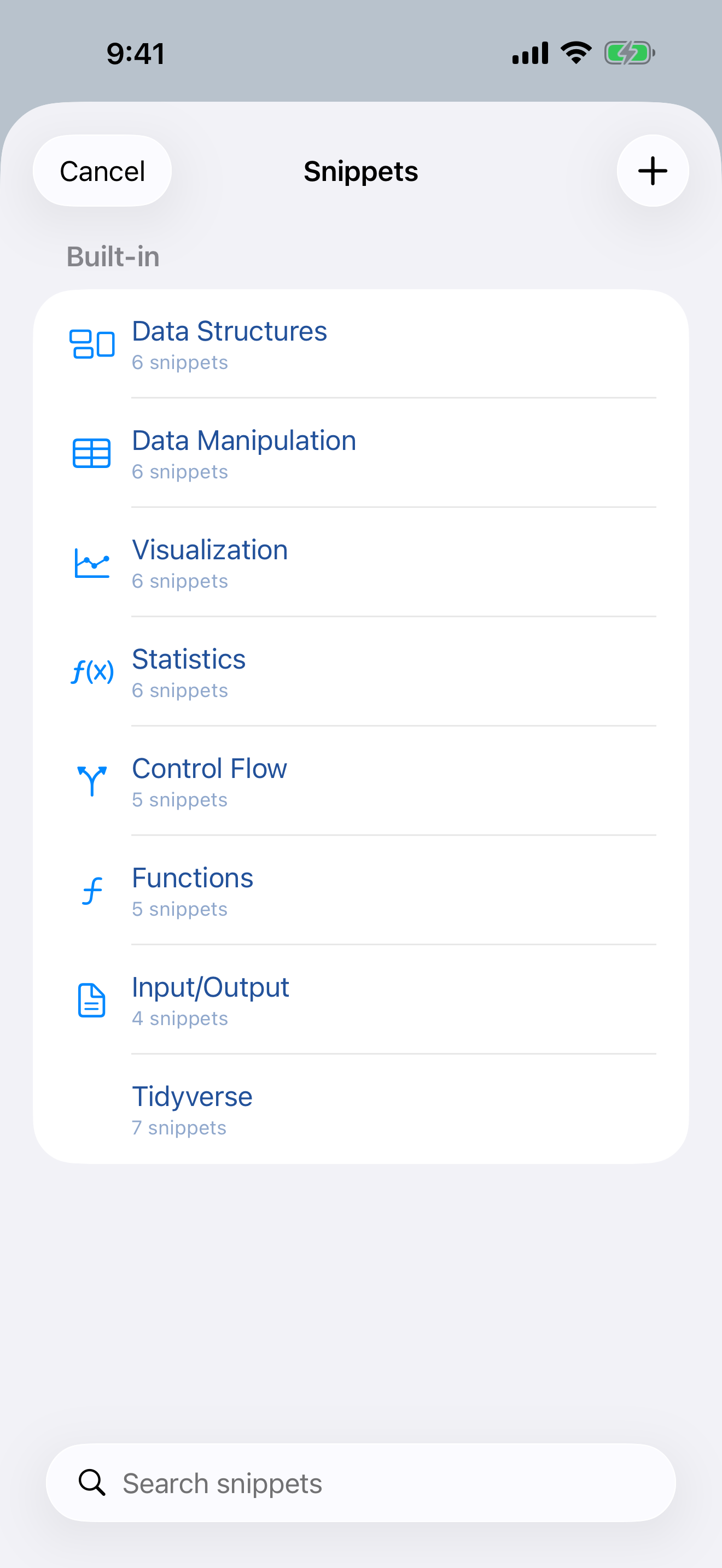
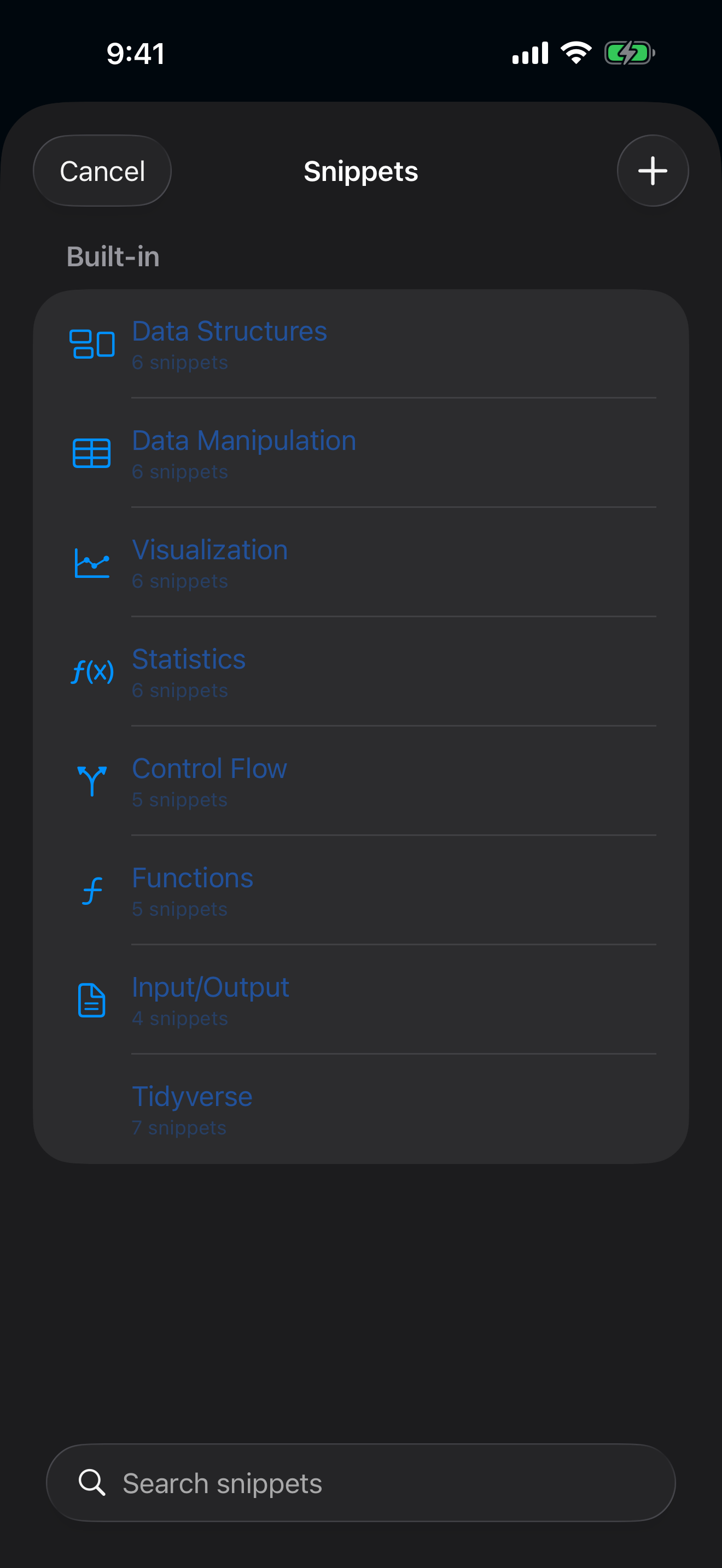
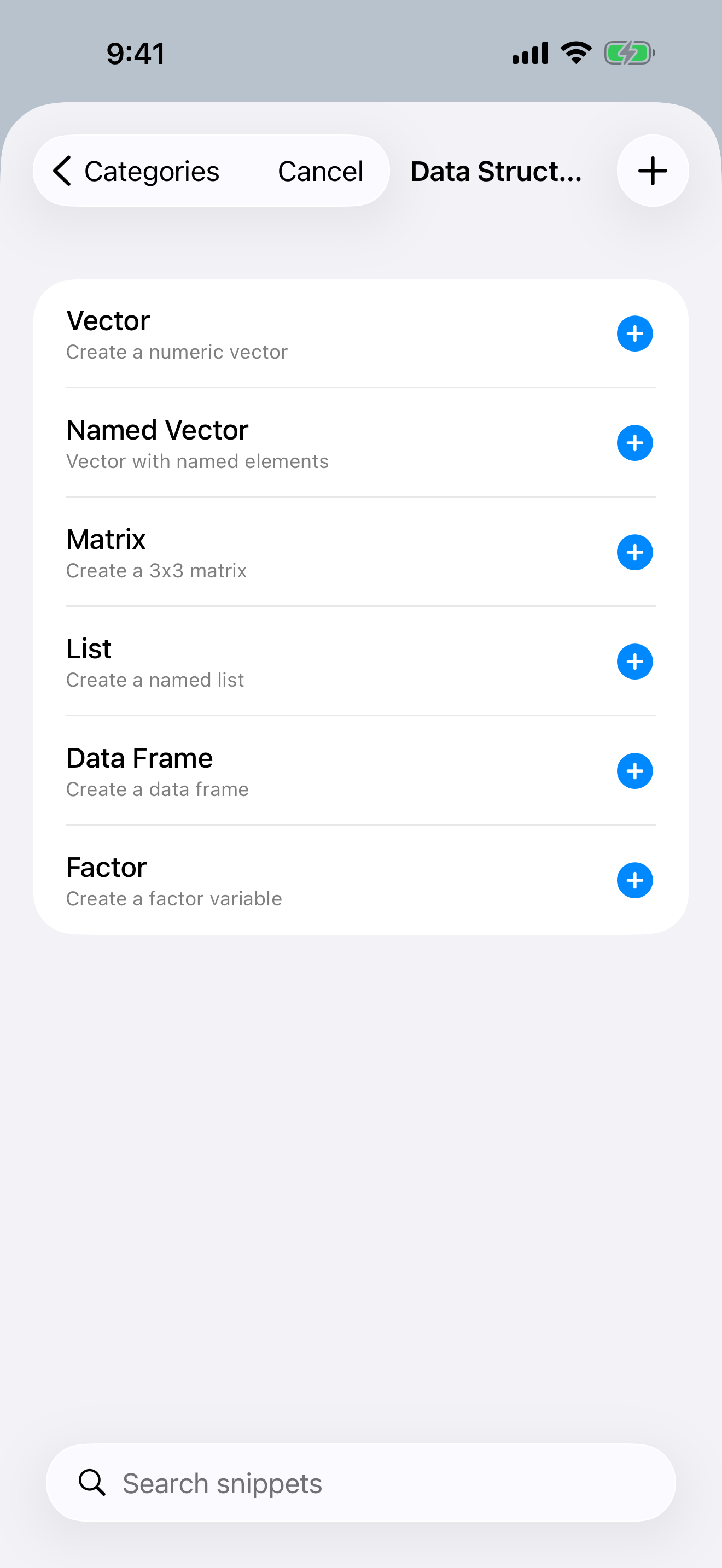
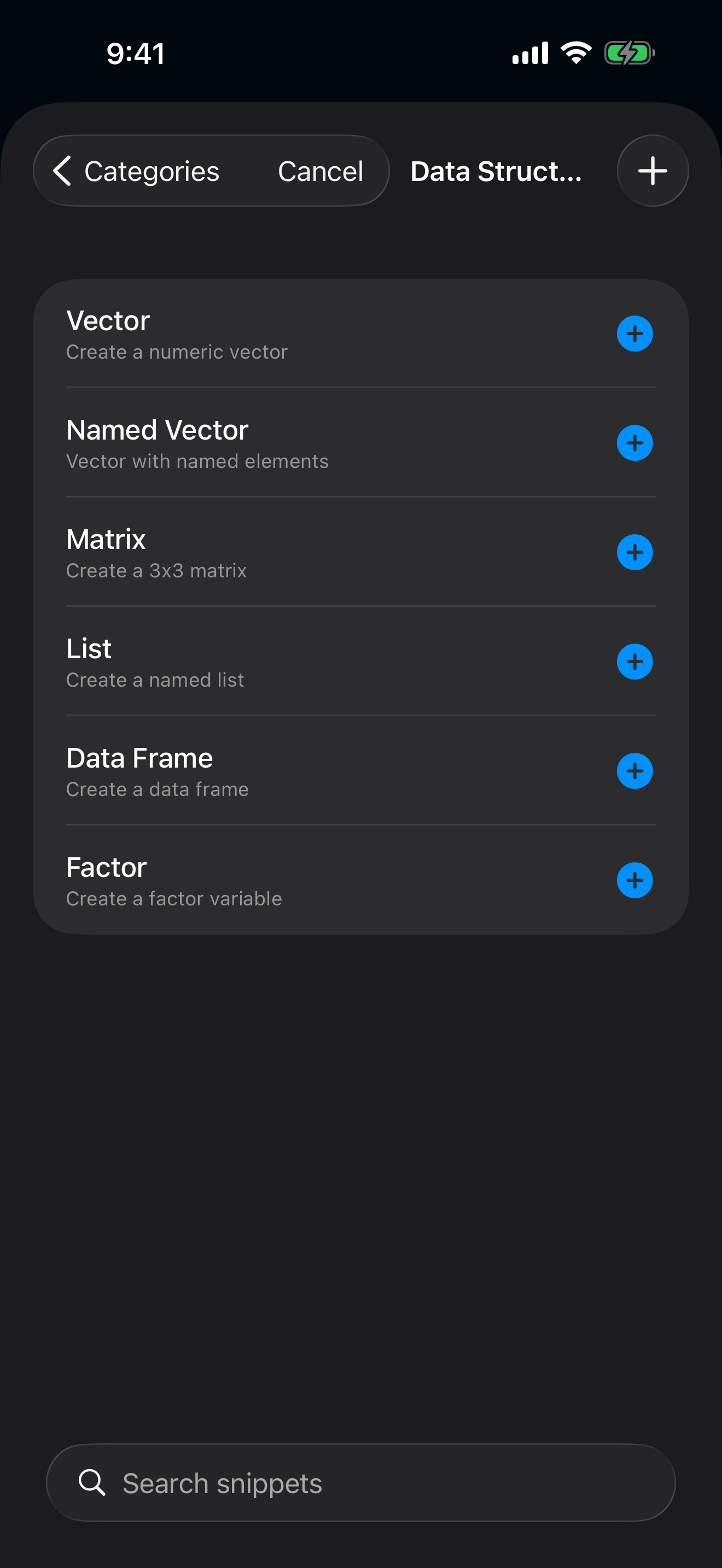
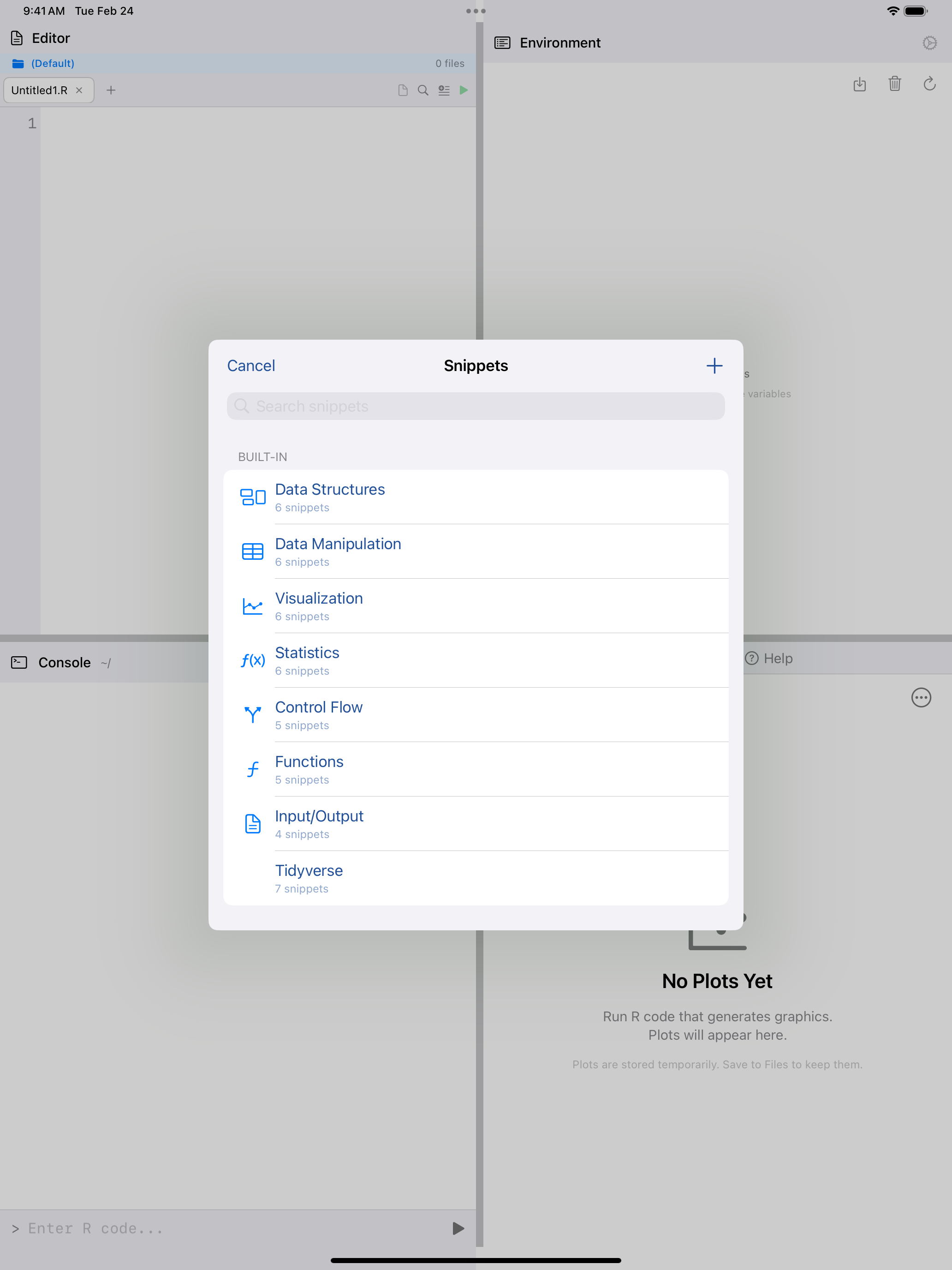
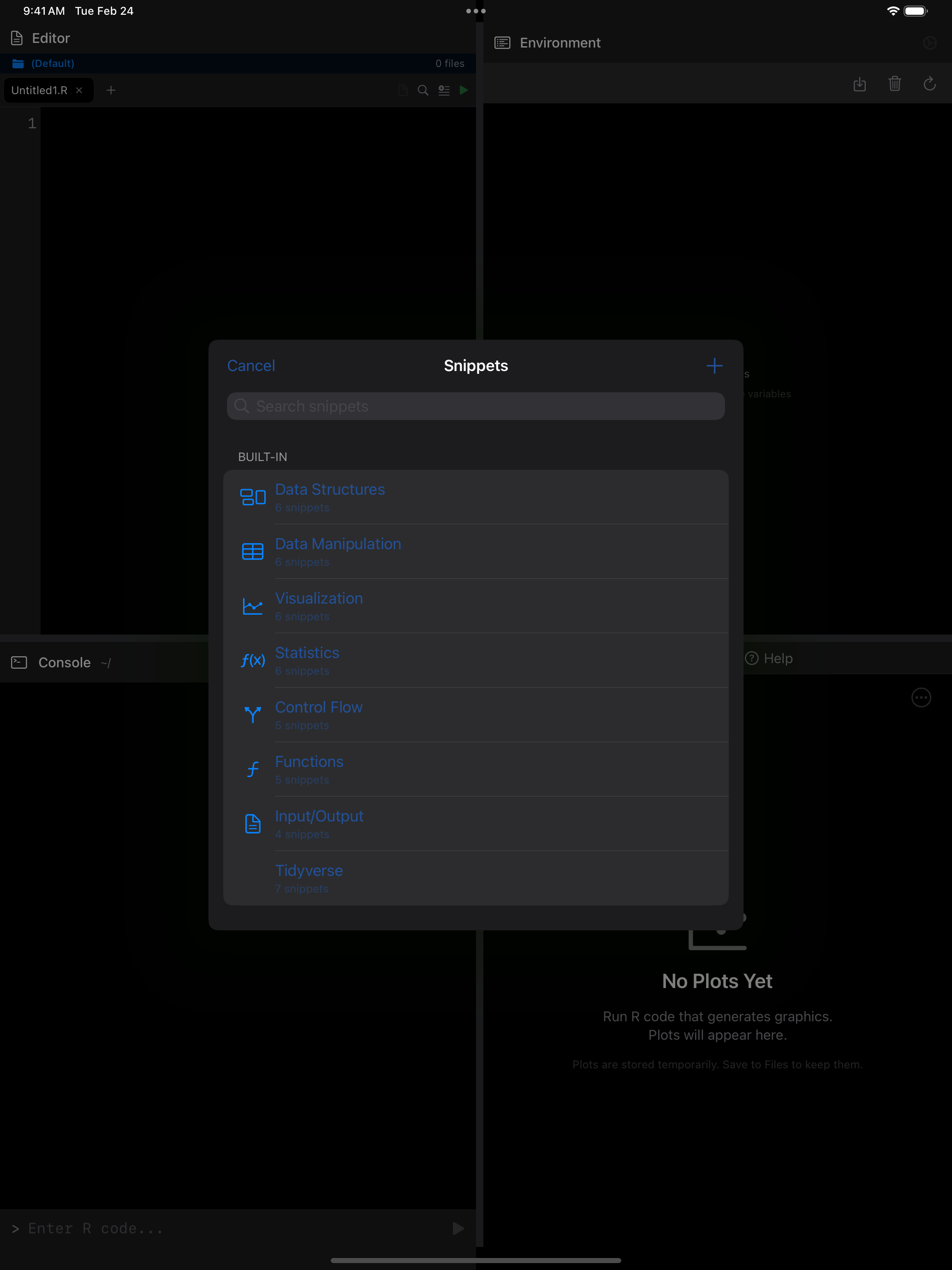
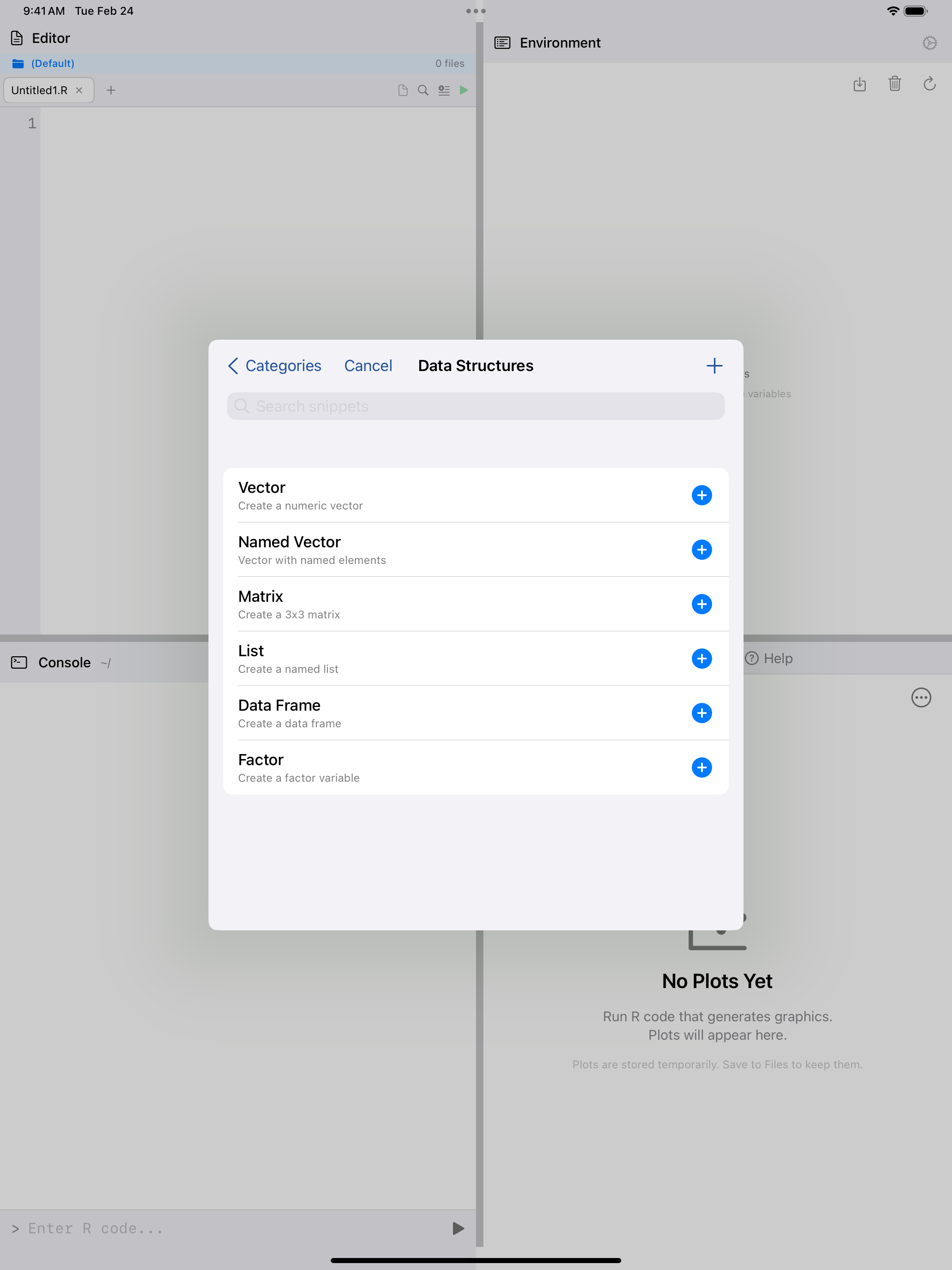
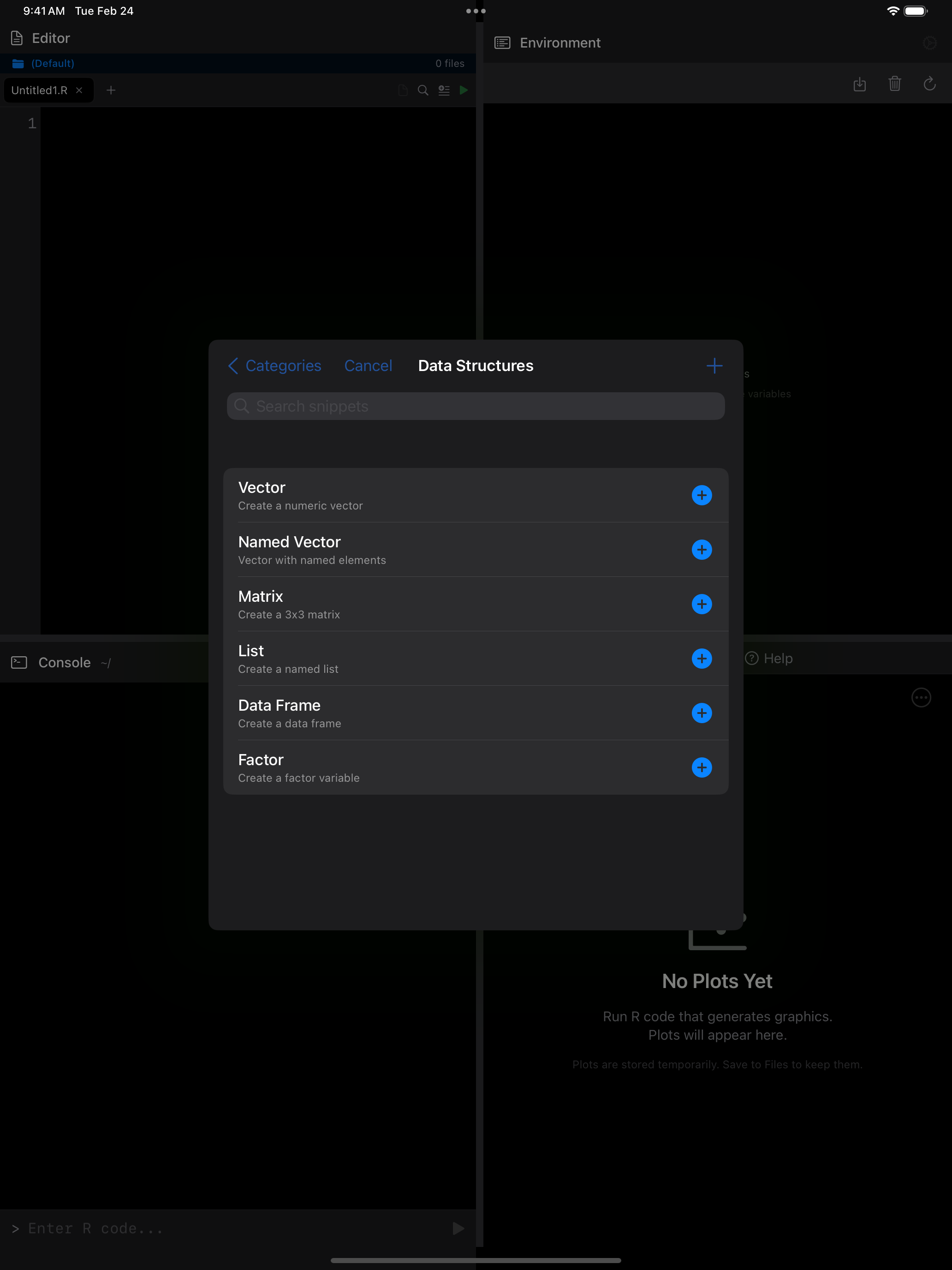
Top-left: The … menu reveals Snippets along with other editor actions. Top-right: Snippet categories, including Data Structures, Visualization, Statistics, and more. Bottom-left: Browsing the Data Structures category with templates for vectors, matrices, and data frames. Bottom-right: A Data Frame snippet inserted into the editor and executed, showing the output.
Each snippet uses placeholder syntax. After inserting one, you can quickly fill in the variable names and values relevant to your analysis. You can also create your own custom snippets for code patterns you use frequently.
Snippets double as worked examples. Insert one, read through it, and modify it to see what changes.
Code Completion
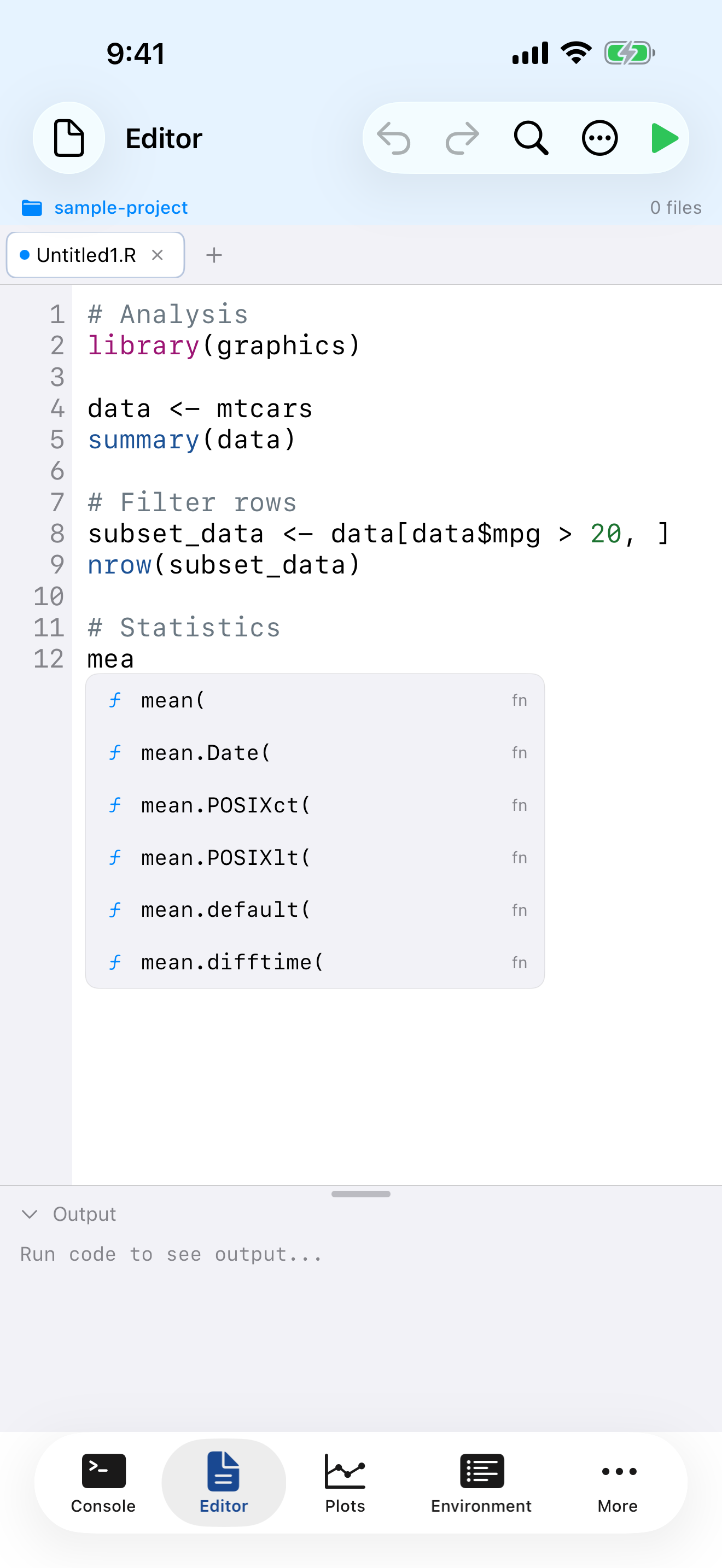
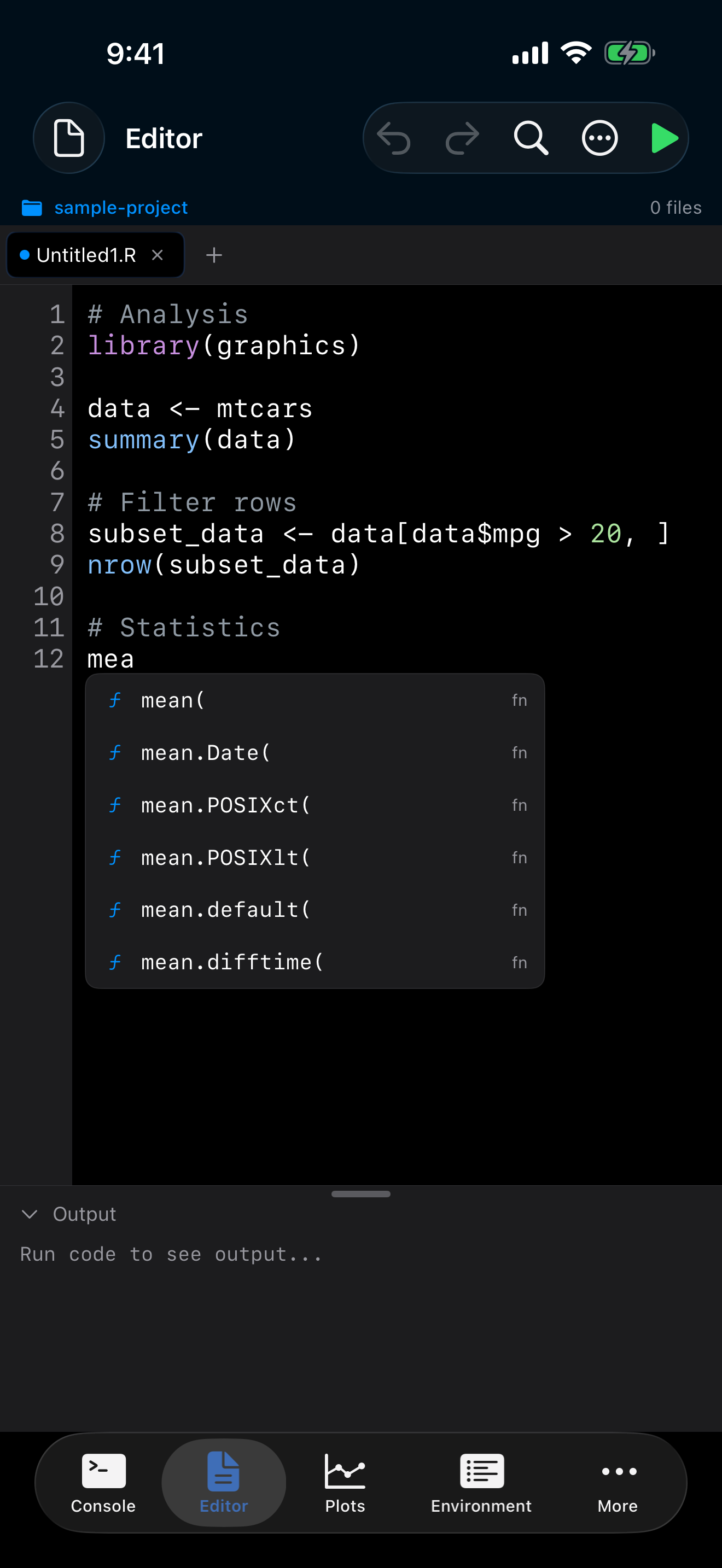
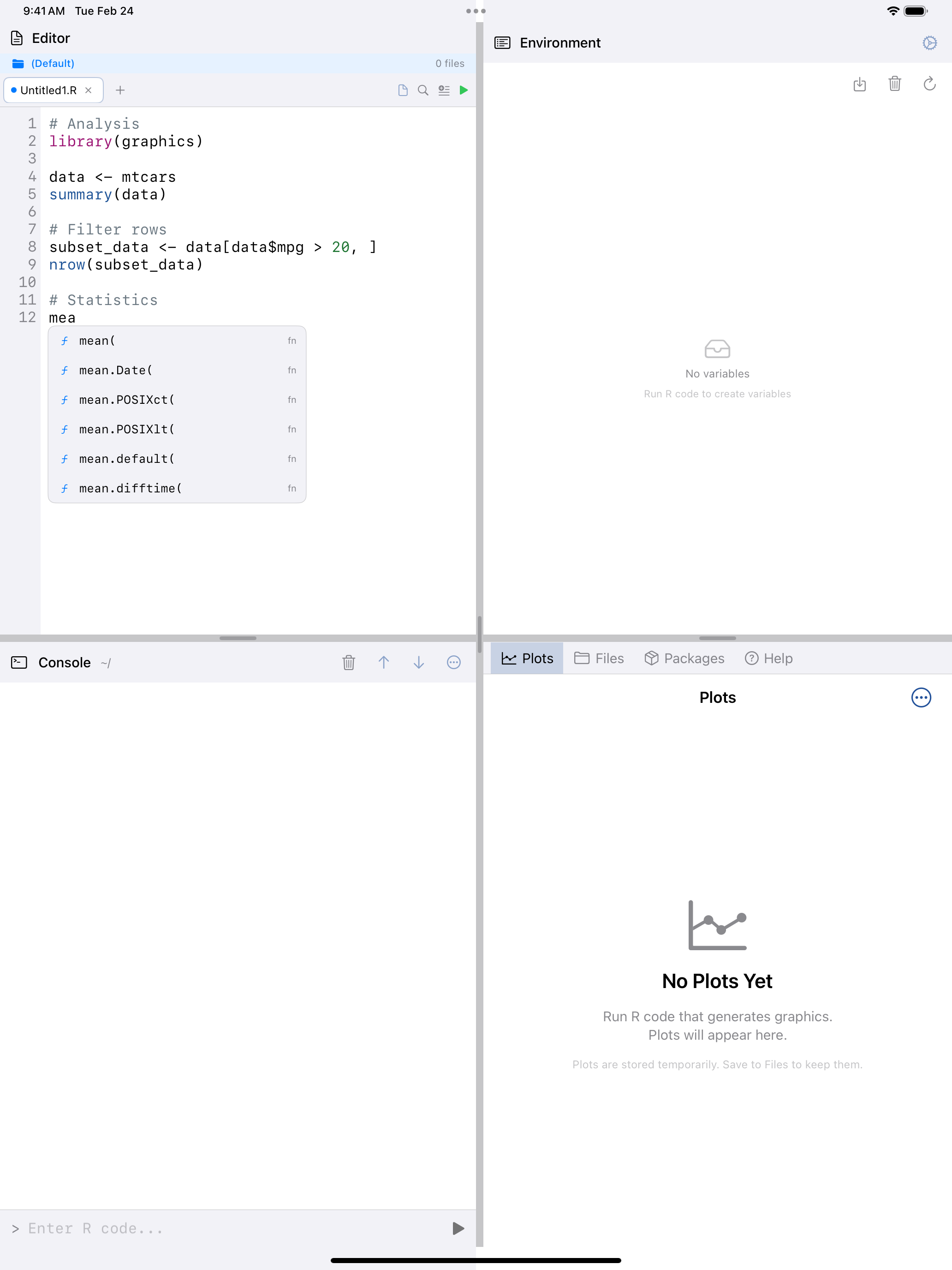
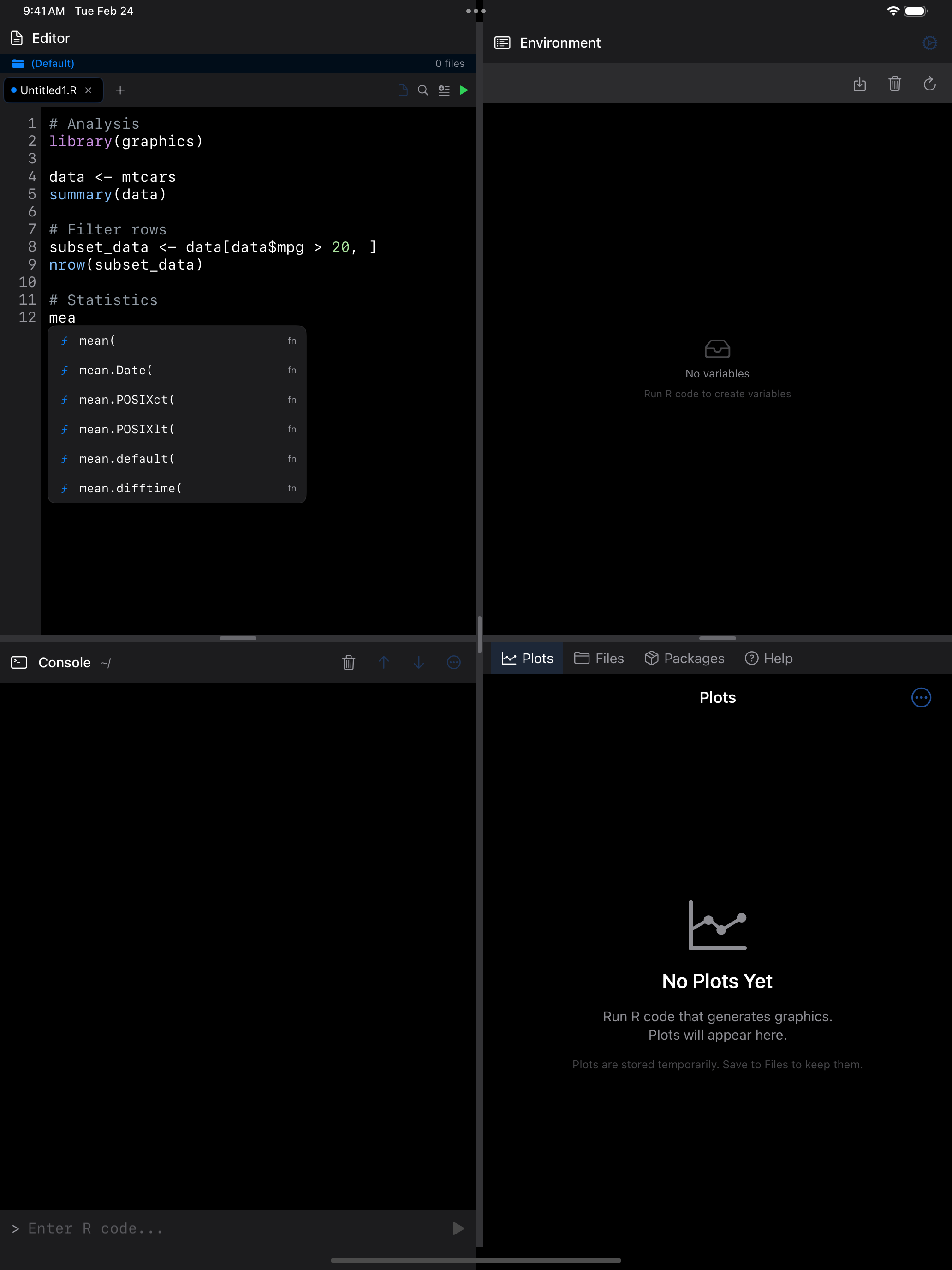
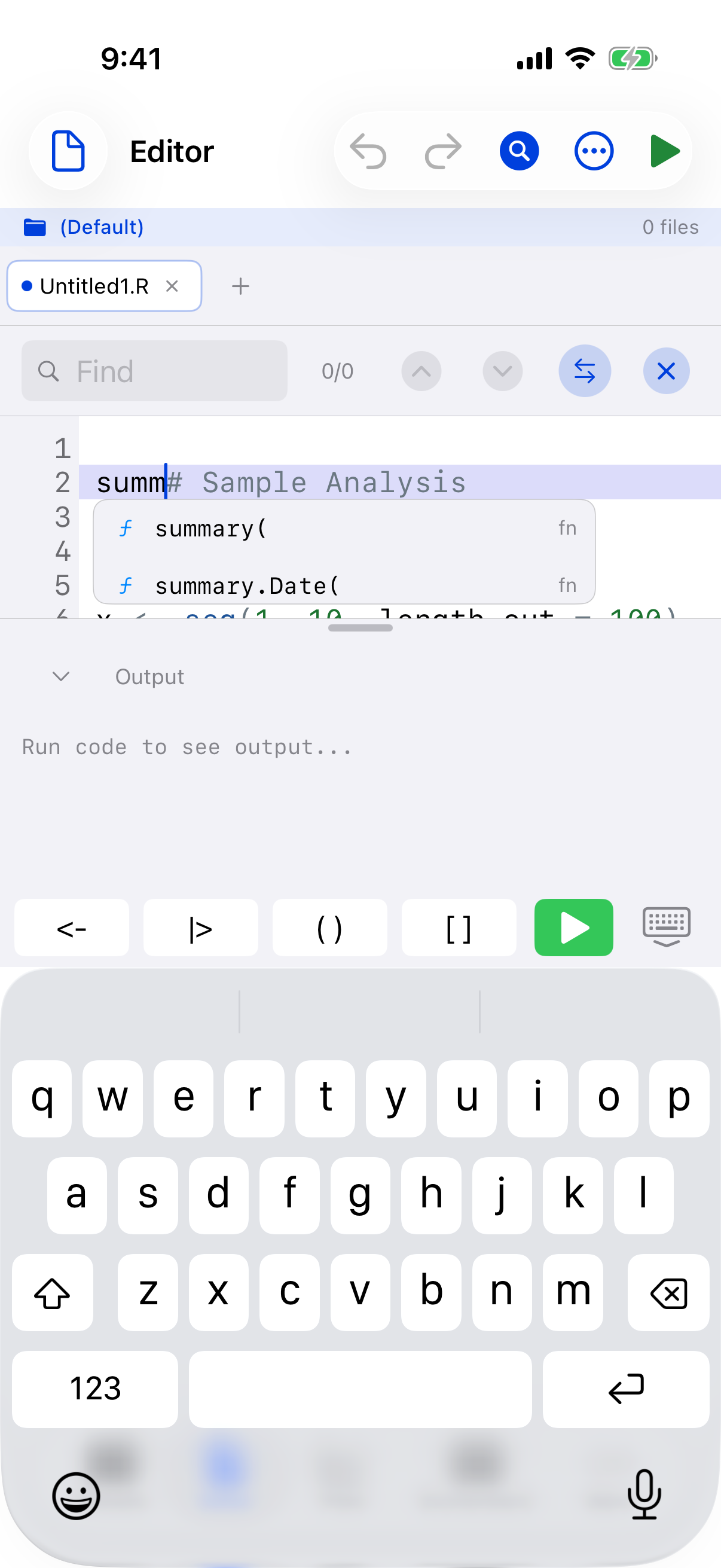
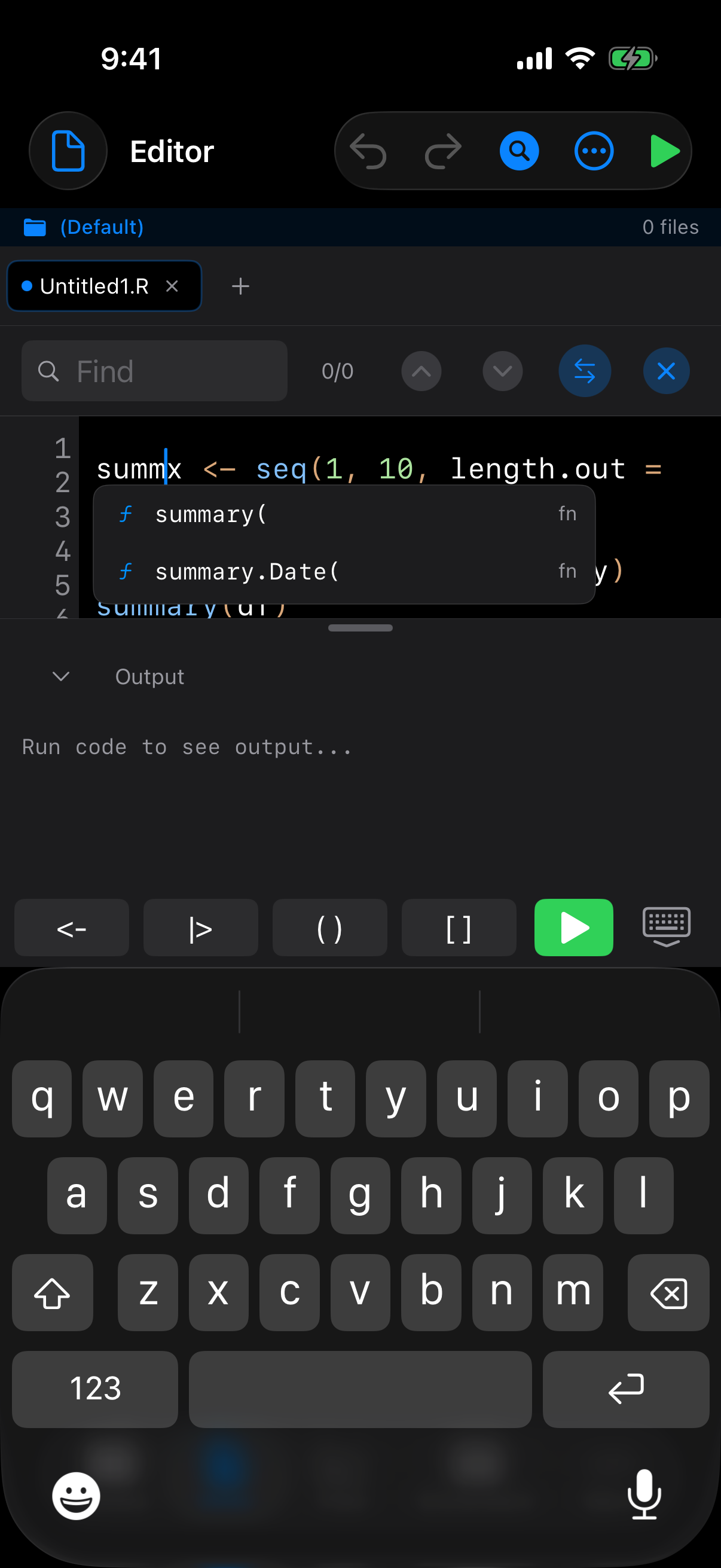
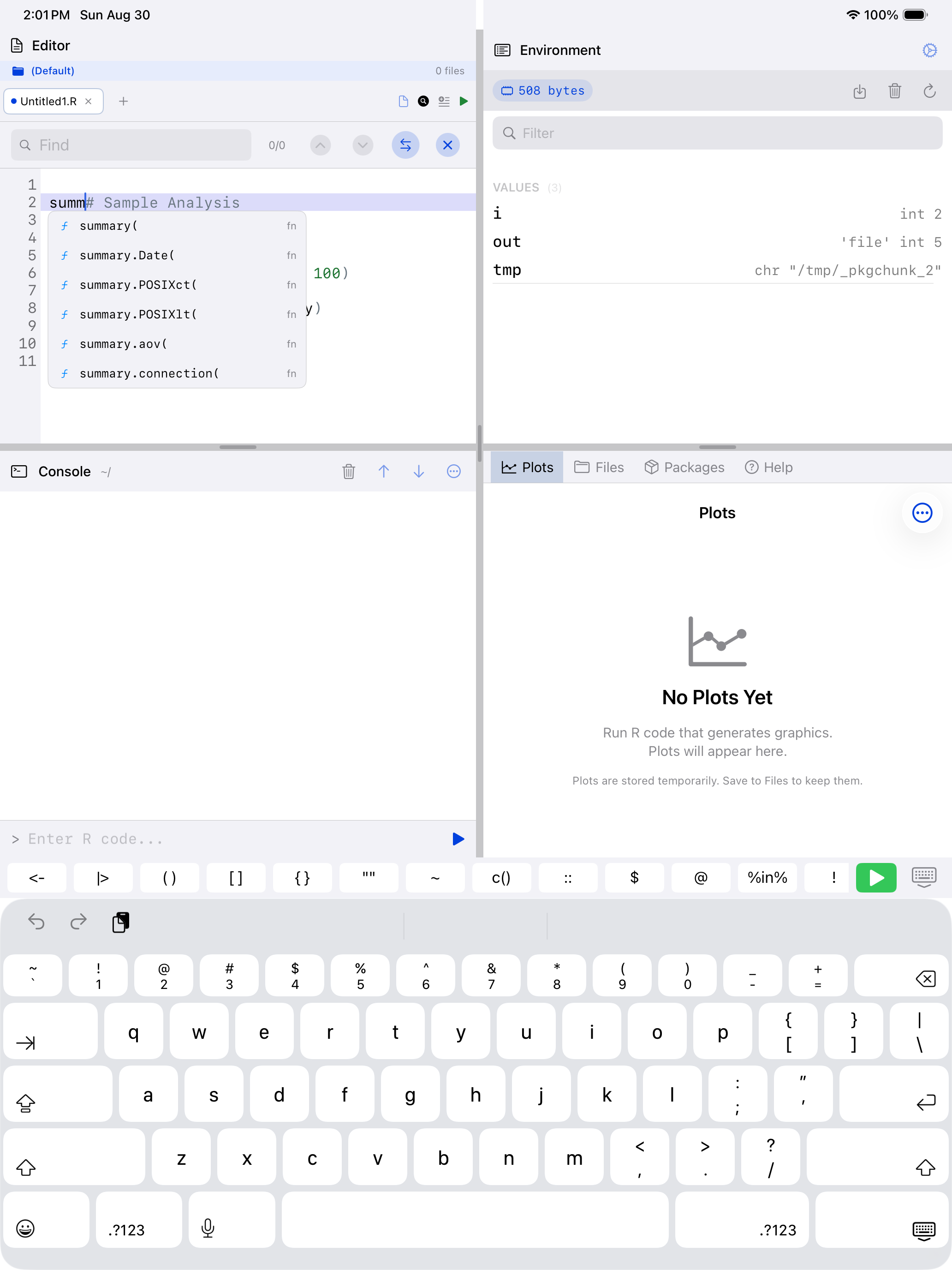
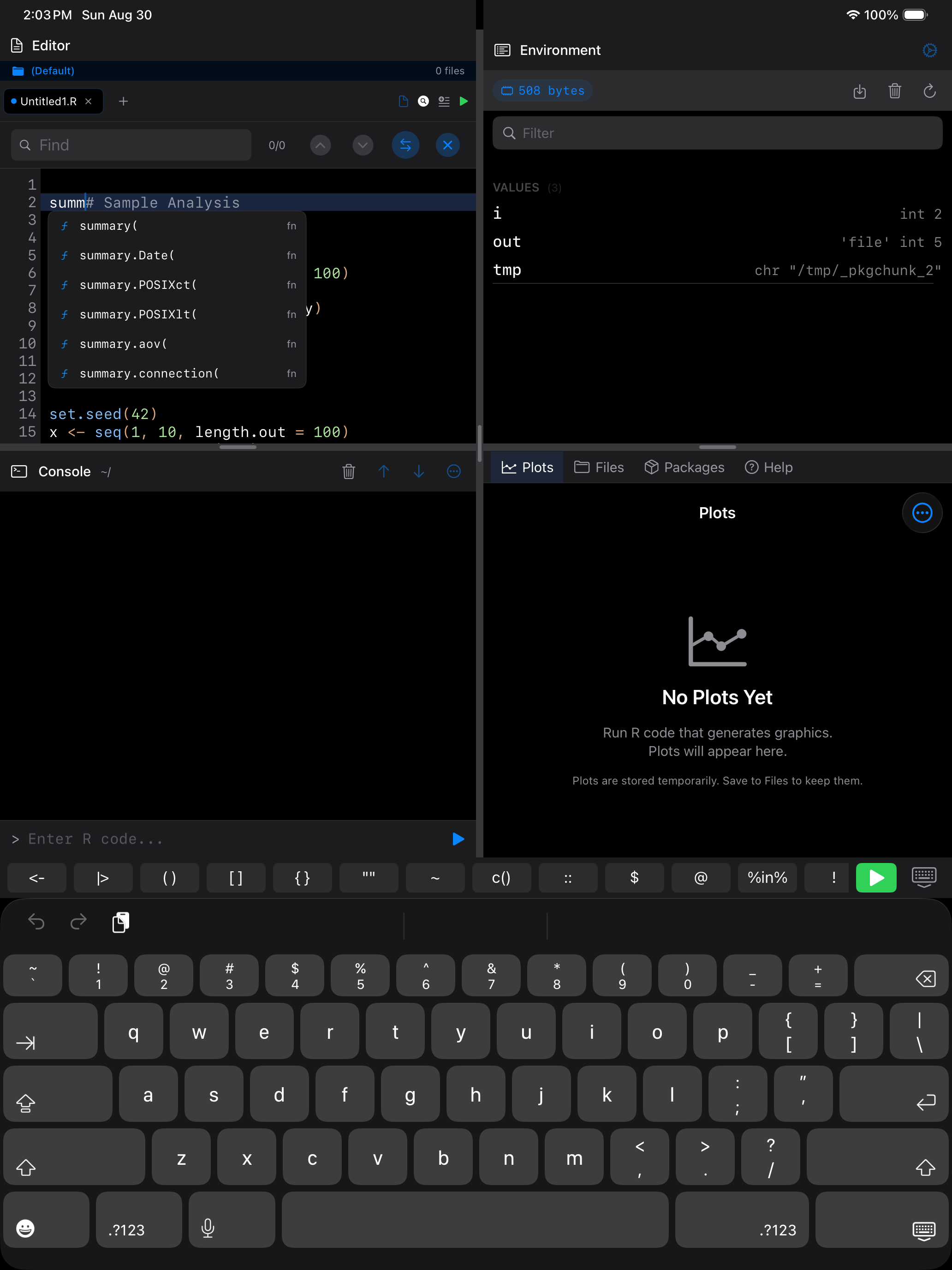
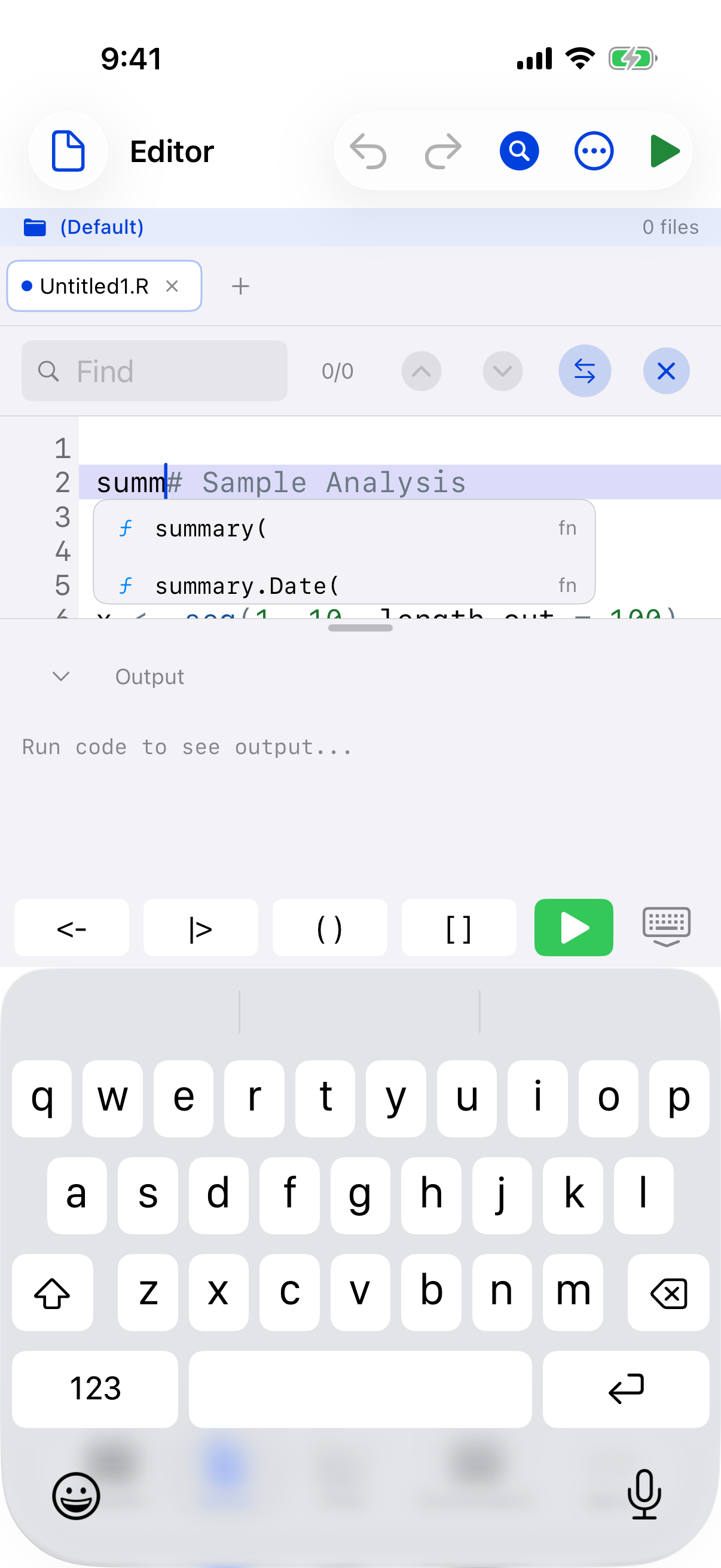
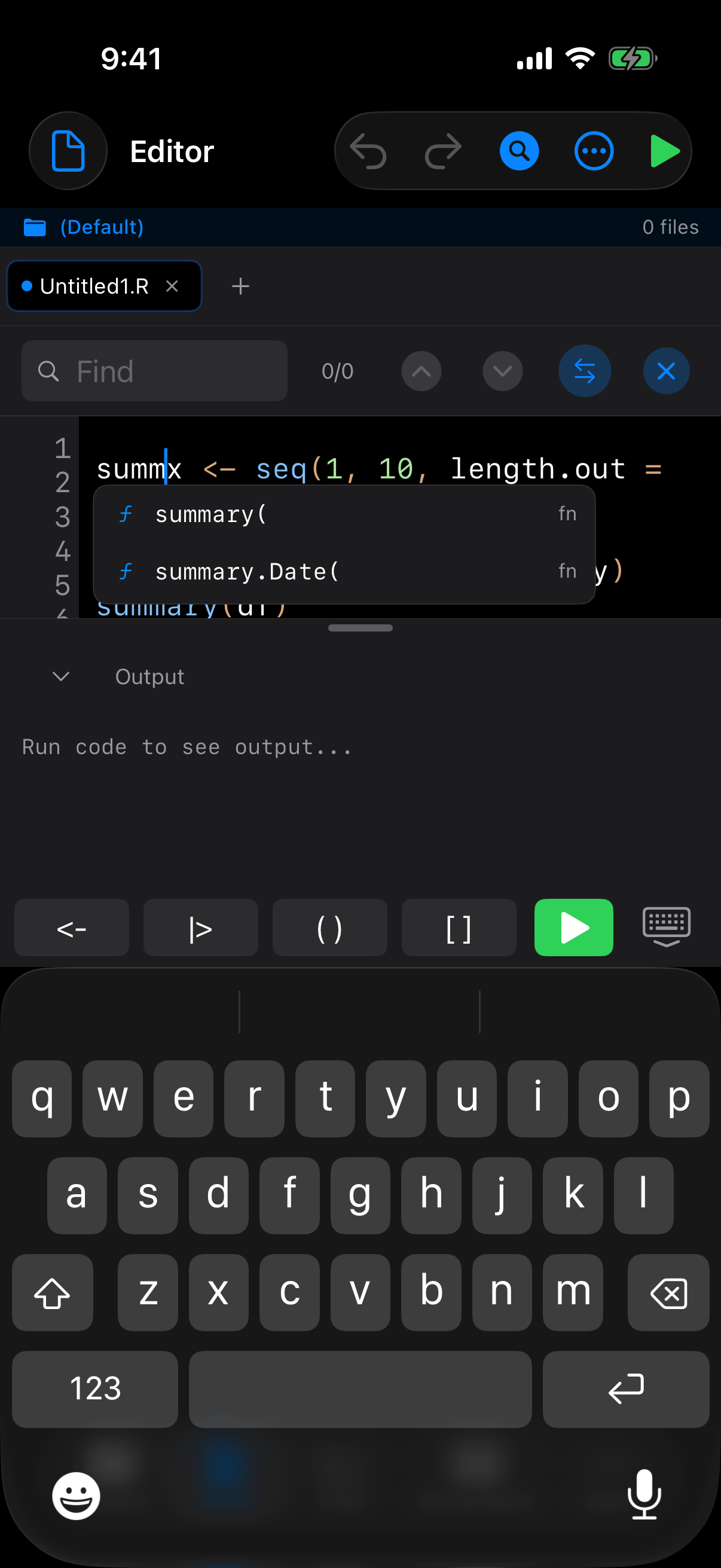
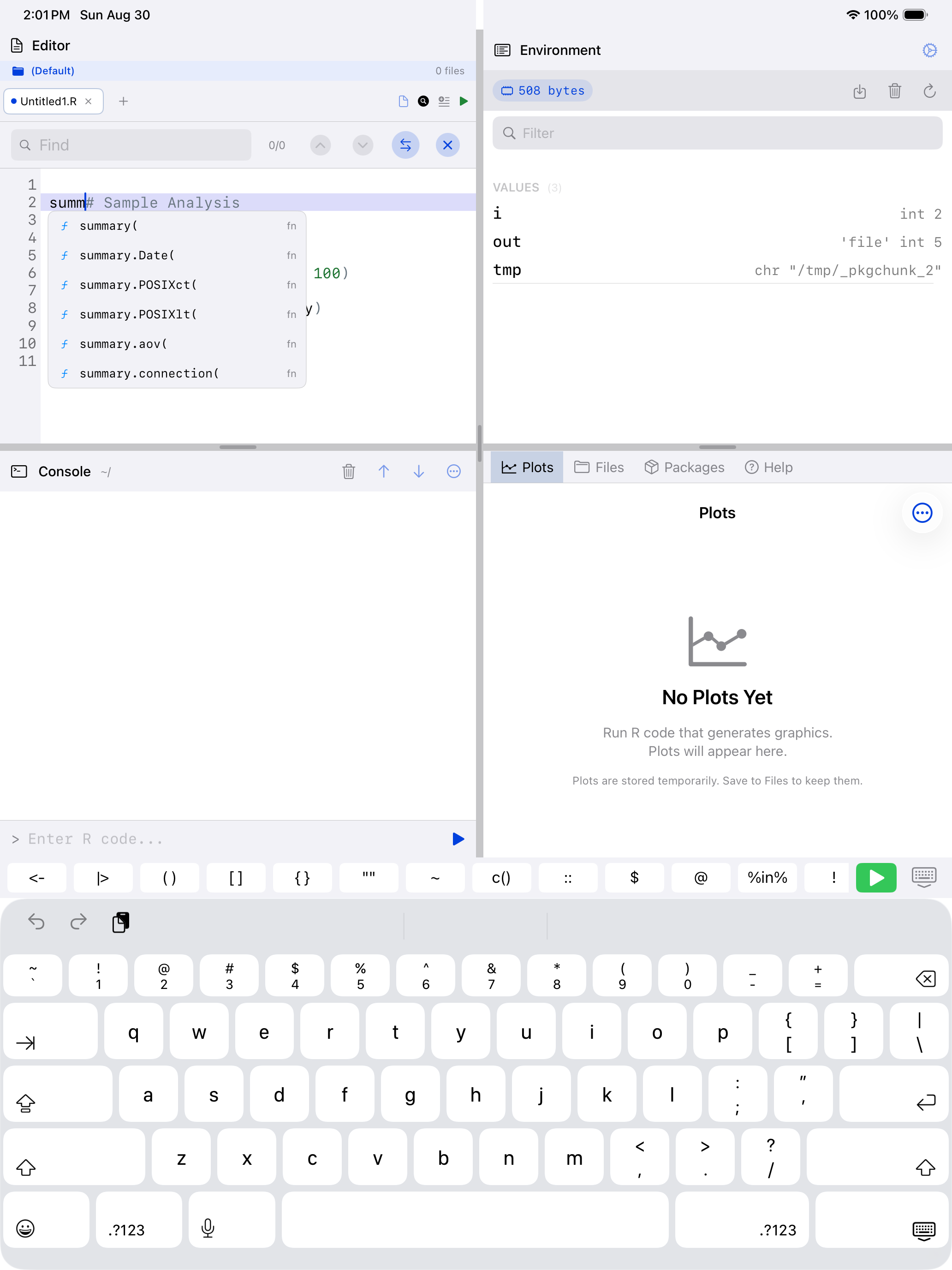
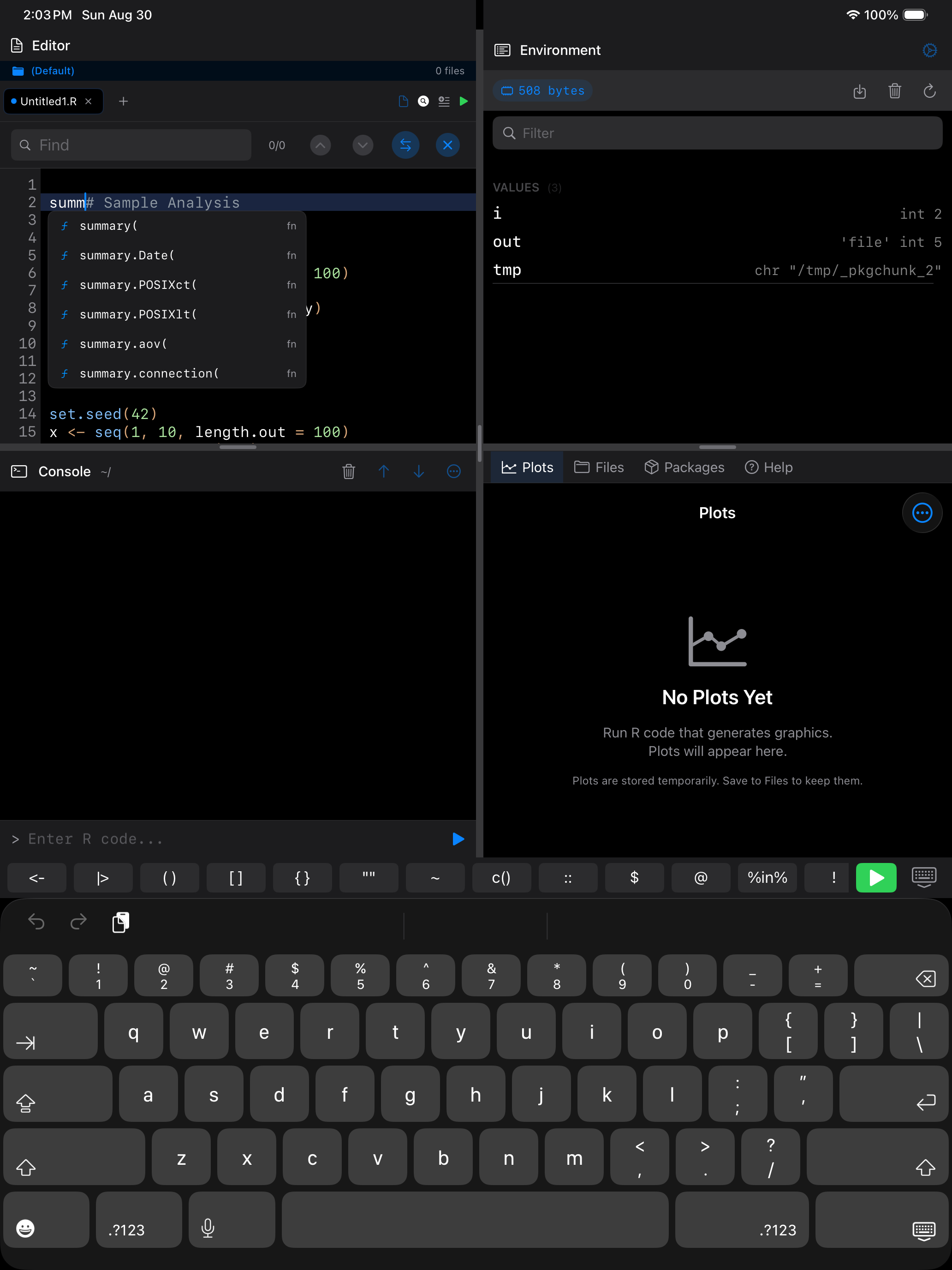
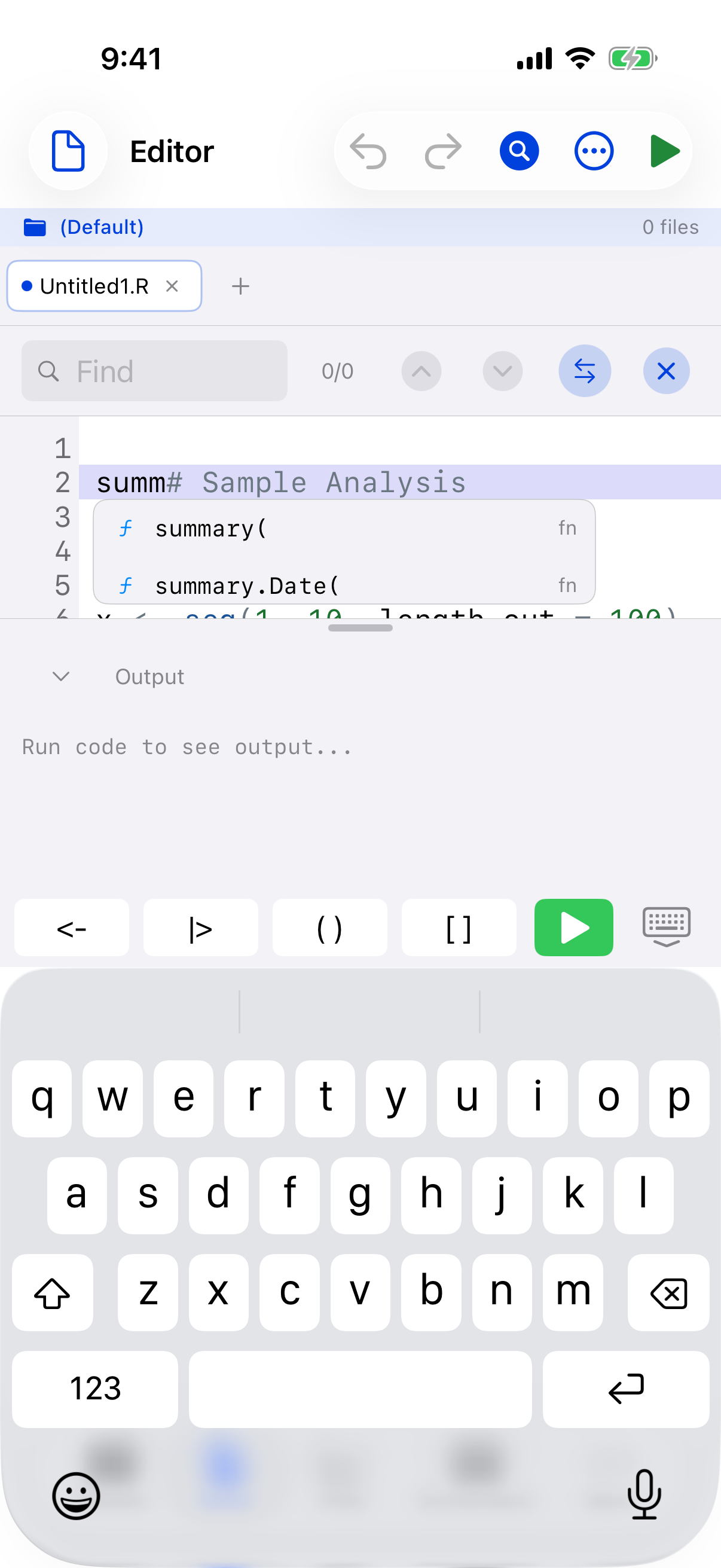
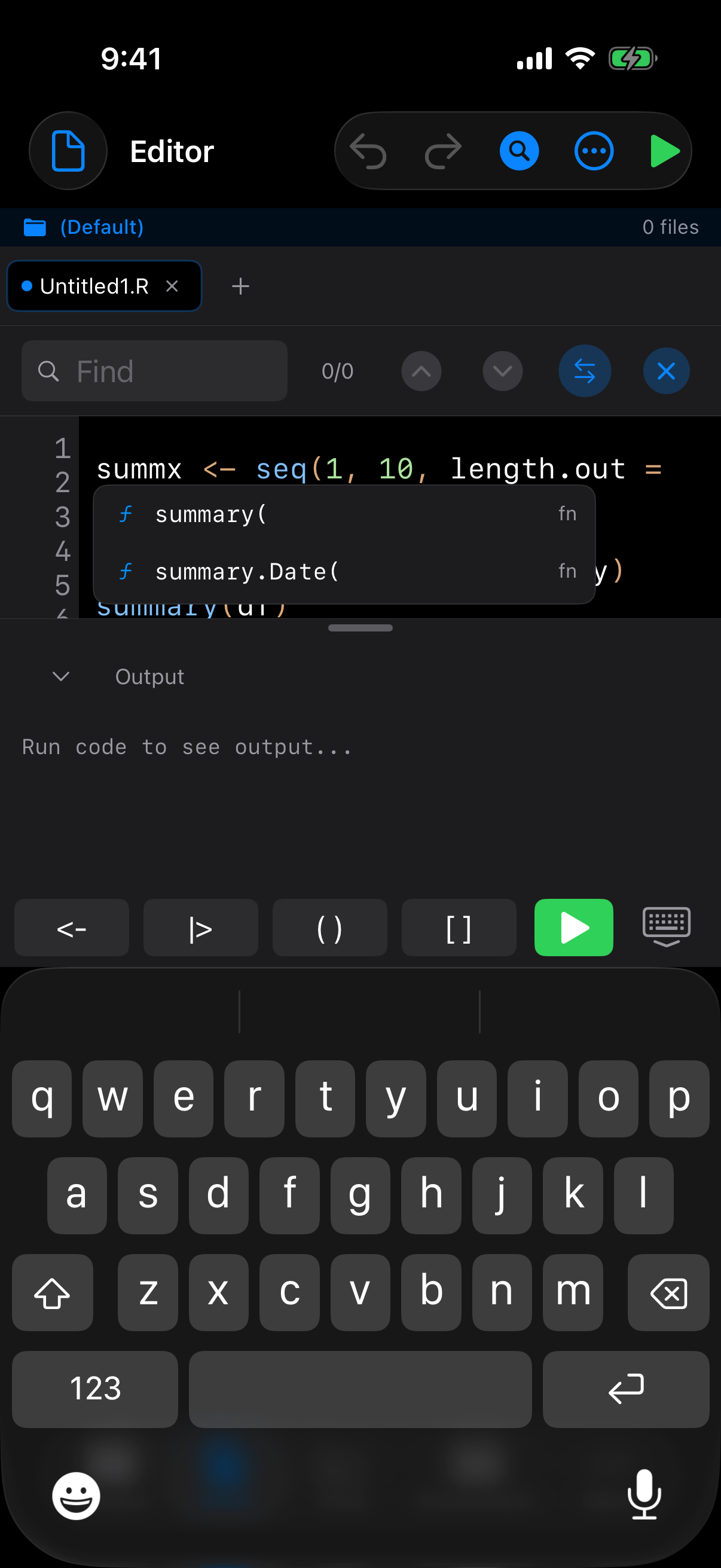
As you type, the editor suggests function names, variable names, and package members. Suggestions appear in a popup below the cursor, or above it when there is more room there, such as near the bottom of the screen with the keyboard up. Tap one to insert it, and Undo takes it back out. When you type the opening parenthesis of a function call, signature help shows the function’s parameters. Press Ctrl+Space to ask for suggestions at the cursor.
With a hardware keyboard, while the list is open:
- Up and Down move a highlight through the suggestions
- Tab inserts the highlighted suggestion, or the first one if you haven’t moved the highlight
- Return inserts the highlighted suggestion once you have moved the highlight; otherwise it starts a new line as usual
- Escape closes the list
The list grows with your editor font size, and VoiceOver announces how many completions there are and reads each row as, for example, “mean, function”.
Find and Replace
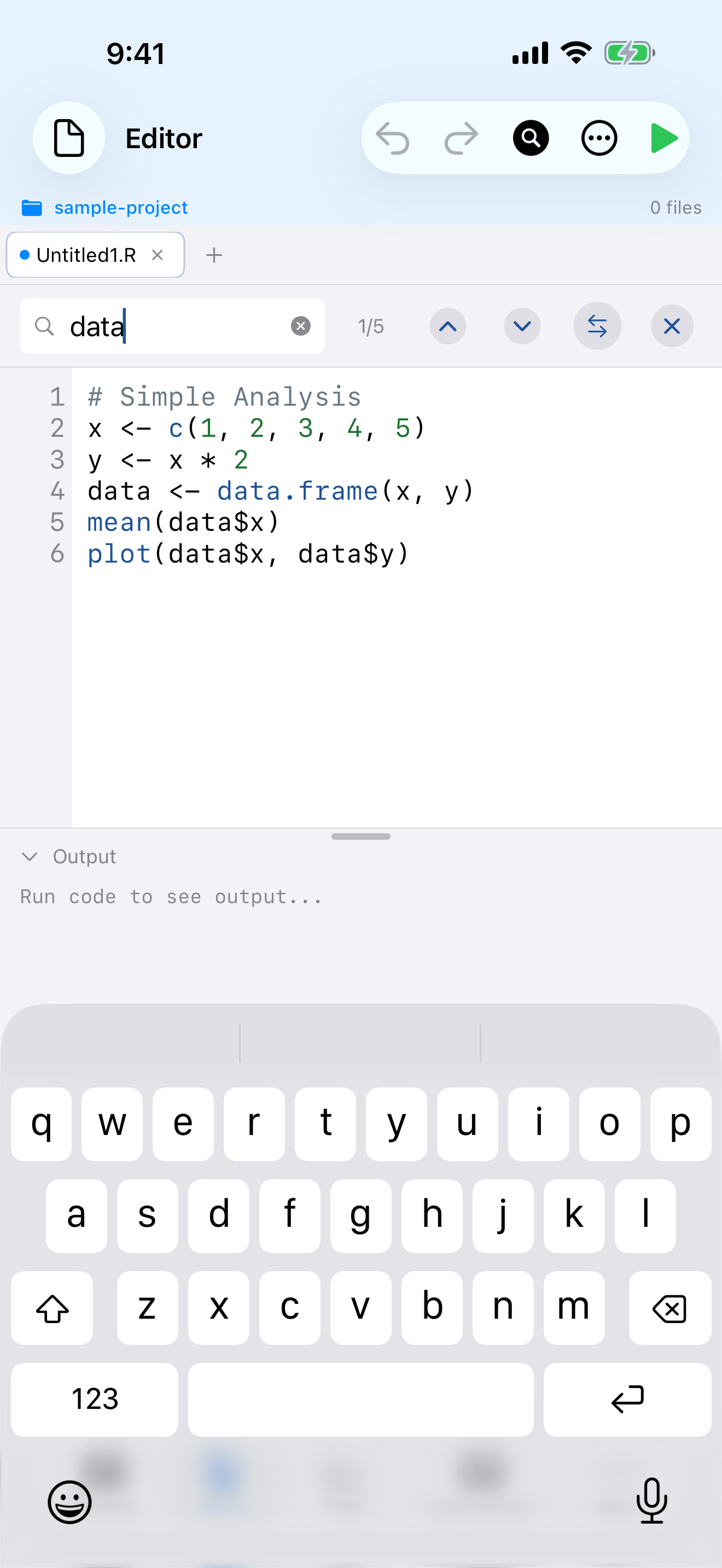
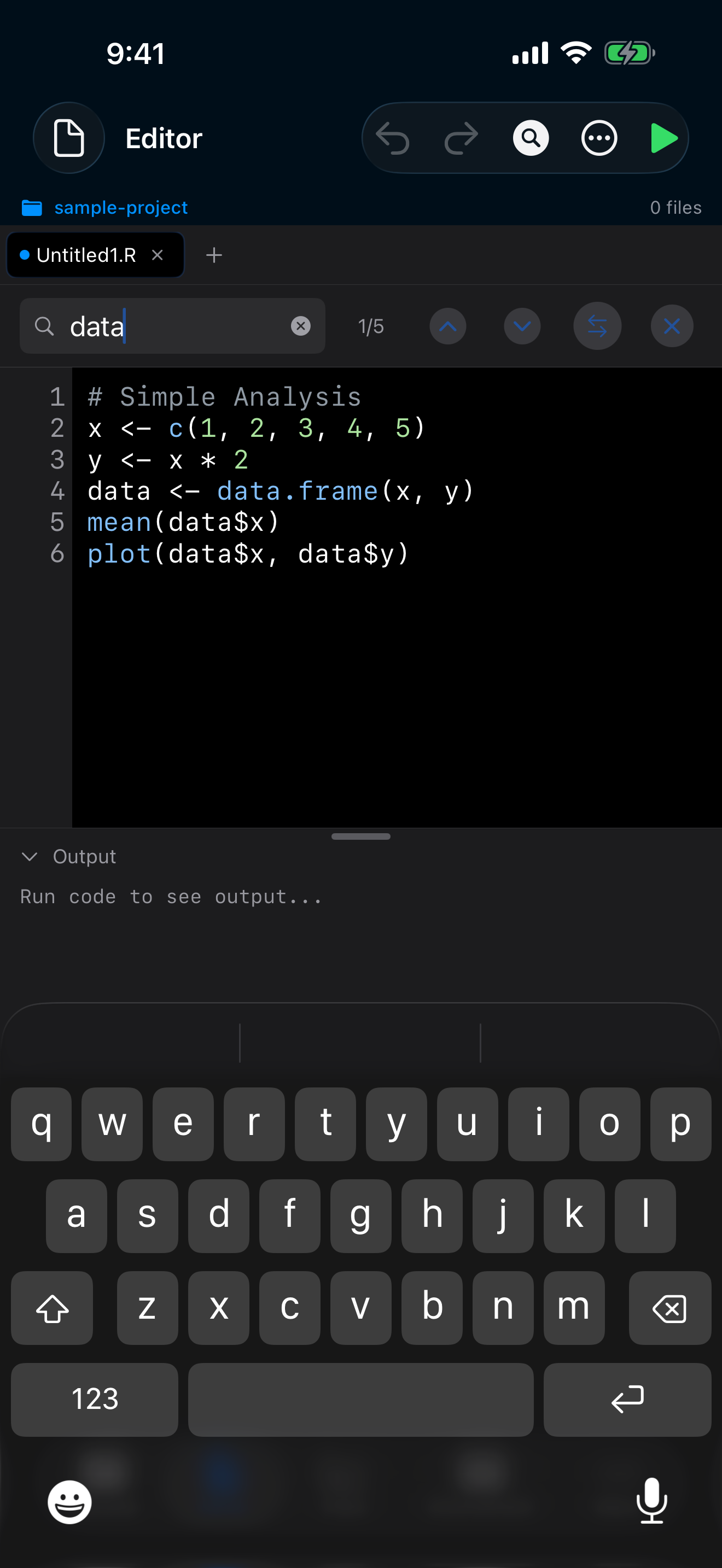
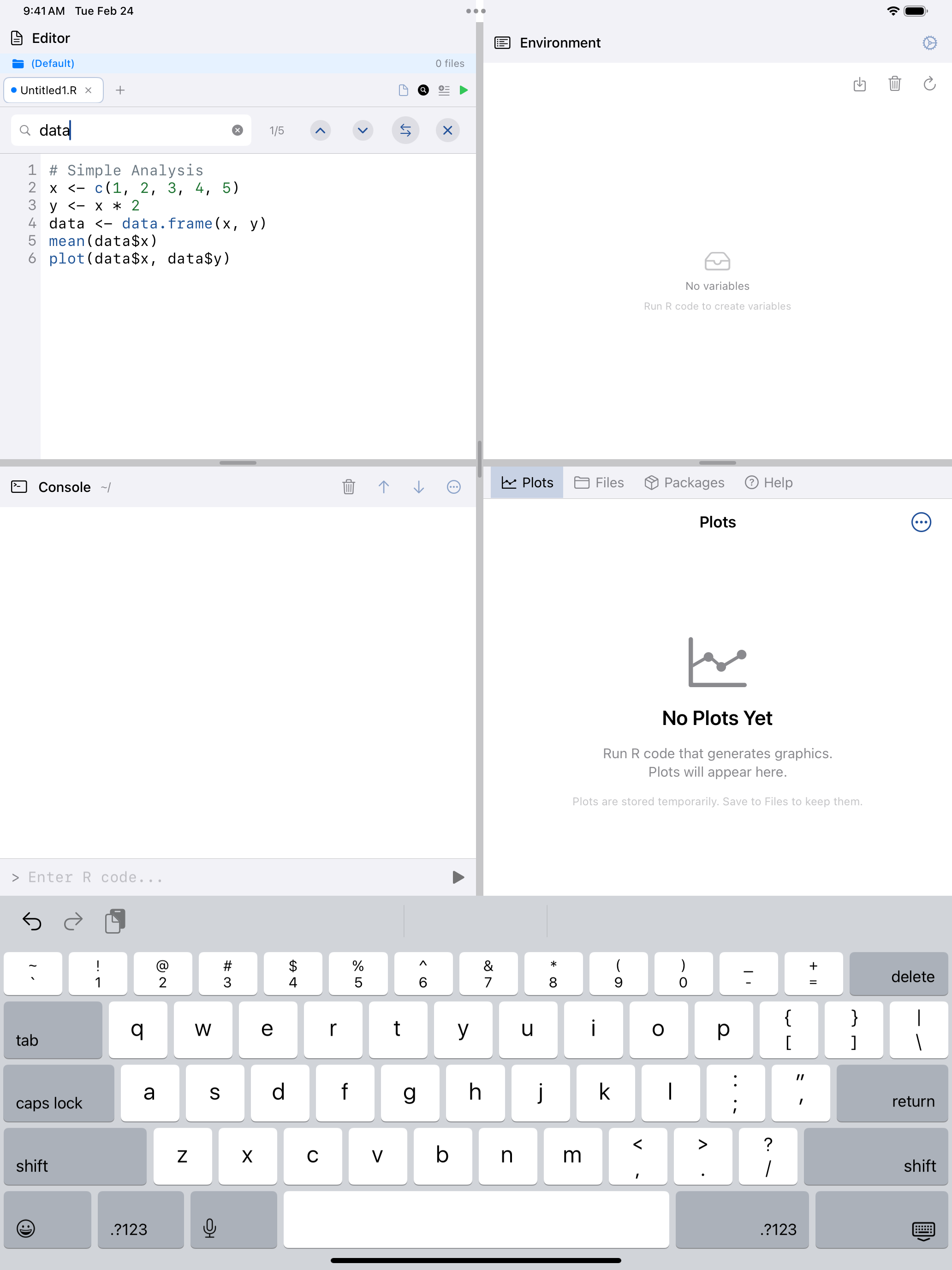
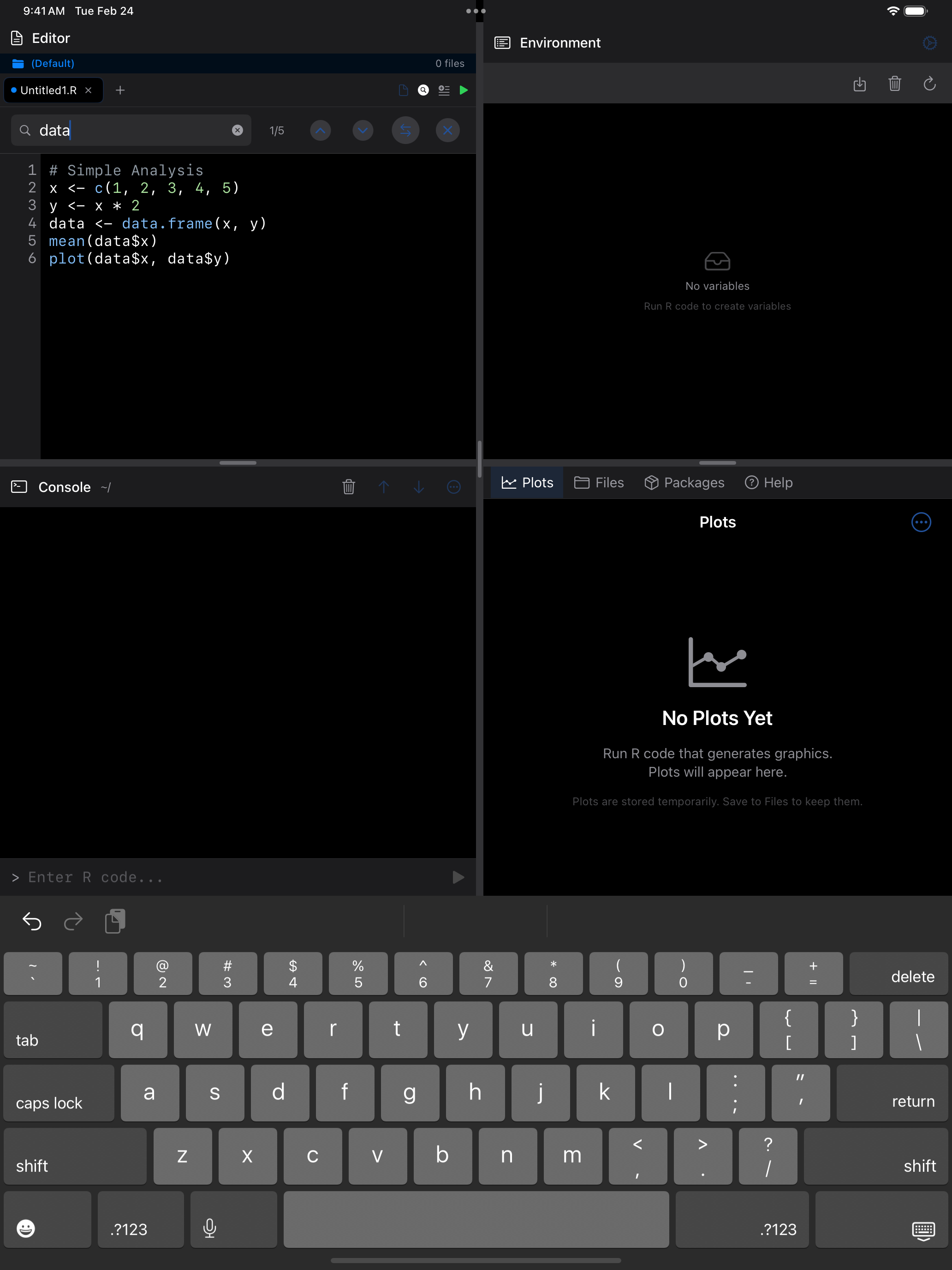
Tap the magnifying glass icon in the toolbar, or press Cmd+F, to open the system Find bar in the pane you are working in. Every match is highlighted, the arrows step through them and select each one, and the Replace options replace one match or all of them. Replacements can be undone.
 1 2 3
1 2 3
 1 2 3
1 2 3
 1 2 3
1 2 3
 1 2 3
1 2 3
- Search field: type a term to find all matches in your code
- Match counter: shows how many matches were found and which one is selected
- Replace: reveals the replace field for find-and-replace operations
Code Folding
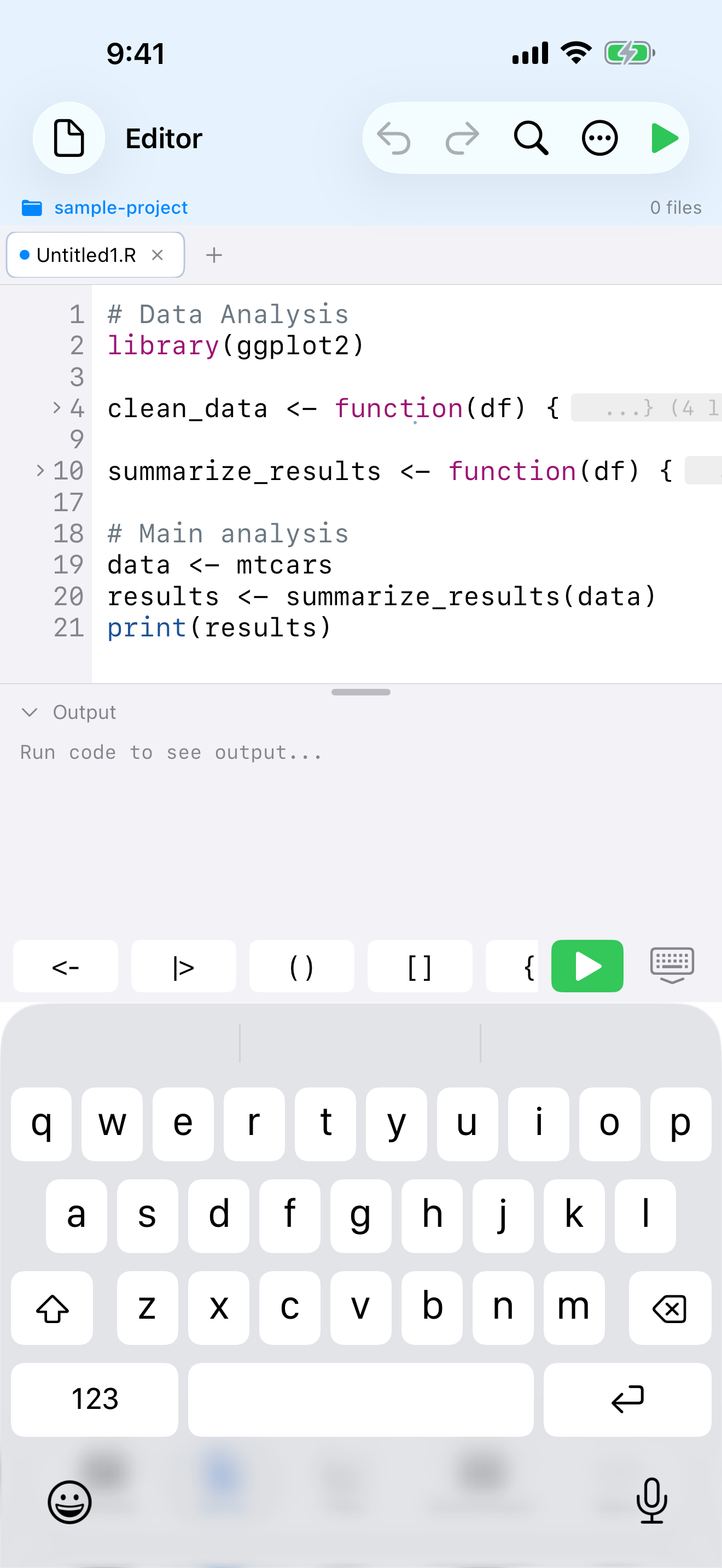
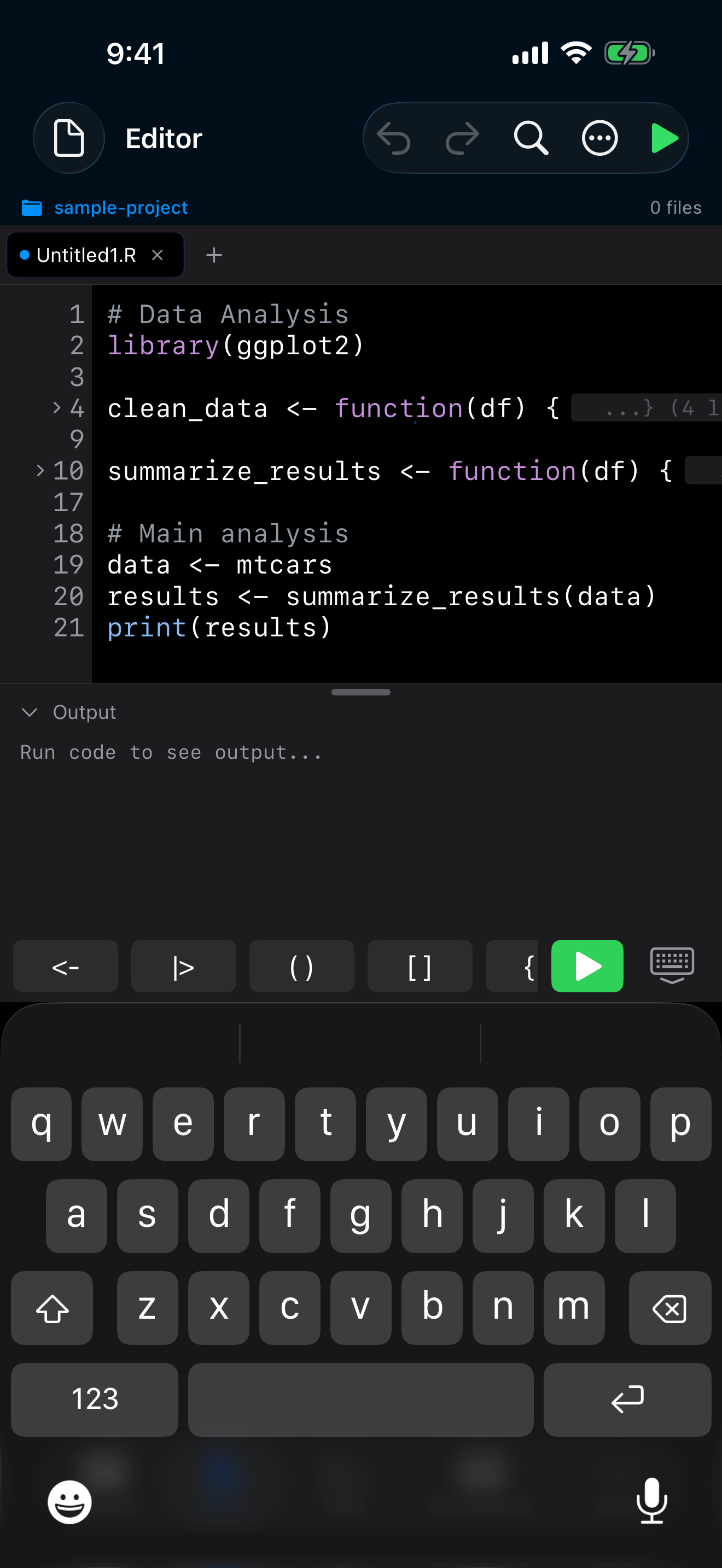
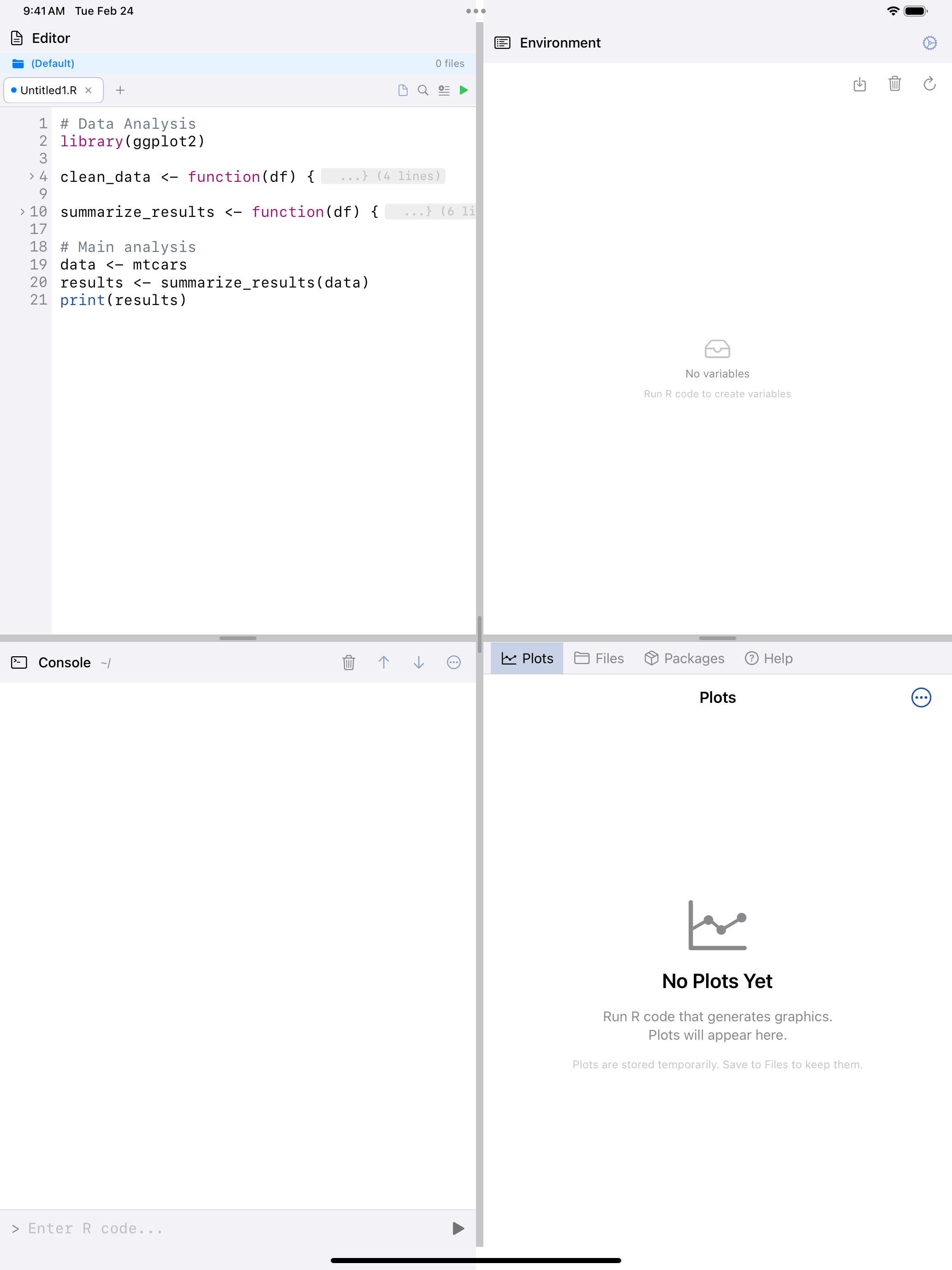
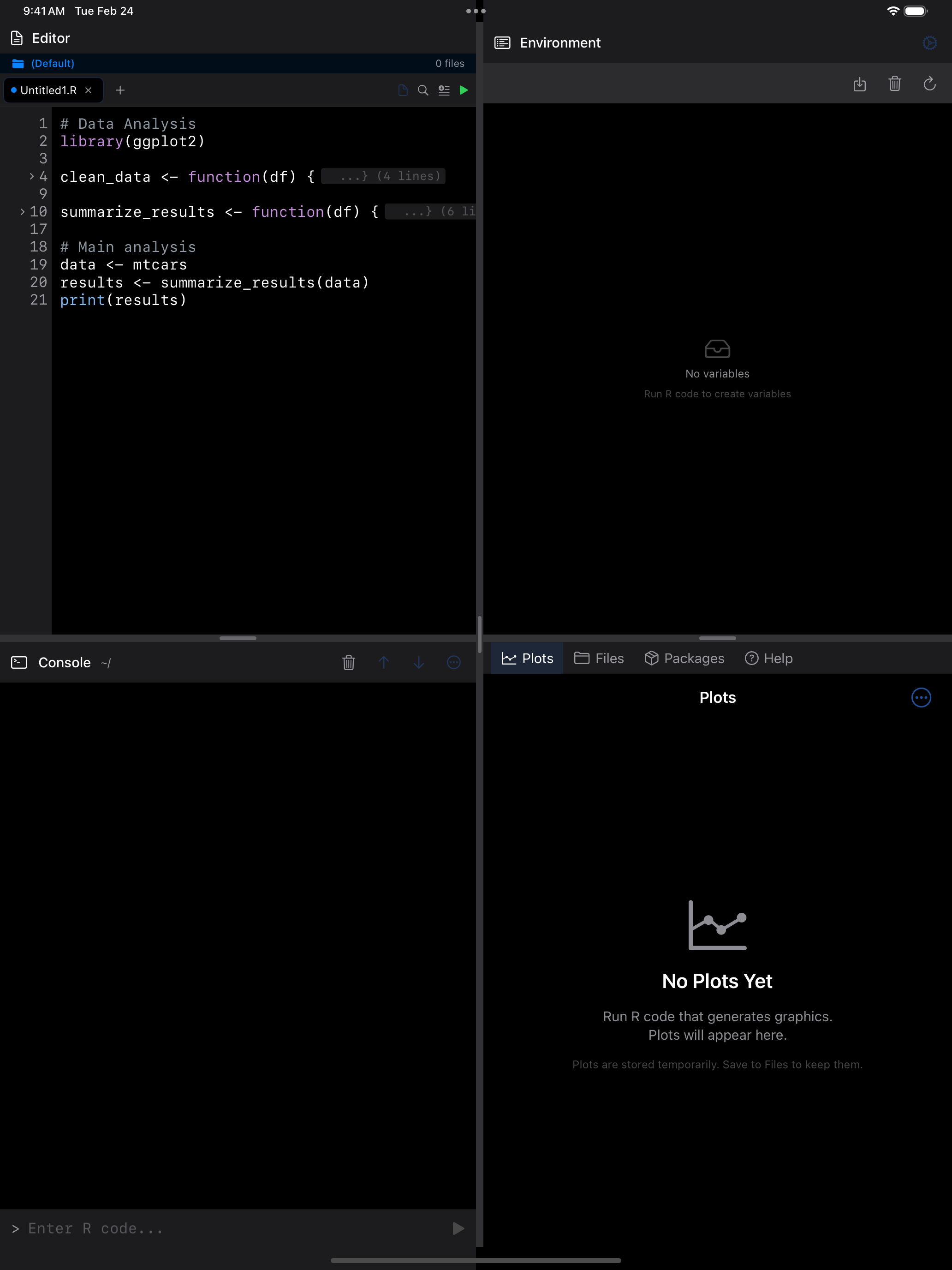
Enable code folding from the … menu to collapse functions, loops, and other code blocks so you can focus on the section you are editing.
 1 2
1 2
 1 2
1 2
 1 2
1 2
 1 2
1 2
- Fold chevron: tap the arrow in the gutter to collapse or expand a code block
- Folded region: collapsed code is hidden and replaced with a summary indicator
The whole gutter row of a fold’s first line is a target, so tapping its line number works too. A fold stays with its function when you add or remove lines above it, and Fold All and Unfold All are in the … menu under Code Folding. Folding works in both panes of the split editor. Line numbers are drawn only for the lines on screen, so long scripts scroll and fold quickly.
Split Editor
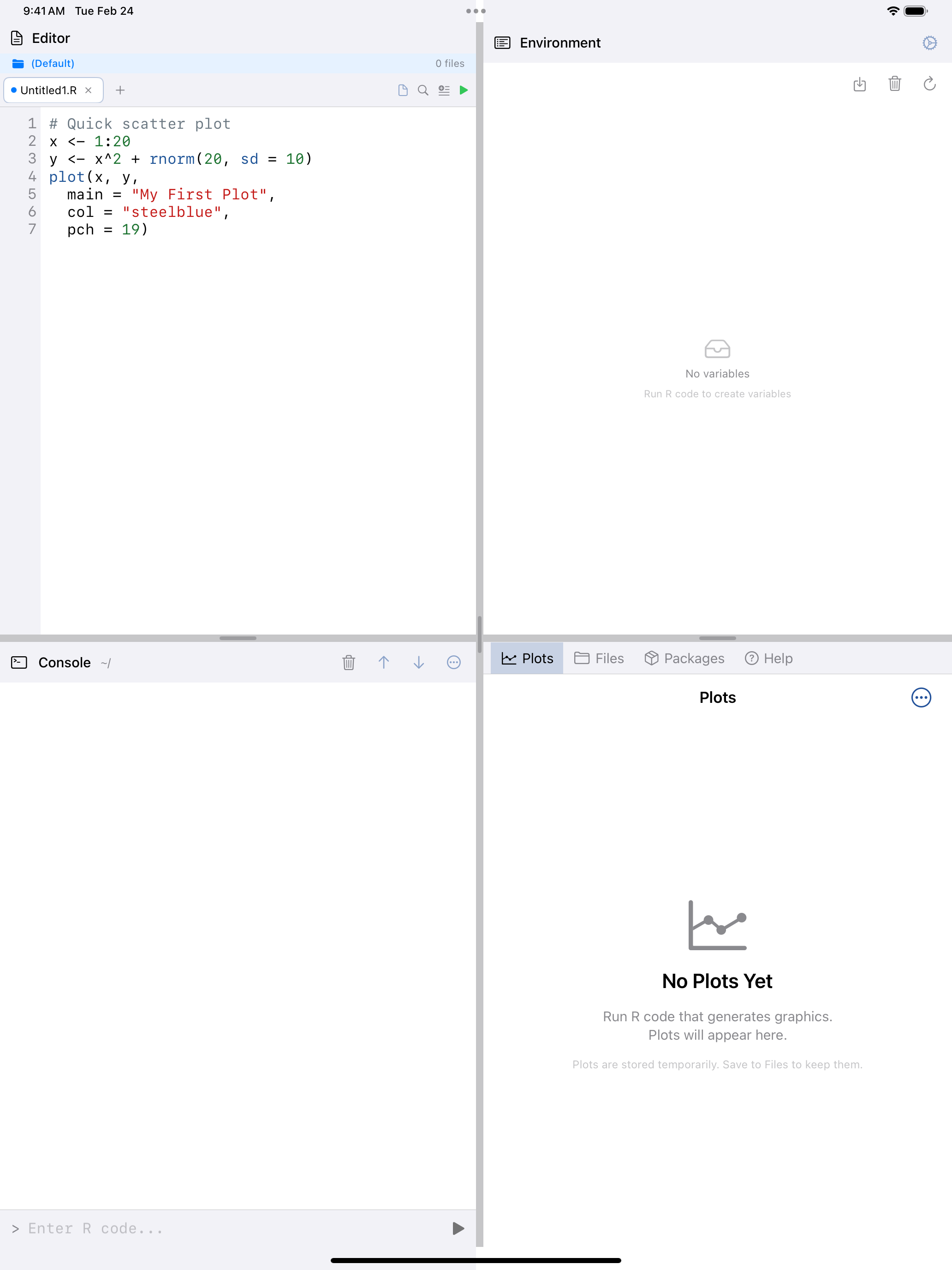
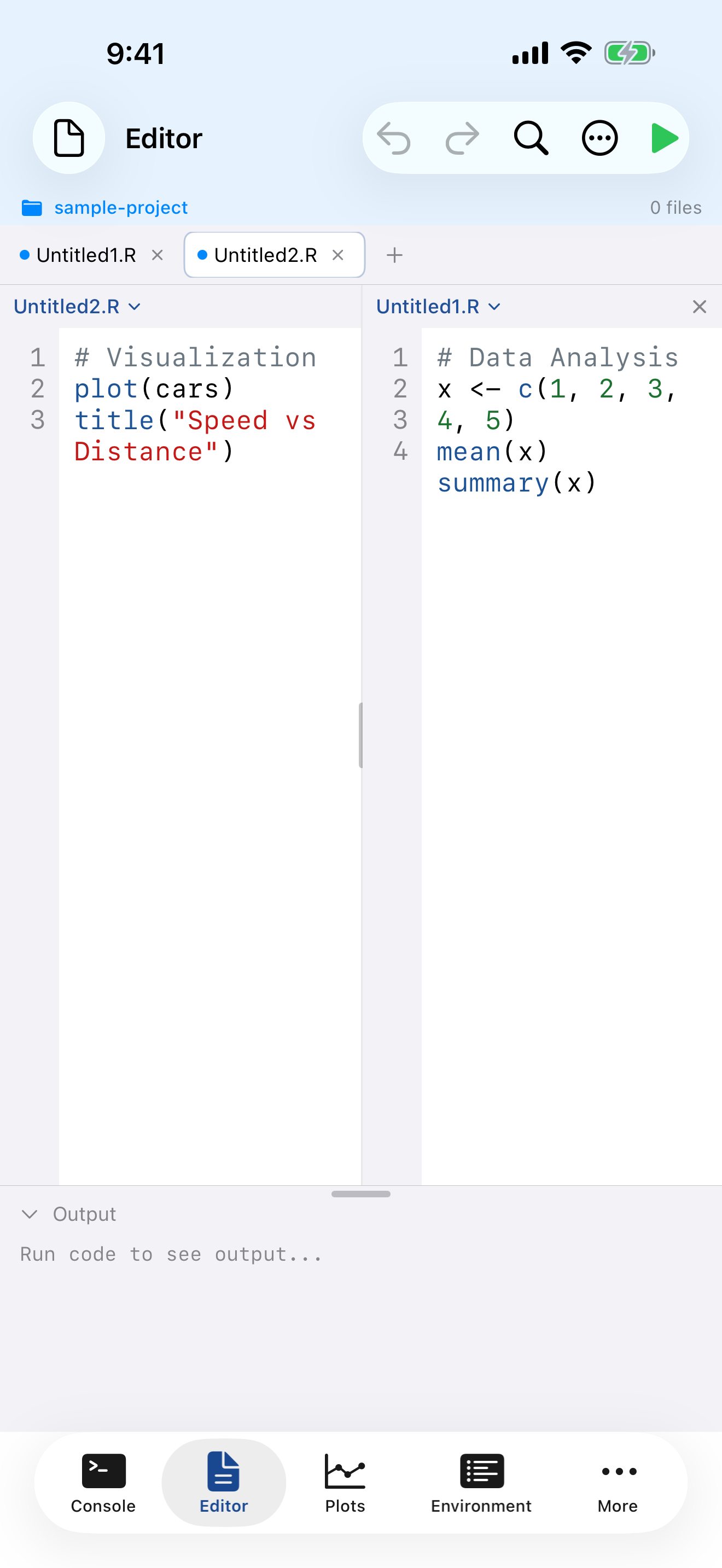
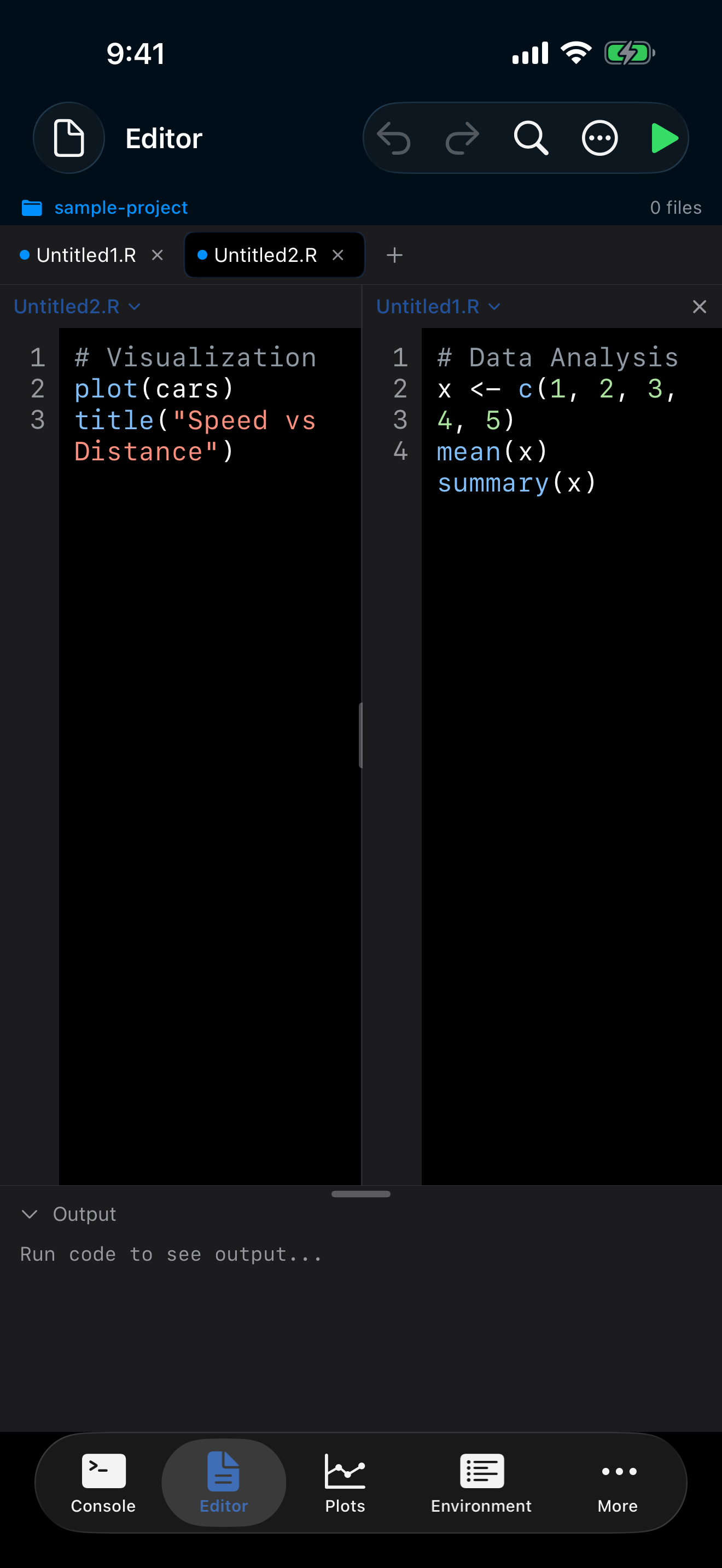
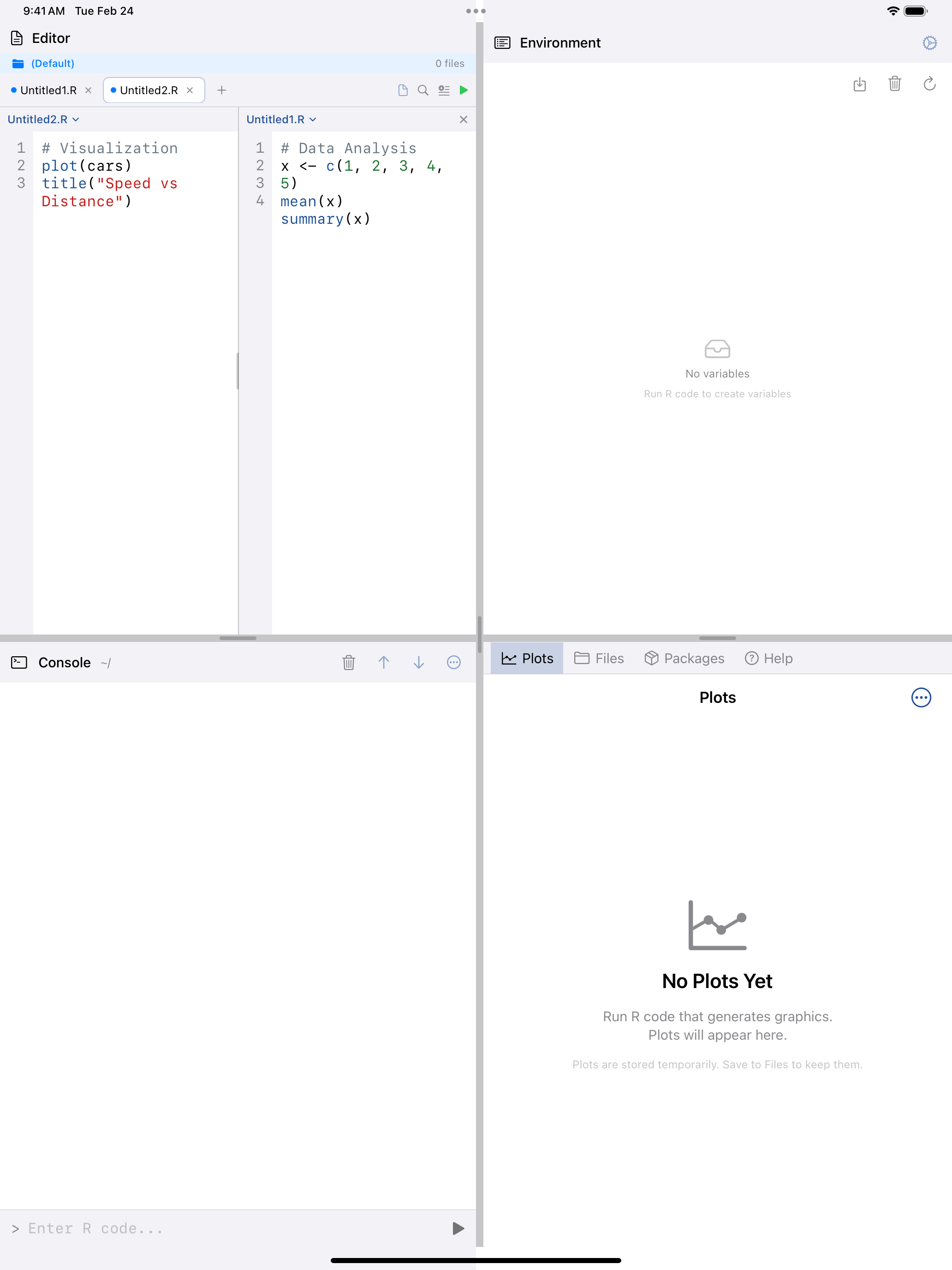
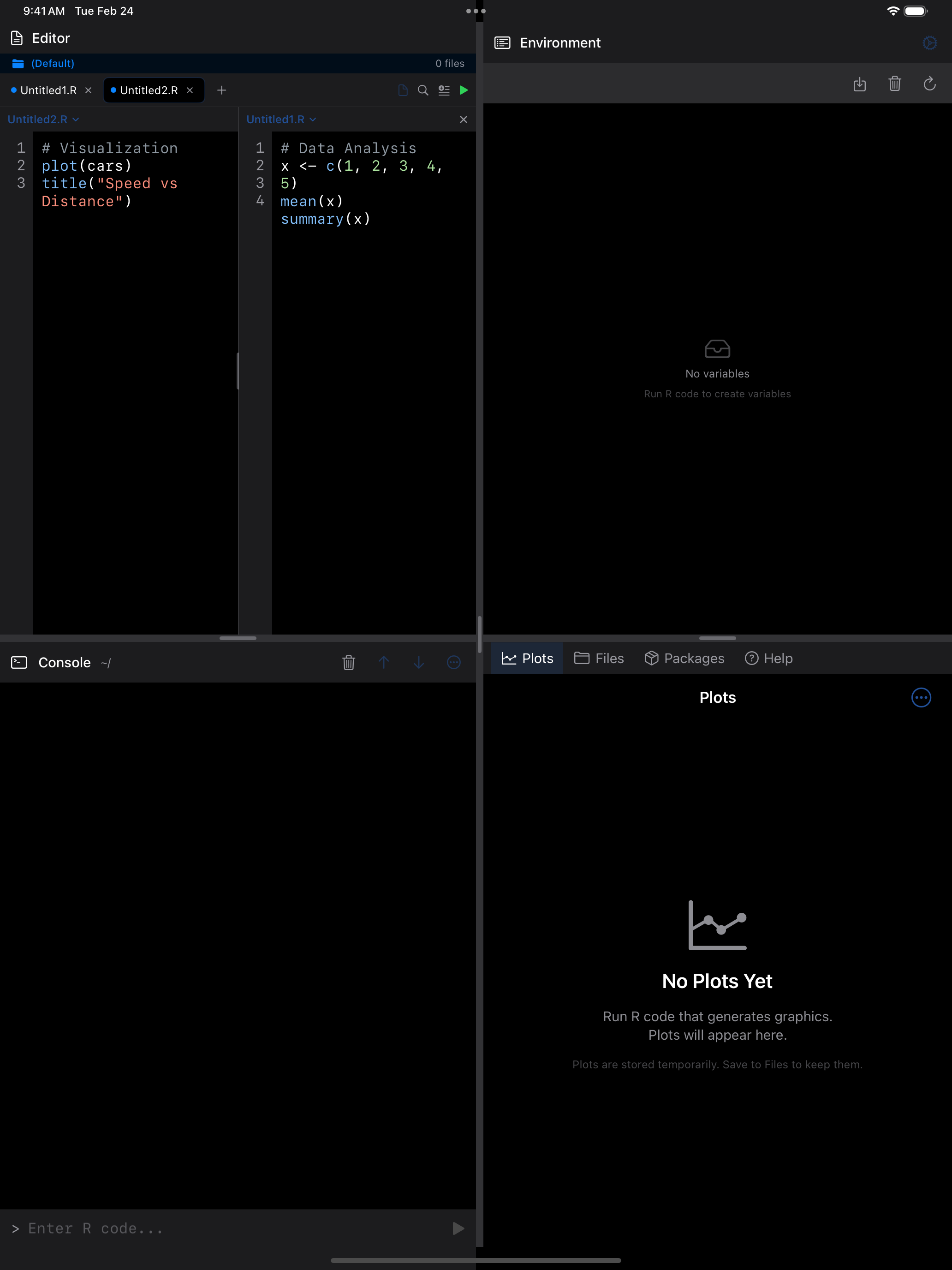
On iPad or wider screens, split the editor into two side-by-side panes so you can view two files at once. Enable it from the … menu when you have at least two tabs open.
 1 2 3
1 2 3
 1 2 3
1 2 3
 1 2 3
1 2 3
 1 2 3
1 2 3
- Left pane: displays one file (the primary tab)
- Right pane: displays a second file side by side
- Split divider: drag to resize the panes
The two panes always show different tabs; choosing the right pane’s tab on the left swaps them. Save, Close, Run, the … menu and keyboard shortcuts act on the pane you last typed or tapped in. Choosing a tab from the tab bar, or opening or closing the split, makes the left pane current. Jump to Line, Code Outline and Export to Gist act on whichever pane was current when you opened them.
The divider follows your finger between a quarter and three quarters of the width, and VoiceOver can adjust it as “Left and right editor”. The output panel’s handle can be dragged or adjusted the same way.
iPad windows
On iPad, each app window has its own editor with its own tabs and autosave, so two windows side by side never overwrite each other’s work. A new window starts with an empty Untitled tab. Open in New Window in Files opens a single file in a separate editor window, which saves with Cmd+S and asks before closing with unsaved changes.
More Editor Features
Code Outline
For a long script, the outline lists every function and section heading so you can jump straight to one instead of scrolling.
Search Across Files
Find and Replace works inside the open file. To search every file in your Documents folder at once, use Search in Files (in the … menu, or Cmd+Option+F when the editor text is not focused). Useful when you remember writing something but not where.
Chips choose which files are searched: R (.R, .Rmd and .qmd), Text (.txt, .log), CSV (.csv, .tsv), JSON and Markdown. The Aa toggle is Match case, and regular expressions are highlighted in the results too. Each result shows its path below Documents and its line, and tapping anywhere on it opens the file at that line.
Export to a GitHub Gist
Publishes the current file as a gist and gives you the link. A GitHub token is required, and is stored in the device Keychain rather than in preferences.
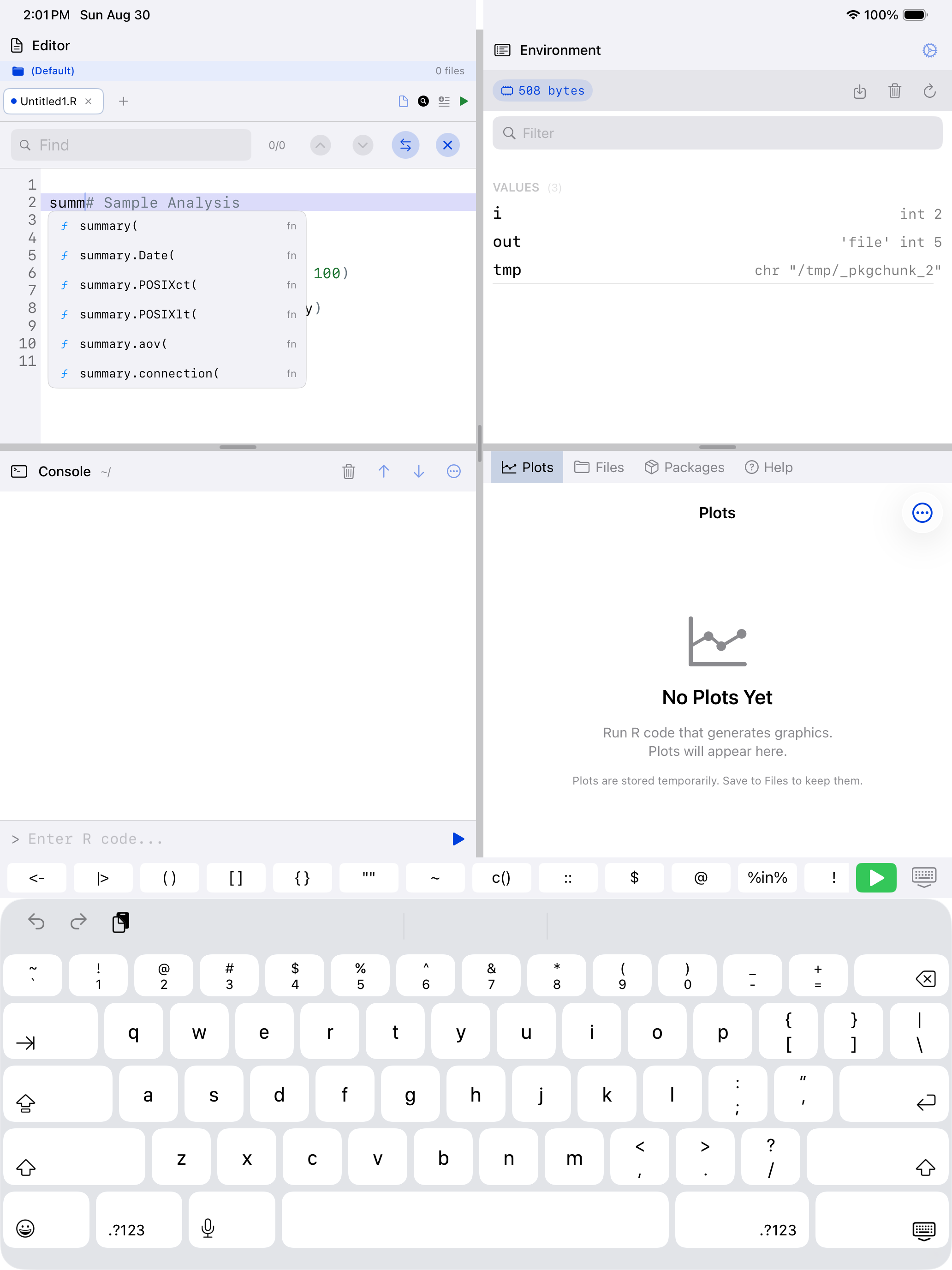
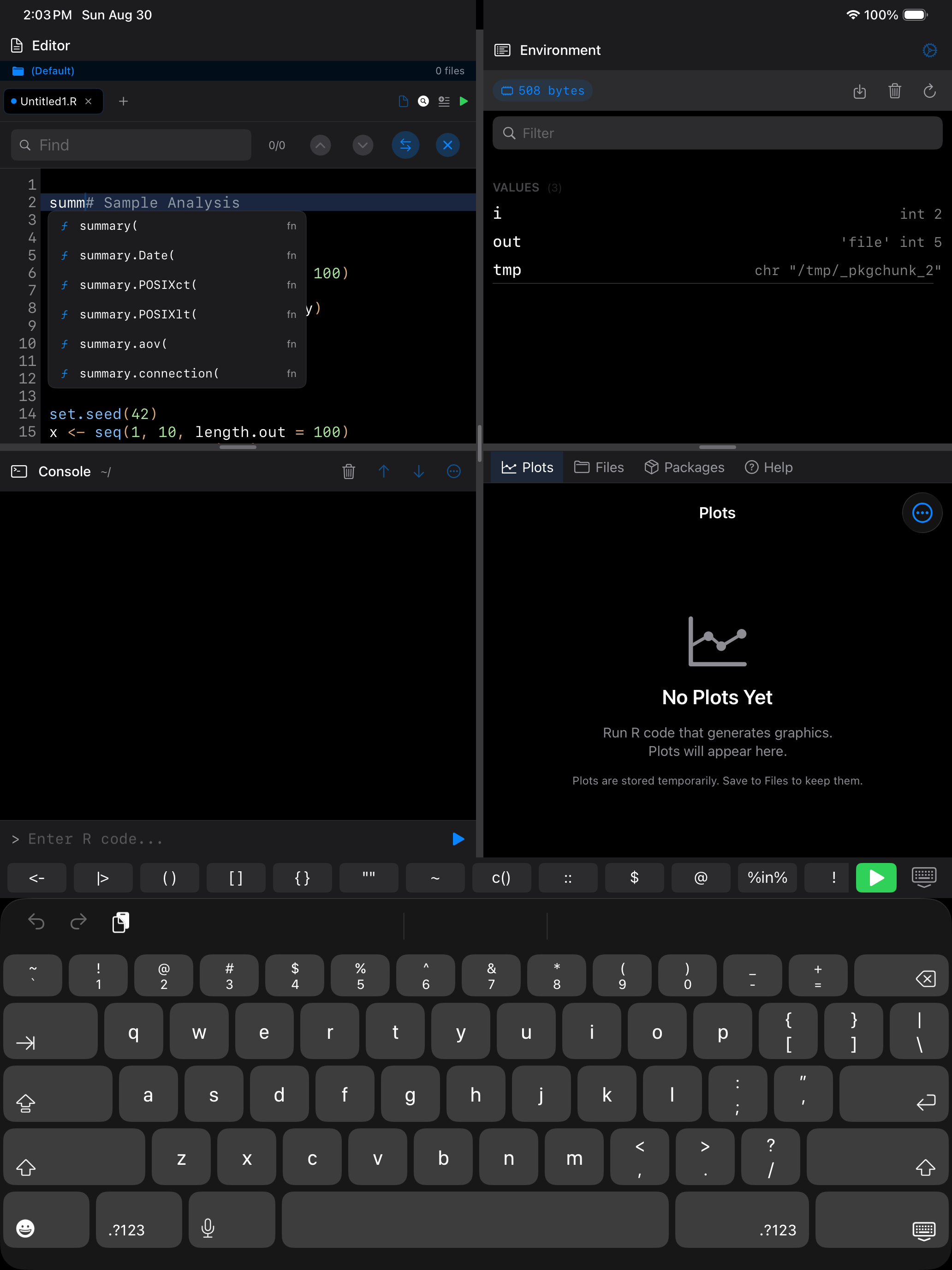
Editor Actions Menu
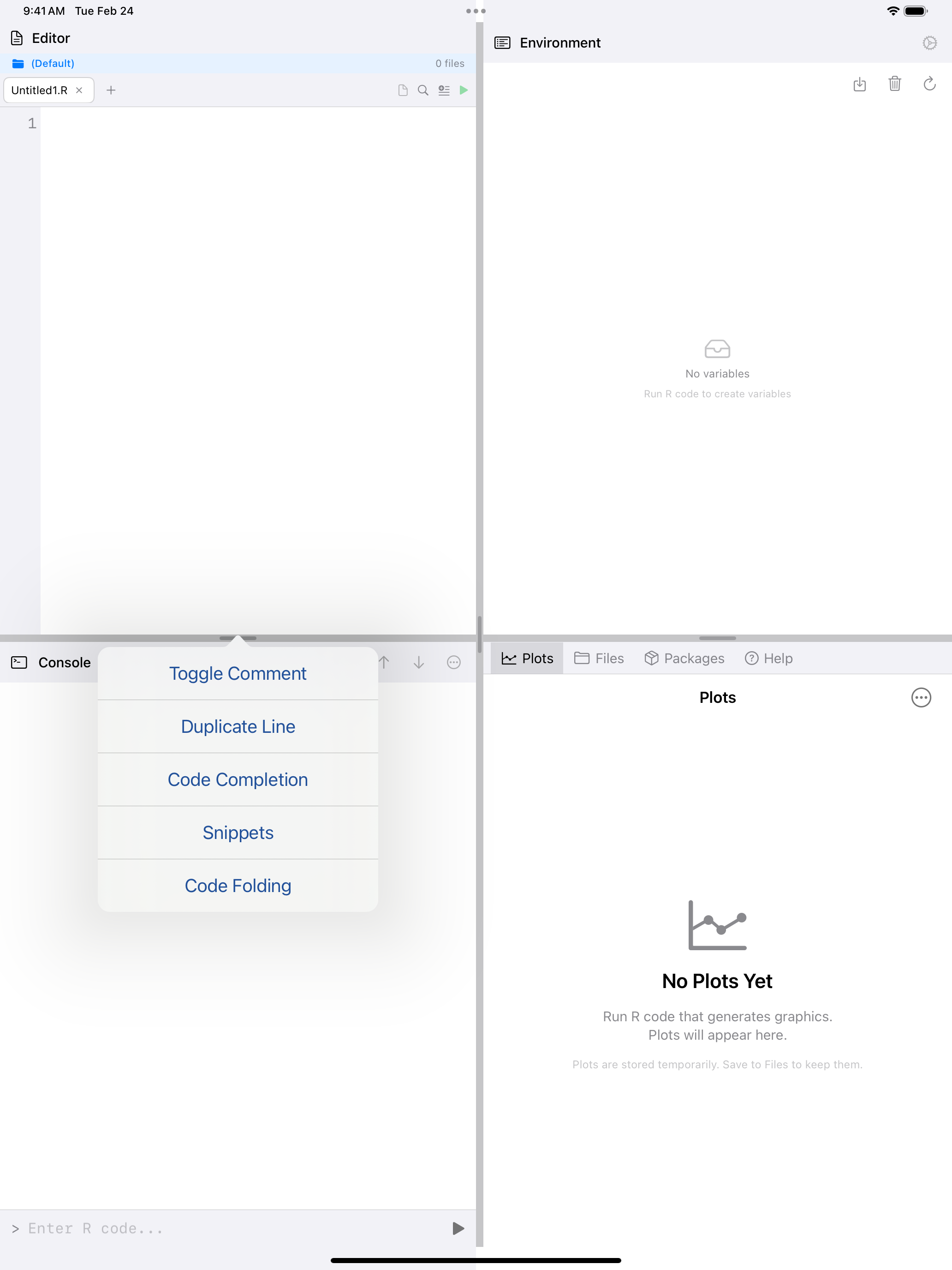
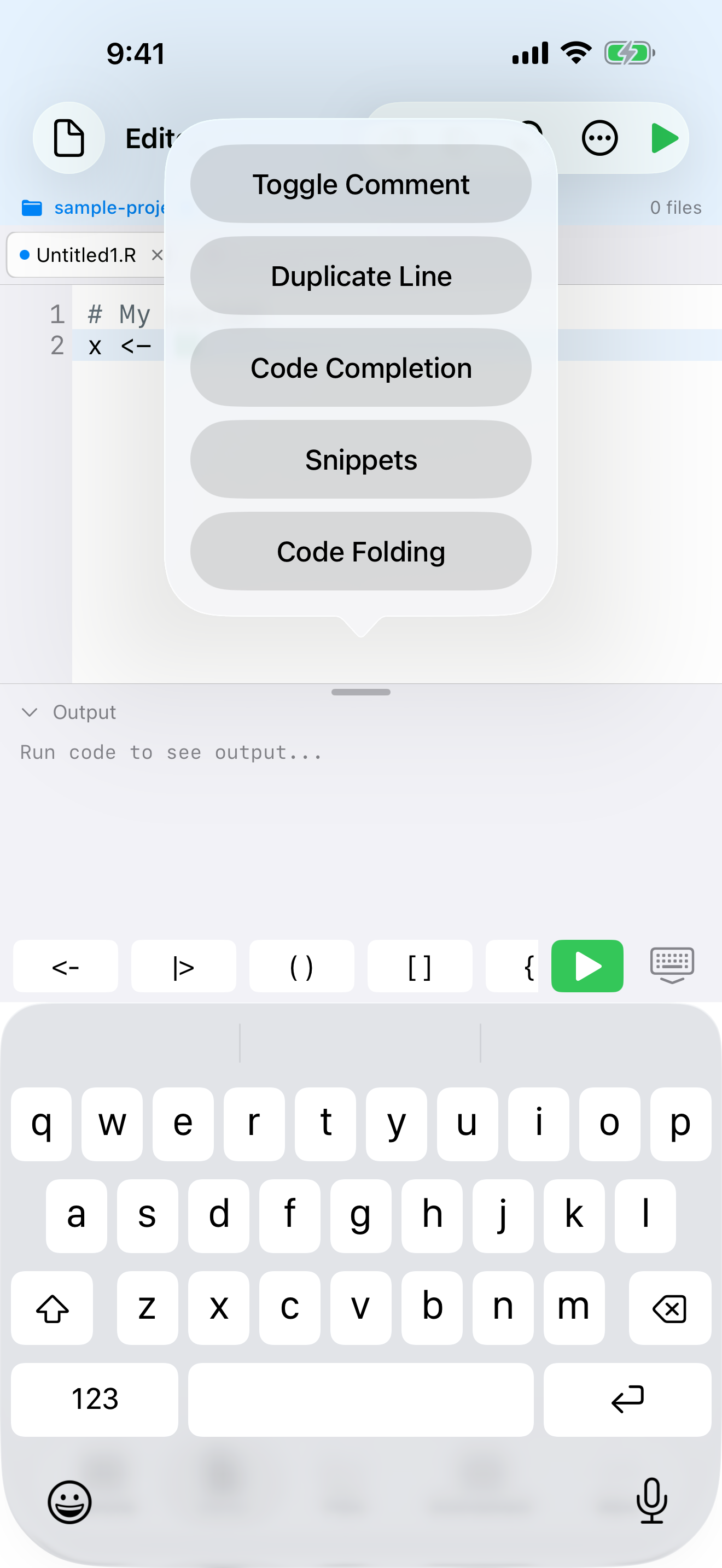
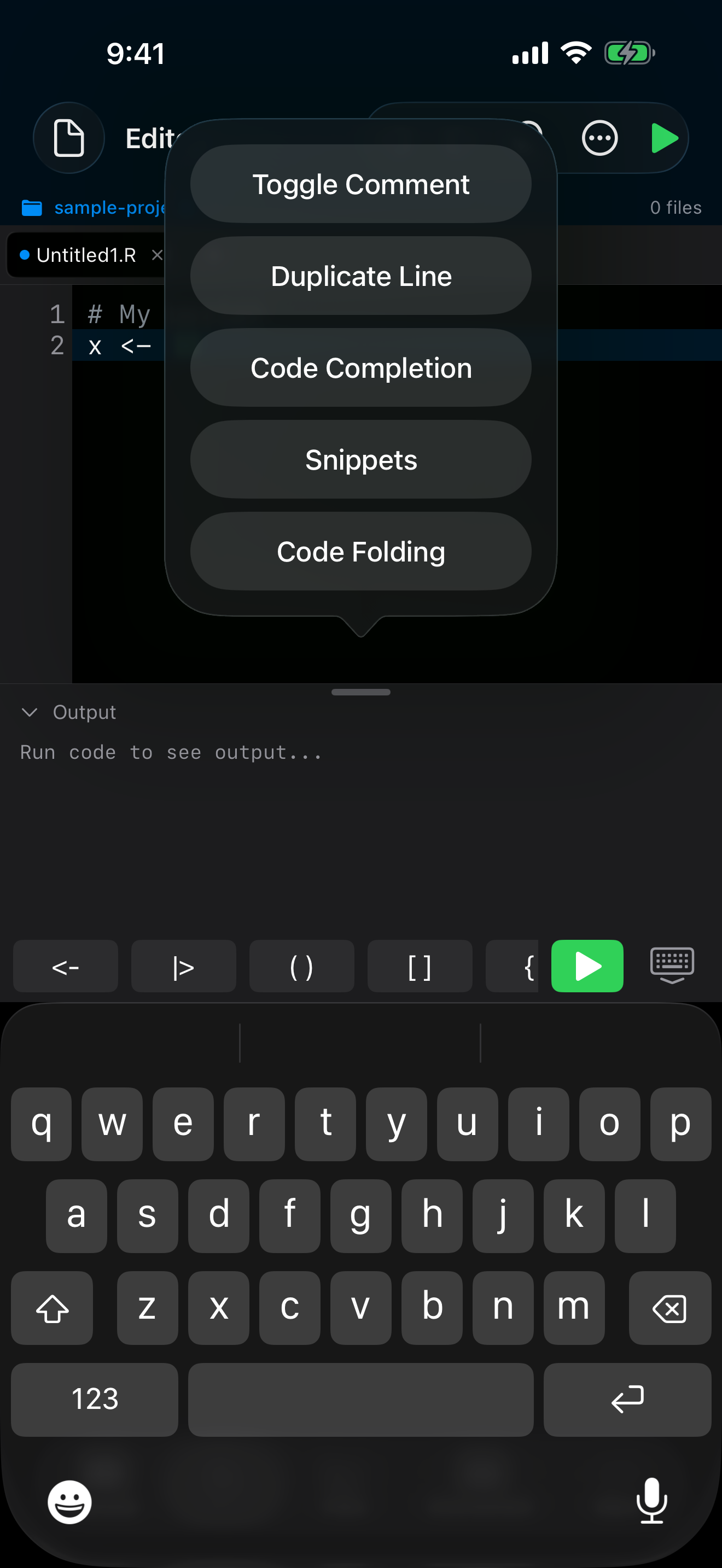
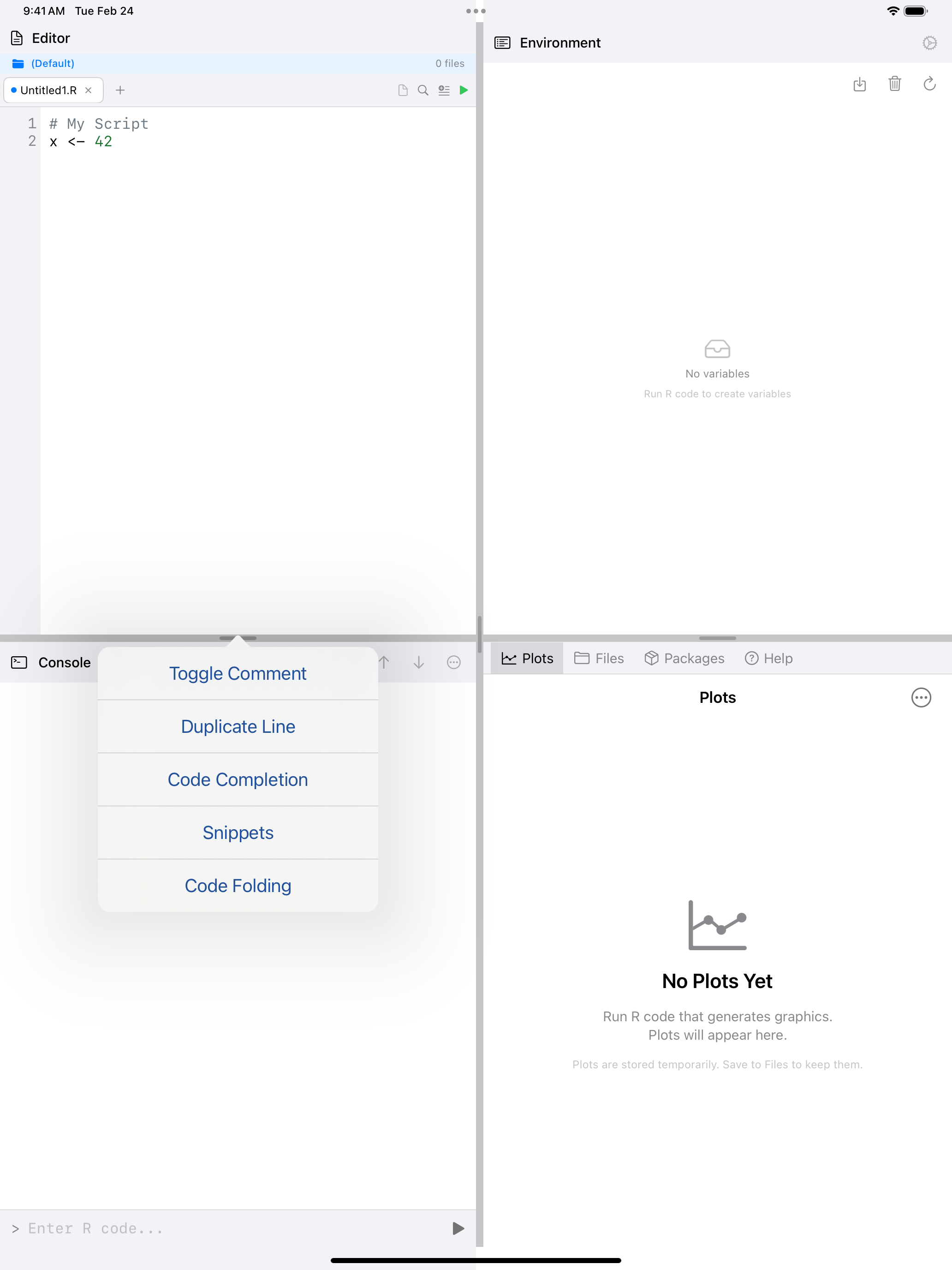
Many of these features are available through the … (Editor actions) button in the toolbar:
 1
1
 1
1
 1
1
 1
1
- Editor actions button (the … icon): opens the menu with Toggle Comment, Duplicate Line, Code Completion, Rename Variable, Go to Definition, Snippets, Code Folding, and Split Editor
The … menu also provides quick access to features like:
- Undo and Redo: the toolbar provides undo/redo buttons, and they work with standard keyboard shortcuts too (Cmd+Z, Cmd+Shift+Z). Each tab keeps its own history, and it survives moving to another screen and back. Replace, Toggle Comment, Duplicate Line, snippets, accepted completions and Rename Variable can all be undone.
- Toggle Comment and Duplicate Line: act on the selected lines, or the line with the cursor
- Rename Variable: select a variable name, then choose Rename Variable from the … menu to rename it everywhere in the current file. Strings, comments,
$members,pkg::names and argument names such asdata =are left alone. - Go to Definition: select a function name and choose Go to Definition (Ctrl+Cmd+J) to jump to where it is defined in your project
- Code Outline: navigate large scripts by viewing a structural outline of your functions and sections (File menu > Navigate > Code Outline, or Cmd+Shift+O)
- Jump to Line: quickly jump to a specific line number (File menu > Navigate > Jump to Line, or Cmd+L). Folded code is unfolded if the line is inside it.
- Pinch to Zoom: adjust the editor font size with a pinch gesture, just like in a web browser, or set Editor Zoom in Settings > Appearance. Editor fonts go up to 30 pt; see Settings.