Console
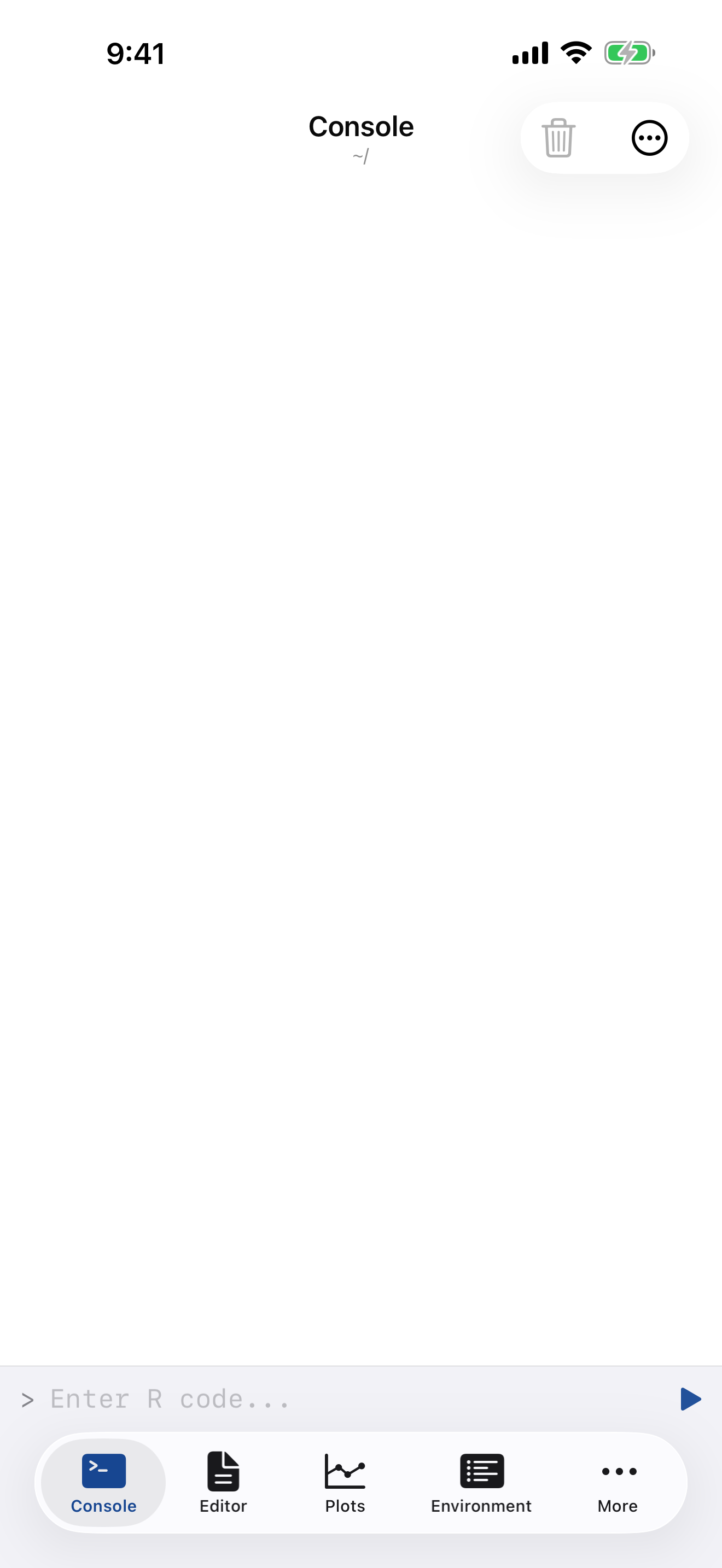
The Console is where you interact with R directly. Type a command, tap play, see the result. It is the quickest way to try ideas and explore data without writing a full script.
Your R Command Line
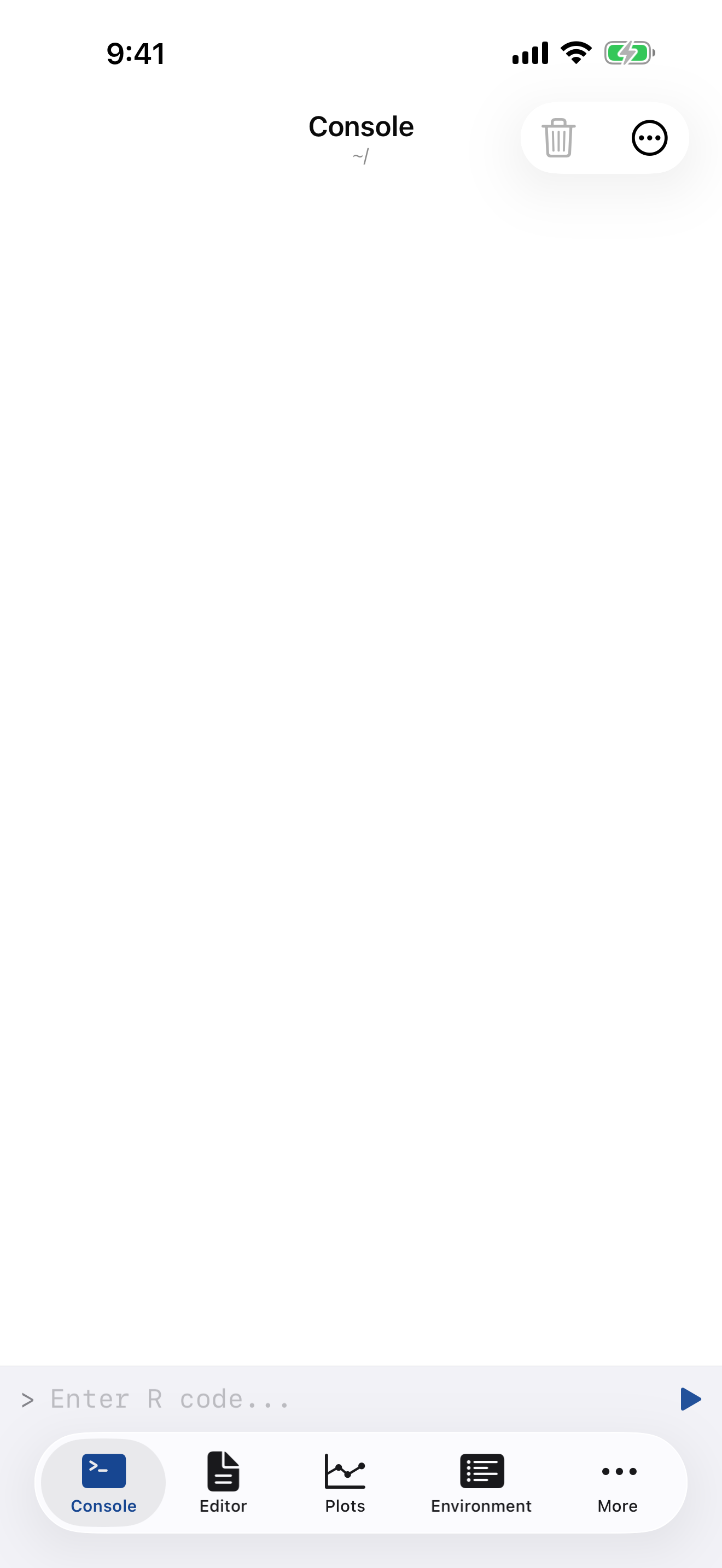
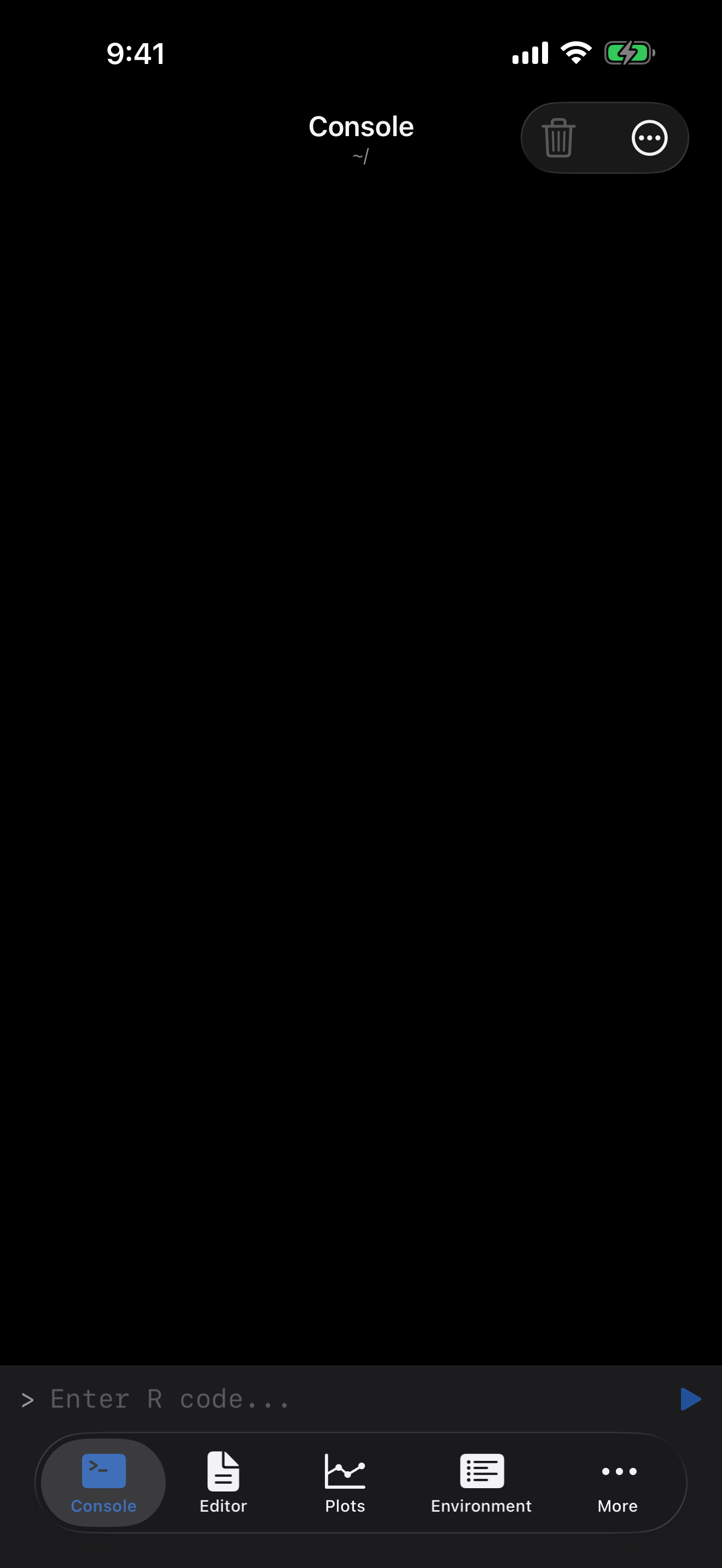
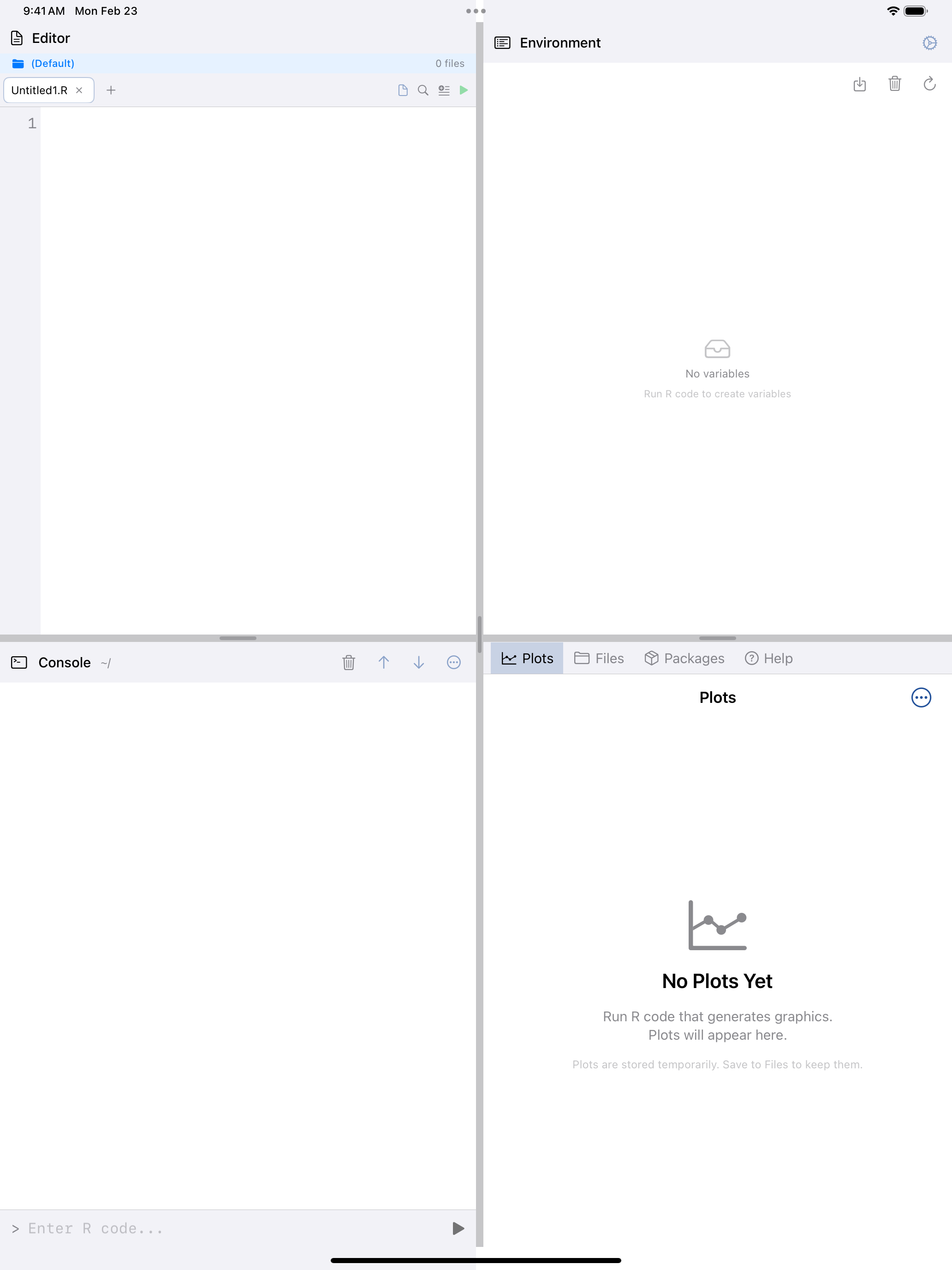
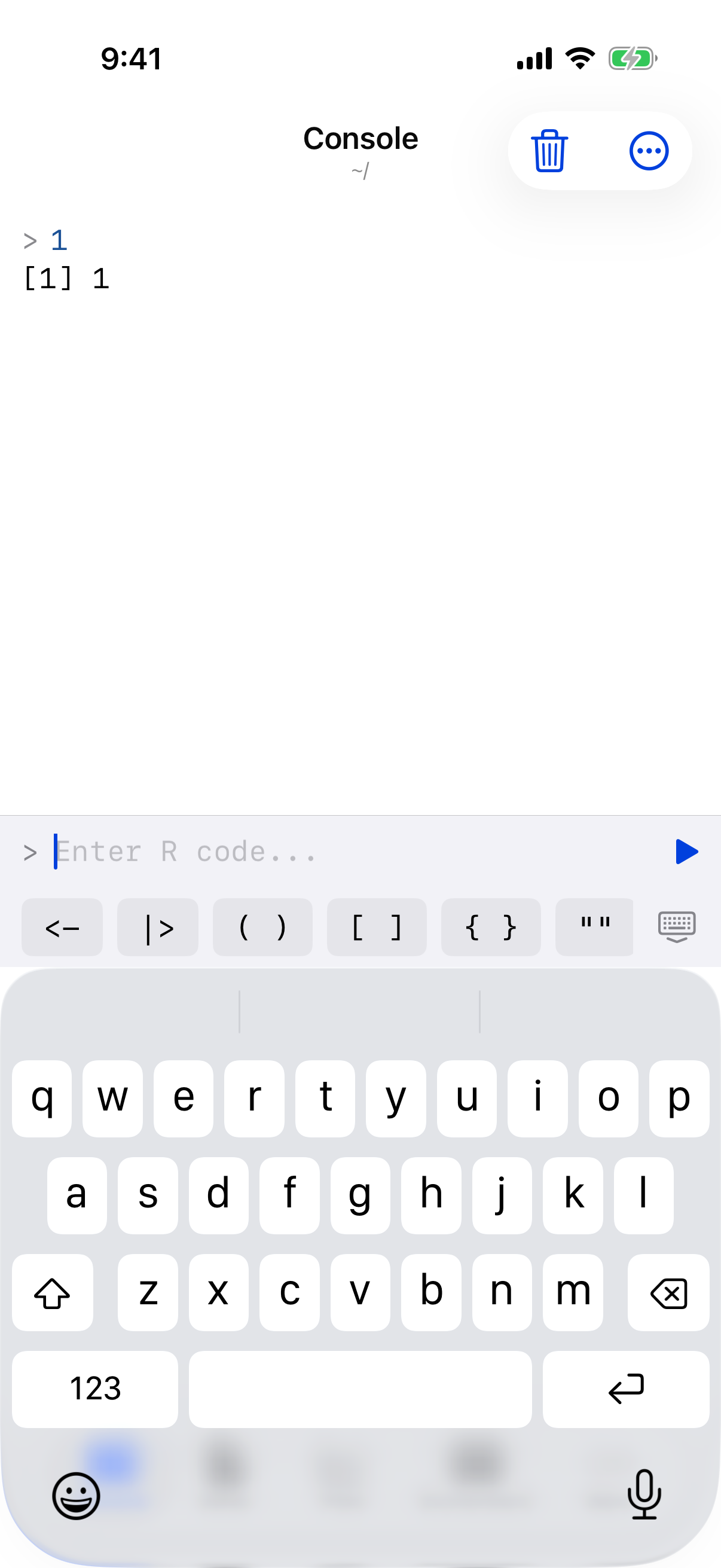
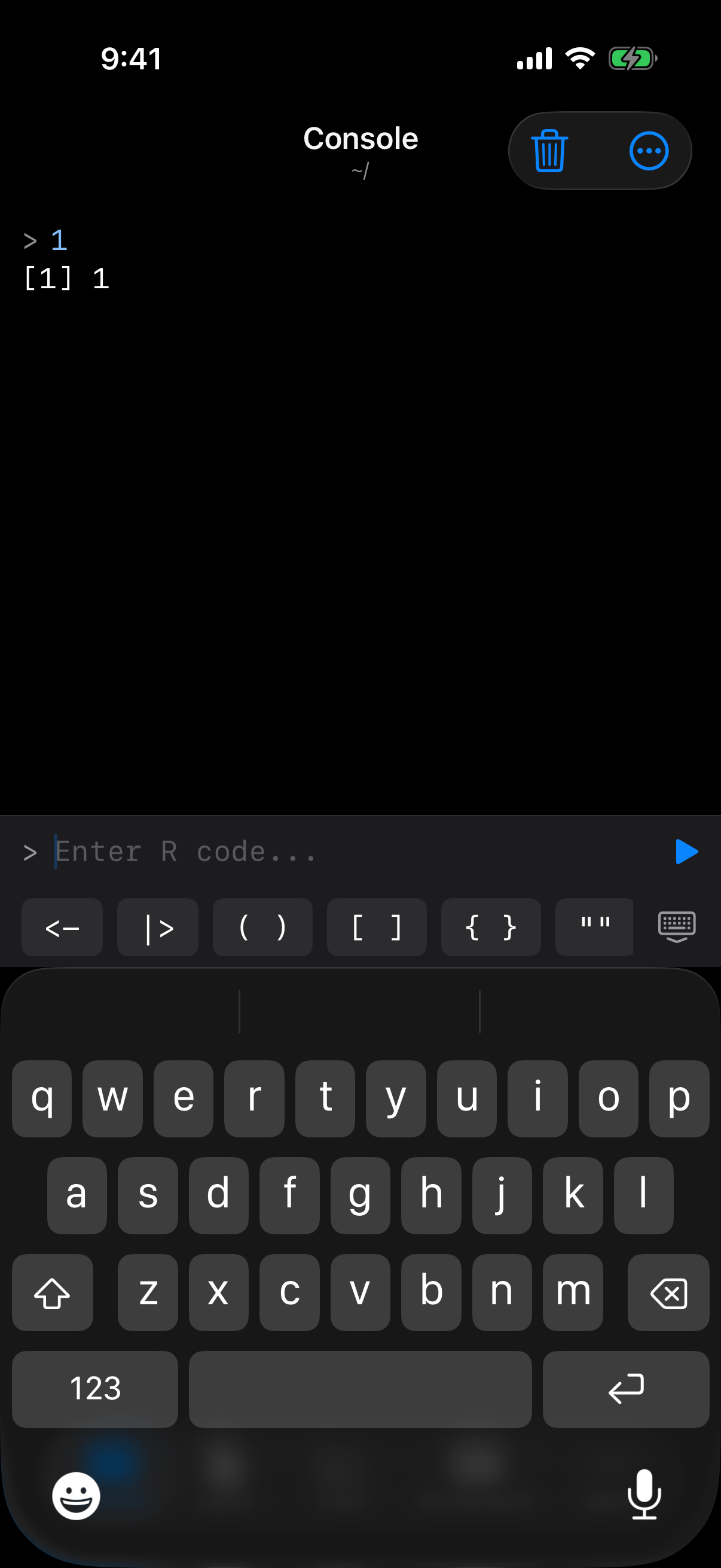
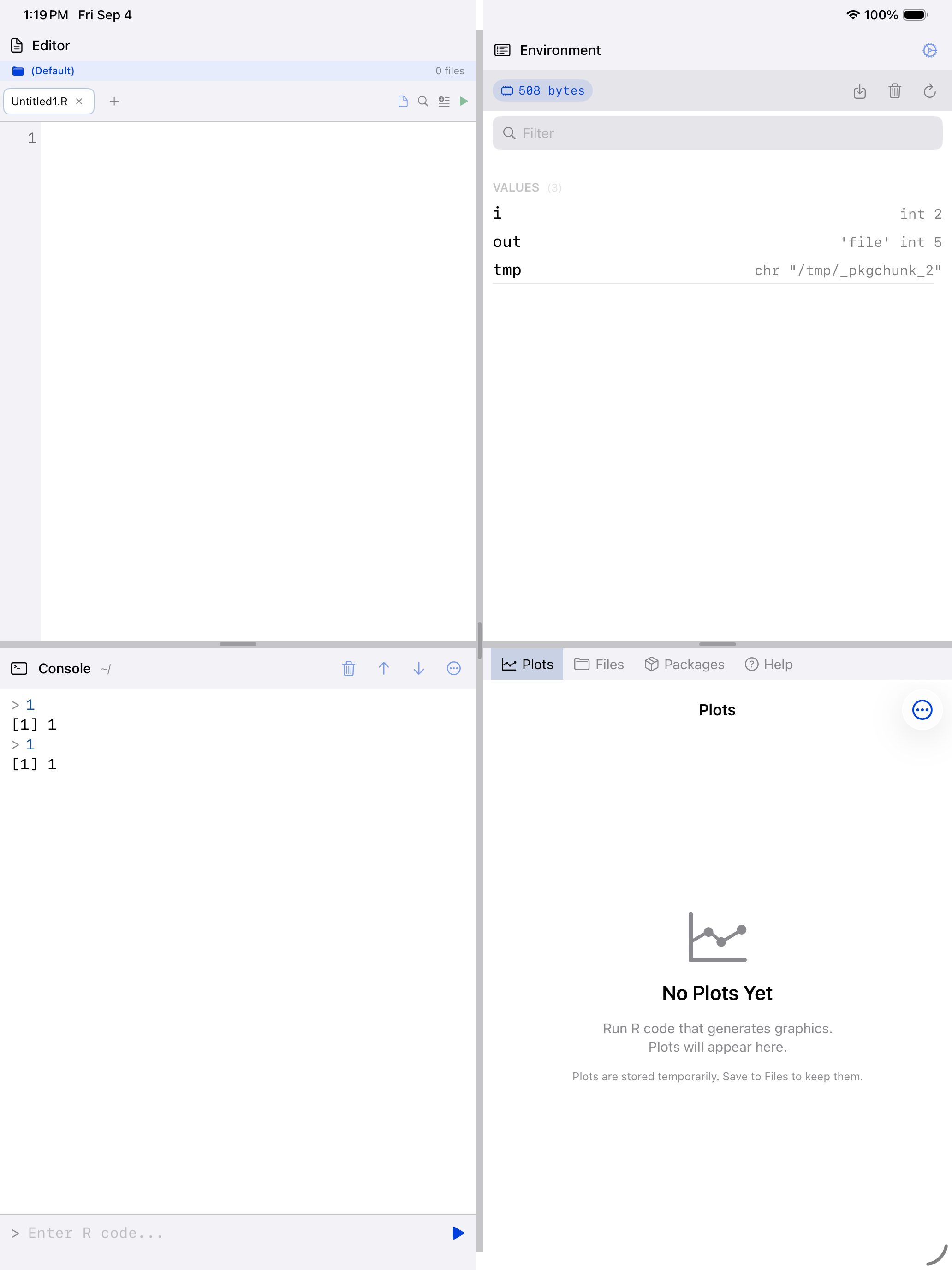
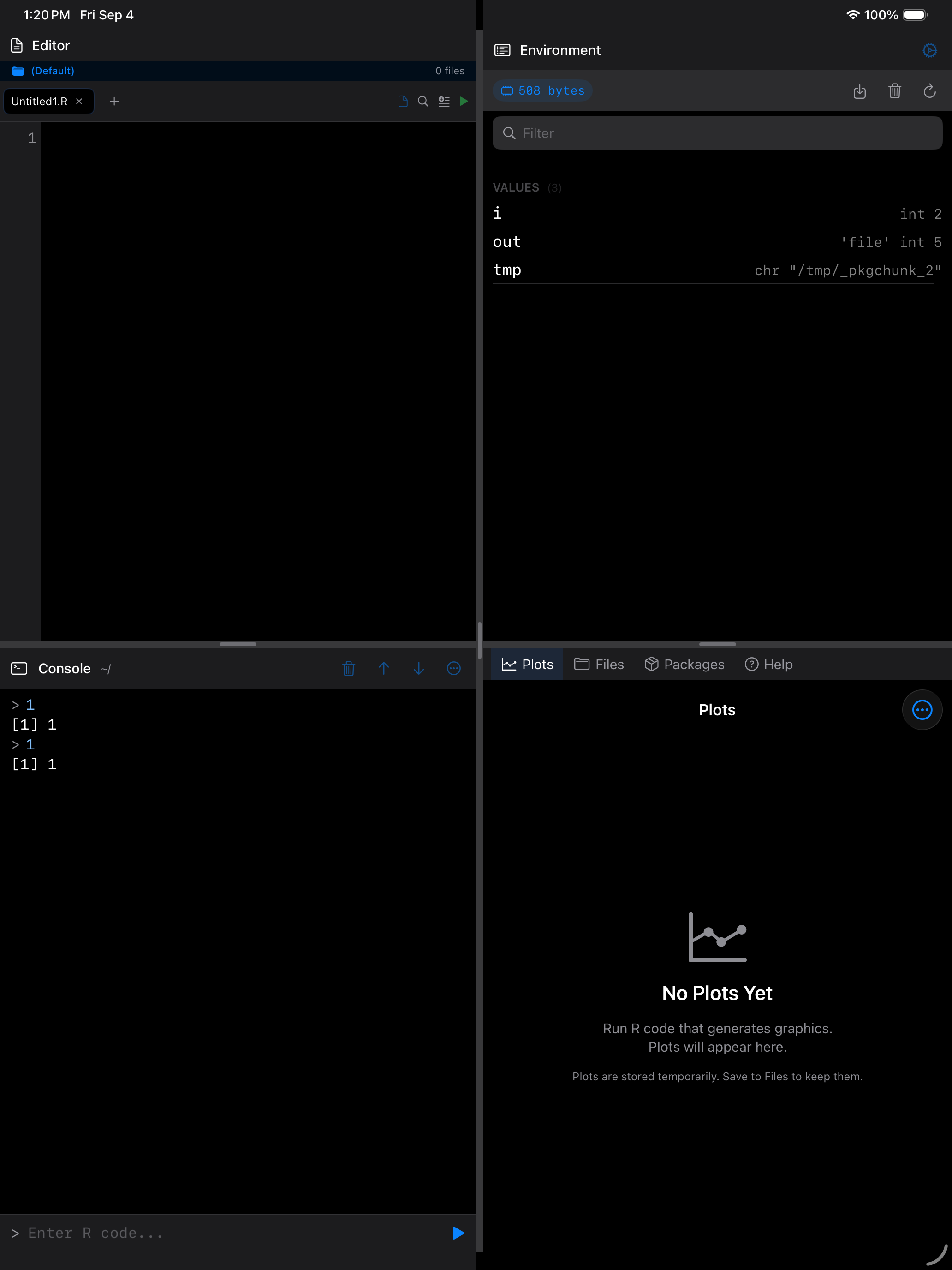
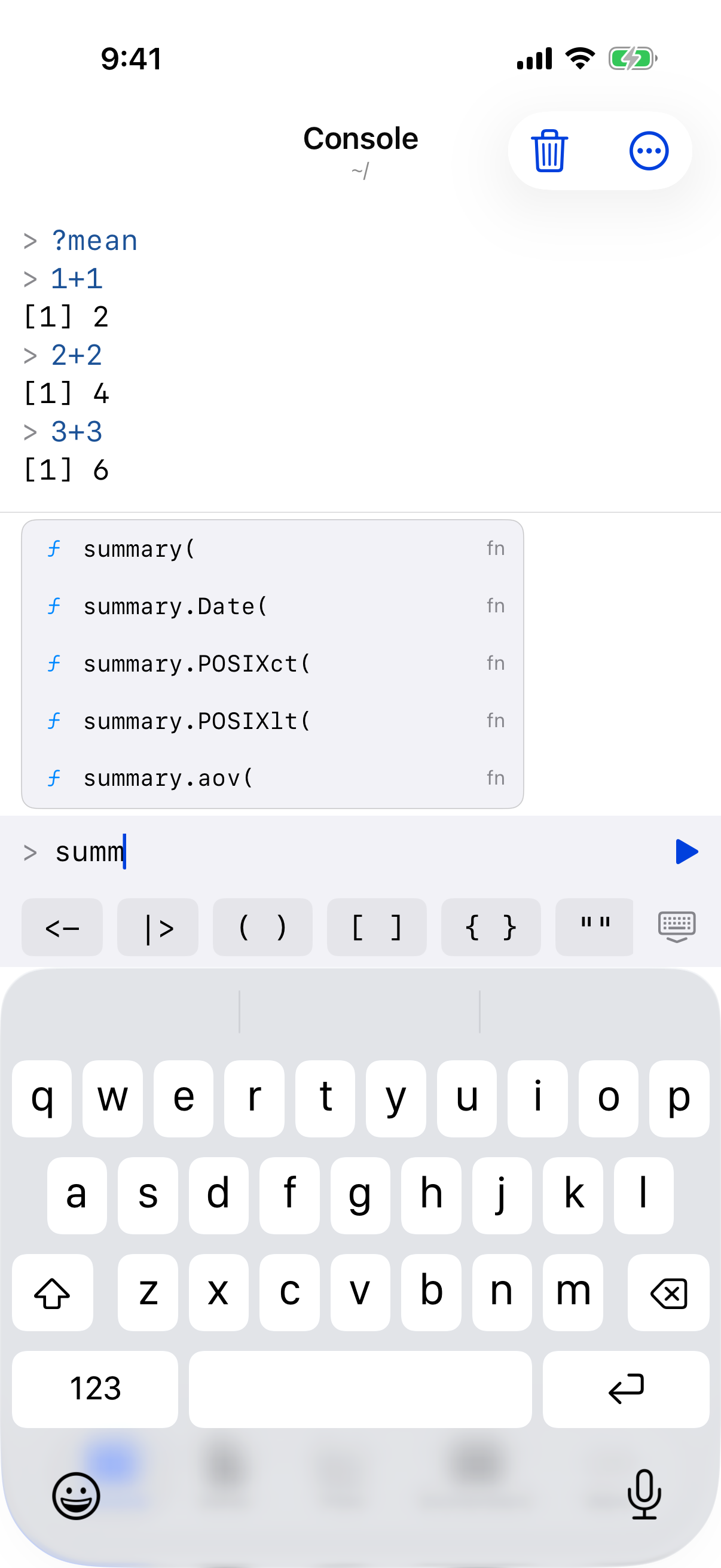
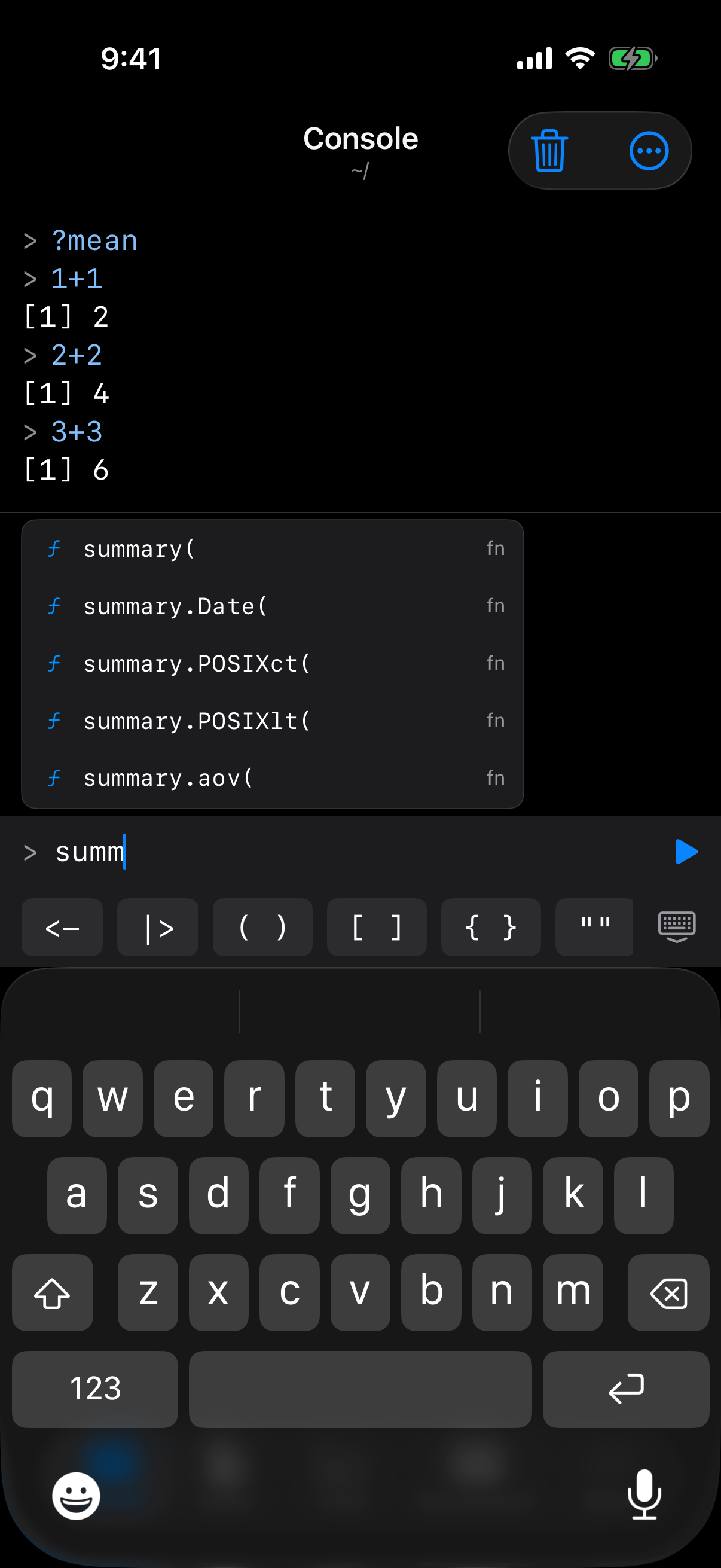
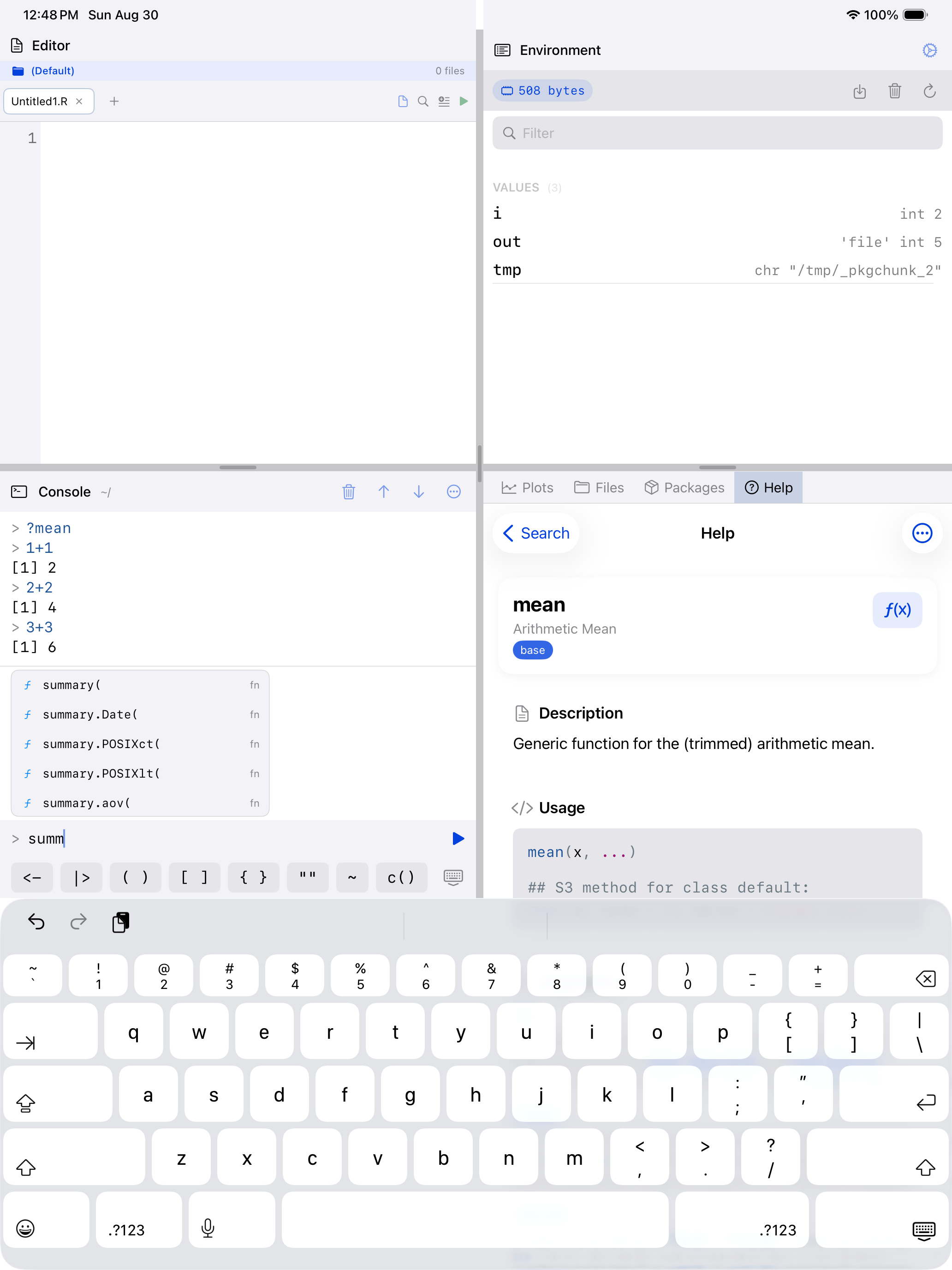
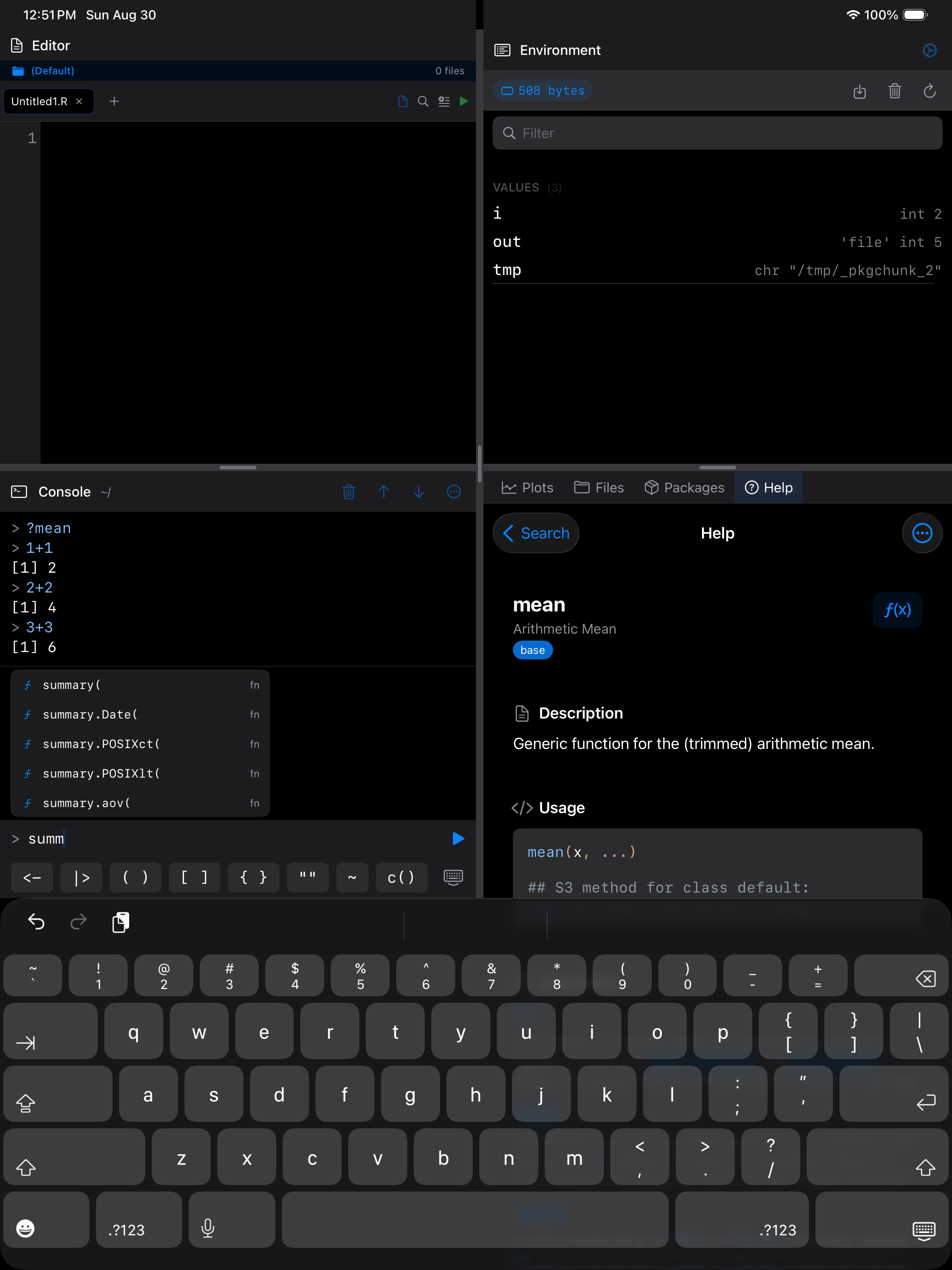
When webR finishes loading, you will see a prompt at the bottom of the screen waiting for input. Type any valid R expression, tap the play button (or press Return on an external keyboard), and the result appears immediately above.
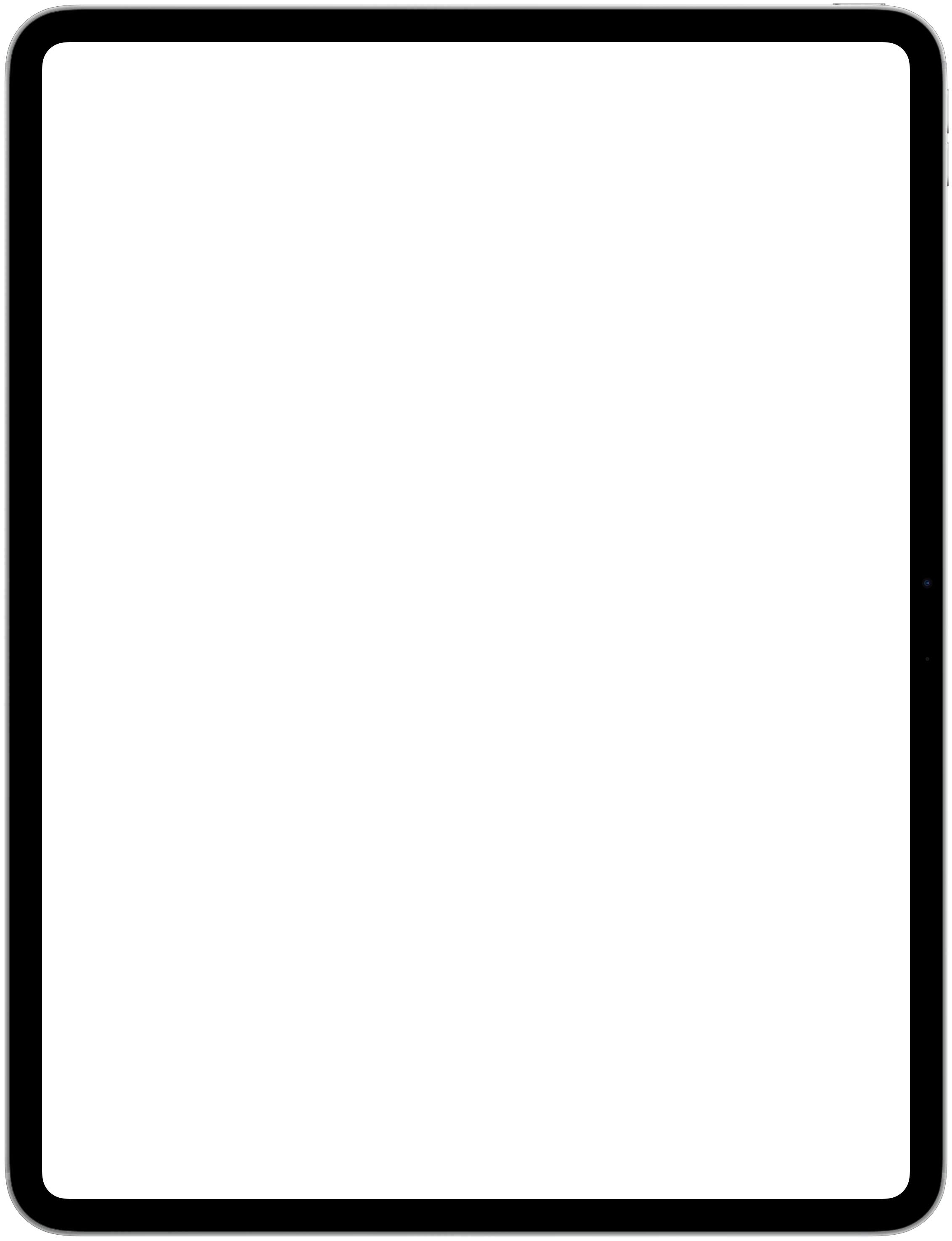
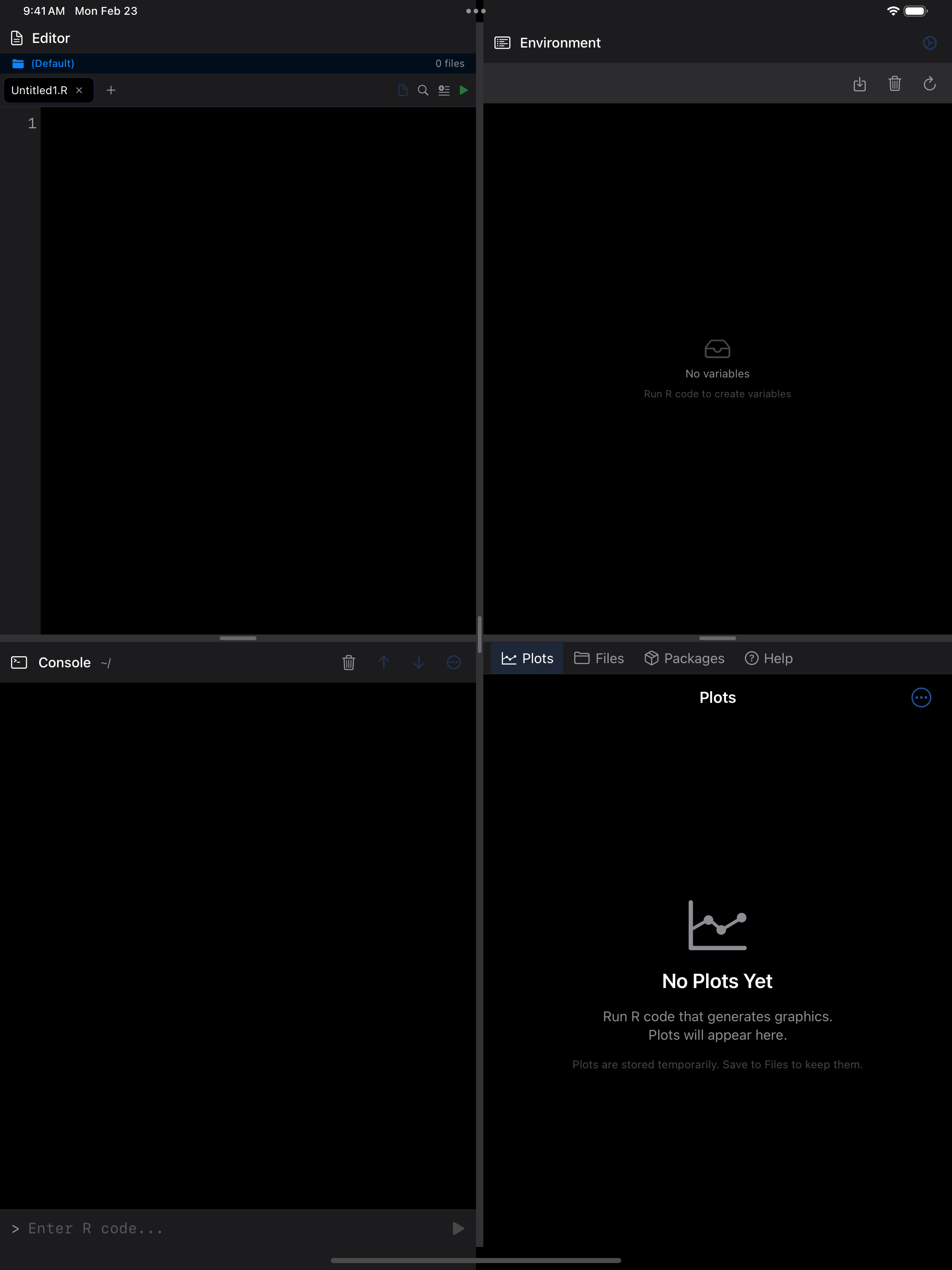
What you are seeing above:
- Output area: the scrollable region that shows everything R has printed, color-coded by type
- Input field: the text field at the bottom preceded by
>, where you type R code - Run button: the blue play icon that executes whatever is in the input field
- R keyboard toolbar: a scrollable strip of common R operators that appears when the keyboard is open
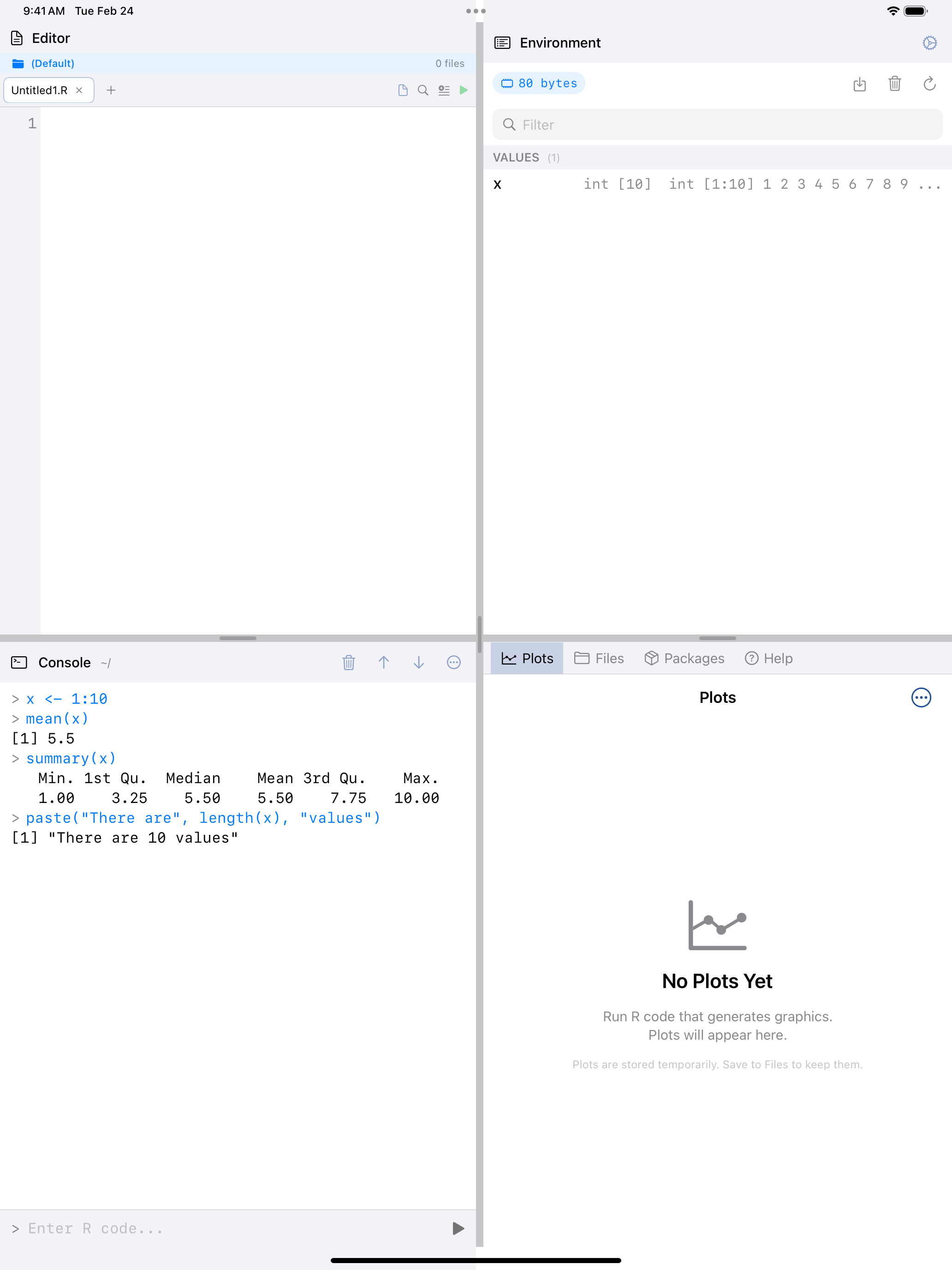
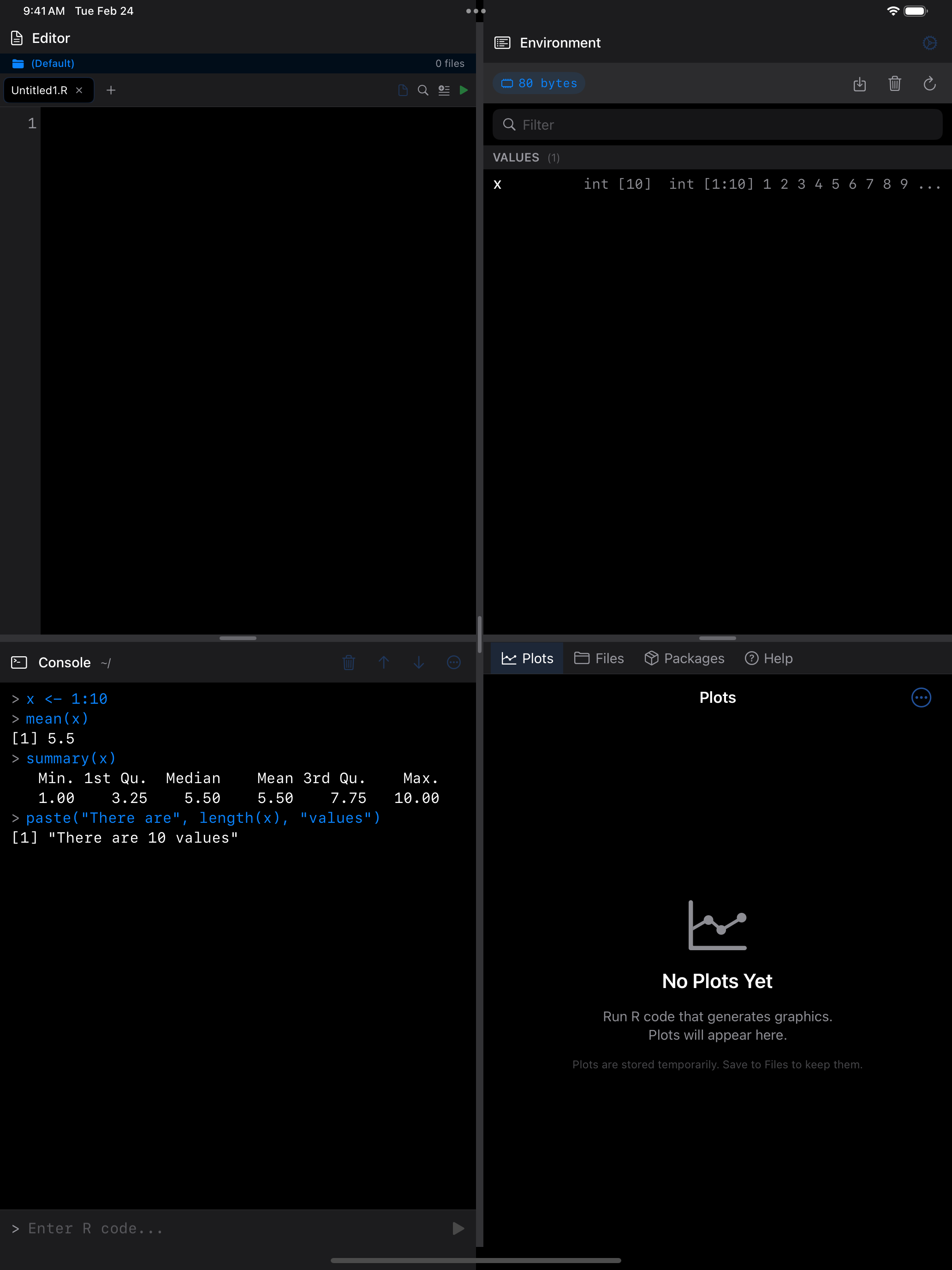
Here is what a short session looks like. Each line is typed into the input field and run one at a time:
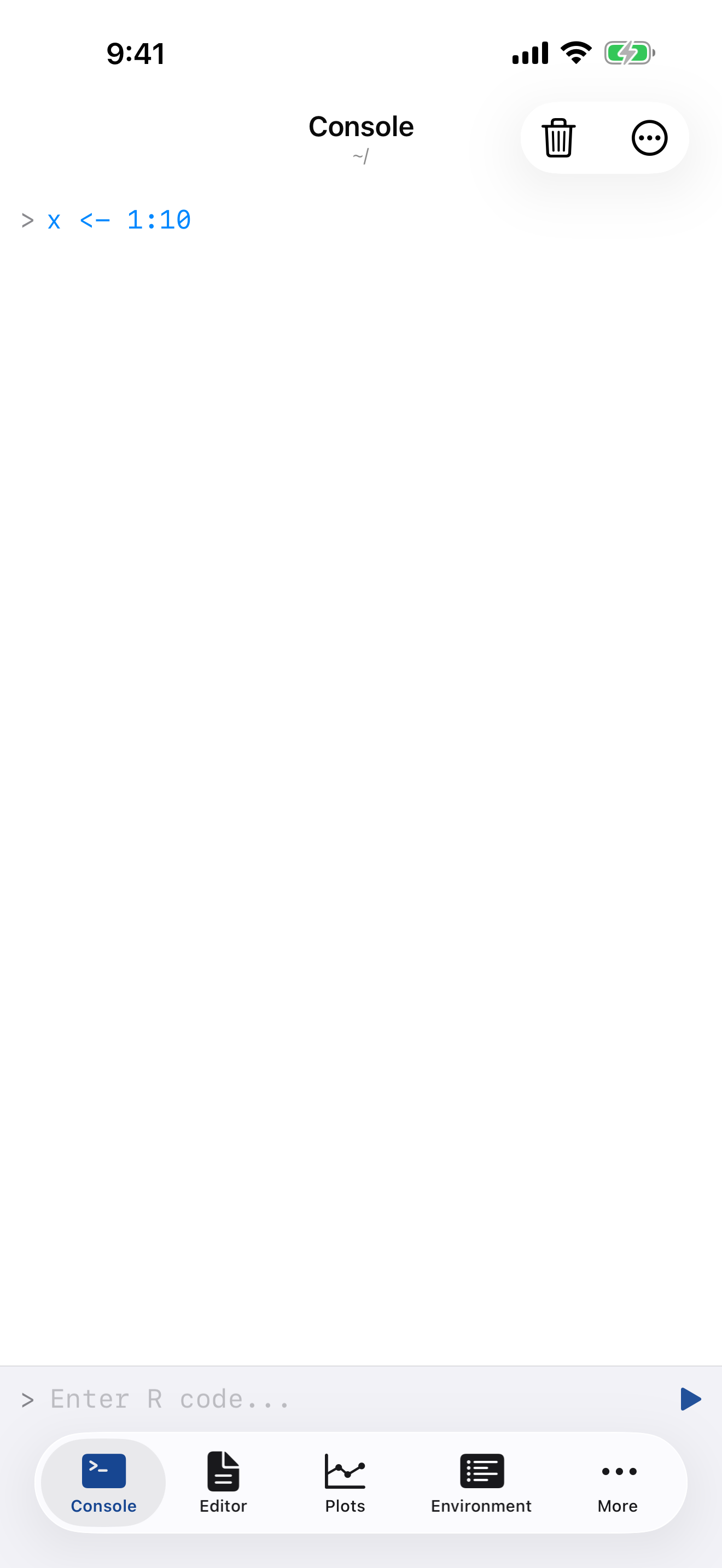
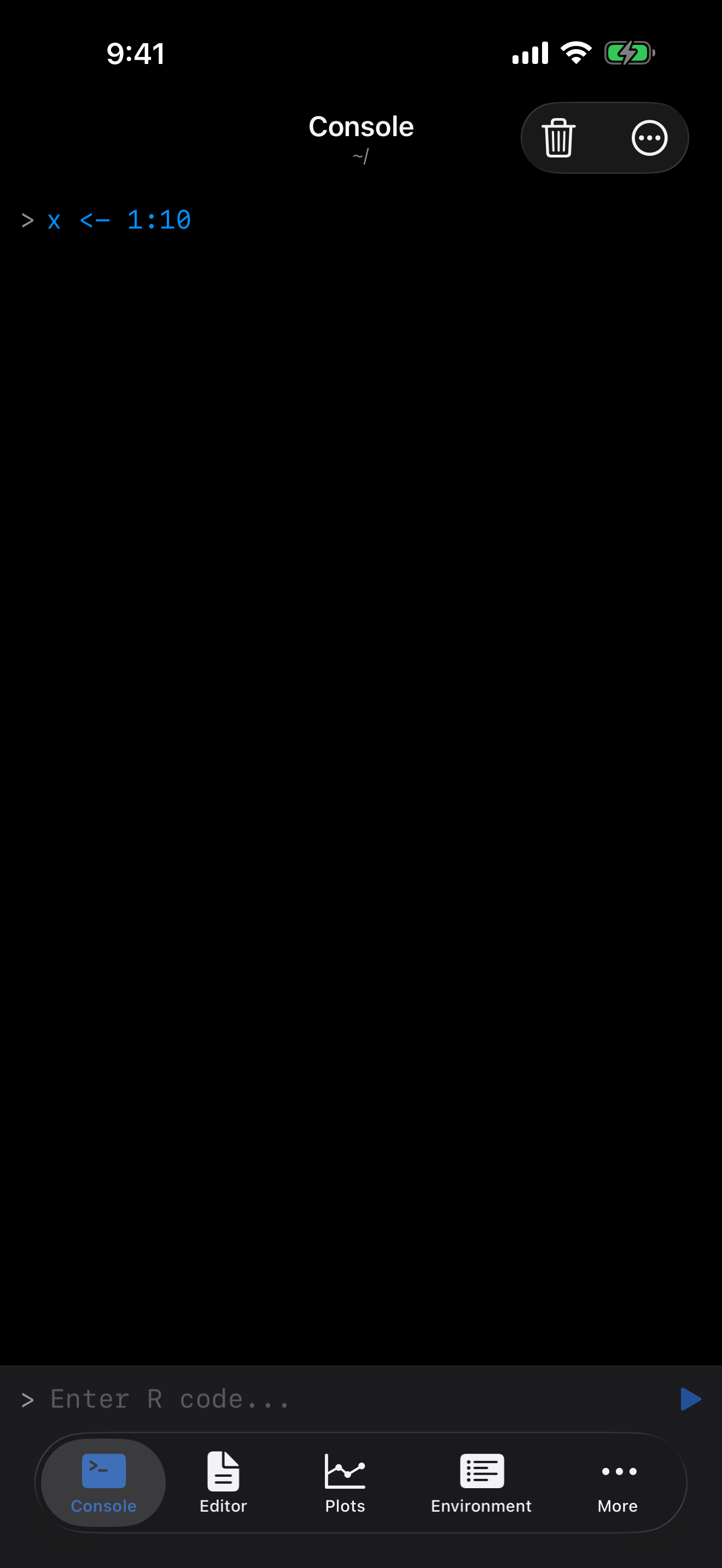
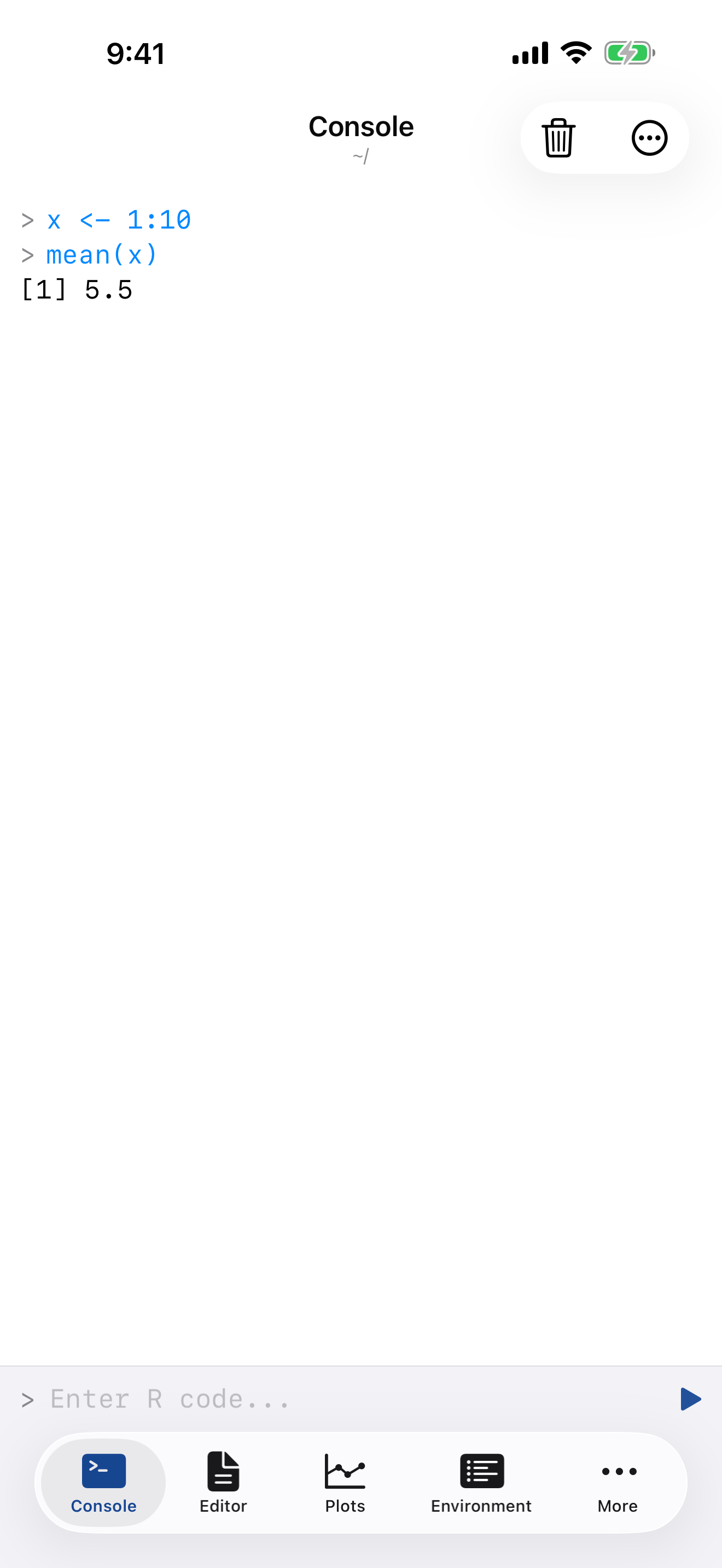
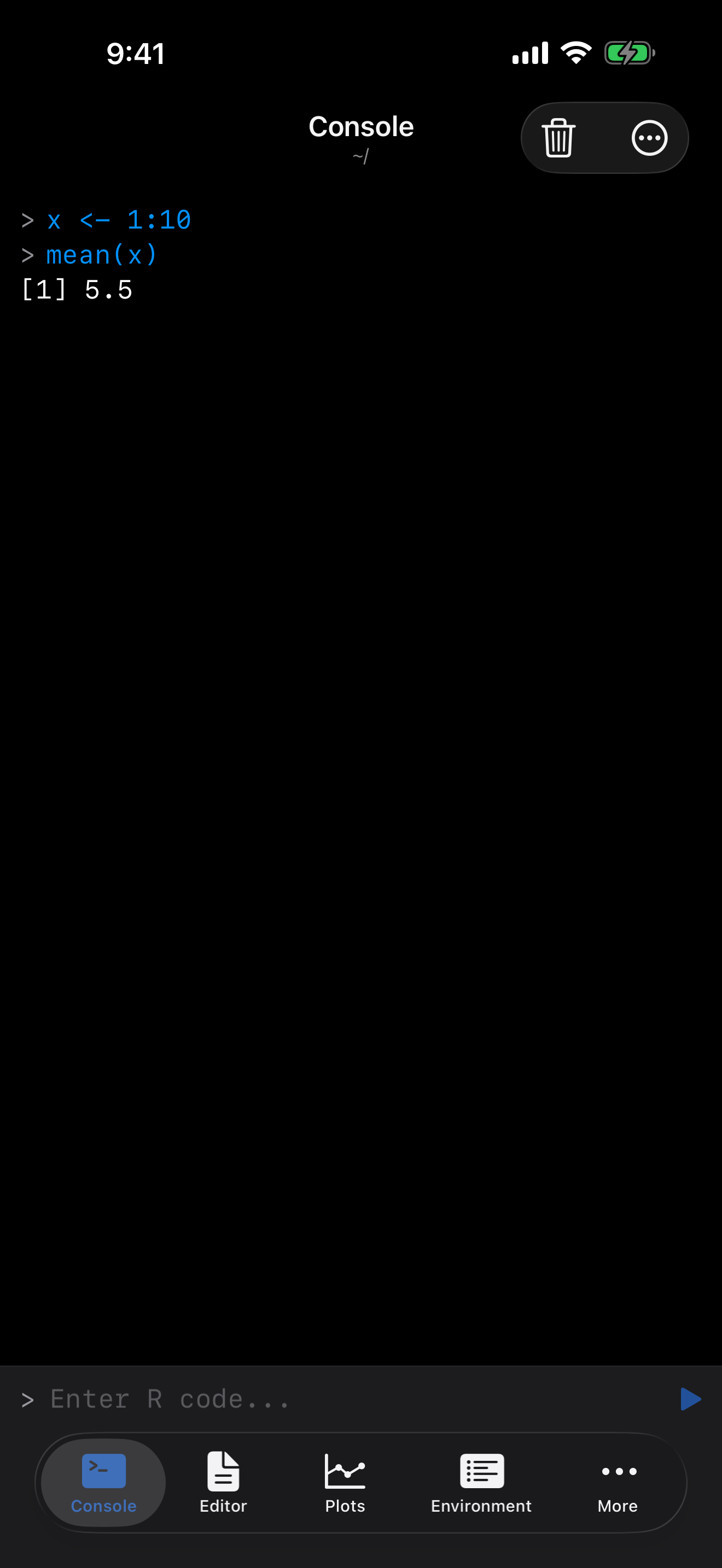
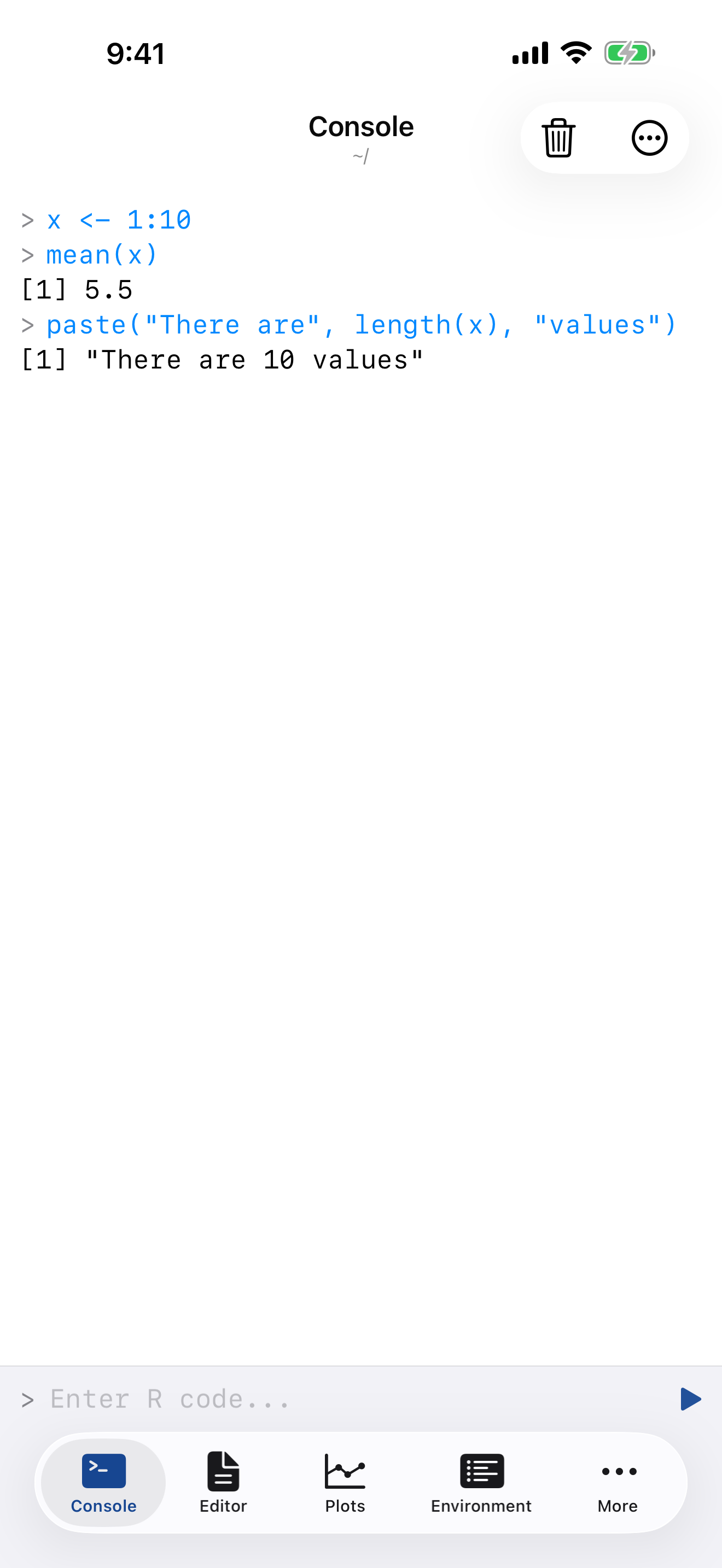
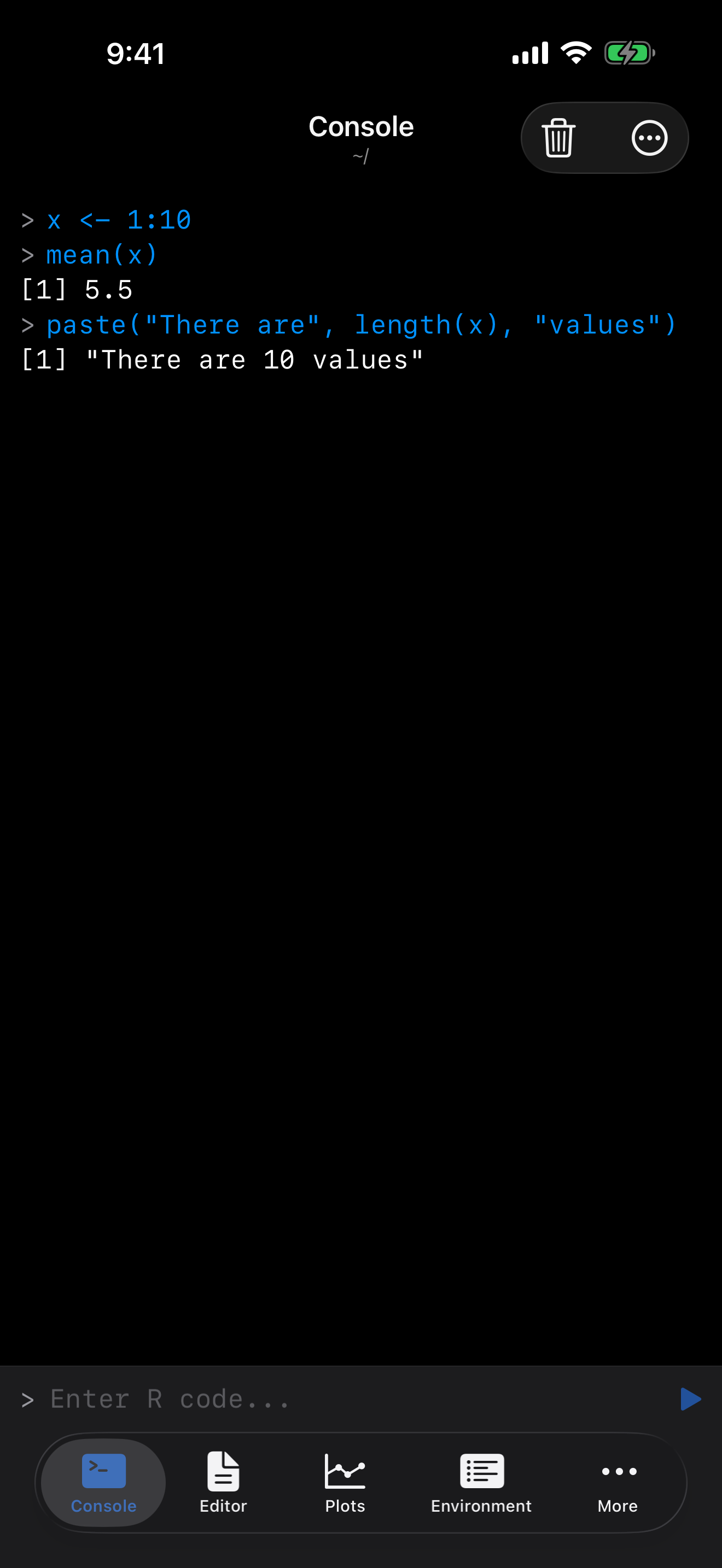
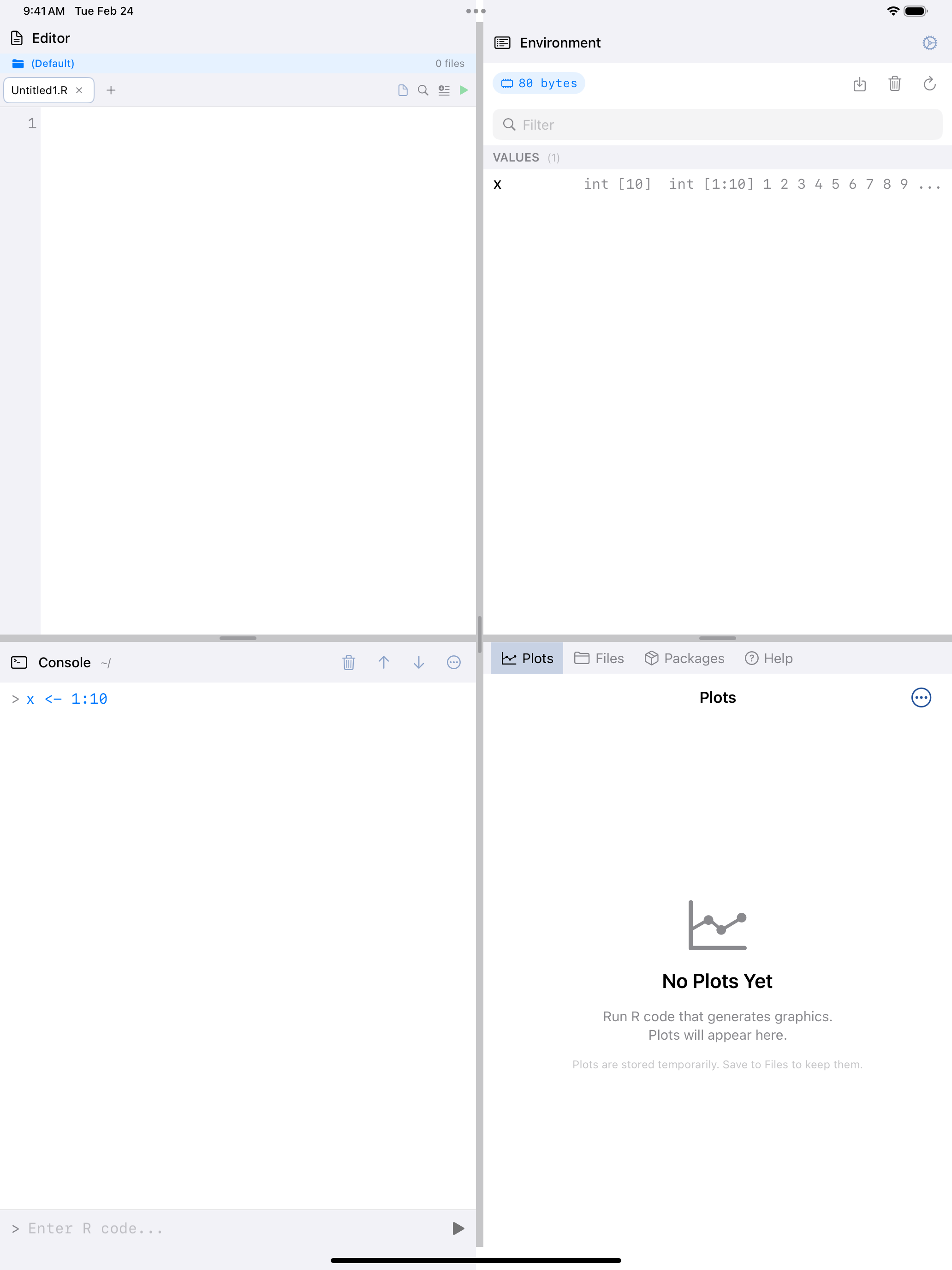
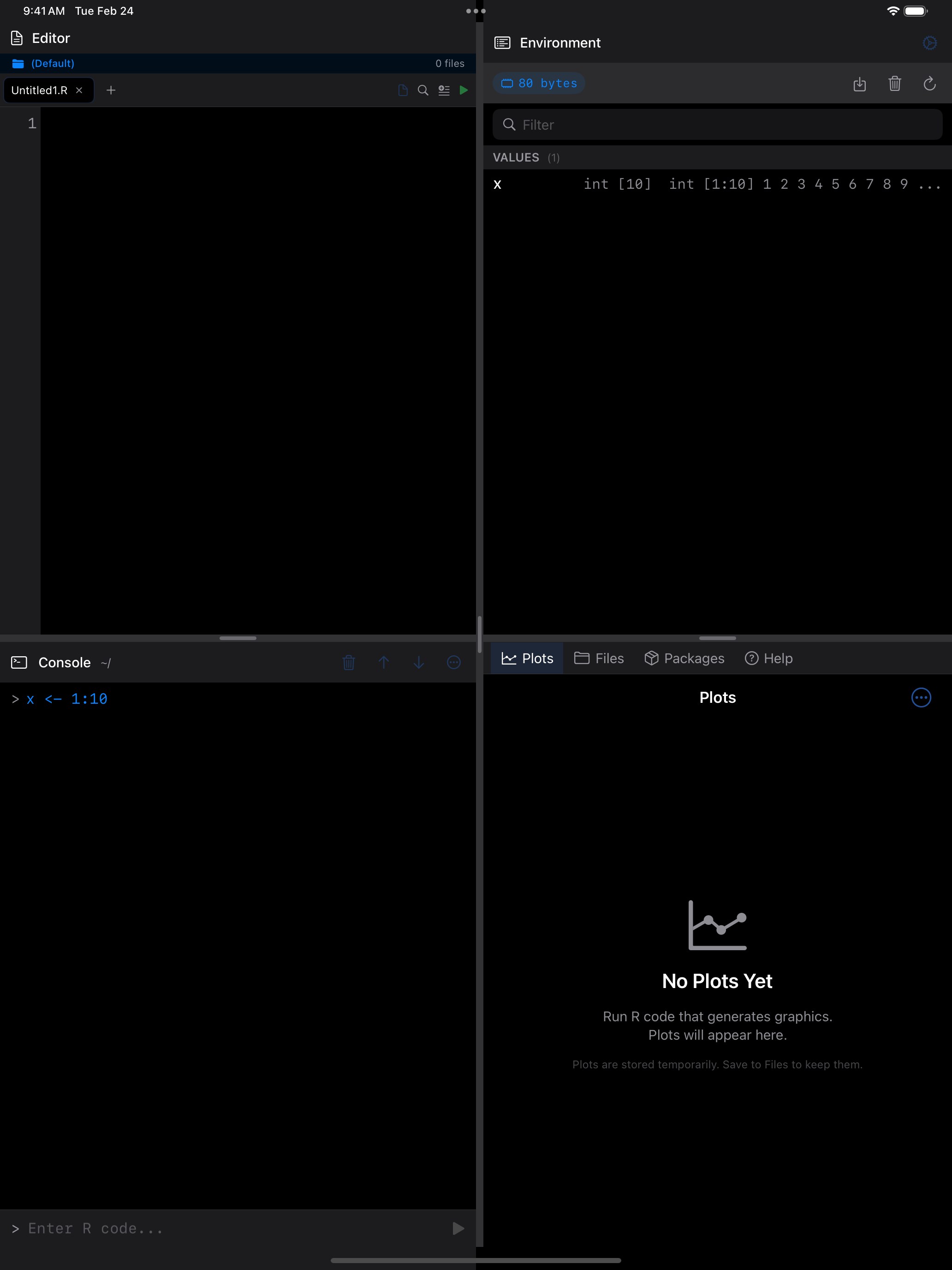
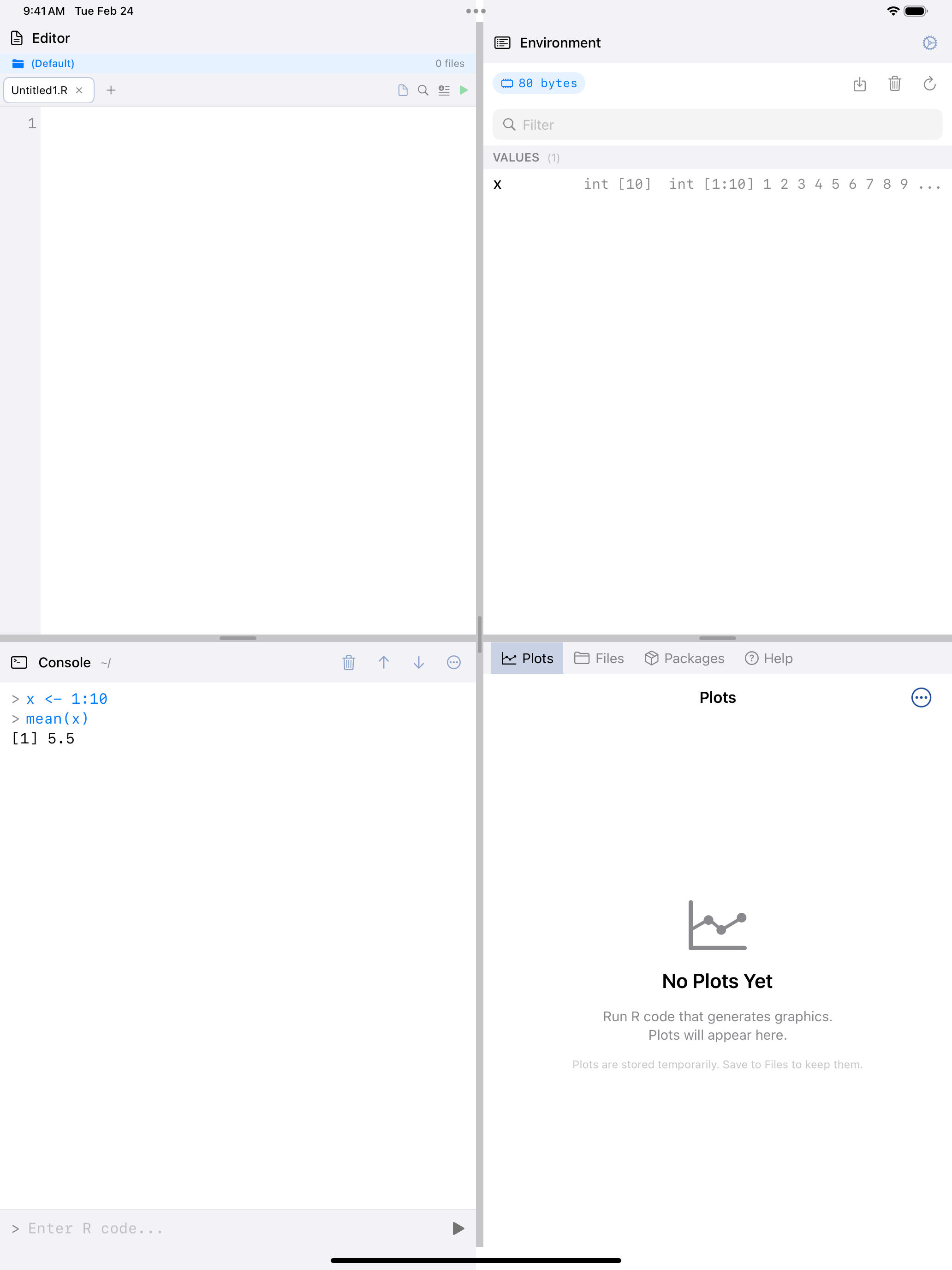
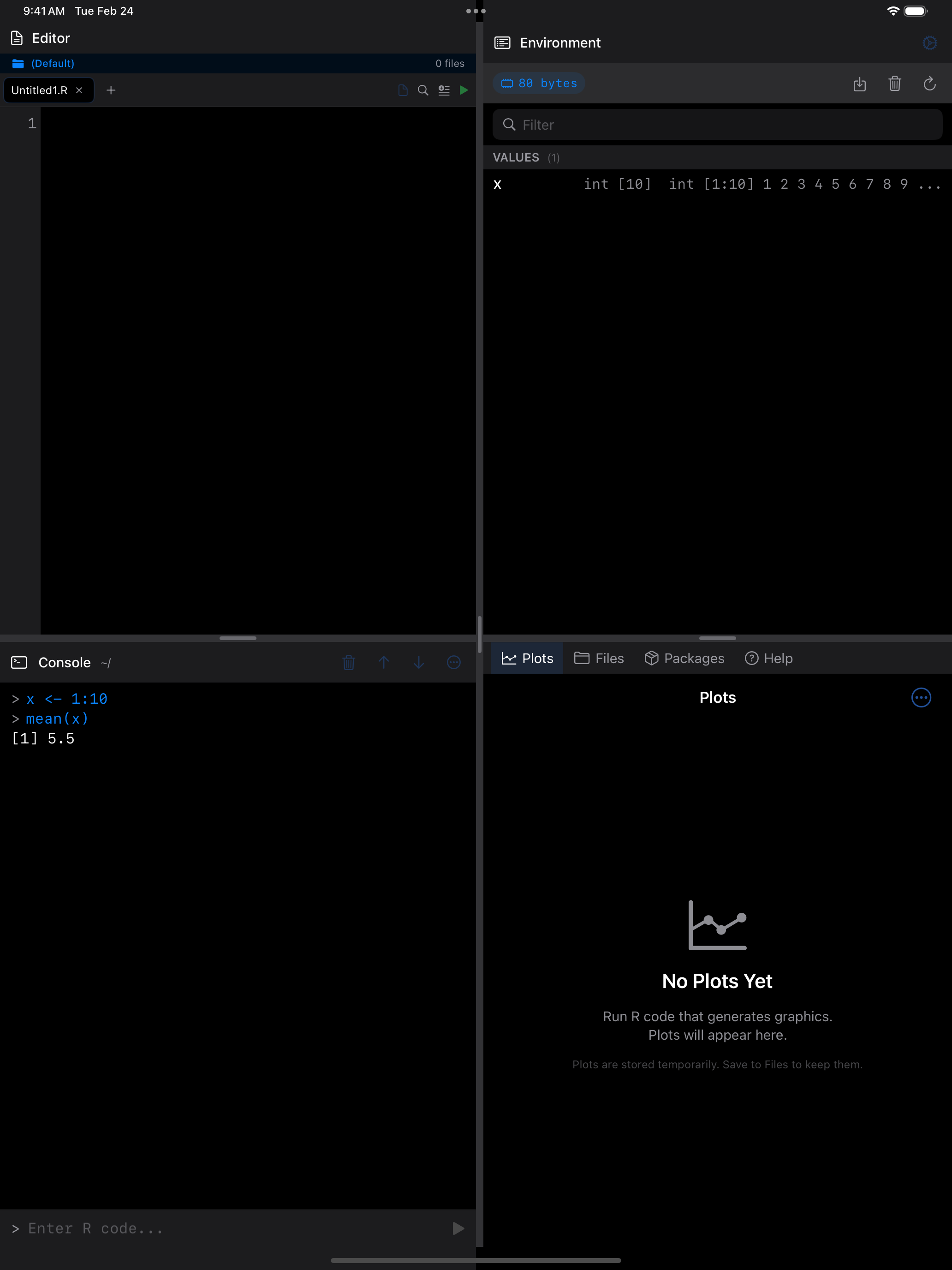
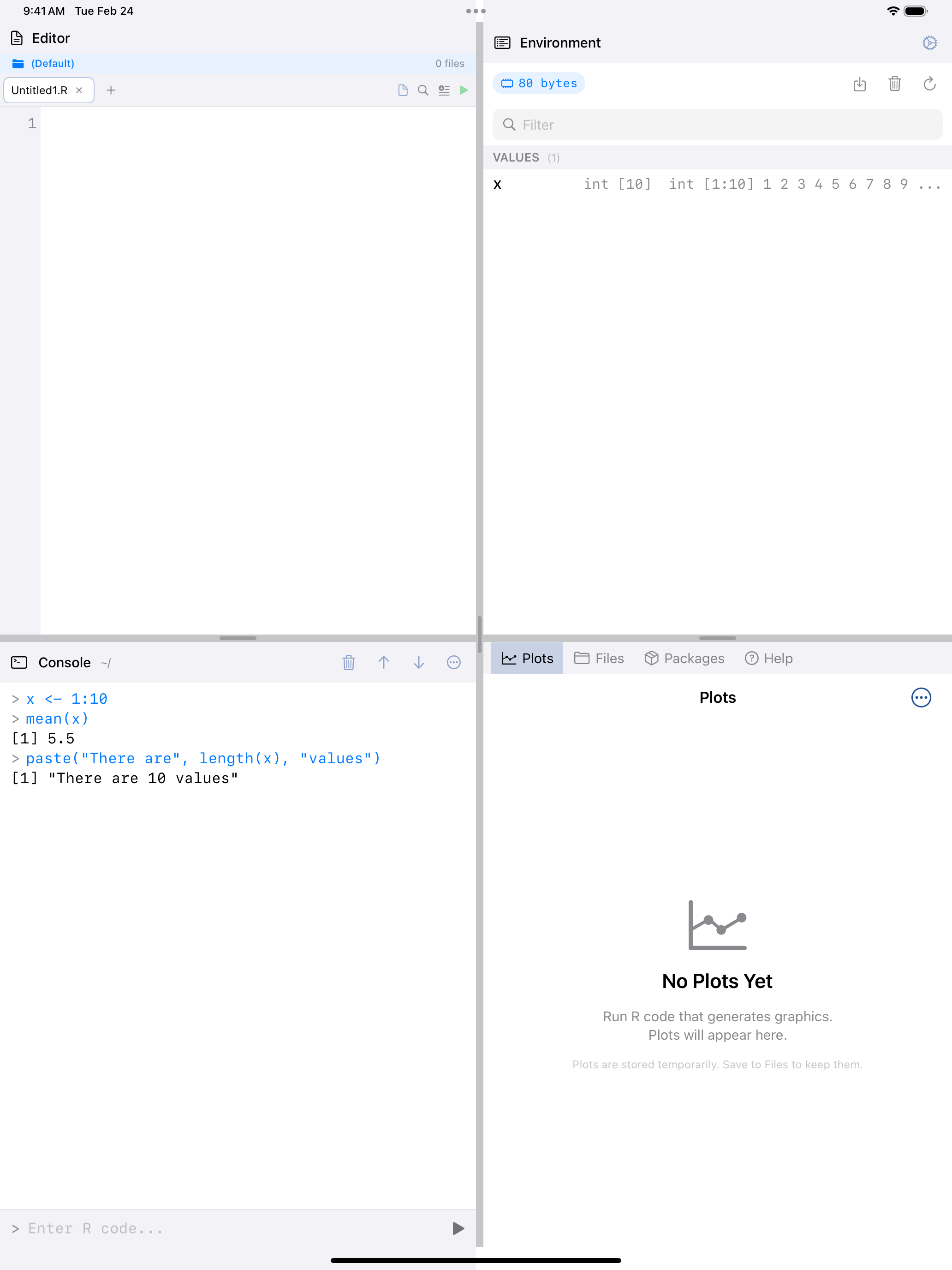
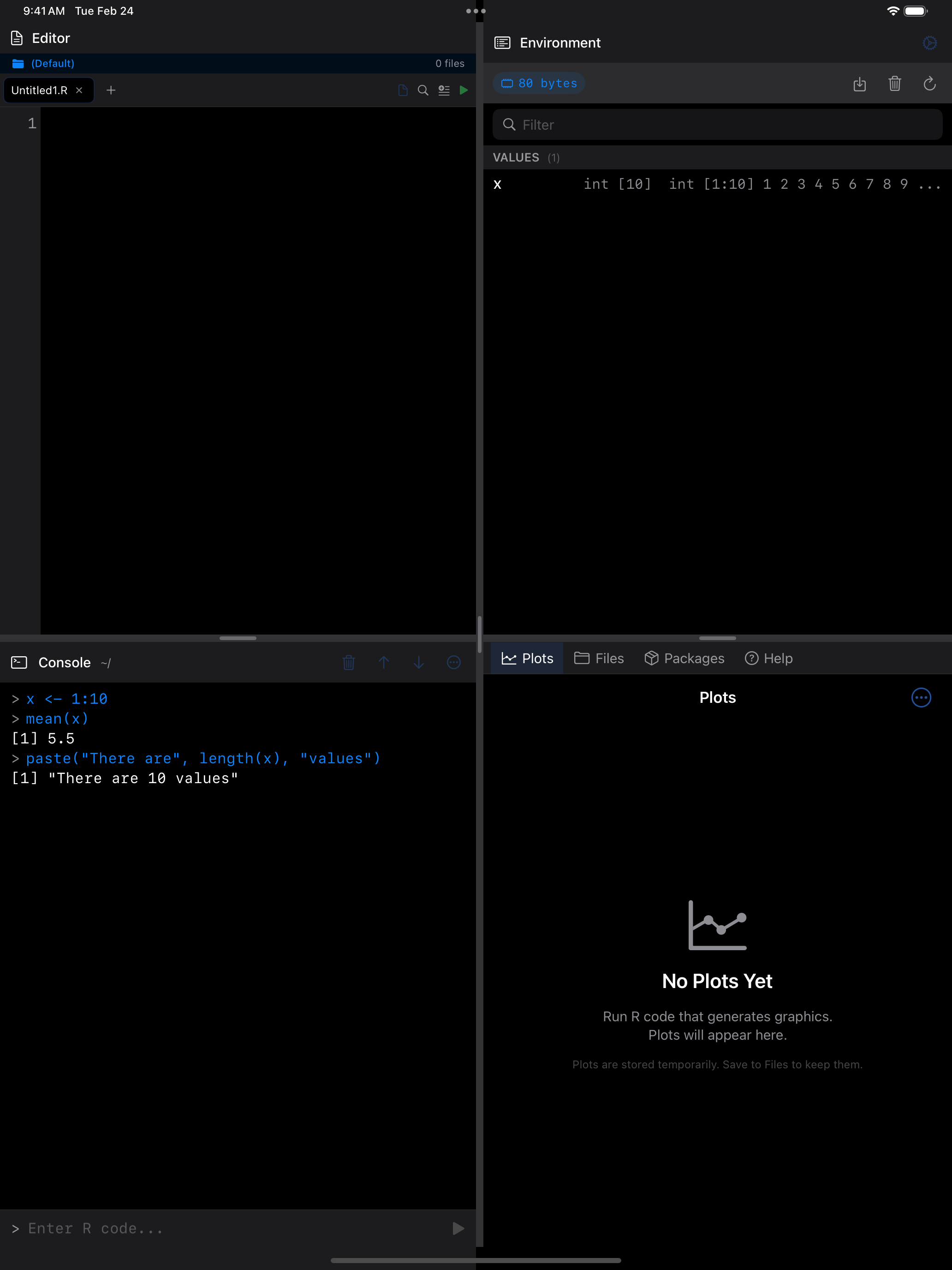
Your commands appear in blue, making them easy to distinguish from R’s output.
Understanding Output Colors
The Console color-codes output so you can scan results at a glance:
- Blue: your input, prefixed with
> - Default text color: normal R output (standard output)
- Green: result values returned by expressions
- Red: errors
- Orange: warnings
- Gray: informational messages from R or from packages
Here is an example showing each output type. Try running these commands one at a time:
x <- 1
x
print("hi there!")
message("hello")
warning("uh-oh")
stop("an error appears!")
y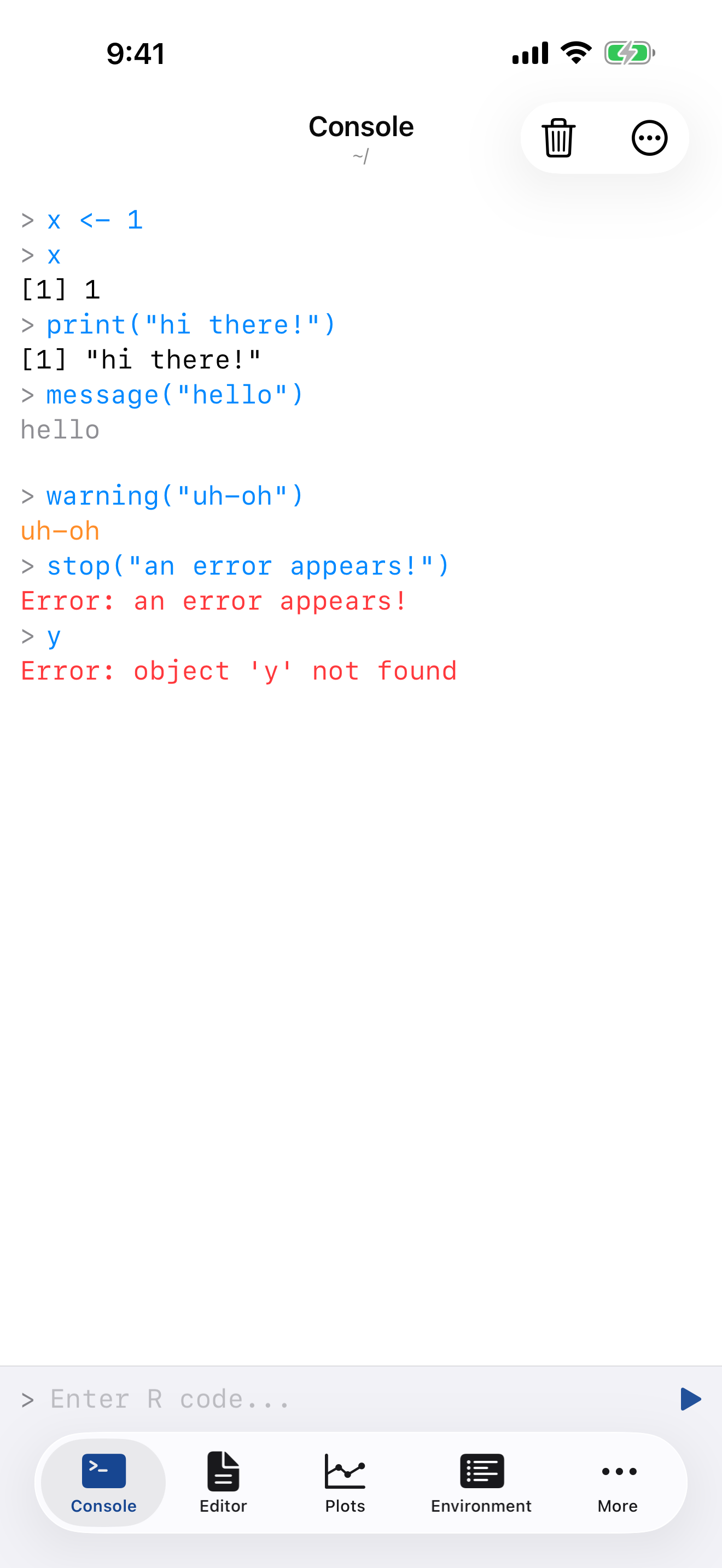
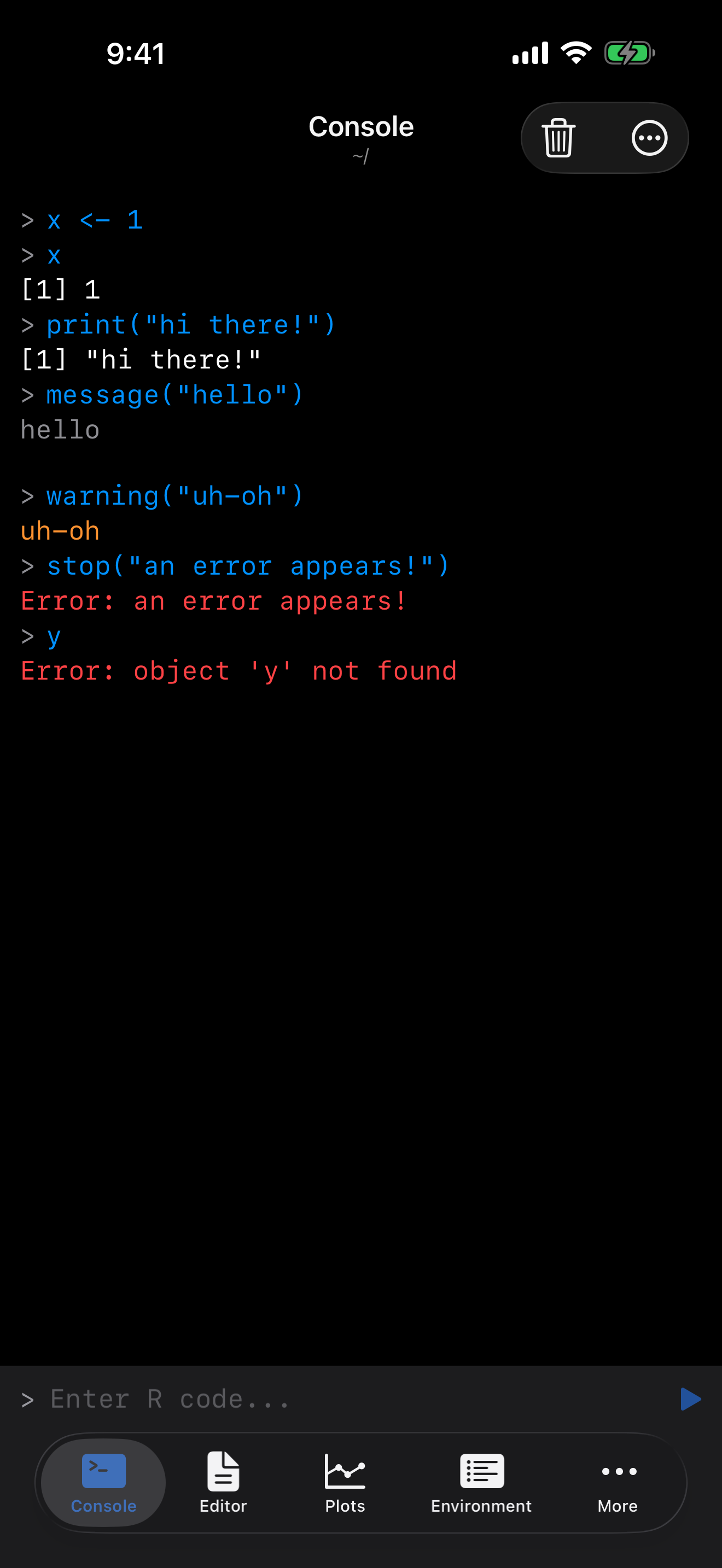
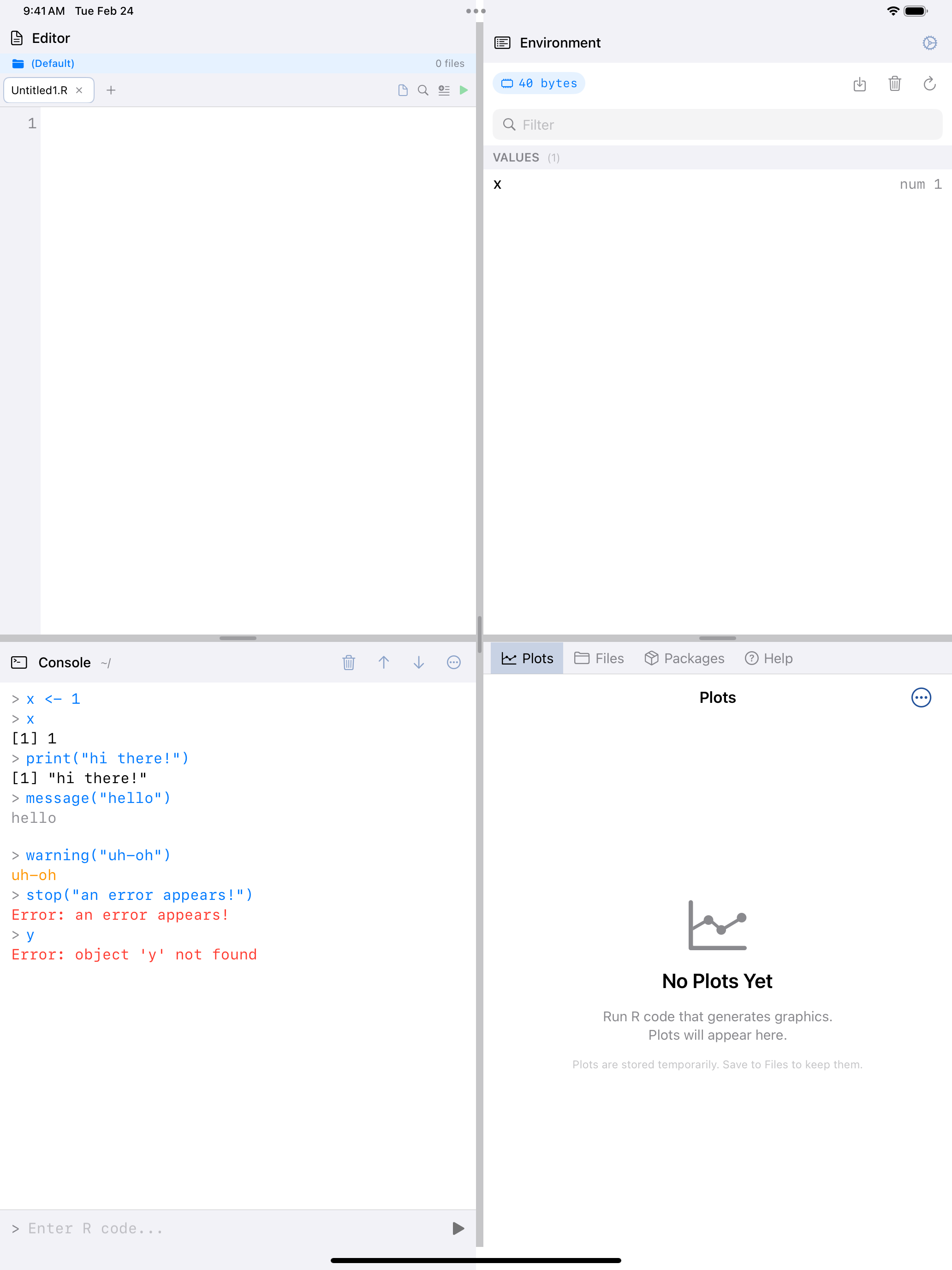
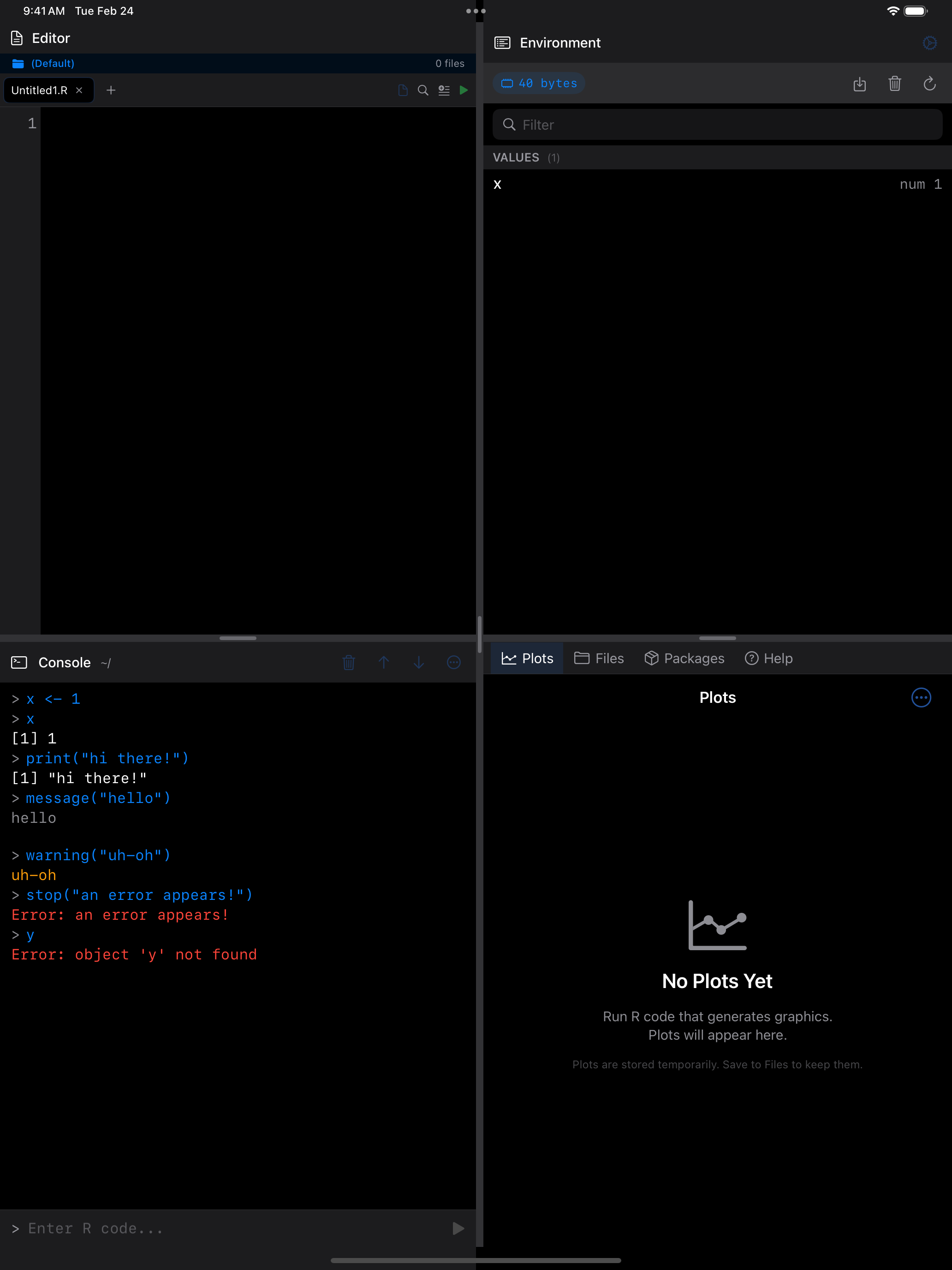
An error looks like this in practice. The message appears in red, directly under the call that caused it.
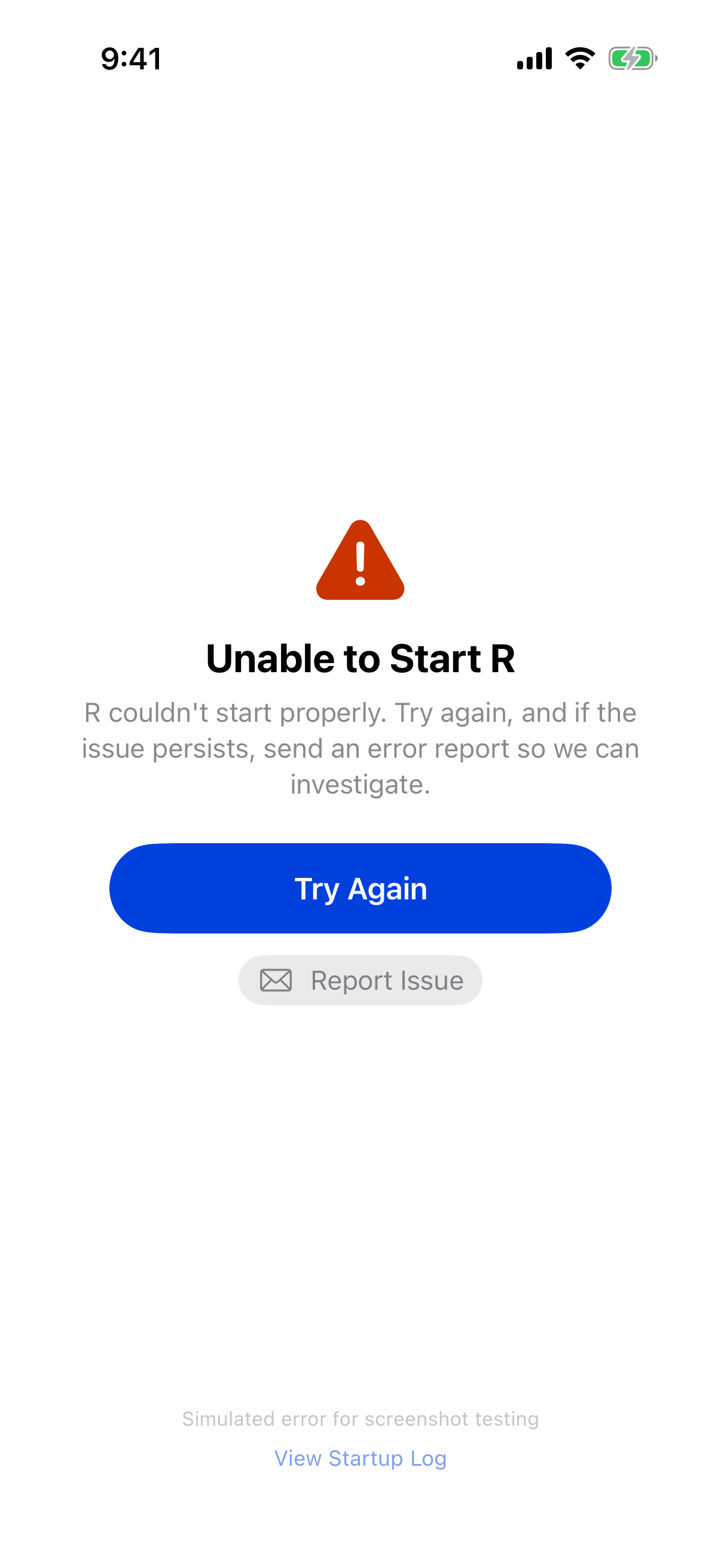
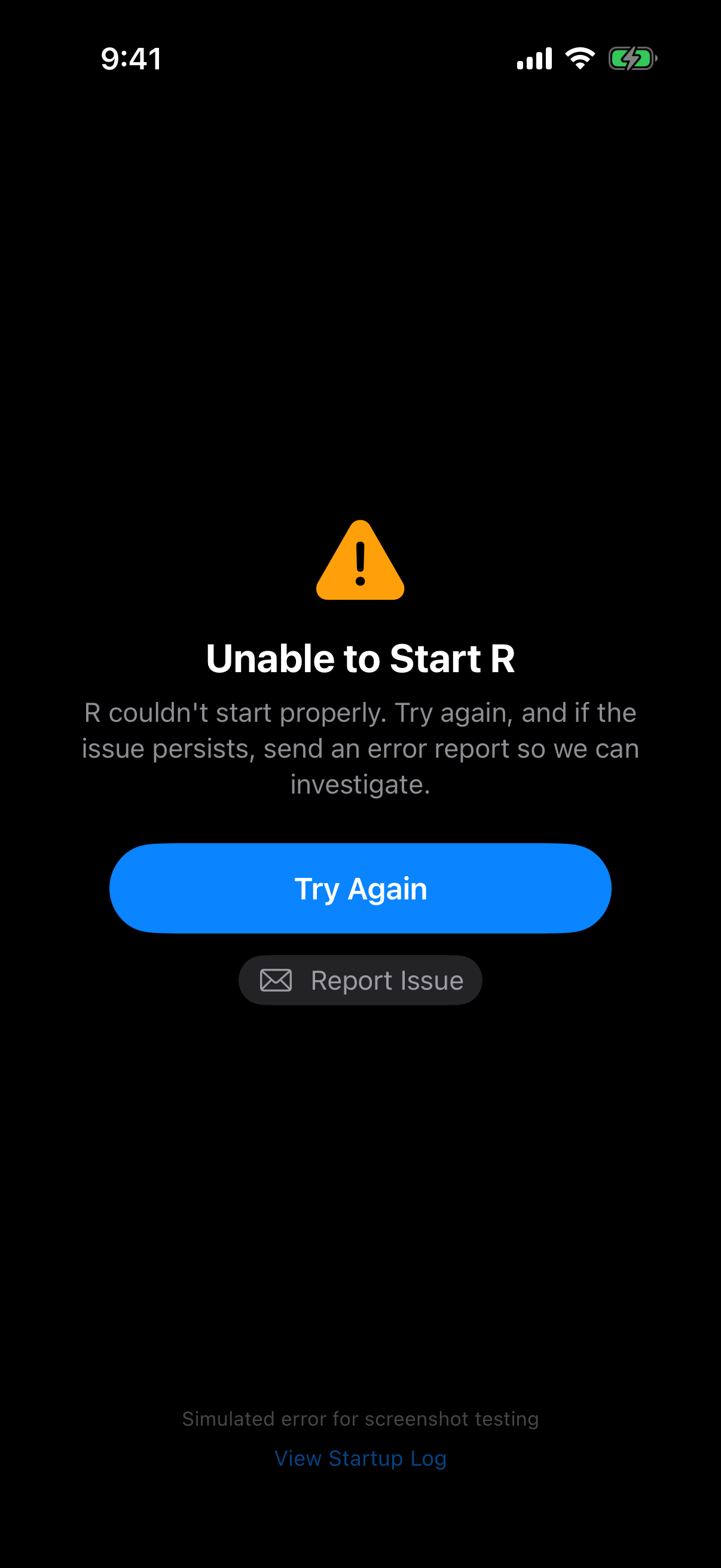
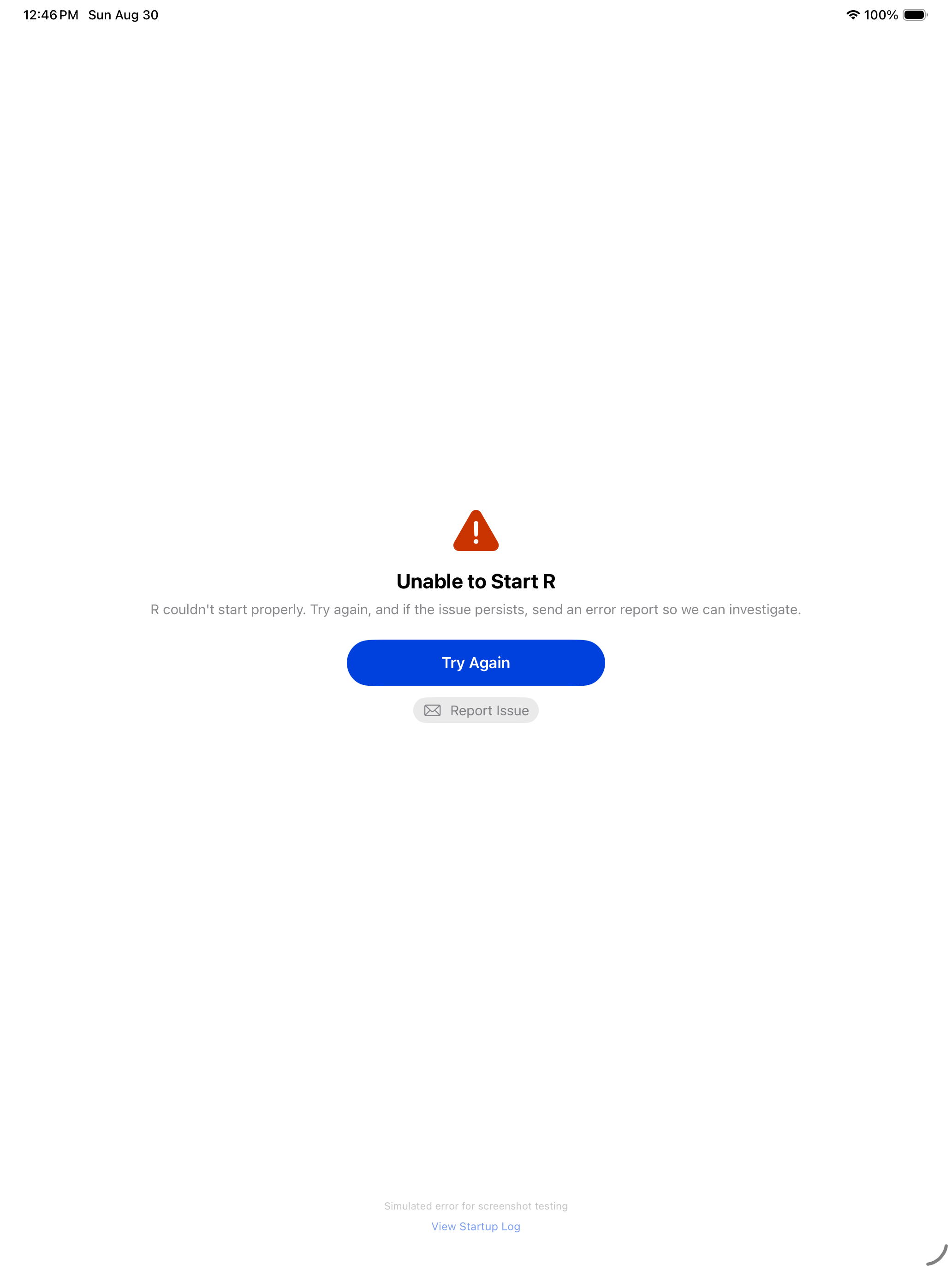
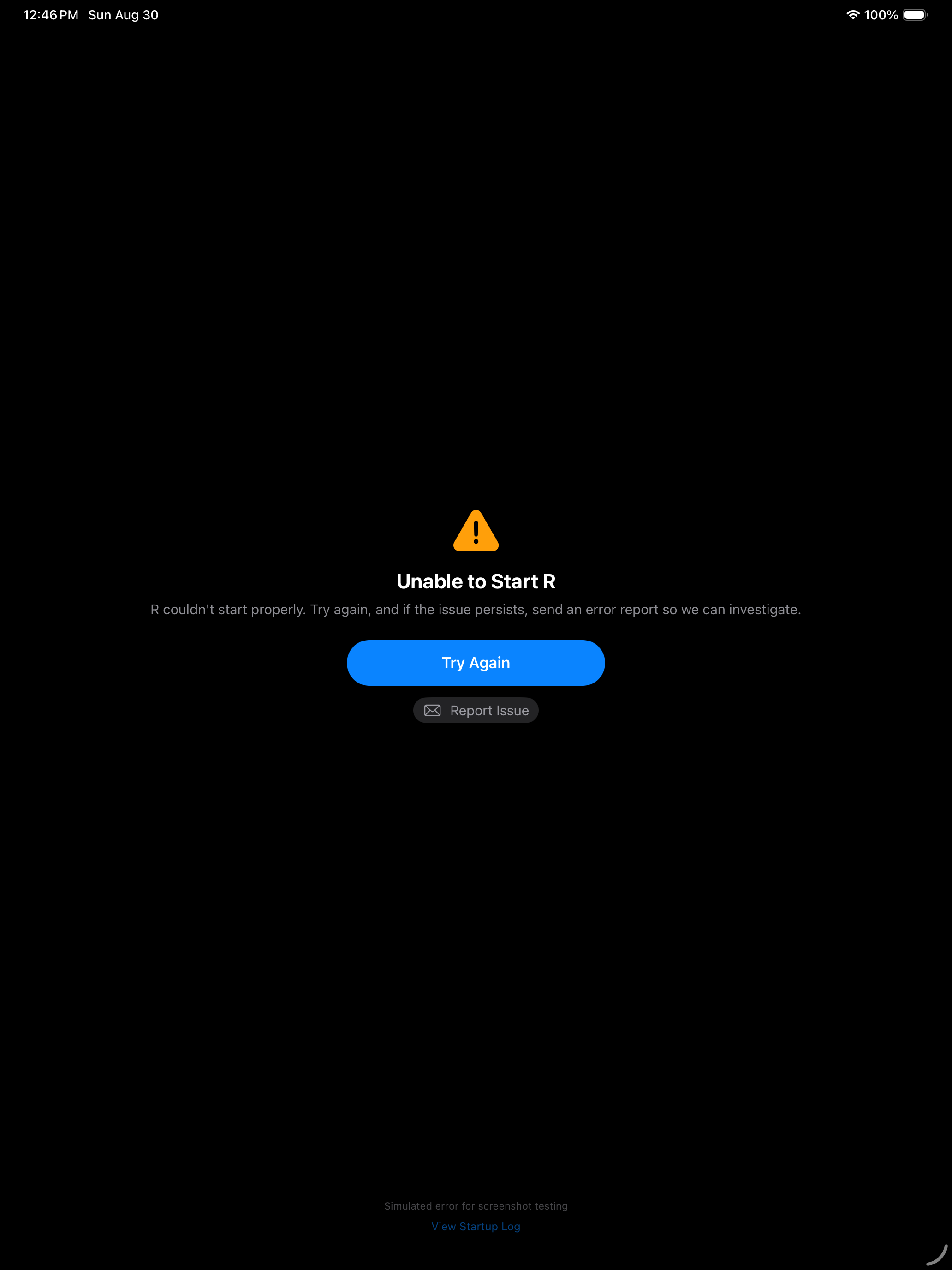
R’s error messages are usually informative. Error: object 'y' not found means exactly what it says.
Command History
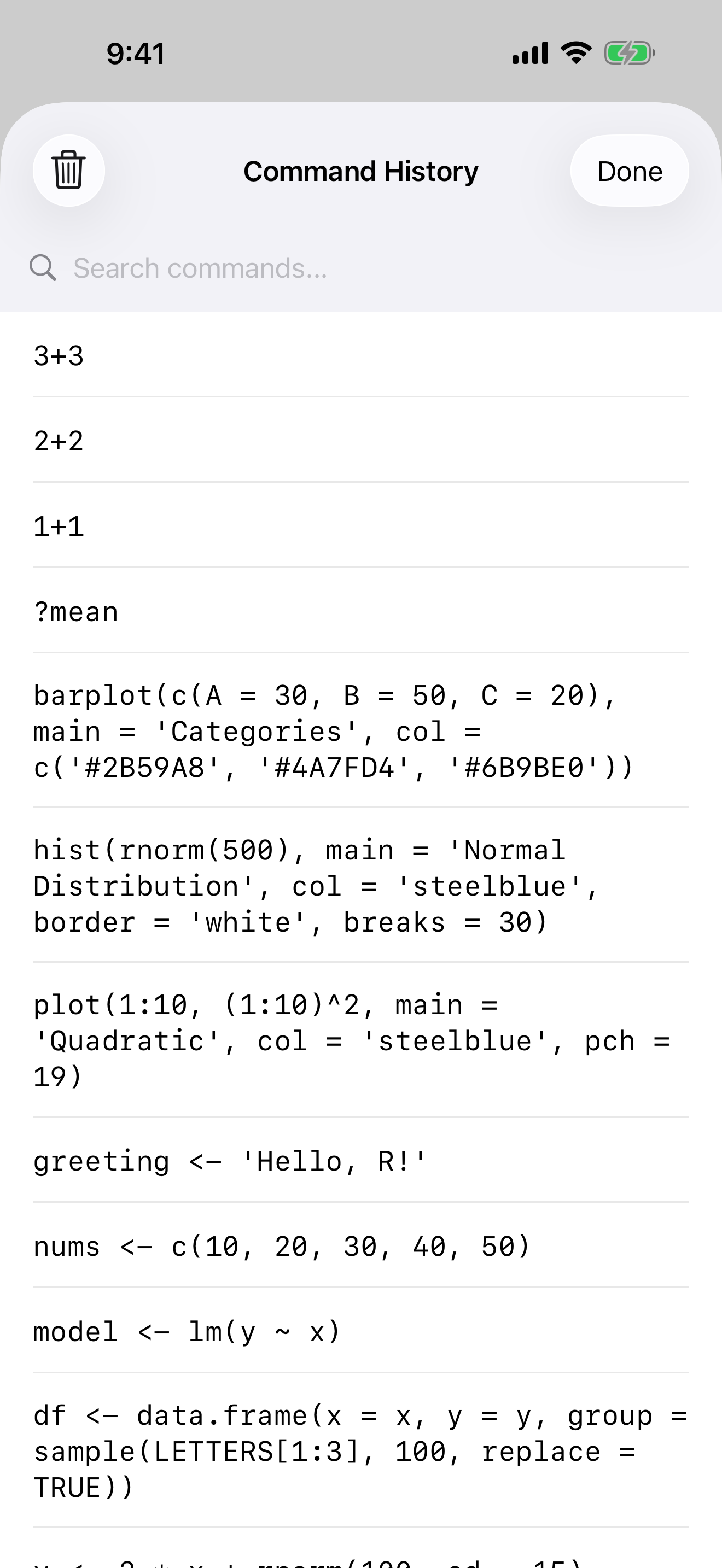
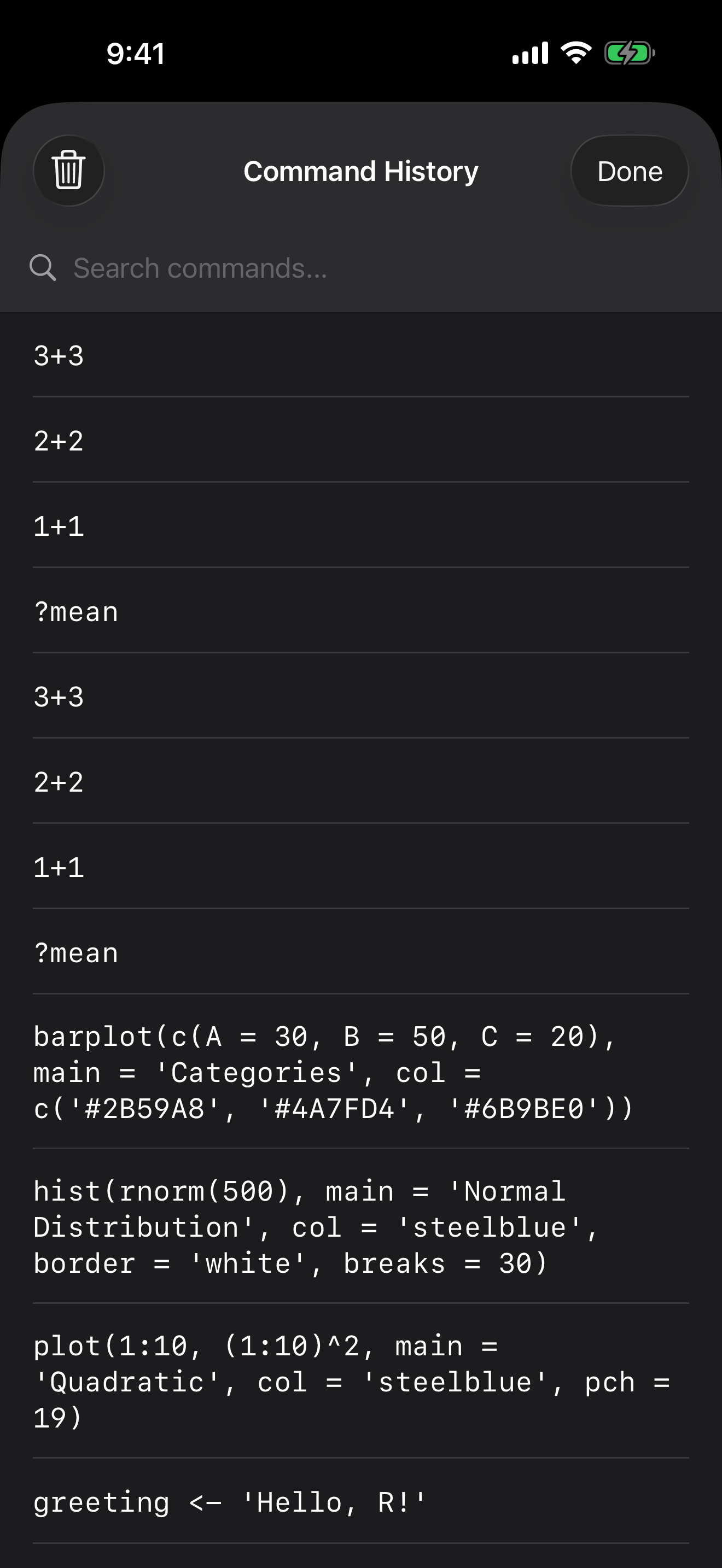
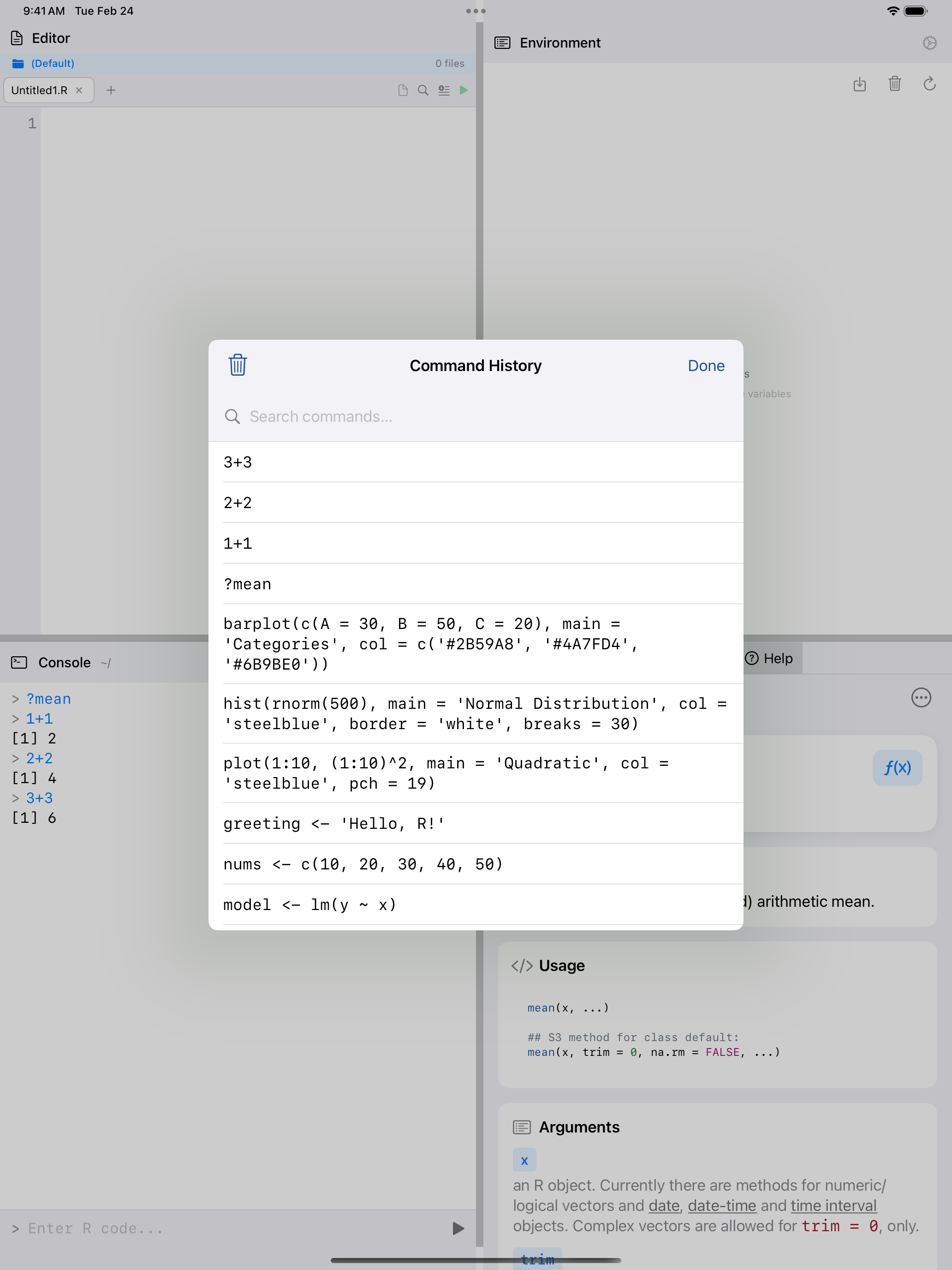
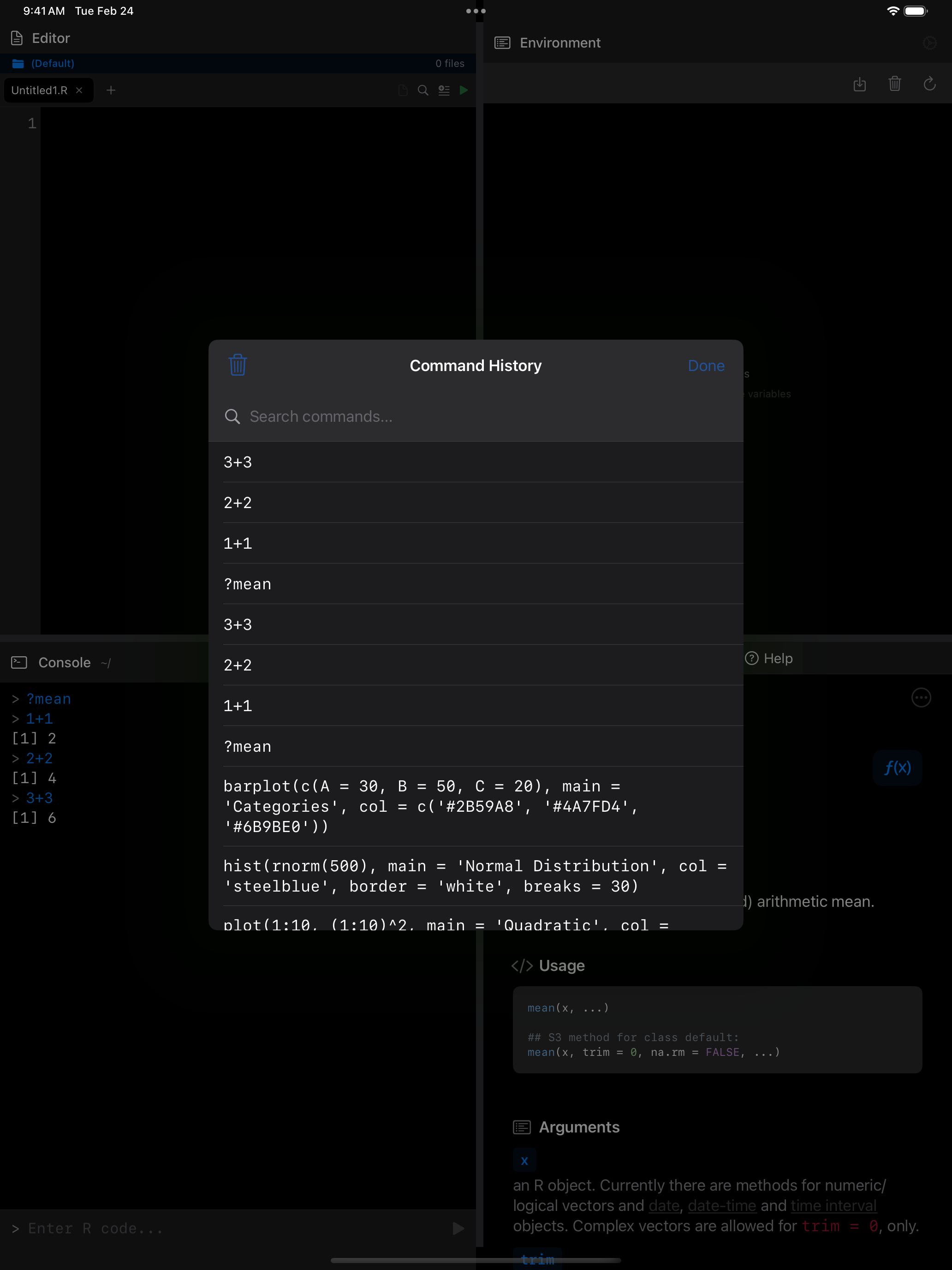
The Console keeps a history of everything you have entered. There are several ways to get at it.
Swipe gestures on the input field. The fastest way to cycle through recent commands:
- Swipe up on the input field to load the previous command
- Swipe down to move forward through your history
Search history. Tap the … menu and choose Search History to filter past commands by keyword. Tap any result to load it back into the input field.
History Tab
The History tab logs every command you have run, across sessions. Unlike the console output, it shows only your commands, with timestamps, execution duration, and success or failure.
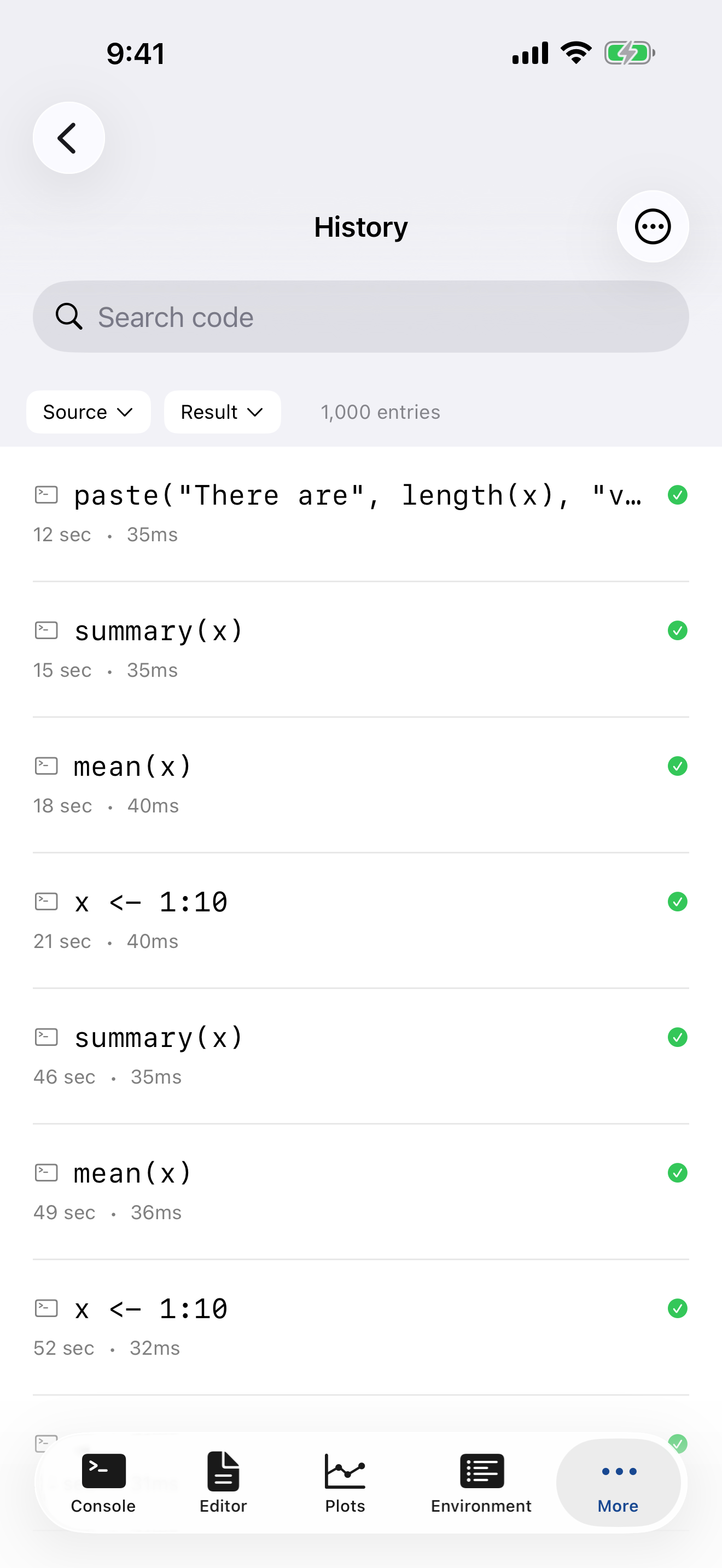
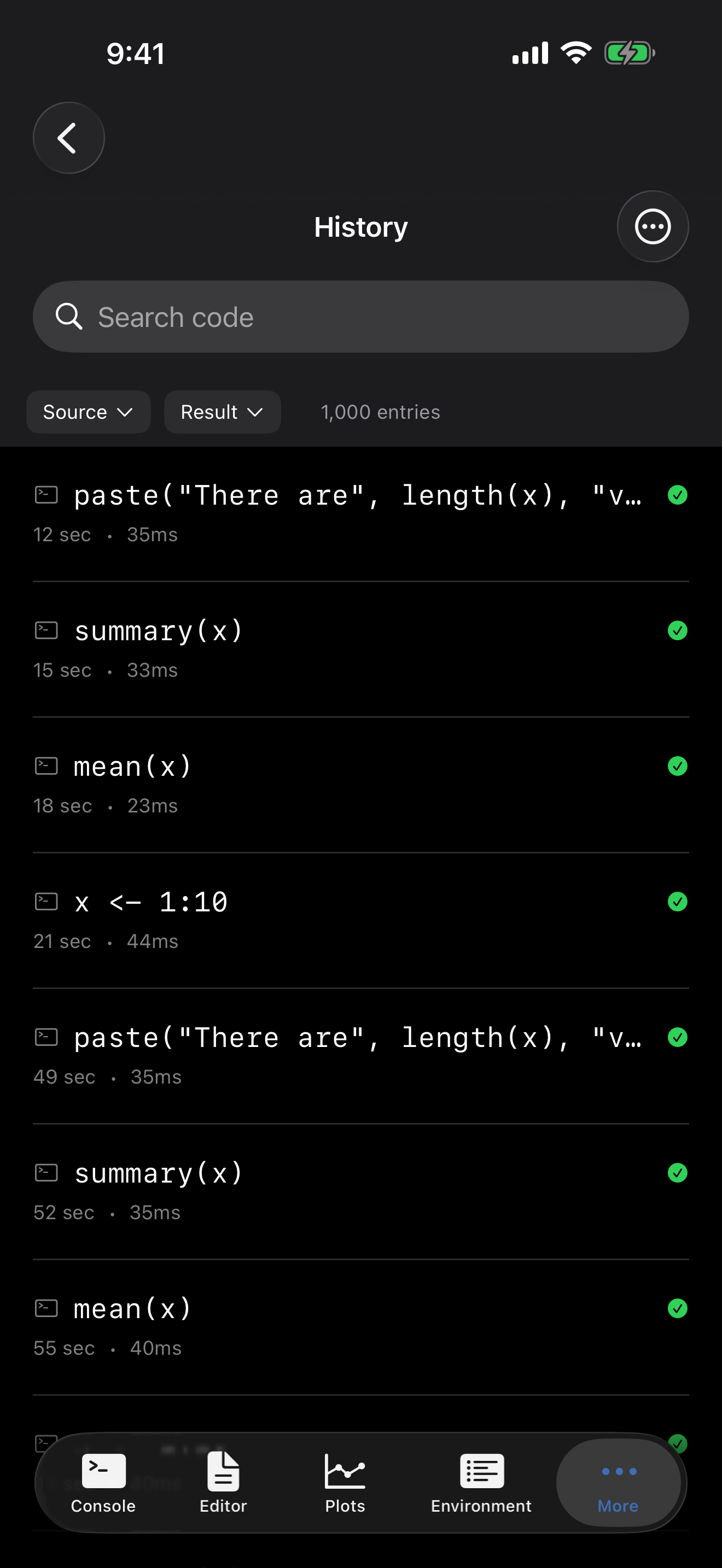
Each entry shows its source (Console, Editor, or Script), a code preview, the timestamp, duration, and a checkmark or X for the result. Failed commands also show the first line of the error.
Filtering and searching
Use the filter bar at the top to narrow the list:
- Source filter: show commands from All Sources, Console only, Editor only, or Script only
- Result filter: All Results, Success Only, or Failed Only
You can also use the search bar to find specific commands by searching code content, output, or error messages.
Re-running and managing entries
- Swipe right on an entry to re-run that command immediately
- Swipe left to delete an entry
- Tap an entry to see the full detail sheet with the complete code, output preview, and a Run Again button
Export and statistics
Tap the menu button (⋯) for additional options:
- Statistics: see your total execution count, success rate, average duration, and last execution time
- Export as Text: a human-readable summary of your history
- Export as JSON: structured data for further analysis
- Clear All: delete all history entries
If you find yourself running the same sequence of commands repeatedly, consider writing them as a script in the Editor instead.
The R Keyboard Toolbar
When the keyboard is open, a scrollable toolbar of common R symbols appears above it (the same one used in the Editor):
<-: the assignment operator|>: the native pipe( )[ ]{ }"": matched pairs that insert both characters at once~: the formula operatorc(): quick vector wrapper::$@: namespace, list, and slot access%in%!&|: logical operators#: comment prefix- Tab: inserts two spaces for indentation
There is also a dismiss keyboard button at the far right of the toolbar so you can quickly hide the keyboard and see more of your output.
Code Completion
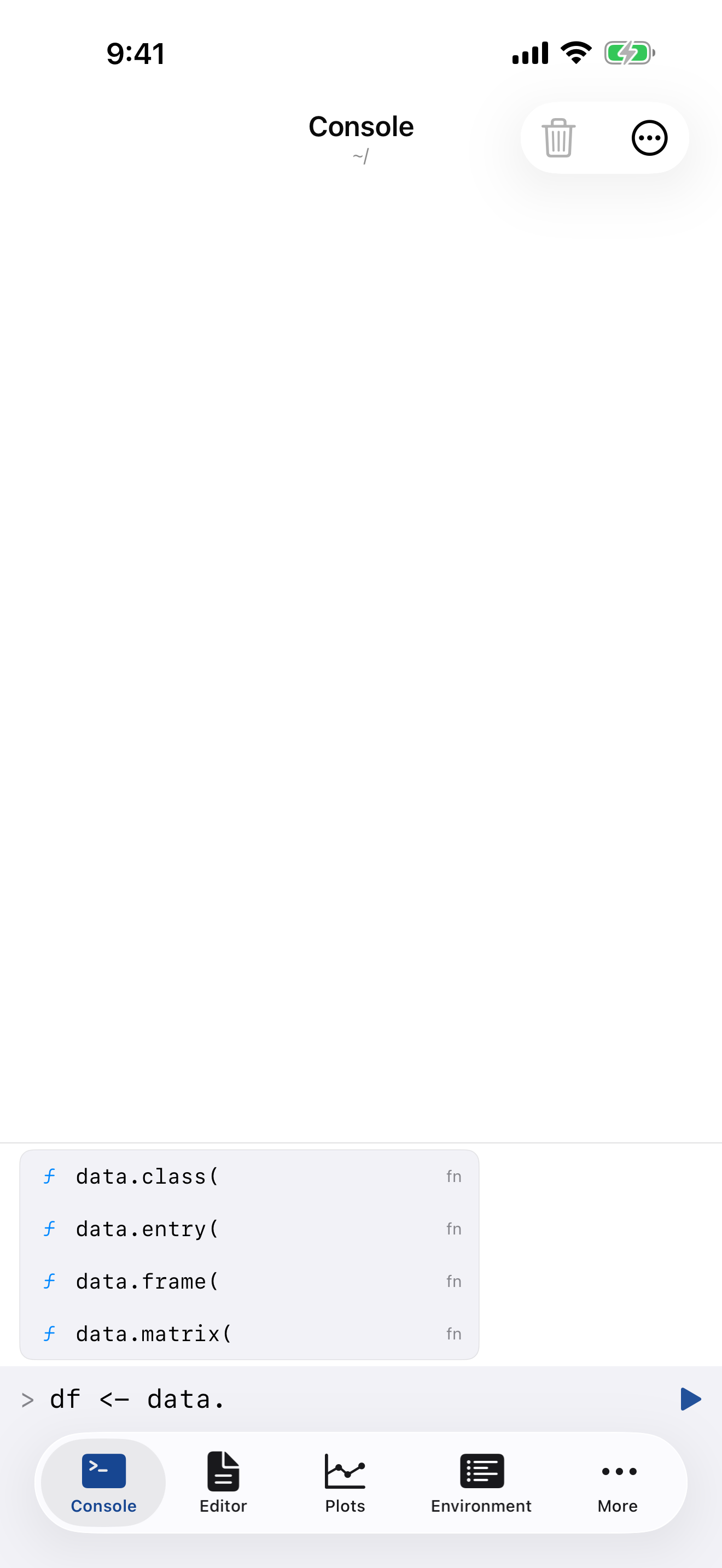
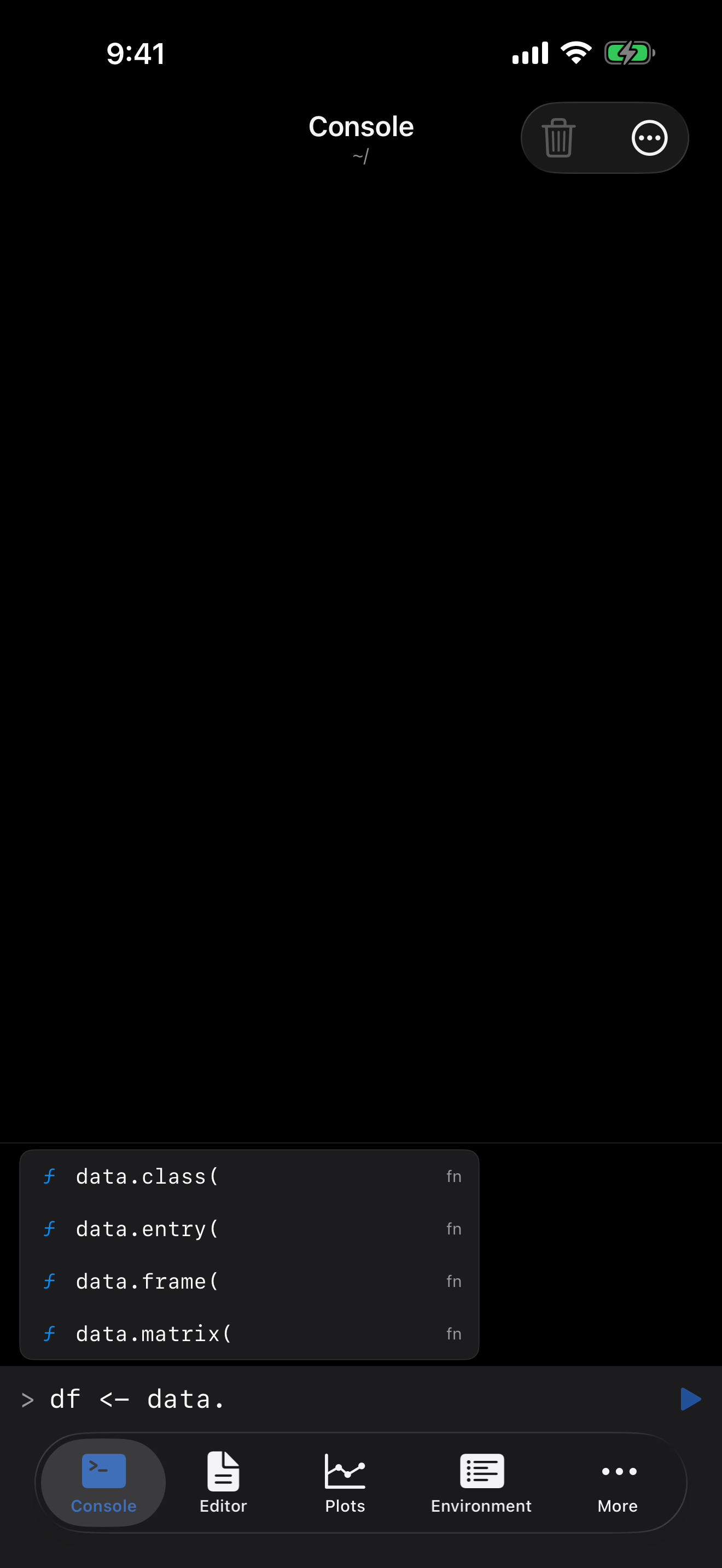
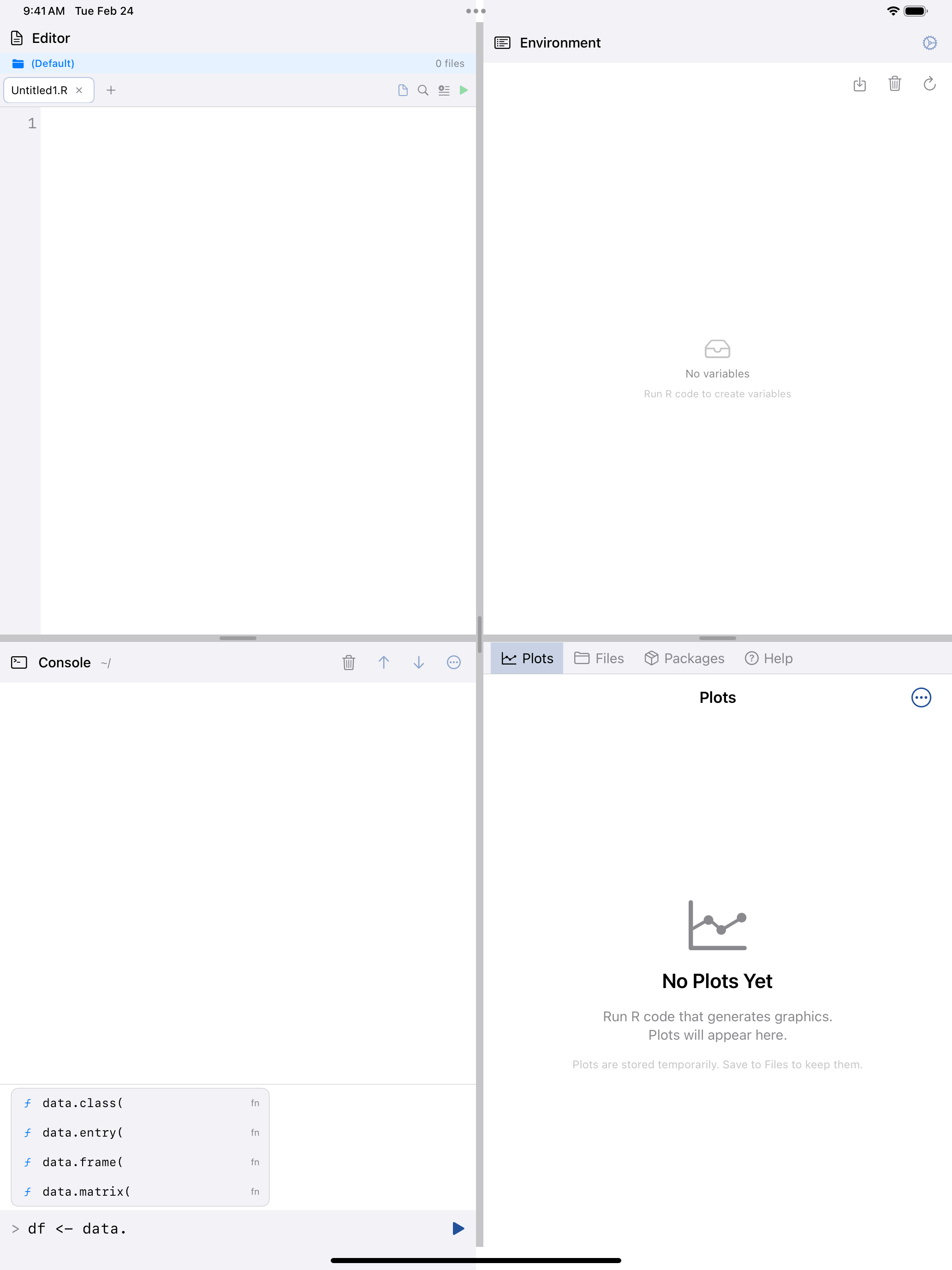
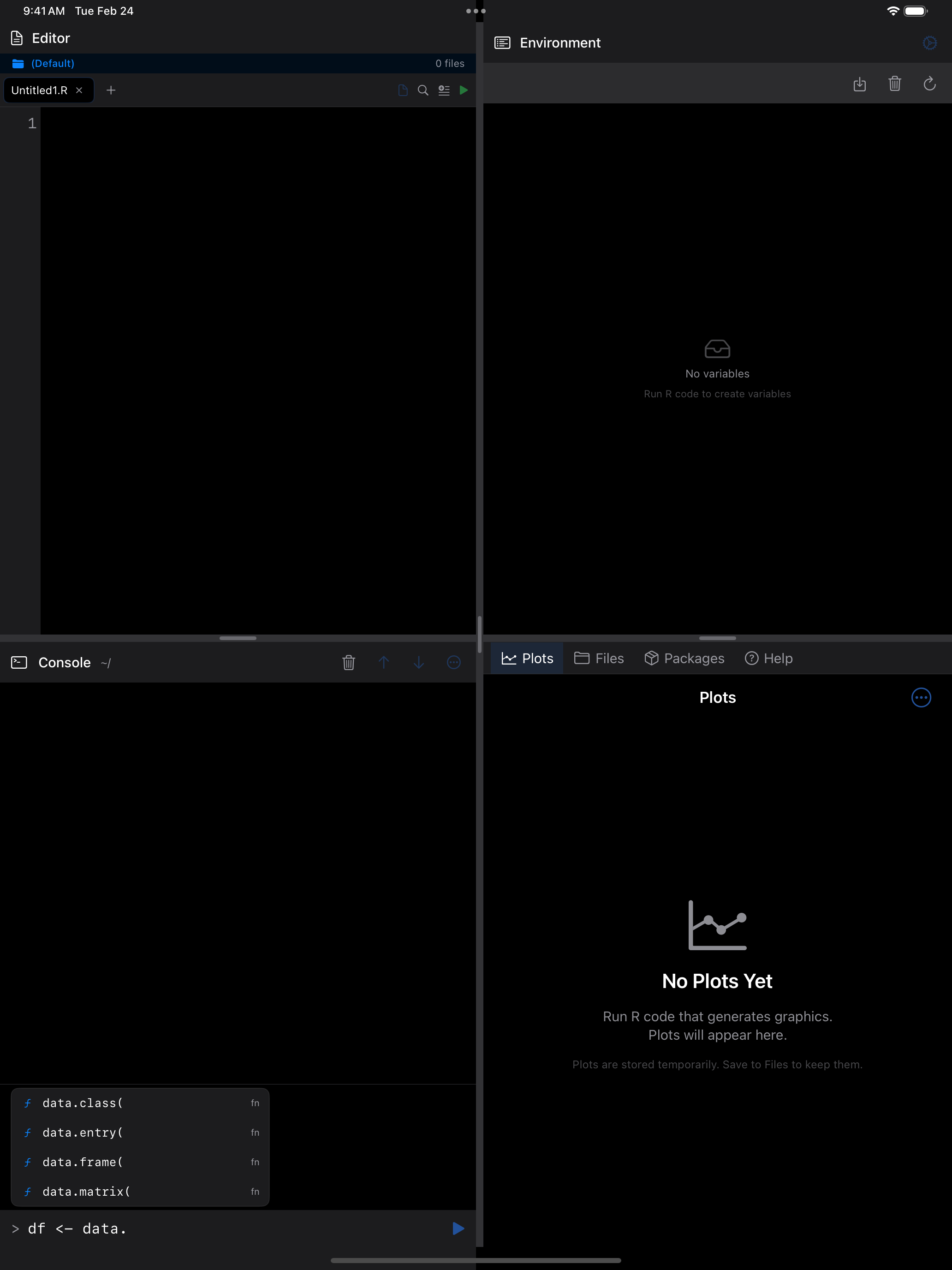
As you type, the Console suggests function names, variable names, and package members in a popup above the input field. Tap a suggestion to insert it.
Clearing the Console
Two ways to clear the output area:
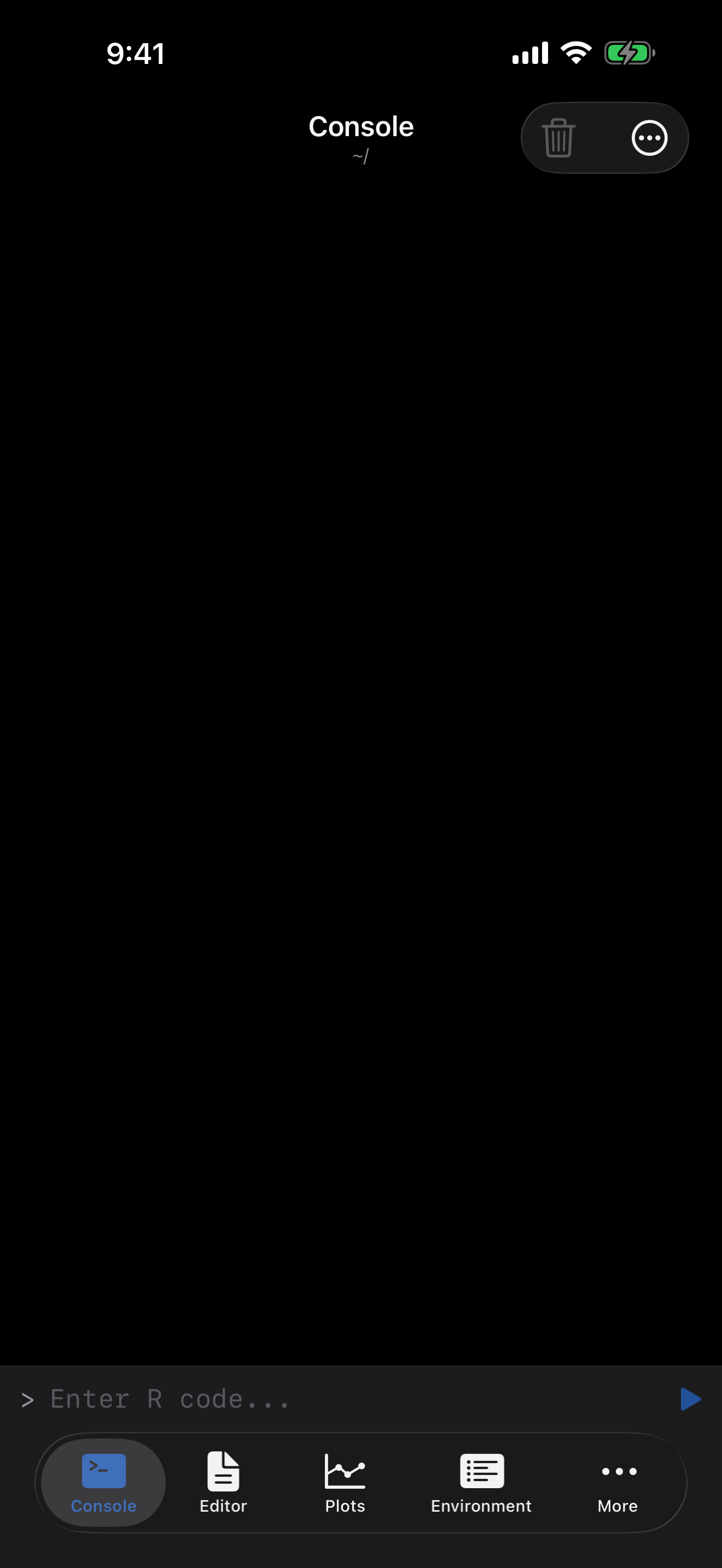
- Tap the trash icon in the top-right toolbar for a quick clear
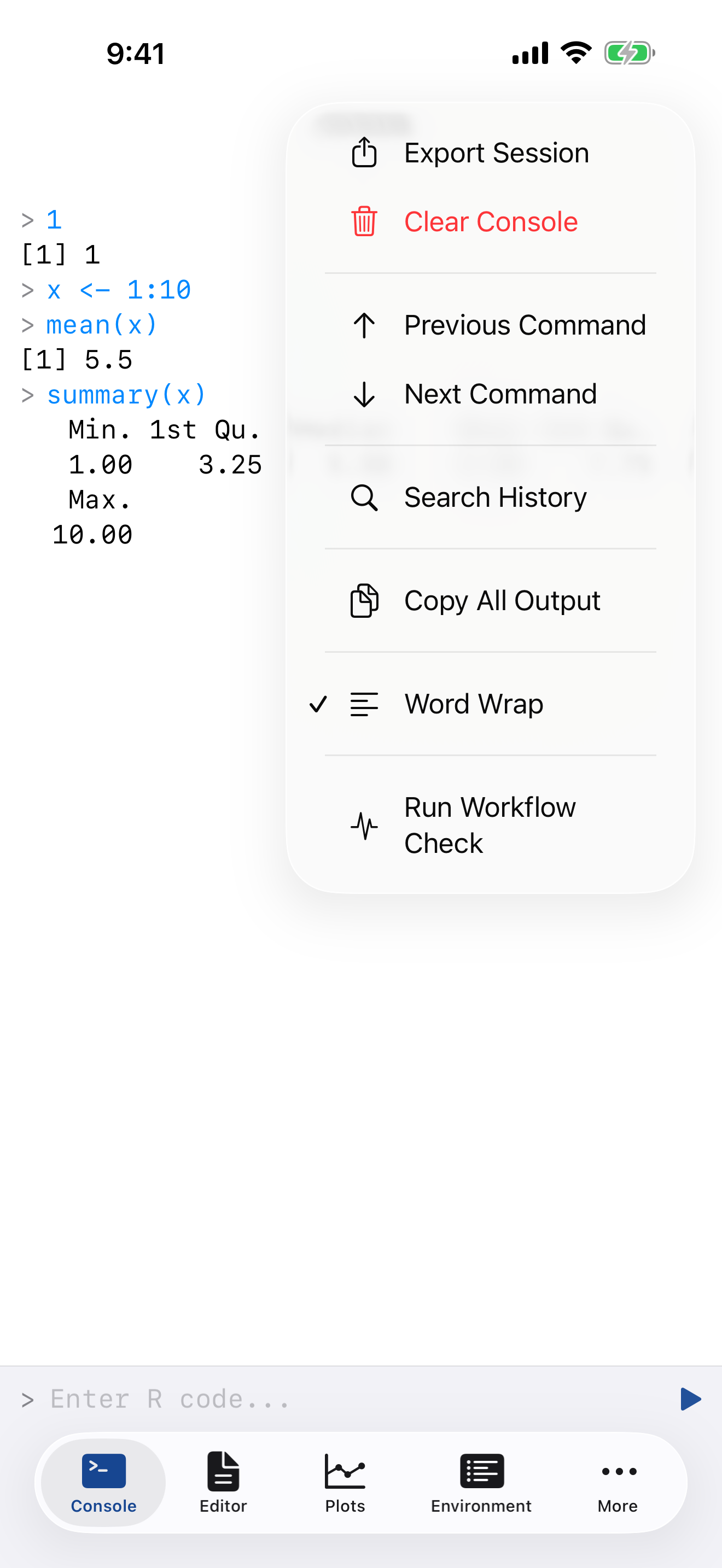
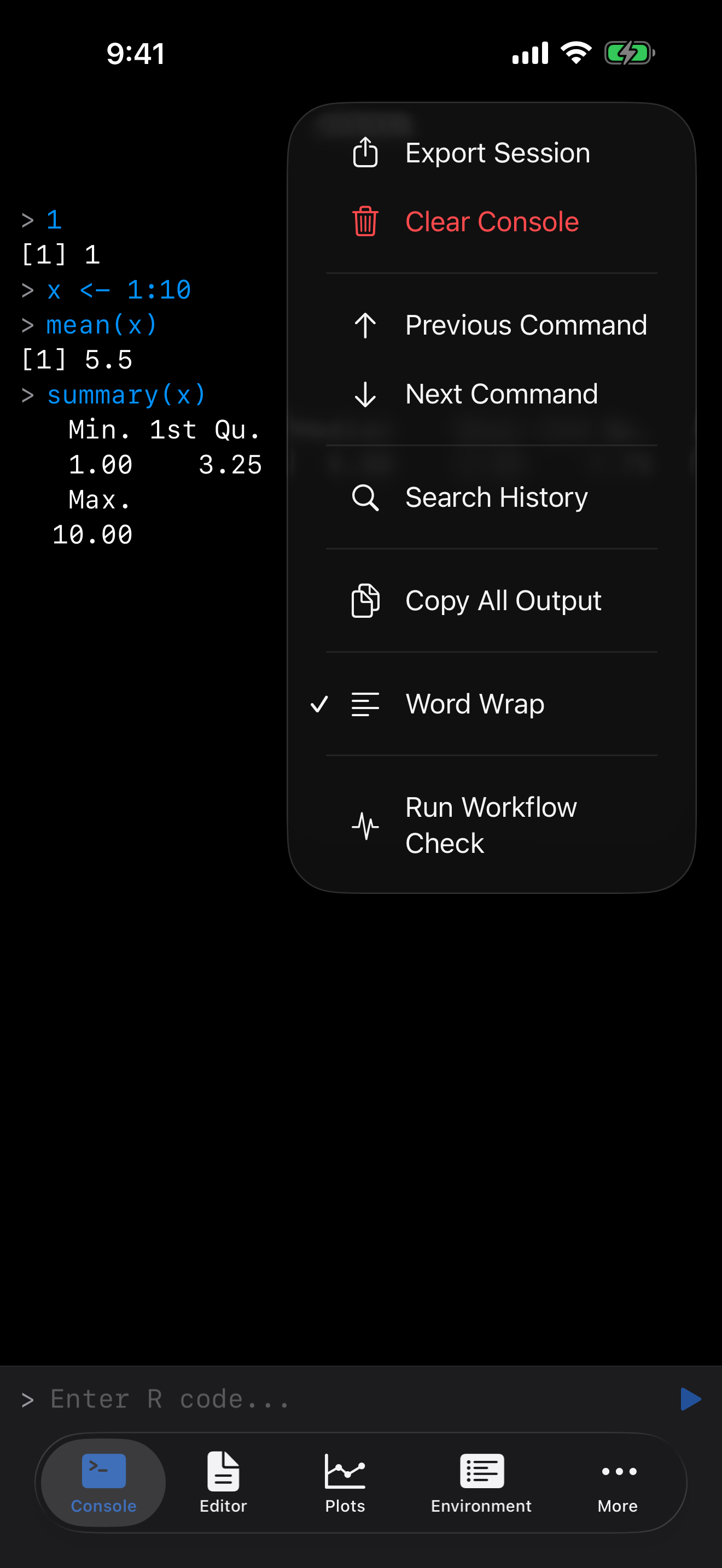
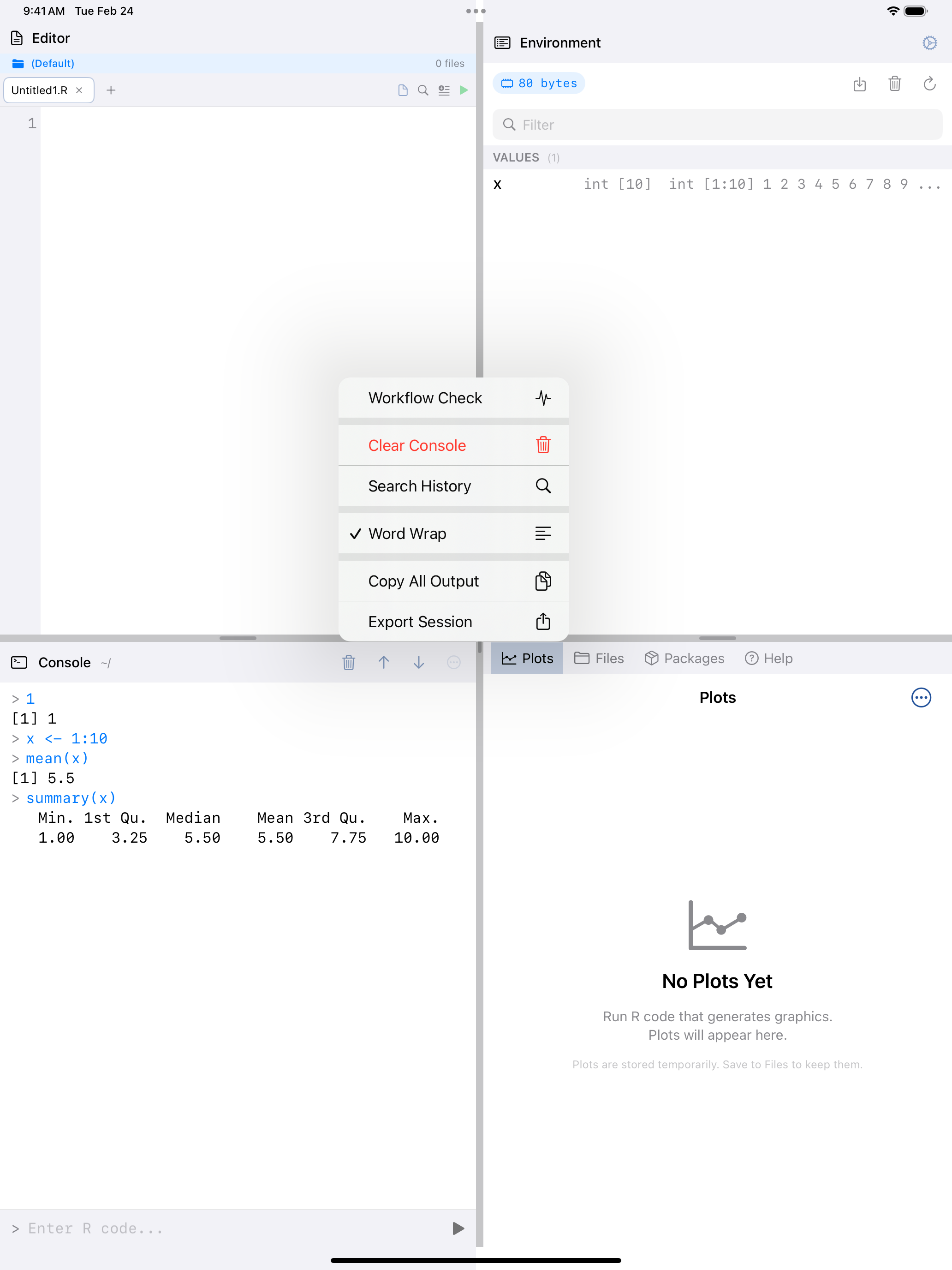
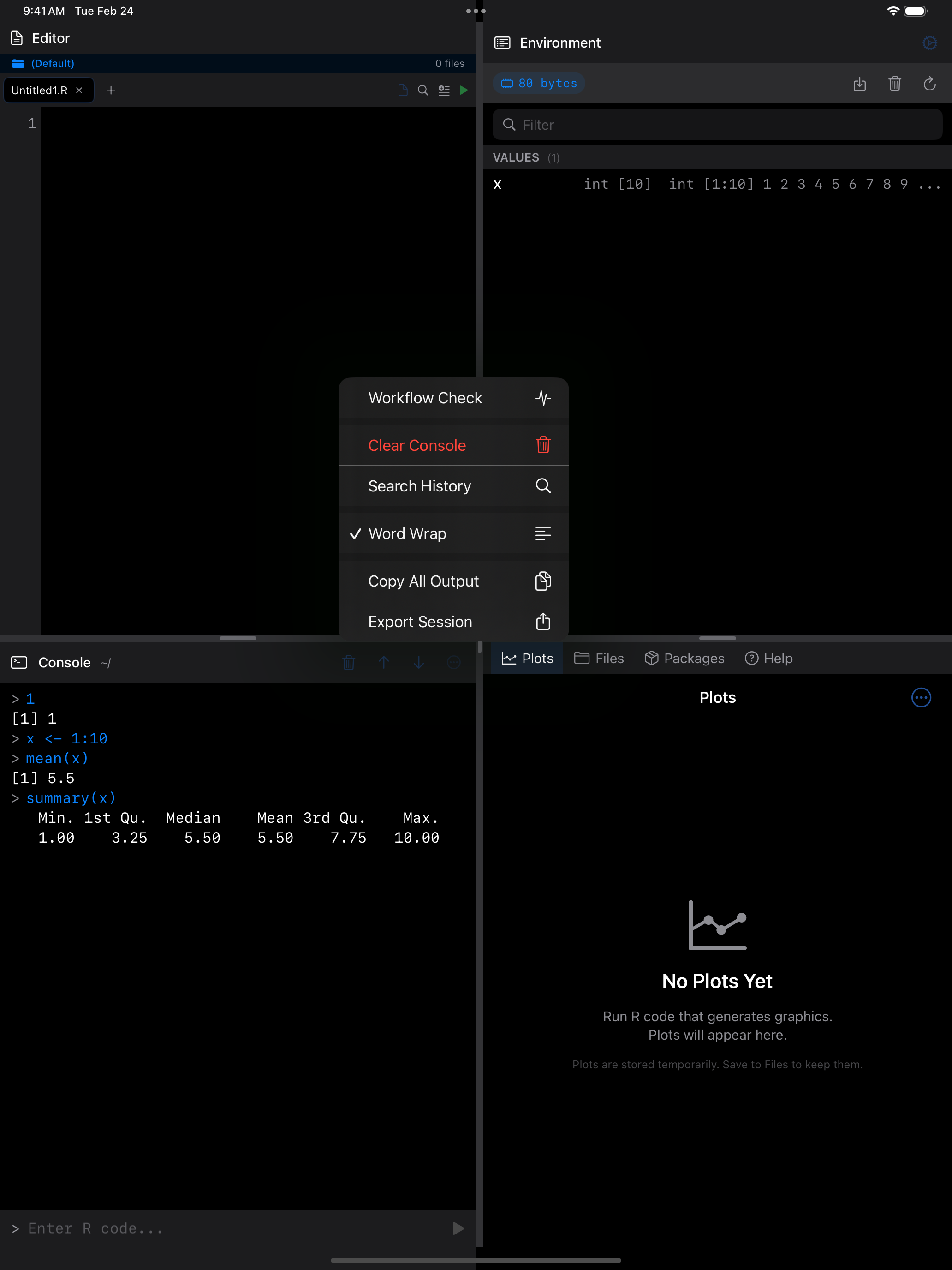
- Tap the … menu and choose Clear Console
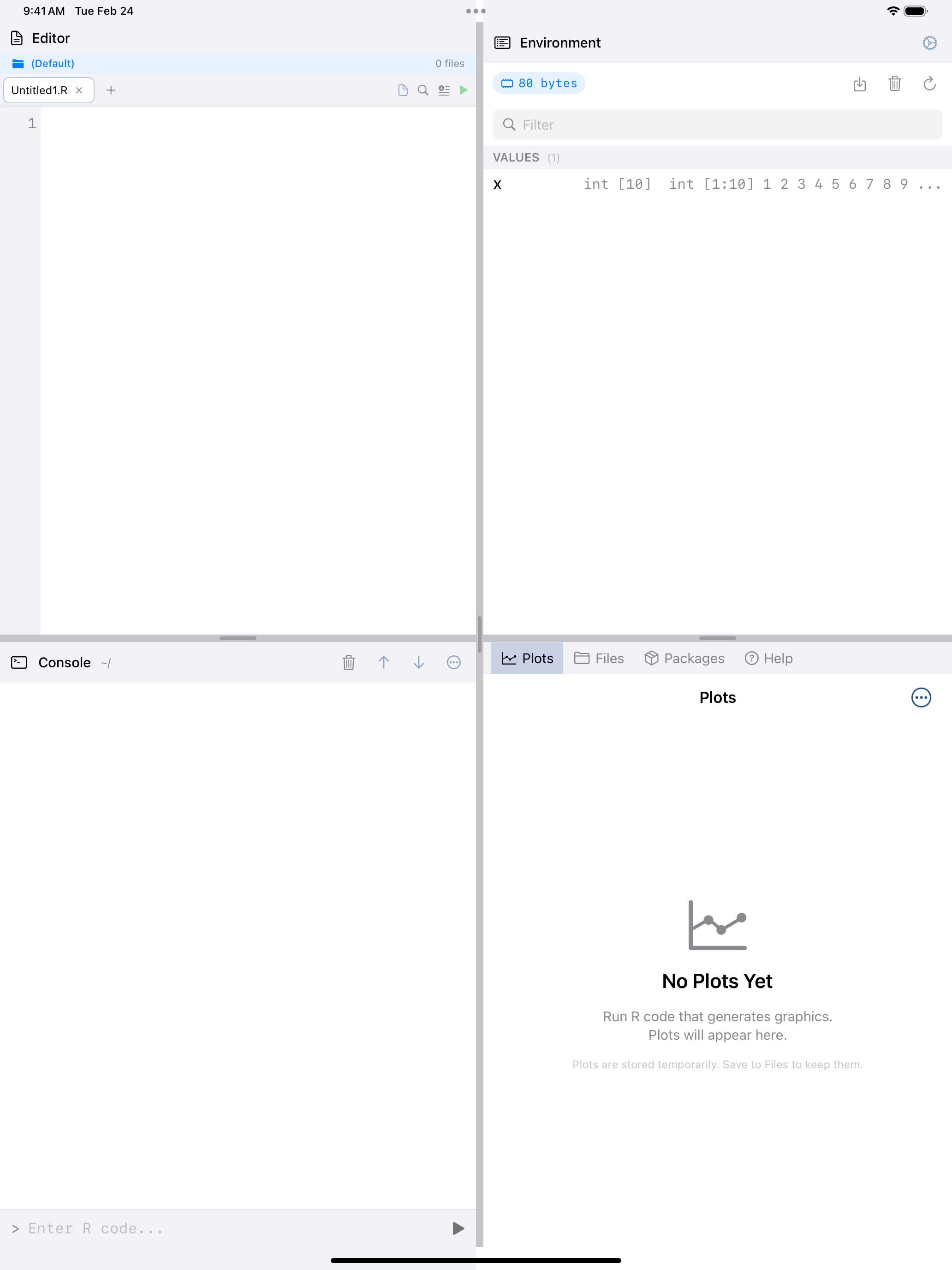
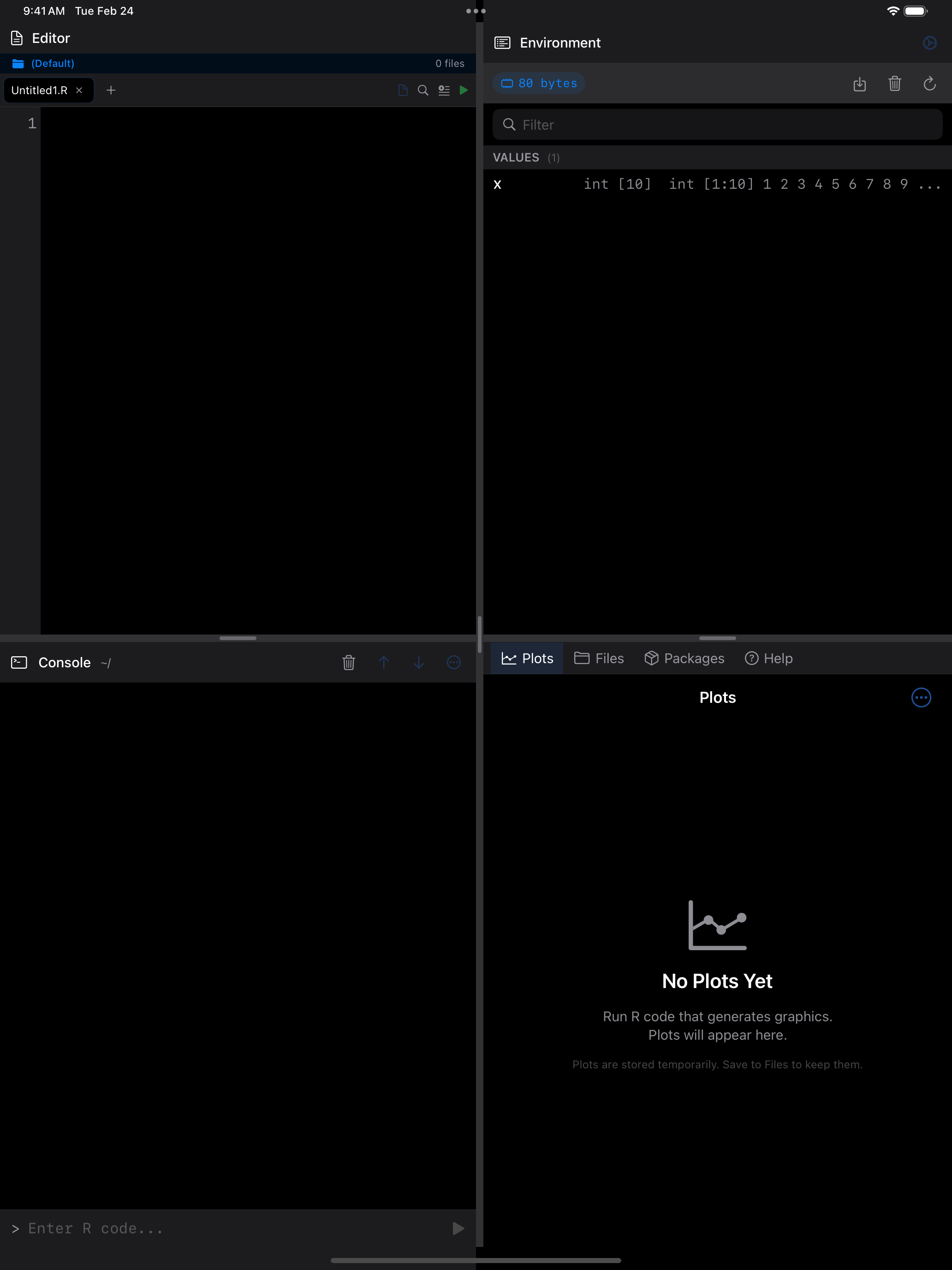
Clearing the console removes only the displayed text. Your variables, loaded packages, and data stay in memory.
More Console Features
The … menu provides a few more tools:
- Export Session: saves your entire console session as text
- Copy All Output: copies everything in the output area to the clipboard
- Word Wrap: toggles line wrapping for long output
- Previous/Next Command: an alternative to swipe gestures for navigating history
Acting on a Line of Output
Long-press any line in the console to copy just that line, or the whole session.
The Startup Log
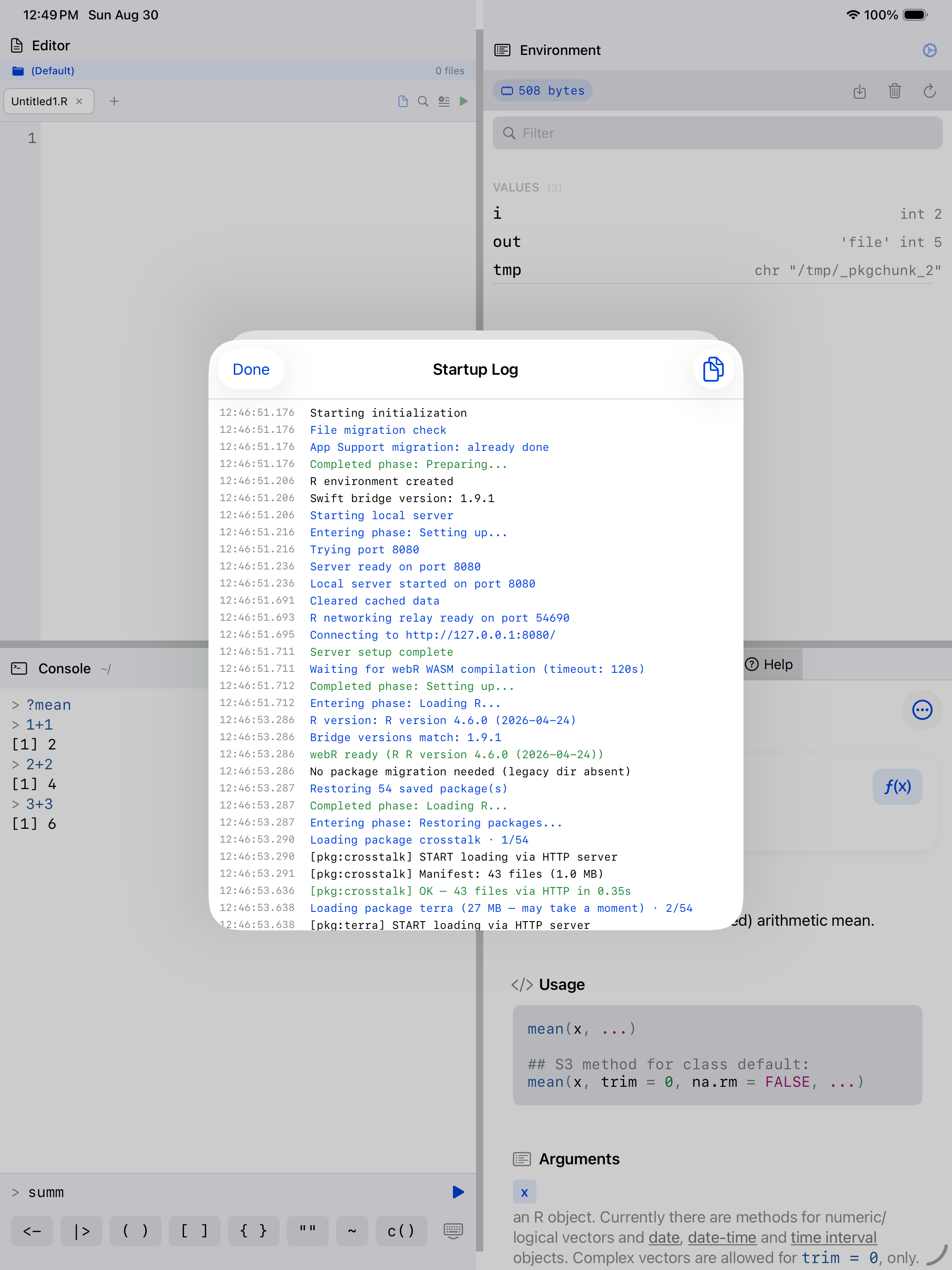
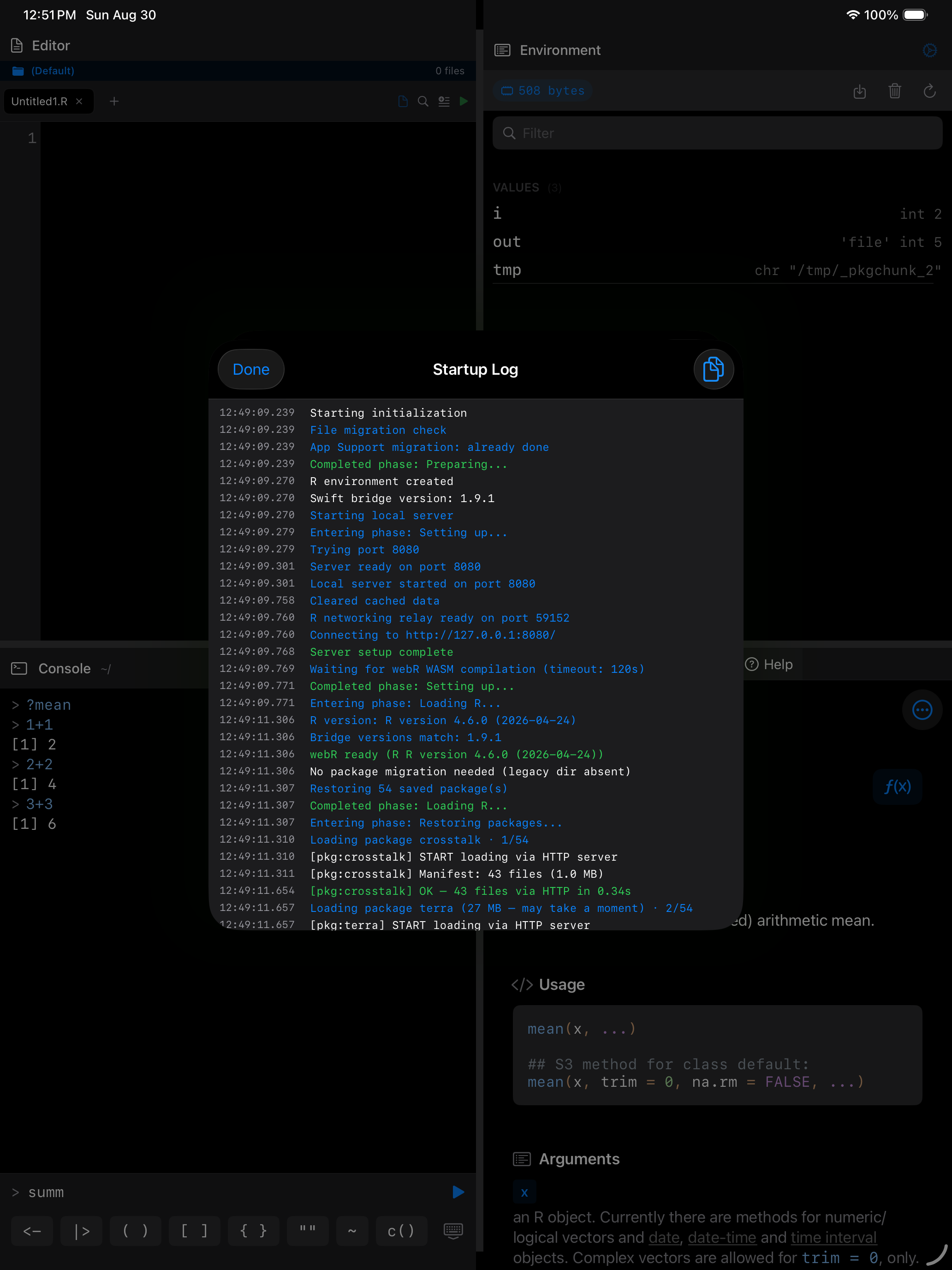
If R takes longer than expected to start, or fails to, Settings > Help & Resources > Startup Log records each stage of initialisation with timings. It is the first thing worth attaching to a bug report.
If you have an external keyboard connected, you can use Cmd+K to clear the console, Cmd+Up/Down to navigate history, and Cmd+F to search through your command history.