Editor
The Console is great for quick one-off commands, but when you are working on something longer (a data analysis pipeline, a visualization script, a function you want to reuse) you want the Editor. It gives you a proper code editing environment with syntax highlighting, line numbers, multiple tabs, and the ability to save your work as .R files.
Writing R Scripts
The Editor works like a text editor built specifically for R. You get a full-screen writing area where you can compose multi-line scripts, and when you are ready, run everything at once (or just a selected portion).
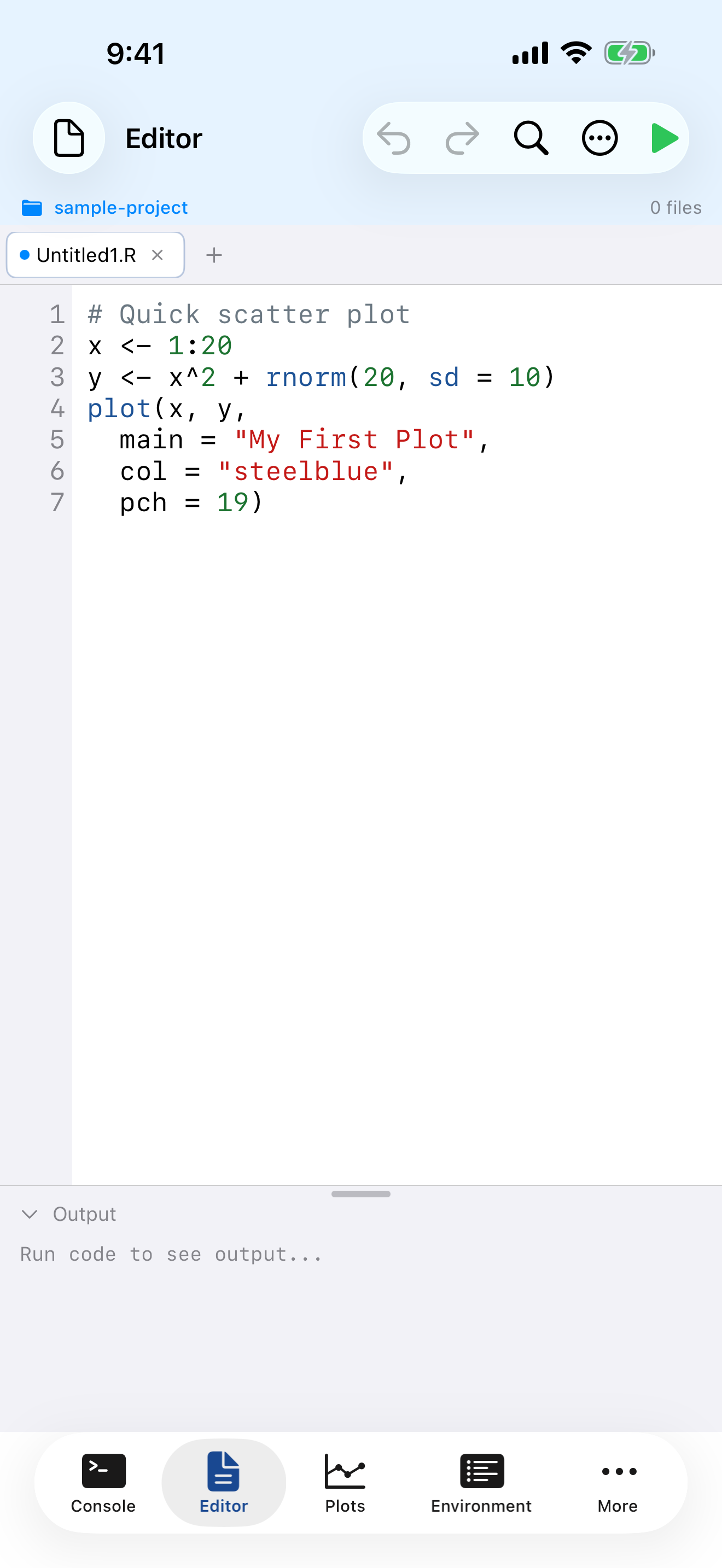
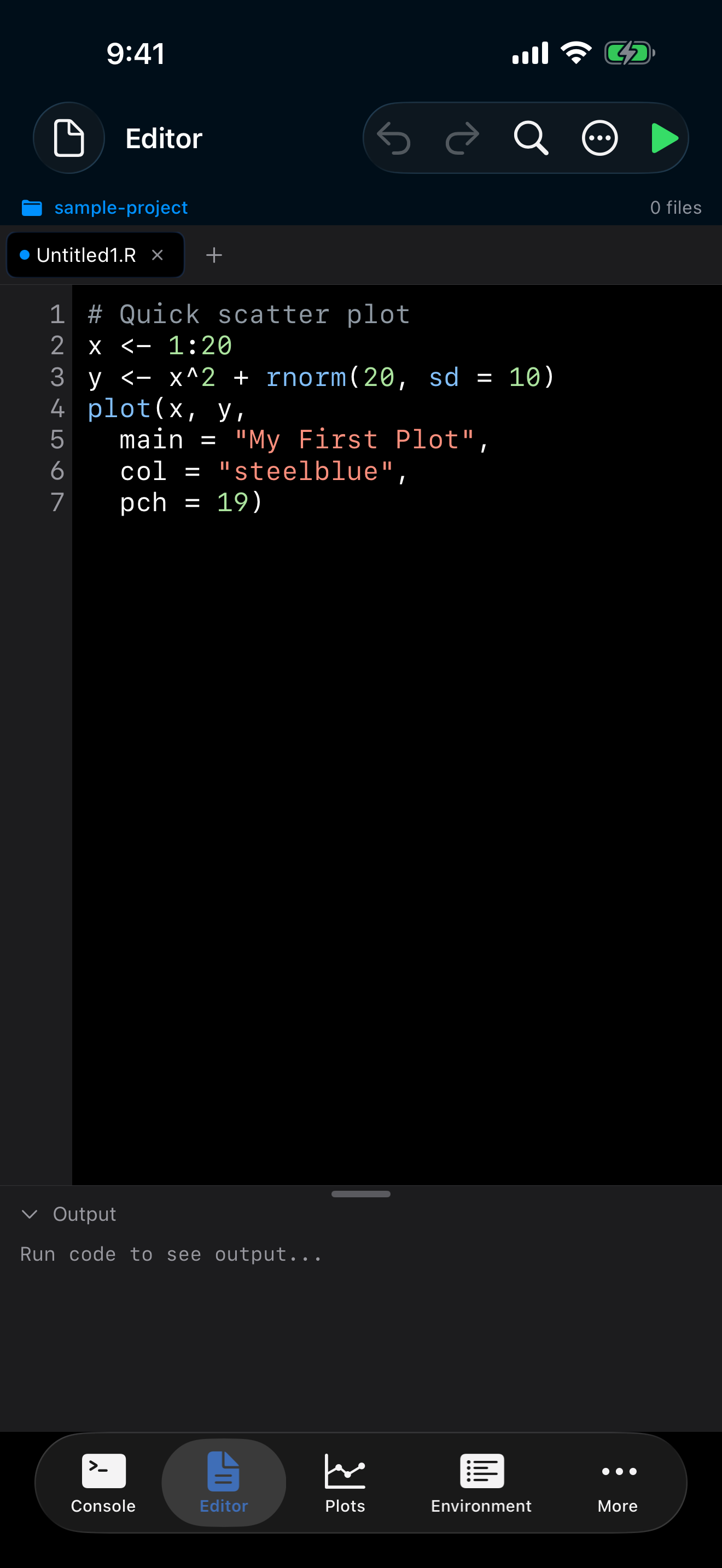
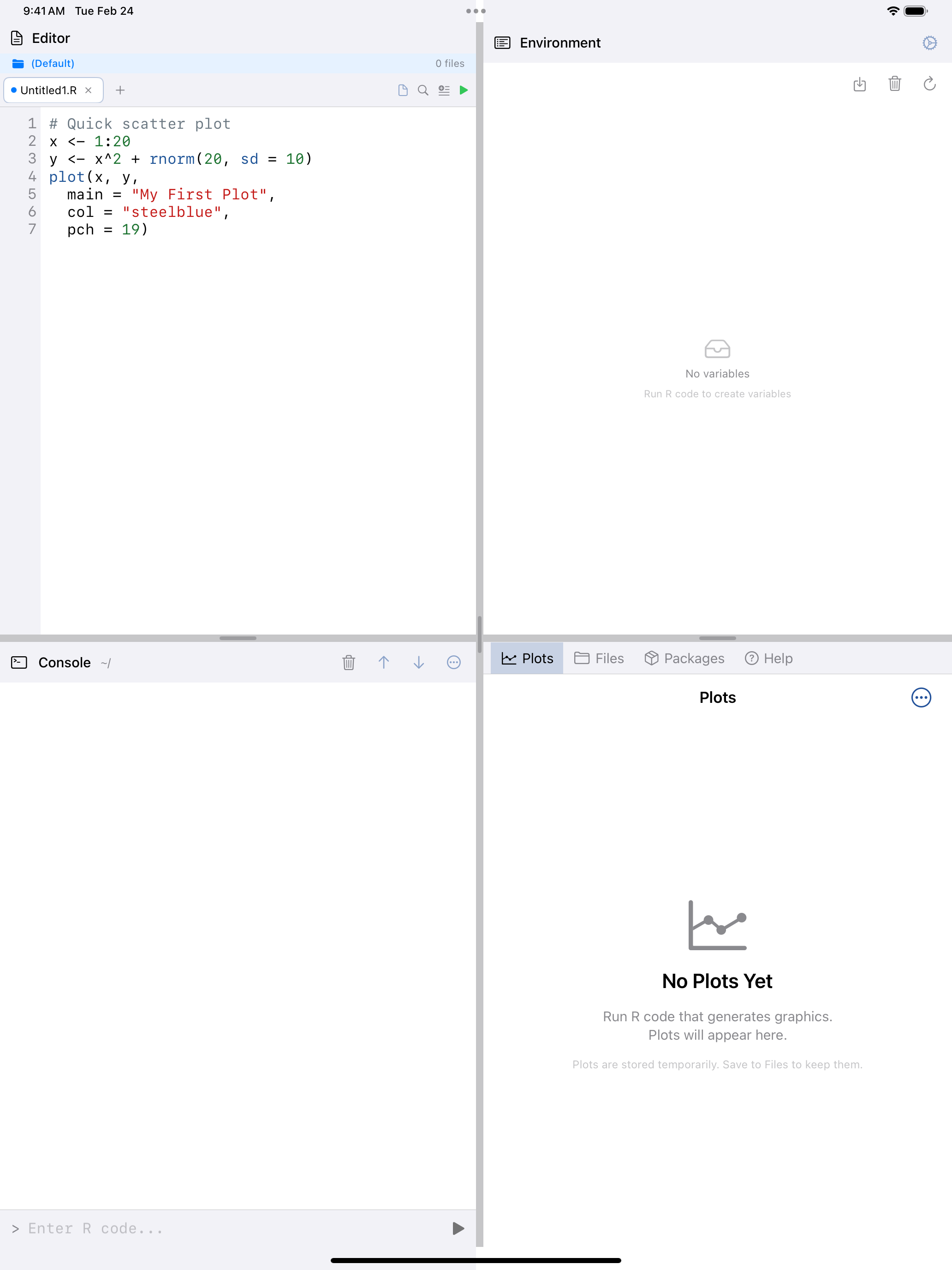
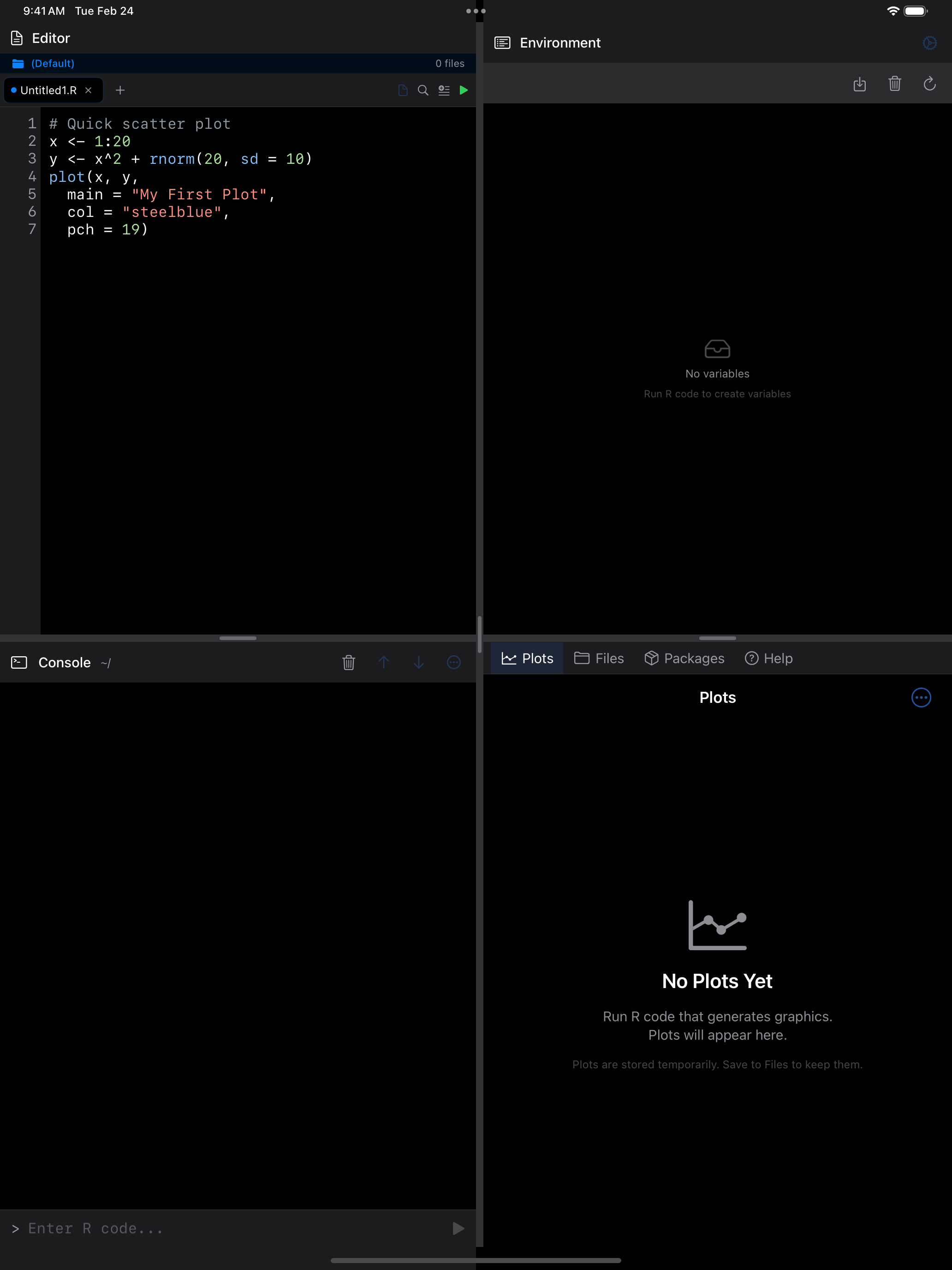
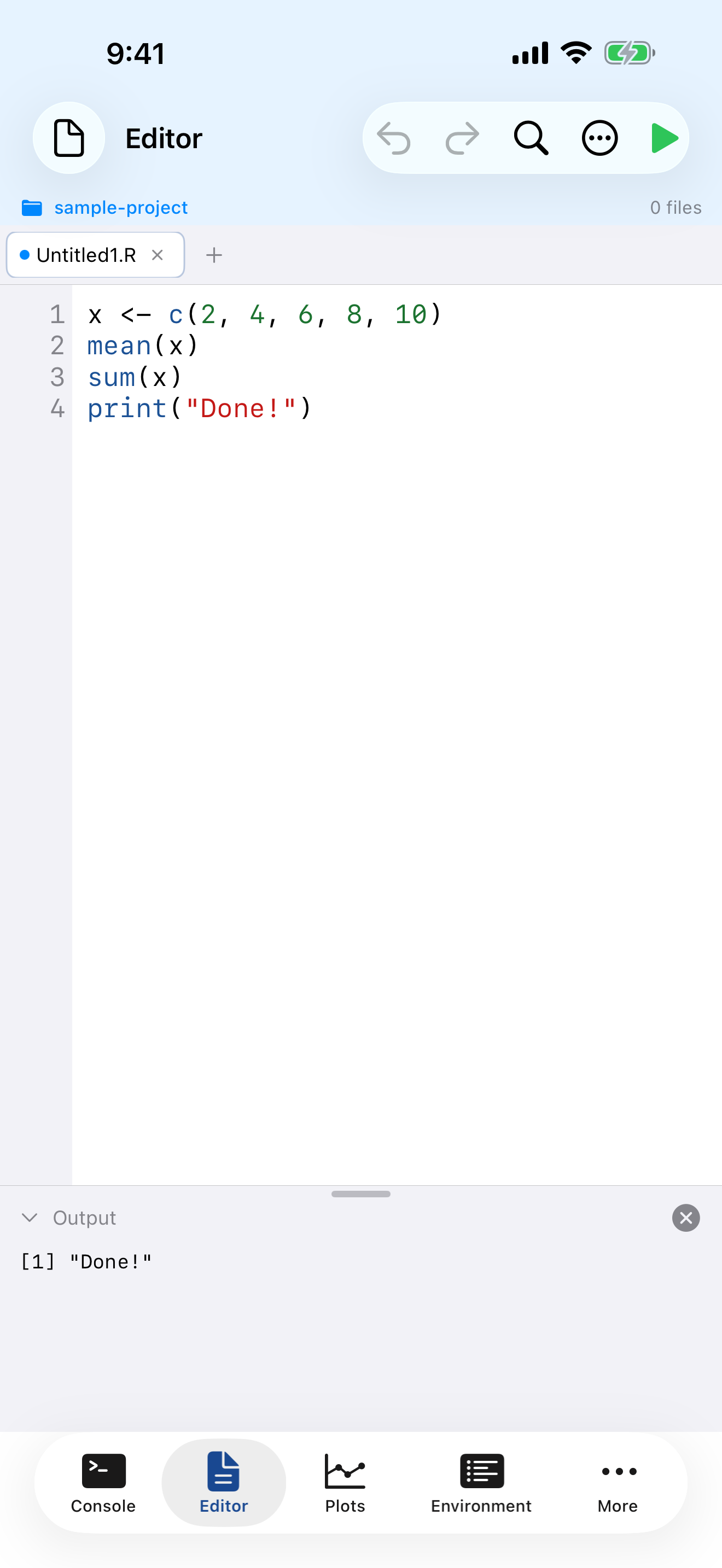
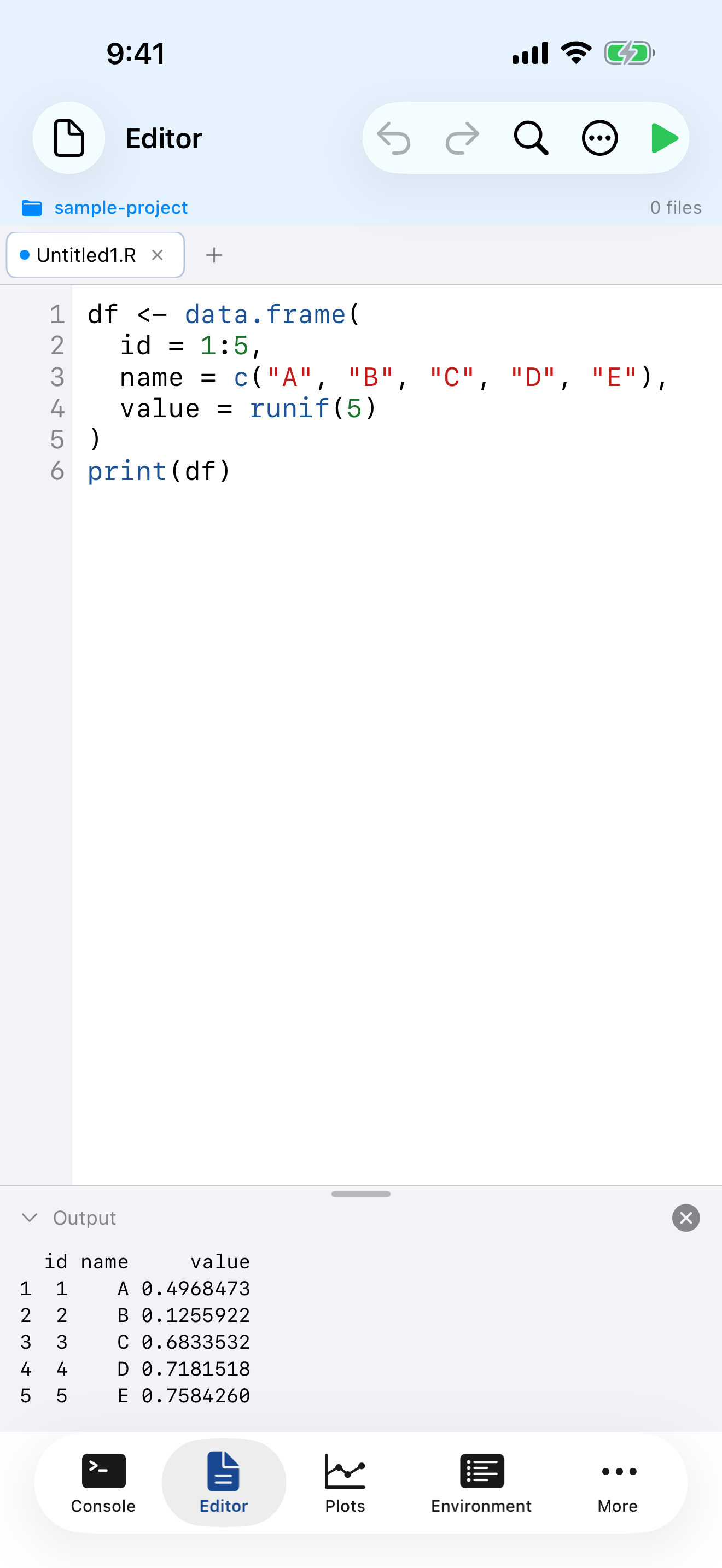
What you are seeing above:
- Tab bar: shows your open files; tap the + button to create a new tab
- Line numbers: displayed in the left gutter for easy reference and debugging
- Syntax highlighting: R code is color-coded so keywords, strings, functions, and comments are visually distinct
- Output panel: at the bottom, shows results when you run your script
- Toolbar: contains undo/redo, find, editor actions menu, and the run button
Syntax Highlighting
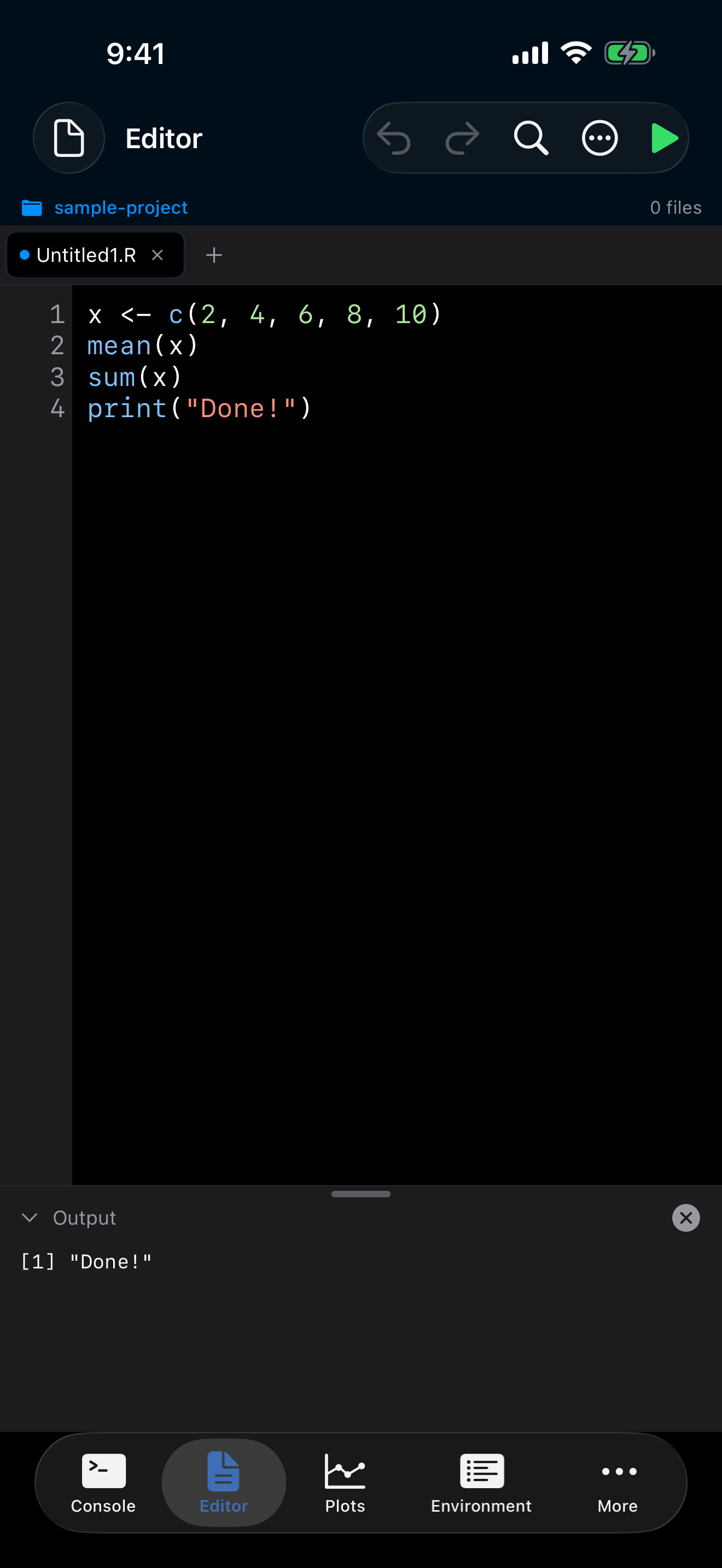
As you type, the Editor automatically color-codes your R code to make it easier to read and spot mistakes. The highlighting covers:
- Keywords like
if,for,function,return, shown in purple - Functions like
print(),mean(),ggplot(), shown in blue - Strings like
"hello world", shown in red/coral - Numbers like
42,3.14, shown in green - Comments starting with
#, shown in gray
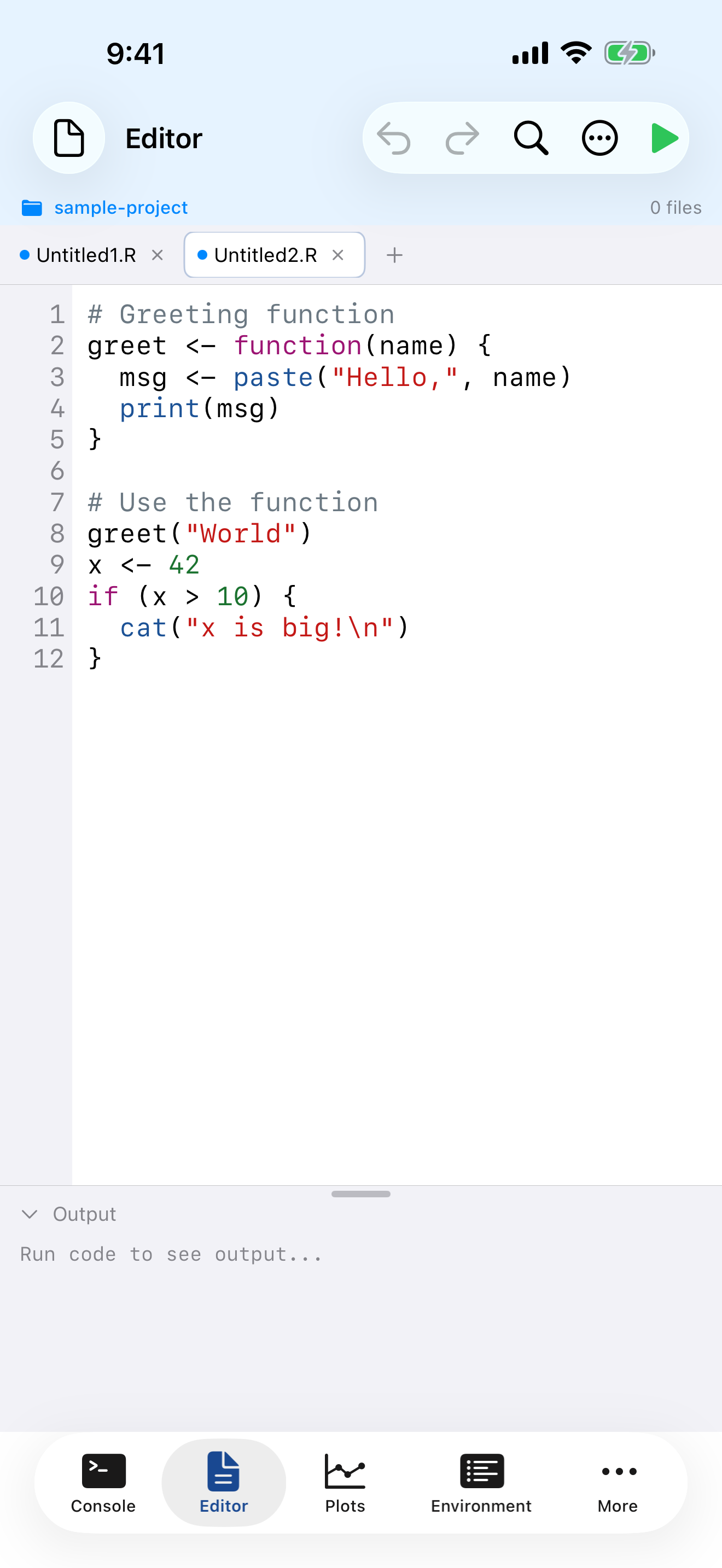
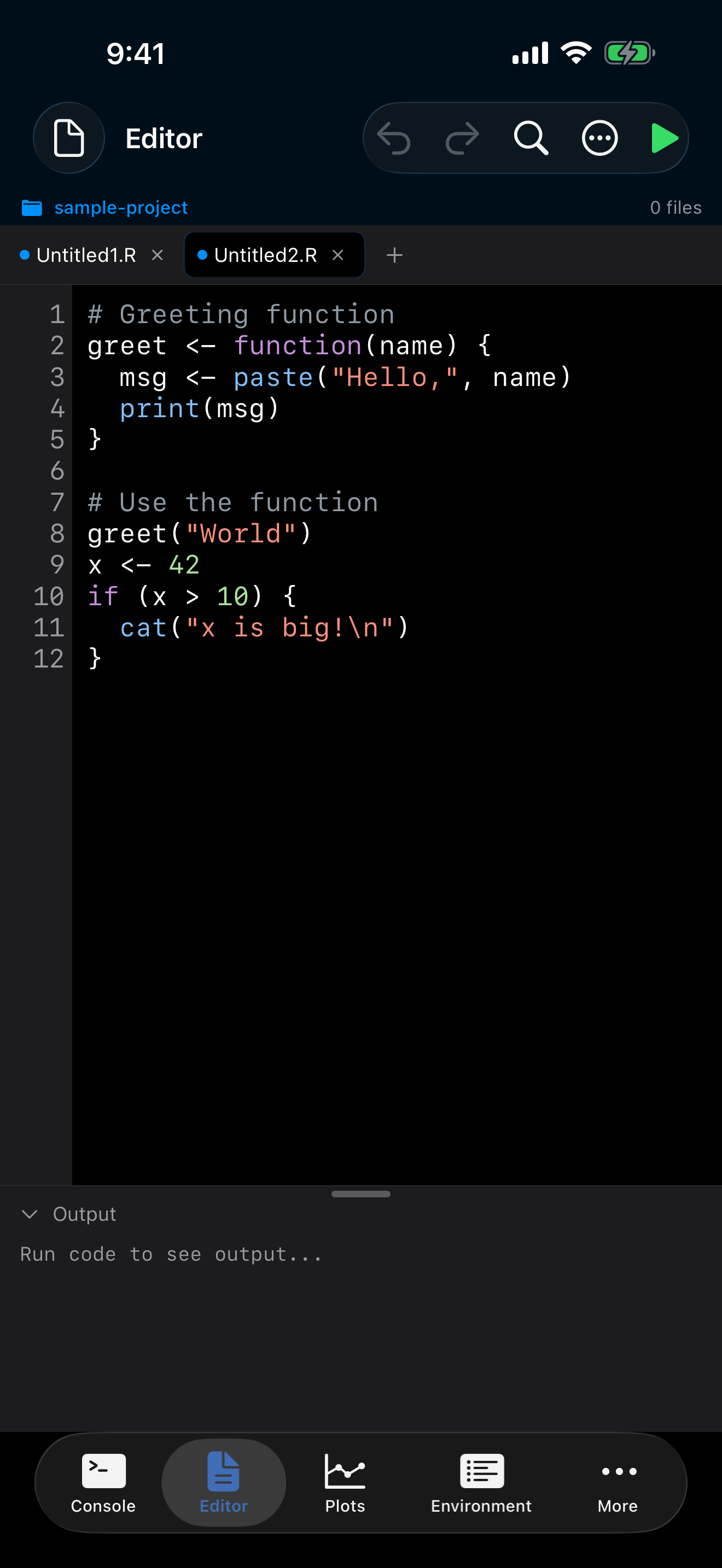
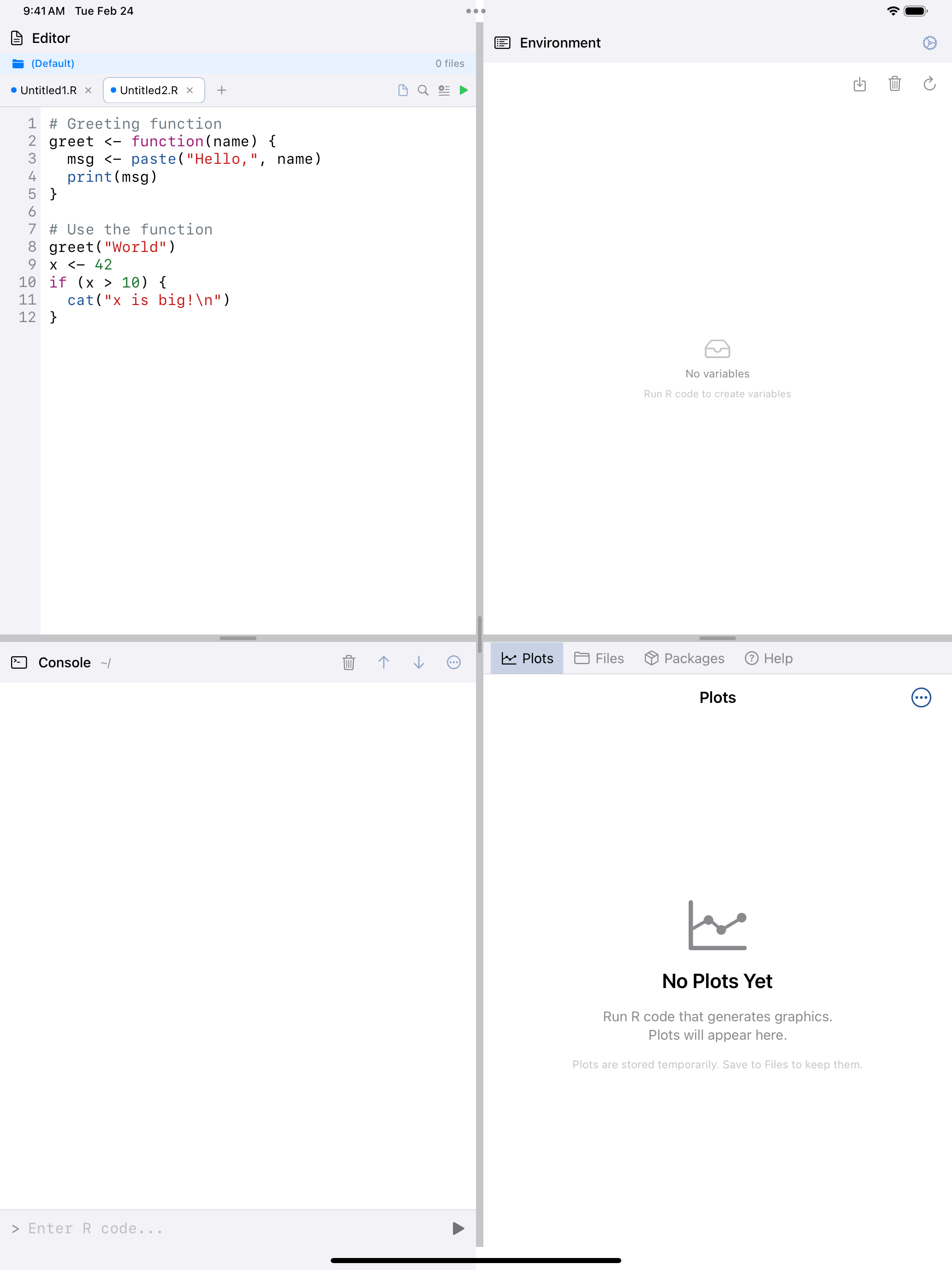
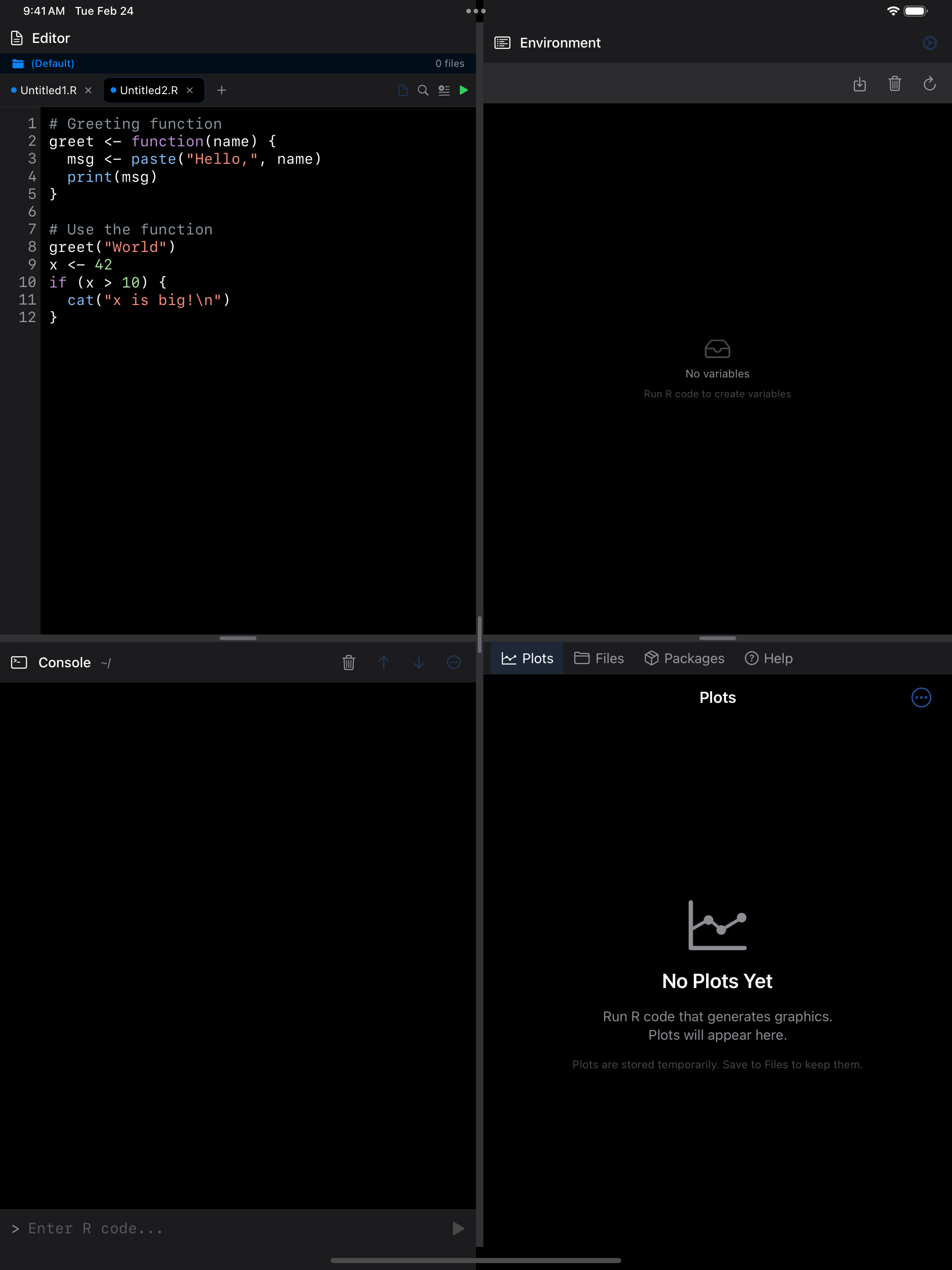
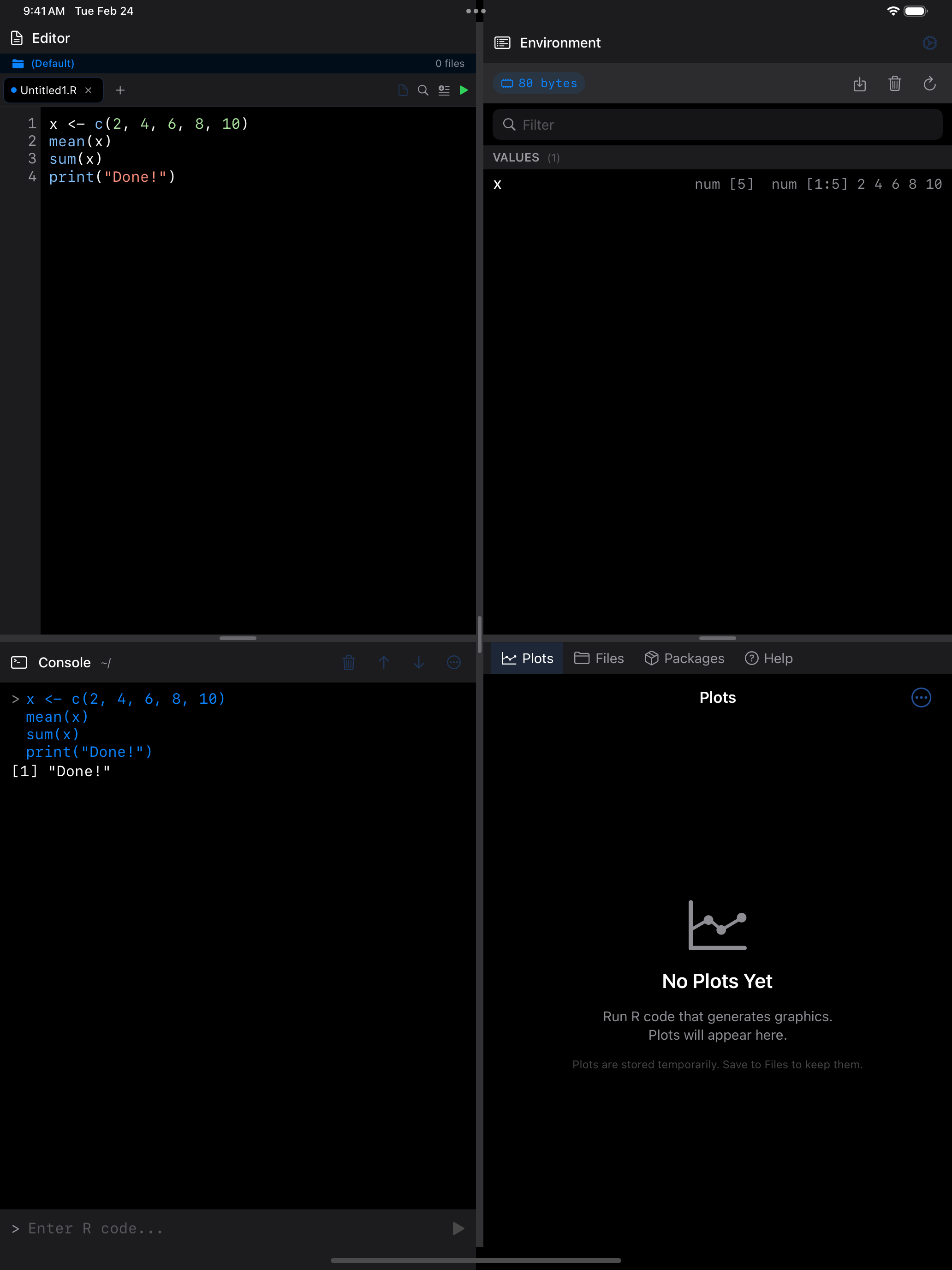
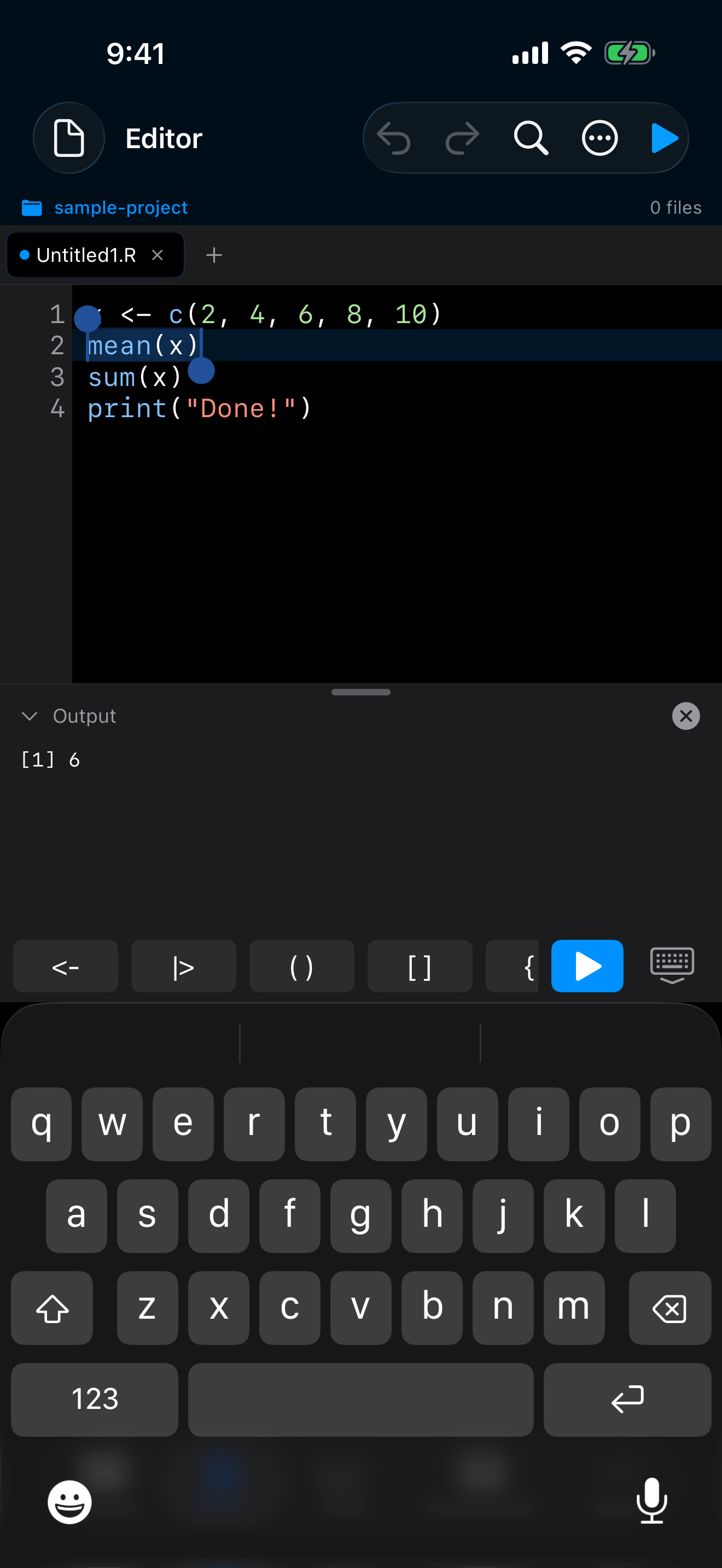
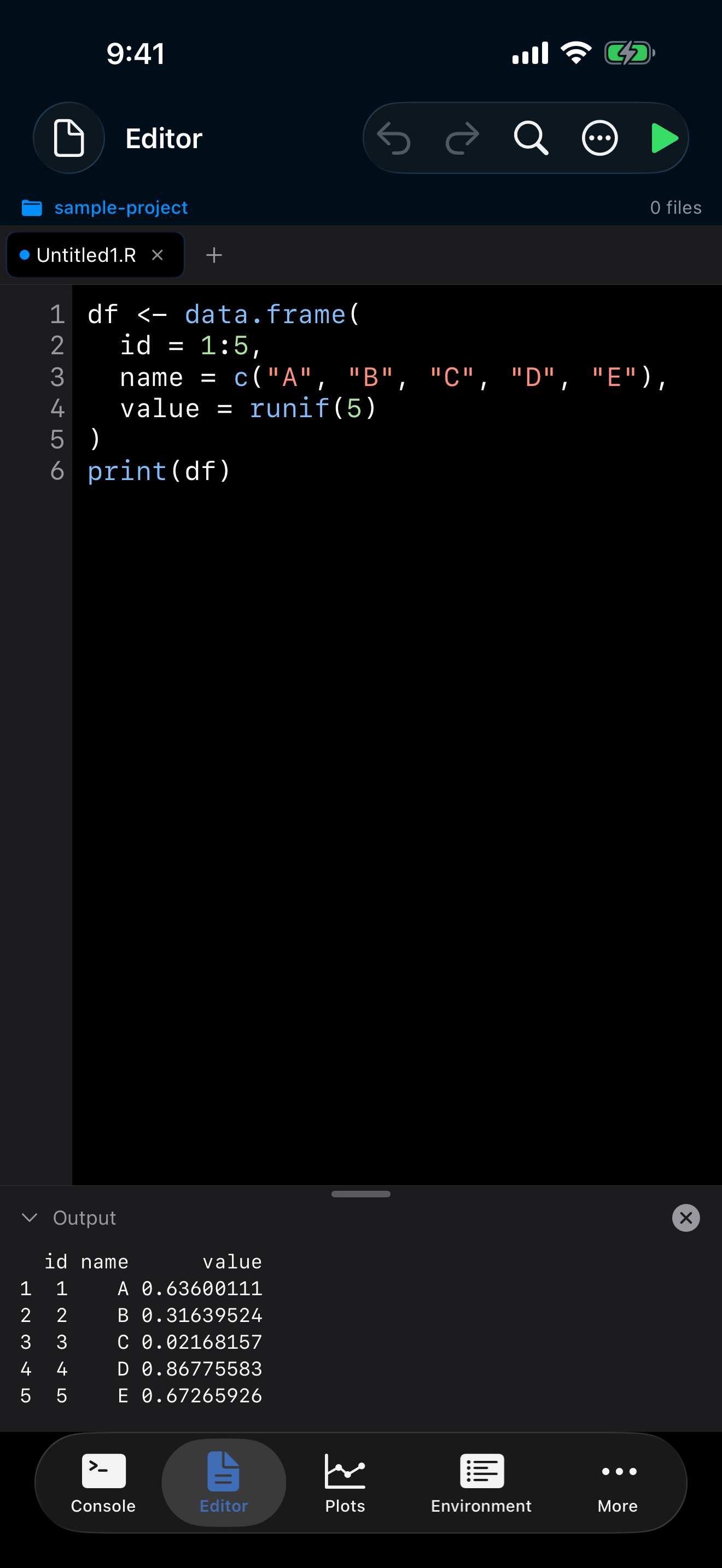
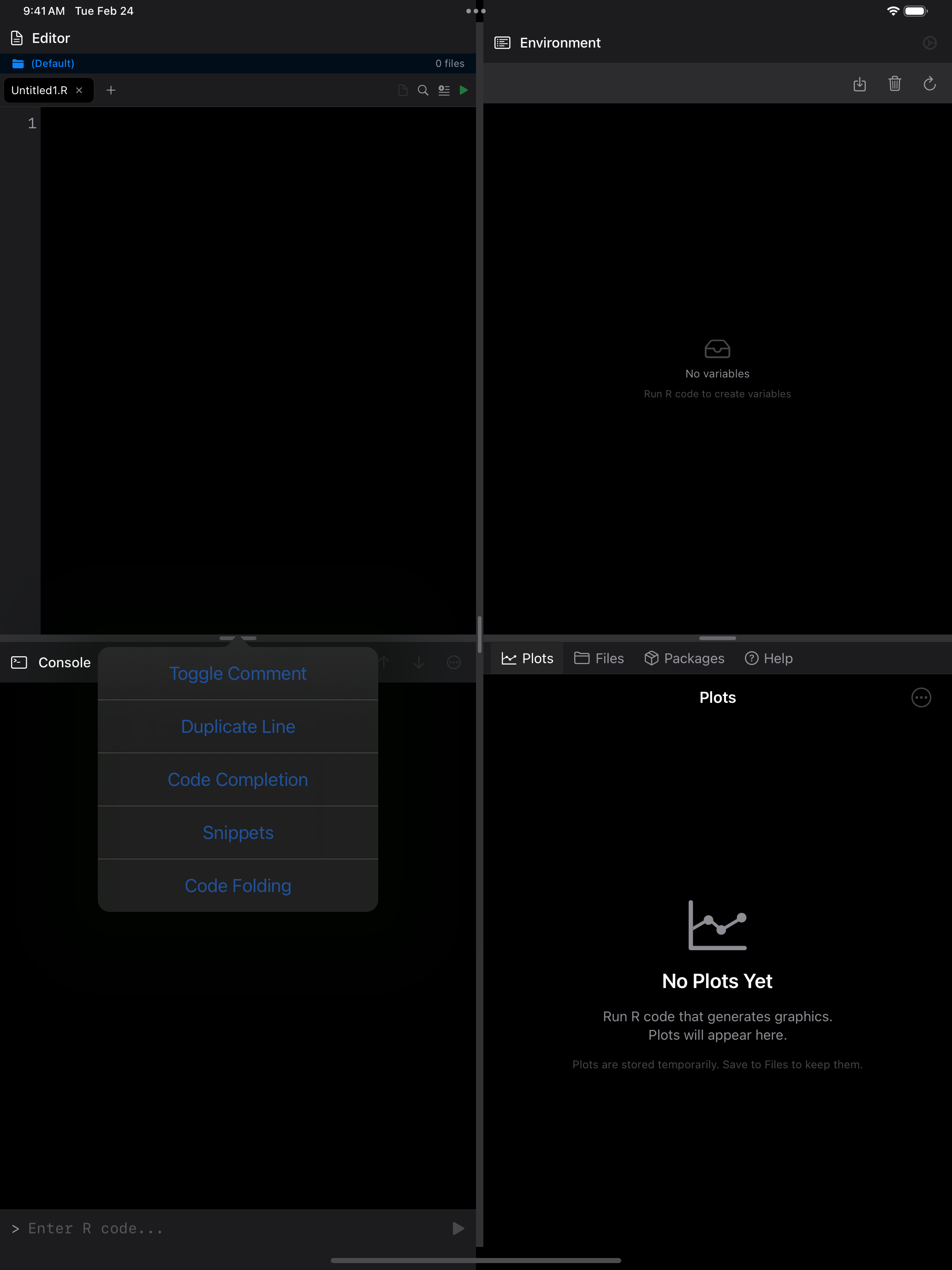
The colors adapt to light and dark mode automatically, and you can also choose a different editor color theme in Settings if you prefer a different look.
Editor Themes
webRios includes 8 color schemes. Here are four popular options:
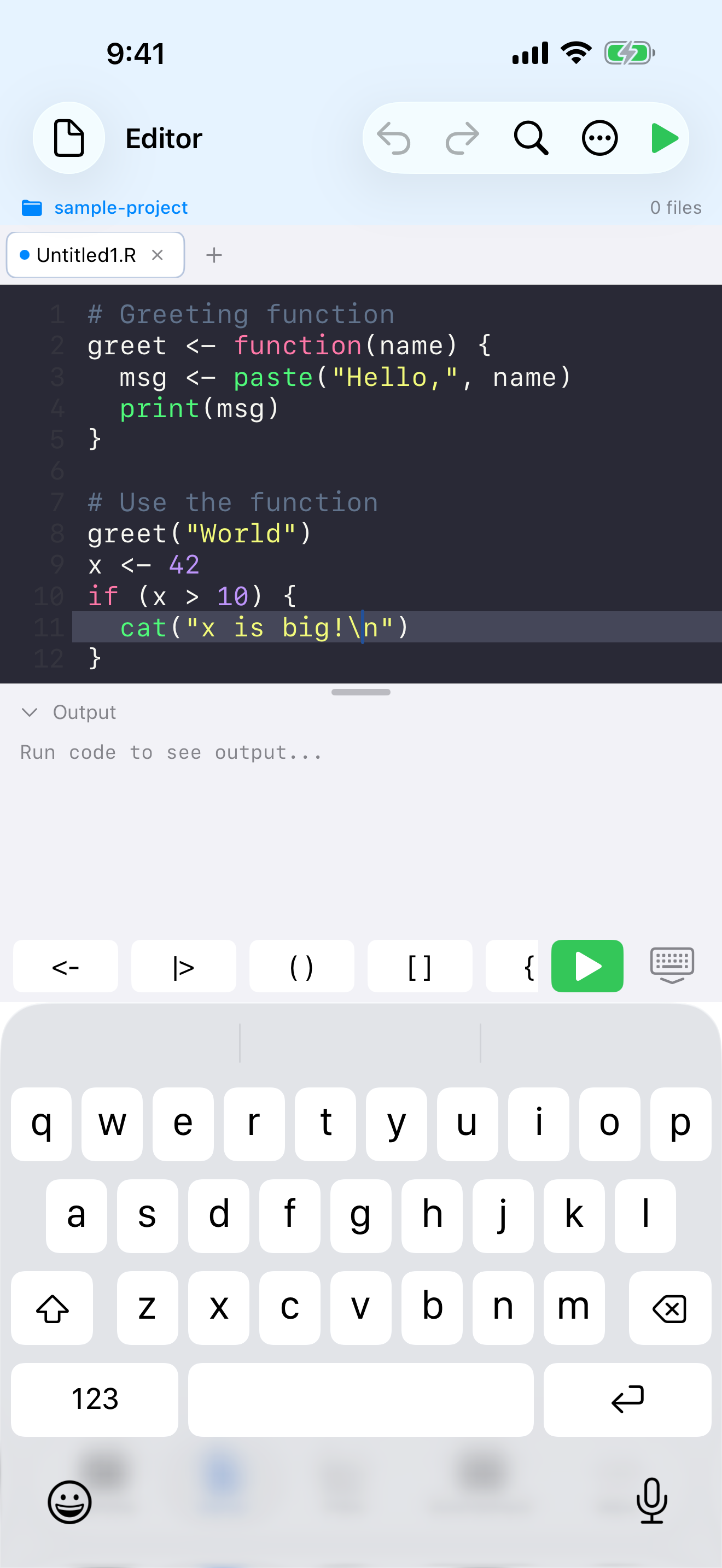
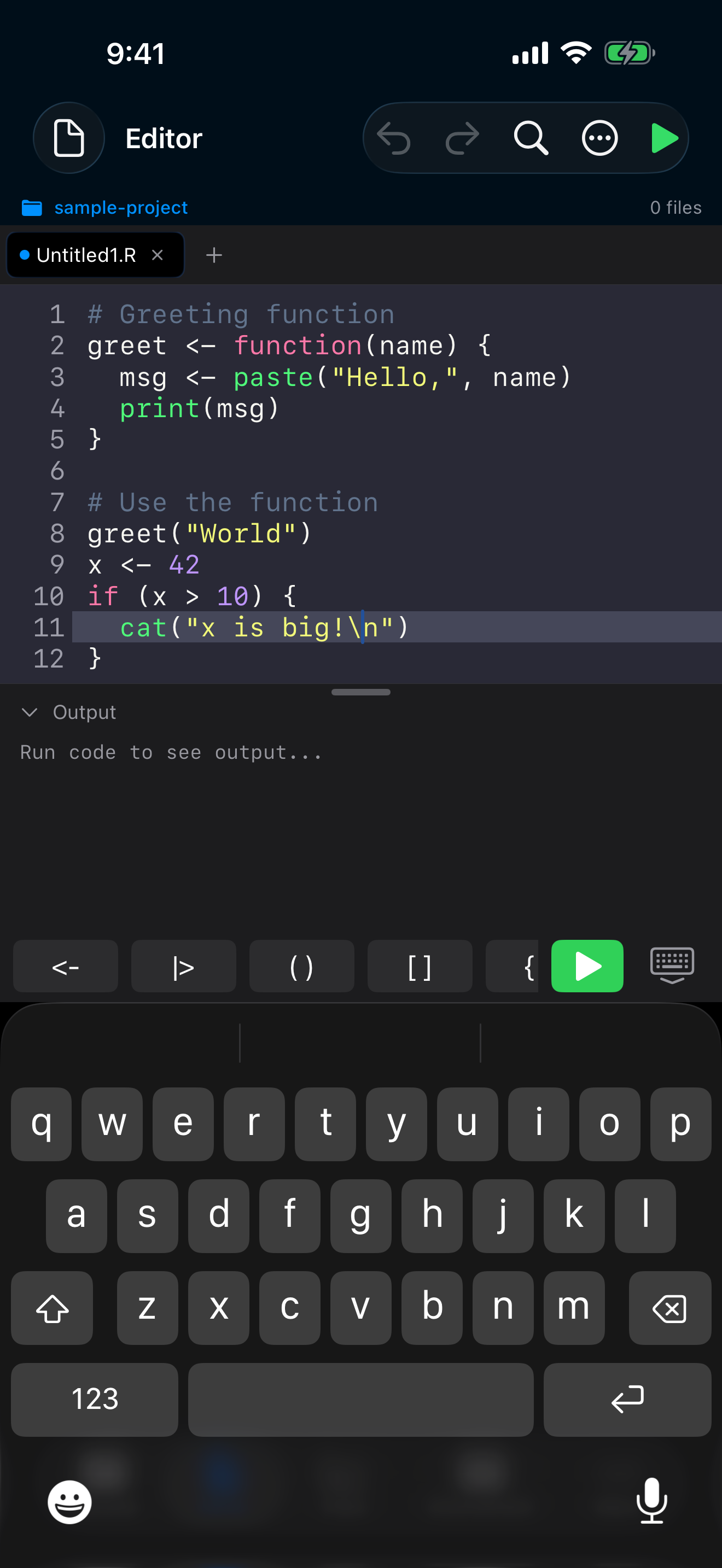
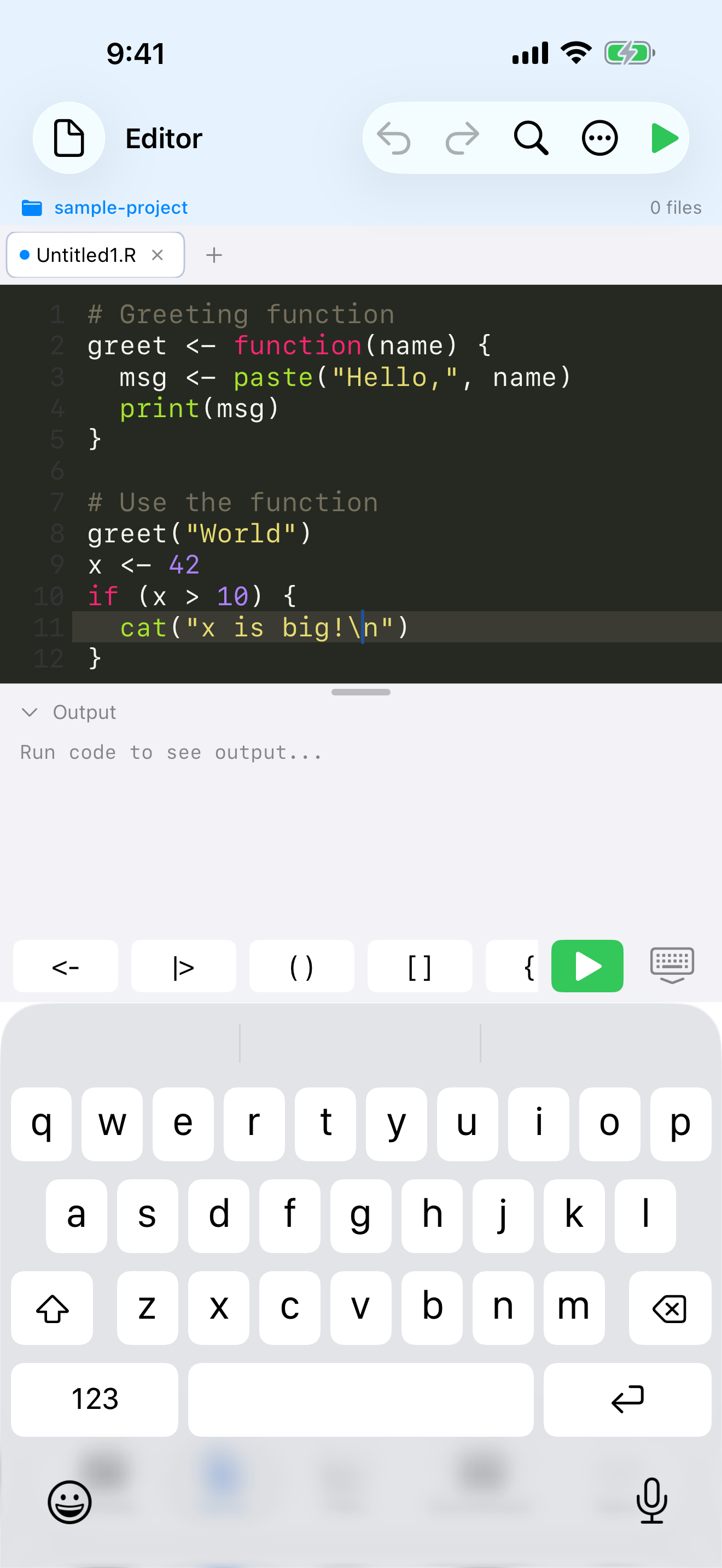
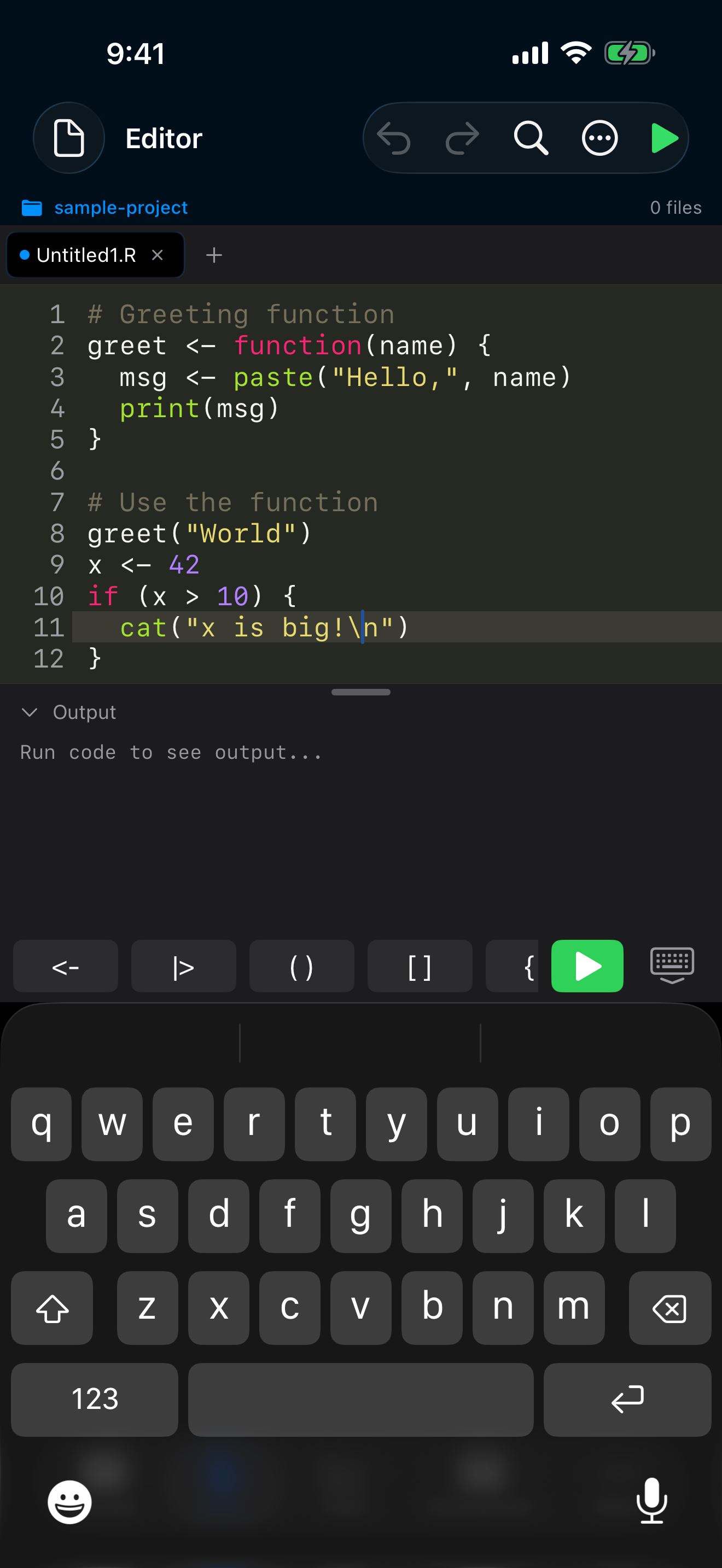
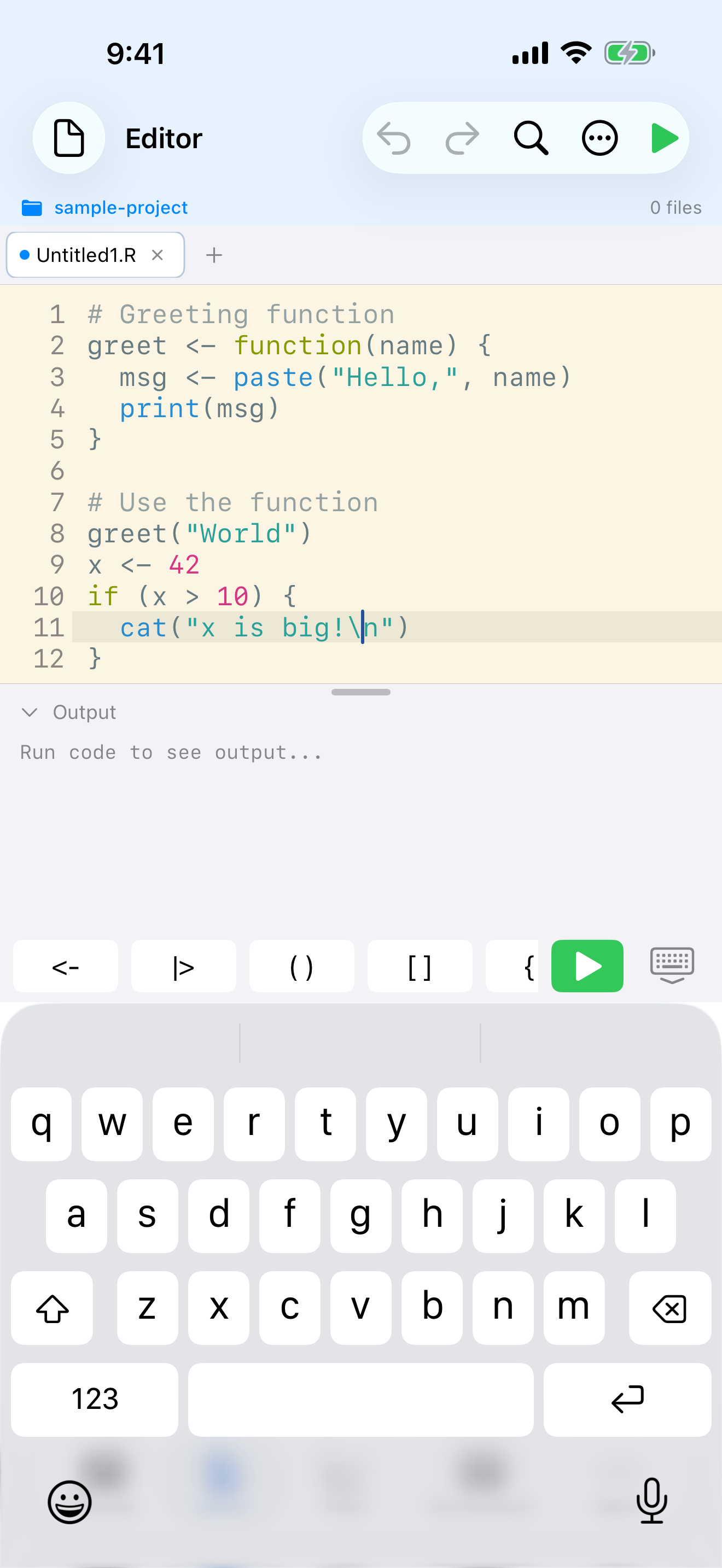
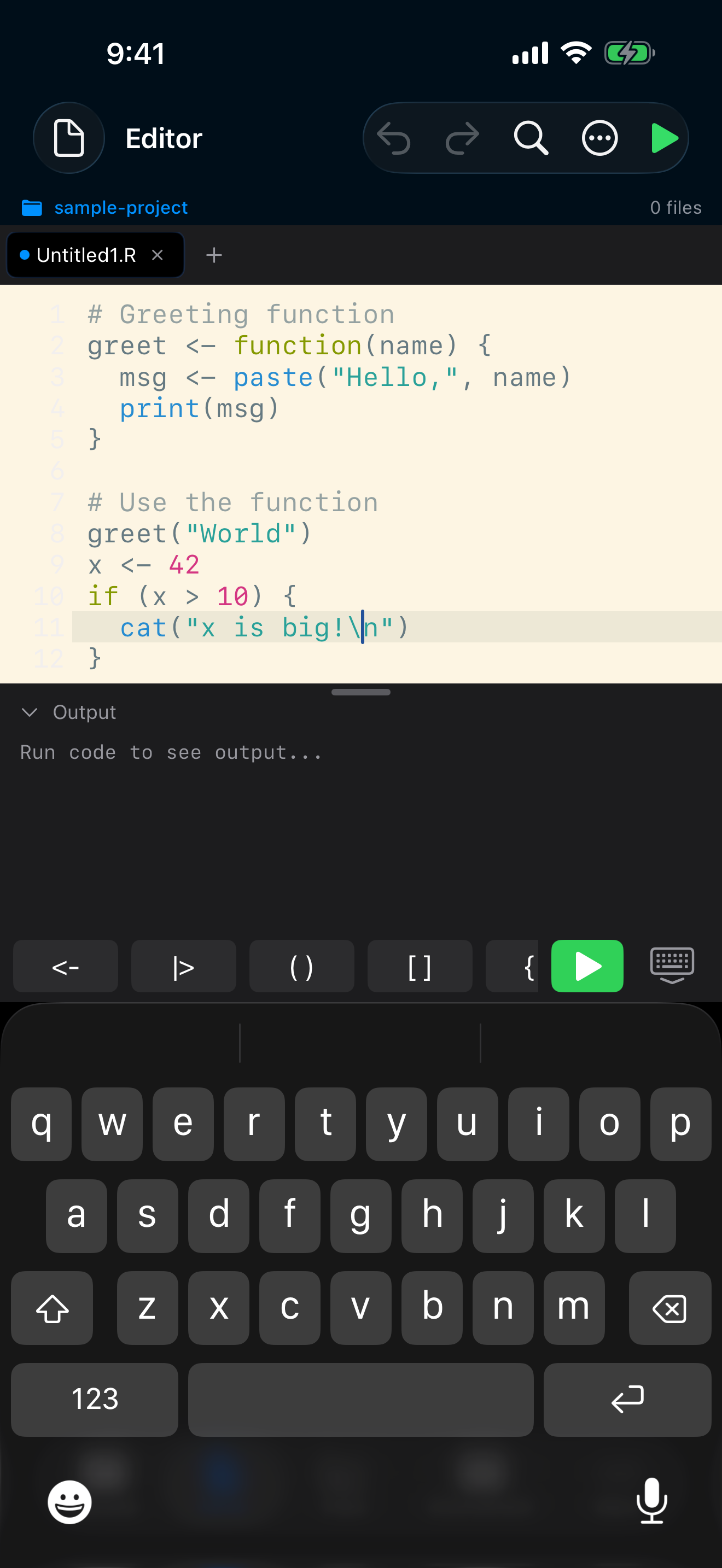
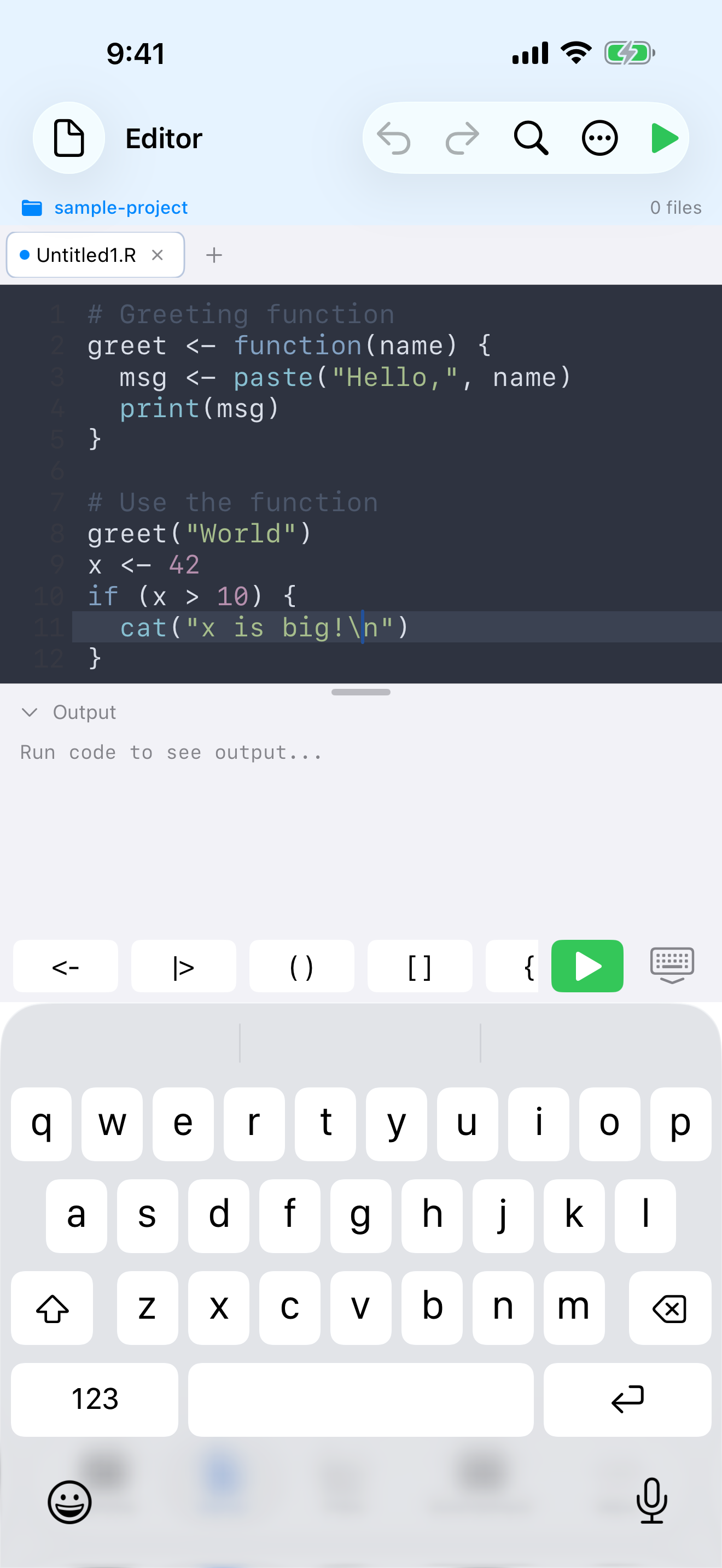
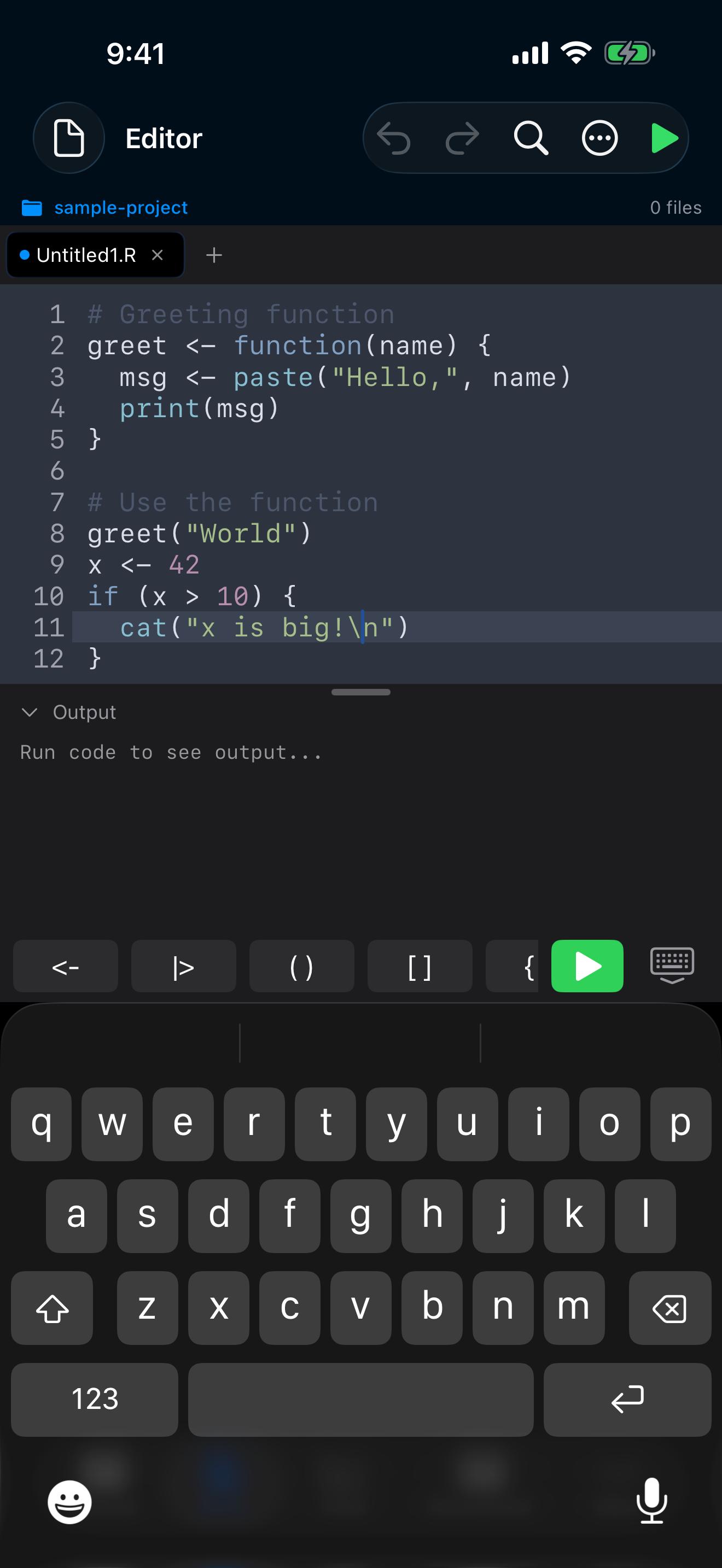
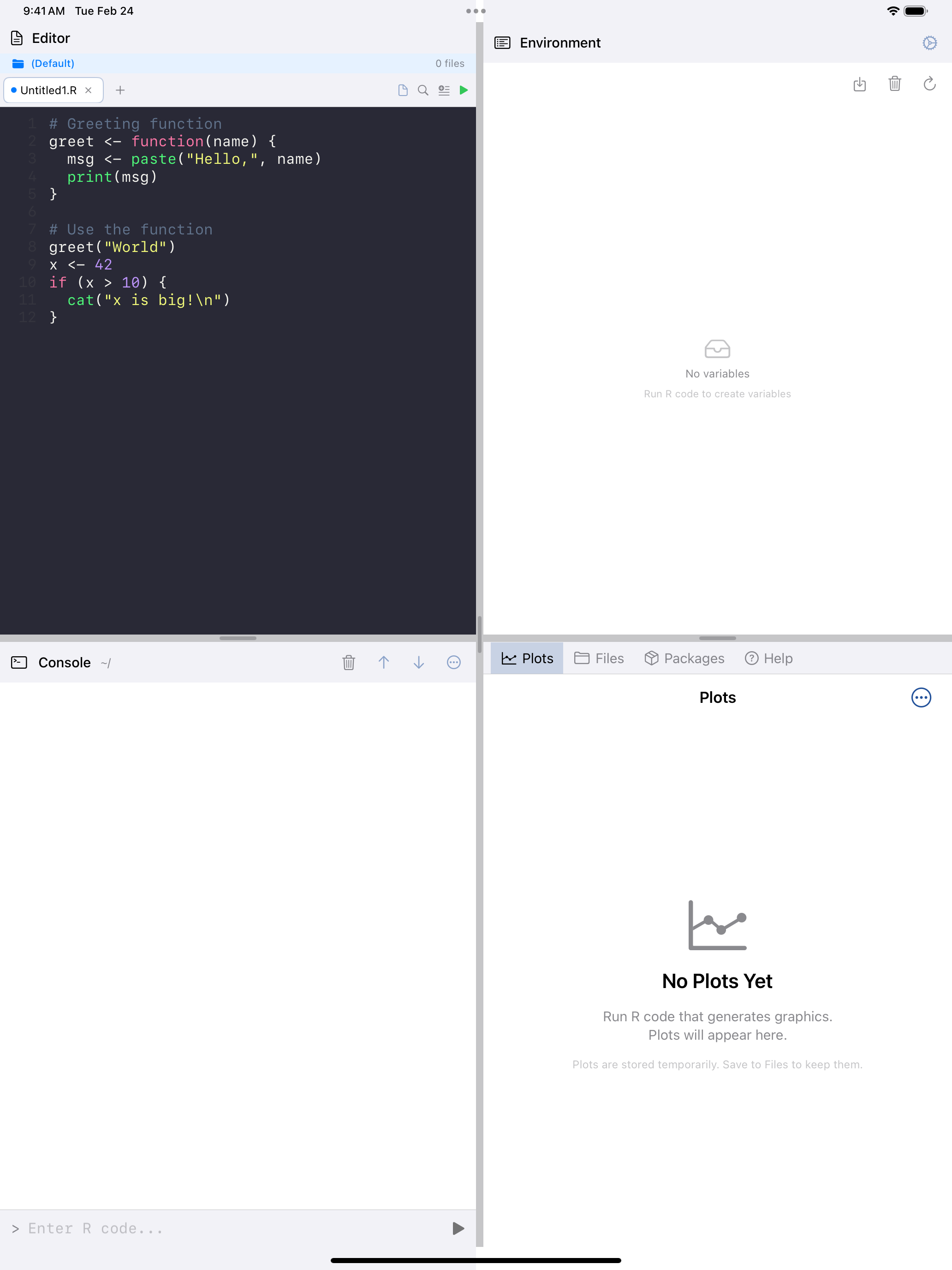
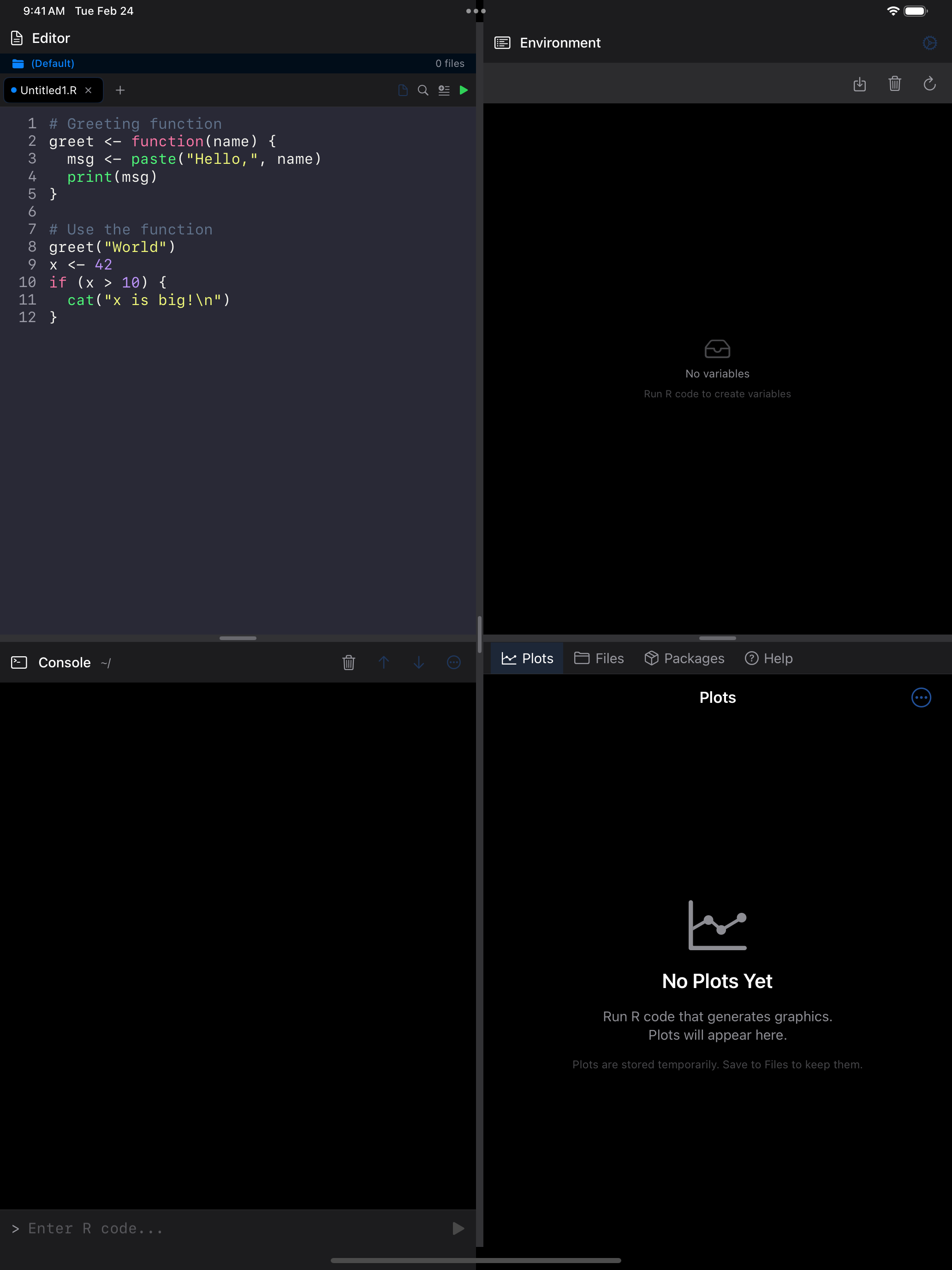
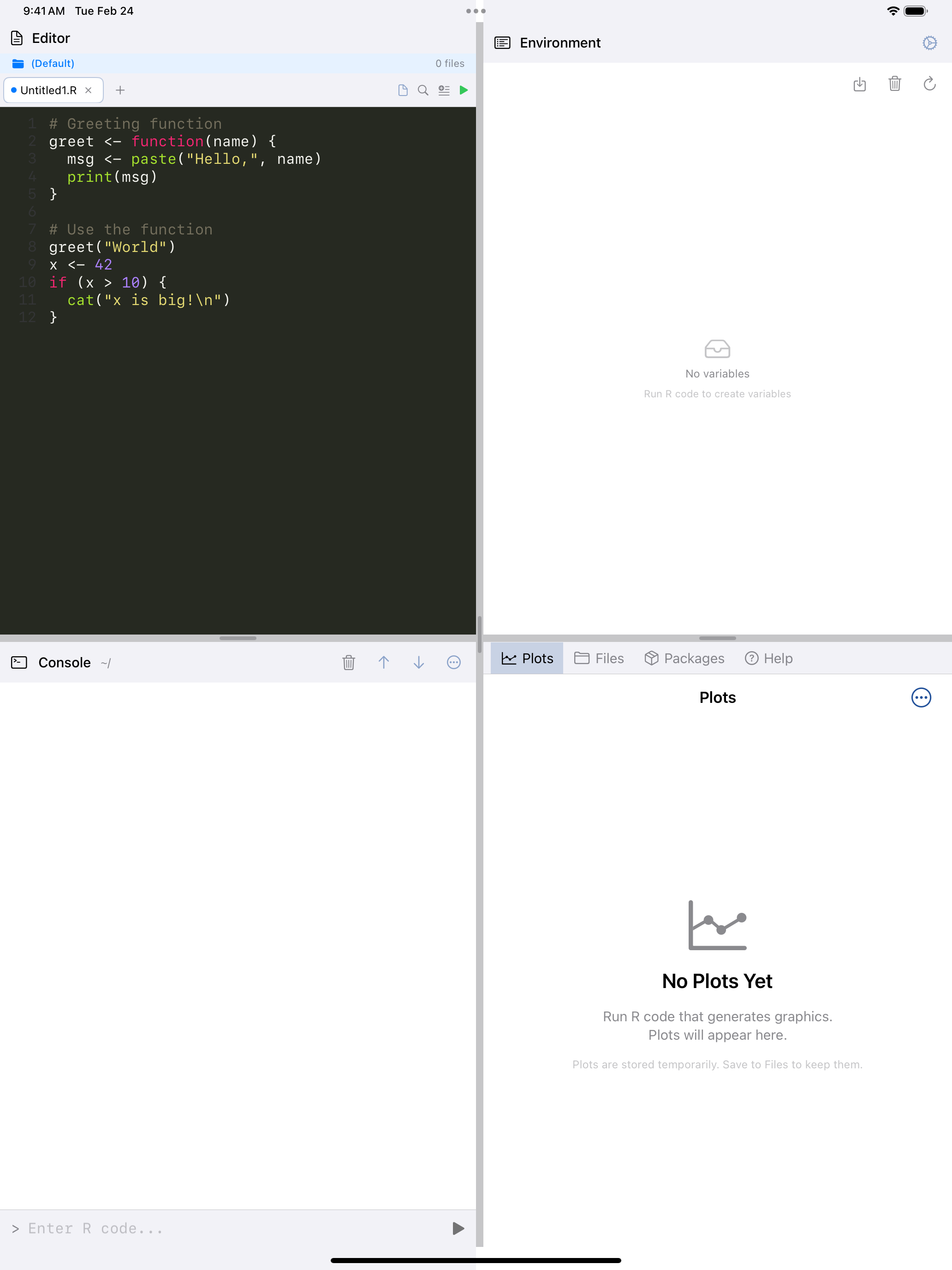
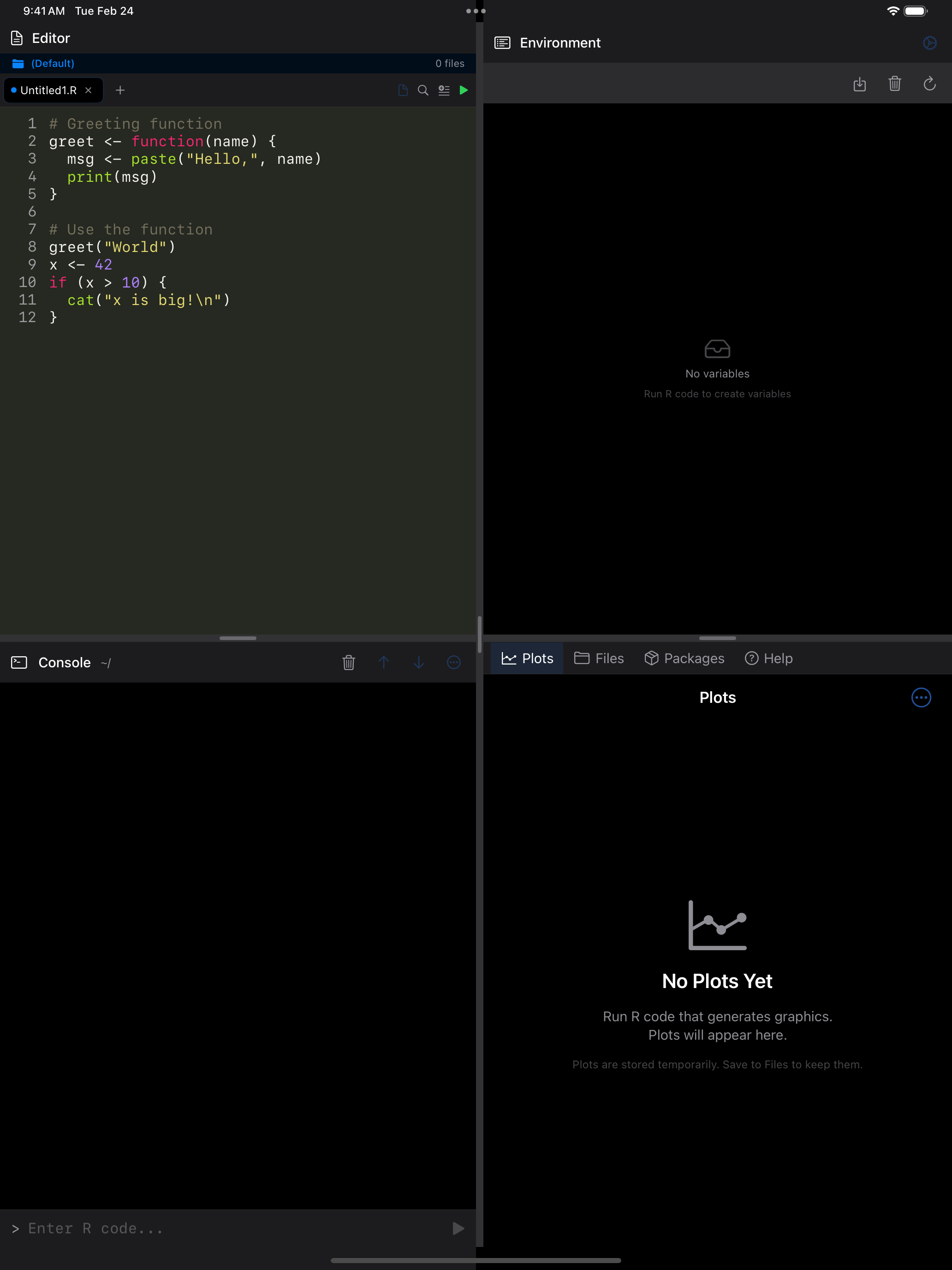
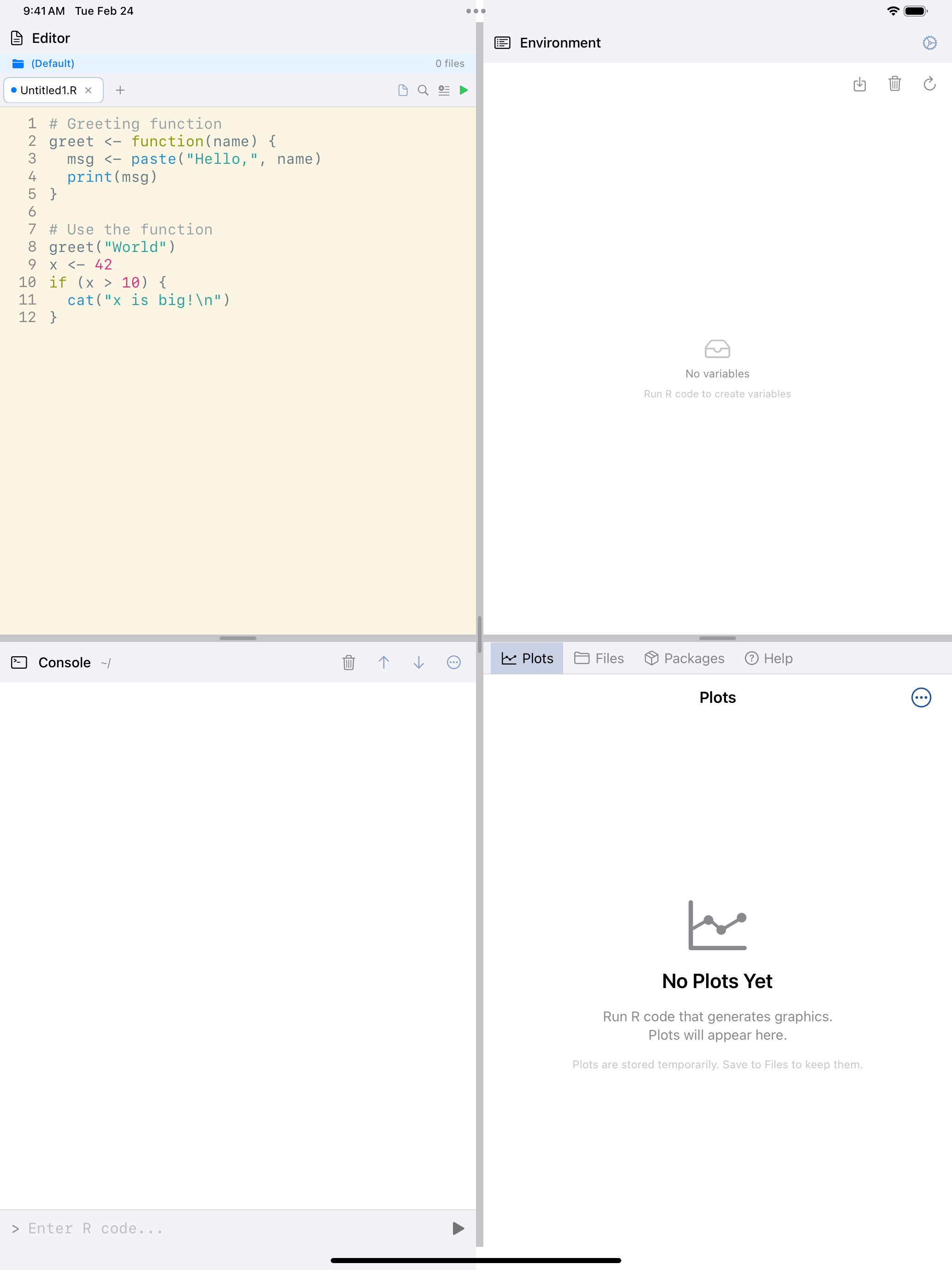
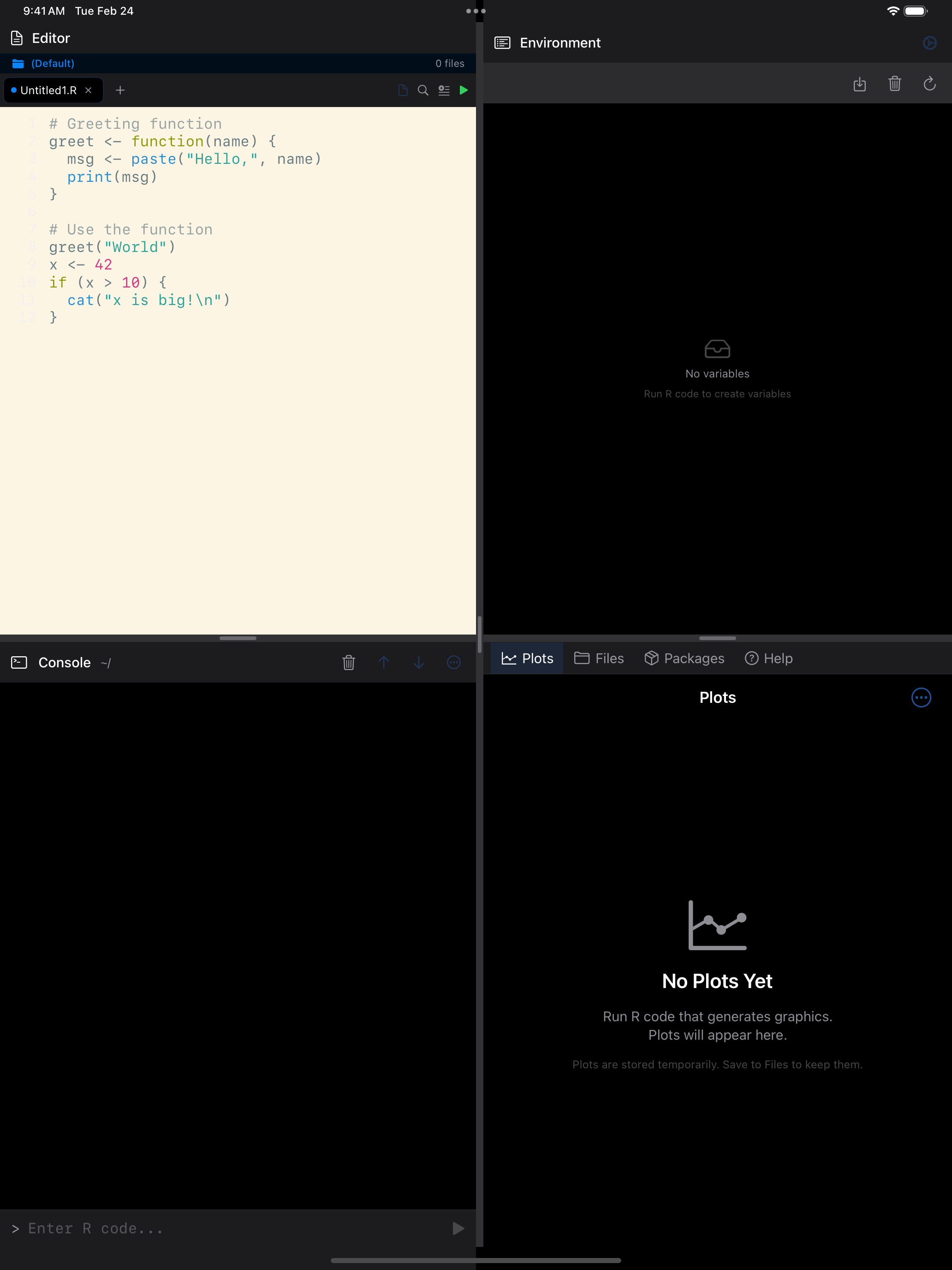
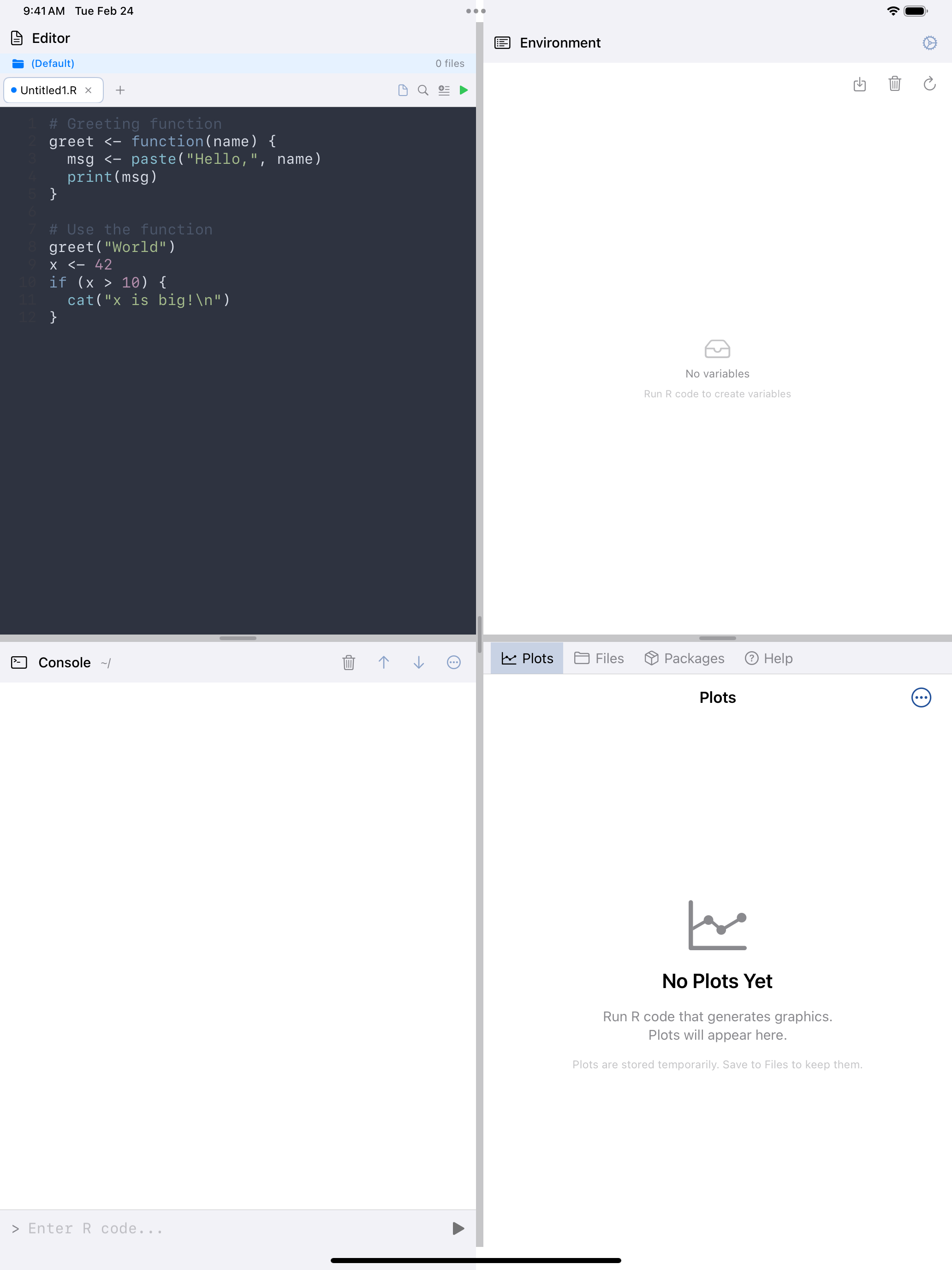
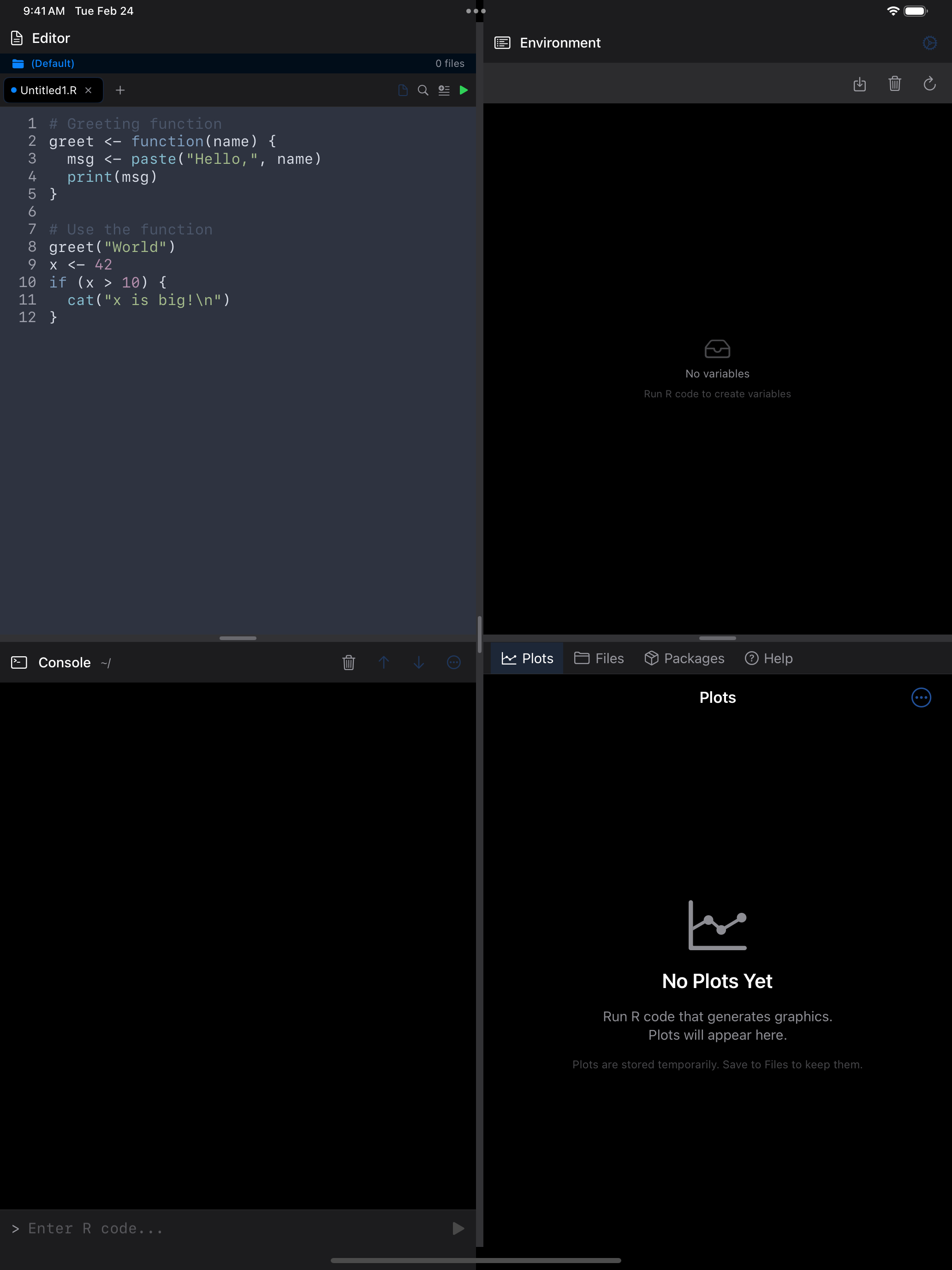
You can change the editor theme in Settings > Editor. The four themes shown above are Dracula (top-left), Monokai (top-right), Solarized Light (bottom-left), and Nord (bottom-right).
Running Your Code
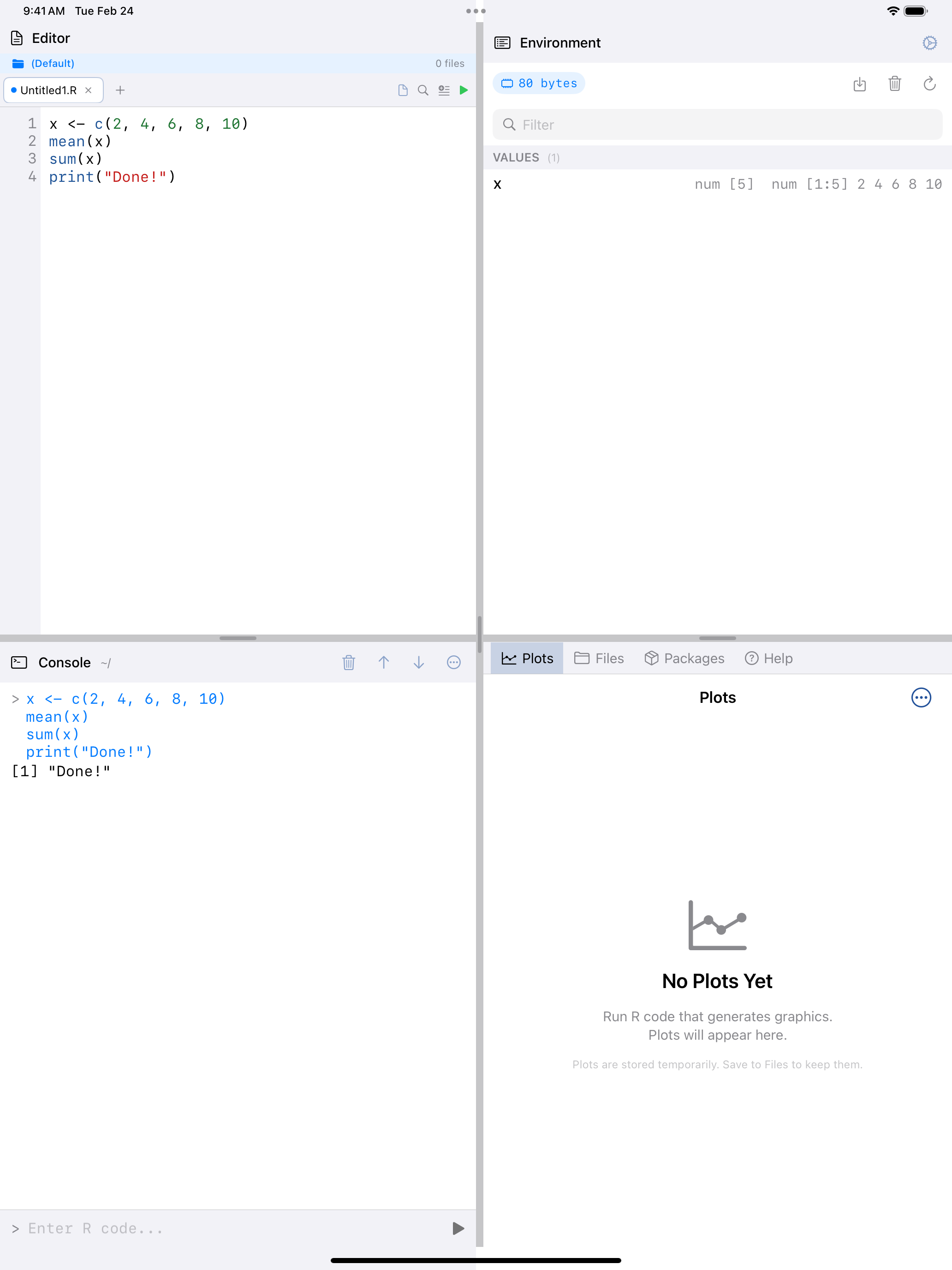
There are two ways to execute code from the Editor, and the run button color tells you which mode you are in:
- Green play button: runs your entire script from top to bottom. This is what you get when no text is selected.
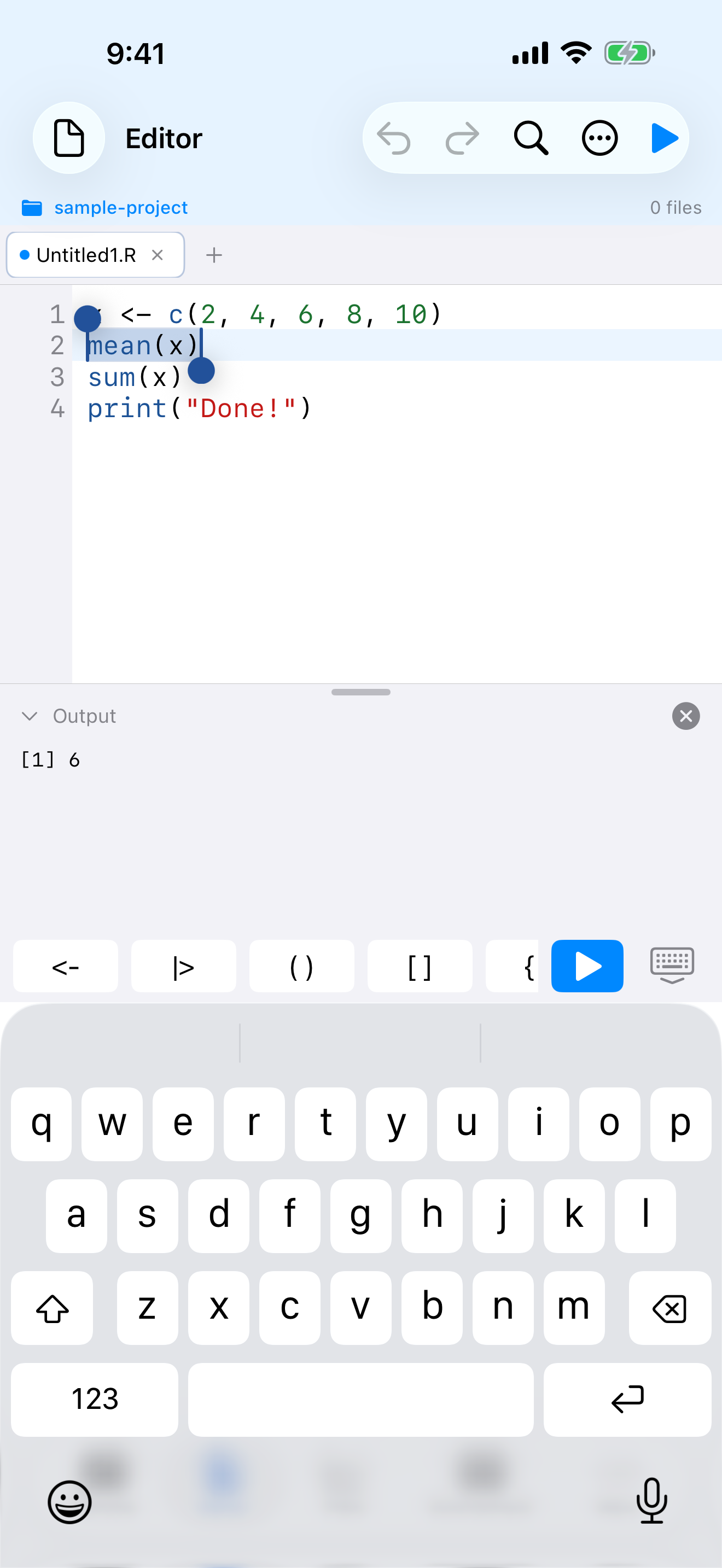
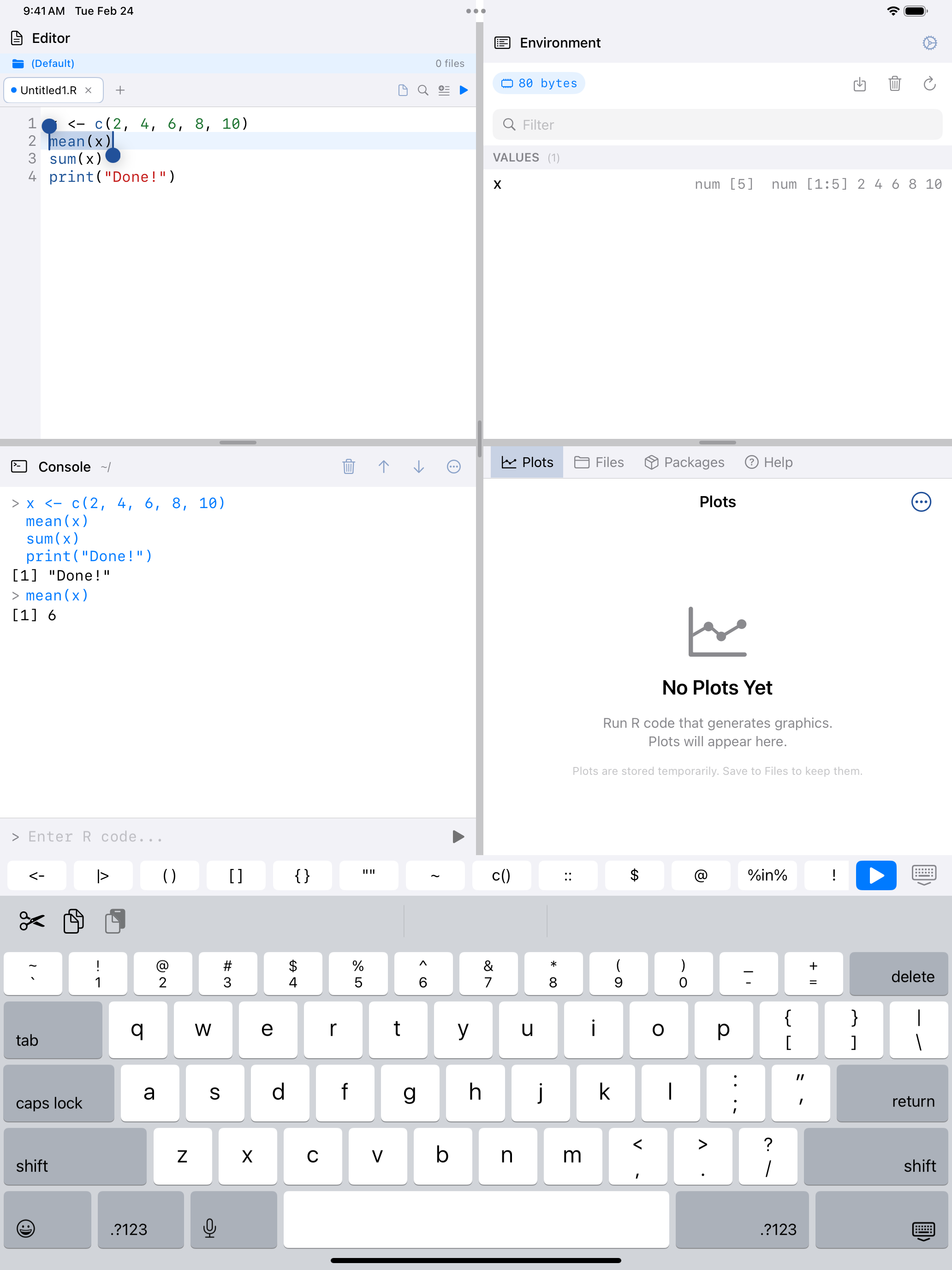
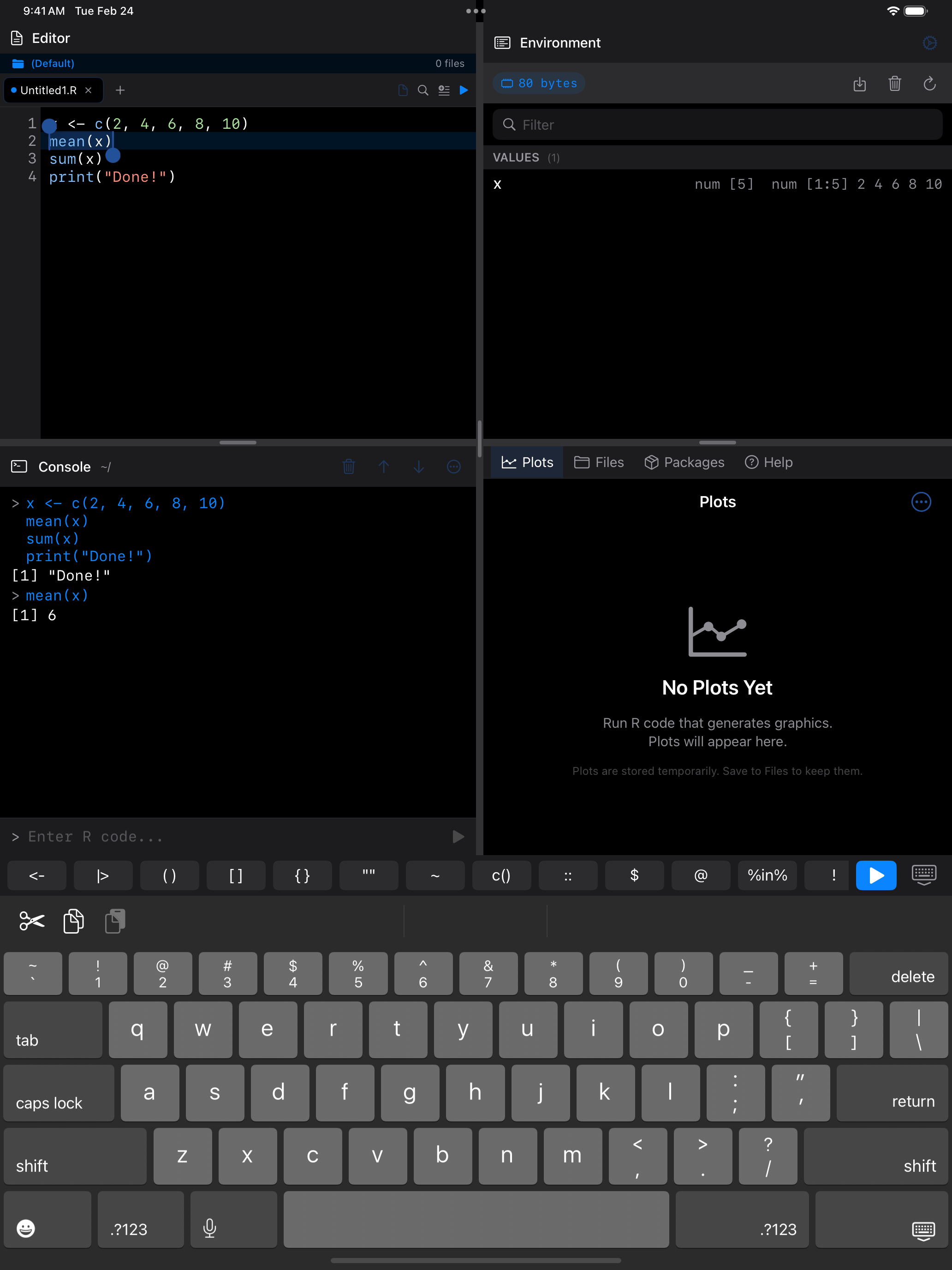
- Blue play button: runs only the selected text. Select a portion of your code (by long-pressing and dragging), and the play button turns blue to indicate it will run just that selection.
 1 2
1 2
 1 2
1 2
 1 2
1 2
 1 2
1 2
- Green play button: no text is selected, so tapping runs the entire script
- Output panel: results appear here after execution; drag the handle to resize
When you select a portion of your code, the play button turns blue:
 1 2
1 2
 1 2
1 2
 1 2
1 2
 1 2
1 2
- Blue play button: text is selected, so tapping runs only the selection
- Selected text: the highlighted code that will be executed
Output from your script appears in the Output panel at the bottom of the Editor. You can resize this panel by dragging the handle at its top edge, collapse it by tapping the chevron, or double-tap the divider to toggle it open and closed.
Running a selection is incredibly useful for debugging. If your script is not producing the result you expect, select just one section at a time to see where things go off track.
The R Keyboard Toolbar
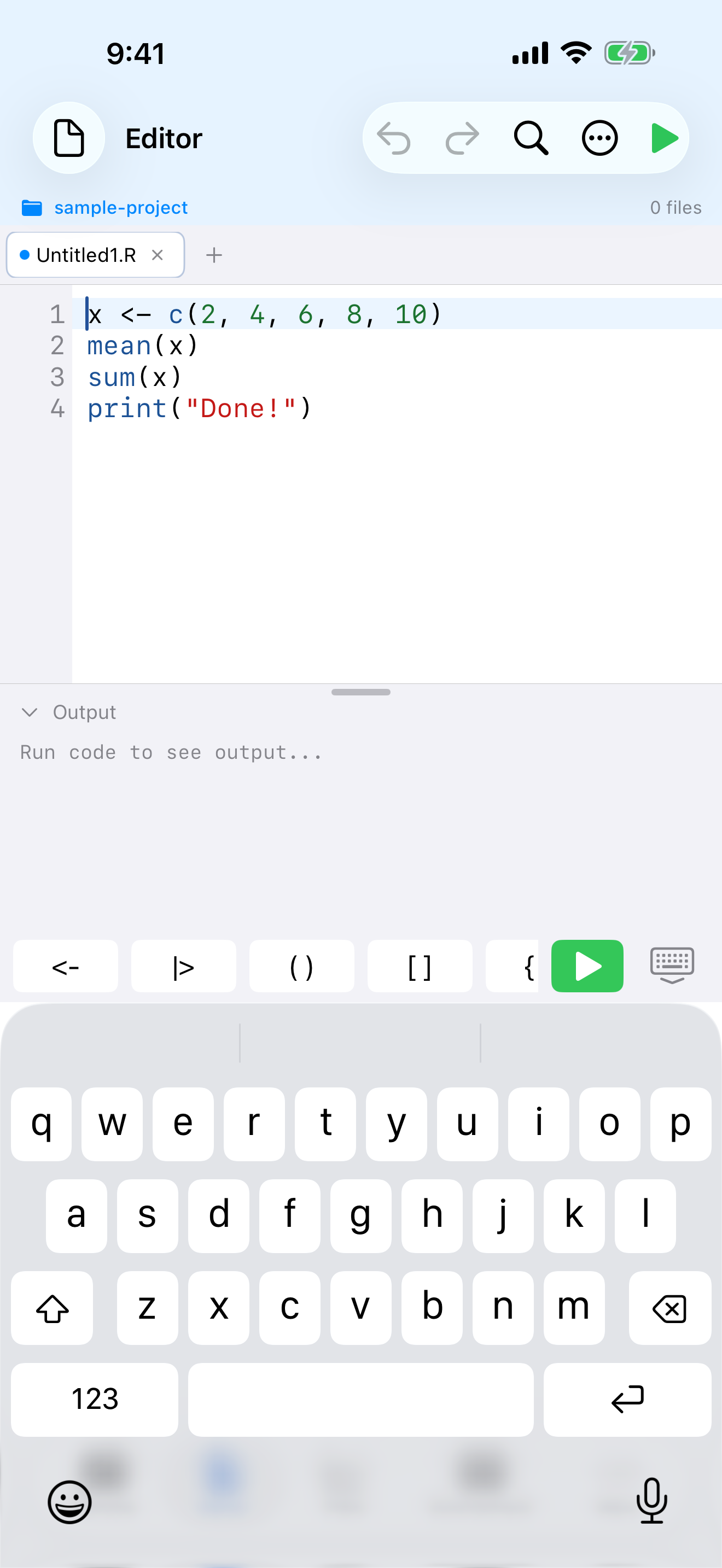
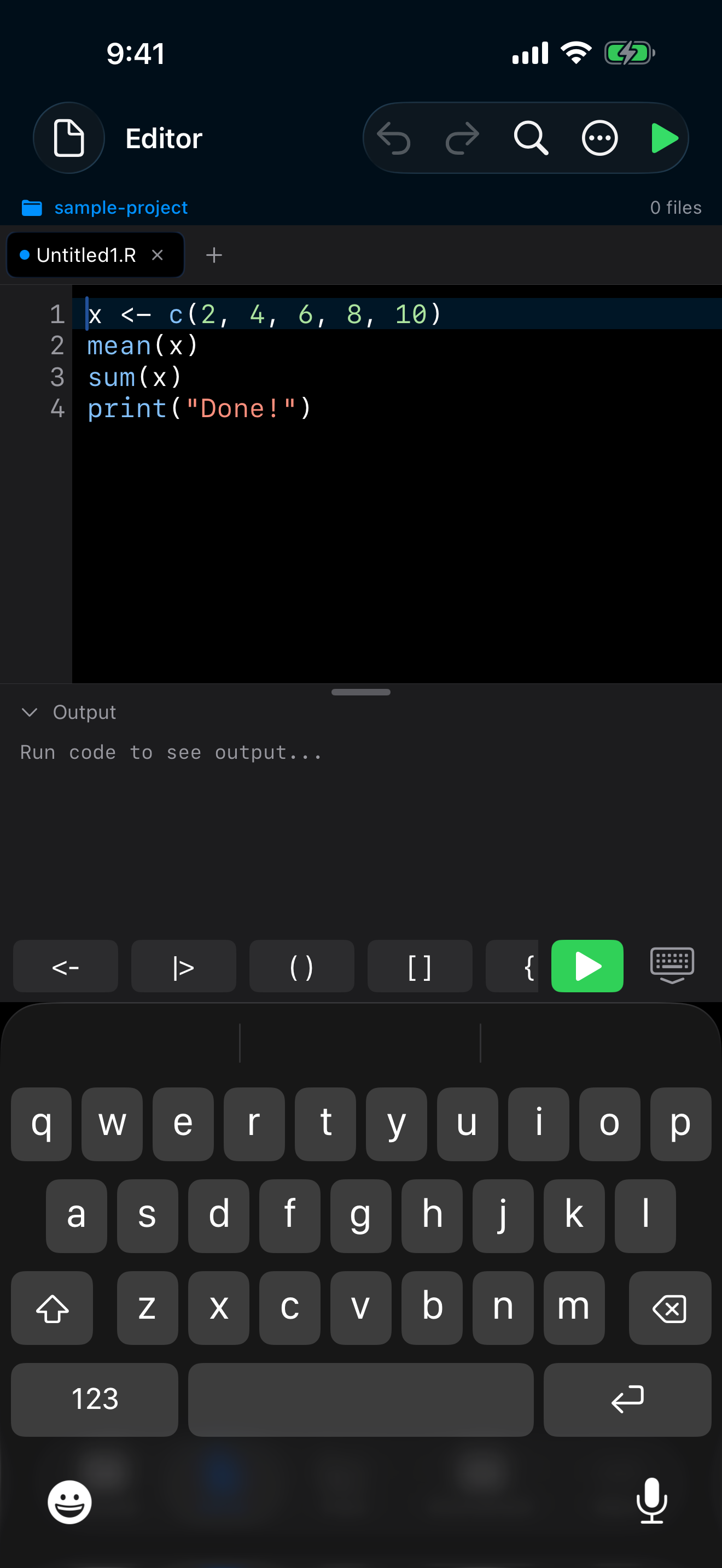
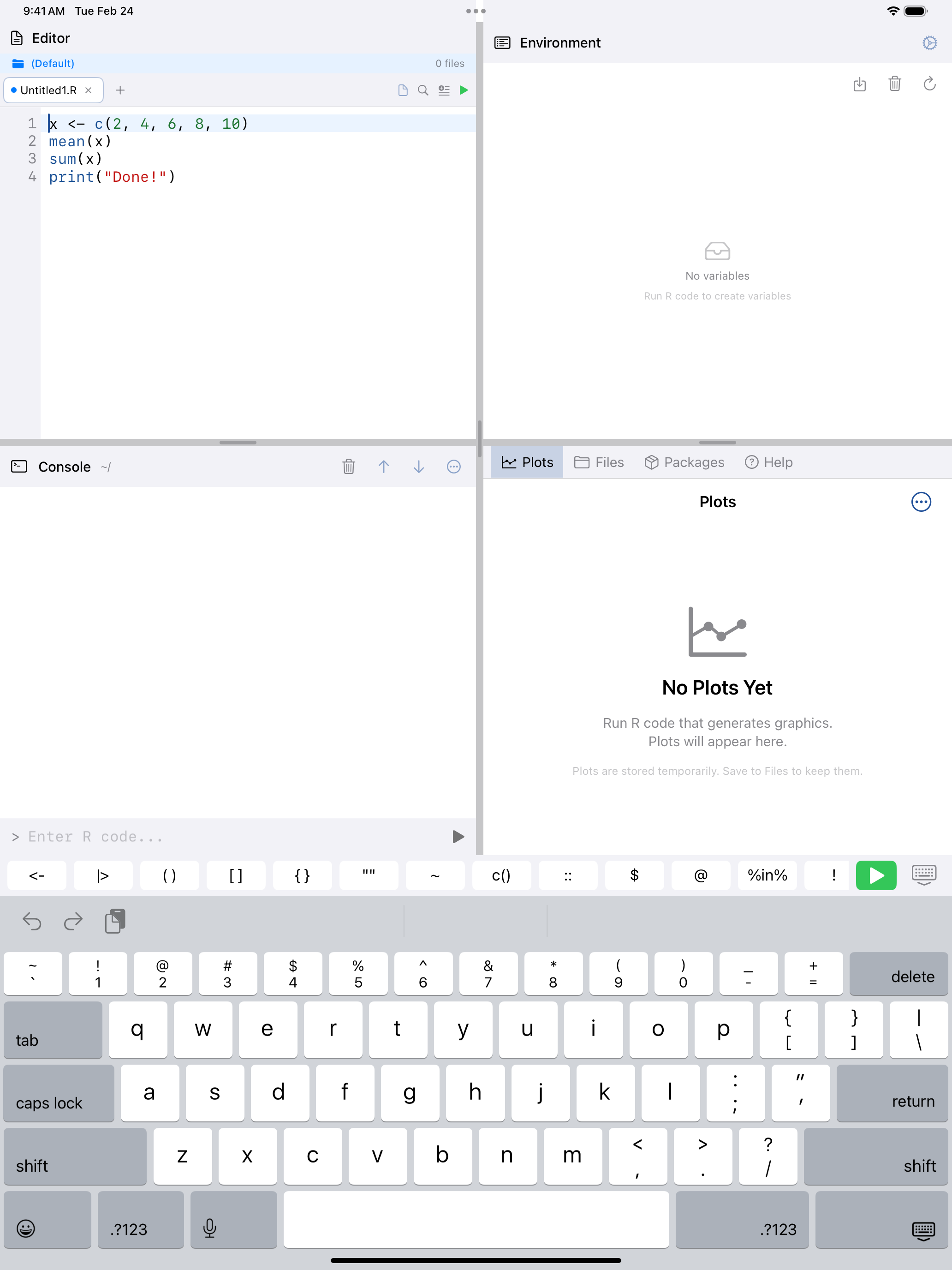
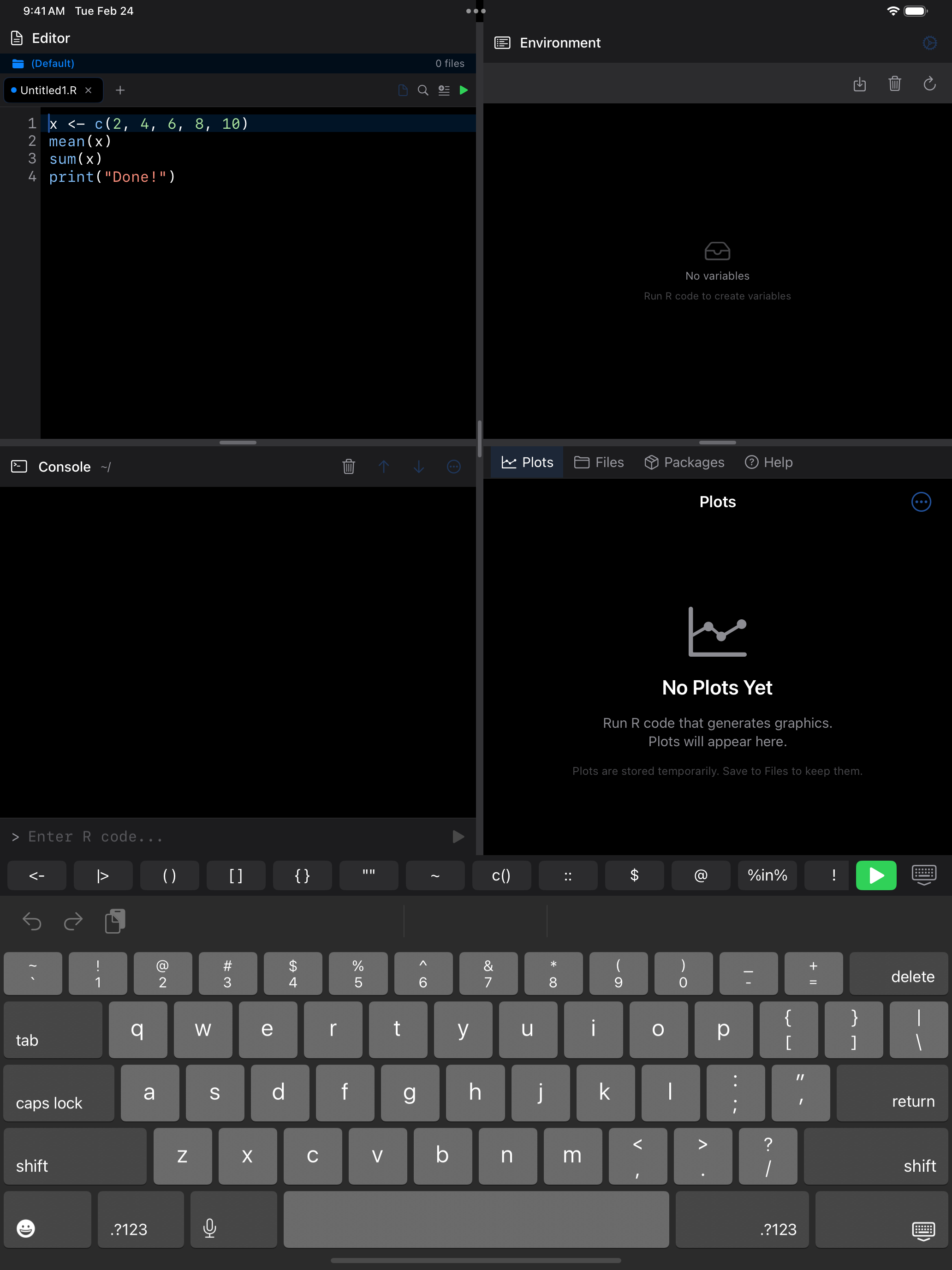
Just like the Console, the Editor shows a scrollable toolbar of R operators above the keyboard when you are typing. The buttons are the same (<-, |>, matched brackets, c(), $, #, and more), so you get fast access to the characters R uses most without switching to the iOS symbol keyboard.
 1 2
1 2
 1 2
1 2
 1 2
1 2
 1 2
1 2
- R operator buttons: scrollable row of
<-,|>,(),[],{},"",~,c(),::,$,@,%in%,!,&,|,# - Dismiss keyboard: hides the keyboard so you can see more of your code
Tabs and File Management
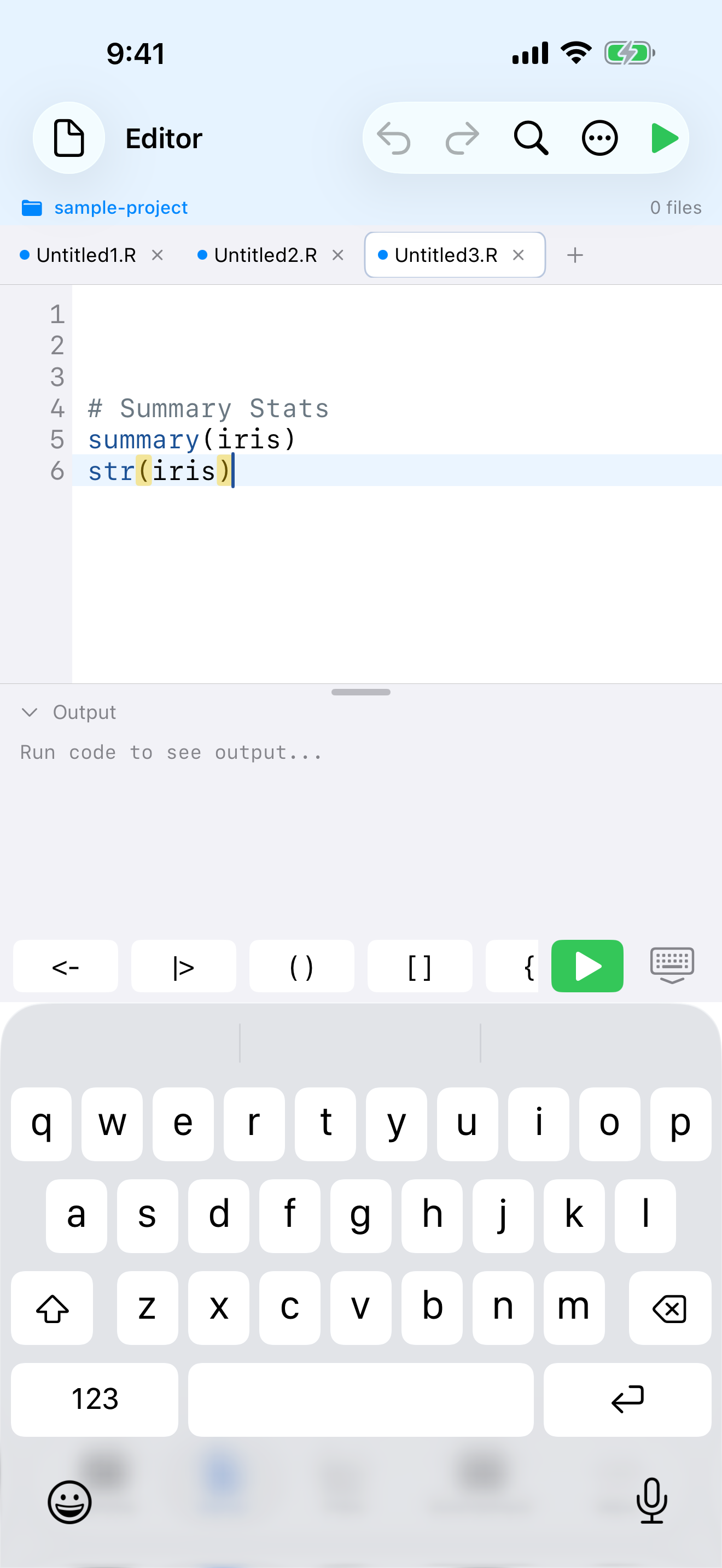
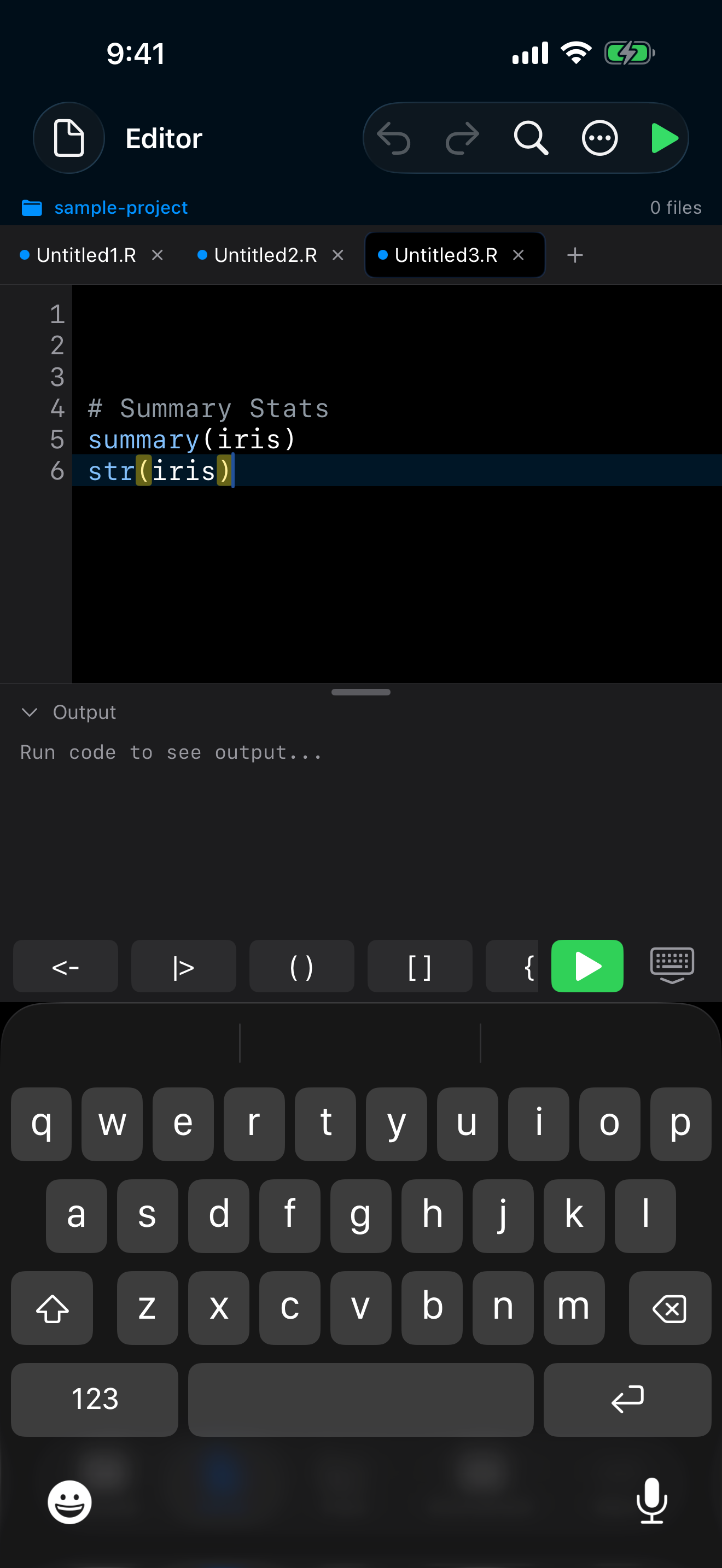
The Editor supports multiple open files through a tab bar at the top of the screen:
 1 2 3 4
 1 2 3 4
 1 2 3 4
 1 2 3 4
- Tab bar: shows all open files; tap a tab to switch to it
- Blue dot: indicates the tab has unsaved changes
- Close button: tap the x on a tab to close it
- New tab button: tap + to create a fresh editor tab
For file operations, tap the document icon in the top-left toolbar to open the File menu:
- New Tab: creates a fresh, empty editor tab
- Open…: opens the iOS file picker so you can load any
.Ror text file from Files, iCloud Drive, or other storage providers - Open Recent: quickly reopen files you have worked on before
- Save: saves the current tab (you will be prompted for a filename if the file is new)
- Export to Gist: shares your code as a GitHub Gist
Files are saved as .R scripts in the app’s project storage. You can also find them in the Files tab.
Code Snippets
When you want a quick starting point, the Snippets feature has you covered. Open it from the … menu (Editor actions) and browse pre-built R code templates organized by category. Snippets cover common patterns like creating data frames, plotting, running statistical models, writing functions, and more.
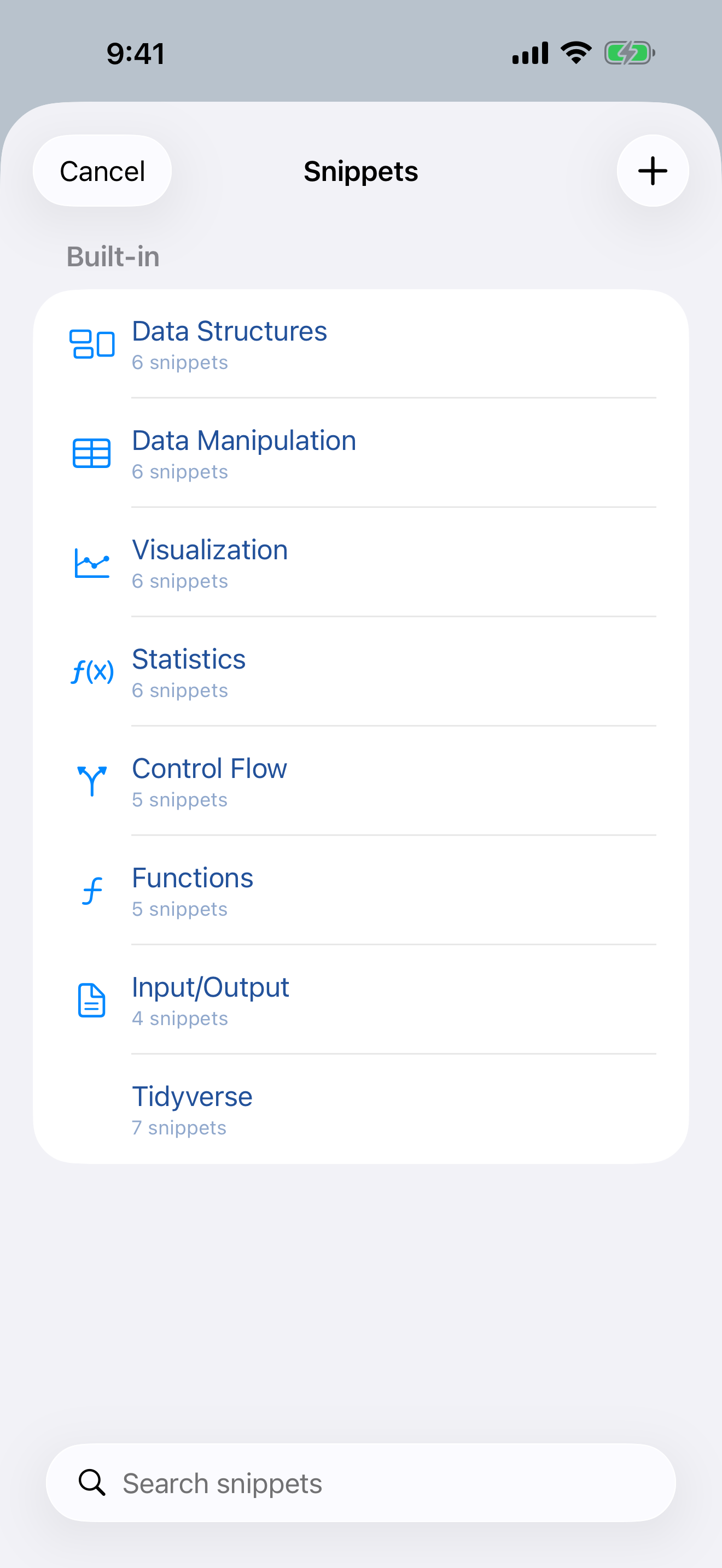
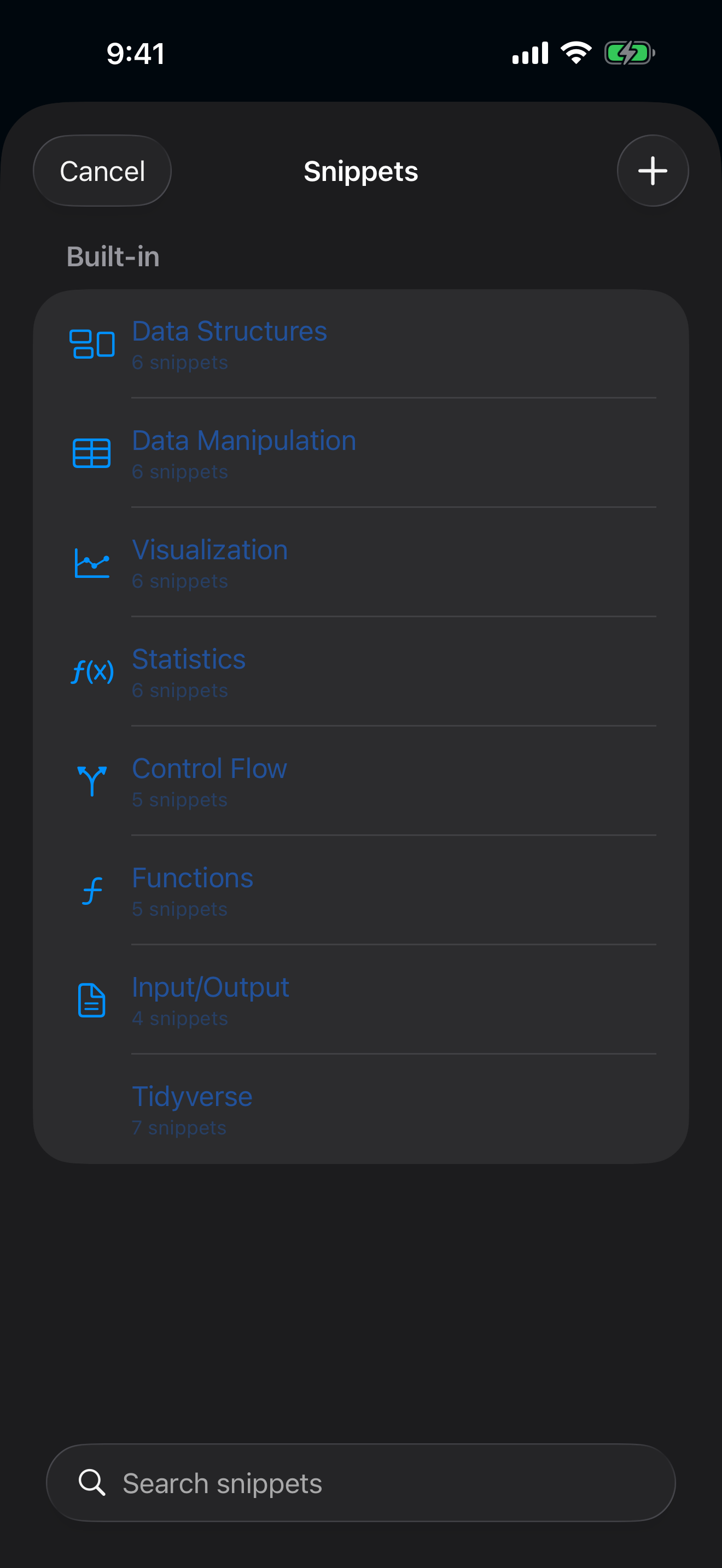
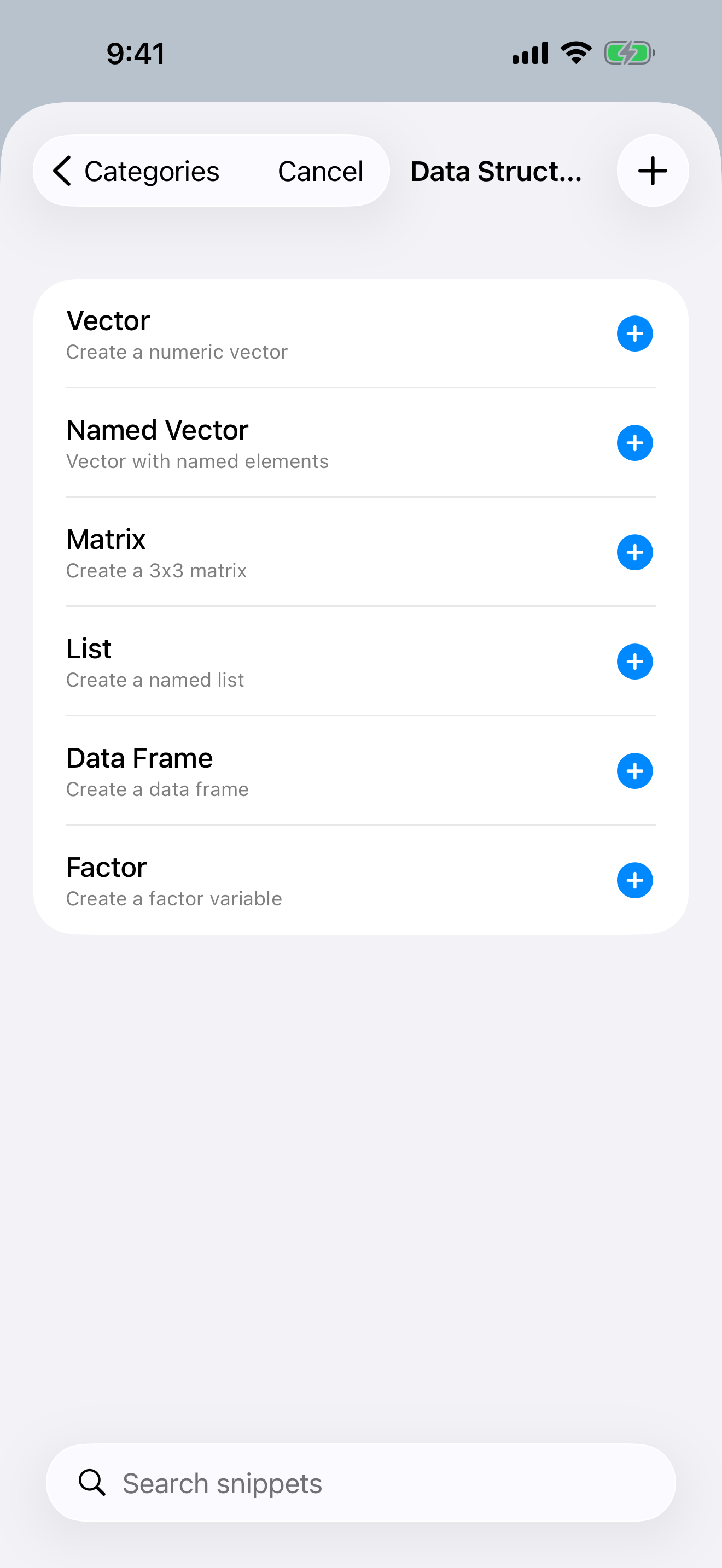
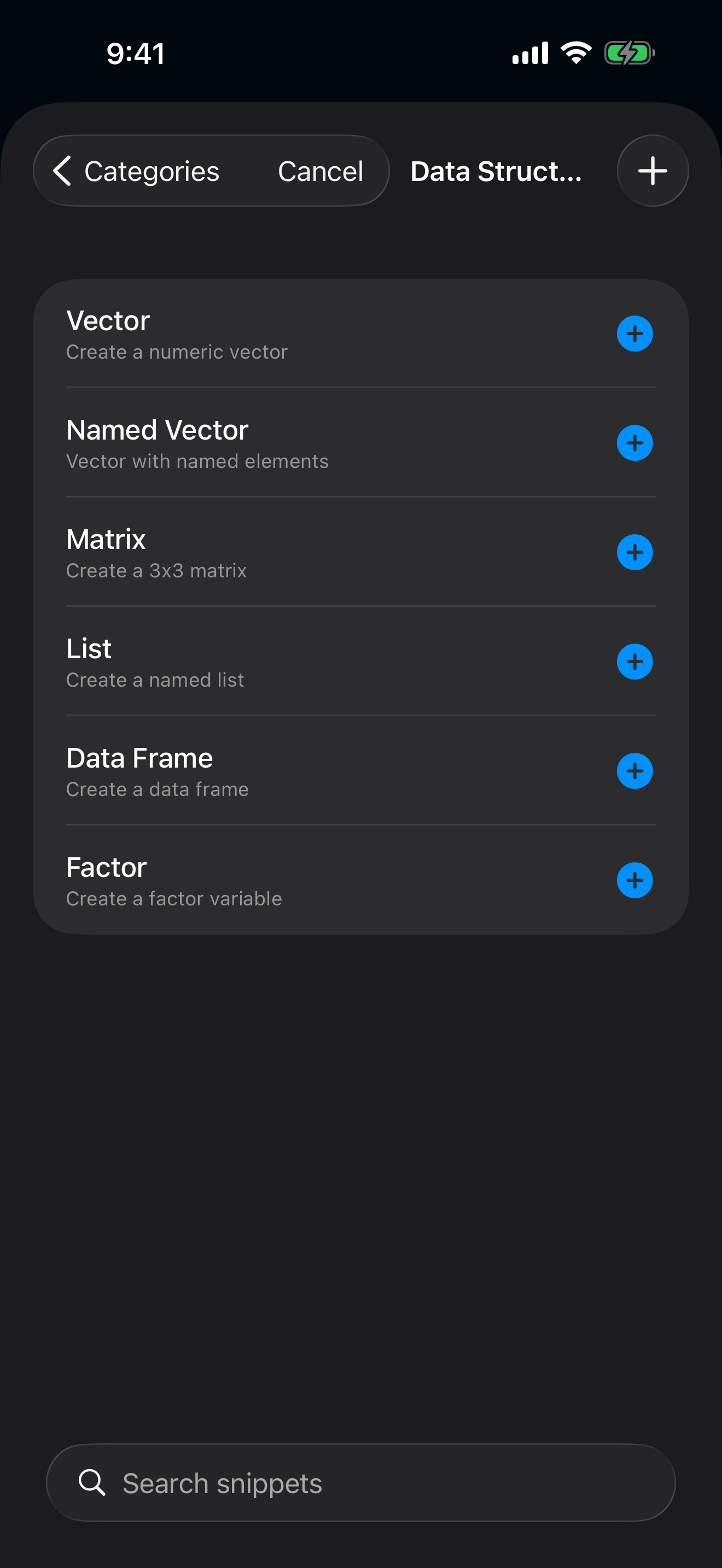
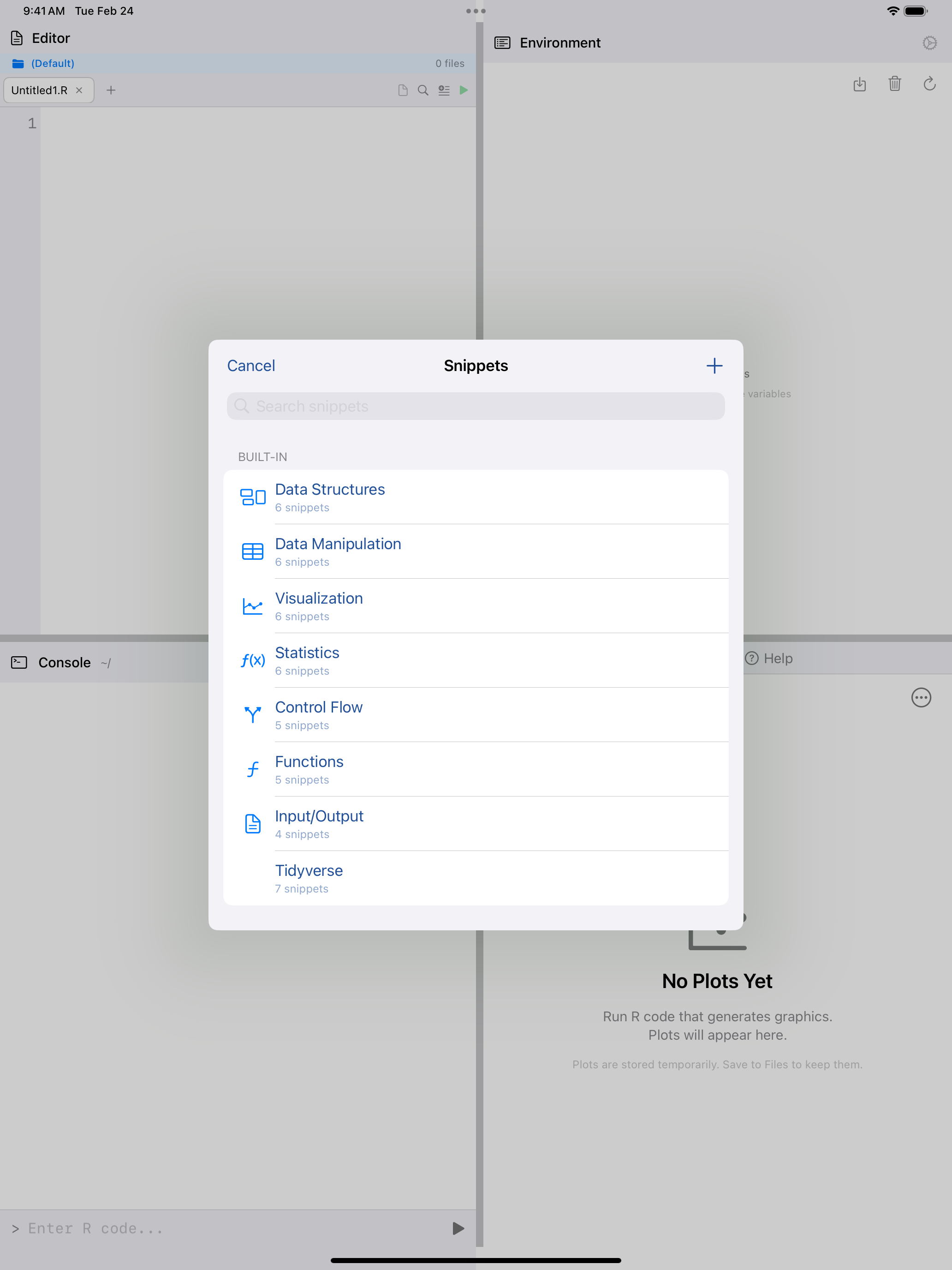
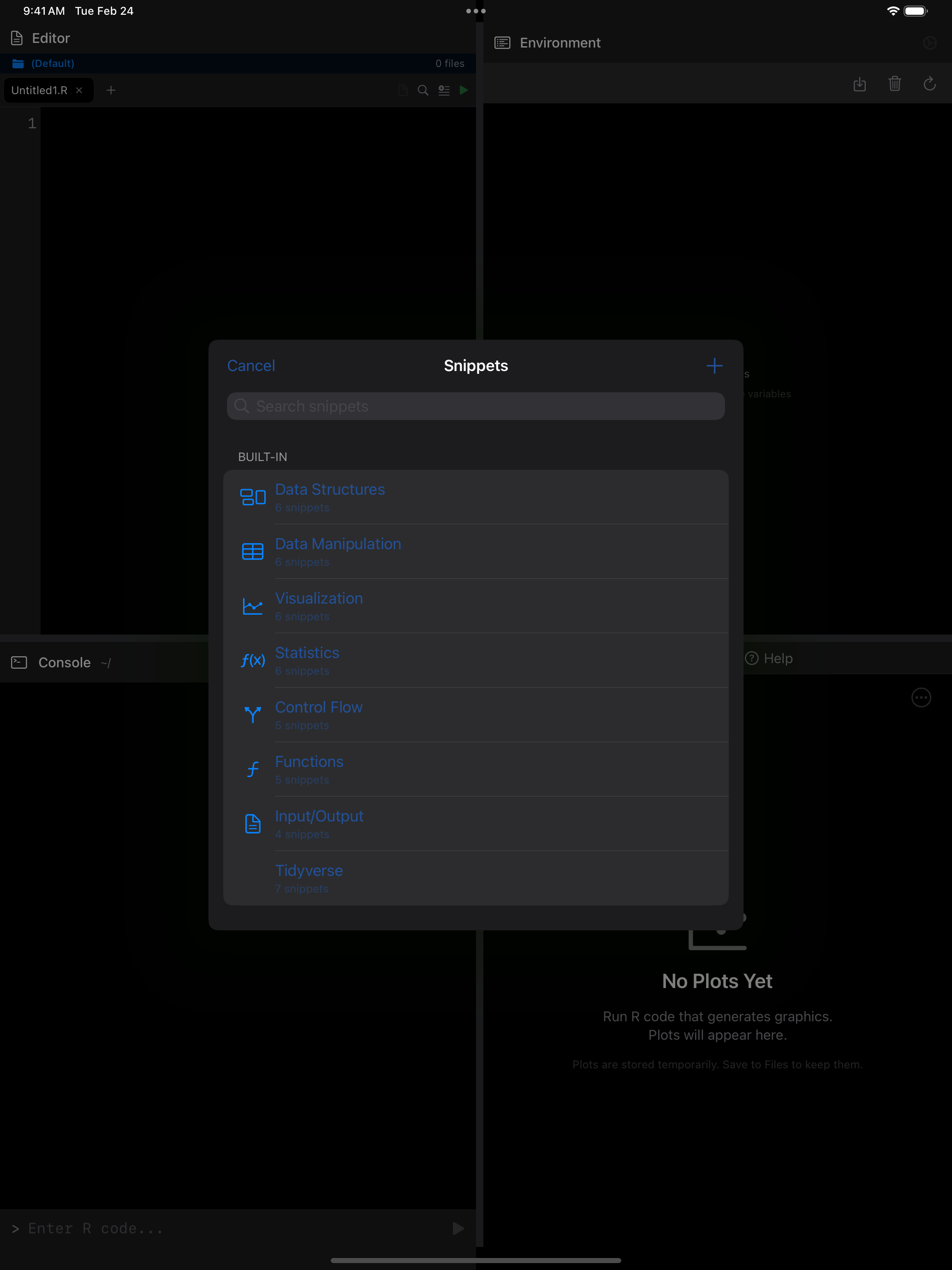
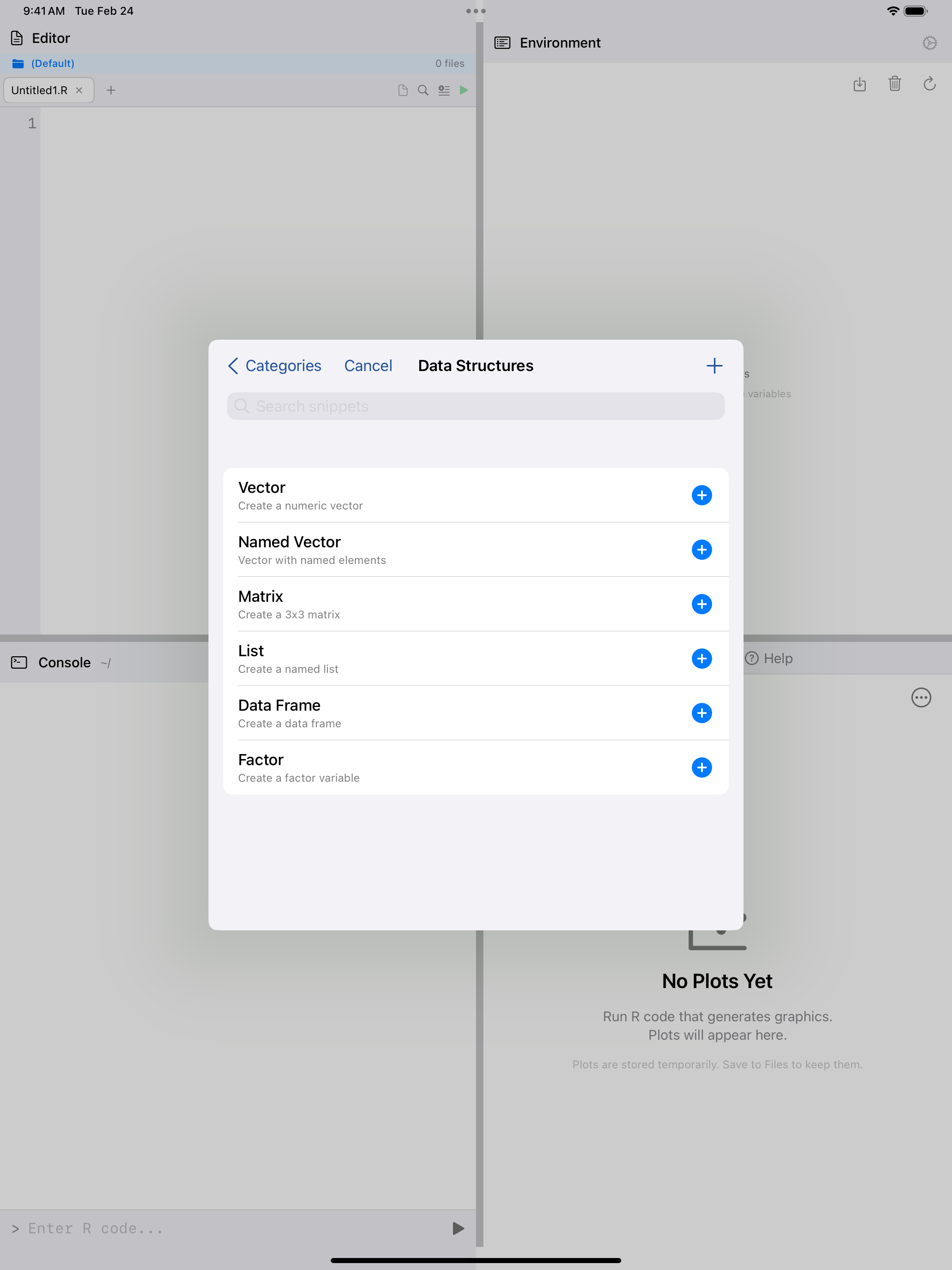
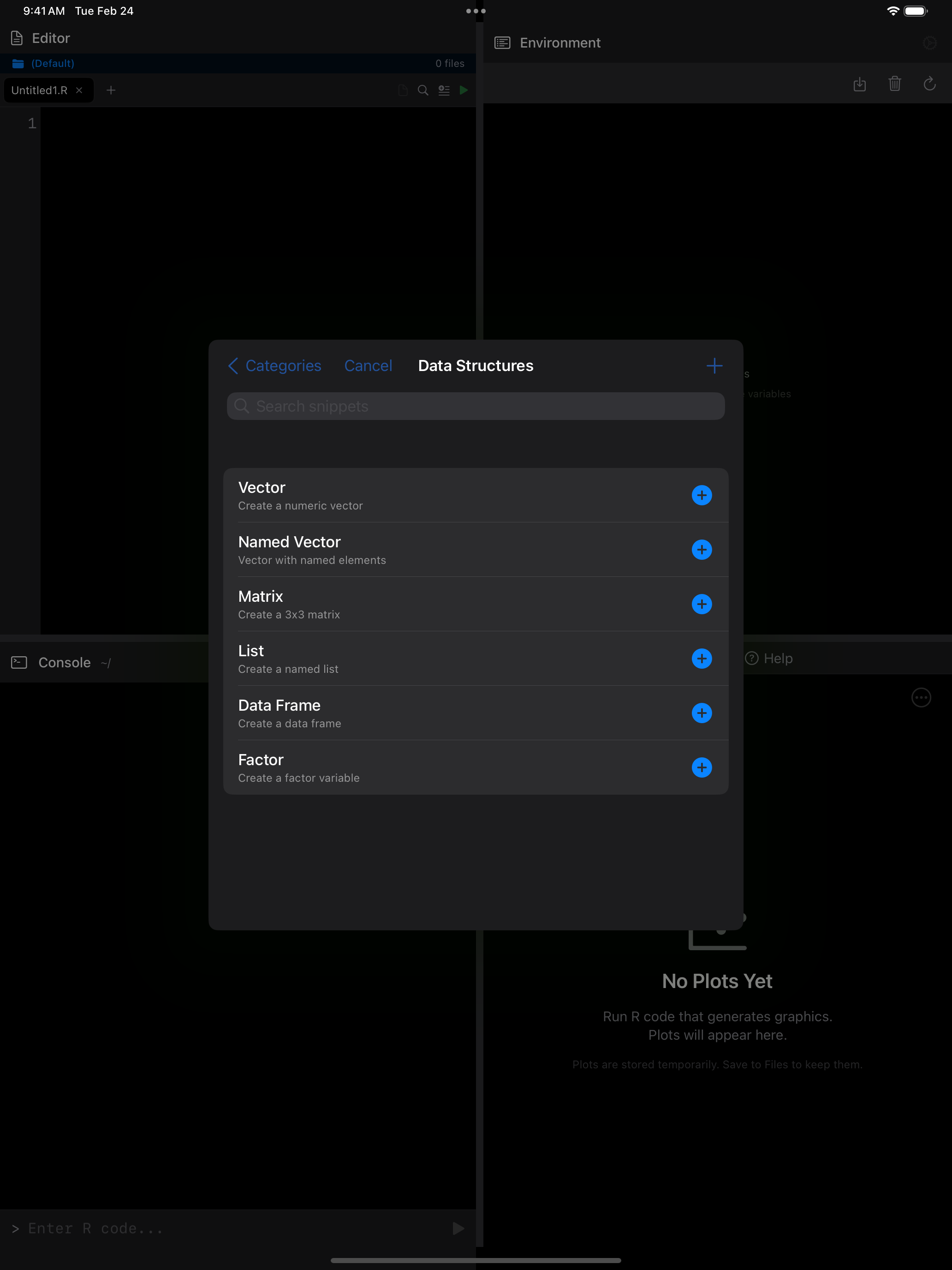
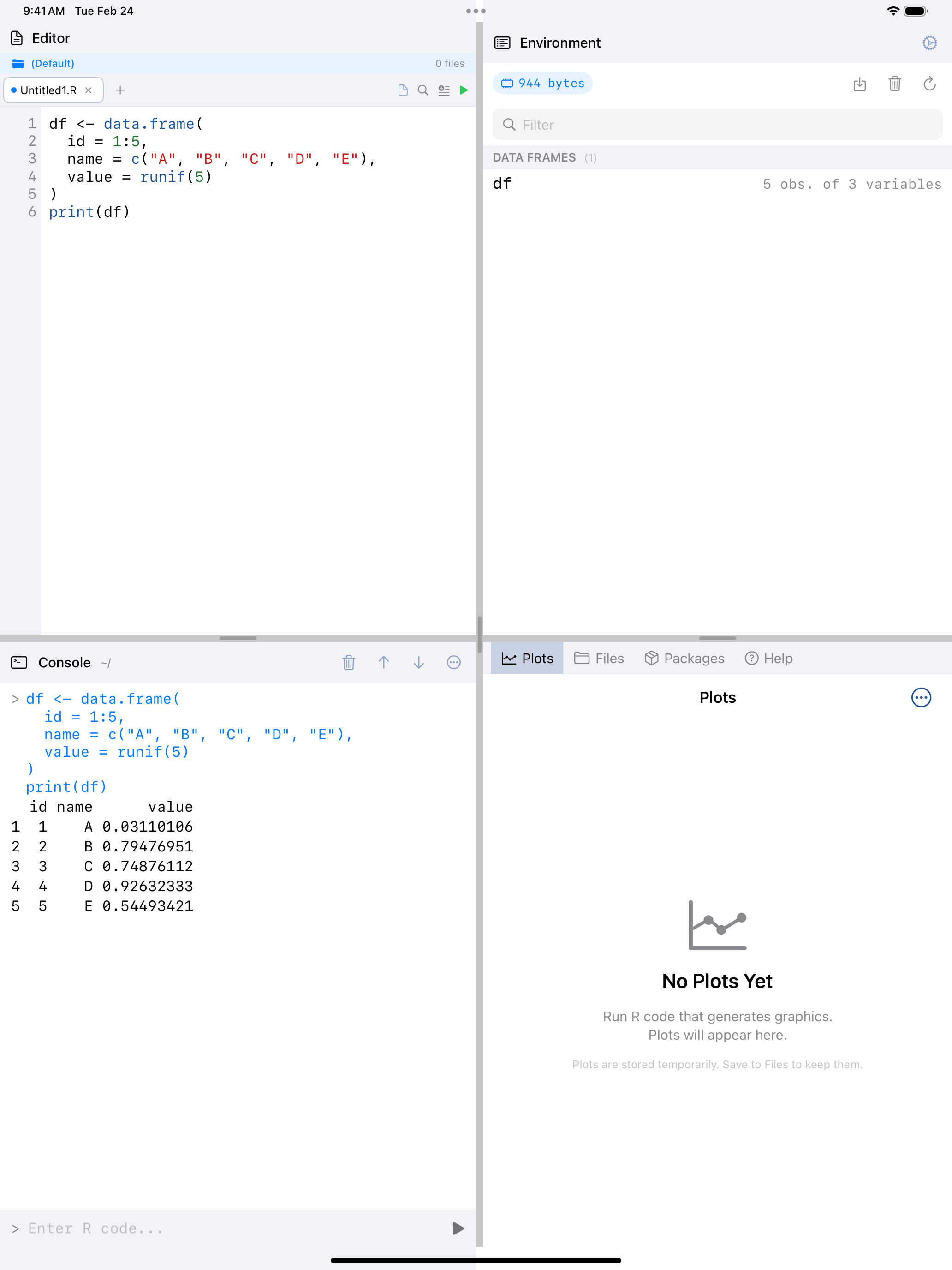
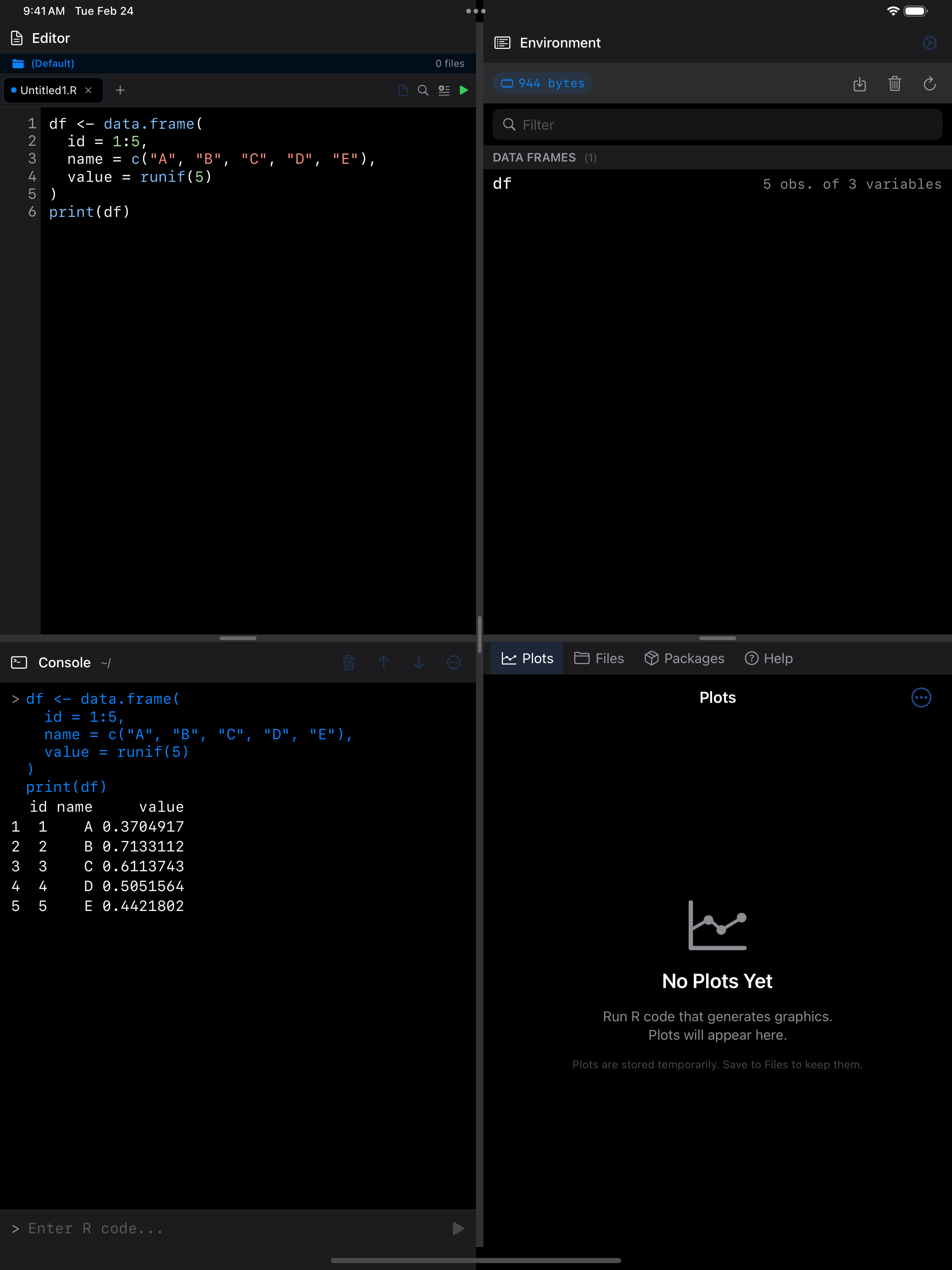
Top-left: The … menu reveals Snippets along with other editor actions. Top-right: Snippet categories, including Data Structures, Visualization, Statistics, and more. Bottom-left: Browsing the Data Structures category with templates for vectors, matrices, and data frames. Bottom-right: A Data Frame snippet inserted into the editor and executed, showing the output.
Each snippet uses placeholder syntax. After inserting one, you can quickly fill in the variable names and values relevant to your analysis. You can also create your own custom snippets for code patterns you use frequently.
Snippets are a great way to learn R patterns too. Insert one, read through it, and experiment with modifying it to see what changes.
Code Completion
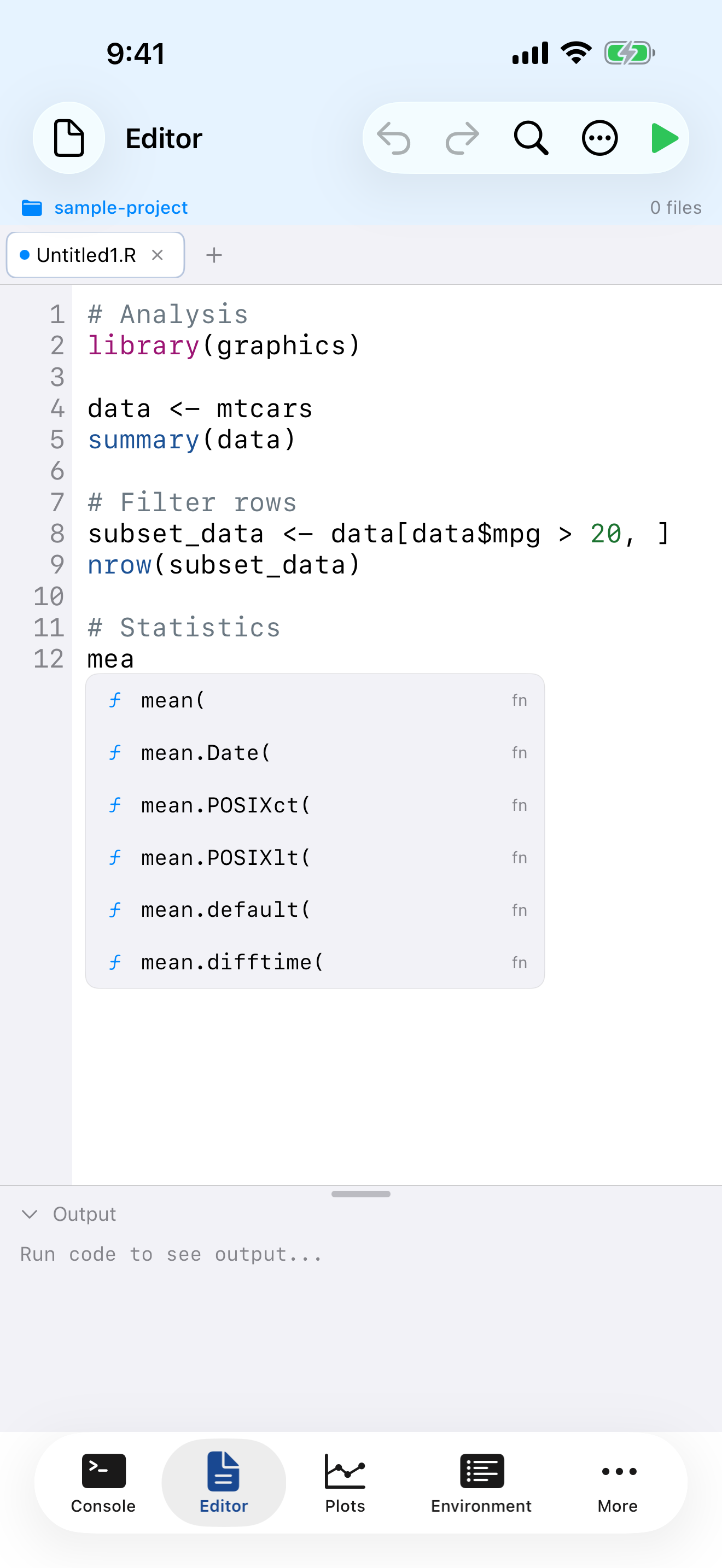
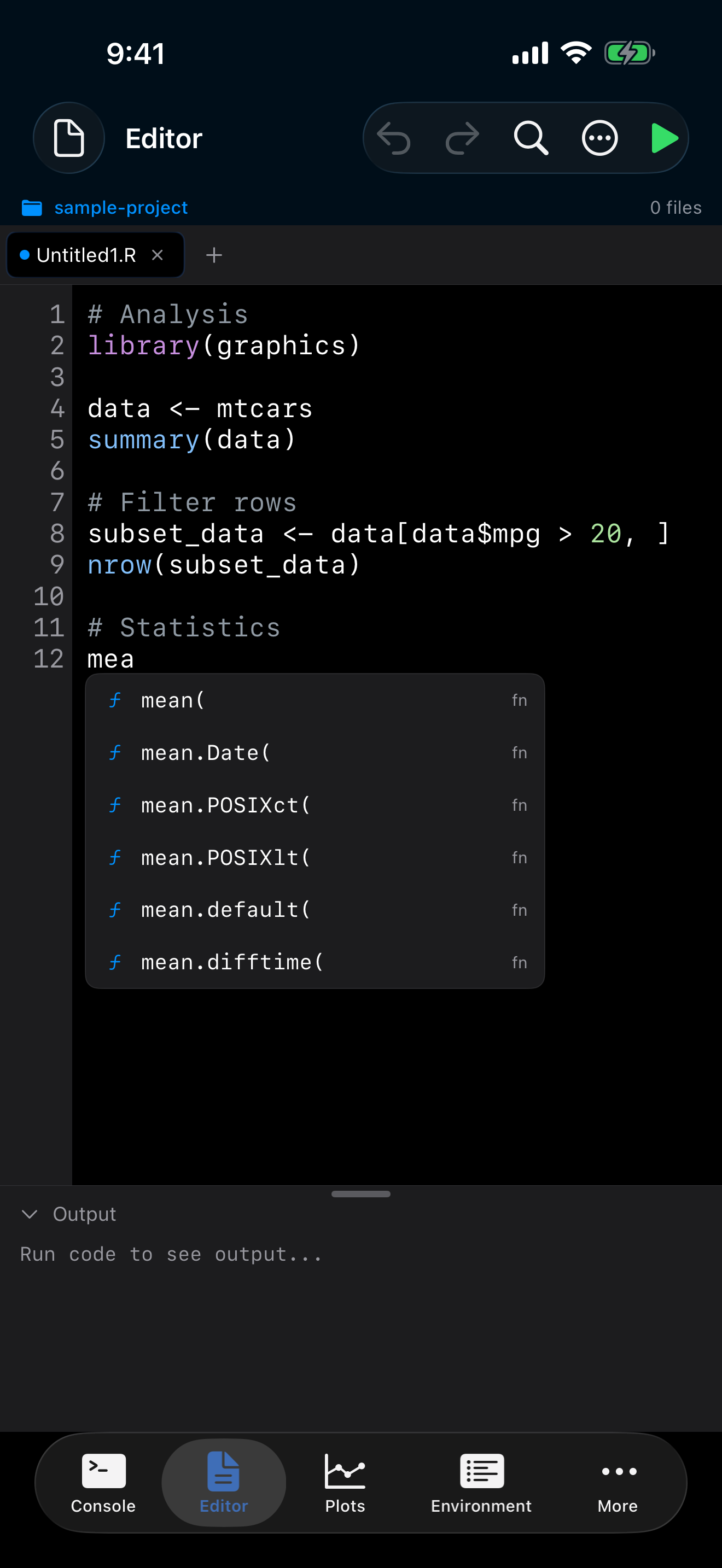
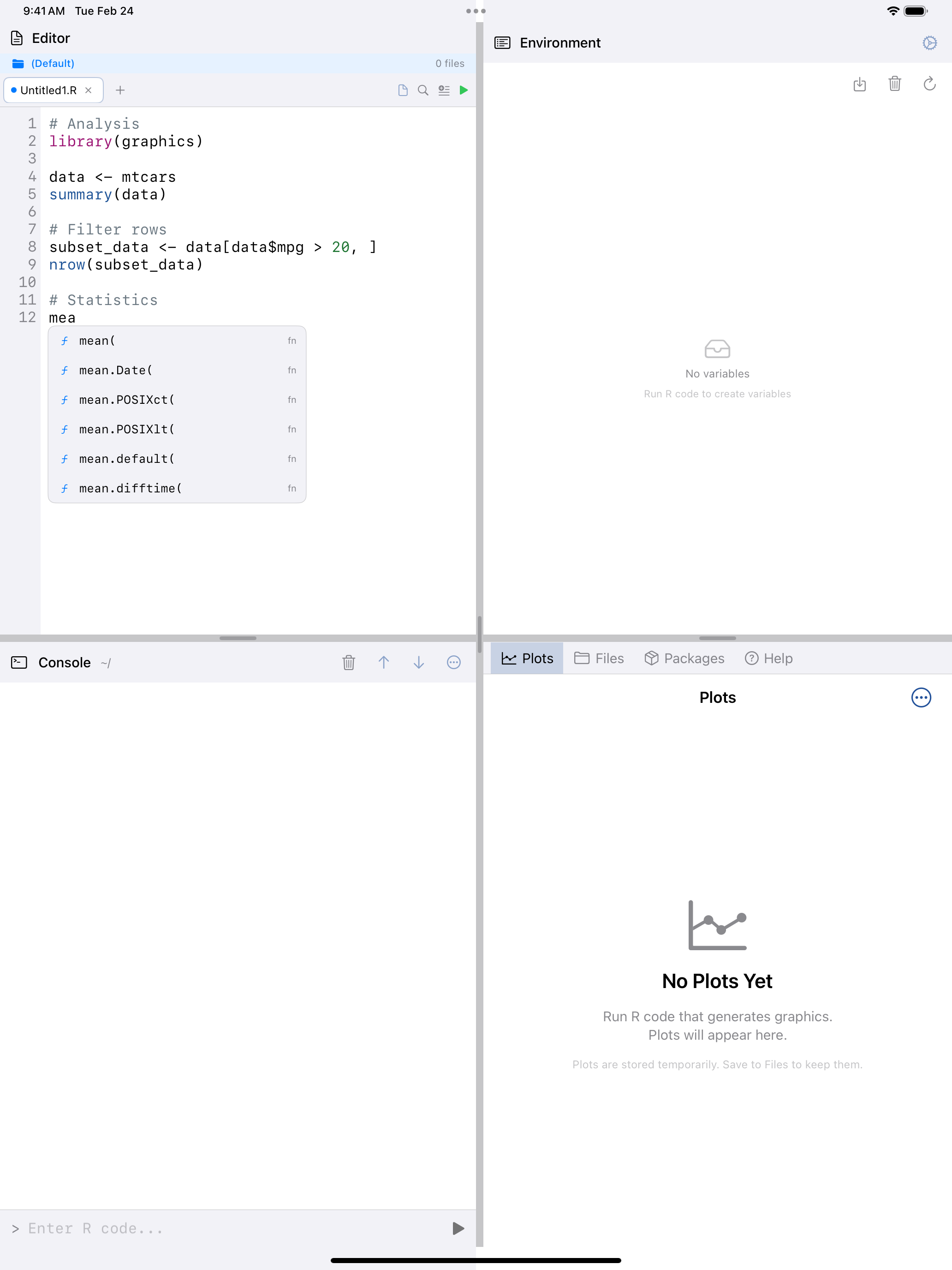
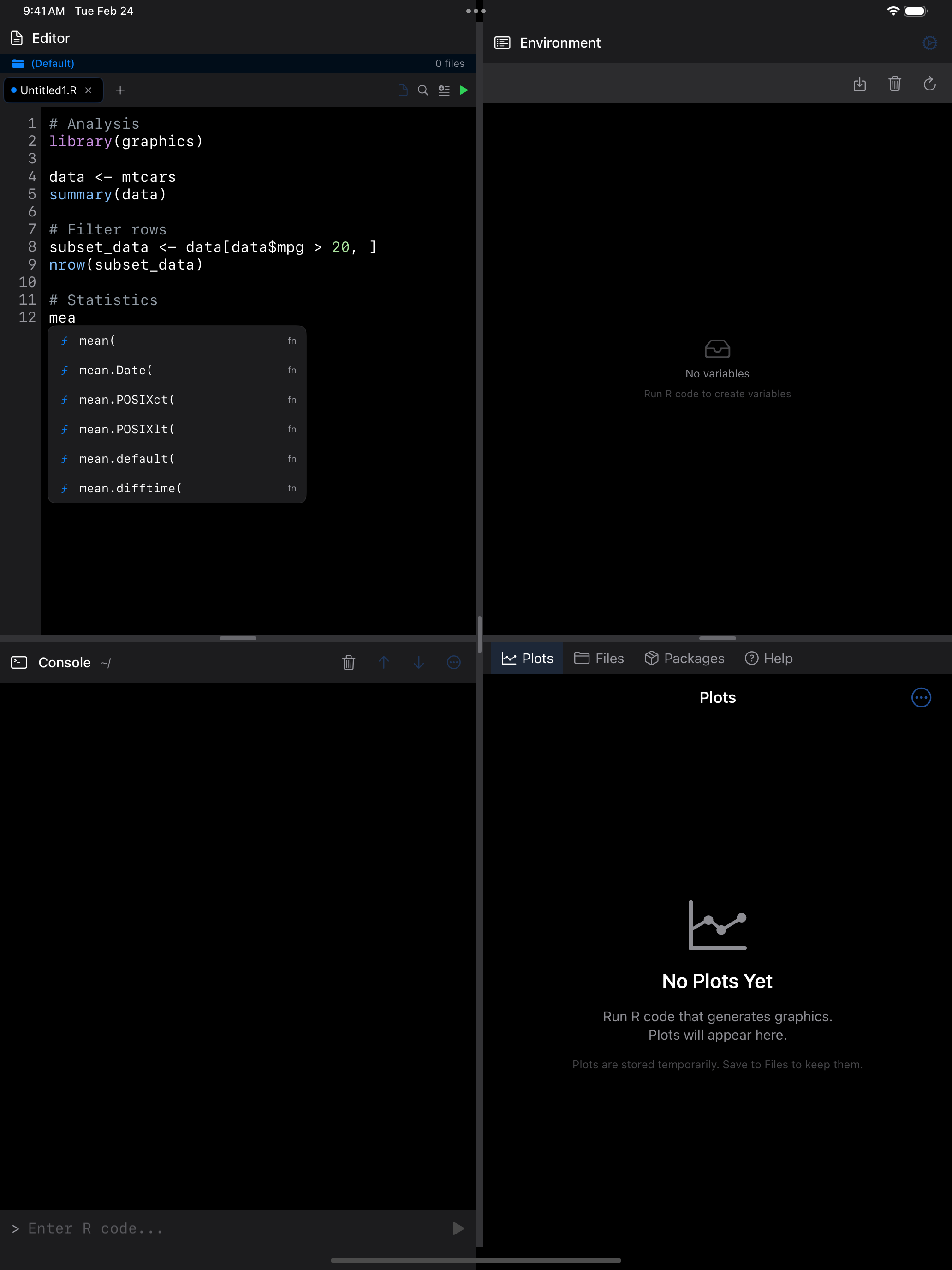
As you type, the editor suggests function names, variable names, and package members. Suggestions appear in a popup below the cursor; tap one to insert it. When you type the opening parenthesis of a function call, signature help shows the function’s parameters so you know what arguments it expects.
Find and Replace
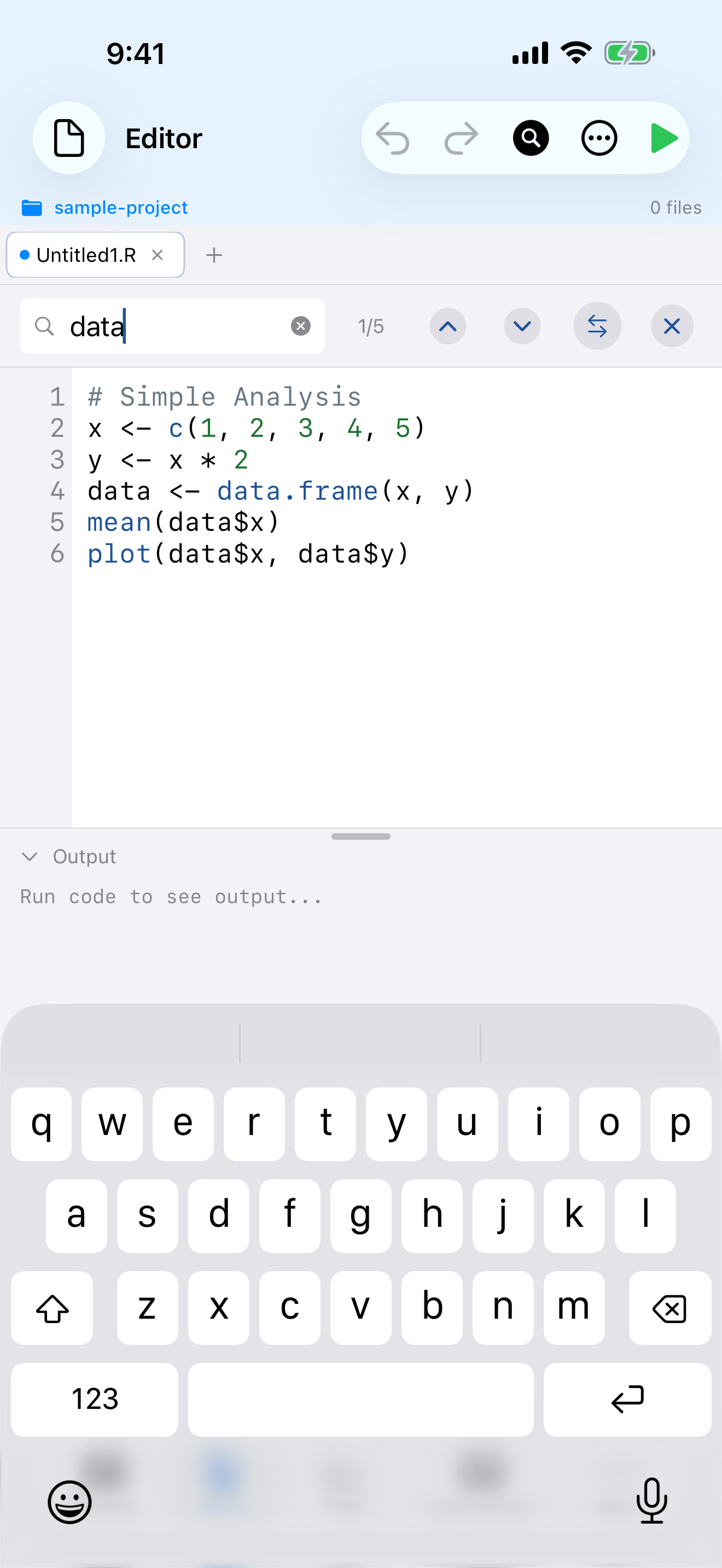
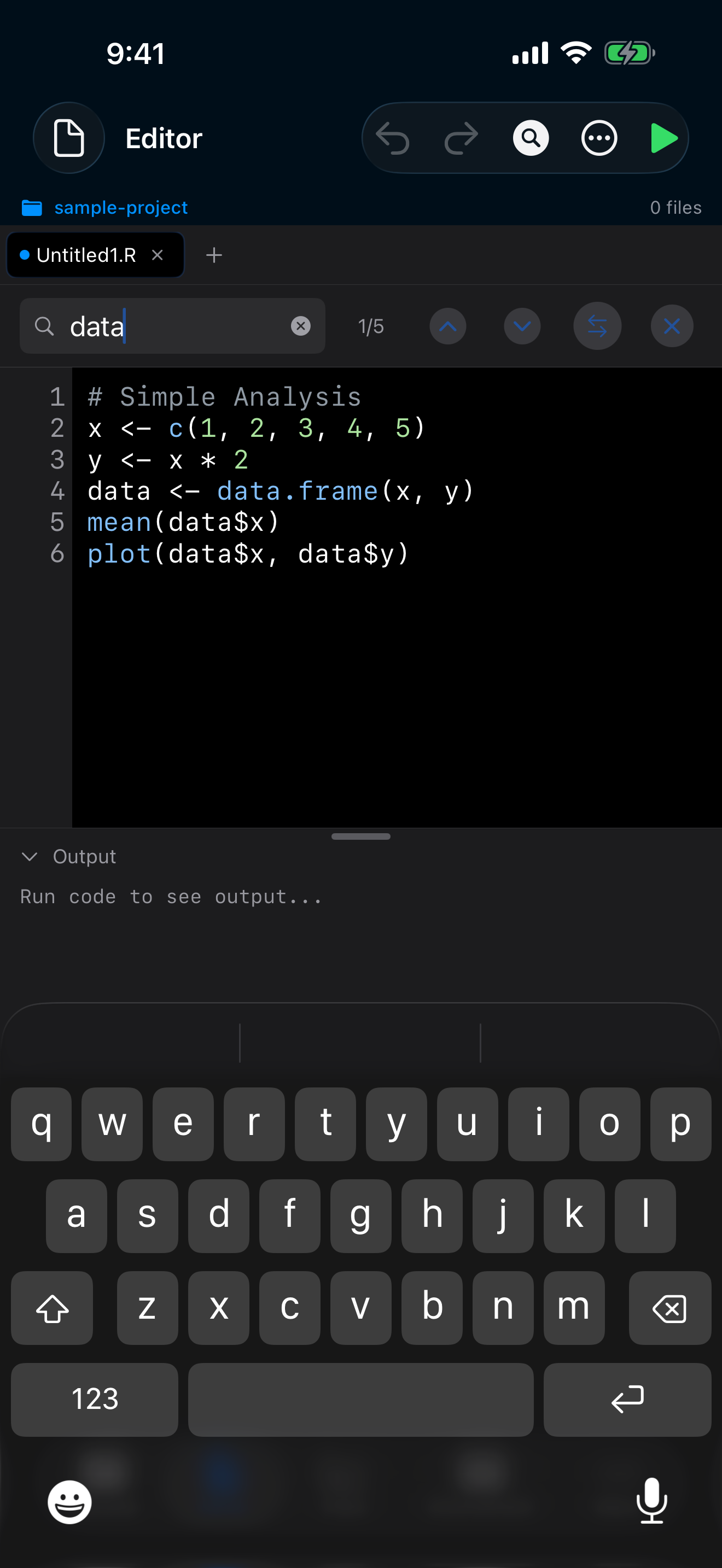
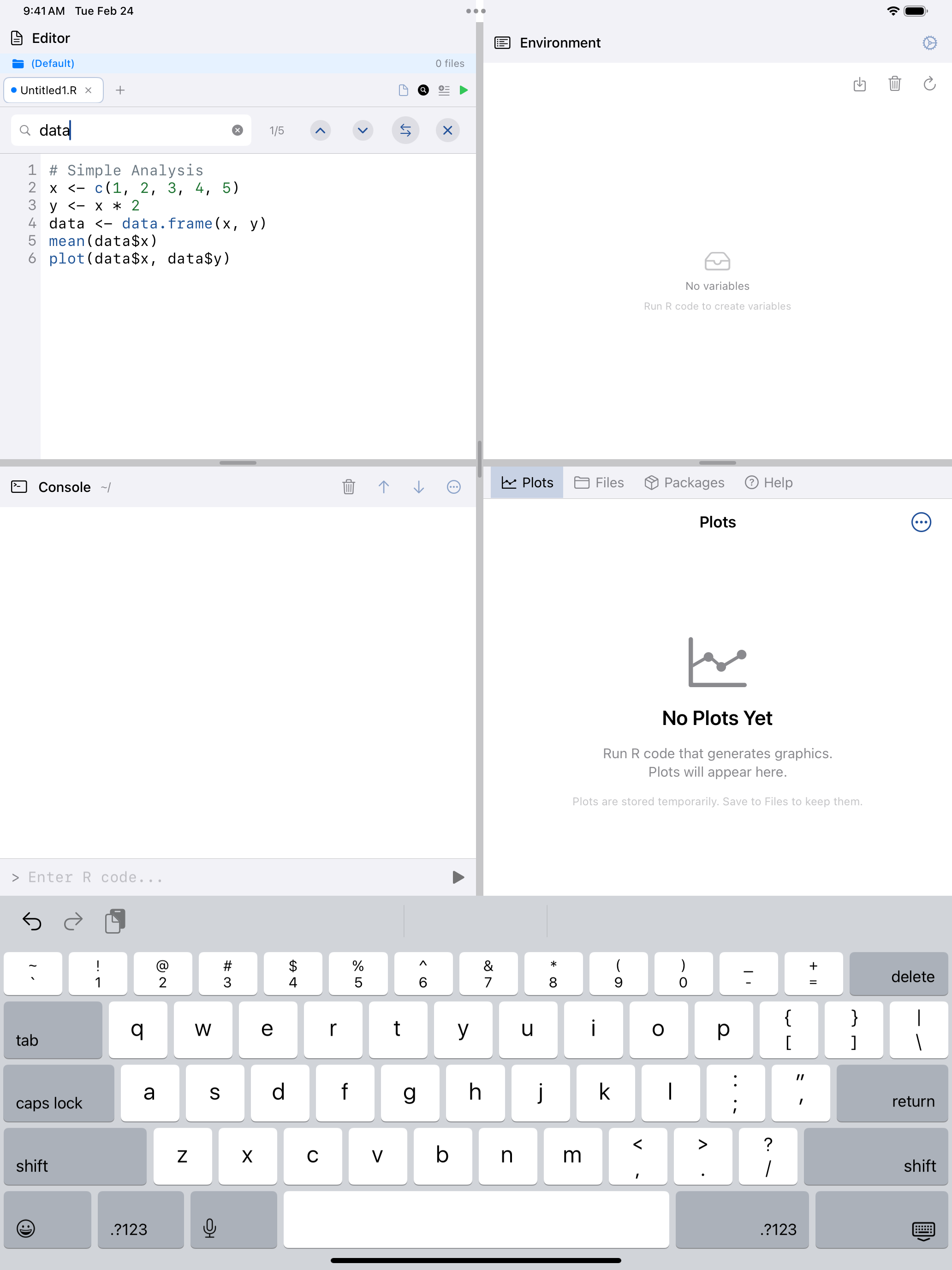
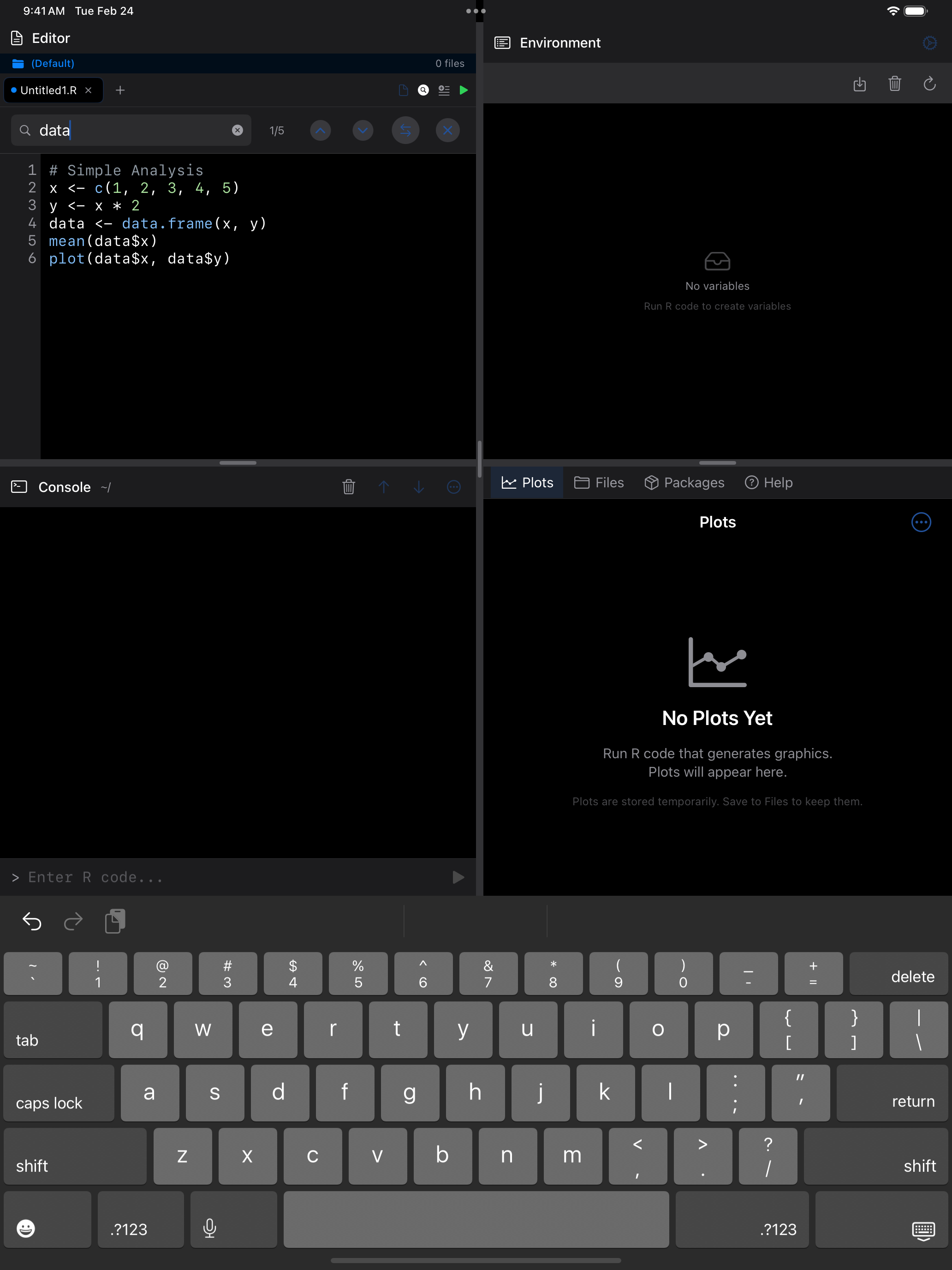
Tap the magnifying glass icon in the toolbar to open a find bar. You can search your code, navigate between matches, and optionally replace them.
 1 2 3
1 2 3
 1 2 3
1 2 3
 1 2 3
1 2 3
 1 2 3
1 2 3
- Search field: type a term to find all matches in your code
- Match counter: shows how many matches were found and which one is selected
- Replace toggle: expand to reveal the replace field for find-and-replace operations
Code Folding
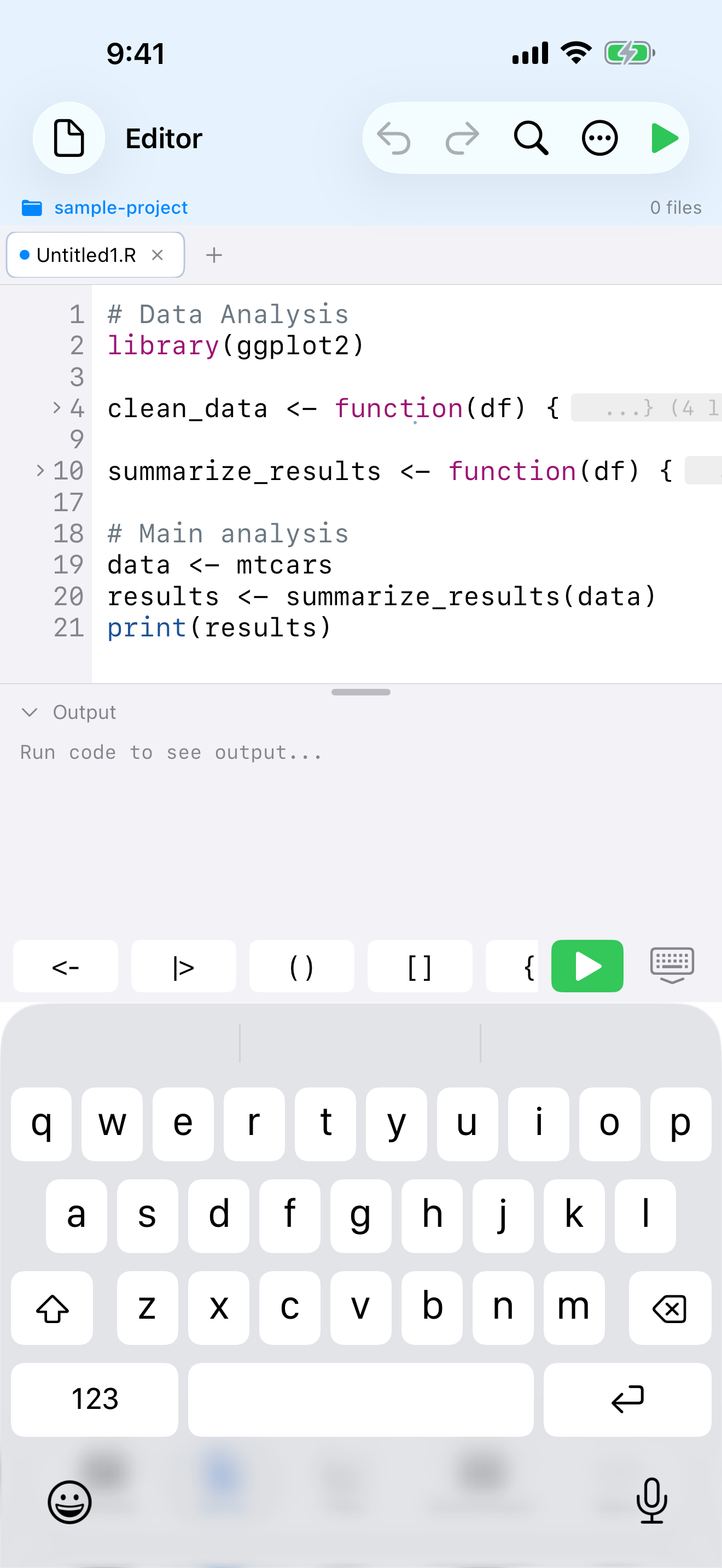
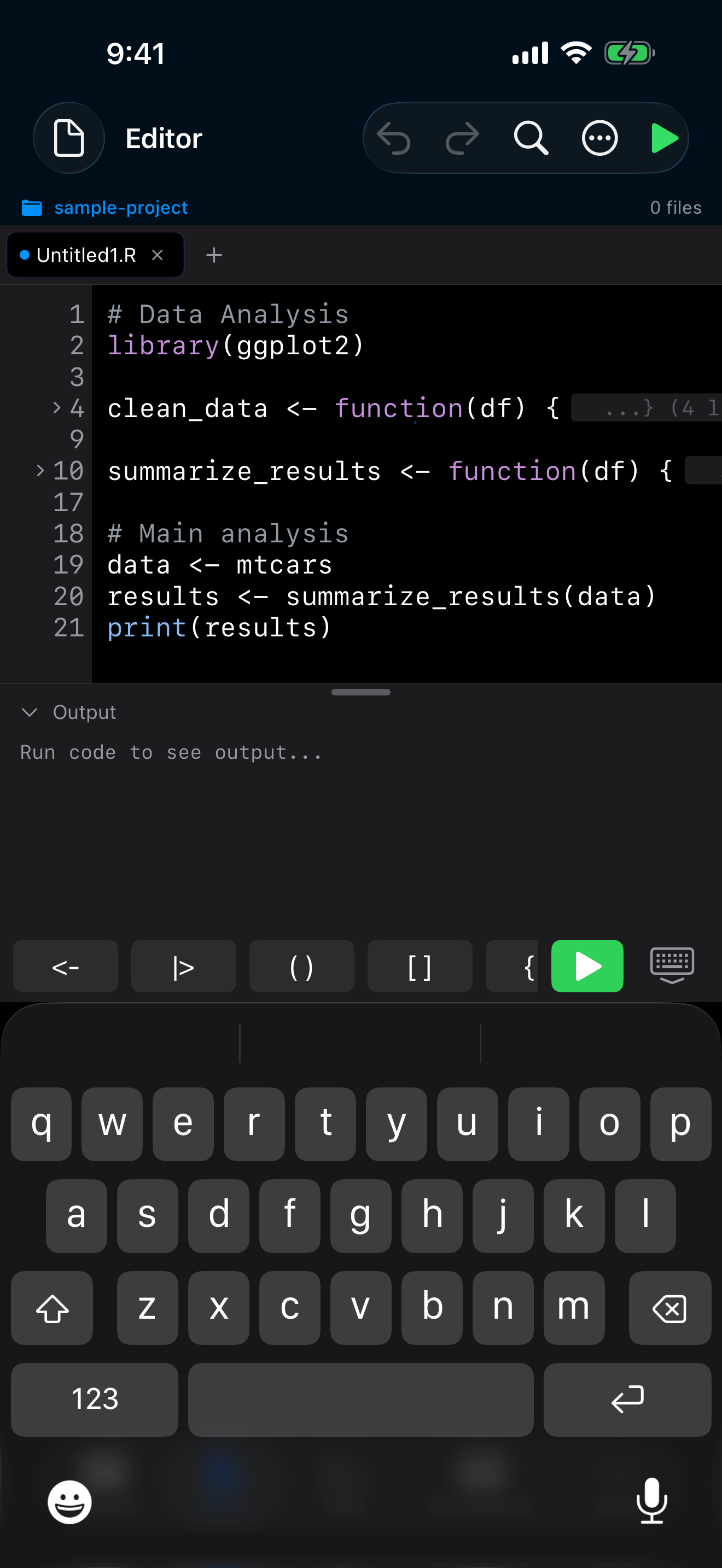
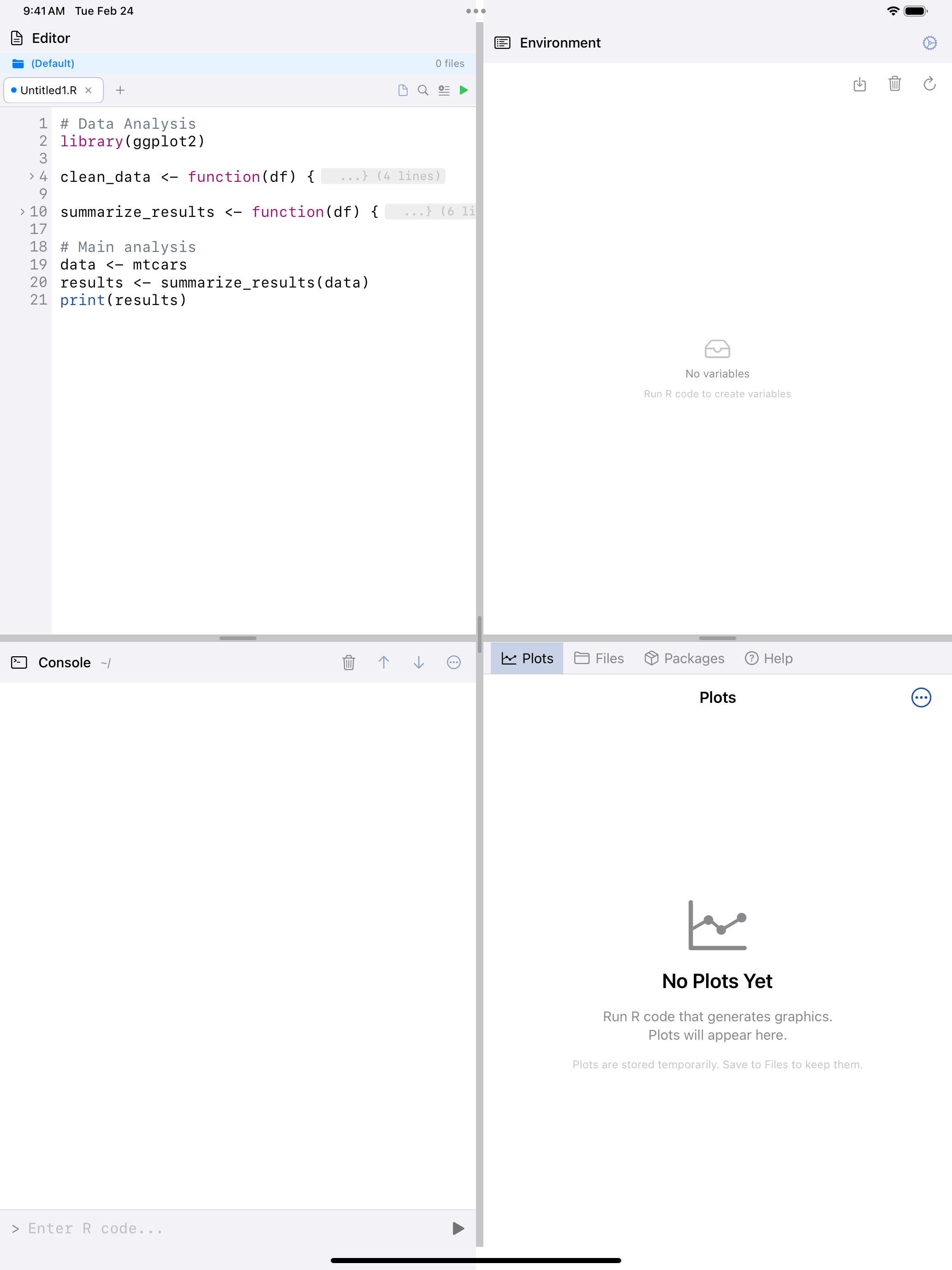
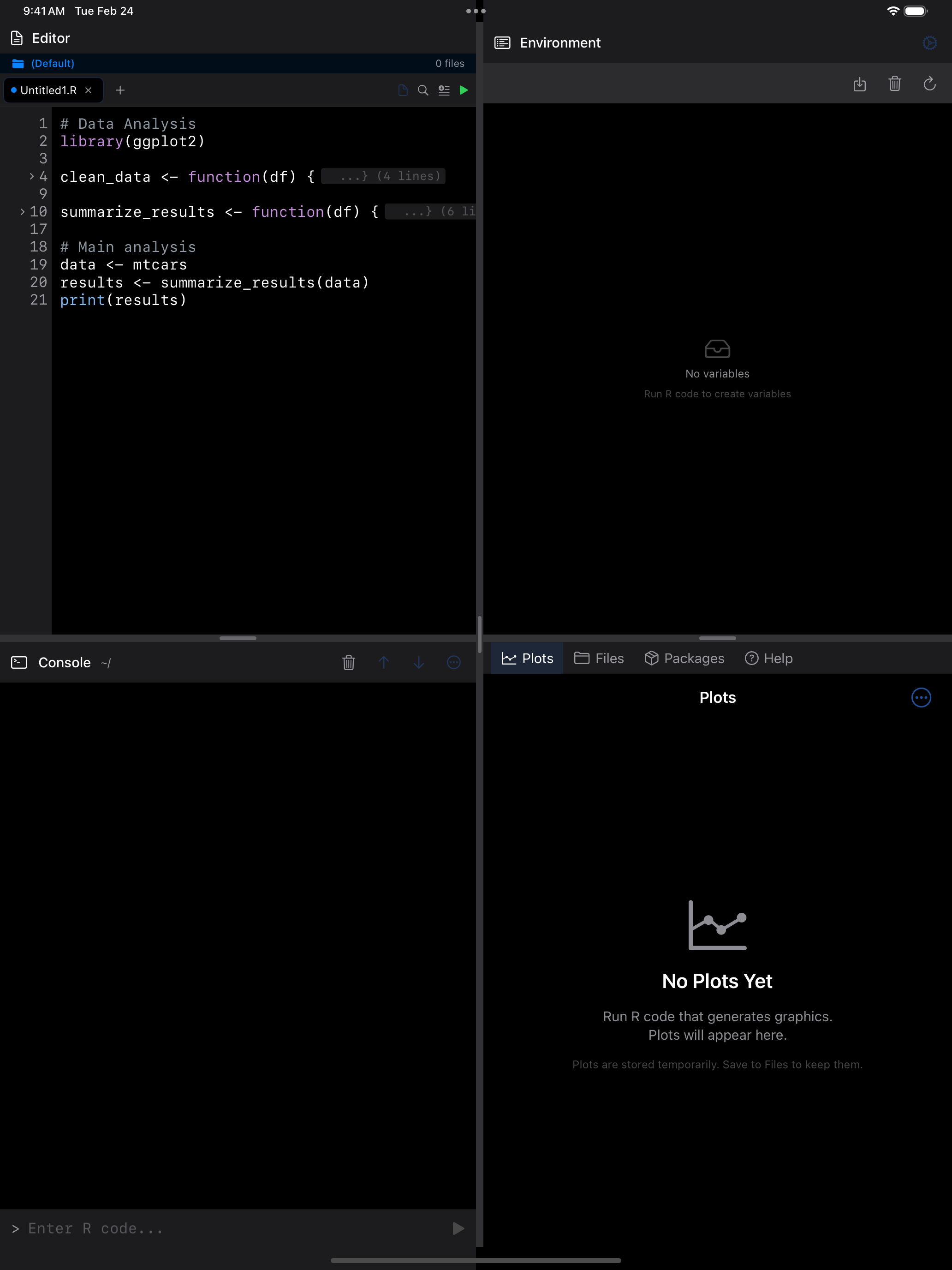
Enable code folding from the … menu to collapse functions, loops, and other code blocks so you can focus on the section you are editing.
 1 2
1 2
 1 2
1 2
 1 2
1 2
 1 2
1 2
- Fold chevron: tap the arrow in the gutter to collapse or expand a code block
- Folded region: collapsed code is hidden and replaced with a summary indicator
Split Editor
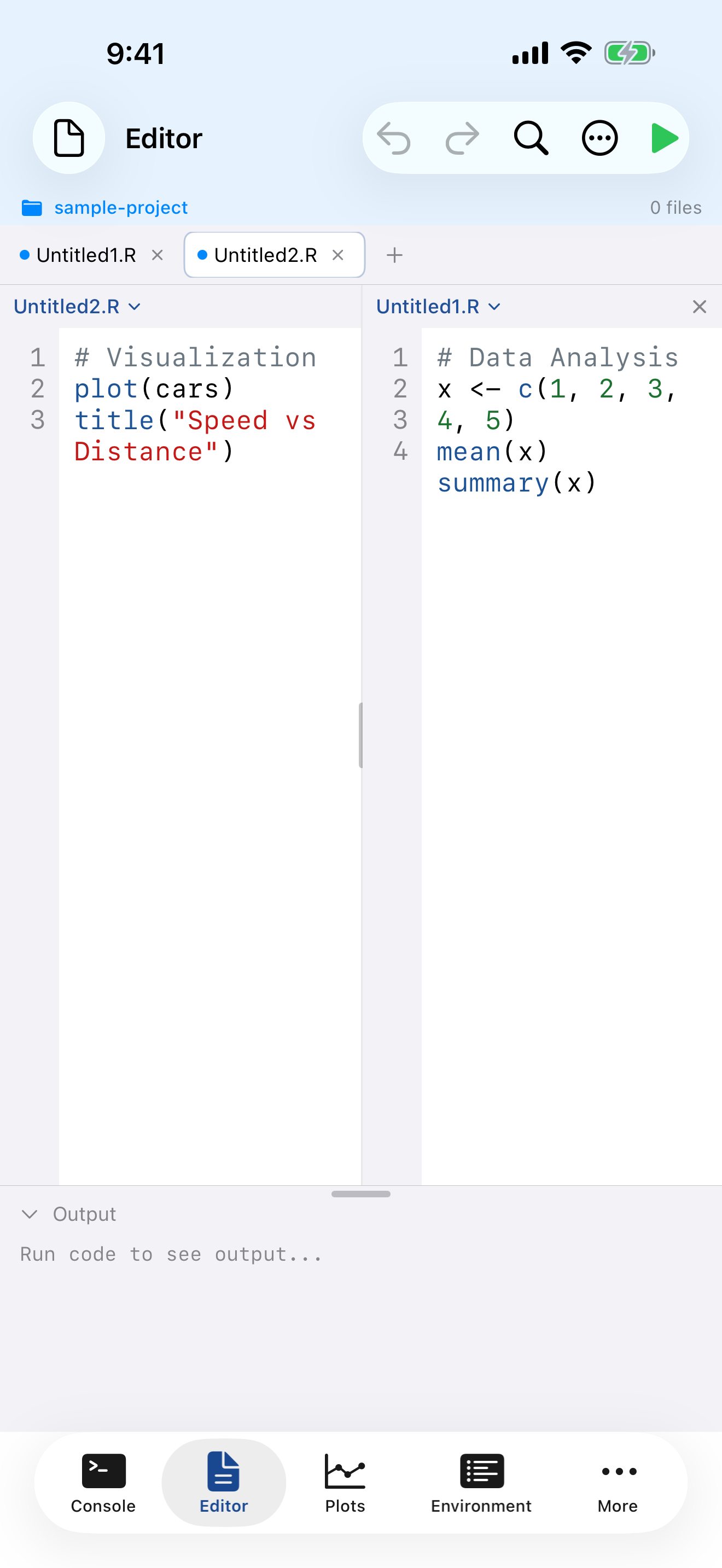
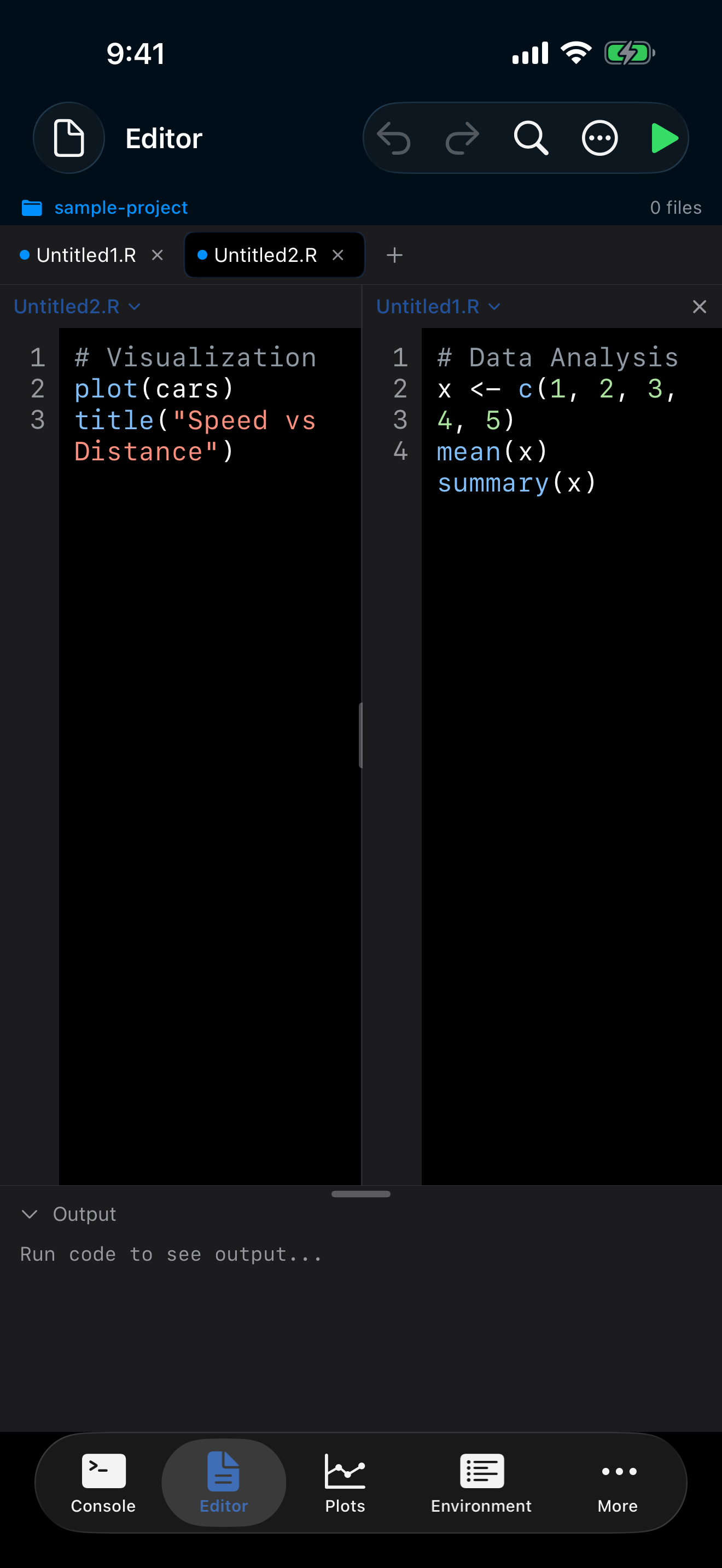
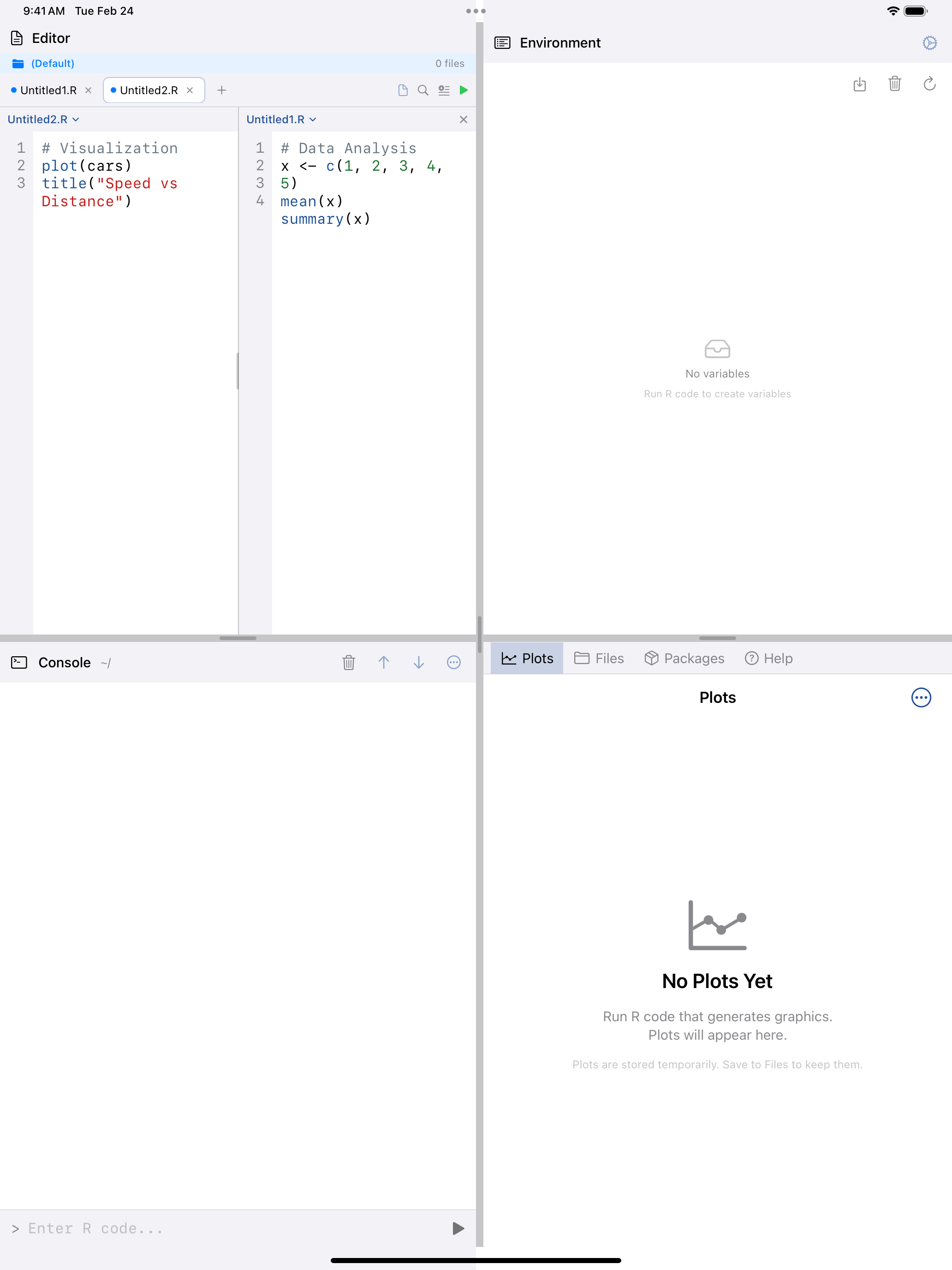
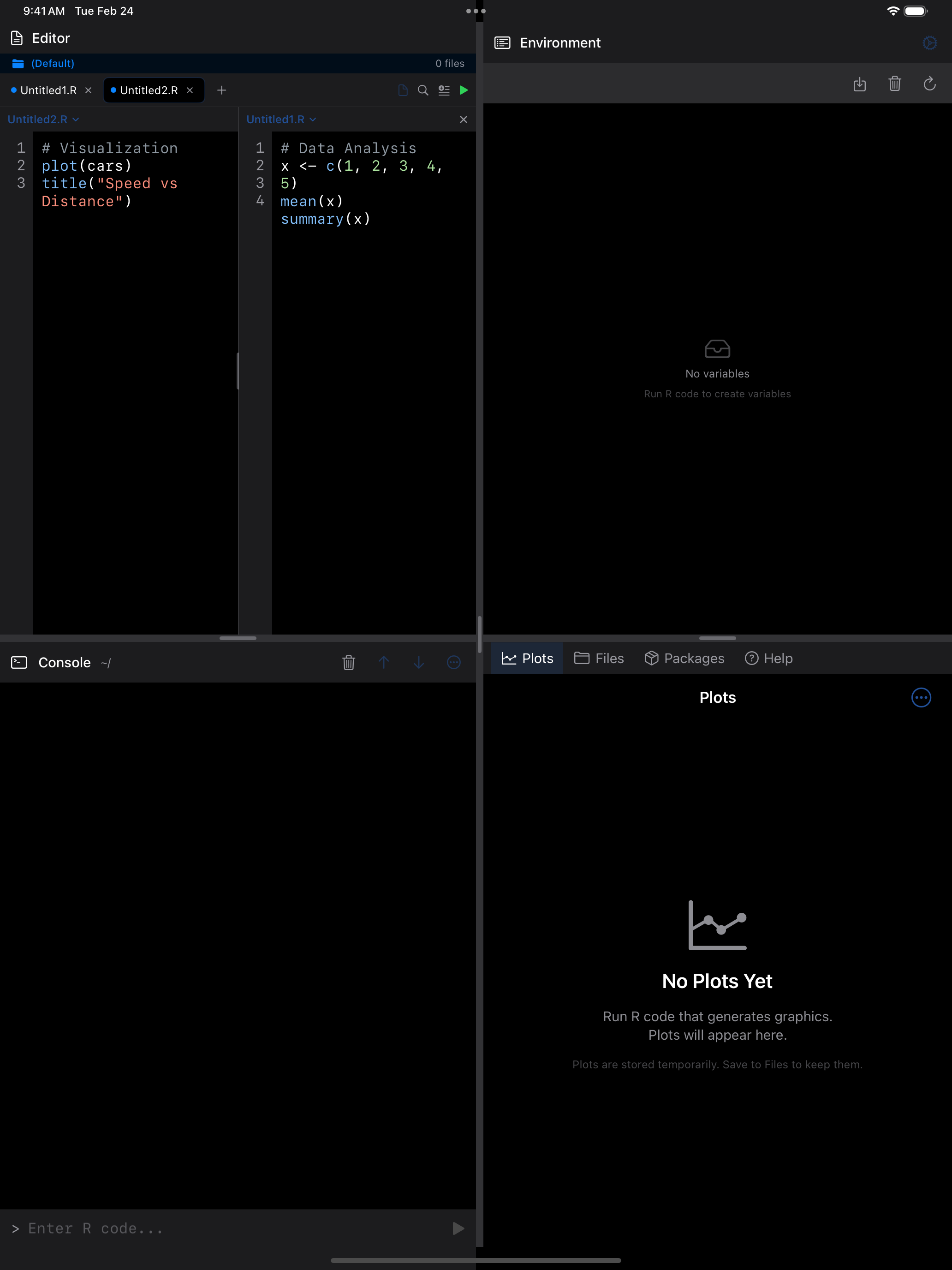
On iPad or wider screens, split the editor into two side-by-side panes so you can view two files at once. Enable it from the … menu when you have at least two tabs open.
 1 2 3
1 2 3
 1 2 3
1 2 3
 1 2 3
1 2 3
 1 2 3
1 2 3
- Left pane: displays one file (the primary tab)
- Right pane: displays a second file side by side
- Split divider: drag to resize the panes
More Editor Features
Editor Actions Menu
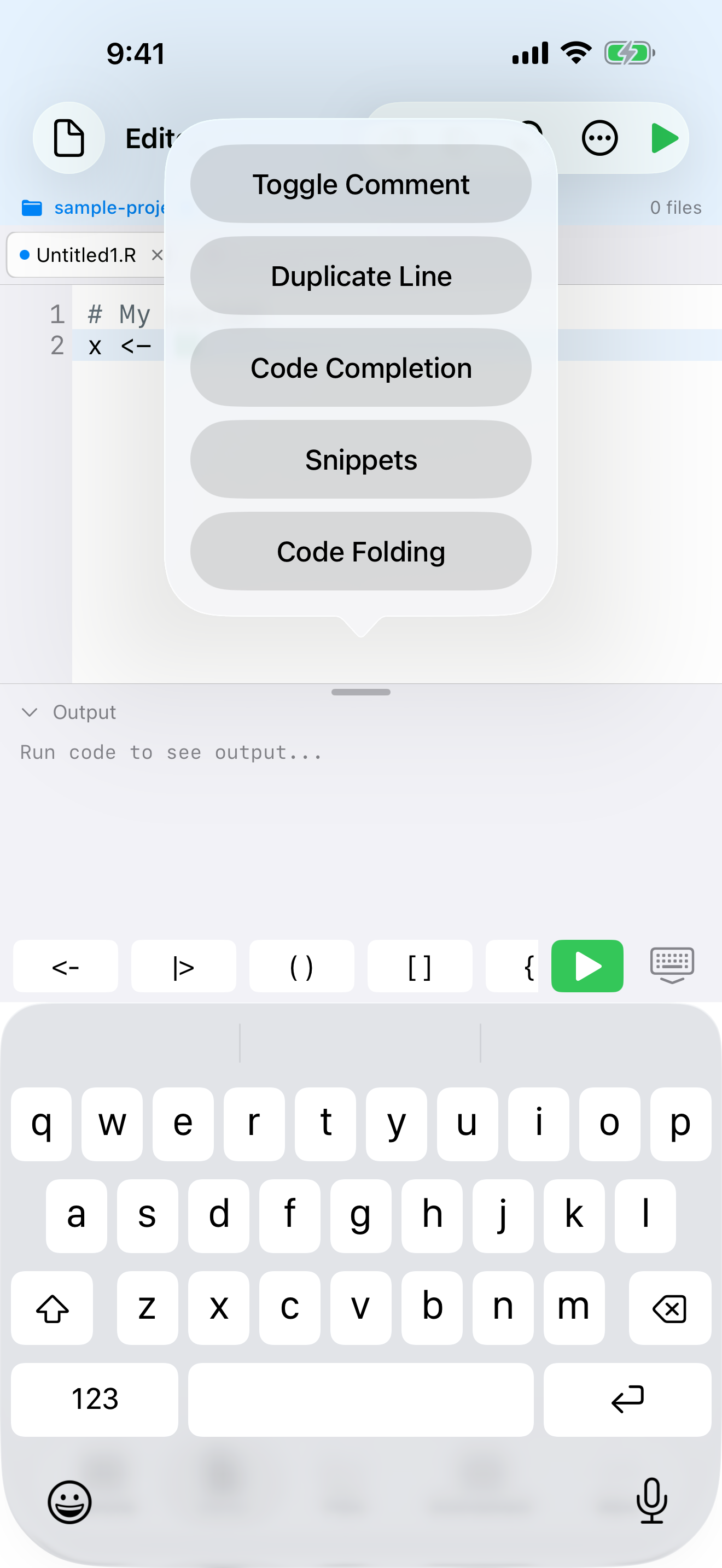
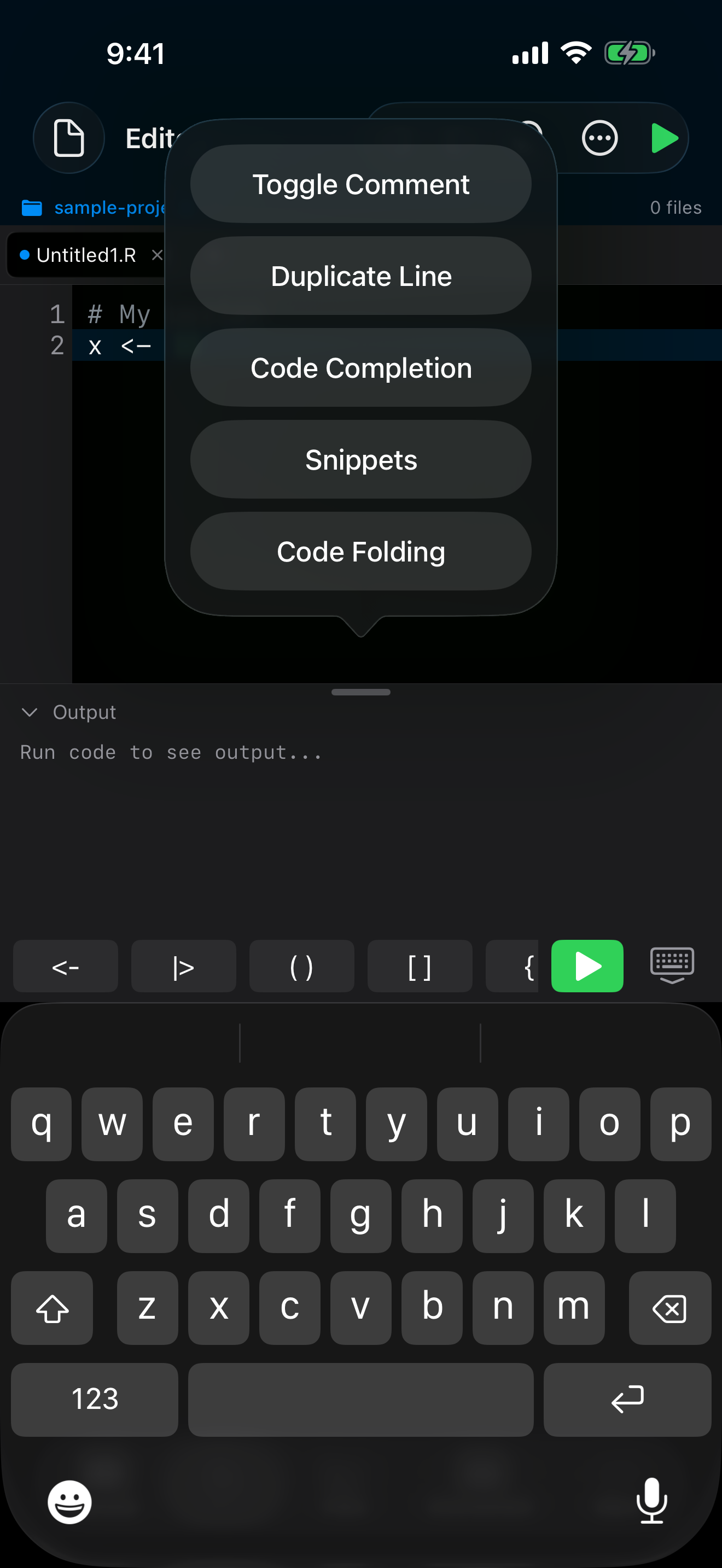
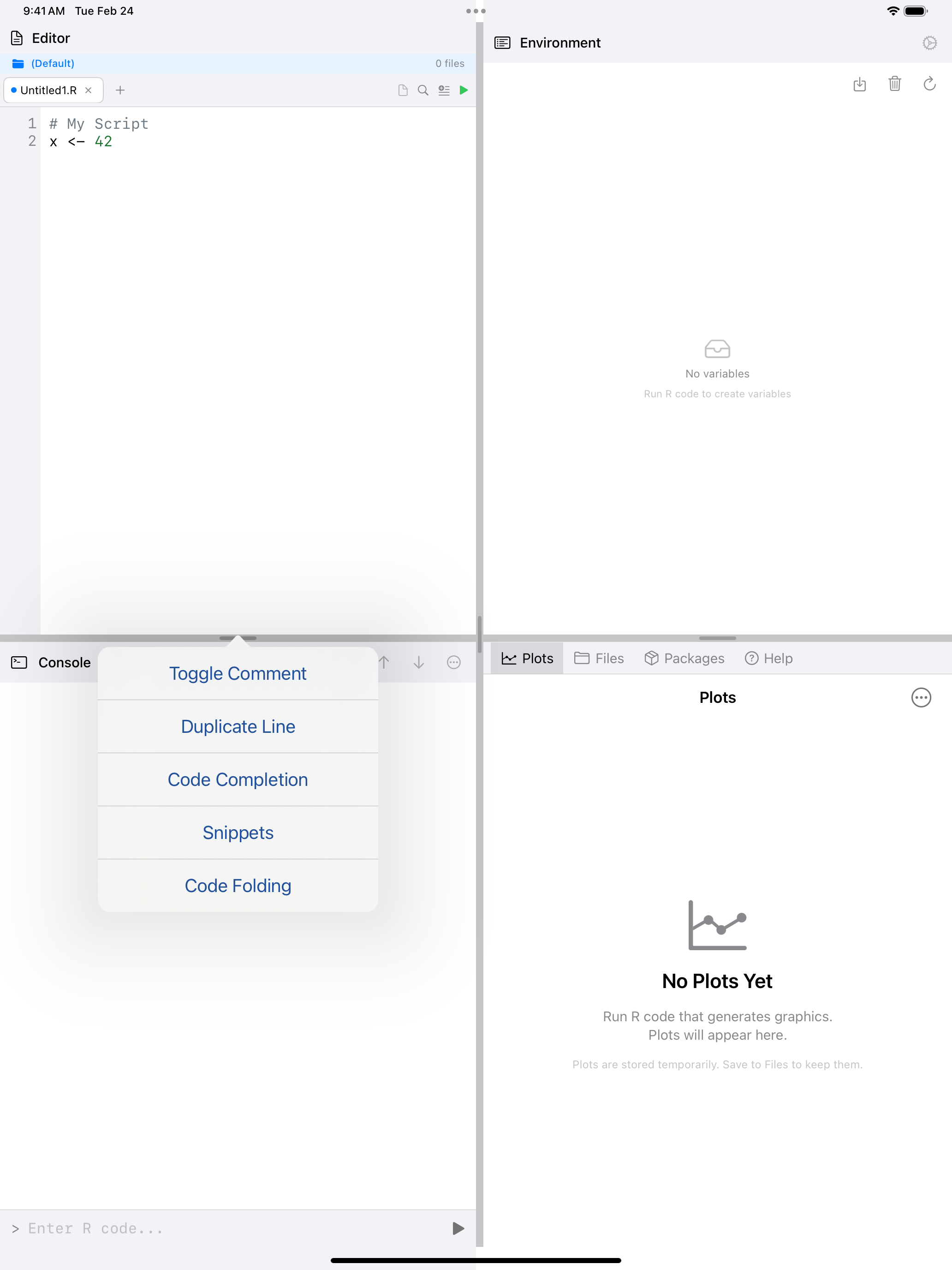
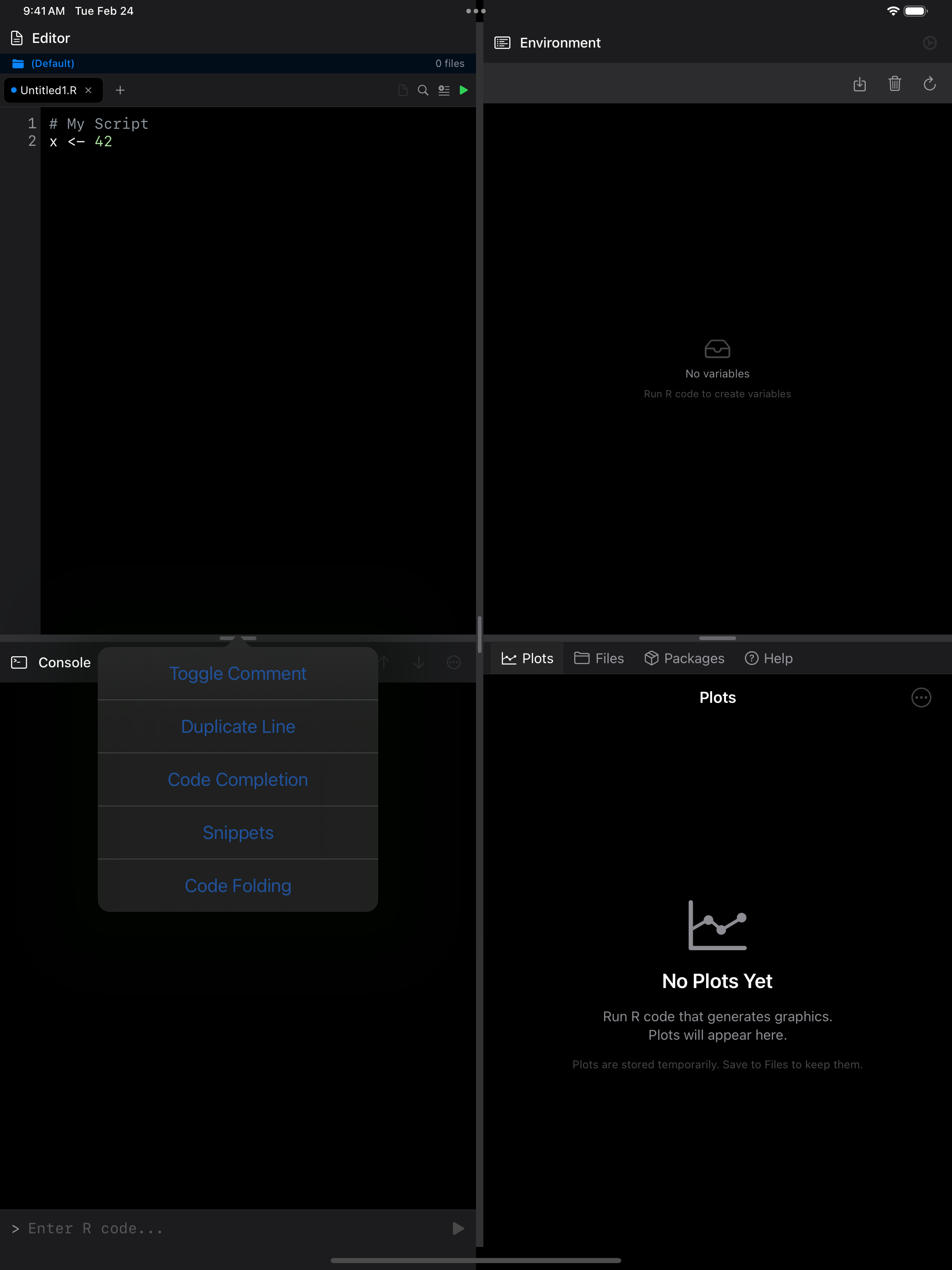
Many of these features are available through the … (Editor actions) button in the toolbar:
 1
1
 1
1
 1
1
 1
1
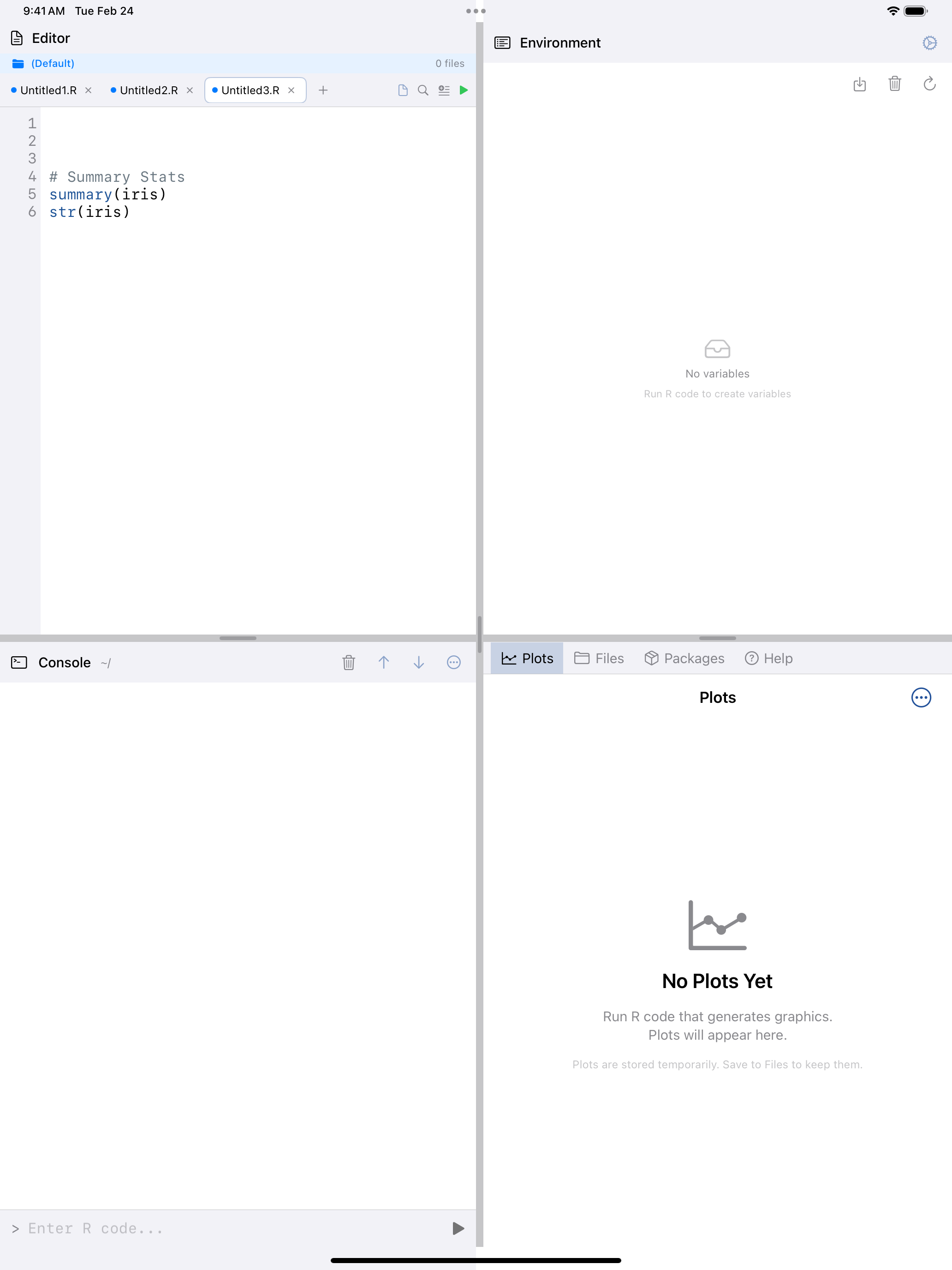
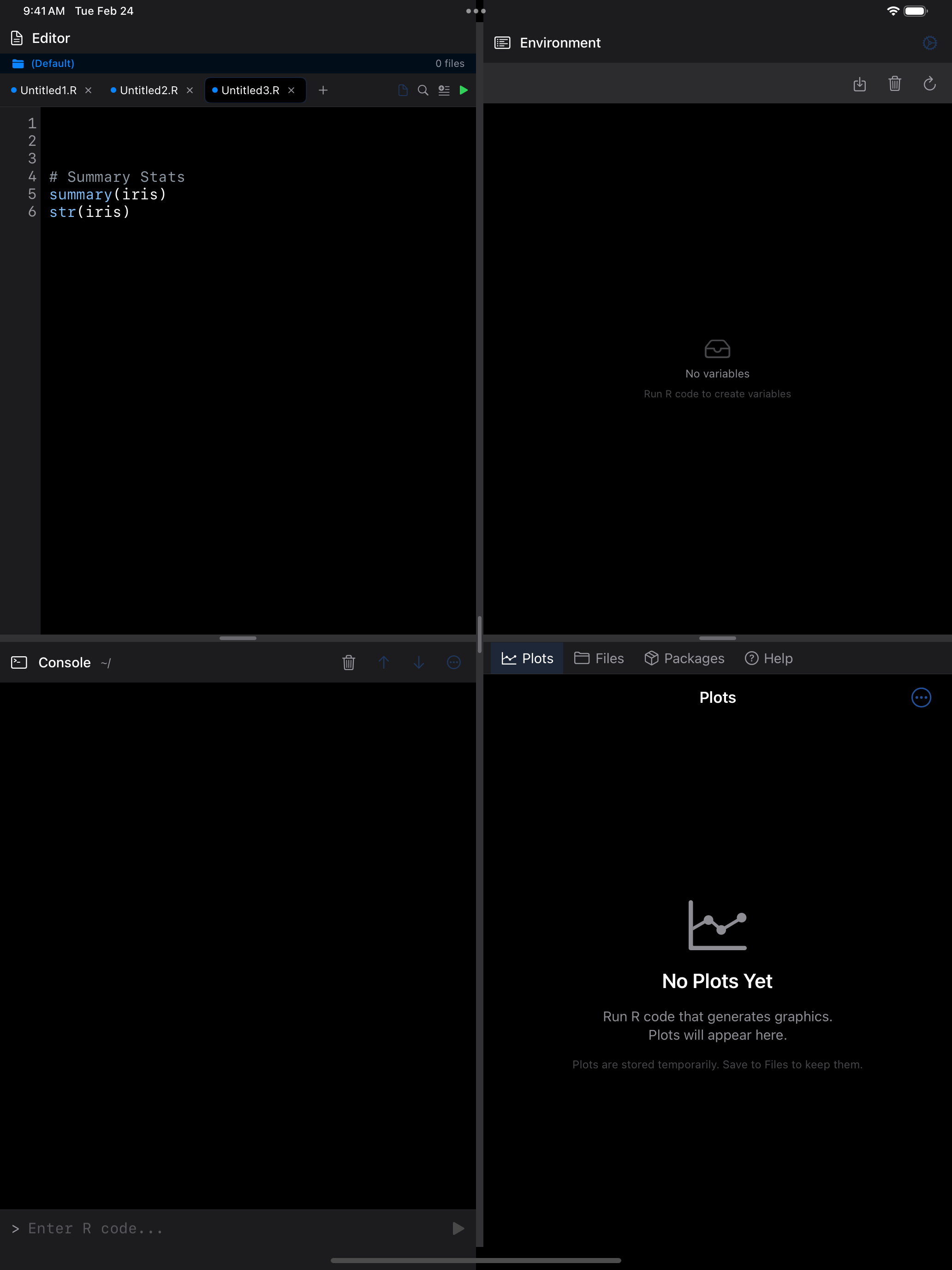
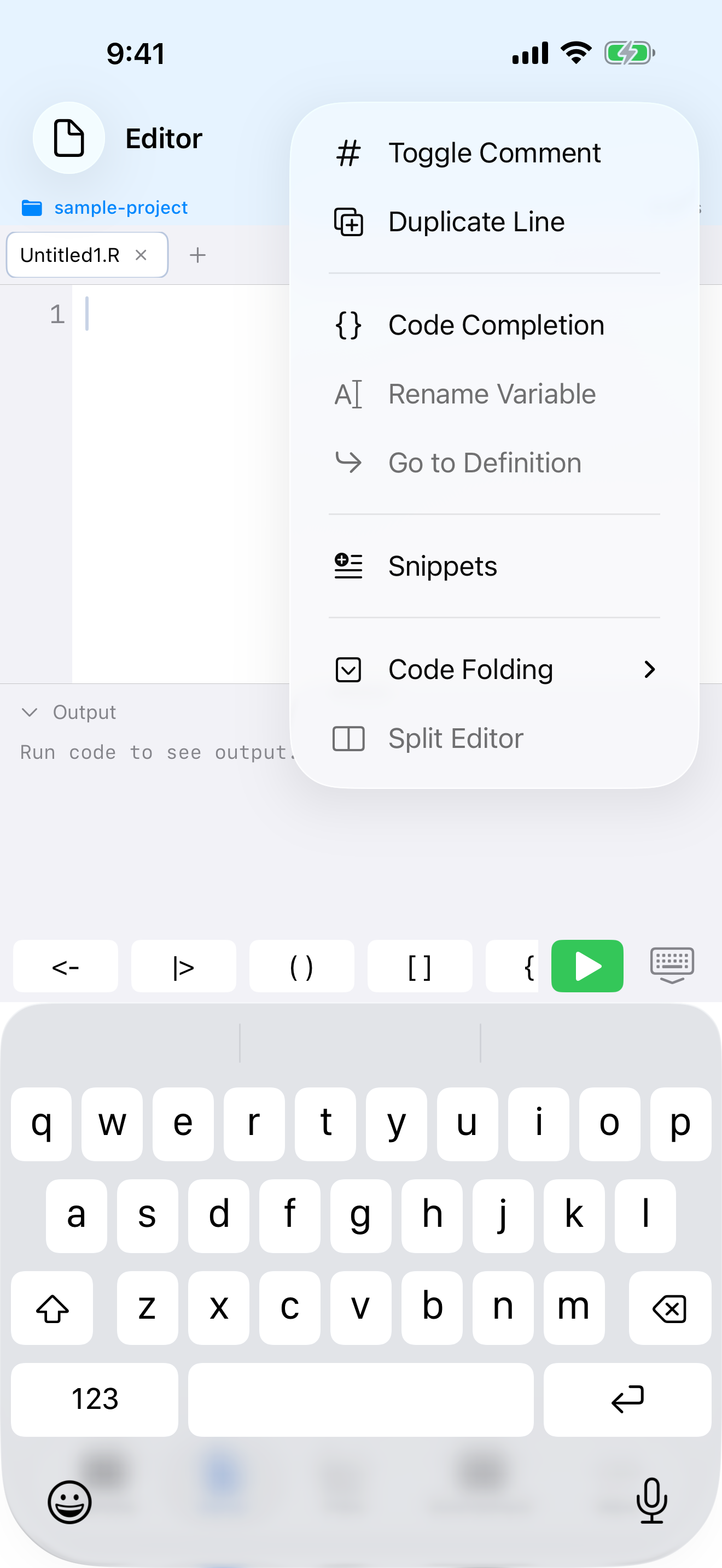
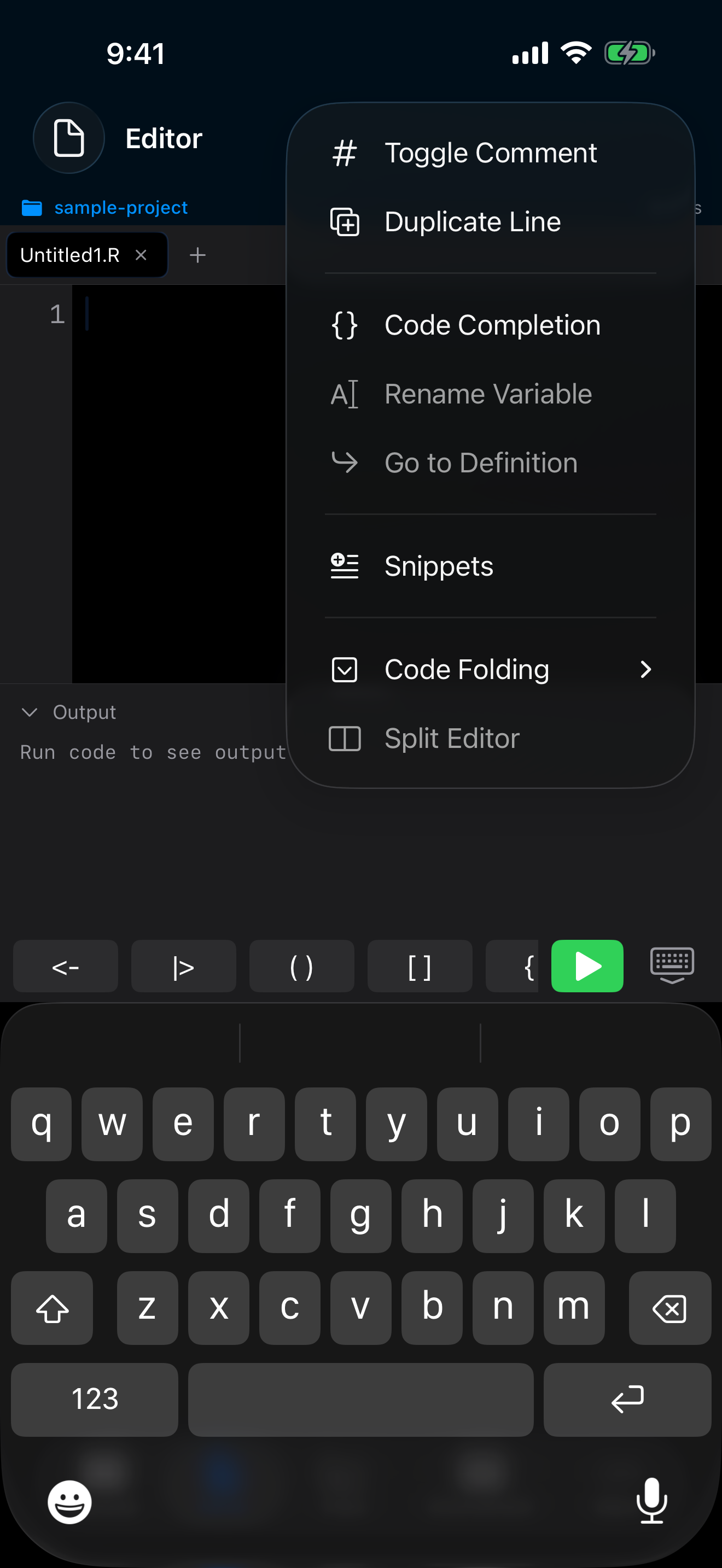
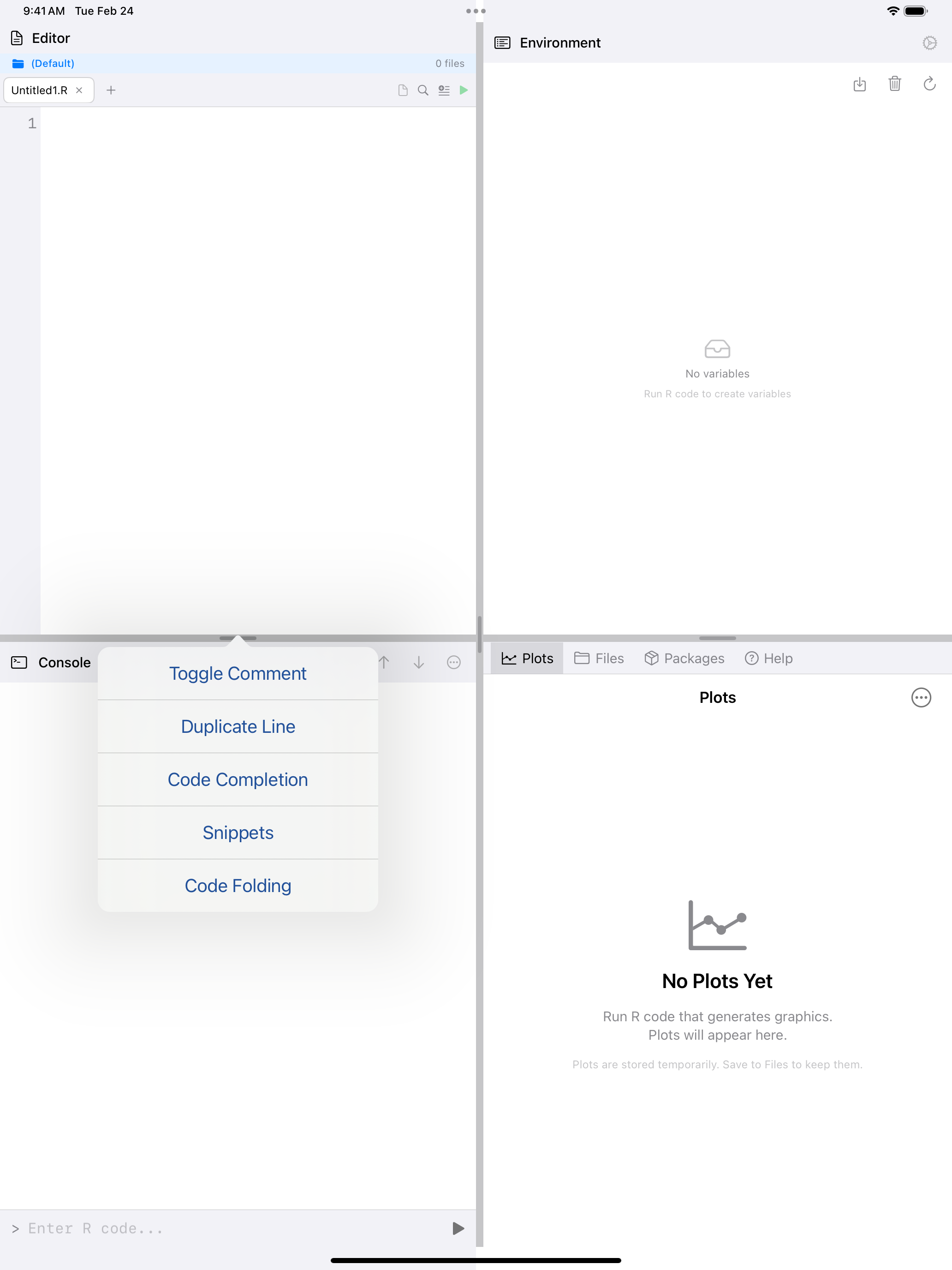
- Editor actions button (the … icon): opens the menu with Toggle Comment, Duplicate Line, Code Completion, Rename Variable, Go to Definition, Snippets, Code Folding, and Split Editor
The … menu also provides quick access to features like:
- Undo and Redo: the toolbar provides undo/redo buttons, and they work with standard keyboard shortcuts too (Cmd+Z, Cmd+Shift+Z)
- Toggle Comment: quickly comment or uncomment lines from the … menu
- Rename Variable: select a variable name, then choose Rename Variable from the … menu to rename it everywhere in the current file
- Go to Definition: select a function name and choose Go to Definition to jump to where it is defined in your project
- Code Outline: navigate large scripts by viewing a structural outline of your functions and sections (File menu > Navigate > Code Outline)
- Jump to Line: quickly jump to a specific line number (File menu > Navigate > Jump to Line)
- Pinch to Zoom: adjust the editor font size with a pinch gesture, just like in a web browser