Accessibility
webRios follows the accessibility settings on your device. There is nothing to turn on in the app. Change a setting in iOS Settings and the app responds, usually at once.
| Feature | In webRios | In iOS Settings |
|---|---|---|
| VoiceOver | Buttons and rows have spoken names, and results are announced. | Accessibility > VoiceOver |
| Larger Text | App text grows. Code keeps the size you set. | Accessibility > Display & Text Size > Larger Text |
| Increase Contrast | Text colors rise to 4.5:1, in any theme. | Accessibility > Display & Text Size > Increase Contrast |
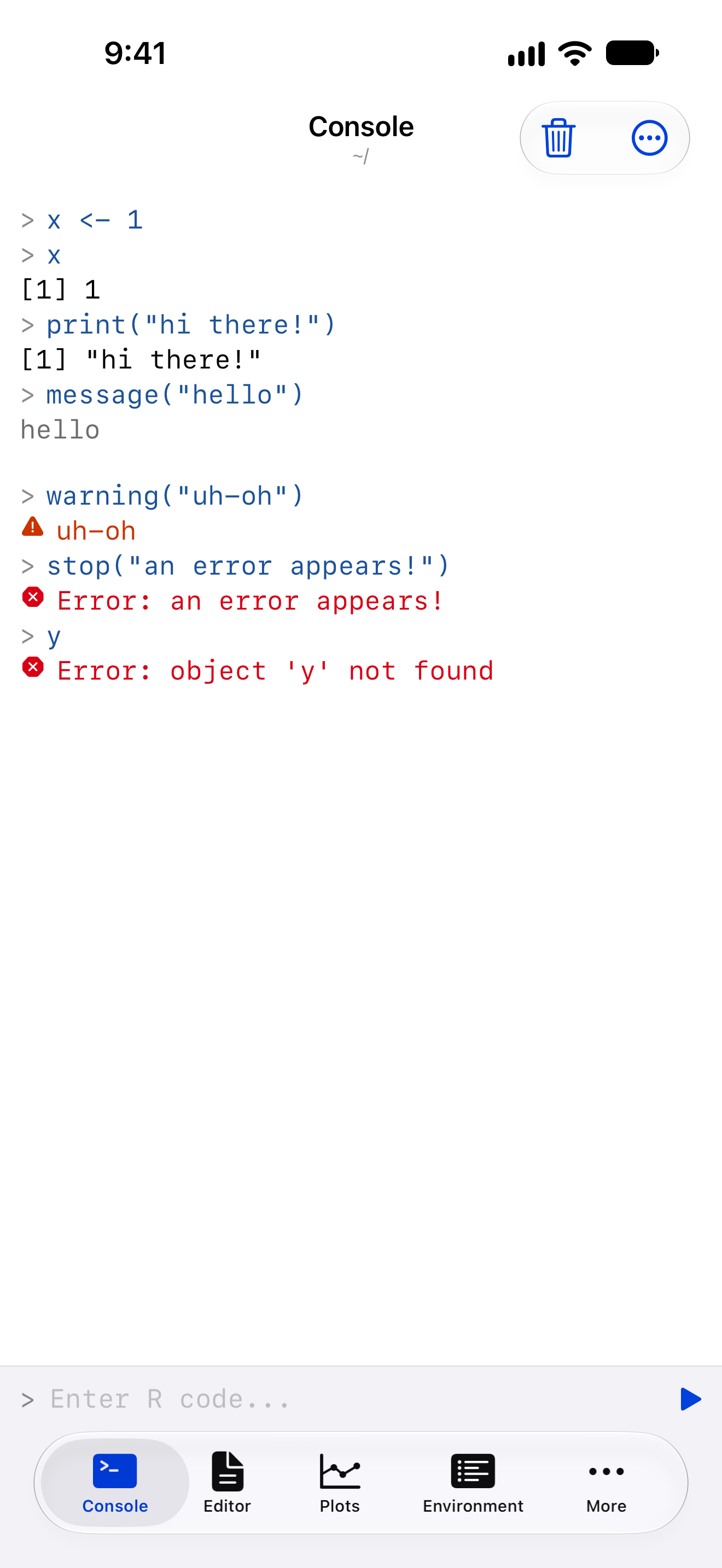
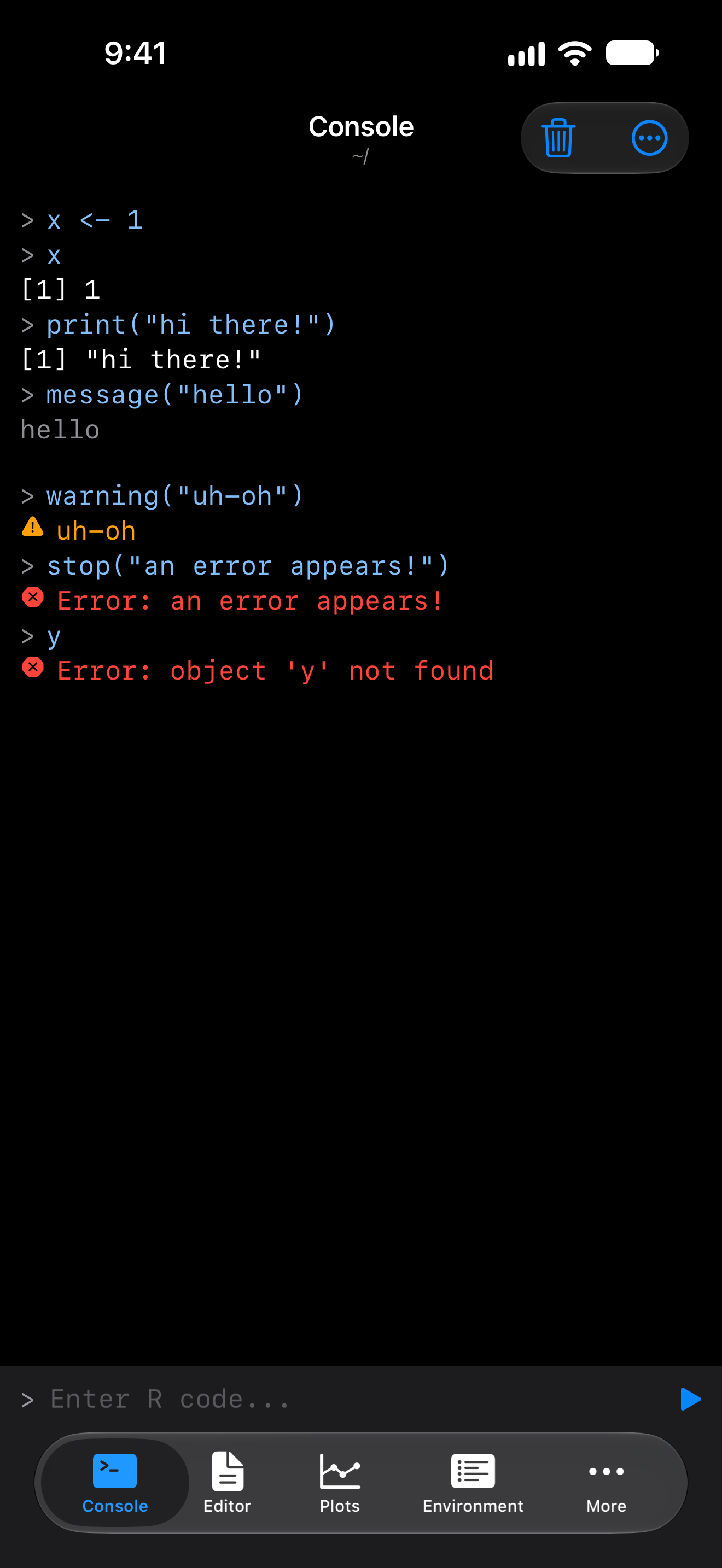
| Differentiate Without Color | Console errors and warnings get a symbol. | Accessibility > Display & Text Size > Differentiate Without Color |
| Reduce Motion | Slides and springs become cross-fades. | Accessibility > Motion > Reduce Motion |
| Light and dark | The app follows the system appearance. | Display & Brightness |
VoiceOver
| Element | VoiceOver reads |
|---|---|
| Icon-only button | What it does, such as “Previous page” |
| File row | Name, type, size and date |
| Variable row | Name, class and size |
| Console line | Its kind, then its text, as in “Error: could not find function” |
| History row | “mean(x), succeeded, from Console, 2 minutes ago, 12 milliseconds” |
| Plot | The code that drew it, as in “Plot 2 from plot(mtcars$wt, mtcars$mpg)” |
| Data frame header | Name, type, sort and filter state |
| Data frame cell | Row, column and value, as in “Mazda RX4, mpg, 21” |
| Shortcut | Words, such as “Command Return” |
| Help argument | “Argument na.rm” |
History, Search in Files, Code Outline, snippet and Toolbar Buttons rows are single buttons. Full-size plots have zoom actions and Reset zoom. Data frame cells offer Copy Value. The split editor’s divider and the output panel’s handle adjust with a swipe up or down.
Announcements
VoiceOver speaks the outcome of work that finishes out of sight. Errors are spoken at high priority.
| Event | VoiceOver says |
|---|---|
| A run ends | Its error, or its first two lines of output and the number of plots. Otherwise “Done, no output”, or “Interrupted” after Stop. |
| An install ends | “Installed” and the package names |
| A script run from Files ends | Its outcome |
| A completion list opens | The number of completions |
| A help page loads | The topic’s name |
Under VoiceOver or Switch Control, a completion list stays open until you choose.
Actions rotor
Long-press menus are also in VoiceOver’s Actions rotor. Swipe up or down to choose. Each row offers the actions that apply to it.
| Row | Actions |
|---|---|
| Variable | Summary, Structure, Head, Print, Plot, Inspect, Watch or Unwatch, Delete |
| File | Open in Editor, Import into R, Load into R, Run Script, Open in New Window (iPad), Rename, Delete |
| Plot thumbnail | Pin or Unpin, Export, Delete |
Larger text
App text follows Larger Text, accessibility sizes included. The screenshots show Settings at the default size and at an accessibility size.
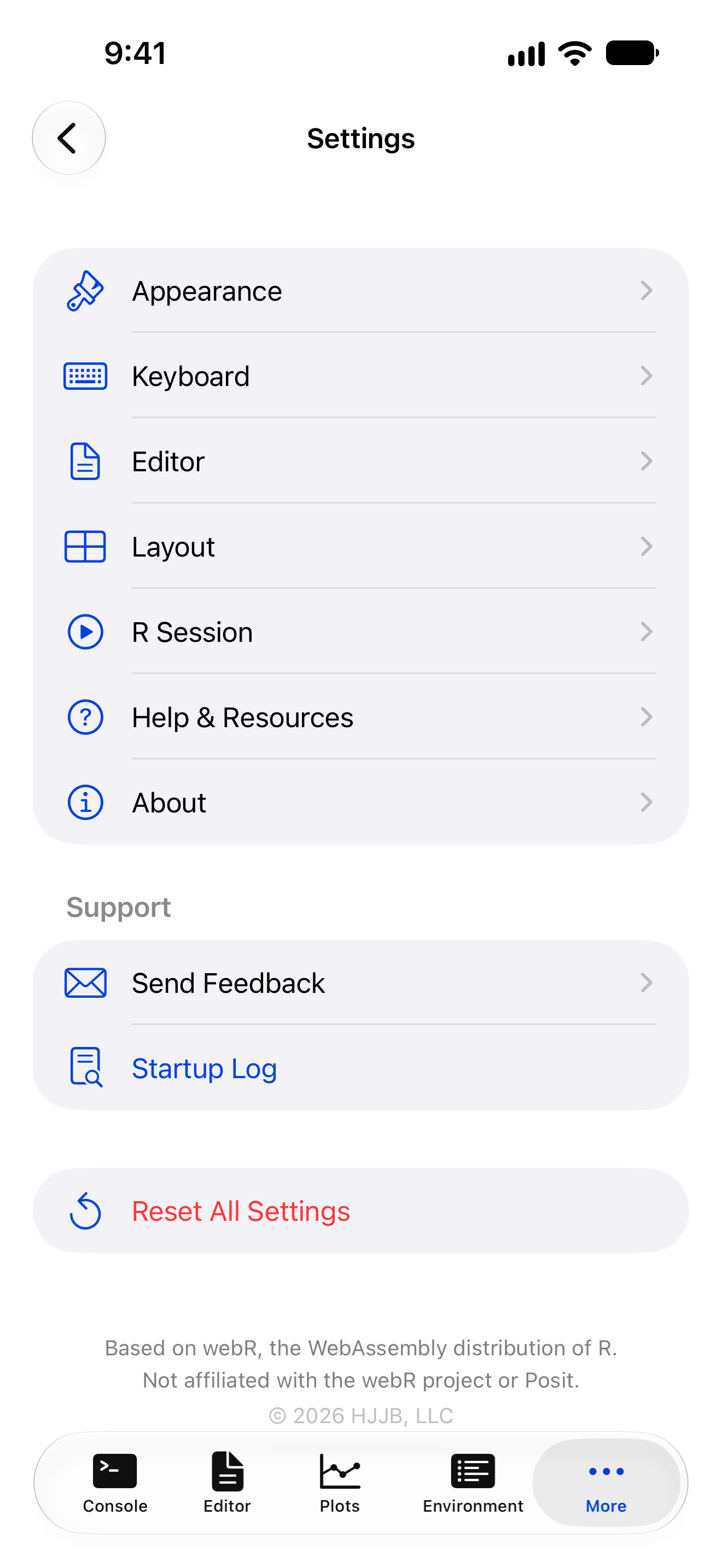
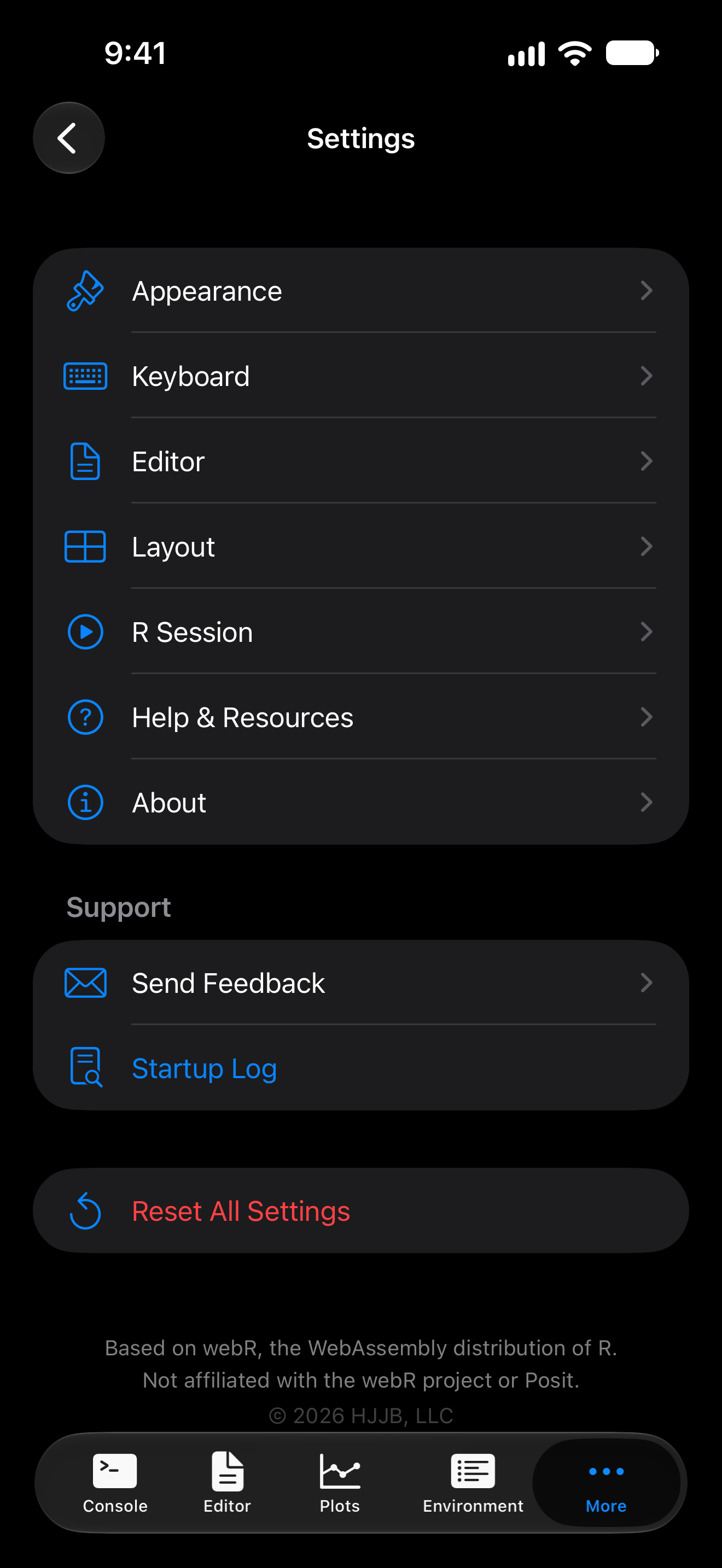
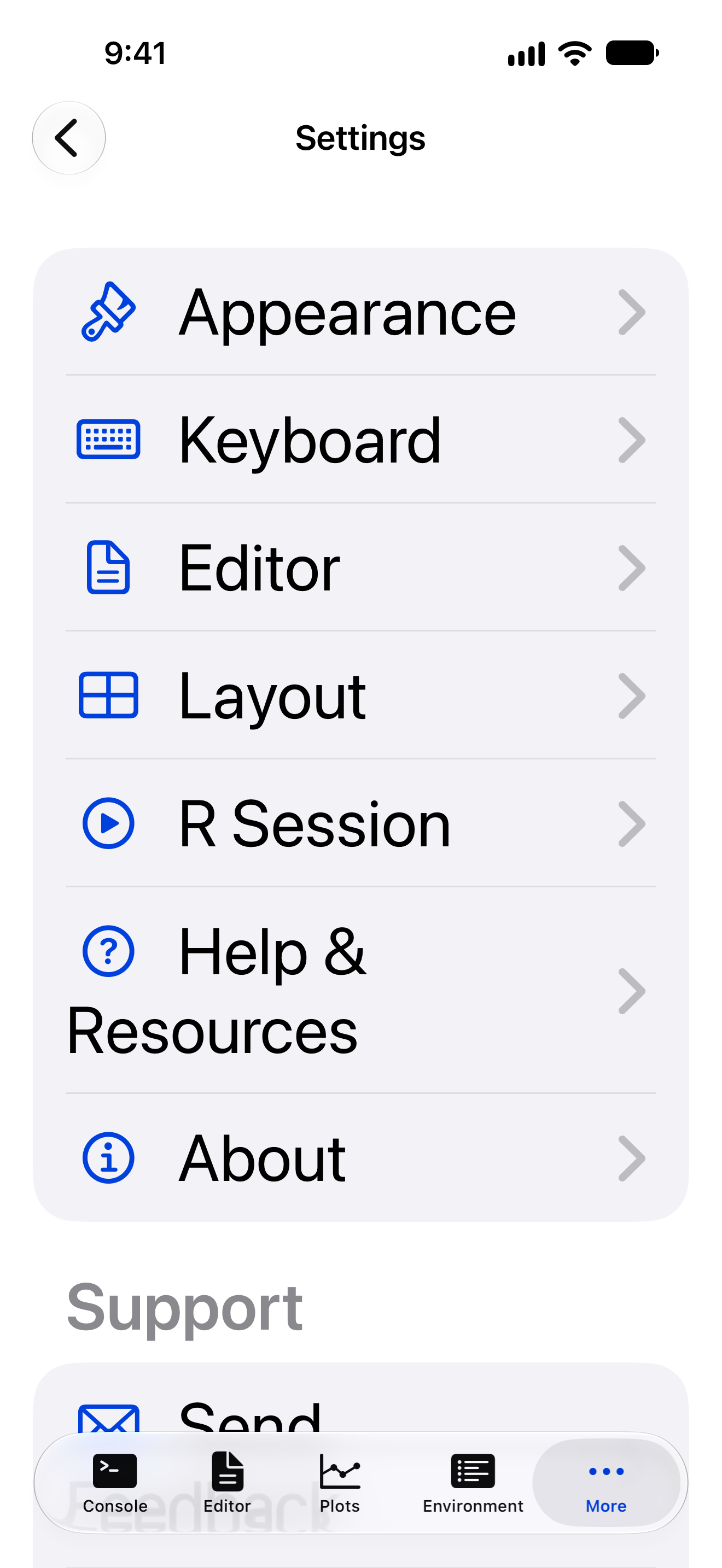
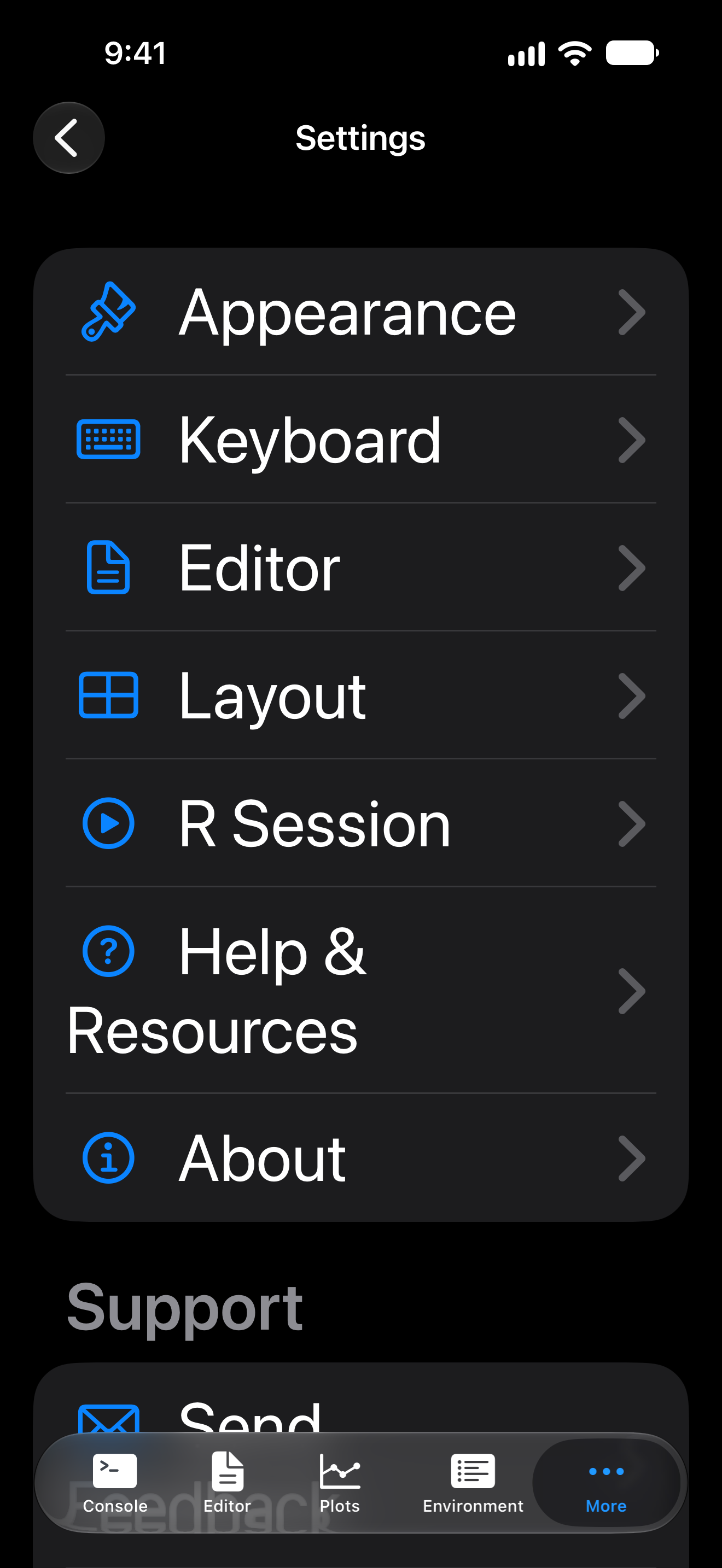
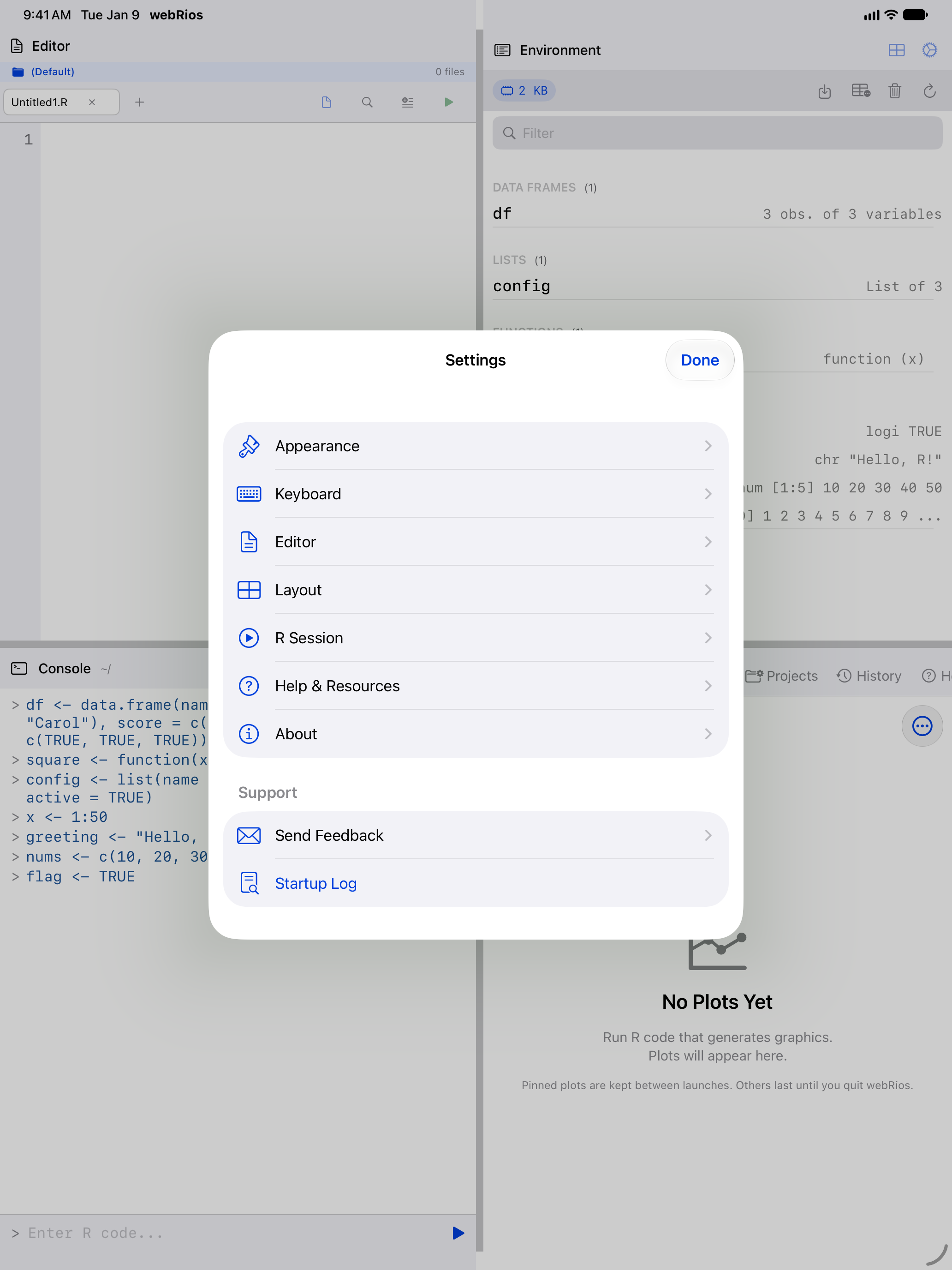
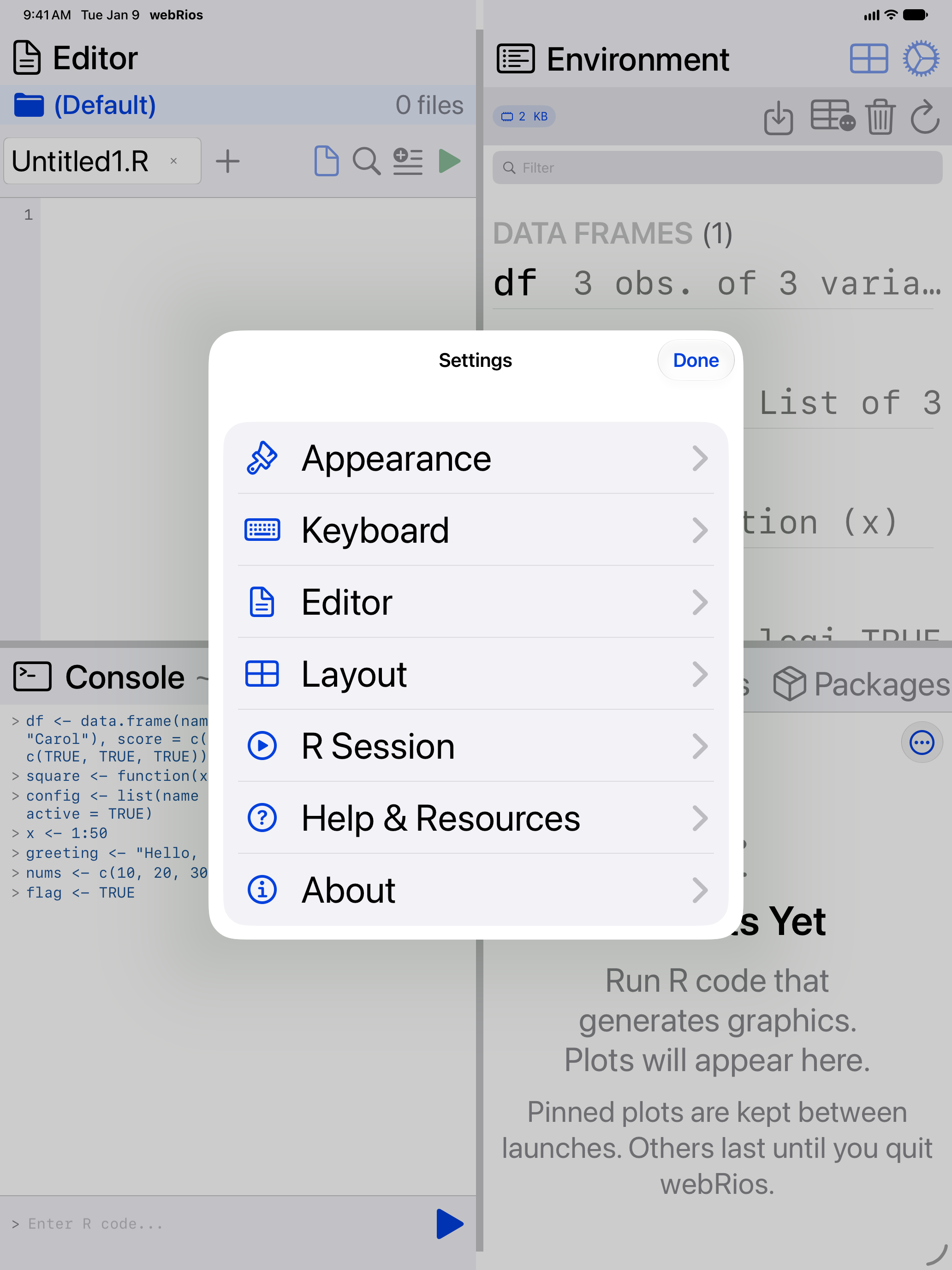
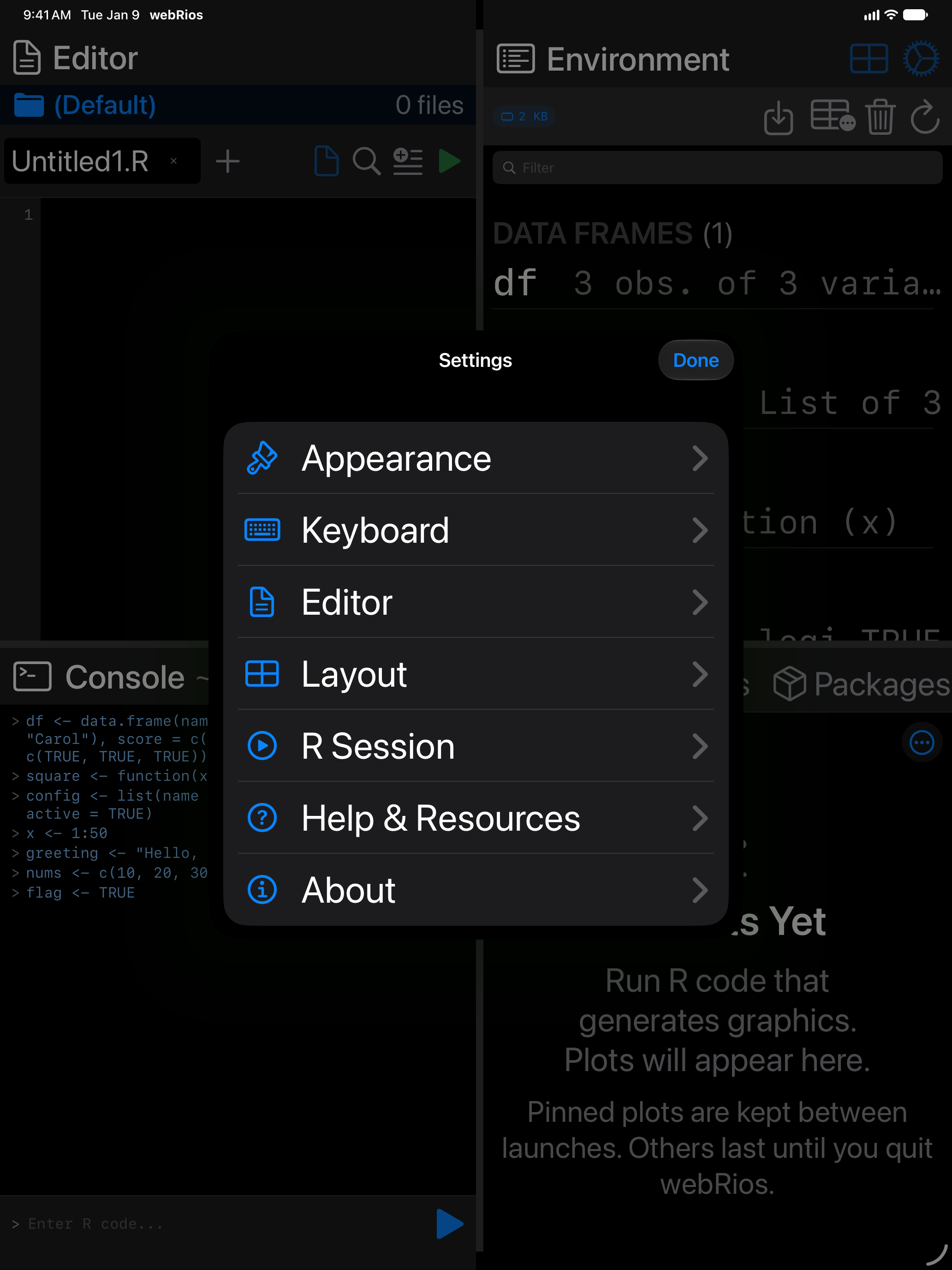
Code is the exception. The editor and console use the sizes you set in Settings > Appearance > Fonts, 12 pt to 30 pt. The data frame grid stops growing at the third accessibility size.
Increase Contrast
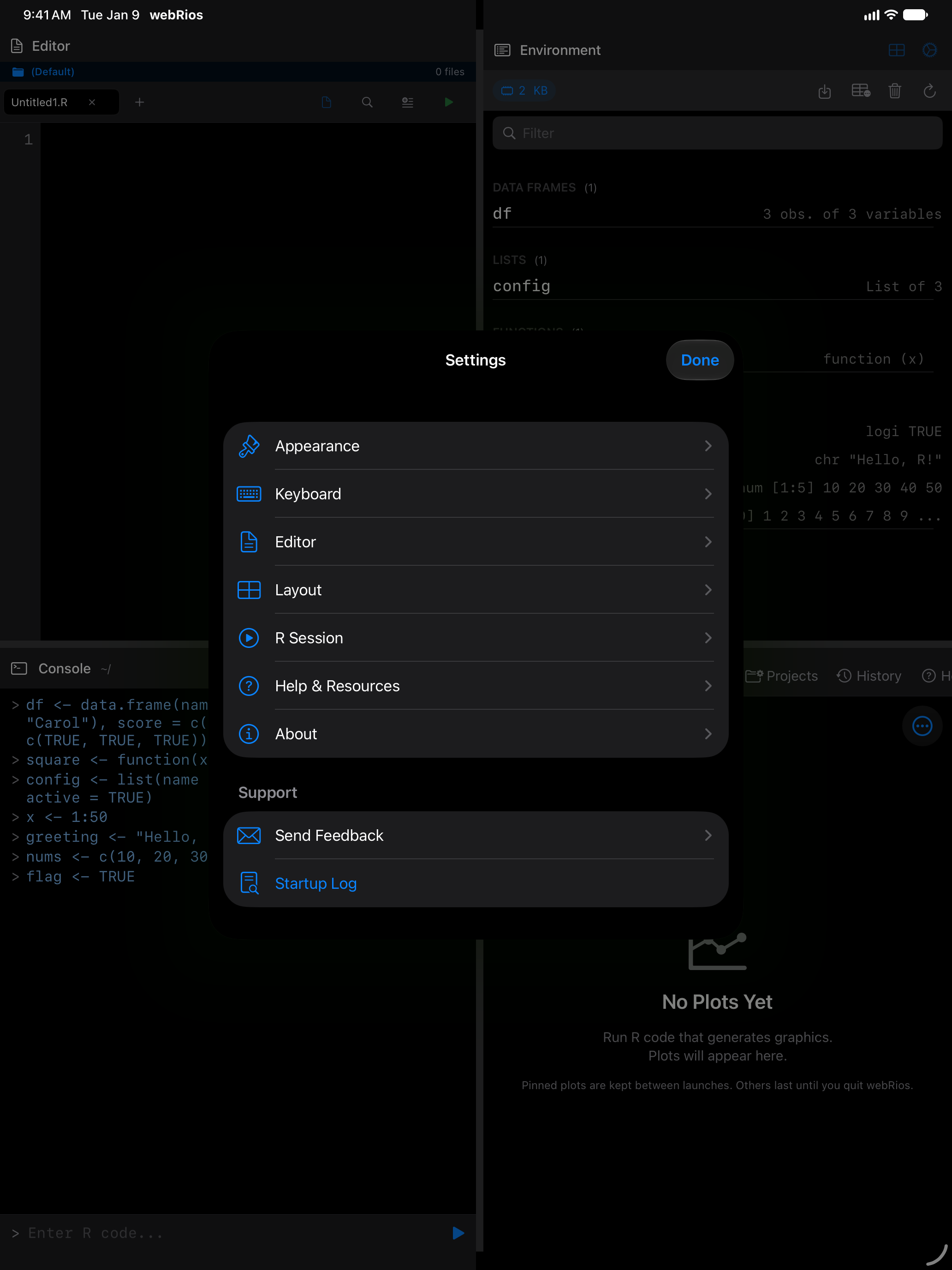
Text colors rise to WCAG AA, 4.5:1 against their background, and separators to 3:1. Backgrounds stay, so a theme still looks like itself. The screenshots show Solarized Light, and Dracula in dark mode, with the setting off and on.
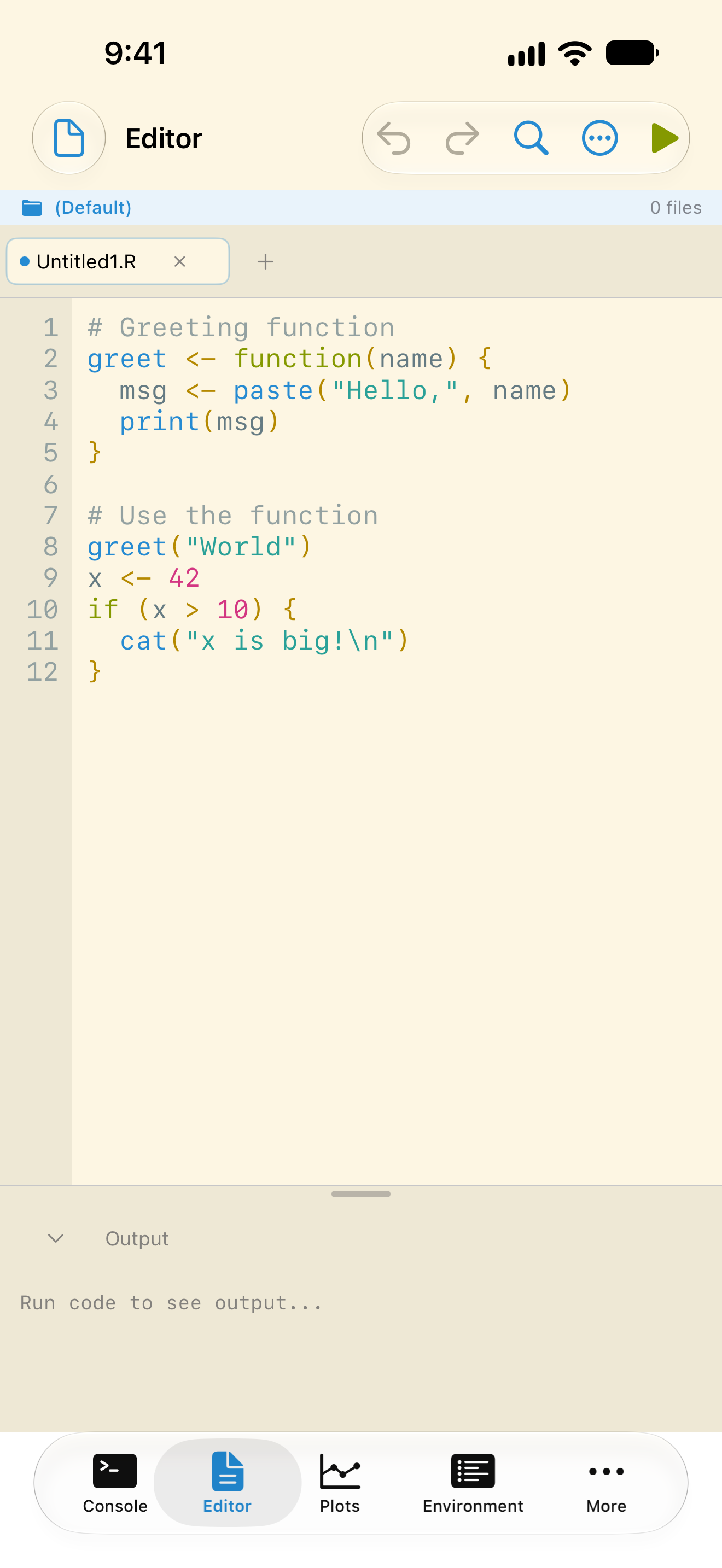
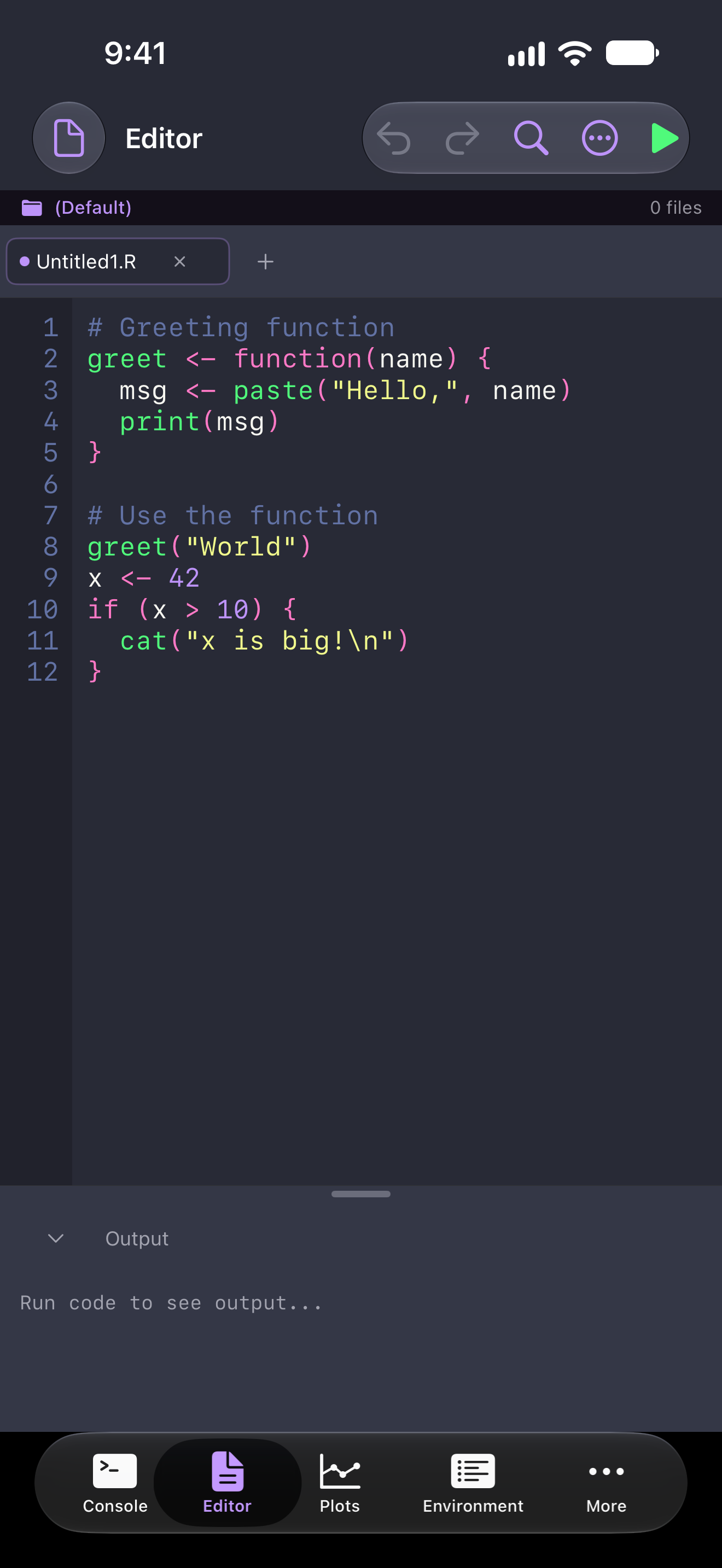
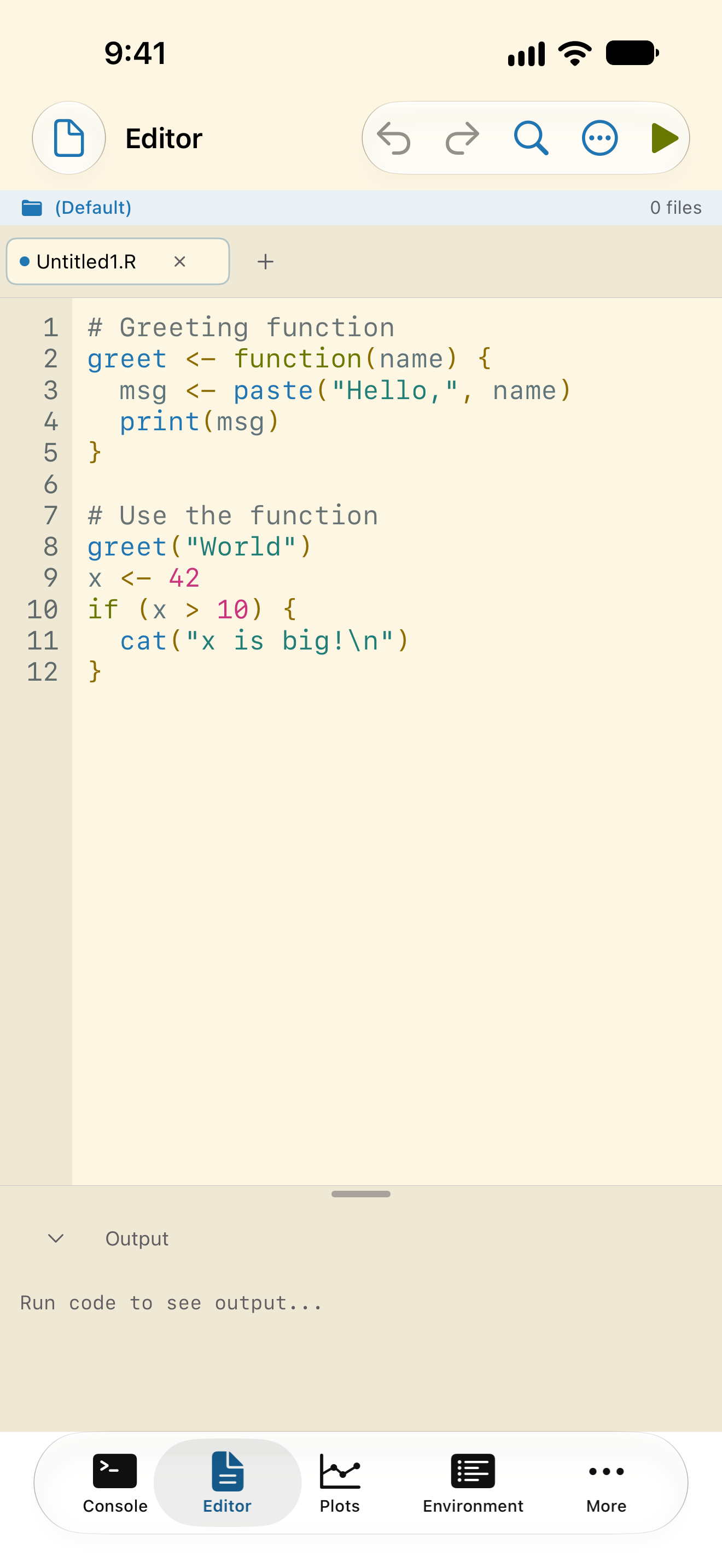
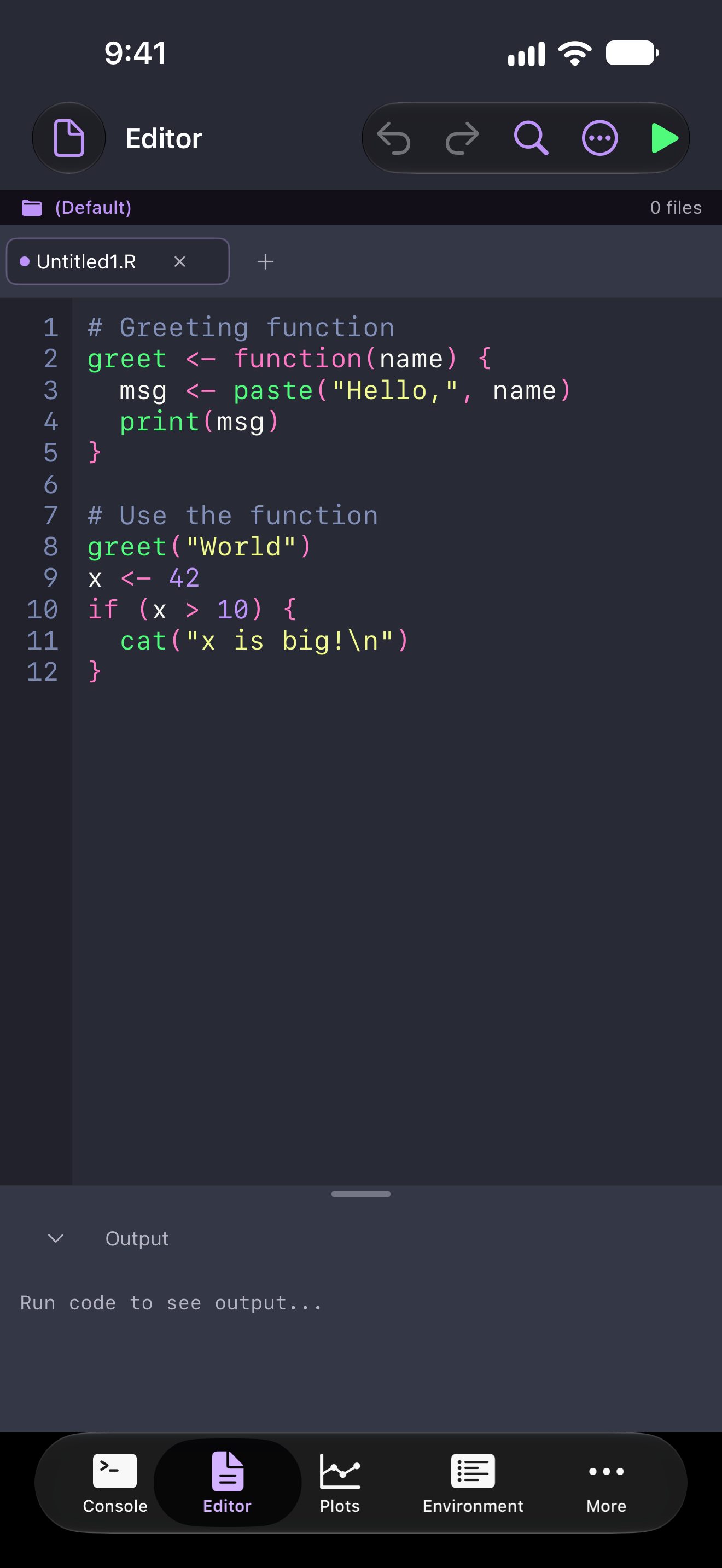
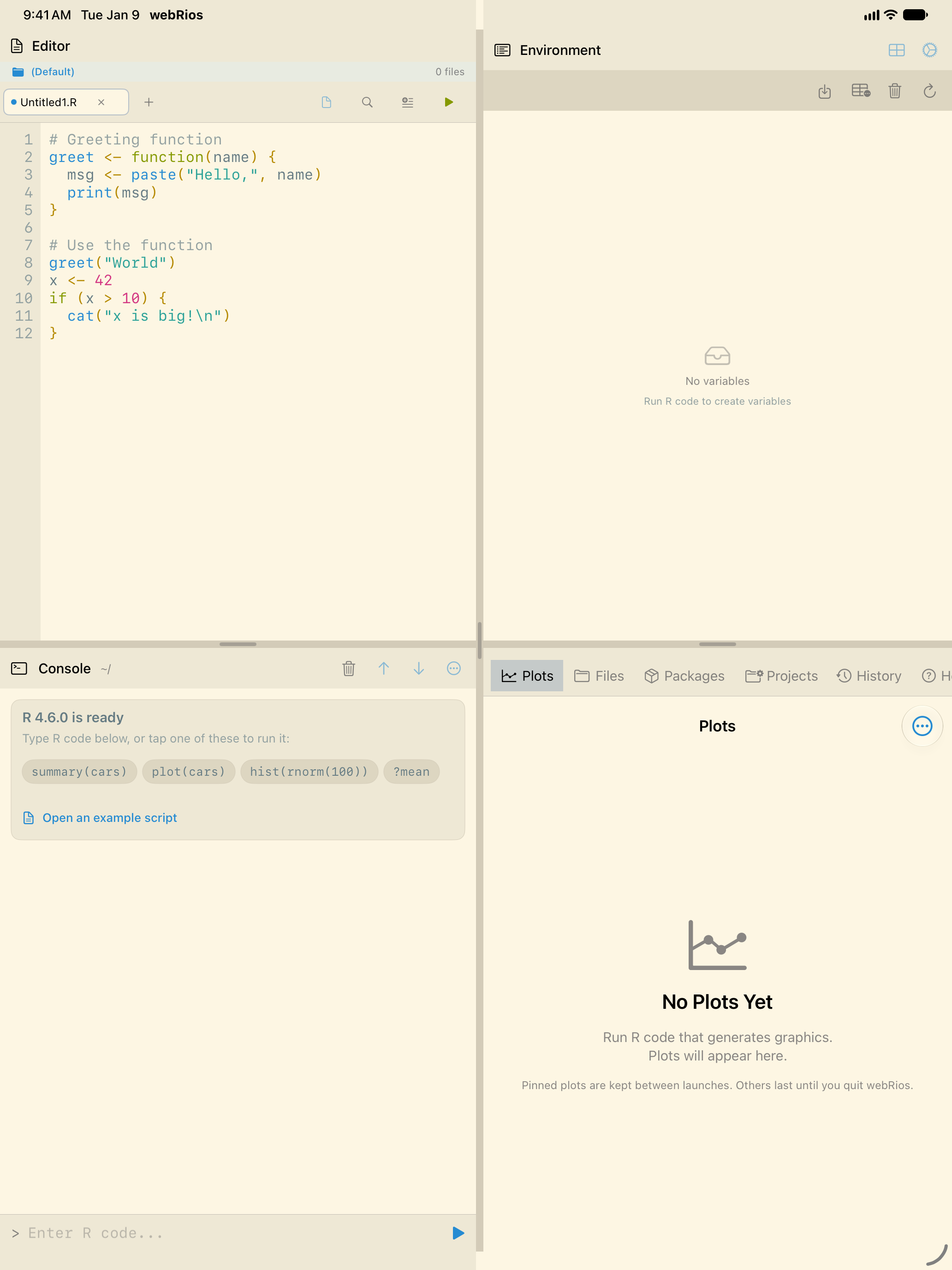
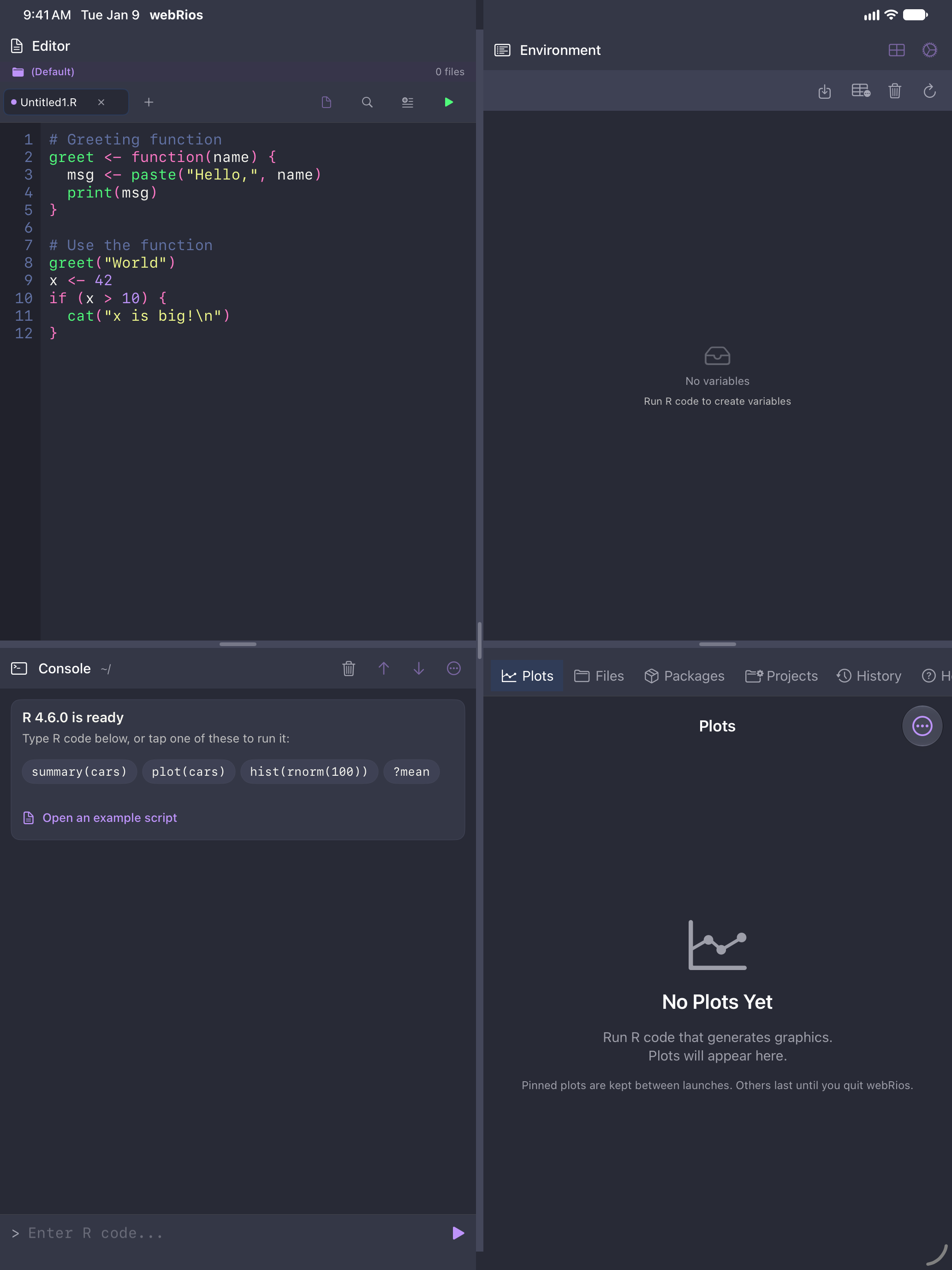
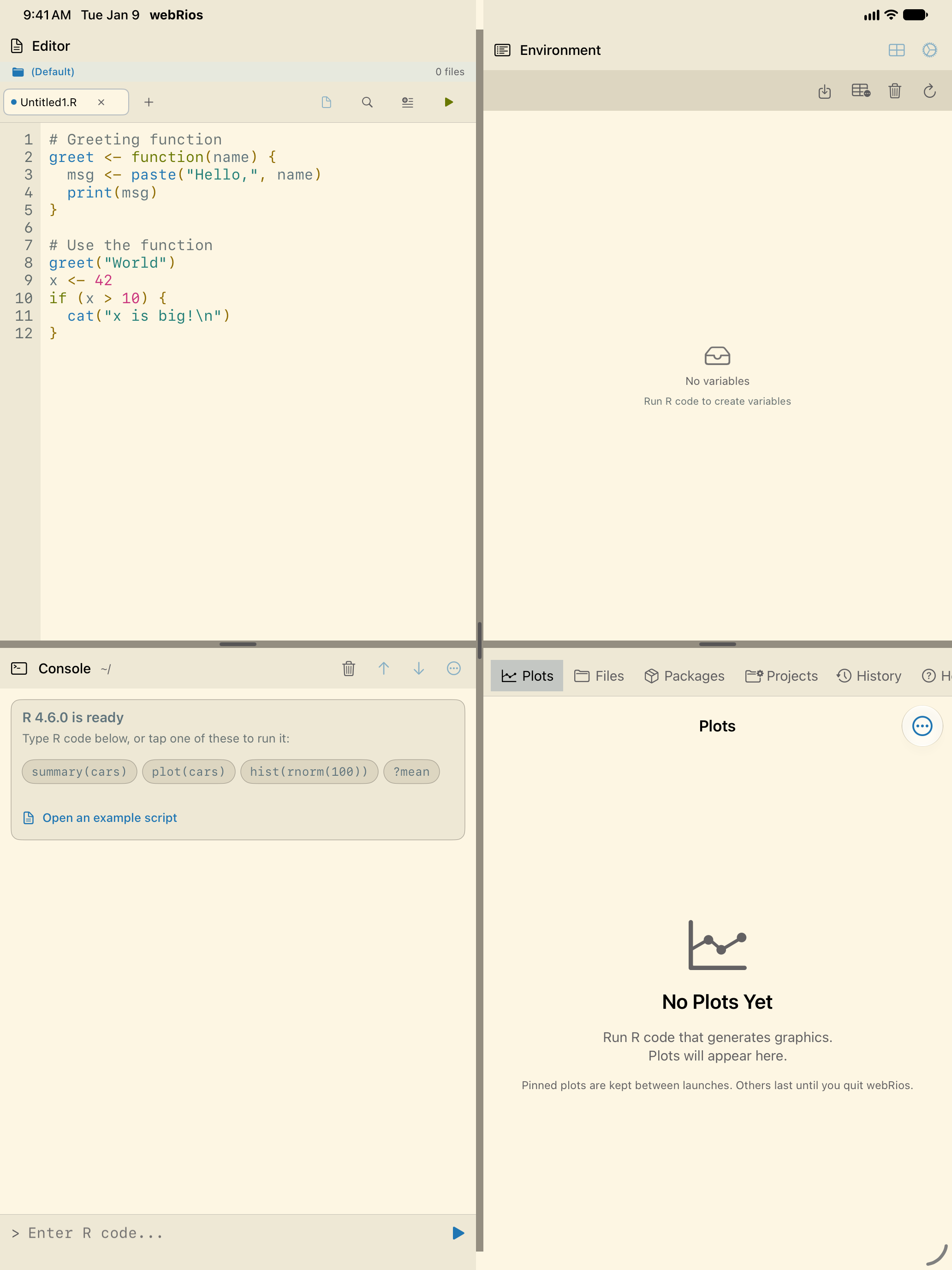
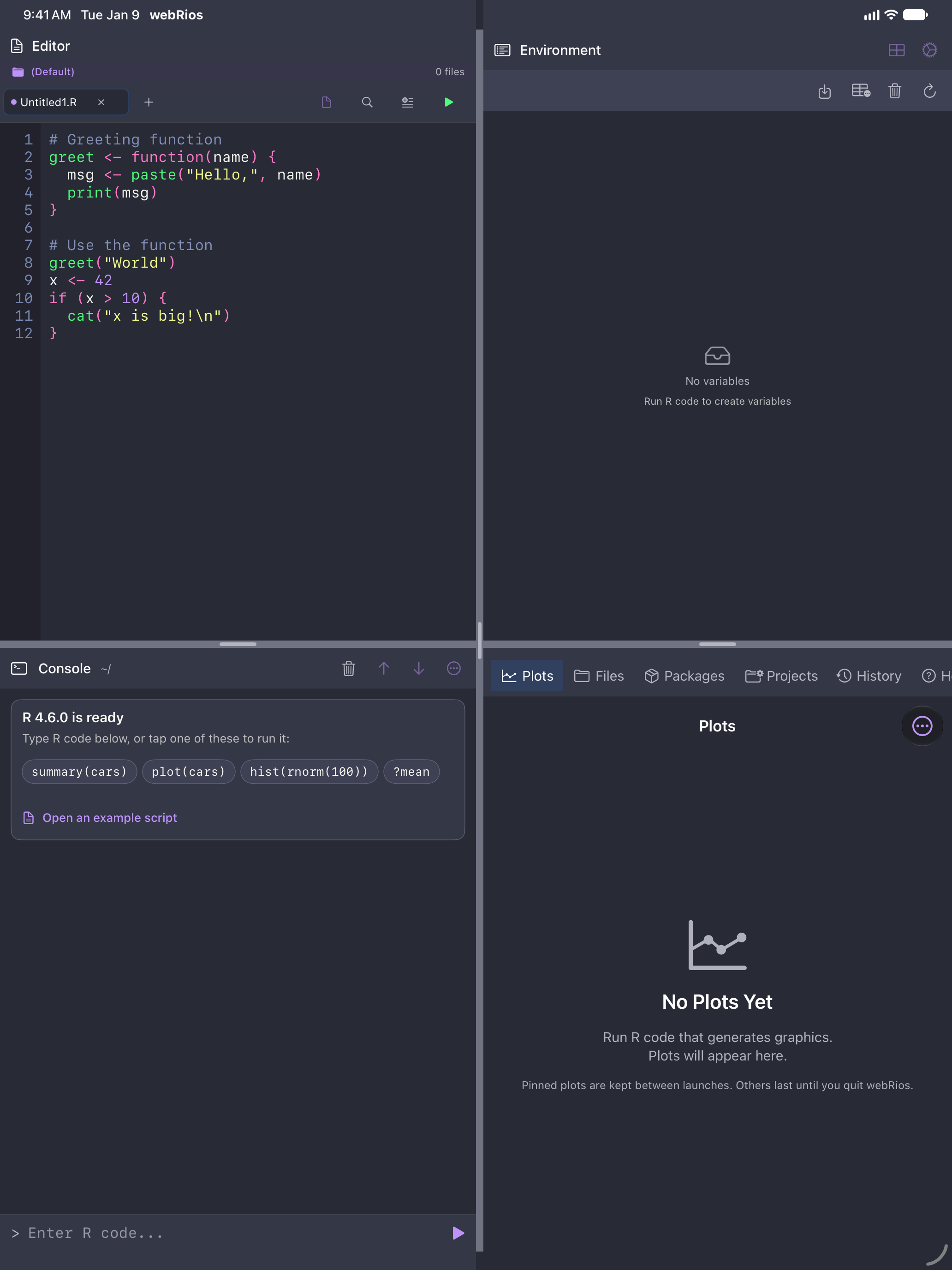
It works in any theme, custom and imported ones included. The two Default themes meet AA as shipped. The other seven reproduce other editors’ palettes, and some put comments below AA. A Dracula that doesn’t look like Dracula isn’t Dracula, so they stay that way until you turn this on.
Differentiate Without Color
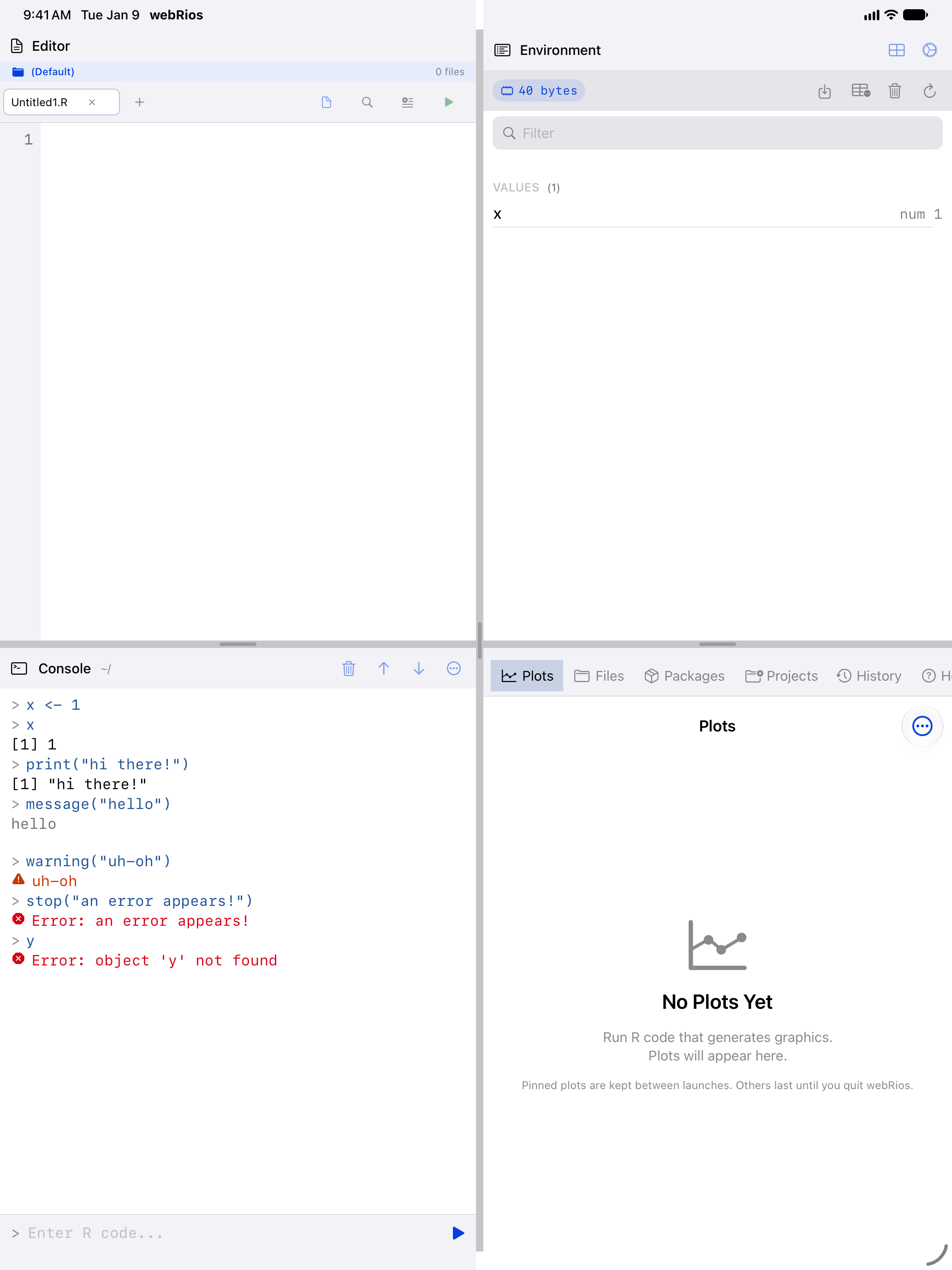
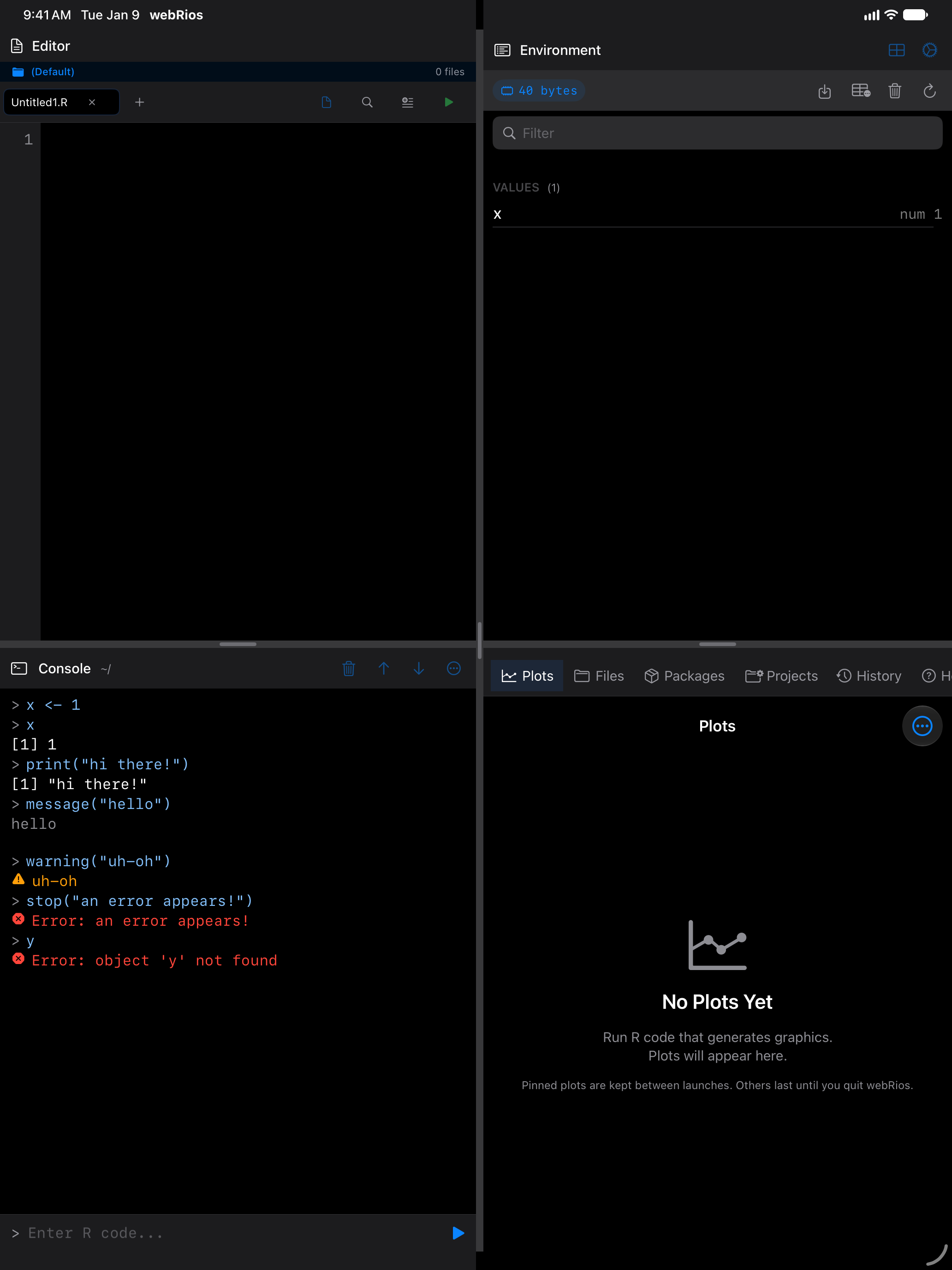
Console errors, and anything R writes to standard error, get an octagon. Warnings get a triangle. Ordinary output and your input stay unmarked.
Reduce Motion
Animations that slide or spring cross-fade instead, among them new plots in the gallery, the editor’s inline panels and plot zoom.
Report a problem
If something does not work as described, please get in touch. Accessibility problems are treated as bugs, not feature requests.